Agent Console is a local terminal dashboard for Codex, Claude Code, and pi. It discovers recent sessions, shows their current state, resumes the native agent UI, and keeps same-workspace shells beside each agent.

Twenty sessions across seven workspaces, every provider in one list. A session
stops for an approval, the dashboard raises an alert, and a jumps straight to
it. s opens a shell in that session's own directory, beside the agent.
What it provides
- Codex, Claude Code, and pi sessions grouped by workspace
- Working, waiting, idle, and failed status at a glance
- Same-provider progress summaries
- Native agent resume instead of a replacement chat UI
- Multiple persistent shell panes in the agent workspace
- Search, archive/restore, alerts, and mouse scrolling
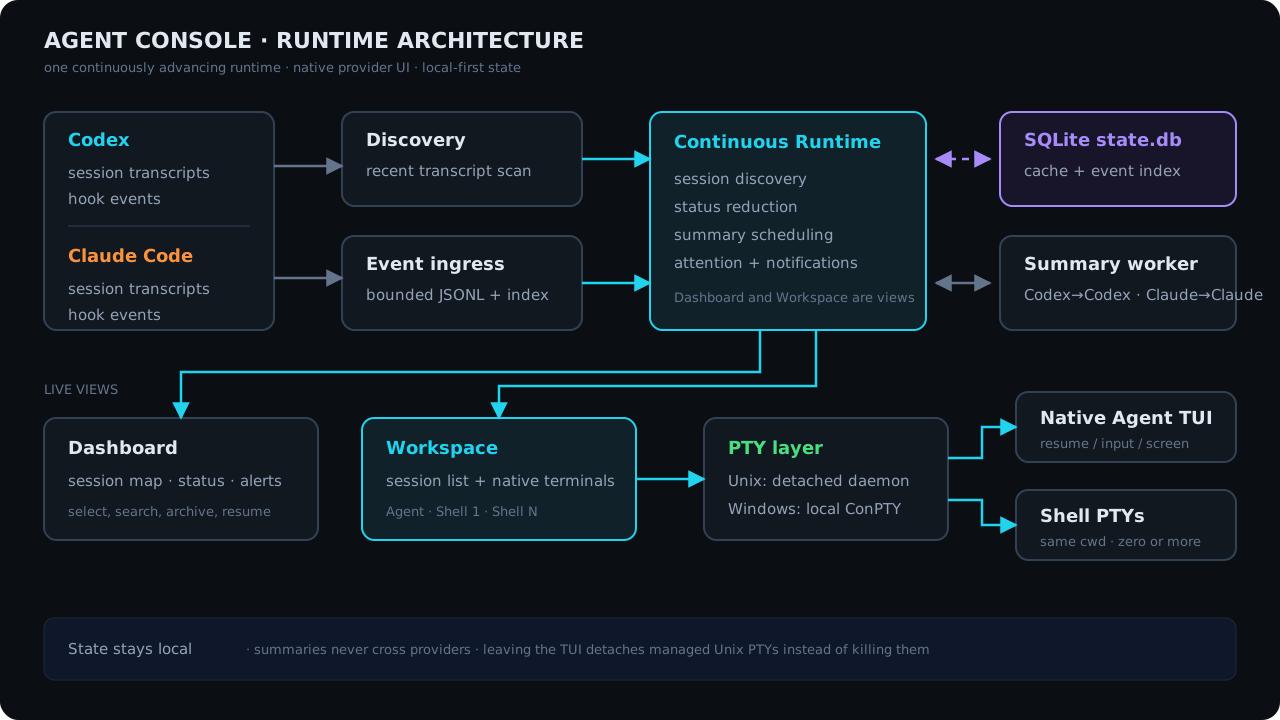
Architecture
Requirements
- macOS, Linux, or Windows 10+
codex,claude, and/orpiavailable onPATH- A terminal with ANSI and mouse support
Install
Download the package for your platform from GitHub Releases:
- macOS Intel:
agent-console-v<version>-x86_64-apple-darwin.tar.gz - macOS Apple Silicon:
agent-console-v<version>-aarch64-apple-darwin.tar.gz - Linux Intel:
agent-console-v<version>-x86_64-unknown-linux-gnu.tar.gz - Linux ARM64:
agent-console-v<version>-aarch64-unknown-linux-gnu.tar.gz - Windows Intel:
agent-console-v<version>-x86_64-pc-windows-msvc.zip
With a Rust toolchain installed, you can instead build and install the published crate:
cargo install agent-console
From a source checkout, make install builds the release binary and installs
it to ~/.local/bin using an atomic rename:
make install
Set PREFIX to install elsewhere, for example
make install PREFIX=/usr/local.
Extract the archive and place agent-console (agent-console.exe on Windows)
in a directory on PATH. On macOS, install and upgrade it with an atomic
rename so the kernel never reuses a cached signature from the old inode:
sudo install -m 755 ./agent-console /usr/local/bin/agent-console.new
sudo mv -f /usr/local/bin/agent-console.new /usr/local/bin/agent-console
Do not copy directly over a running or previously launched signed binary on macOS. Agent Console is a terminal program; launch it from your terminal rather than Finder.
Published macOS binaries are signed with Developer ID, use the hardened
runtime, and are accepted by Apple's notarization service. Because Apple cannot
staple a ticket to a standalone executable or tar.gz, macOS may perform an
online notarization lookup on first launch.
Start
agent-console
agent-console --version and agent-console --help print metadata without
opening the dashboard.
Check provider and terminal prerequisites without opening the dashboard:
agent-console doctor
Browser access
agent-console serves the web UI while the dashboard runs -- one process, one
set of sessions, no second command:
web http://127.0.0.1:7878/?token=<token> random token in the URL (set --auth for HTTP Basic)
That line is the dashboard's second header row, and the address is also in the
help panel (?). Open it and the page stores the token and drops it from the
address bar. On a phone, browse to http://<your-machine-ip>:<port>/ and paste
the token when prompted.
The address and credentials are configurable on the command line, in the environment, and in the config file, in that order of precedence:
agent-console --host 0.0.0.0 --port 8080     # reachable from your phone
agent-console --auth alice:hunter2           # HTTP Basic instead of a token
agent-console --no-web                       # dashboard only
| Setting | Command line | Environment | config.toml |
|---|---|---|---|
| Bind address | --host <H> |
AGENT_CONSOLE_WEB_HOST |
[web] host |
| Bind port | --port <P> |
AGENT_CONSOLE_WEB_PORT |
[web] port |
| Credentials | --auth <user>:<pass> |
AGENT_CONSOLE_WEB_AUTH |
[web] auth |
| On/off | --no-web |
AGENT_CONSOLE_WEB_ENABLED |
[web] enabled |
[web]
host = "0.0.0.0"
port = 8080
auth = "alice:hunter2"
enabled = true
host takes a hostname (localhost) as readily as a literal (0.0.0.0, ::,
192.168.0.103); it is resolved at bind time and an unresolvable name is
reported as such. Everything after the first colon in auth is the password,
so passwords may contain colons.
Prefer AGENT_CONSOLE_WEB_AUTH or the config file over --auth: a password on
the command line is visible in ps output to every other user on the machine.
With credentials configured the server uses HTTP Basic, and the browser draws the credential prompt itself. With none configured it falls back to the random per-process URL token shown above. It is never unauthenticated.
If the port is already in use the dashboard still starts; the header says
web off · 127.0.0.1:7878 is already in use and nothing is served. Nothing
silently moves to a different port.
For a machine with no terminal attached, the server still runs on its own:
agent-console web --host 0.0.0.0 --port 8080 --auth alice:hunter2
The page is an installable PWA, so "Add to Home Screen" gives it a standalone window and an offline app shell; sessions themselves always need the server. Install and offline support require HTTPS, or localhost on the host machine. Plain HTTP at a LAN IP does not provide the offline app shell on a phone.
The browser gets the same session list, and can create, attach to, archive and terminate sessions. Each session has three views. Conversation reads the transcript and sends prompts. Shell is a login shell in the session's working directory -- several per session, switchable, and the same daemon terminals the dashboard's shell panes use, so a shell opened in either place shows up in the other. Agent TUI streams the agent's own PTY, so its terminal UI renders as it does in the dashboard.
A blocking dialog -- "trust this folder", a tool permission request, an update prompt -- is never written to a transcript, so the Conversation view reads it off the screen and offers its options as buttons. Both shapes are understood: the numbered menus Codex uses, and the cursor menus Claude Code and pi use, where the answer is arrow keys rather than a digit. A cursor menu is answered in two steps -- move the highlight, read it back, and only then press Enter -- because a label that wraps at the window width is indistinguishable from a second option, and confirming the neighbour of what you tapped is not a mistake worth risking. Until a dialog is answered the composer says so rather than losing the prompt into it. This matters most for pi, which emits no events at all while its trust dialog is up, so the screen is the only place that dialog exists. The layout adapts to phone or desktop, and because a phone keyboard has no Esc, Tab, Ctrl or arrows, a touch toolbar supplies them, with Ctrl as a sticky modifier.
The websocket is an unrestricted PTY channel: anyone who gets past the credential check gets full shell access to the machine, every session shares one credential, and there is no built-in TLS. Binding to anything other than localhost prints a warning and marks the dashboard header. Put a reverse proxy with TLS in front of it before exposing it beyond a network you trust.
Known limits
The dashboard and the browser share one set of sessions, so a session open in the dashboard stays usable from a phone; a frame's expensive work runs behind that session's own lock rather than the shared one.
Alerts live in memory and start empty after a restart -- "what happened since I last looked" reaches back only as far as the running process.
A program that takes the alternate screen (vim, less) has no scrollback to
recover, in the browser or the dashboard -- so no agent is allowed to take it.
Codex is asked with --no-alt-screen; Claude Code's switch is an environment
variable, CLAUDE_CODE_DISABLE_ALTERNATE_SCREEN, which the console sets for it;
pi is launched with --tui-mode regular so a saved tuiMode: "fullscreen" does
not take the history away. Set the Claude variable yourself and your choice is
kept, including turning it off -- at the cost of an Agent TUI tab that shows the
current screen and nothing above it.
The same session can be open in several places at once -- a desktop browser, a phone, the dashboard's own workspace -- and they share one PTY, which has one size. It runs at the smallest window attached, so the output fits all of them; a window with room to spare leaves the rest of its panel empty and says what size it is showing, rather than re-wrapping the output you are reading. Closing the small window gives the size back.
The PTY daemon holds every running agent's terminal, so upgrading the binary does
not restart it -- and one left over from an older build answers without the rows
above the screen, which is a browser terminal that opens with no history to scroll
back through. agent-console doctor reports it. Restarting it is the cure and it
ends every agent terminal it is holding, so it is left to you.
Provider commands
Use ~/.config/agent-console/config.toml when a provider needs a wrapper,
proxy, environment variables, or fixed arguments:
[providers]
codex = ["proxychains4", "codex"]
claude = ["env", "HTTPS_PROXY=http://127.0.0.1:7890", "claude"]
pi = ["env", "DEEPSEEK_API_KEY=sk-...", "pi"]
Missing entries use codex, claude, or pi directly. The configured command is
also used by that provider's isolated summarizer. Set
AGENT_CONSOLE_CONFIG=/path/to/config.toml to use another file.
Limit Agent Console to a subset of providers with a comma-separated
AGENT_CONSOLE_PROVIDERS:
AGENT_CONSOLE_PROVIDERS=codex agent-console
Omitted providers are not scanned and are left out of doctor. An unset or
unrecognized value keeps every provider enabled.
Controls
Archived sessions are hidden from the default list after seven days without
transcript activity. Search still finds them for restoration. To change the
cutoff, put this at the top of ~/.config/agent-console/config.toml (before any
section headings); 0 disables hiding:
hide_archived_after_days = 7
Delete old archived sessions
On macOS and Linux, preview archived sessions and their provider records. The
default is sessions with more than seven days of inactivity; --all selects
every archived session:
agent-console prune-archived --dry-run
agent-console prune-archived --days 7
agent-console prune-archived --all
The last two commands require an interactive terminal. After the preview, type
the exact phrase shown, such as DELETE 3 ARCHIVED SESSIONS. Enter alone, a
different phrase, or EOF cancels. --days is a positive number and defaults to
7 independently of the display setting above. --all and --days cannot be
combined.
Close Agent Console dashboards and web servers before deletion. Sessions with open agent or shell terminals are skipped; close those sessions before retrying. The command rechecks the preview before deleting provider transcripts, Claude session artifacts, matching Codex database rows, provider history/index entries, and Agent Console cache/event records. A changed record stops cleanup.
Keyboard controls
Dashboard:
| Key | Action |
|---|---|
↑ / ↓, j / k |
Select a session |
Space |
Fold or expand the selected workspace or Archived group |
gg / G |
Select the first / last row in the list |
Enter |
Open the selected agent |
s |
Open a shell |
n |
Create a session |
/ |
Search sessions as you type |
e |
Rename the selected session |
x |
Archive or restore |
a |
Jump to the next alert |
r |
Retry the selected session's summary now |
? |
Show all active controls |
q, Esc |
Quit |
When another Agent Console owns the selected live session, the message shown
on screen offers t for an intentional force takeover.
Inside a session workspace:
| Key | Action |
|---|---|
Ctrl-\ |
Cycle Agent → Shell → Sessions focus |
Ctrl-^ |
Create and focus a shell |
Ctrl-N |
Focus the next shell while Shell has focus |
Ctrl-X |
Close the focused shell |
Ctrl-Q |
Return to the dashboard |
With the Sessions list focused:
| Key | Action |
|---|---|
↑ / ↓, j / k |
Select a session |
Space |
Fold or expand the selected workspace or Archived group |
gg / G |
Select the first / last row in the list |
Enter, Ctrl-\ |
Open/resume and focus its agent |
/ |
Search sessions as you type |
e |
Rename the selected session |
a |
Jump to the next unread alert |
? |
Show the Workspace key bindings |
n |
Create a session in the selected workspace |
s |
Create and focus a shell |
x |
Archive or restore the session |
h |
Maximize and focus the agent |
m |
Maximize and focus the last selected shell |
+ / _ |
Grow or shrink the shell area |
y |
Copy the latest shell command output |
1 … 9 |
Focus a numbered shell |
Workspace groups and Archived can each fold into one selectable row. Movement
and gg/G skip hidden sessions. Space or Enter expands the selected group.
Select any archived session and press Space to fold Archived. Its fold state
is separate from the active workspace groups. Folding lasts until the console
closes and is shared by both terminal lists. These keys remain normal input in
Agent and Shell panes and in text dialogs.
After h or m, use Ctrl-\ until focus returns to Sessions; the normal split
layout is restored automatically.
Agent and shell viewport controls:
| Input | Action |
|---|---|
Shift-PageUp / Shift-PageDown |
Scroll one viewport |
| Any key sent to the child | Return to live output |
| Mouse wheel | Scroll the pane under the pointer |
| Drag | Select and copy immediately; do not press Cmd-C afterward |
| Terminal bypass modifier + drag | Use native selection, then copy normally (Option-drag in iTerm2; commonly Shift-drag elsewhere) |
The new-session dialog uses Shift-Tab to switch between provider and
workspace, arrows (or h / l) to choose a provider, normal cursor movement
and editing in the workspace path, Up/Down to choose a directory completion,
Tab to accept it, Enter to start, and Esc to cancel. Search filters live
on both Dashboard and the focused Sessions list; Enter keeps the filter and
Esc restores it. It matches aliases, provider session names and generated
titles, first/latest prompts, conversation summaries, Claude tags and PR/MR
metadata, workspace names and paths, branches, provider session IDs, providers,
statuses, and active/archived state.
The three globally reserved chords — Ctrl-\, Ctrl-^, and Ctrl-Q — are the
only Ctrl combinations Codex and Claude Code leave free, so everything those
tools bind reaches them untouched: Ctrl-O (Claude's transcript toggle, Codex's
copy-response), Ctrl-], Shift-End, Ctrl-T, Ctrl-Enter, Esc, function
keys, and every other Ctrl or Alt combination. Ctrl-N and Ctrl-X are
reserved only while a shell has focus and are forwarded in Agent focus. Press
? for the authoritative context-sensitive key list, including any bindings
overridden in the configuration file.
Notes
- A session is titled by its first text prompt and keeps that title across
discovery refreshes and application restarts.
Provider-injected setup records such as
# AGENTS.md instructions, including thefor <directory>form, do not count as user prompts. Titles cached under older parsing rules are re-derived once. Later prompts and summaries never rename it. Presseon the dashboard or focused Sessions list to set your own title; Enter saves, Esc cancels, and an empty value restores the default. The dashboard binding is configurable throughaliasin[keys.dashboard]. - Summaries use the session's own provider and run outside the coding
conversation, and appear in the session preview beside the first prompt rather
than in the title. Disable them with
AGENT_CONSOLE_SUMMARIZER=off. - The summary command reuses your configured provider command, prompt included as an argument, so a wrapper that gives the provider a terminal still works.
- Agent Console can reconnect only to processes it launched and owns. Existing sessions from other terminal tabs are resumed from their saved transcript.
- Managed Codex sessions run with
--no-alt-screen, allowing the Workspace pane to retain and scroll the transcript in every Codex state. - Codex fork-subagent and Claude sidechain transcripts are excluded from Sessions; only primary sessions are discovered and tracked. Threads the Codex app imported from Claude Code or another agent are copies, so they are excluded too, unless you continue one in Codex.
- A new Codex session learns from its hooks which thread Codex created. This
needs Codex 0.124.0 or later and the hook trust Codex asks for: choose
Trust all and continue. Codex asks again if theagent-consolebinary moves. Until then, a new Codex session is listed a second time under its first prompt. - pi has no hook commands, so the console generates a small pi extension under
its state directory and launches pi with
-e. It forwards session, prompt, tool, and turn events toagent-console hook piand nothing else. If it cannot be written the session still starts; it just reports no live status. - pi is resumed with
--session-id, which creates the session when the id is new and reopens it when it is not./new,/resume,/fork, and/clonemove pi to a different session file; the console keeps its own entry and discovers the new one as a session of its own. - Each managed pane retains up to 2,000 scrollback rows. The separate 128 KiB daemon replay tail is a reconnect transport bound; crossing it does not stop the process or discard Codex's retained viewport rows.
- Local state is stored under
~/.local/state/agent-consoleby default. - Detailed behavior and constraints are documented in SPECS.md.
Build and test
cargo build --locked
cargo test --locked --all-targets
cargo clippy --locked --all-targets -- -D warnings
Provider compatibility details are in docs/compatibility.md.
Feedback
Contact support@buhuipao.com for questions.
Please use GitHub Issues for
reproducible bugs and workflow feedback. Include your operating system,
terminal, Codex, Claude Code, or pi version, and redacted agent-console doctor
output when they are relevant. Do not post tokens, private prompts, unredacted
paths, or full environment variables.
Product website
The public single-page website is in website/public. It is deployed as static
assets on Cloudflare at https://agent-console.buhuipao.com/. Local preview,
validation, and deployment commands are in website/README.md.
License
Licensed under either of [Apache