AutoYou Server
You are not the product. You are the owner.
A self-hosted AI server for the computer you already own.
Use it locally, on your home Wi-Fi, or from remote paired devices when your network setup allows it.
Paired sessions use encrypted WebRTC transport. Control access through the server's authentication and pairing settings.
Build and host web applications and games on your computer, and share supported Game Mode experiences with friends.
Use AI chat, voice, lobbies, peer calls, and remote desktop across supported paired devices.
Local models can reduce cloud token usage; configured cloud AI and hosted services can have API or subscription costs and their own data policies.
Connect without a VPN where your network supports it, or use a configured VPN such as Tailscale.
Own your data. Set your rules. Prepare your training workflows.





Quick start · How it works · AI workspace · Capabilities · Apps · Architecture · Docs · Contributing · License · Security
AutoYou Server runs on your own Windows, macOS, or Linux machine. It hosts your AI models and agents, speech, voice and video, notes and memory, and a local web console, and it lets your phone, other computers, and browsers reach it over encrypted peer-to-peer connections. Conversations, files, and agent activity are stored on that machine, not in a hosted AutoYou service.
AutoYou client apps are distributed separately. Server-backed features need a server that you run or compile.
Quick start
You need Git and Python 3.11 or newer. Dependencies can require a newer Python
or a particular platform; see the dependency profiles.
Dependency security updates require a full launcher rebuild for packaged apps.
--skip-nuitka and --skip-backend-compile retain the launcher's embedded libraries.
1. Get the server
git clone https://github.com/autoyou-ai/AutoYou-Server.git
cd AutoYou-Server
2. Run the launcher
Windows:
.\run_autoyou.bat --profile base
# Or select the Full profile with LAN access:
.\run_autoyou.bat --profile full --host 0.0.0.0
macOS or Linux:
./run_autoyou.sh --profile base
# Or select the Full profile with LAN access:
./run_autoyou.sh --profile full --host 0.0.0.0
The launcher bootstraps a Python environment, installs dependencies from package indexes, and may download models and native tools. Read the scripts first and run them in an environment you can safely modify.
3. Open the console
Go to http://127.0.0.1:8001/, choose a unique server password, and follow the setup to pick your AI, enable the tools you want, and pair a device.
For unattended first setup, provide AUTOYOU_SERVER_PASSWORD through your
environment or a secret manager. Keep real passwords out of shared commands,
issues, and screenshots.
Choose a profile
Profiles select which dependency sets are installed. They are cumulative, and
the launcher uses recommended when --profile is omitted.
| Profile | Adds |
|---|---|
base |
Core server, local administration, device connections, and cloud-provider integrations |
local |
Local-model helpers and on-device intent routing |
recommended |
Messaging and Bluetooth integration dependencies |
full |
Speech, browser, and desktop-automation dependencies |
The root launchers also request the internet (browser) component, including
for base. Profiles choose dependencies only; integrations still need
configuration, and optional features may download models or native tools and
require provider accounts. See requirements/README.md
for platform limits and the current dependency review.
How AutoYou works
AutoYou is built around one idea: the server is your own computer, and devices talk to it directly. The sections below explain what that means for connectivity, for the services involved, for inspectability, and for security, including where the guarantees stop.
Peer to peer, without port forwarding
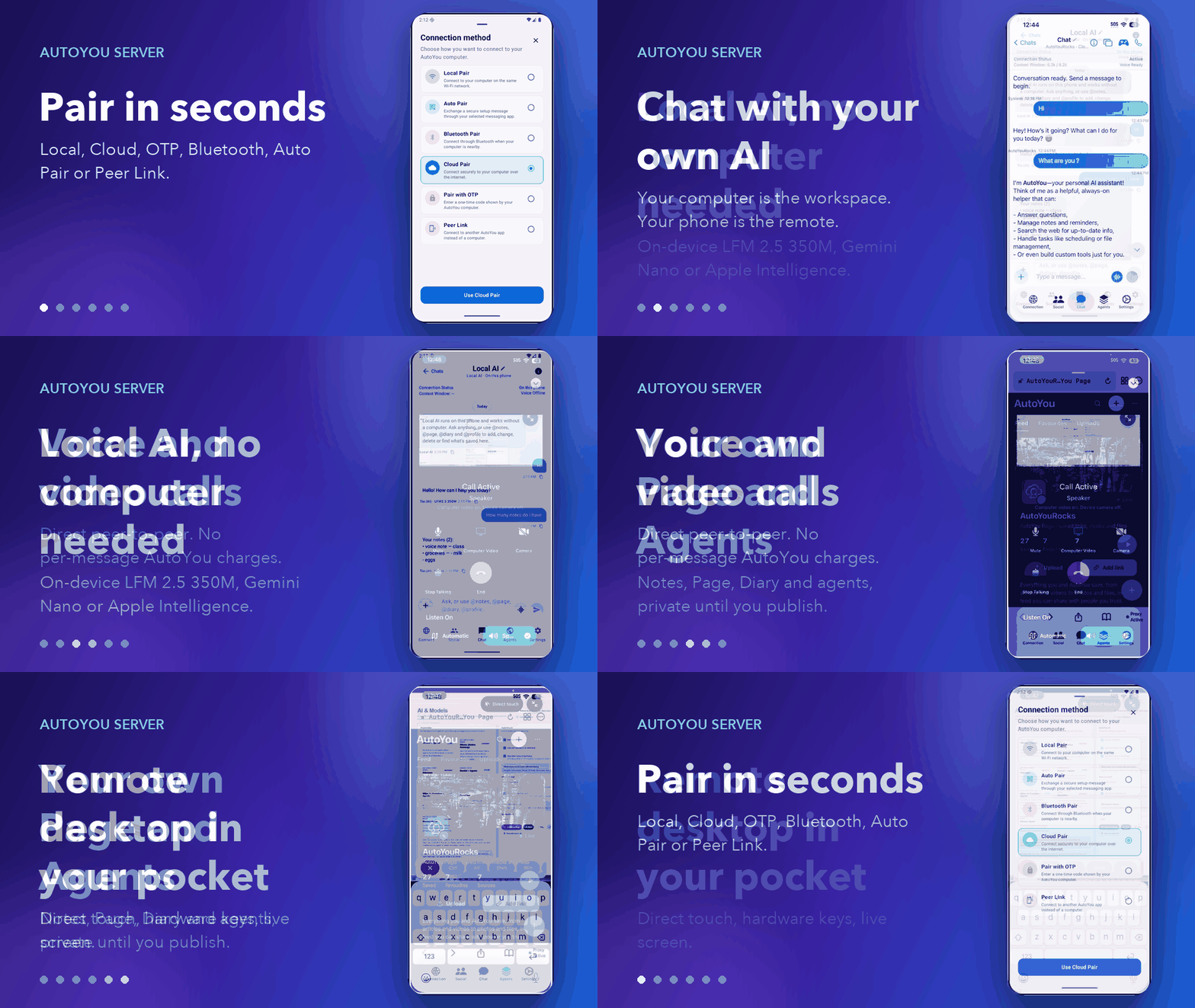
Apps and the server connect with WebRTC. The two sides exchange a short pairing handshake, then open an encrypted link (DTLS, with SRTP for media) that carries chat, voice, video, screen sharing, and proxied web traffic. Most home and mobile networks can form that link without opening router ports. When a network is too strict, the connection falls back to a relay that forwards the same encrypted packets.
flowchart LR
    app["AutoYou app<br/>phone, desktop or browser"]
    server["AutoYou Server<br/>your computer"]
    rendezvous["Rendezvous (optional)<br/>Cloud Pair"]
    relay["Relay (optional)<br/>forwards encrypted packets"]

    app <-->|"encrypted WebRTC, direct when the network allows"| server
    app -.->|"signaling"| rendezvous
    rendezvous -.->|"signaling"| server
    app -.->|"fallback path"| relay
    relay -.->|"fallback path"| server
You choose how a device finds your computer:
| Method | How it connects | Typical use |
|---|---|---|
| Local Pair | Directly over your LAN. Your own server answers the signaling. | Same Wi-Fi or office network |
| Bluetooth Pair | Connection details are handed over Bluetooth Low Energy. | First-time setup of a nearby phone |
| One-time code | A short-lived code generated in the admin console. | Guest devices and untrusted networks |
| Auto Pair | An encrypted pairing message is carried through a Telegram, Signal, or WhatsApp workflow that you set up. | Pairing from afar without a cloud account |
| Cloud Pair | An optional AutoYou Cloud rendezvous helps a device find your computer across NAT and firewalls, with relay fallback. | Away from home or behind strict networks |
Peer Link is separate from pairing: it connects one AutoYou app to another app, and the receiving app approves each link. See docs/technical/pairing-protocols.md.
Pairing messages (offer, answer, and ICE candidates) are encrypted under a key from a password-authenticated key exchange: a CPace-family construction over ristretto255 using libsodium. A relay or messaging bridge that carries them cannot read them, and a captured transcript cannot be used to test password guesses offline. The module documents where it differs from the registered ciphersuite: shared/pairing_cpace.py.
Serverless, stated precisely
"Serverless" here means that no AutoYou-operated application server is needed to run your assistant or to hold your data. You operate one server, your own. The server is designed to run on a local network without an AutoYou Cloud connection (details). Everything else in this table is either a default you can change or an optional helper, and each has its own trust boundary:
| Component | Runs on | What it can see |
|---|---|---|
| AutoYou Server: agents, models, storage, admin console | Your computer | Your data. It is an endpoint. |
| Apps and browser clients | Your devices | Whatever you share with them |
| STUN servers for address discovery (on by default, can be disabled) | Google's public STUN servers unless you change them | The public IP address and port that a WebRTC connection appears from |
| Cloud Pair rendezvous (optional) | AutoYou Cloud | Account email, device ID, short-lived pairing details, and network metadata |
| Relay fallback (optional) | AutoYou Cloud | Encrypted packets and network metadata |
| Push wake-ups for sleeping phone apps (optional) | Apple and Google push services | That a wake-up was requested |
| Software update checks (on by default, active once an account is linked) | AutoYou Cloud update feed | An update request authenticated with the account link. Turn off with software_update.enabled or AUTOYOU_SOFTWARE_UPDATES_ENABLED=0. |
| Cloud model providers (optional) | The provider you pick | The prompts you send to that provider |
| Telegram, Signal, WhatsApp bridges (optional) | Those services | Messages routed through them, under their terms |
| Public tunnel for Website Apps (optional) | Tunnel host | Traffic to the public URL. This is not peer-to-peer. |
The connection-helper documentation states that AutoYou Cloud does not decrypt message content, voice audio, files, or browsing content. Peers and connection services can still learn network addresses and timing, because WebRTC does not hide your public IP from the other side.
Public STUN is on by default. Unless you configure otherwise, the server
advertises Google's public STUN servers so WebRTC can discover its public
address, and this applies to Local Pair too. To keep that lookup off the
internet, set AUTOYOU_DISABLE_PUBLIC_STUN=1 before starting the server, or
point it at your own STUN and TURN host with AUTOYOU_LOCAL_STUNTURN_HOST
(plus AUTOYOU_LOCAL_TURN_USERNAME and AUTOYOU_LOCAL_TURN_PASSWORD for TURN).
Without any STUN or TURN server, connections across NAT may fail.
Transparent by construction
- Readable source. The code that handles your data is in this repository. You can read it, build it, and run it. The license is source-available, not OSI-approved open source.
- Notices and dependencies. THIRD-PARTY-NOTICES.md and the
dependency review record what the project includes.
The review includes a reproducible advisory check:
python scripts/audit_dependency_advisories.py --all-manifests. - Automated checks. Pull requests run the public checks, CodeQL analysis, and dependency advisory scans in GitHub Actions.
- Visible state. The admin console's live view shows connected devices, running tasks, and enabled integrations, so you can see what the server is doing and who is connected.
- Stated limits. The security policy and the dependency review say what they do not cover. Published source and inventories support inspection; they do not certify an installation as secure.
Secure, with the boundaries spelled out
| Layer | What AutoYou does |
|---|---|
| Network exposure | Binds to 127.0.0.1 by default. Listening on your LAN is an explicit setting. |
| Access | The admin console sits behind a server password. Security modes normal, secure, and secure_professional tighten pairing and sessions; Secure Professional requires authenticator-app (TOTP) codes. |
| Pairing | Password-authenticated key exchange (above), one-time codes, and per-link approval for Peer Link. |
| Transport | WebRTC DTLS and SRTP between the two endpoints, including when a relay forwards the packets. |
| Data at rest | Credentials are kept in an encrypted key store. Secure Professional mode also encrypts the server's SQLite and JSON stores, with the key held in the operating system's credential store. |
| Dependencies | Manifests with a lock file, advisory checks, and pinned CI actions. See the dependency review for exactly what is and is not enforced. |
Encryption protects the connection. It does not protect everything around it:
- Endpoints. Malware on the server computer or on a paired device has the access that endpoint has.
- Agents. Agents run with the server's permissions. Browser automation, file access, desktop control, and command execution are powerful; enable only what you need and review what agents do.
- Third parties. Cloud model providers, messaging bridges, and public tunnels have their own data flows and terms. Review each before enabling it.
- Operations. Running a server makes you responsible for updates, backups, and credentials.
Report suspected vulnerabilities privately through SECURITY.md.
Your AI development workspace
Record your content directly onto the computer running AutoYou from wherever your paired devices can reach it. Save voice recordings and chats, prepare training data, and run supported model-training workflows in your configured AI development workspace.
Capture voice and other content from paired devices on the computer running AutoYou, wherever those devices can reach the server. Keep server-side conversations and files in that computer's configured storage, prepare data for supported voice and model-training workflows, and build a personal workspace with agents, local or configured cloud models, memory, and tools. Recording and training features depend on the selected profile, hardware, permissions, and provider setup. Capturing content does not automatically train a model.
Connect MCP-compatible features in ChatGPT, Codex, Claude Code or Claude Desktop, Google Antigravity, Cursor, and VS Code to supported AutoYou tools. The local MCP adapter is a separate process; the server does not install it into those clients. MCP calls expose the adapter's supported tools, not arbitrary access to local files or every AutoYou feature. When a configured cloud model or hosted AI client processes content, its provider terms and settings apply.
Set up the local MCP adapter
The full runtime uses Google ADK 2.11.0 and MCP SDK 2.3.0. Native ADK SQLite memory and execution cancellation are wired into the AI worker. See Google ADK runtime and MCP compatibility for storage policies, client compatibility, and the checklist for later upgrades.
-
Start AutoYou Server and open http://127.0.0.1:8001/.
-
In Admin UI > Messaging > AutoYou MCP, enable MCP, generate the private adapter token, and download
autoyou-mcp.env. Keep this file private. -
Clone the AutoYou project, which contains the separately maintained adapter, and install it in a dedicated Python environment:
git clone https://github.com/autoyou-ai/AutoYou.git
cd AutoYou
py -3 -m venv .venv-mcp
.\.venv-mcp\Scripts\python.exe -m pip install -e .\plugins\autoyou-mcp
On macOS or Linux, use
python3 -m venv .venv-mcpand.venv-mcp/bin/python -m pip install -e ./plugins/autoyou-mcp.
For clients that launch a local MCP process, use this command shape and replace both placeholders with absolute paths:
<path-to-.venv-mcp-python> -m autoyou_mcp --env-file <path-to-autoyou-mcp.env> --transport stdio
On Windows, the Python executable is .venv-mcp/Scripts/python.exe; on macOS
or Linux it is .venv-mcp/bin/python. Use the absolute path in each client so
it can start the adapter regardless of its working directory.
For clients whose local configuration uses the mcpServers JSON format, the
server entry looks like this. Replace both example paths, escaping Windows
backslashes if you use them in JSON:
{
  "mcpServers": {
    "autoyou": {
      "command": "C:/path/to/AutoYou/.venv-mcp/Scripts/python.exe",
      "args": [
        "-m", "autoyou_mcp",
        "--env-file", "C:/path/to/autoyou-mcp.env",
        "--transport", "stdio"
      ]
    }
  }
}
Add AutoYou to each client
ChatGPT web uses a remote MCP connection, not a local stdio process.
Start the adapter with --transport streamable-http, then connect its local
http://127.0.0.1:8071/mcp endpoint through OpenAI Secure MCP Tunnel. ChatGPT
requires Developer Mode and the relevant workspace/admin access. OpenAI
currently limits full MCP actions by plan; Pro is read/fetch only, while full
MCP is available to Business and Enterprise/Edu workspaces. Follow the
AutoYou MCP ChatGPT setup
for tunnel setup and the OpenAI MCP app guide.
Codex CLI, desktop app, and IDE extension share the Codex host's MCP configuration. Add the local process with:
codex mcp add autoyou -- "C:/path/to/AutoYou/.venv-mcp/Scripts/python.exe" -m autoyou_mcp --env-file "C:/path/to/autoyou-mcp.env" --transport stdio
codex mcp list
Use .venv-mcp/bin/python on macOS or Linux. Or add the equivalent
[mcp_servers.autoyou] command and args to ~/.codex/config.toml. Check
the connected server with /mcp. See the Codex MCP guide.
Claude Code adds the same local command using:
claude mcp add --transport stdio autoyou -- "C:/path/to/AutoYou/.venv-mcp/Scripts/python.exe" -m autoyou_mcp --env-file "C:/path/to/autoyou-mcp.env" --transport stdio
claude mcp list
Use .venv-mcp/bin/python on macOS or Linux, then run /mcp in Claude Code.
See the Claude Code MCP guide.
Claude Desktop can launch the adapter as a local stdio server. Add an
mcpServers.autoyou entry with the local Python executable as command and
these args: -m, autoyou_mcp, --env-file, the absolute env-file path,
--transport, stdio. Its config file is
~/Library/Application Support/Claude/claude_desktop_config.json on macOS or
%APPDATA%\Claude\claude_desktop_config.json on Windows. Save the file, fully
quit and restart Claude Desktop, then check the connected tools. Claude Desktop
also supports .mcpb desktop extensions, but AutoYou does not currently ship
that package. See the
Claude Desktop MCP guide.