English | 简体中文 | Deutsch | 日本語
ControllerKeys — Gamepad-to-Keyboard Remapper for macOS
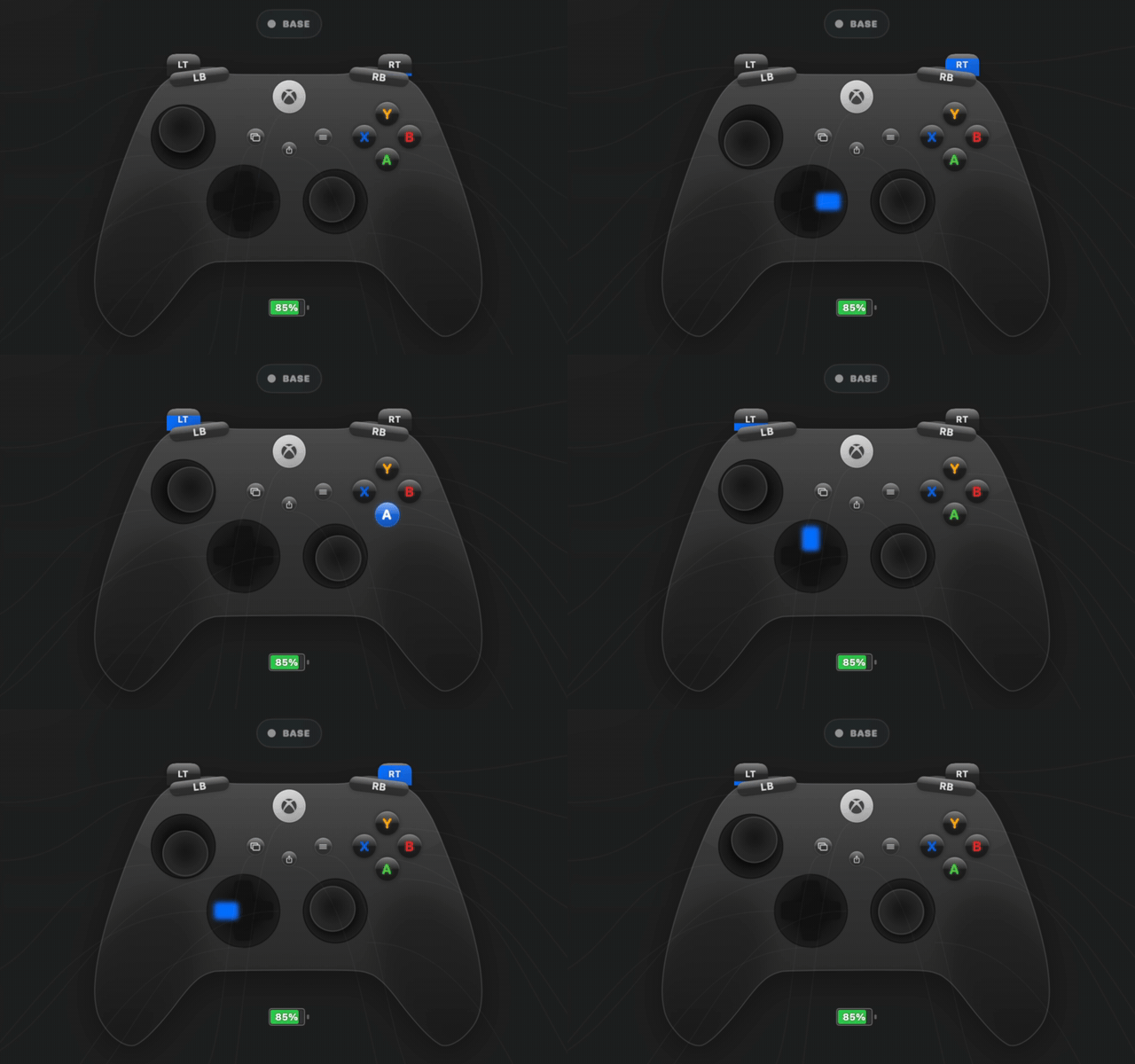
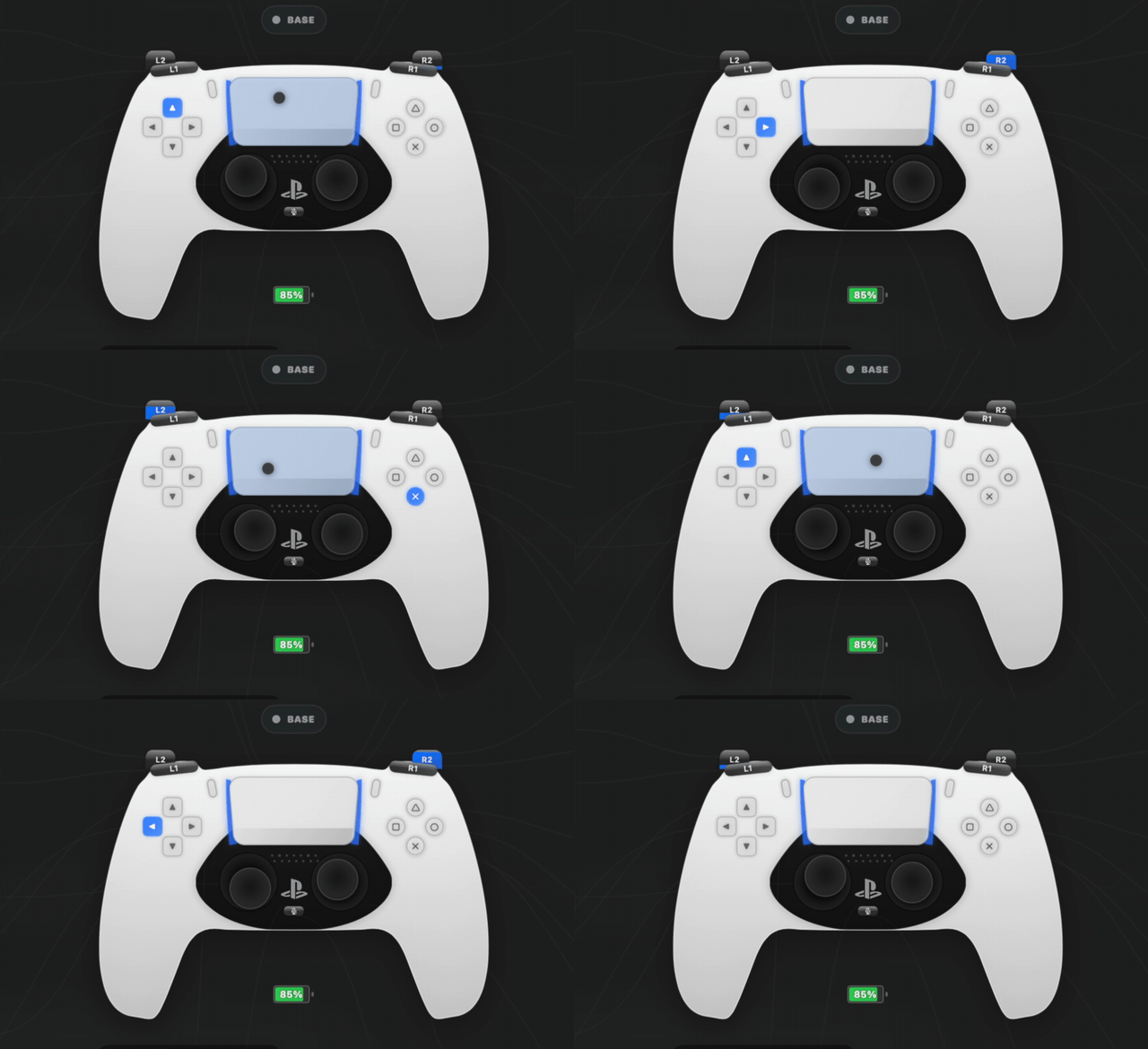
A native macOS app that remaps game controllers to keyboard shortcuts, mouse input, macros, scripts, webhooks, and system commands — turning any gamepad into a full desktop input device. Supports Xbox Series X|S, Xbox Elite Series 2, PS5 DualSense, PS4 DualShock 4, Nintendo Joy-Con, Switch Pro Controller, Steam Controller, the Apple TV Siri Remote, the keychain-sized 8BitDo Zero 2 and Micro, and 300+ third-party gamepads. Features DualSense and Steam Controller touchpad and gyroscope mouse control, swipe typing, a JavaScript scripting engine, per-app profile auto-switching, a realtime low-latency input mode, and Mac-to-Mac controller handoff over Wi-Fi.
Download — free trial | Website & Docs | Buy a license | Discord
⭐ Find it useful? Star the repo — it helps others discover ControllerKeys.
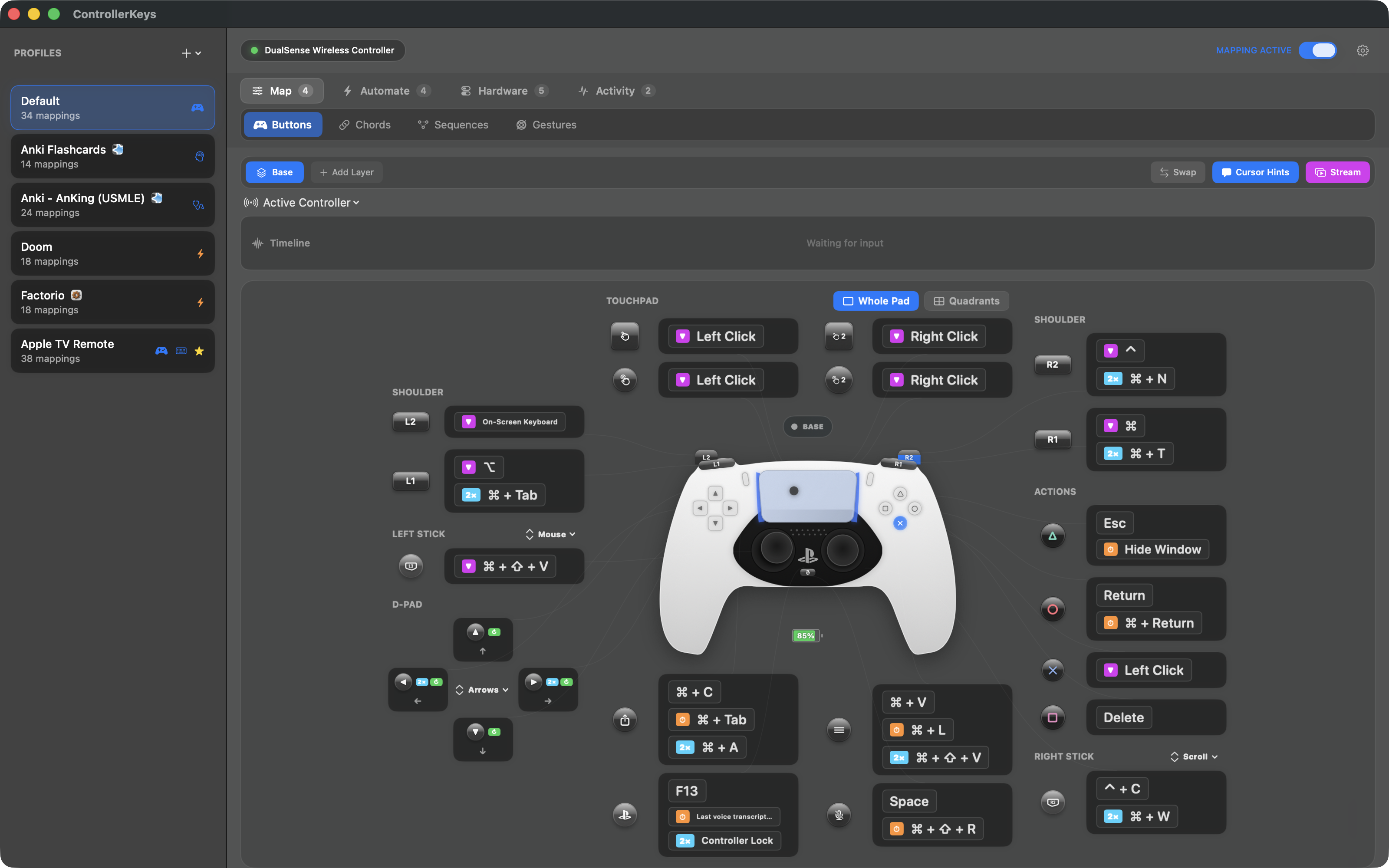
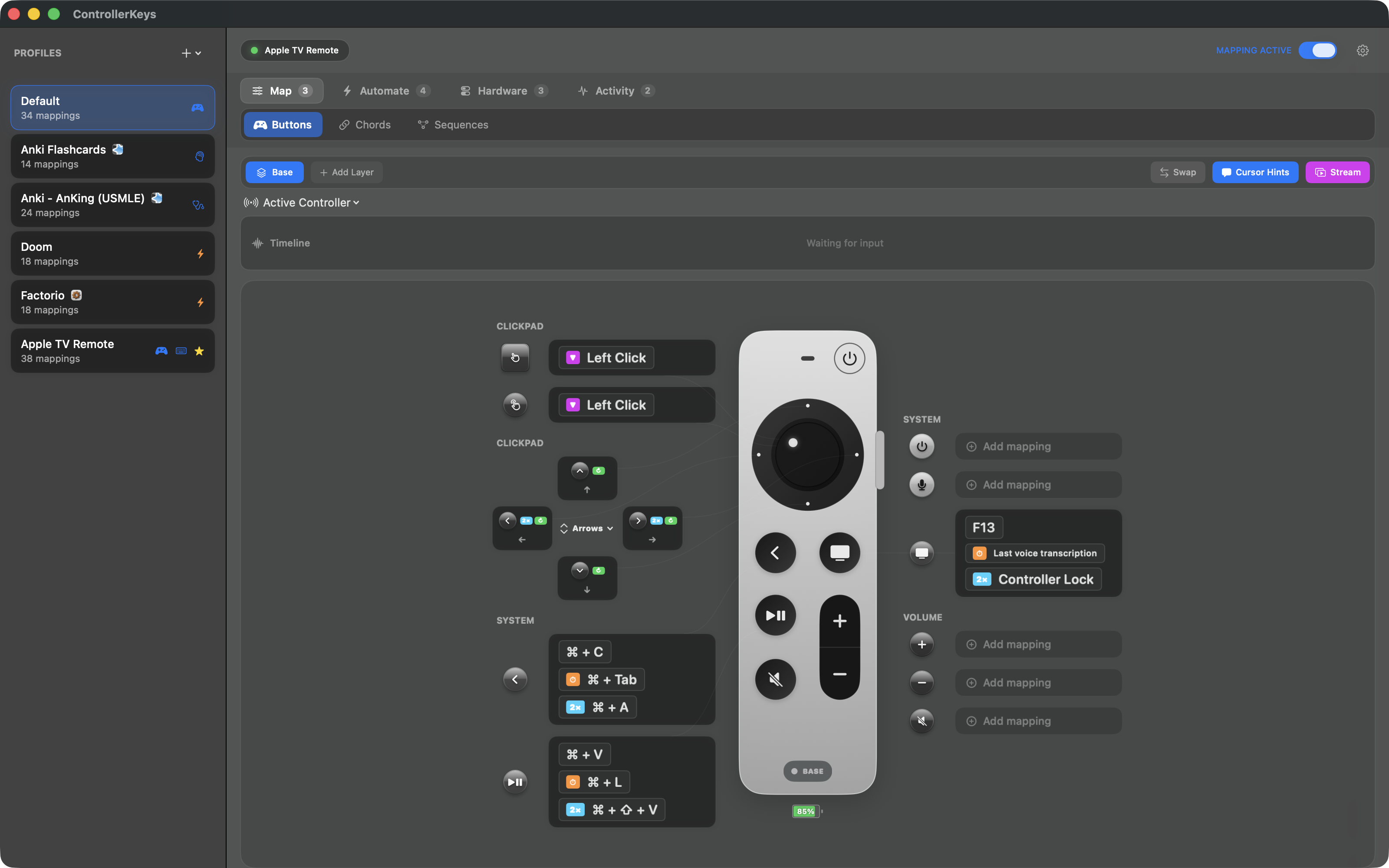
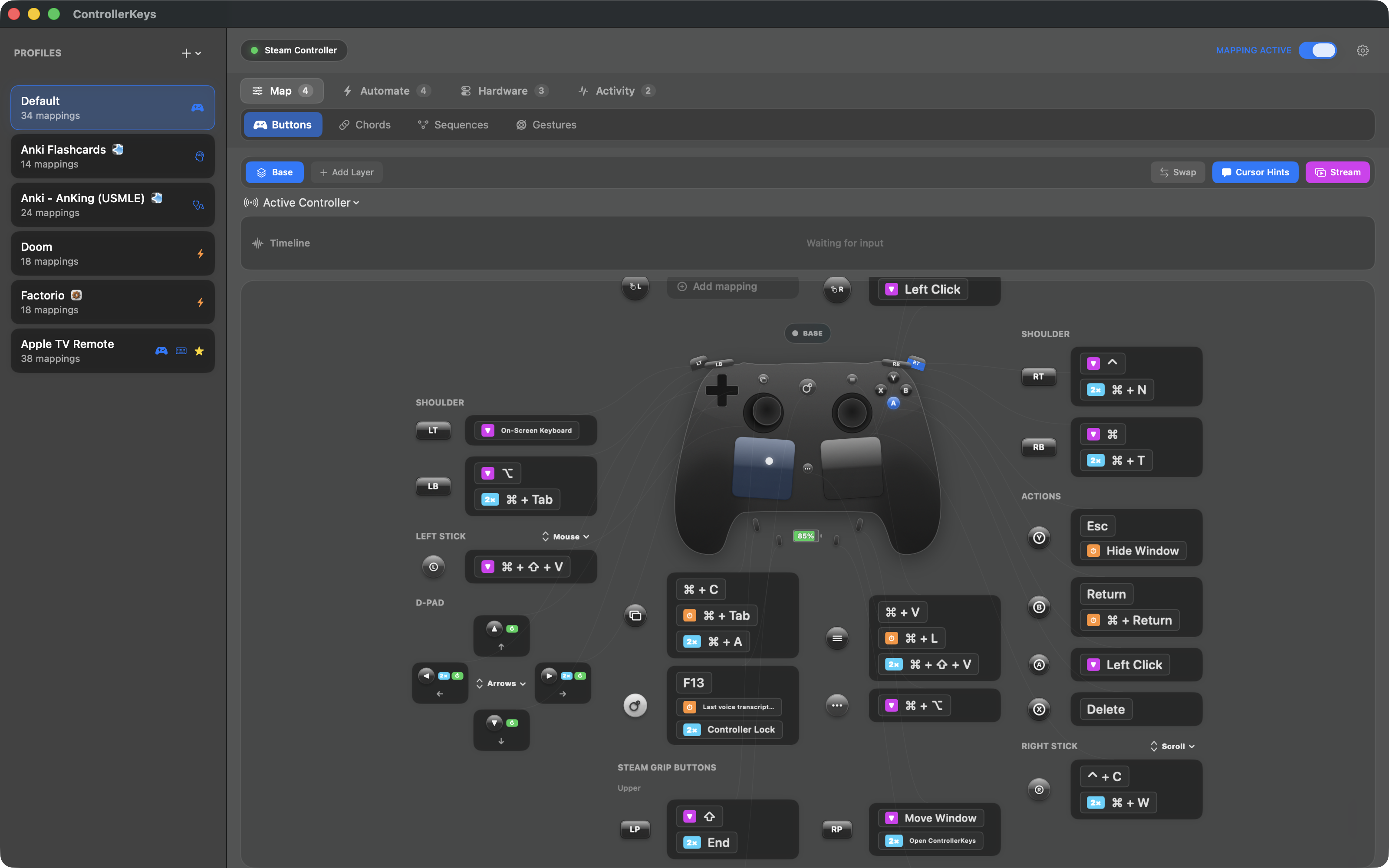
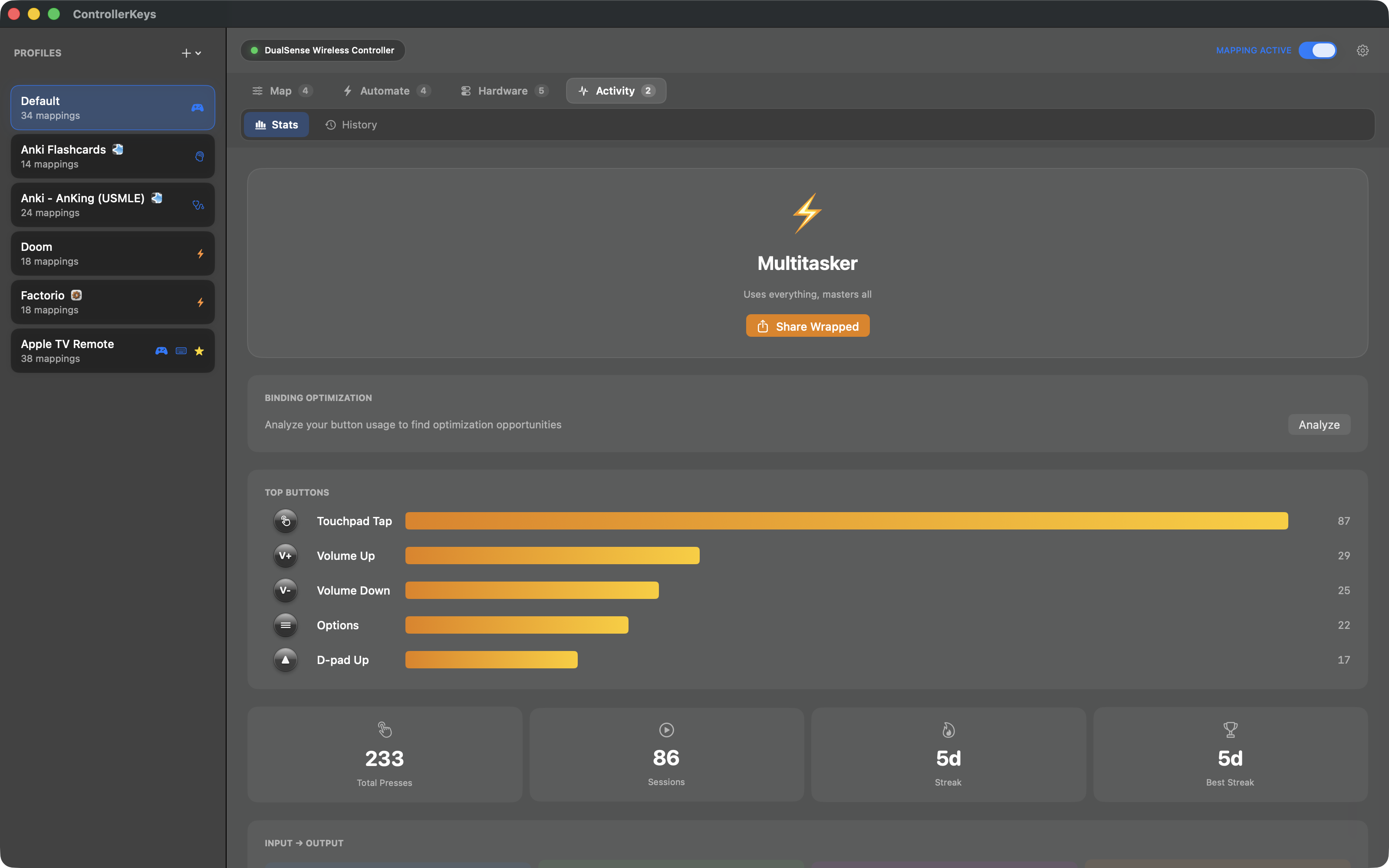
Use Cases
- Vibe coding from the couch — map shortcuts, run macros, and pair with voice transcription (e.g., VoiceInk) for full hands-free coding
- Couch computing & media browsing — navigate macOS, switch apps, scroll, and type from across the room
- Accessibility — alternative input for users who can't use a keyboard/mouse; works with macOS Accessibility Zoom
- Streaming & content creation — trigger OBS scenes, mute/unmute, fire webhooks, and show button overlays on stream
- Presentations — laser pointer overlay, app switching, and clicker-style navigation with any gamepad
Why This App?
There are other controller mapping apps for macOS, but none offered everything I needed:
| Feature | ControllerKeys | Joystick Mapper | Enjoyable | Controlly |
|---|---|---|---|---|
| DualSense touchpad + quadrant mapping | ✅ | ❌ | ❌ | ❌ |
| Steam Controller (no Steam required) | ✅ | ❌ | ❌ | ❌ |
| Multi-touch gestures (tap, pinch, pan) | ✅ | ❌ | ❌ | ❌ |
| Gyroscope aiming & gesture detection | ✅ | ❌ | ❌ | ❌ |
| JavaScript scripting engine | ✅ | ❌ | ❌ | ❌ |
| Swipe typing on-screen keyboard | ✅ | ❌ | ❌ | ❌ |
| Chord mappings (button combos) | ✅ | ❌ | ❌ | ✅ |
| Button sequence combos | ✅ | ❌ | ❌ | ❌ |
| Layers (alternate mapping sets) | ✅ | ❌ | ❌ | ❌ |
| Per-layer stick mode override | ✅ | ❌ | ❌ | ❌ |
| Custom stick direction bindings (WASD, arrows, anything) | ✅ | ❌ | ❌ | ❌ |
| Per-mapping haptic feedback | ✅ | ❌ | ❌ | ❌ |
| Macros & system commands | ✅ | ❌ | ❌ | ❌ |
| HTTP webhooks & OBS control | ✅ | ❌ | ❌ | ❌ |
| Realtime low-latency key mode | ✅ | ❌ | ❌ | ❌ |
| Mac-to-Mac controller handoff (Universal Control-style) | ✅ | ❌ | ❌ | ❌ |
| Linked controllers (auto-switch profile per controller) | ✅ | ❌ | ❌ | ❌ |
| Profile snapshots & undo (History tab) | ✅ | ❌ | ❌ | ❌ |
| On-screen keyboard & command wheel | ✅ | ❌ | ❌ | ❌ |
| Community profiles with setup guides | ✅ | ❌ | ❌ | ❌ |
| App-specific profile auto-switching | ✅ | ❌ | ❌ | ❌ |
| Stream overlay for OBS | ✅ | ❌ | ❌ | ❌ |
| Xbox Elite Series 2 paddles | ✅ | ❌ | ❌ | ❌ |
| Nintendo Joy-Con & Pro Controller | ✅ | ❌ | ❌ | ❌ |
| Apple TV Siri Remote as a controller | ✅ | ❌ | ❌ | ❌ |
| DualSense Edge (Pro) support | ✅ | ❌ | ❌ | ❌ |
| DualShock 4 (PS4) touchpad & gyro | ✅ | ❌ | ❌ | ❌ |
| DualSense LED & microphone control | ✅ | ❌ | ❌ | ❌ |
| Drag-and-drop mapping swap | ✅ | ❌ | ❌ | ❌ |
| Usage stats & Controller Wrapped | ✅ | ❌ | ❌ | ❌ |
| Localized (EN / 简中 / 繁中 / DE / JA) | ✅ | ❌ | ❌ | ❌ |
| Third-party controllers (~313) | ✅ | ✅ | ✅ | ✅ |
| Native Apple Silicon | ✅ | ❌ | ❌ | ✅ |
| Actively maintained (2026) | ✅ | ❌ | ❌ | ✅ |
| Source available | ✅ | ❌ | ✅ | ❌ |
Joystick Mapper hasn't been updated since November 2019 and lacks modern controller support. Enjoyable is abandoned since 2014. Controlly is solid but doesn't support touchpad gestures, on-screen keyboard, or scripting. Steam's controller mapping only works within Steam games, not system-wide.
Features
-
Button Mapping: Map any controller button to keyboard shortcuts
- Press to Edit: Use the compact control inside the Buttons view, then press a physical control to open its editor. Capture Chord records buttons held together; Capture Sequence records presses in order, including repeated taps. Choose Use Sequence to finish recording before saving its action. Output stays paused through capture/editing and resumes after release, preserving your paused/locked preference.
- Modifier-only mappings (⌘, ⌥, ⇧, ⌃)
- Key-only mappings
- Modifier + Key combinations
- Long-hold for alternate actions
- Double-tap for additional actions
- Simulate key repeat while held (for games that need repeated key-down events)
- Chording (multiple buttons → single action)
- Button sequences (ordered combos, e.g., Up-Up-Down-Down)
- Per-mapping haptic feedback
- Custom hints to label your mappings
- Drag-and-drop to swap mappings between buttons
- Hover connector lines between buttons and their actions
-
Layers: Create alternate button mapping sets activated by holding or toggling a designated button
- Up to 12 additional layers per profile
- Choose momentary Hold activation or press-once Toggle activation per layer
- Fallthrough behavior for unmapped buttons
- Name your layers (e.g., "Combat Mode", "Navigation")
- Per-layer lightbar color on DualSense/DualShock 4 (auto-assigned from a 12-color palette)
- Per-layer stick mode override: each layer can independently set either stick to Mouse / Scroll / WASD / Custom — release the activator and the base mode resumes
- Layer-aware controller minimap: a
BASE/LAYER <name>chip plus outlines in the layer's color show exactly which buttons, sticks, shoulders, D-pad directions, and touchpad regions the current layer overrides
-
Custom Stick Direction Mappings: Set either stick's mode to Custom and each of its 8 directions (4 cardinal + 4 diagonals) becomes a real button you can bind from the controller graphic
- One-click presets for WASD or Arrow Keys
- Diagonal movement is properly held (e.g., W+D for forward-right in Factorio)
- Stick directions support long-hold, double-tap, chords, and sequences just like physical buttons
-
Realtime Input Latency Mode: Per-profile Input setting that sends simple key mappings as key-down on press and key-up on release, bypassing the chord-detection window for lower latency
- Double-tap, long-hold, repeat, and chord mappings stay on the standard timing path so advanced interactions keep their existing behavior
-
Universal Control-style Mac-to-Mac Relay: Pair two ControllerKeys-running Macs and push your controller's cursor against a configured screen edge to hand off mouse, keyboard, and mapped actions to the second Mac
- The receiving Mac runs the actions against its own active profile, so a chord that opens Finder on the host opens Finder on the remote
- Local-network only (private/link-local IPv4/IPv6, Tailscale
100.64.0.0/10, localhost) - HMAC-SHA256 authenticated frames with a Keychain-stored shared secret; oversized, replayed, or tampered frames are dropped
- Swipe typing, on-screen overlays, and stuck-button cleanup all relay through the same channel
-
Linked Controllers: Bind a profile to a specific physical controller so it auto-activates whenever that controller connects (Linked Apps still win when the frontmost app has its own profile)
-
JavaScript Scripting: Write custom automation scripts powered by JavaScriptCore
- Full API:
press(),hold(),click(),type(),paste(),delay(),shell(),openURL(),openApp(),notify(),haptic(), and more - App-aware scripting with
app.name,app.bundleId,app.is()for context-sensitive actions - Trigger context (
trigger.button,trigger.pressType,trigger.holdDuration) screenshotWindow()API for capturing the focused window- Per-script persistent state that survives across invocations
- Built-in example gallery with ready-to-use scripts
- Script editor with syntax reference and AI prompt assistant
- Full API:
-
Macros: Multi-step action sequences
- Key Press, Type Text, Delay, Paste, Shell Command, Webhook, and OBS steps
- Configurable typing speed
- Assignable to buttons, chords, long-hold, and double-tap
-
System Commands: Automate actions beyond key presses
- Run Shortcut: Search installed macOS Shortcuts and bind one by name. Use Test Shortcut to deliberately run the selection and see progress or its result. Runs once, stops waiting after 60 seconds, and never retries automatically; missing shortcuts and errors appear in feedback.
- Launch App: Open any application
- Shell Command: Run terminal commands silently or in a terminal window
- Open Link: Open URLs in your default browser
-
HTTP Webhooks: Send HTTP requests from controller buttons and chords
- Supports GET, POST, PUT, DELETE, and PATCH methods
- Configurable headers and request body
- Response handling with configurable retry (exponential backoff), timeout, and follow-up shell commands
- Visual feedback showing response status above cursor
- Haptic feedback on success or failure
-
OBS WebSocket Commands: Control OBS Studio directly from controller buttons
-
Continuous Trigger MIDI: Hardware → Triggers → Continuous Trigger MIDI maps trigger travel to a channel/CC with range, inversion, and deadzone controls. Native meters sample raw pressure at 60 Hz without animated lag or repeated SwiftUI layout. A muted preview, actual conflict edit links, distinct suggested CCs, and a Logic Pro walkthrough help verify setup. Output uses the ControllerKeys virtual source, suppresses duplicate values, limits updates to 60 Hz, and returns to the configured neutral value on pause, disconnect, or profile change. Unchanged streams continue through layer changes.
-
Joystick Control:
- Live calibration: Joysticks → Live Calibration separately measures rest drift and eight-direction travel, previews raw input, and shows current/proposed values. Saves the current response mode’s deadzone unless you explicitly apply it to all modes; opening and saving unchanged preserves settings. Controller replacement invalidates measurements and offers Restart.
- Left joystick → Mouse movement (or WASD keys)
- Right joystick → Scrolling (or Arrow keys)
- Configurable sensitivity and deadzone
- Hold modifier (RT by default) for precise mouse movement with cursor highlight
- Disable option to turn off stick input entirely
-
Gyroscope Aiming & Gestures (DualSense/DualShock 4):
- Gyro aiming: Use the gyroscope for precise mouse control — always on (mouse-like), while a button is held, toggled, or tied to focus mode
- Gyro Toggle / Gyro Hold / Gyro Pause button actions control gyro without sending keystrokes; Gyro Pause enables ratcheting (reposition without moving the cursor)
- Continuous gyro bias recentering while the controller rests keeps temperature drift from creeping the cursor (Steam Controller and DualShock 4)
- Scripting:
gyroToggle(),gyroSetActive(bool),gyroIsActive()compose gyro control with key output on one button - 1-Euro filter for jitter-free smoothing with responsive tracking
- Gesture mappings: Tilt forward/back and steer left/right to trigger actions
- Per-profile gesture sensitivity and cooldown sliders
- DualShock 4 gyro parsed from raw HID reports with auto-calibration
-
Touchpad Control (DualSense/DualShock 4/Steam Controller):
- Single-finger tap or click → Left click
- Two-finger tap or click → Right click
- Two finger swipe → Scrolling
- Two finger pinch → Zoom in/out
- Quadrant remapping: Split the touchpad into 4 regions with separate touch and click actions
- Per-pad scroll inversion settings for DualSense and Steam pads
-
On-Screen Keyboard, Commands, and Apps: Use the on-screen keyboard widget to quickly select apps, commands, or keyboard keys
- Swipe typing: Slide across letters to type words (SHARK2 algorithm)
- D-pad navigation with floating highlight
- Easily enter configurable text strings and commands in Terminal with a single click
- Use built-in variables to customize text output
- Show and hide apps in customizable app bar
- Website links with favicons
- Media key controls (playback, volume, brightness)
- Global keyboard shortcut to toggle visibility
- Auto-scaling to fit smaller displays
-
Command Wheel: GTA 5-inspired radial menu for quick app/website switching
- Navigate with right stick, release to activate
- Haptic feedback during navigation
- Modifier key to toggle between apps and websites
- Force quit and new window actions at full stick deflection
-
Stream Overlay for OBS: Floating overlay showing active button presses for stream capture
-
Laser Pointer Overlay: On-screen pointer for presentations
-
Directory Navigator: Controller-driven file browser overlay
- Right stick navigation, B to confirm, Y to dismiss
- Mouse support and position memory
-
Cursor Hints: Visual feedback showing executed actions above the cursor
- Shows action name or macro name when buttons are pressed
- Badges for double-tap (2×), long-press (⏱), and chord (⌘) actions
- Held modifier feedback with purple "hold" badge
-
Controller Wrapped: Usage stats with shareable personality-typed cards
- Track every button press, macro, webhook, app launch, and more
- Streak tracking and personality typing based on usage patterns
- Copy shareable card to clipboard for social media
-
Profile System: Create and switch between multiple mapping profiles
- Guided creation: Set Up → Set Up a Workflow (also Profiles → + → Guided Preset) reviews a local Anki, Photo Mechanic, Final Cut, or one-hand Mac preset and creates a separate profile. During review, controller presses highlight the matching rows; hold several buttons to explore their actions together. Choose an app link or default activation explicitly. One-hand presets have left/right layouts. Verification is optional: Set Up → Test This Preset revisits the selected preset's readiness checklist and temporarily pinned test profile without creating another profile. Photo Mechanic ratings use Camera Bits' standard Control+number bindings; customized command sets may need edits.
- Community profiles: Browse and import pre-made profiles, with optional markdown setup guides that render inline above the mappings list (copy buttons on every code block)
- App-specific auto-switching: Link profiles to applications
- Linked-controller auto-switching: Bind a profile to a physical controller so it activates on connect
- Stream Deck V2 profile import
- Custom profile icons
- Profile sidebar status indicators: Linked-Apps glyphs and compact badges for realtime mode, linked controllers, custom icons, and the default profile
-
History & Snapshots: ControllerKeys silently snapshots your full configuration before every destructive operation (delete profile, import profile, restore snapshot) and exposes them in a dedicated History tab
- Restore any snapshot — the restore itself is snapshotted first, so undo is itself undoable
- Snapshots live at
~/.config/controllerkeys/snapshots/(capped at 20)
-
Profile-Import Safety Prompts: Imports that contain shell commands, scripts, Shortcuts actions, or webhook follow-up commands open an explicit consent sheet listing each execution surface.
-
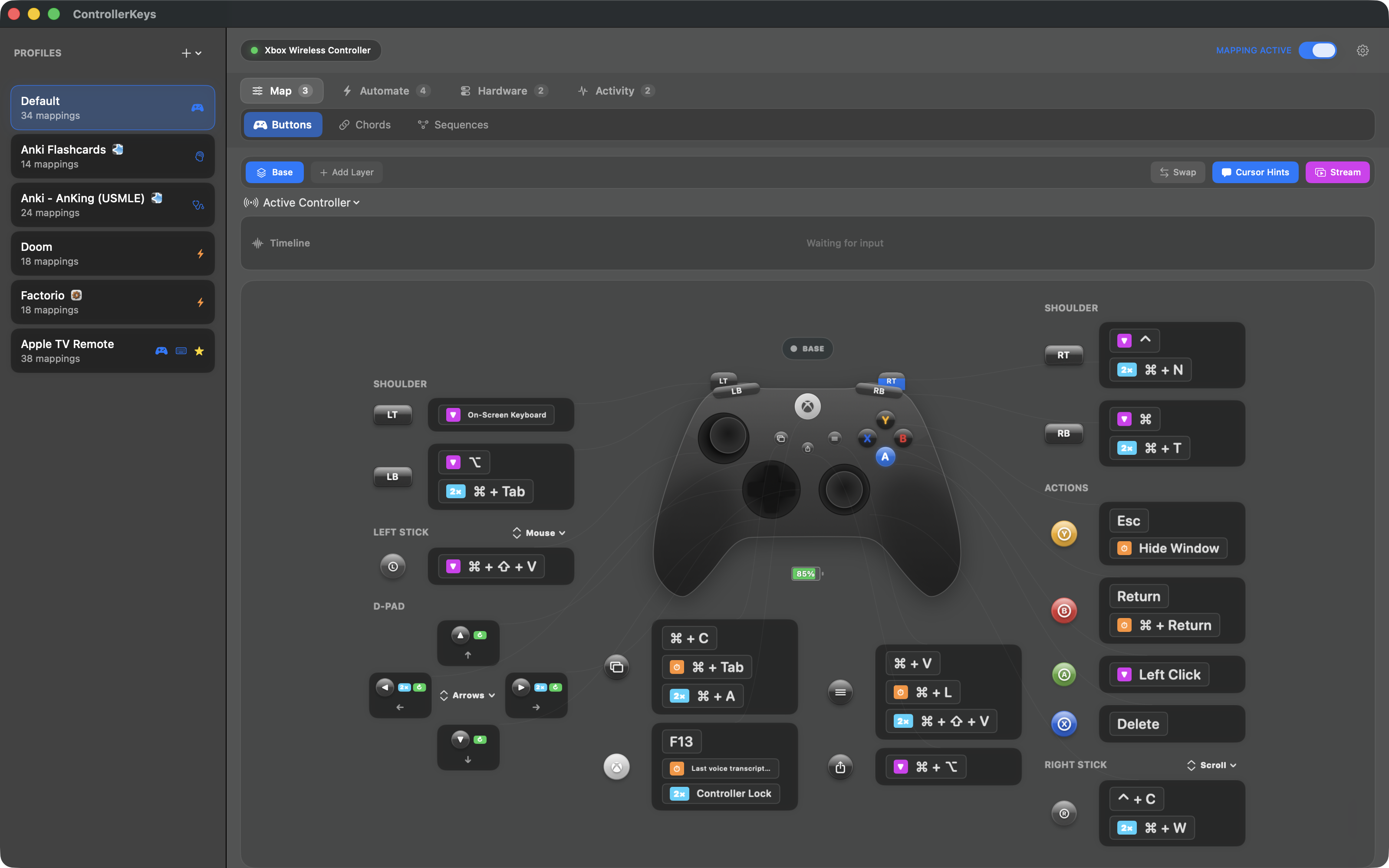
Visual Interface: Interactive controller-shaped UI for easy configuration
- Auto-scaling UI based on window size
- Button mapping swap to quickly exchange mappings between two buttons
- VoiceOver accessibility support
- Grouped tab navigation: tabs organized into Map / Automate / Hardware / Activity with SF Symbol icons; the input log is a compact "Timeline" strip
- Configurable section visibility: hide the input log, mapped chords/sequences/gestures lists, or touchpad regions section from the Buttons tab
- Window background opacity slider (Settings → Appearance) to tune liquid-glass tint over the desktop
- Localized in English, Simplified Chinese, Traditional Chinese, German, and Japanese
-
DualSense Support: Full PlayStation 5 DualSense controller support
- Full touchpad support with multi-touch gestures and quadrant remapping
- Gyroscope aiming and gesture detection
- Customizable LED colors over USB and Bluetooth
- Per-layer lightbar colors
- DualSense built-in microphone support in USB connection mode
- Microphone mute button mapping
- Battery notifications at low (20%), critical (10%), and fully charged (100%)
- Battery-level lightbar with charging animation
-
DualSense Edge (Pro) Support: Full support for Edge-specific controls
- Function buttons and paddles
- Edge buttons available as layer activators
-
DualShock 4 (PS4) Support: Full PlayStation 4 DualShock 4 support
- Touchpad mouse control and gestures (same as DualSense)
- Lightbar color control over USB and Bluetooth
- Gyroscope aiming and gesture detection (parsed from raw HID reports)
- PlayStation-style button labels and icons throughout the UI
- PS button support via HID monitoring (USB and Bluetooth)
-
Xbox Elite Series 2 Support: Full support for Elite-specific hardware
- All 4 back paddles (P1–P4) detected and mappable
- Guide button works over Bluetooth via IOKit HID
- Correct controller name and UI regardless of