


The unified interface for agent harnesses.



Build agent products without handling harness engineering. HarnessRouter is the infrastructure layer that turns existing harnesses like Codex and Claude Code into plug-and-play agent backends, letting your product run tasks, retrieve results, and switch harnesses through one API.

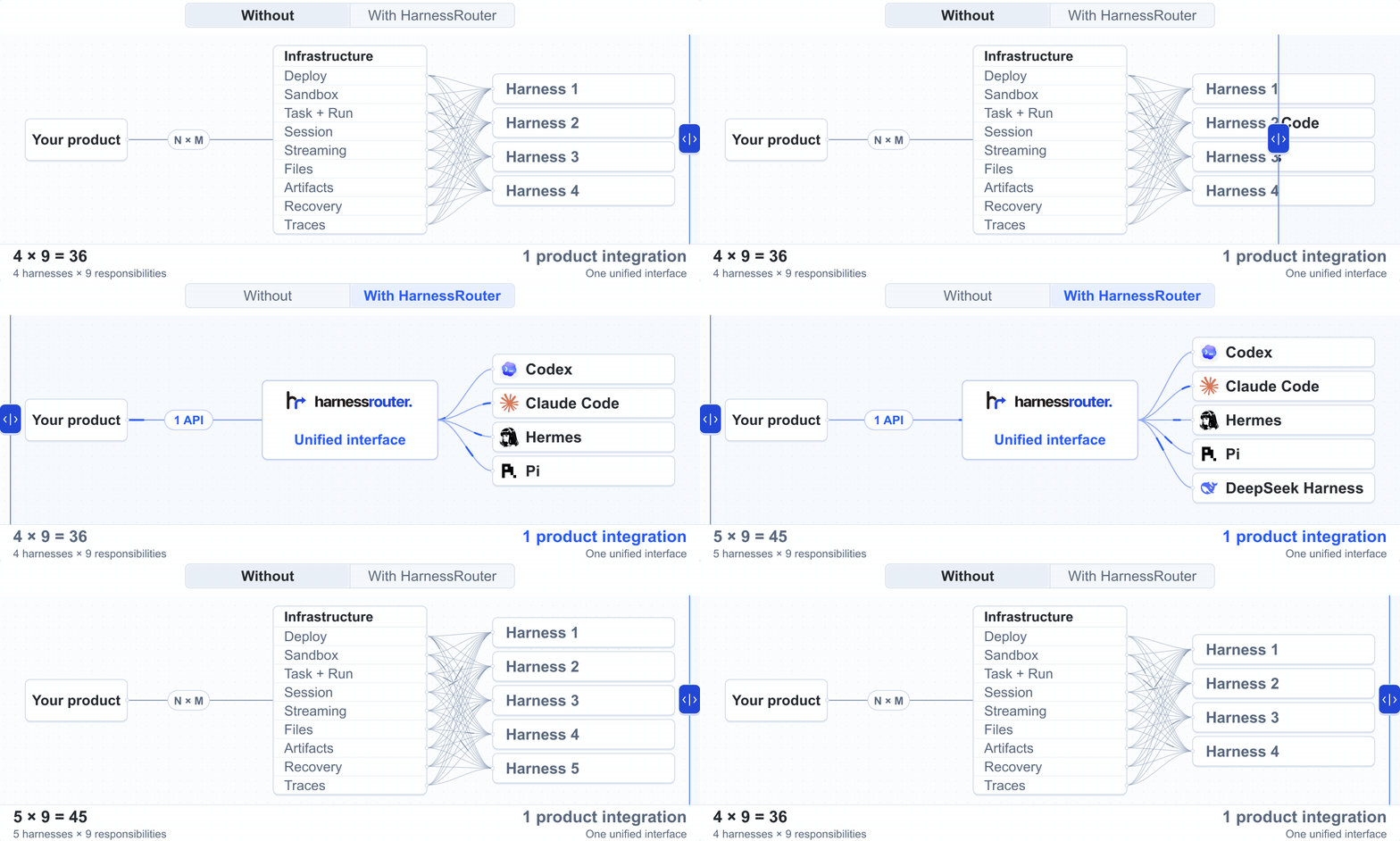
HarnessRouter implements the Unified Harness Protocol (UHP) and provides an OpenAI Responses-compatible API, handling persistent sessions, streaming progress, files, artifacts, cancellation, and structured failures.
Switch harnesses. Optimize cost and latency.

Eight harness × model configurations on the same task. Each metric compares its best and worst results. The lowest-cost and fastest configurations vary by task. Methodology
30 harness bases today: Codex, Claude Code, Hermes, Pi, DeepSeek Harness, OpenCode, Kilo Code, Qwen Code, Gemini CLI, Cline, Oh My Pi, goose, Kimi Code CLI, MiniMax Code, Aider, OpenHands, CheetahClaws, Grok Build, Agent Zero, System One, Qoder Cloud Agent, MiMo Code, jcode, OpenSquilla, nanobot, ZeroClaw, Mistral Vibe, Docker Agent, fast-agent and Deep Agents Code. The support matrix shows which run on which provider.
Tip
Get started: Run locally · Integrate into your product · Starter kits · Use managed Cloud
Quickstart
Self-host Community Edition with your own provider keys, on infrastructure you control.
Start with one Docker command, wait for the first launch, then connect a model provider and run your first task.
You need: Docker · About 4 GB of disk · A provider API key
No HarnessRouter account required. No bundled model or trial key.
1. Start HarnessRouter
docker run -d --name harnessrouter \
  -p 127.0.0.1:3000:3000 \
  -v harnessrouter:/data \
  harnessrouter/harnessrouter
Docker pulls the image if needed. The named volume preserves your database, files, installed harness CLIs, and workspaces between restarts.
Existing installation or custom setup
Already installed? docker pull harnessrouter/harnessrouter downloads the latest image but does not upgrade a running container. Follow the upgrade and backup guide.
Port 3000 busy? Use -p 127.0.0.1:3100:3000 and open port 3100 instead. Keep the loopback binding while using the initial credentials.
Do not add --user. The entrypoint and Runner need root to manage per-session users. The Console and Gateway run unprivileged; agent processes run as their session’s user.
For version pinning, Compose, and scripted setup, see the setup guide.
2. Wait for the first launch
docker logs -f harnessrouter
The first launch installs the enabled harness CLIs. Continue when the logs show:
[harnessrouter] ready on :3000
Press Ctrl+C to stop following logs. The container keeps running.
Console not ready or a harness missing?
If the browser refuses the connection, retry after a few seconds while the Console finishes starting. For a missing harness, check backends available: and any requested but not installed warning in the logs.
3. Open the console
Open http://localhost:3000, or your chosen host port, and sign in:
| Username | harnessrouter |
|---|---|
| Password | harnessrouter |
Warning
Change the default password in Profile. Keep the instance local until you change it. Saving briefly restarts the Console and signs out other browsers.
See the sign-in screen
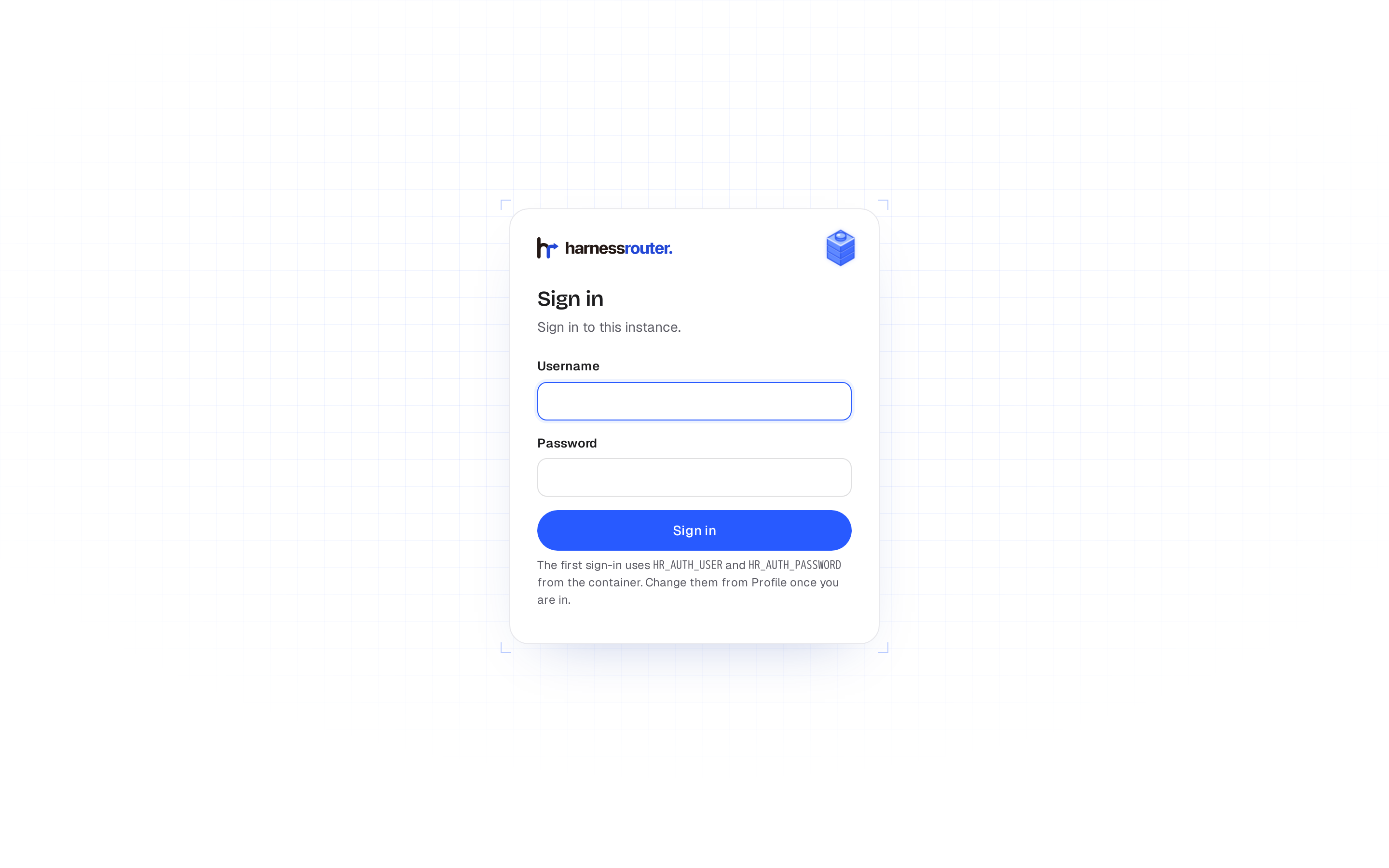
Using an existing volume or custom credentials? Check credential precedence and setup.
These credentials sign you into the Console. You do not need a HarnessRouter API key to run tasks here.
4. Connect a model provider
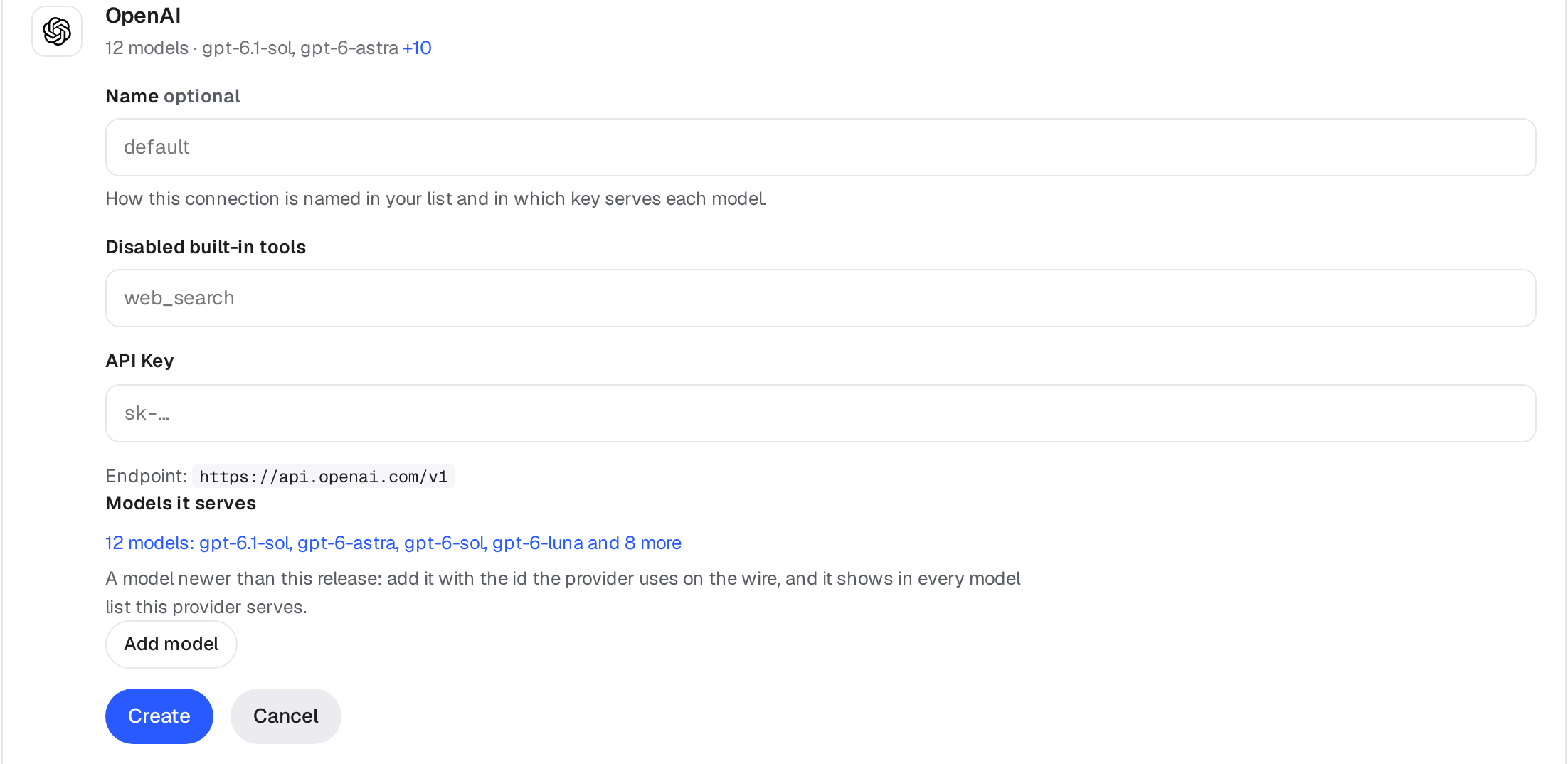
Open the account menu at the bottom of the rail and choose Bring your own key. Find your provider, press Add key, and paste its API key. Its supported models become available in the Console.
This provider key authorizes model requests. It is separate from the HarnessRouter API key used for product integration below.
See the provider setup screen
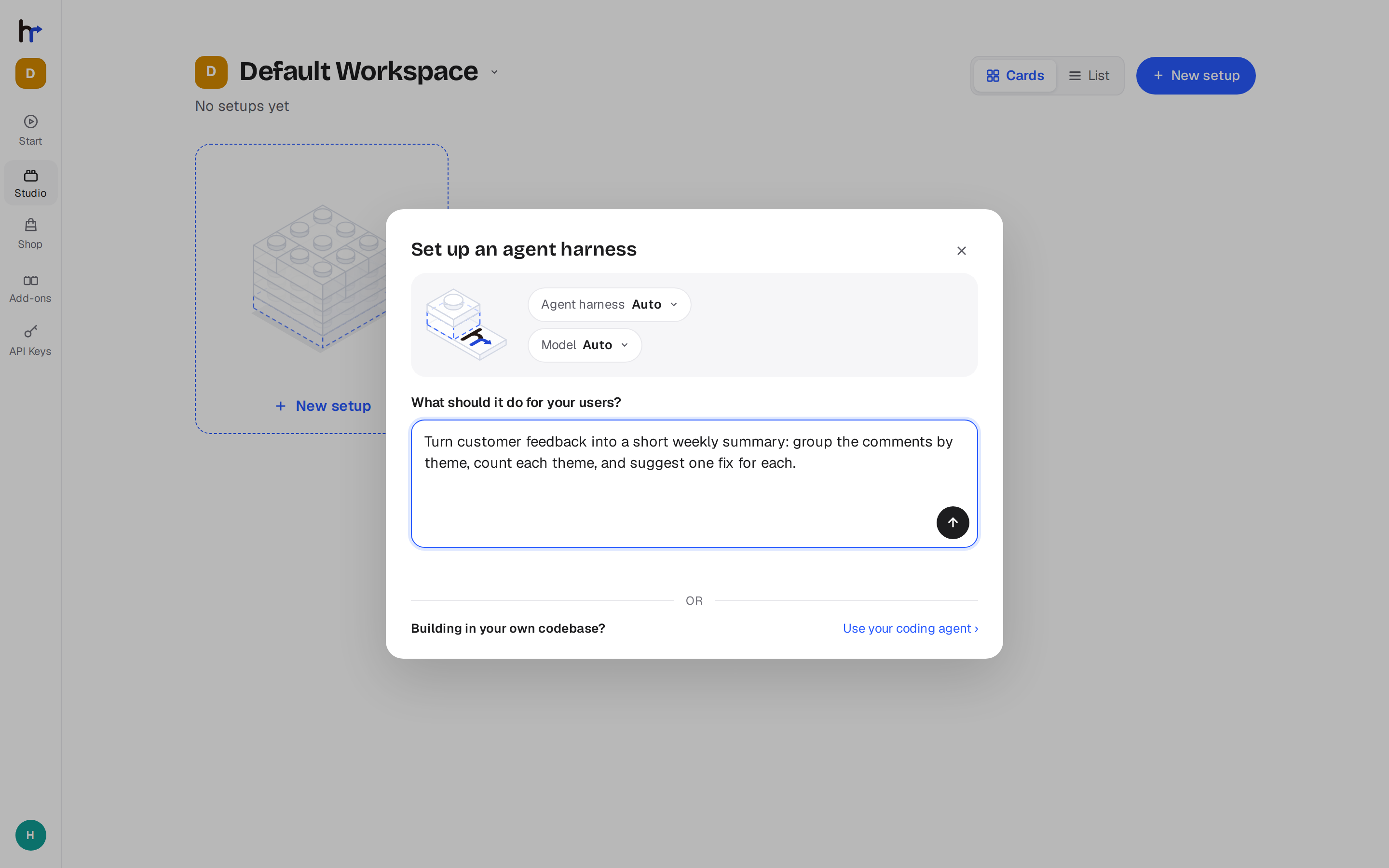
5. Set up your first agent
Open Start, say what your agent should do for your users, and press Continue. In Set up an agent harness, leave the agent harness and model on Auto or choose them, then save. HarnessRouter builds the setup on one of your own models: it writes the agent's instructions, picks the harness, model, skills, plugins and tools the job needs, and leaves an example request in the box. Send it to run the first task.
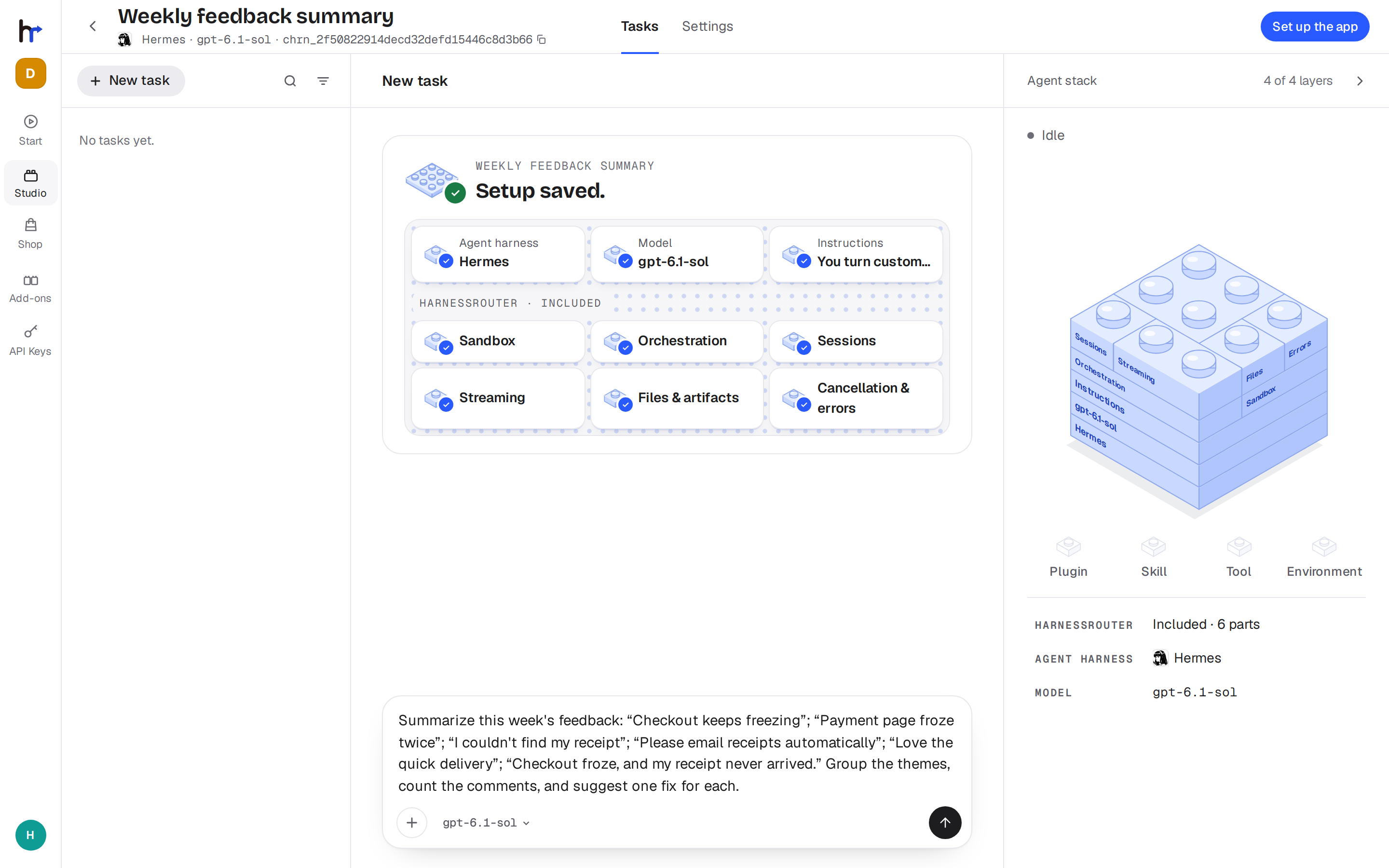
Try an example first. Under Start in HarnessRouter, pick one of the three example jobs. Its request plays back a recorded run, so you see a finished task without spending tokens. Write under it to carry on with your own model.
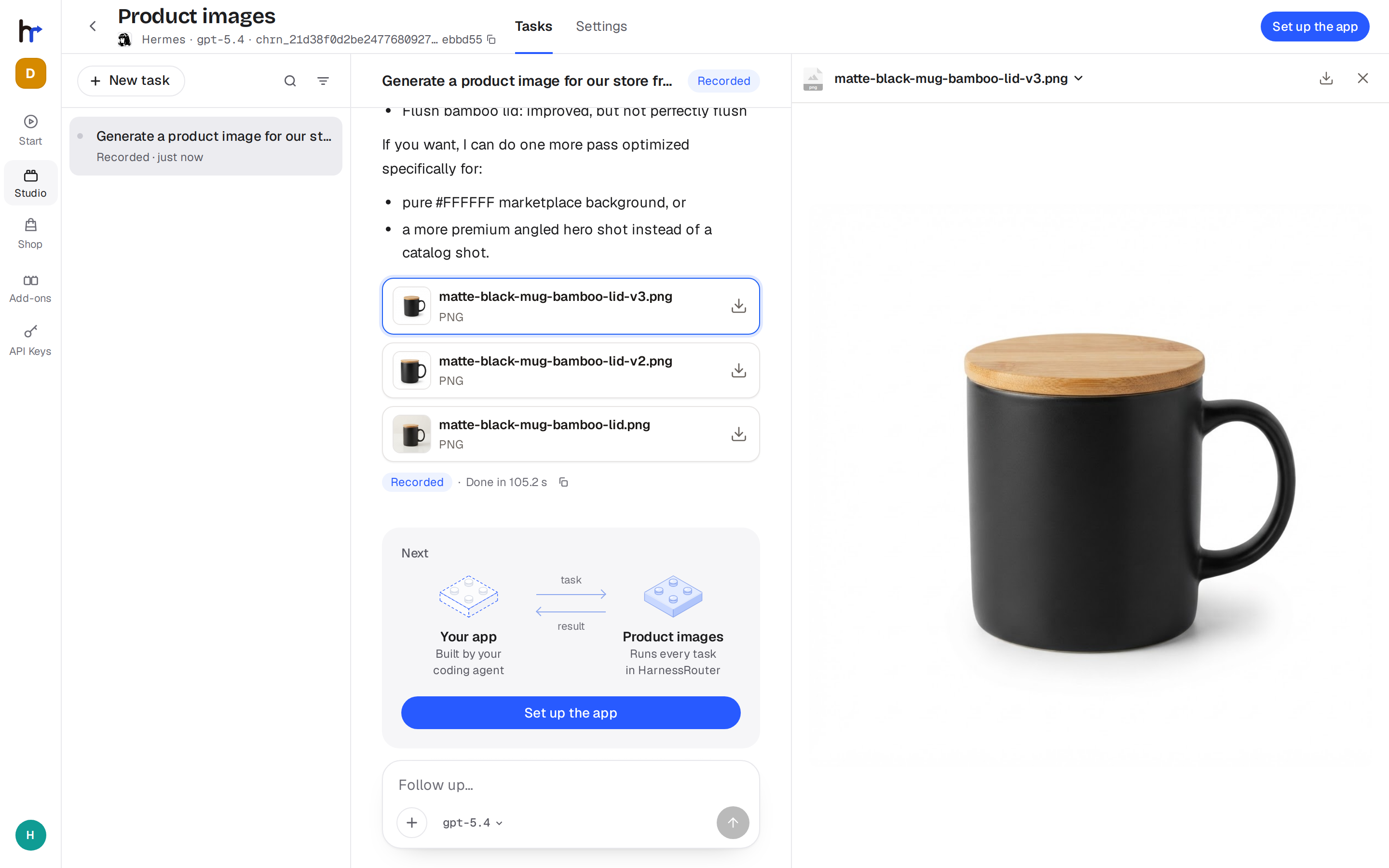
Change a setup (optional)
Open the setup in Studio and choose Settings to change its model, instructions, skills, plugins, tools, environment and limits. Add plugins, skills, MCP servers and environments for the whole workspace under Add-ons. The agent harness is fixed once a setup is saved: make a new setup to use another.
See New setup
Integrate your harness into your product backend with one API
Run product tasks with built-in or custom harnesses as pluggable agent backends. Call your self-hosted instance’s OpenAI Responses-compatible API and select the harness with metadata.harness_id. No Cloud deployment is required.
Once your harness runs successfully in the Console:
- Open API Keys in the Console rail of the same CE instance (default local address), name the key, and press Create.
- Store the secret shown once as
HARNESSROUTER_API_KEYin your product backend. Never expose it in browser code. This CE-issued key is separate from your Console password and provider key. - Call the API with the Harness ID shown in the Console and a model served by your connected provider.
export HARNESSROUTER_BASE_URL=http://localhost:3000/api/harness

curl --fail-with-body -sS "$HARNESSROUTER_BASE_URL/v1/responses" \
  -H "Authorization: Bearer ${HARNESSROUTER_API_KEY:?}" \
  -H 'content-type: application/json' \
  -d '{
    "input":"Reply with exactly: it works.",
    "metadata":{"harness_id":"codex"},
    "model":"gpt-5.4-mini",
    "stream":false
  }'
The task and its transcript appear in the same workspace in the Console. Set "stream": true to receive server-sent events.
Join a caller's trace to the task.
Send the W3C Trace Context headers traceparent and tracestate on the request, and the task's model calls carry a child of that trace: the same trace id, a new span id and the sampled flag, so the provider's log and yours are one trace. A value that is not valid W3C syntax is dropped, never refused: a broken tracing header does not fail a task. baggage is never read and never leaves the instance.
Retry a task without running it twice.
Send the same request with the same Idempotency-Key when retrying a task. For example, send this request twice using the URL and API key above (key generation needs Python 3):
IDEMPOTENCY_KEY=$(python3 -c 'import uuid; print(uuid.uuid4())')

for attempt in 1 2; do
  curl --fail-with-body -sS "$HARNESSROUTER_BASE_URL/v1/responses" \
    -H "Authorization: Bearer ${HARNESSROUTER_API_KEY:?}" \
    -H 'content-type: application/json' \
    -H "Idempotency-Key: $IDEMPOTENCY_KEY" \
    -d '{
      "input":"Reply with exactly: it works.",
      "metadata":{"harness_id":"codex"},
      "model":"gpt-5.4-mini",
      "stream":false
    }'
  printf '\n'
done
Both responses have the same id, and the session contains one turn: the retry returns the first request's result without starting another execution. If the first request is still running, the retry waits for it. Use a new key for each new logical request. Reusing a key with a different request body returns 409; changing only stream still counts as the same request. See Tasks §6: Idempotency.
Never put a long exact value such as a token, an id or a hash in the prompt: the agent retypes what it reads, and a model drops and swaps characters in strings like that. Attach it as a file (POST /v1/files, then an input_file block; the file lands in the agent's working directory under its filename before every turn that carries it) or hand it to the agent through the harness's environment. A harness takes an env map whose values resolve on every turn: $headers.X-Name takes that header from the request (declare it in additional_headers), vault:name takes a stored secret, anything else is used as written. The agent's shell and tools start with those variables set, so a task can say "the token is in $DEPLOY_TOKEN", and a value that came through a reference is redacted from everything that leaves the sandbox, the response, the stream, the trace and the stored record, even when the agent prints it. A vault: reference reads only a secret your own workspace stored through PUT /v1/mcp-secrets/{ref}. The redaction protects the record, not the agent: a value the agent can read it can also send elsewhere if a prompt or a page tells it to, so hand it a token scoped to the user and the task, short-lived and least privilege.
The whole API is described at $HARNESSROUTER_BASE_URL/v1/openapi.json, generated from the routes, with a browsable copy at /v1/docs.
The default URL works when your backend and CE run on the same computer. From another machine or container, use a reachable URL for the CE instance. Read the complete self-hosted API and networking guide →
| Your application can… | How |
|---|---|
| Start tasks | Send instructions and check execution status |
| Continue sessions | Send follow-up instructions with previous_response_id |
| Stream progress | Receive live updates as the agent works |
| Work with files | Attach input files and retrieve generated outputs |
| Cancel tasks | Stop work that is no longer needed |
| Inspect execution | Review structured errors and execution traces |
Agent harnesses as pluggable backends for your product
Power agentic features in your product with agent harnesses, including knowledge-work tasks such as creating content and analyzing data. Explore these ready-to-use kits to see harnesses in action as pluggable backends.
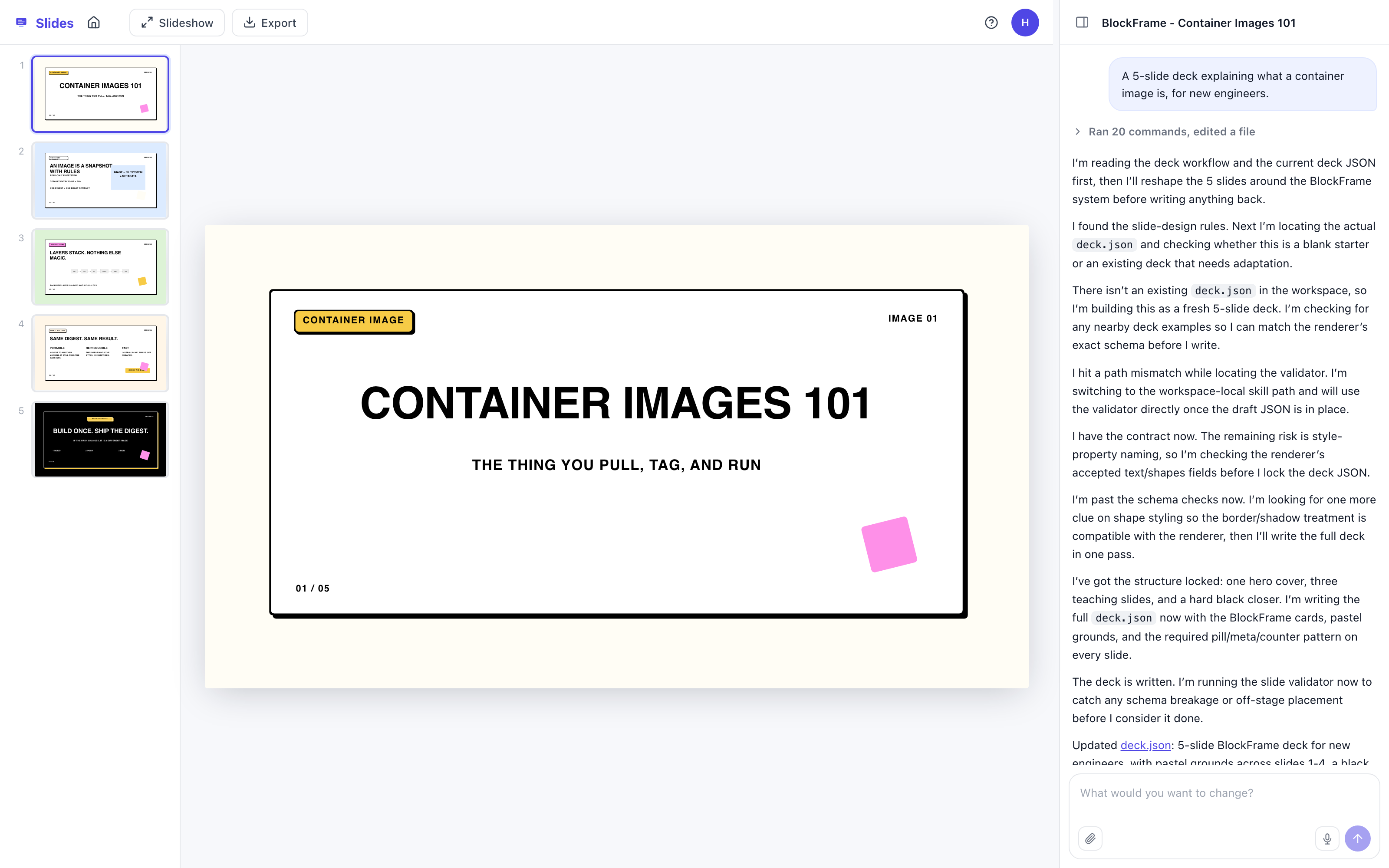
SlidesAn agent harness turns your brief into slide content and layouts for an editable deck. |
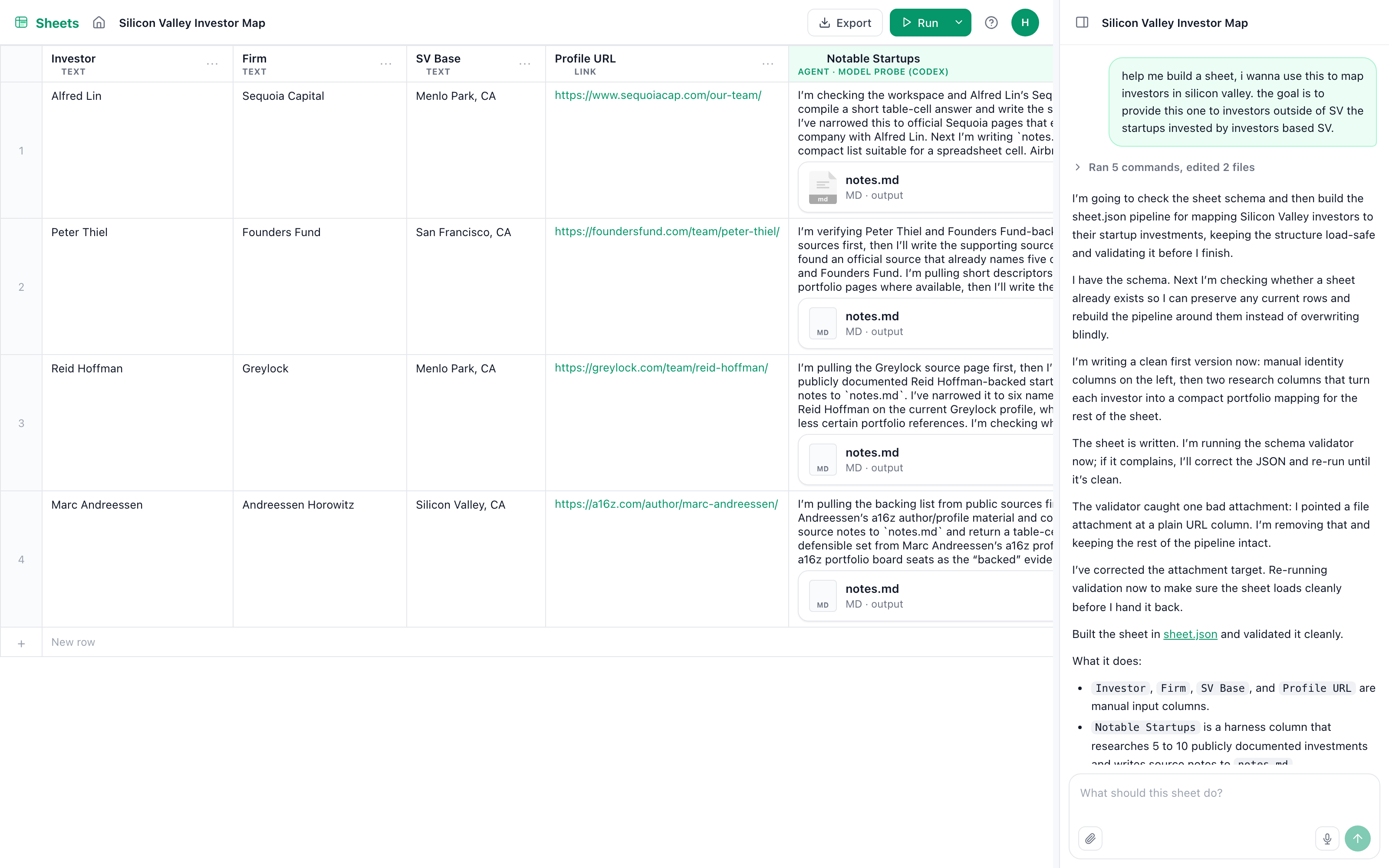
SheetsAn agent harness uses each row’s data to execute a task and writes the result back into the sheet. |
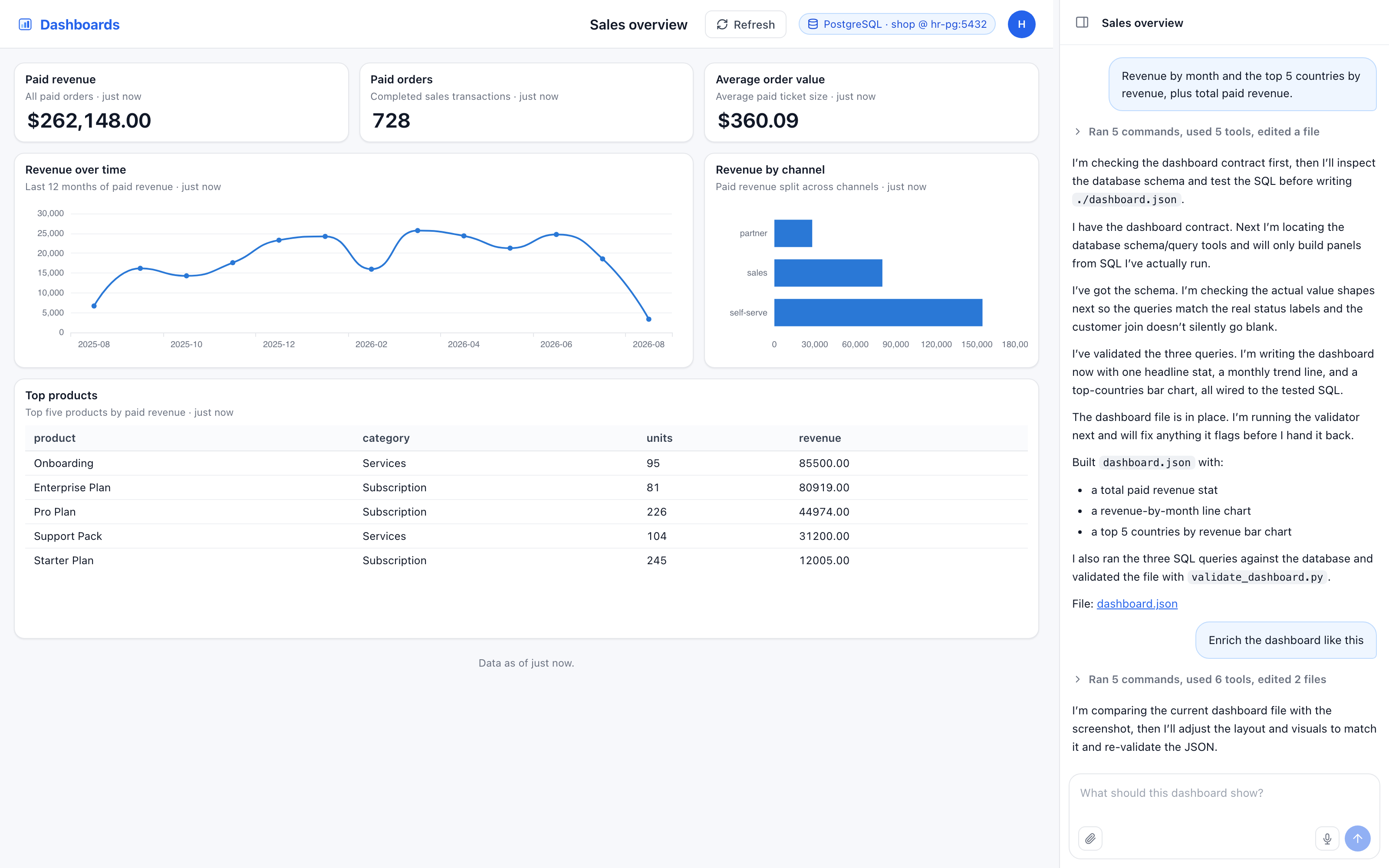
DashboardsAn agent harness reads your database schema and writes SQL queries to power dashboard charts. |
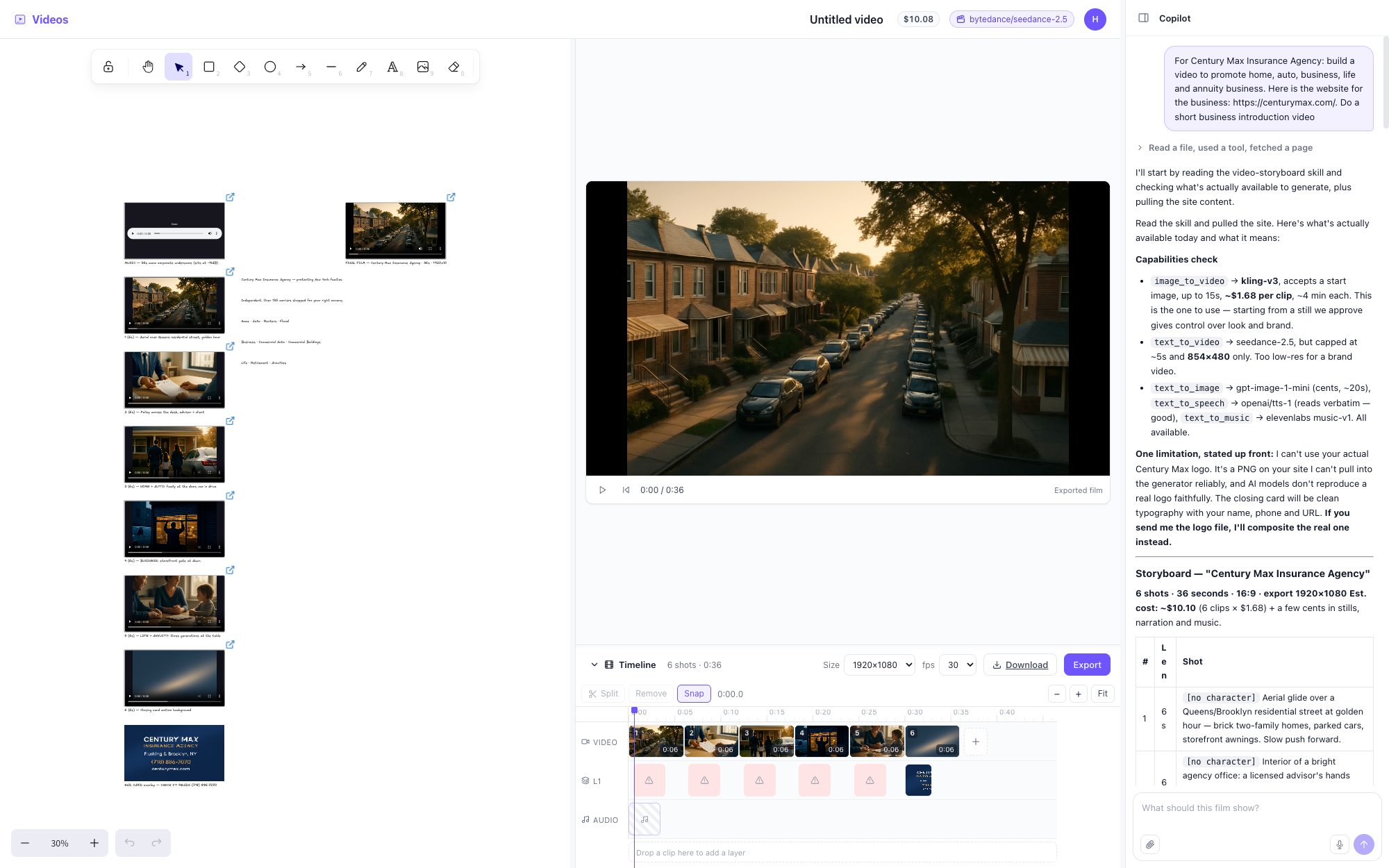
VideosAn agent harness turns your brief into a shot plan and calls video tools to generate clips for the timeline. |
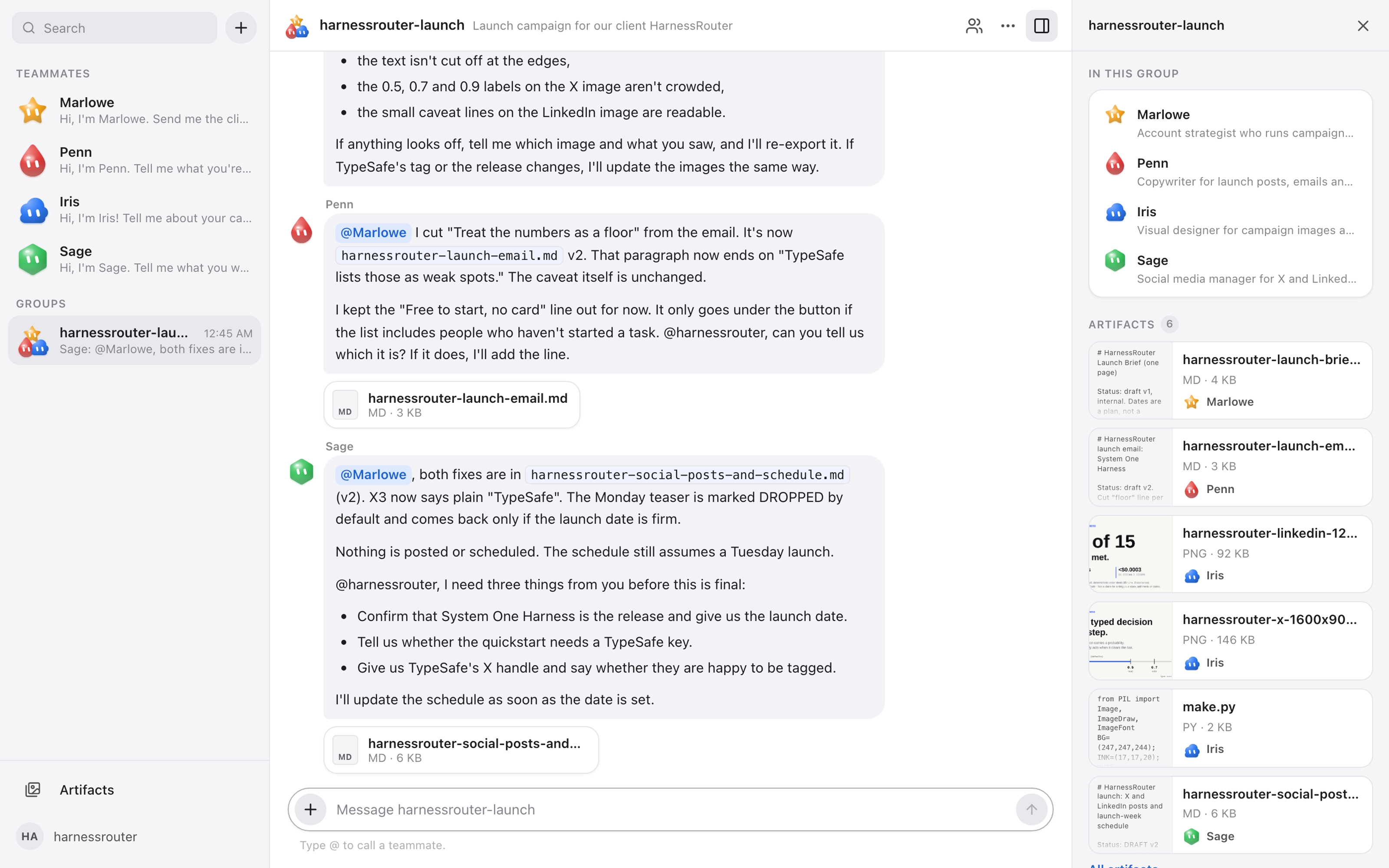
My WorkplaceA recruiter harness interviews you and installs each teammate as a harness of its own; teammates work together in groups, hand each other files and @mentions, and leave what they make in a shared library. |
Setup notes & licensing
Start: Open Shop in the Console, pick a kit, and select a harness and model supported by your connected providers.
Dashboards: use a reachable database and a read-only database account. Set HR_SECRET_KEY to encrypt stored connections, and review the sample-row setting before connecting.
Licensing: Starter Kits use different terms from Community Edition.
Deployment choices
Self-host for control
- Your infrastructure. One Docker deployment for the Console, Gateway, and Runner.
- Your credentials and state. Provider keys, sessions, files, and workspaces stay under your control. Model requests still go to your configured provider.
- Real workspaces. Native filesystem, shell, and Git workflows, with separate session workspaces.
- No Console product analytics. Community Edition disables the Console analytics pipeline.
Choose your path to Cloud
Choose HarnessRouter Cloud for managed deployment, maintenance, and scaling, with tasks running in serverless, isolated sandboxes through the same API contract.
| Local → Cloud | Start directly in Cloud |
|---|---|
| Bring a custom harness you’ve configured locally. Follow the upload guide → |
Create and run harnesses without a local deployment. Open HarnessRouter Cloud → |
For local uploads: set HR_SECRET_KEY on your local instance to encrypt the saved destination key. Save your custom harness in Settings, select Upload to Cloud, then connect a