

A "talk to a real person right now" button for your websites.
One script tag on any number of sites. One dashboard for your team. One shared queue. A visitor sees that someone is live, clicks, waits in line, and lands in a private 1:1 video call — without installing anything, creating an account, opening Zoom, or leaving the page they were on.
Runs entirely on your own Cloudflare account: Workers, Durable Objects, D1, KV, R2 and RealtimeKit for the WebRTC media. No servers, no third-party SaaS, no media passes through your code.
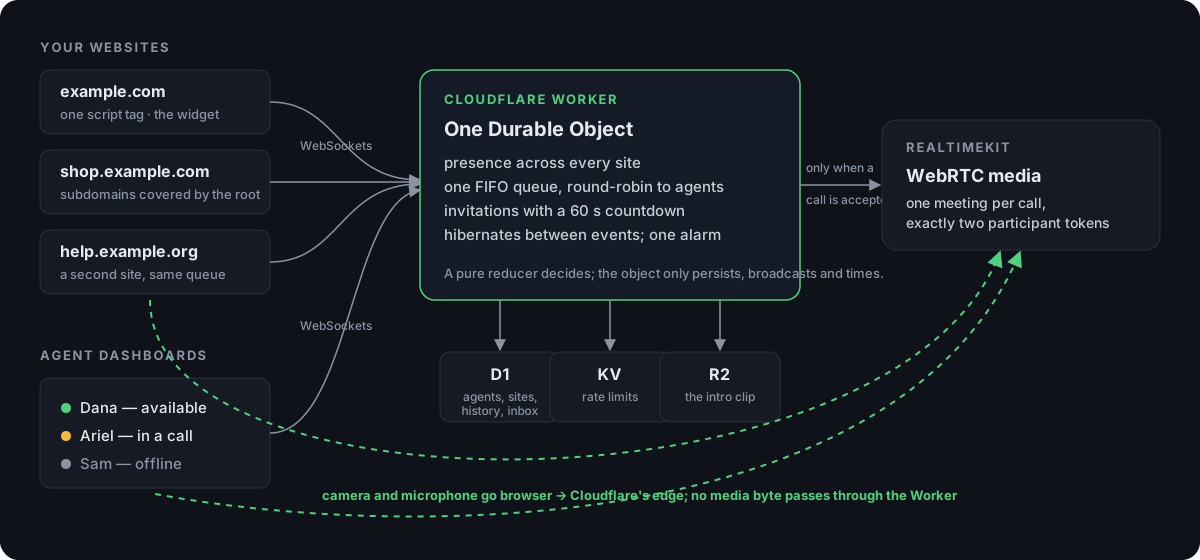
The same picture as text
widget on any site ──ws──┐
agent dashboards ───ws───┼──▶ LiveHostRoom (one Durable Object)
waiting visitors ───ws───┘        │
                                  ├─▶ D1            history, agents, sites, inbox
                                  ├─▶ KV            rate-limit windows
                                  ├─▶ R2            the intro clip
                                  └─▶ RealtimeKit   only when a call is accepted

/call (same-origin iframe) ──────▶ WebRTC, peer to Cloudflare's edge
See it
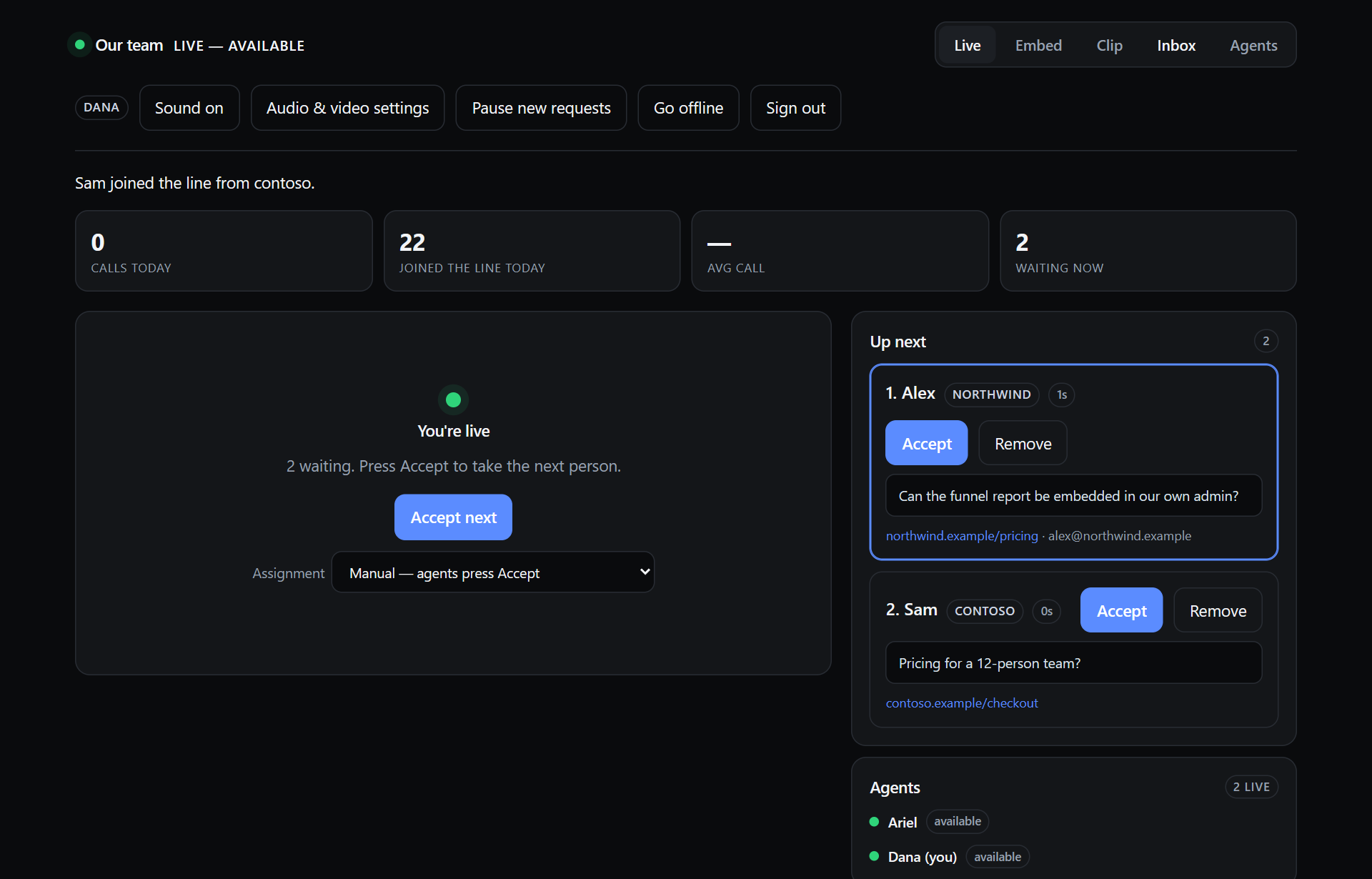
The dashboard while two people wait — one from each site — and two agents are live:
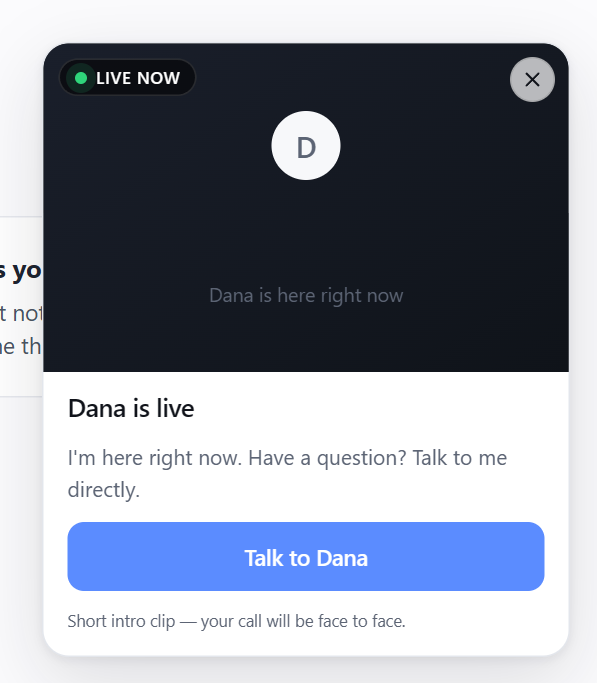
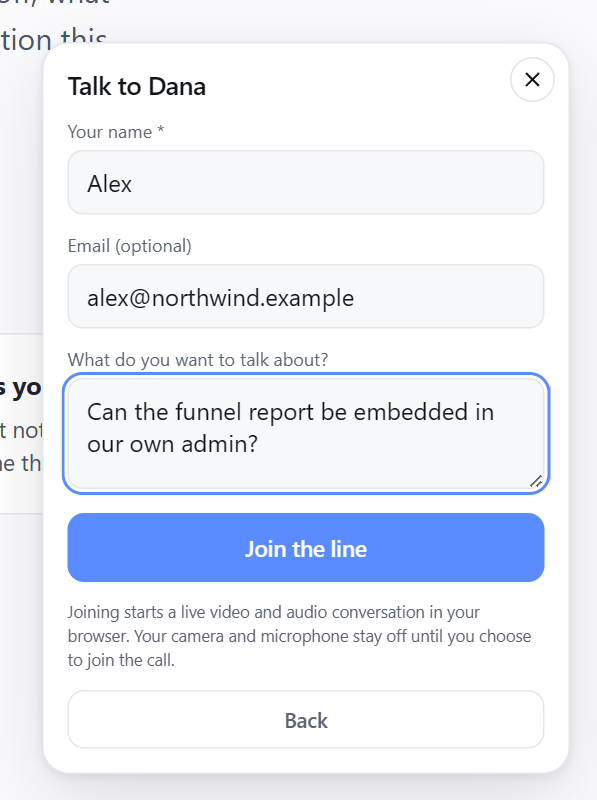
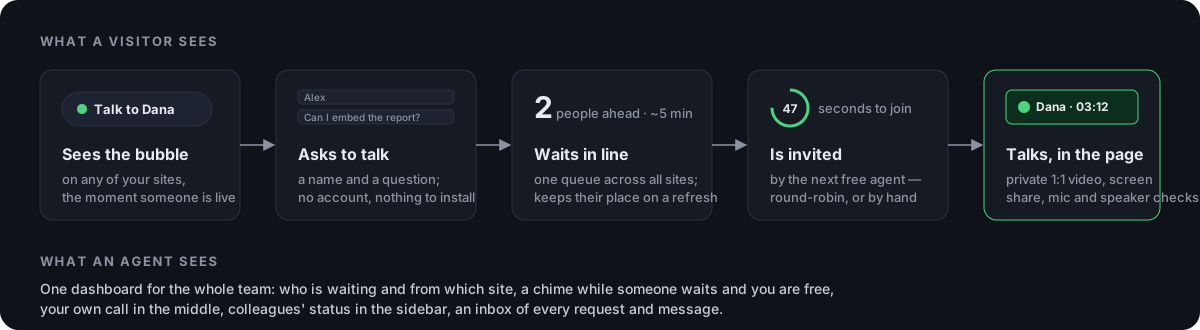
What a visitor sees on your site, from the first click to their place in line:
 |
 |
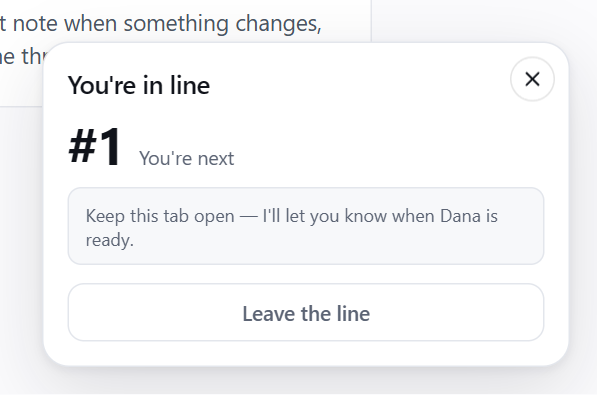 |
| Someone is live | Asking to talk | Waiting, with a place in line |
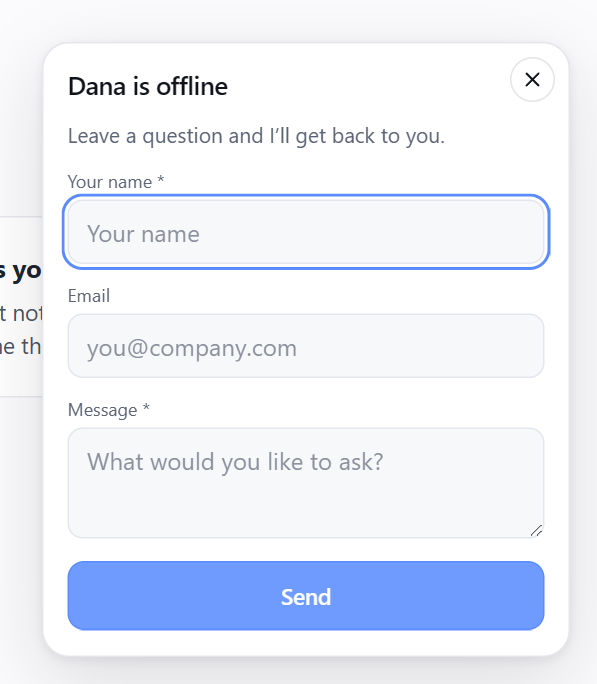 Nobody live: a message form instead (or nothing at all — per site) |
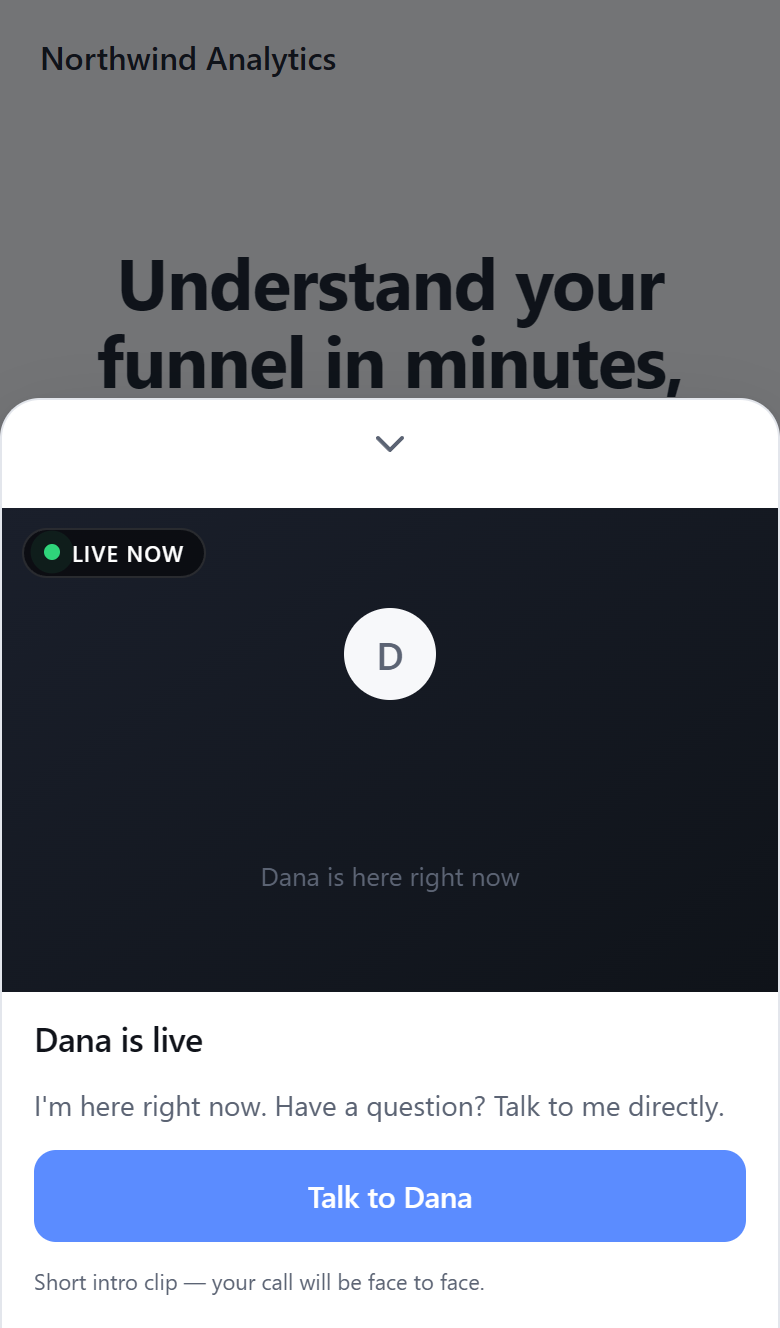 On a phone: a bottom sheet with a chevron to dismiss |
What you get
- Live presence across every site. An agent goes live on the dashboard and every widget switches on within a second. Nobody live → each site shows either an offline state with a leave-a-message form, or nothing at all (your choice, per site).
- One queue, many agents, round-robin. Visitors from all your sites wait in one FIFO line. Any number of agents can be live at once; the next person is handed to whoever has waited longest since their last call. Or switch to manual and let agents pick.
- Invitations with a countdown. The visitor gets 60 seconds to accept; expire or decline and the next person is up. Agents see who is waiting, from which site, how long, and what they wanted to talk about.
- Private 1:1 calls in the page. Camera, microphone, screen sharing from either side, mobile bottom sheet on phones. Exactly two participant tokens are ever minted per call; there is no way for a third person in.
- Intro clip. Record a 5–15s loop in the browser (or upload one). Shown while anyone is live, honestly labelled as a clip, never as a live feed.
- Inbox. Every join request and offline message, who took the call, and what happened to it.
- Alerts. A repeating chime, a flashing tab title and a browser notification while someone is waiting and you are free.
- Wait estimates, analytics, per-site name and offline behaviour, a domain allow-list with subdomain support, and a demo page for local development.
Cost
Everything except the media is well inside Cloudflare's free or lowest paid tier for a small team: a Durable Object that mostly hibernates, a few D1 rows per visitor, one KV write per rate-limited request, one R2 object. RealtimeKit bills per participant-minute of actual calls — check its current pricing — and only calls that were accepted create a meeting; people waiting in line cost nothing.
Quick start (local)
Requirements: Node 20+, a free Cloudflare account, npx wrangler login.
git clone https://github.com/yoavshalev/live-video-chat
cd live-video-chat
npm install
cp .dev.vars.example .dev.vars        # local secrets; the defaults work as-is
npm run db:migrate && npm run db:seed # local D1: schema + two example sites + a dev admin
Three terminals:
npm run dev      # the Worker on http://localhost:8787
npm run demo     # a pretend customer site on http://localhost:8788
npm run smoke    # 45 end-to-end checks against both (optional)
Open http://localhost:8787/host and sign in as dev@example.com / local-dev-password, go live, then open http://localhost:8788 in another browser (or a private window) and click the bubble.
Calls need RealtimeKit even locally: put CLOUDFLARE_ACCOUNT_ID,
REALTIMEKIT_APP_ID and REALTIMEKIT_API_TOKEN in .dev.vars (see
RealtimeKit below). Everything up to the call — presence,
queue, invitations, inbox — works without them.
Deploying to Cloudflare
One click
The button copies this repository into your GitHub account, creates the D1
database, KV namespace, R2 bucket and Durable Object on your Cloudflare account,
and deploys the Worker to your *.workers.dev subdomain. Pushes to your copy
redeploy it.
It asks for three secrets. Two come from RealtimeKit, Cloudflare's hosted WebRTC. You can add them afterwards: everything except starting a call works without them, and the dashboard says so until they are set.
REALTIMEKIT_APP_ID— https://dash.cloudflare.com/?to=/:account/realtime/kit → Create App → copy the App ID. Create it in the dashboard, not through the API, so it comes with the default presets this code expects.REALTIMEKIT_API_TOKEN— https://dash.cloudflare.com/profile/api-tokens → Create Token with the Realtime → RealtimeKit Admin permission.CLOUDFLARE_ACCOUNT_ID— on your dashboard's overview page. The deploy fills this in by itself when it can.
The session-signing secret is generated for you, and the database schema is applied as part of every deploy.
When it finishes, open https://founderlive.<your-subdomain>.workers.dev/setup
and create the first admin — you. Do it right away: until someone has, that page
is open to whoever finds it first, as with any fresh install. Then, on the
dashboard: Embed tab → create a site, add its domain, copy the snippet into
your website. Clip tab → record an intro. Agents tab → add your
colleagues. Go live.
To put it on your own domain later, add a route in your copy's wrangler.jsonc
(the comments there show how) and push. Nothing else changes: the Worker reads
its own URL from each request.
By hand
The same steps from a terminal. You need Node 20+ and npx wrangler login.
1. Configuration. wrangler.jsonc is a template with placeholder ids. Copy
it and keep your real values out of git:
cp wrangler.jsonc wrangler.prod.local.jsonc # any wrangler.*.local.jsonc is gitignored
Every remote command below takes --config wrangler.prod.local.jsonc. (Editing
wrangler.jsonc in place also works if you are not planning to contribute back.)
2. Resources.
npx wrangler d1 create founderlive              # → database_id
npx wrangler kv namespace create RATE           # → id
npx wrangler r2 bucket create founderlive-media
Paste the D1 database_id and the KV id into your config. Optionally set
ORG_ID — any short slug naming your organization; keep it stable forever, it
names the Durable Object and the row that holds your intro clip — and a custom
domain (routes; the comments in the file show how). The Worker, D1 database
and R2 bucket are named founderlive, the project's internal name, which also
appears in the widget's JavaScript API (FounderLive.init(...)) and its DOM
events. Renaming them is not necessary.
3. RealtimeKit. The two secrets described under "One click", plus your account id:
C=wrangler.prod.local.jsonc
npx wrangler secret put REALTIMEKIT_APP_ID     --config $C
npx wrangler secret put REALTIMEKIT_API_TOKEN  --config $C
npx wrangler secret put CLOUDFLARE_ACCOUNT_ID  --config $C   # or let the deploy detect it
Secrets, never vars: a plaintext var of the same name silently overrides a
secret on deploy.
Preset names use underscores. Cloudflare's docs show group-call-host, but
an app is actually created with group_call_host and group_call_participant,
which is what wrangler.jsonc ships with. A mismatch fails only at the moment
a real call is accepted, so after deploying check
GET https://<your host>/api/host/realtimekit (signed in): it lists the
presets your app really has and whether the configured names match.
4. Deploy.
npm run deploy -- --config $C
This refuses template placeholders, builds, typechecks and tests, applies the
D1 migrations, deploys, and then sets SESSION_SECRET (generated) and
CLOUDFLARE_ACCOUNT_ID (detected) if they are missing. An existing value is
never touched: rotating the session secret signs everyone out.
Do not run npm run db:seed:remote unless you want the two example sites;
you will create your real sites on the dashboard. The local-only seed file with
the dev@example.com admin is never applied remotely.
5. Your first admin. Open https://<your host>/setup right after deploying
and create yourself, as under "One click". Or from the terminal, where the
password is printed once:
node scripts/agent.mjs add --name "Ada" --email ada@example.com --role admin --remote --config $C
Updating
git pull
npm run deploy -- --config $C      # migrations are part of the deploy
With the button: pull this repository into your copy and push; the build does the rest.
Deploy while nobody is live if you can: a deploy that changes the Durable Object's stored state shape resets it (queue, presence), which is harmless between conversations and abrupt during one.
Agents and round-robin
One deployment is one organization with any number of agents. Each agent has their own sign-in and their own live/paused/offline switch; the widgets show the organization as live while any agent is.
| Assignment mode | What happens when someone joins the line |
|---|---|
| Automatic (default) | They are invited by the available agent who has gone longest since their last assignment. Ties break alphabetically by agent id. When that call ends, the next waiting person goes to the next agent in the rotation. |
| Manual | Nobody is invited until an agent presses Accept or Accept next. |
An agent is available when they are live, connected, not paused, and not in a call or holding an invitation. Pausing takes you out of the rotation without taking the team offline. If the agent who invited someone goes offline before the call connects, the visitor goes back to the head of the line for the next agent; if a call is already running it ends.
Every dashboard shows the whole queue plus each colleague's status and who they are talking to; each agent's own call fills their main area. Wait estimates shown to visitors divide by the number of live agents.
Roles
| agent | admin | |
|---|---|---|
| Go live, take calls, see the queue, inbox and team | ✓ | ✓ |
| Record the intro clip | ✓ | ✓ |
| Change their own password | ✓ | ✓ |
| Sites, domains, per-site settings | ✓ | |
| Add agents, change roles, disable, reset passwords | ✓ |
The last enabled admin cannot be demoted or disabled.
The agent CLI
Everything the Agents tab does, from a terminal — including the first admin on
a fresh deployment. Without --remote it acts on the local dev database.
node scripts/agent.mjs add      --name "Ada" --email ada@example.com [--password ...] [--role admin] [--remote] [--config file]
node scripts/agent.mjs password --email ada@example.com [--password ...] [--remote]
node scripts/agent.mjs list     [--remote]
node scripts/agent.mjs disable  --email ada@example.com [--remote]
node scripts/agent.mjs enable   --email ada@example.com [--remote]
Passwords are stored as PBKDF2-SHA256 (100 000 iterations — the most the
Workers runtime allows — with a per-user salt); the
CLI and the Worker produce and verify the same format, which
test/password.test.ts proves.
Authentication
HOST_AUTH_MODE in wrangler.jsonc picks one of two modes.
password (default). Each agent signs in with email and password; a
success is a signed HttpOnly cookie valid for 12 hours, rate-limited to 8
attempts per IP per 15 minutes. Disabling an agent takes effect on their next
request. Simple, and fine for a small team.
access — preferred if you already use Cloudflare Zero Trust. Put a
Cloudflare Access application in front of the hostname, scoped to /host*
and /ws/host only — a policy covering the whole hostname would challenge
/widget.js, /embed/*, /ws/widget, /media/*, /call and /api/*, which
visitors and embedding sites call unauthenticated, and the widget would stop
working everywhere. The Worker verifies the JWT Access injects (RS256 against
your team's published keys, aud, issuer, expiry) rather than trusting the
header, so a misrouted request cannot forge a session. Anyone the policy admits
becomes an agent on their first visit; the very first one becomes admin.
npx wrangler secret put CF_ACCESS_TEAM_DOMAIN --config $C   # yourteam.cloudflareaccess.com
npx wrangler secret put CF_ACCESS_AUD         --config $C   # the application's AUD tag
npx wrangler secret put ALLOWED_HOST_EMAIL    --config $C   # optional: comma-separated allow-list on top of the policy
With Access, set workers_dev to false and use a custom domain: a
*.workers.dev hostname is an unauthenticated route that bypasses any Access
policy bound to the real domain.
Dashboard writes are refused when the browser reports them as cross-site
(Sec-Fetch-Site / Origin), on top of the SameSite=Lax cookie; dashboard
pages send frame-ancestors 'none'; and the two credentials published for
local development — the example SESSION_SECRET and the dev@example.com
admin — are refused outright anywhere but localhost.
Embedding
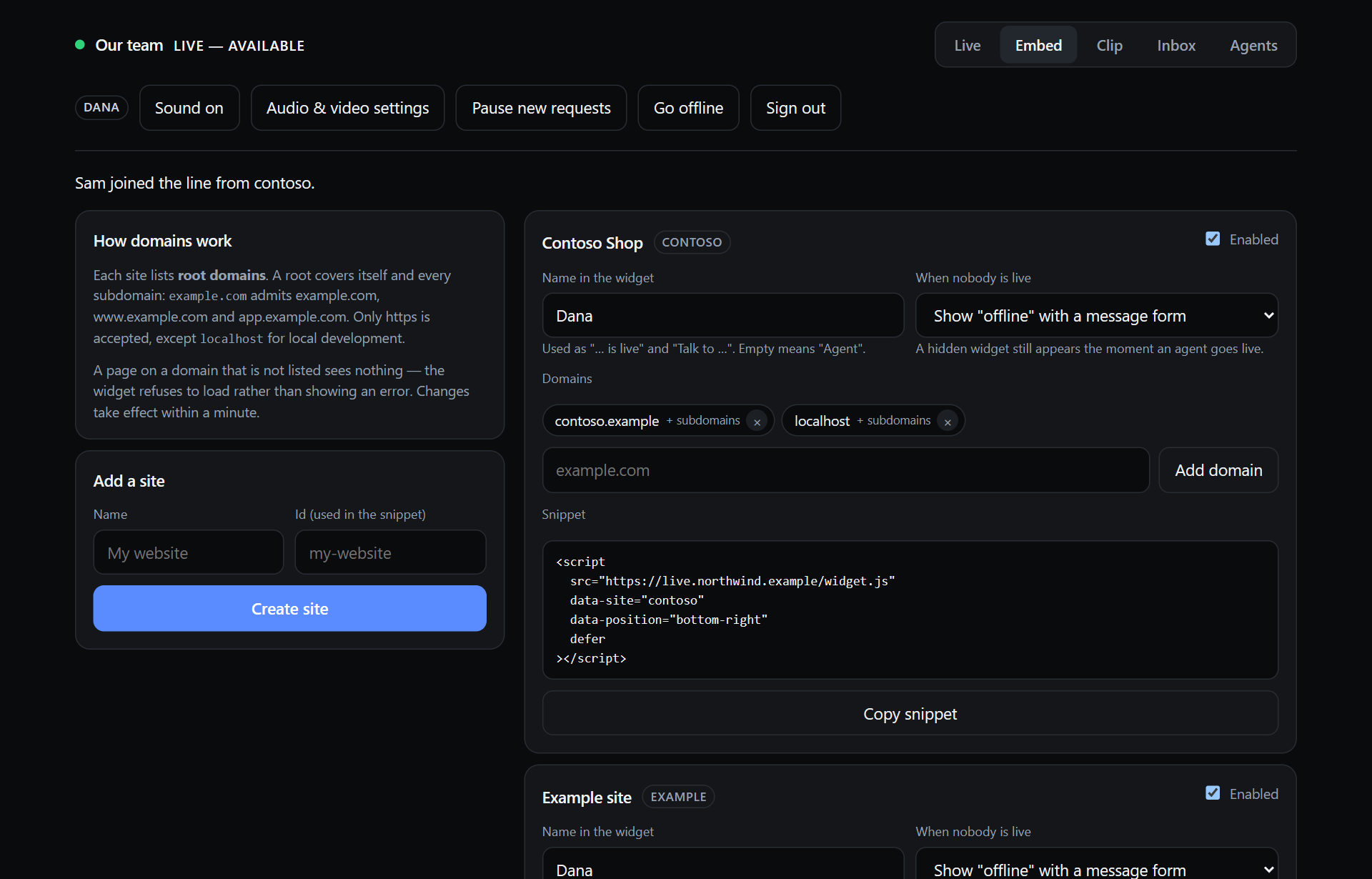
Sites are managed on the dashboard's Embed tab (admins): create one, add its domains, copy the snippet.
<script
  src="https://live.example.com/widget.js"
  data-site="my-site"
  data-position="bottom-right"
  defer
></script>
Domains
A site lists root domains, not exact origins. Each root covers itself and
every subdomain over https: example.com admits example.com,
www.example.com and app.example.com. Entering app.example.com scopes a
site to that subtree. www. is stripped on entry; nothing else is.
Refused on purpose, pinned by test/domains.test.ts: lookalikes
(evil-example.com), the domain as a prefix of another (example.com.attacker.net),
plain http:// on a real domain, bare registry suffixes (com, co.uk), and
multi-tenant hosting suffixes as roots (github.io, pages.dev, vercel.app,
myshopify.com… — a site under one, like mysite.github.io, is fine).
localhost is the one exception to https, on any port, for local development —
remove it from production sites.
A page on a domain that is not listed sees nothing: the widget refuses to load rather than showing an error. Changes reach every edge within a minute.
Per-site settings
| Setting | What it does |
|---|---|
| Name in the widget | The name in every line of copy — "… is live", "Talk to …". Empty means Agent. Agents' real names are never shown to visitors unless you put them here. |
| When nobody is live | Show renders the offline state with a leave-a-message form. Hide renders nothing at all — but stays connected, so the bubble appears the instant someone goes live. |
| Enabled | Off refuses every request for the site, including the widget itself. |
JavaScript API and events
FounderLive.init({ siteId: 'my-site', position: 'bottom-right' })
FounderLive.open(); FounderLive.close(); FounderLive.destroy()
FounderLive.getStatus()   // { presence, self, view }
Events fire on window, so a host page can feed them to its own analytics:
founderlive:ready          founderlive:queuejoined    founderlive:callstarted
founderlive:opened         founderlive:queueleft      founderlive:callended
founderlive:closed         founderlive:invited        founderlive:inviteexpired
founderlive:talkclicked    founderlive:offlinemessagesent
widget.js is completely static — no presence, no site config, not even the
base URL, which it derives from its own script.src — so it caches for an hour
while presence still changes in seconds.
Content Security Policy
If an embedding site sets a CSP, it needs one origin:
script-src   https://live.example.com
connect-src  https://live.example.com wss://live.example.com
frame-src    https://live.example.com
img-src      https://live.example.com
media-src    https://live.example.com
The RealtimeKit SDK is re-served from /sdk/ and the intro clip from /media/
so the widget never talks to anything else.
The dashboard
| Tab | |
|---|---|
| Live | Your status and call, the queue with each person's site, question and wait, every colleague's status, today's numbers, and Earlier today — everyone who joined and what happened, including joins that expired while nobody was watching. |
| Embed | Sites, domains, per-site settings, snippets. Admins. |
| Clip | Record or upload the intro loop; device check. |
| Inbox | Every join request and offline message ever submitted, with who took the call. |
| Agents | The team, roles, add / disable / reset password; your own password. |
 |