Oyenza Studio
A living notch for Windows and Mac
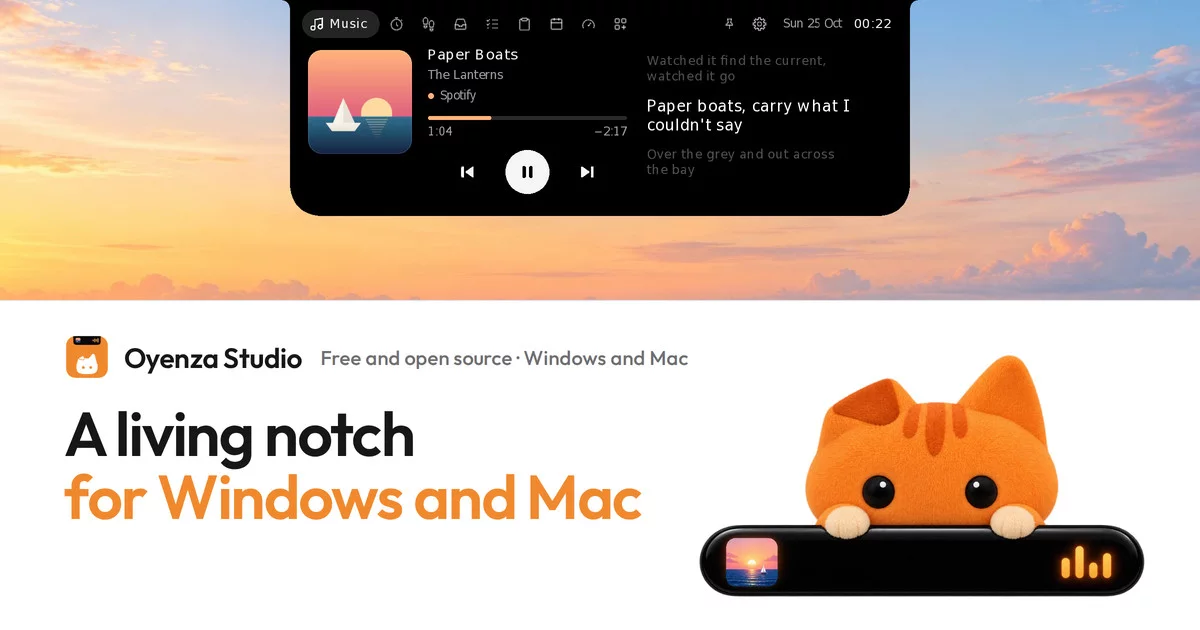
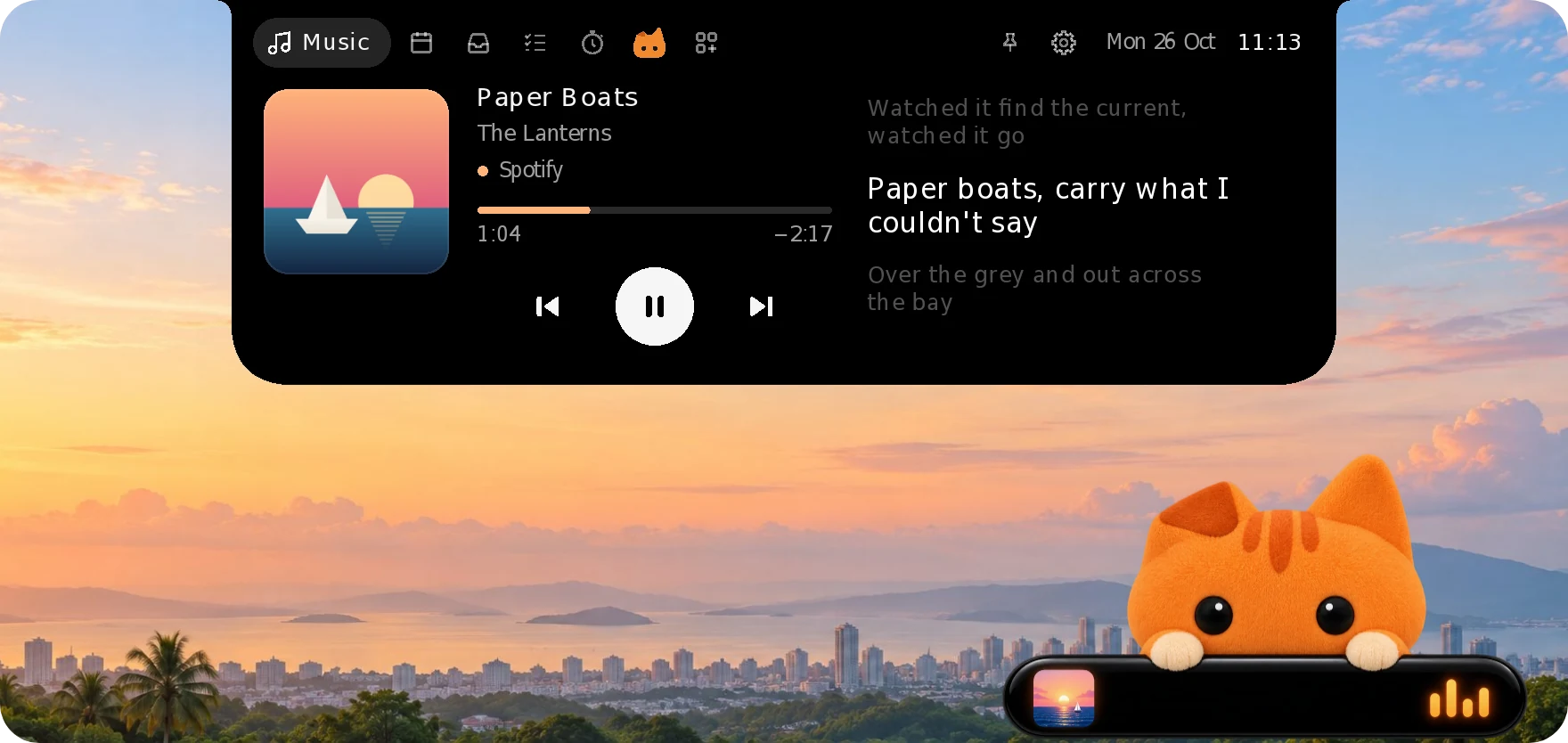
Like the Dynamic Island on a phone, for your computer. A small island hangs from the top of your screen, shows what's playing, counting down and arriving, and opens into quick pages when you point at it.
Website · Features · Install · FAQ · Guides




Free and open source · Windows 10 and 11 · macOS 14 or later · No account needed
Called Oyen Poni until 0.2.0. Same app with a new name: updating keeps your settings and data.
Features
Music, word by word
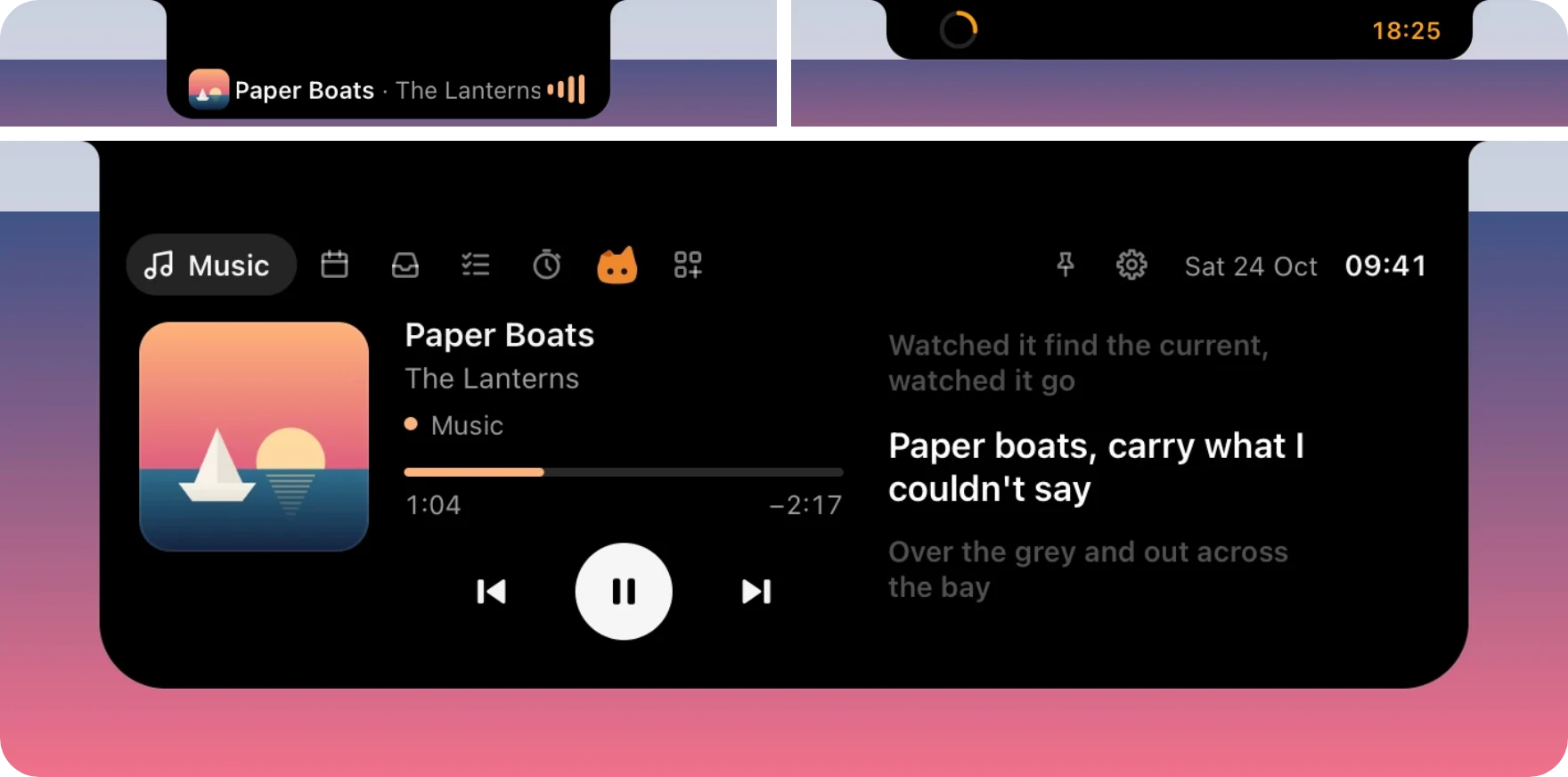
Controls for whatever is playing: Spotify, Apple Music, YouTube in your browser, or any app in Windows' media controls. The lyrics scroll in time with the song, and Korean, Japanese and Chinese lines get their reading underneath, the way Apple Music shows pronunciation. The line being sung also shows on the closed island, in every theme, with its reading in Latin letters under it, so you can sing along without opening it. Drag the bar to jump anywhere in a song.
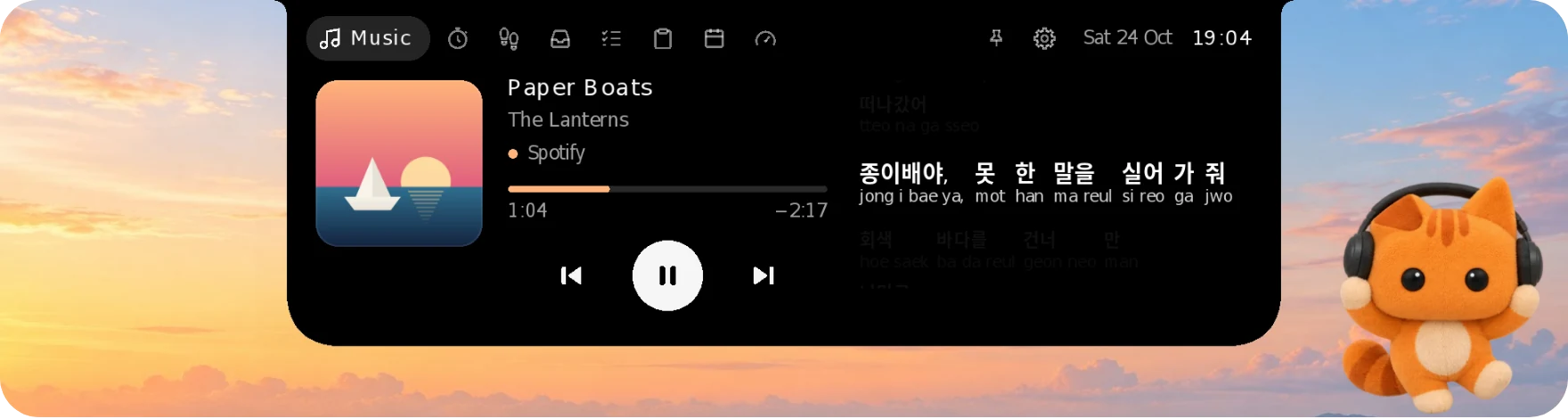
Lyrics come free from LRCLIB, or from Apple Music itself with your Apple Music token.
What's happening, at a glance
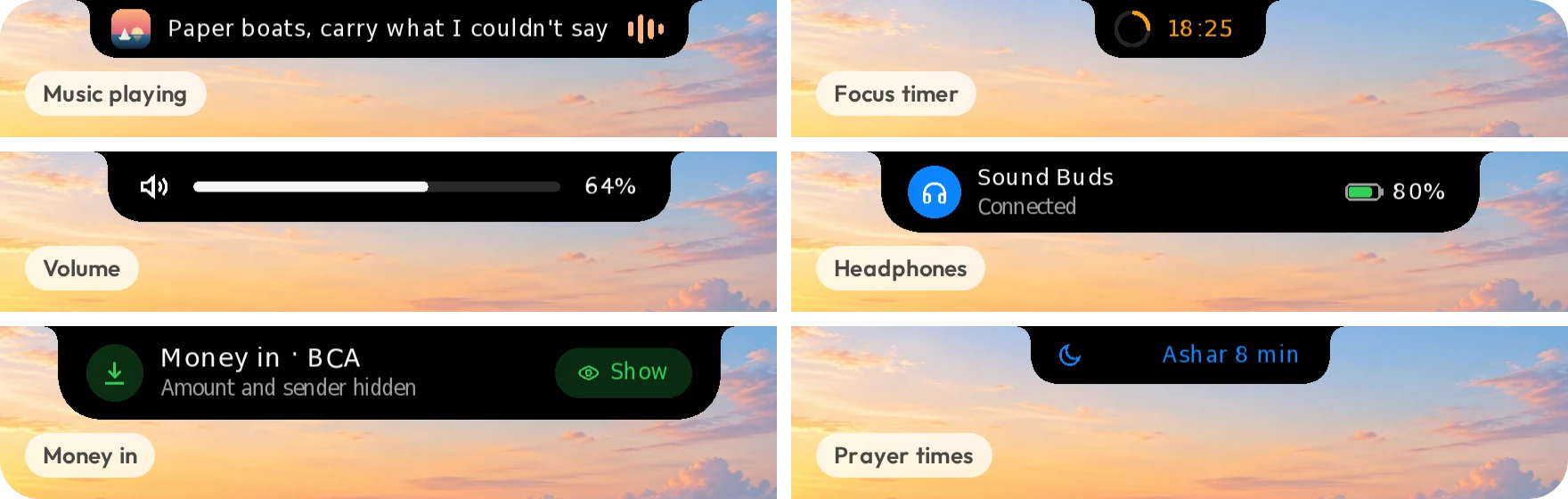
While it rests, the island is a small black pill that tells you what's going on, then gets out of the way: album art, the line being sung and a beat while music plays, your focus timer, volume and charging, headphones connecting with their battery, money coming in, your daily step goal, the next prayer.
From your phone to your PC, no app needed
Open the Shelf, scan the code with your phone's camera, pick photos or files and tap Send. The island asks first, then they land on the Shelf. It works with iPhones and Android phones over your own Wi-Fi, and a phone you pair once can send from any network.
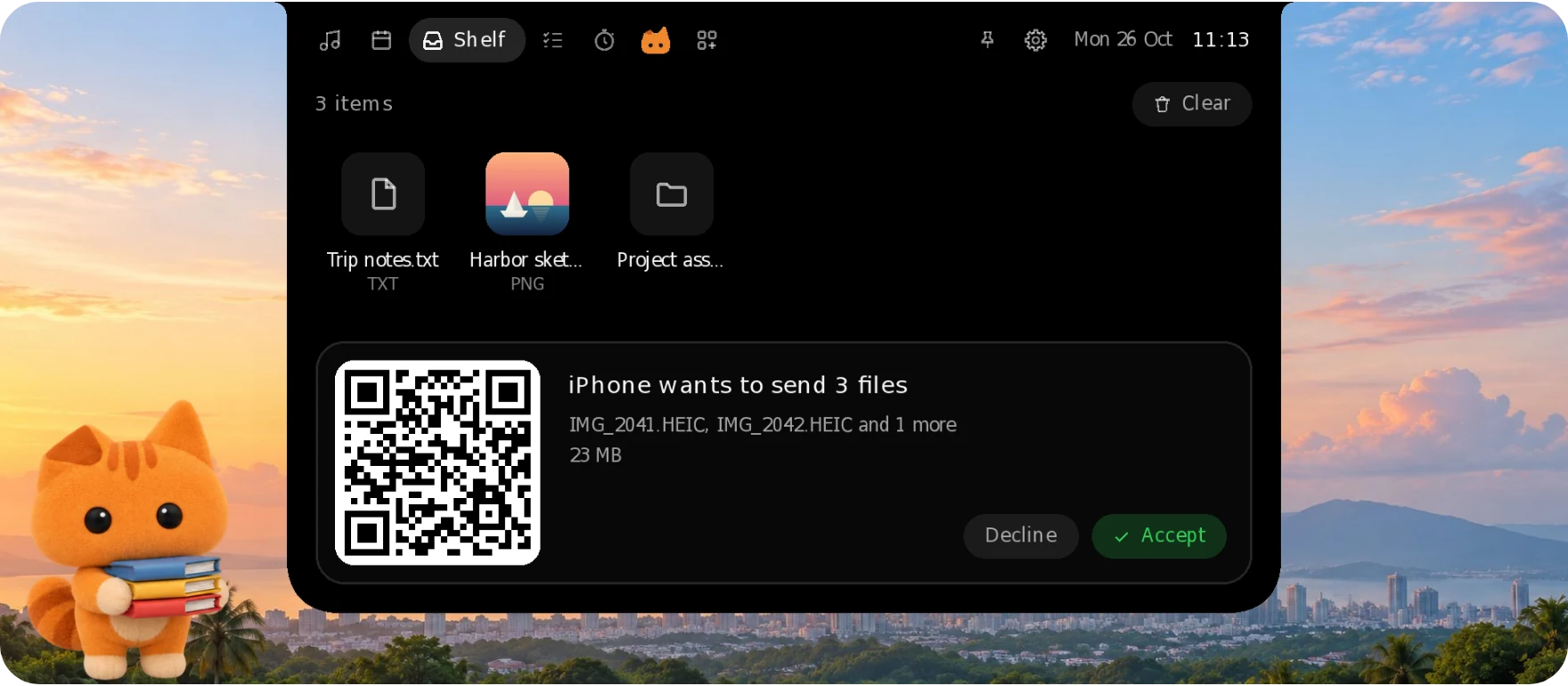
How Phone drop works · Paired phones
FPS, GPU and CPU over your games
New in 0.1.18. Switch on Show over games and, while a borderless full-screen game is in front, the island becomes a small readout: frames per second, the GPU's load and temperature and the CPU's load. It reads Windows' own log of each frame, the way PresentMon and Xbox Game Bar count them, so nothing is loaded into the game.
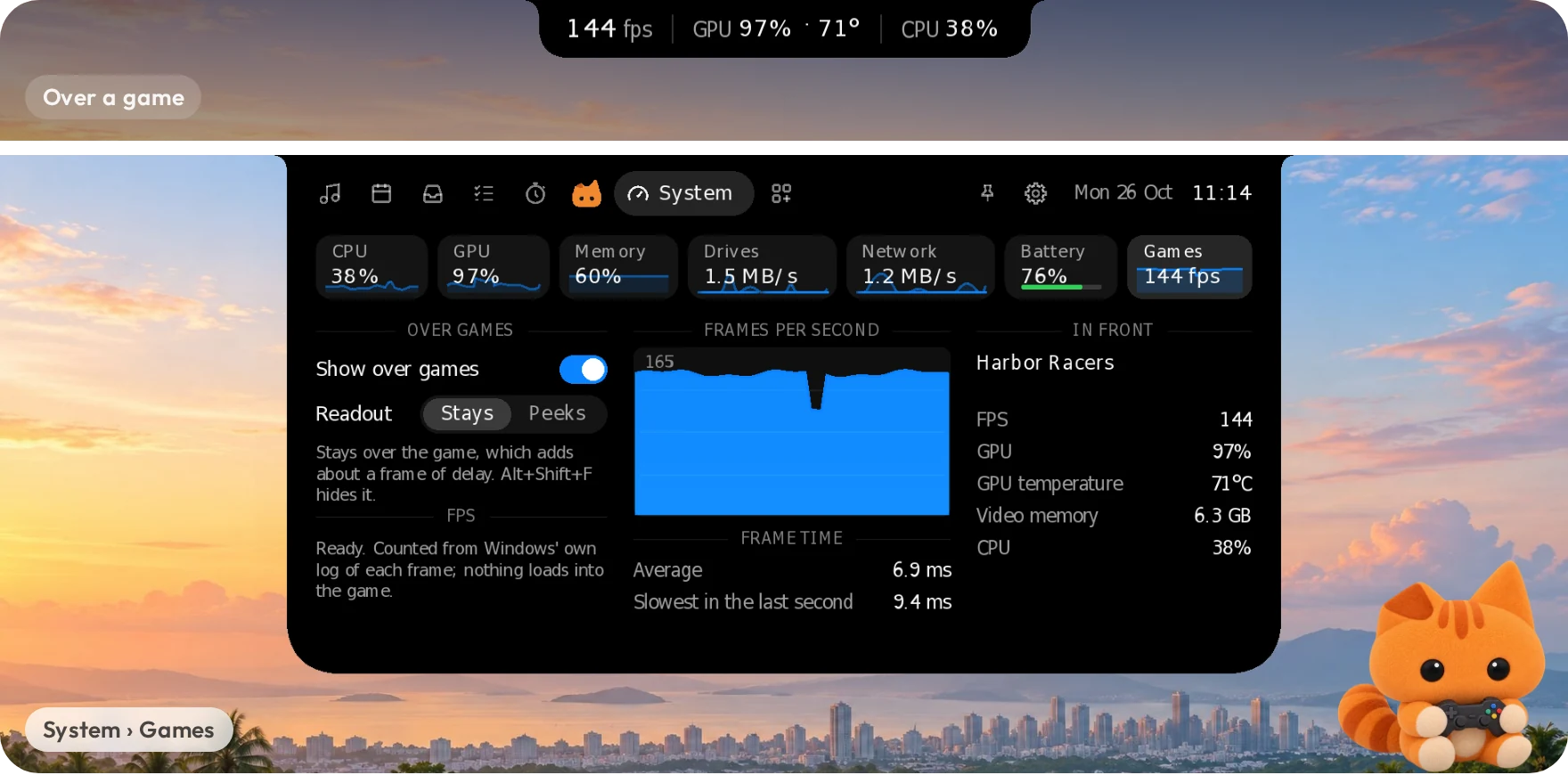
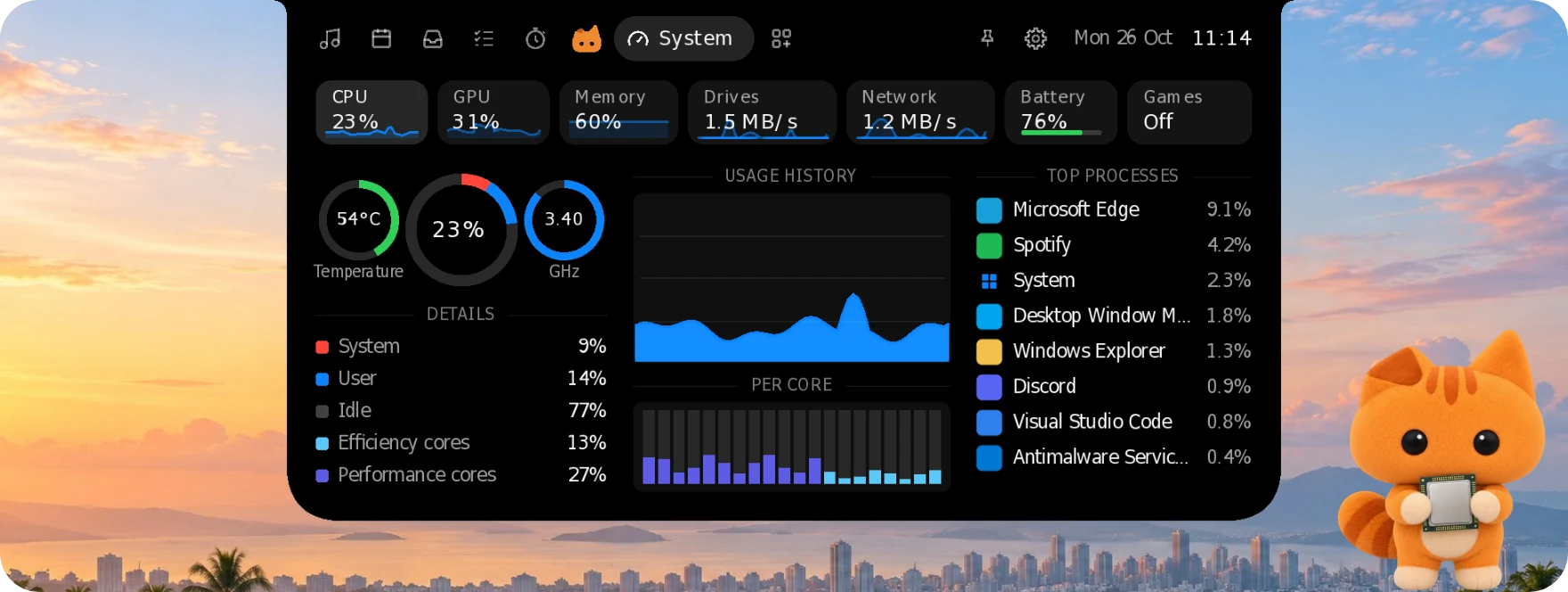
Your whole computer on one page
CPU, GPU, memory, drives, network and battery: rings and gauges, each core's load, the last minute of history and the apps using the most. Read straight from Windows' own counters, with no drivers and no admin rights, and it never leaves your PC. On a Mac it reads macOS's own counters, the way Stats does. System is an add-on: its tab shows once you switch it on, and until then nothing reads the counters.
On a desktop, Power shows what the whole PC draws: split into the CPU, the graphics card and the rest. A Corsair HXi or RMi, or an MSI MEG Ai or MPG Ai…TS power supply reports the real number over its USB cable, with what it pulls from the wall, its efficiency and its temperature; Oyenza Studio only reads it, while the page is open. With any other power supply, the page estimates: the CPU's own reading, the graphics card's (NVIDIA cards report theirs through the driver), and about 40 W for the board, memory, drives and fans. On a Mac without a battery (a Mac mini, Studio, iMac or Mac Pro with Apple silicon), Power reads what the whole Mac draws from its own sensor, the number Stats shows as System total; macOS doesn't split it by part, so the CPU's and the graphics' load stand beside it. A MacBook keeps its Battery module.
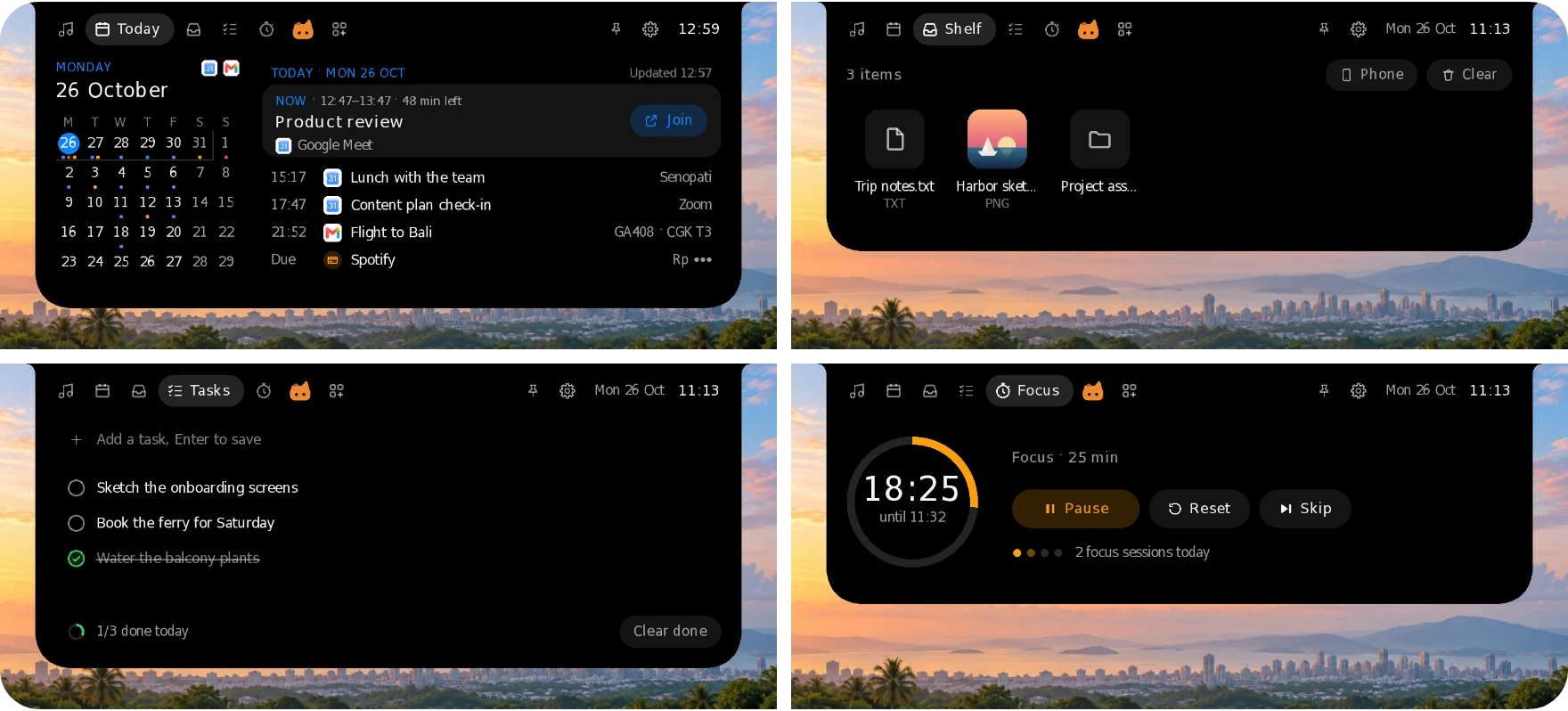
The small things, one hover away
Focus is a Pomodoro timer that keeps counting in the island. Tasks is a tiny to-do list. Today has the date and the next five weeks, and once you sign in to Oyenza, your schedule: the meeting on now with Join, the rest of today, then the weeks ahead from Google Calendar, with your flights from Gmail and the bills due. Click a date to start the list there. Shelf keeps the files you drop on the island. The tabs run Music, Today, Shelf, Tasks, Focus, AI, then Oyenza, with Oyen himself as its tab; Health and System are add-ons. Scroll over the top of the island to switch pages. Don't need one of the first five? Switch it off under Tabs in Settings and it leaves the row.
Your AI plans, before you run out
New in 0.2.16. The AI tab, right after Focus, shows what's left of the AI coding plans on your computer: Codex, Claude Code, OpenCode Go and more. Each one gets a card with your plan, each limit as a bar with when it resets, and credits or balance left. Switch on Tell me before I run out and the island tells you when a limit is nearly used up, and when it's back. Each sign-in is read on your computer and goes only to its own service; nothing about your usage goes to Oyenza. Connect Oyenza Inference with a code, and its balance and spend show beside your plans.
What it reads, service by service
Black, Oyen, Glass or Pill
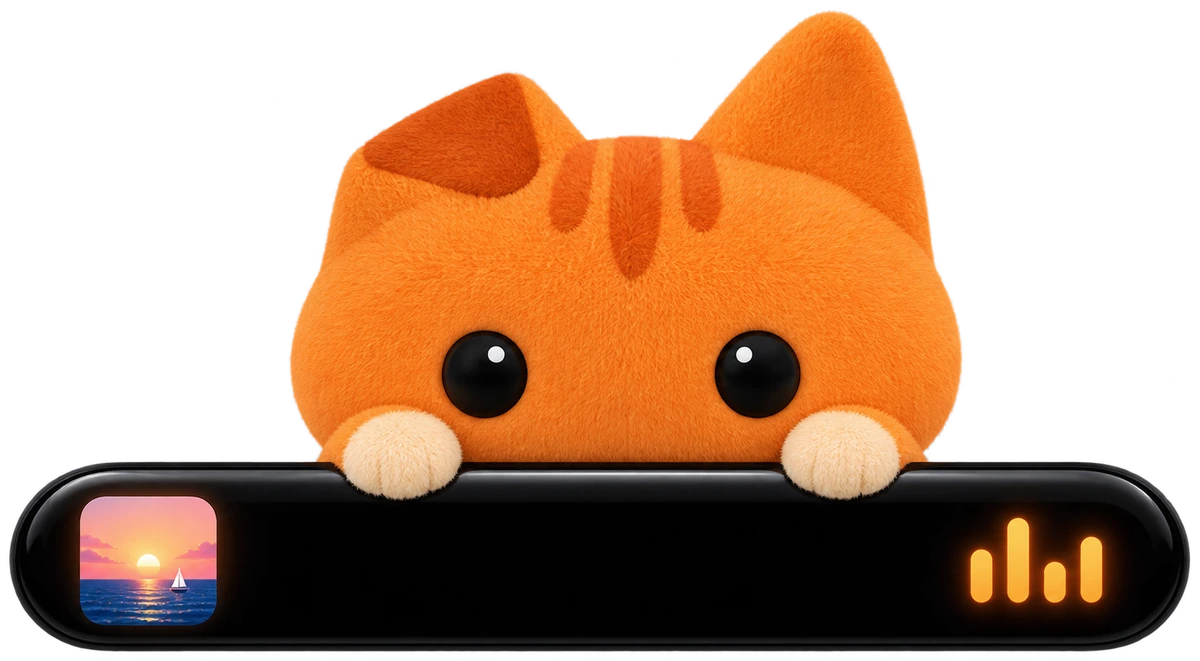
The island is black by default, like the one on a phone. Oyen turns it warm cream, and Oyen the cat moves in: he peeks over the edge, follows your pointer and sleeps from midnight to five. Glass bends and frosts whatever is behind it, after Apple's Liquid Glass; on a Mac it's macOS's own glass. Pill, new in 0.1.21, changes the shape: the island floats just below the top of the screen as a black capsule, with the time and battery at rest, the song and the line being sung while music plays, and a rounded card when it opens.
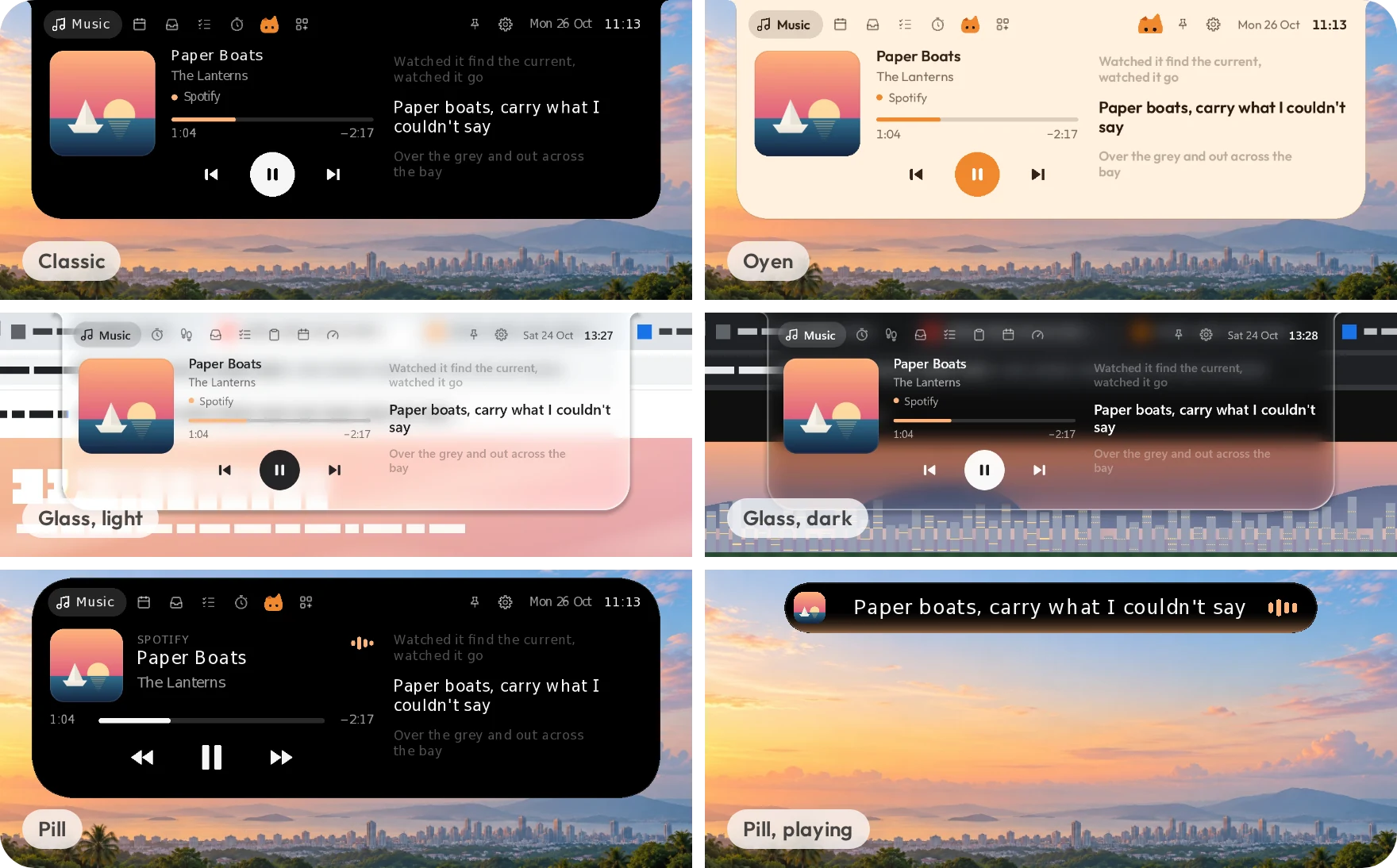
The Oyen theme · The Glass theme · The Pill theme
Your money, as it moves
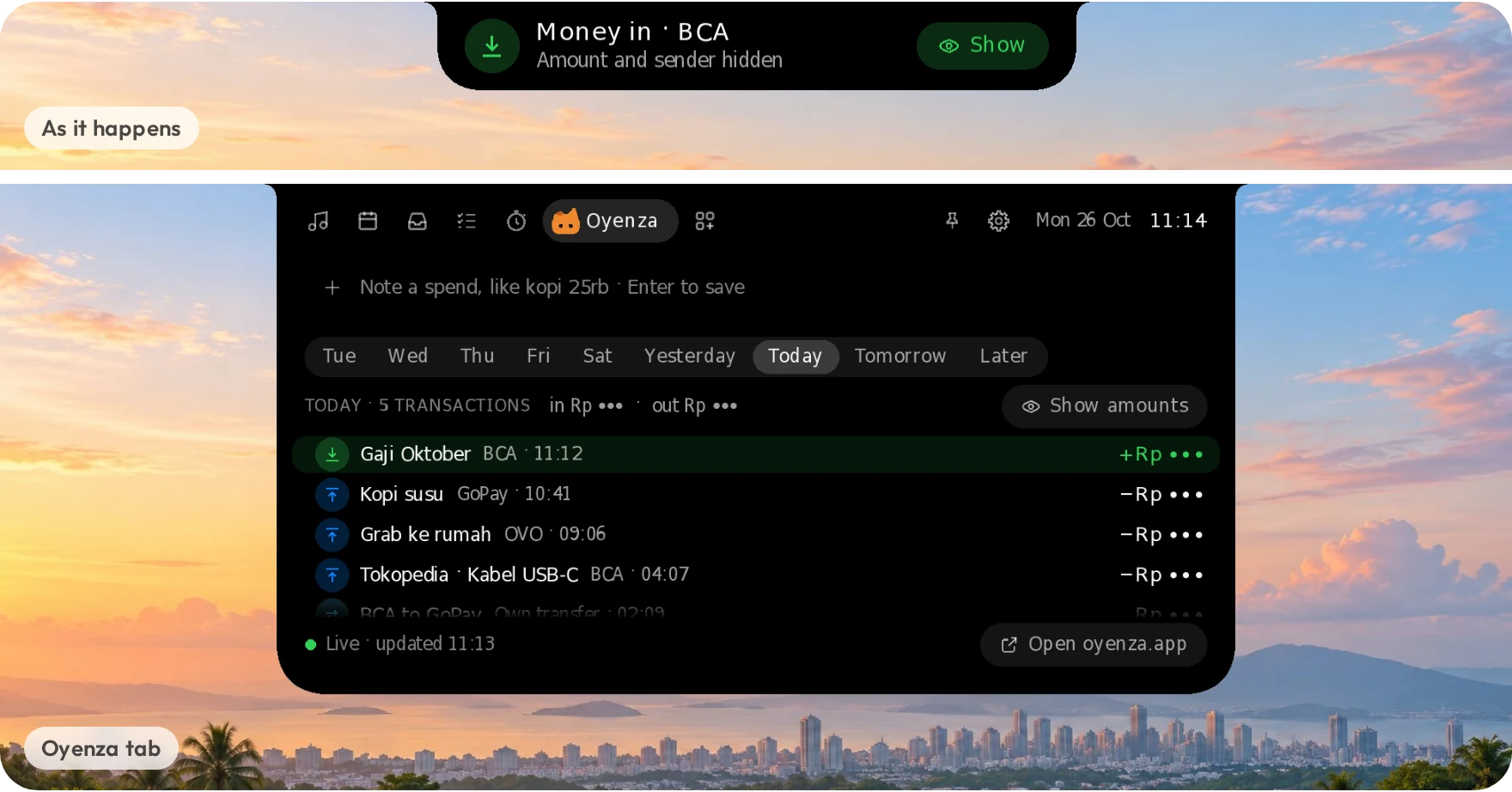
If you keep your money in Oyenza, sign in (optional) and the island tells you when money comes in or goes out, reminds you the day before a bill is due, and lists your week by day. Sums stay hidden until you click Show, so a shared screen shows only that much. Turn on Show on Oyenza Studio under your steps in Oyenza's Health (Sehat) on your phone and switch on the Health add-on, and its page shows your daily steps too, with a notice when you reach your goal. On Windows.
Prayer times for your city
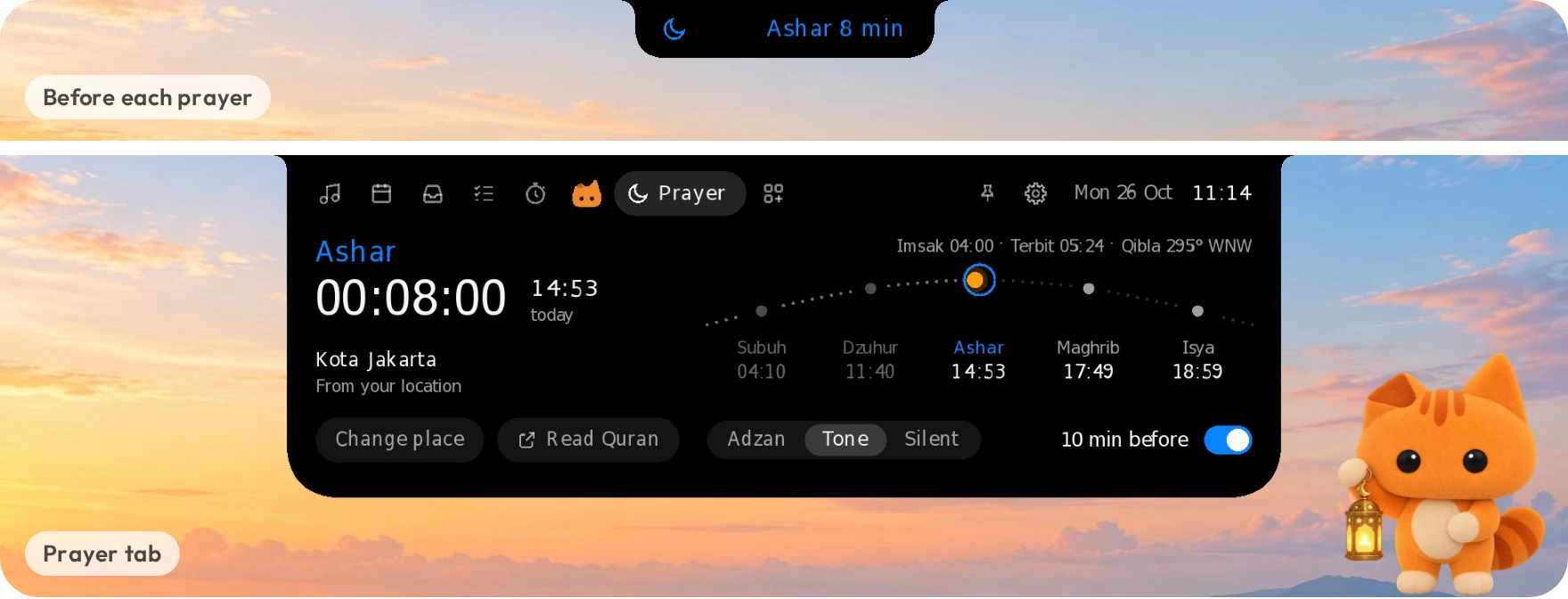
Today's times for your kab/kota as Kemenag RI publishes them, or for your city anywhere else in the world, a countdown in the ten minutes before each prayer, the adzan recorded at Masjidil Haram, and the qibla. It's an add-on: 1.9 MB, downloaded only when you switch it on. On Windows and Mac.
On a Mac, it wraps the notch
On a MacBook, the island lives around the camera notch: the album art on one side, the beat on the other, and it opens downward when you point at it. Whatever plays, with lyrics: Music, Spotify, YouTube and Spotify in your browser, any player that macOS's own now playing shows; the focus timer, the Shelf and Phone drop, tasks, Today and the System add-on are all there, in the Classic, Oyen, Glass or Pill theme.
Light by design
2.4 MBdownload on Windows |
Rustnative code, no web view, no runtime |
60–240 Hzdrawn on the GPU, in step with your screen |
0accounts, ads or analytics |
On Windows it draws on your graphics card in step with your display's refresh rate (60, 144 or 240 Hz), and draws nothing while nothing moves. Features you don't use don't run: Show over games counts only while a game is in front, and add-ons download only when you switch them on. With the System add-on on, its page keeps its last minute of history with a light reading once a second. It rests while your PC is locked, the screen is off or battery saver is on, and starts a fresh minute when you're back; right-click › Keep System page history turns it off.
Your data stays on your computer
- No account, no tracking. Tasks, the Shelf and focus history are files in your own user folder. There are no ads and no analytics.
- Your files stay yours. Phone drop asks before it takes anything and uses your own Wi-Fi. Files from paired phones are encrypted with keys made on the two devices, and the meeting server never sees them.
- Little goes online. Lyrics lookups go to LRCLIB while a song plays, and once an hour the app reads one small file to see whether a new version is out. Apple Music lyrics, Oyenza, paired phones and add-ons connect only after you turn them on, and the AI tab asks your AI services only while it's open or its notices are on. PRIVACY.md lists every request.
Install
Windows
Download Oyenza-Studio-Setup.exe and run it. It installs just for you and needs no admin rights. Older versions and a portable zip are on the Releases page.
Builds aren't code-signed yet, so Windows SmartScreen may say "Windows protected your PC". Click More info → Run anyway.
Your data lives in %APPDATA%\Poni\, and cache plus log in %LOCALAPPDATA%\Poni\. Uninstalling removes the app, cache and log, and keeps your data.
Mac
macOS 14 or later, Apple silicon or Intel (one app for both): download Oyenza-Studio-Mac.dmg, open it and drag Oyenza Studio into Applications (had Oyen Poni? Quit it first; Oyenza Studio moves the old app to the Trash). It's signed with an Apple Developer ID and checked by Apple: the first time, macOS only asks whether to open an app downloaded from the internet, so click Open. What's on the Mac so far: On a Mac. Your data lives in ~/Library/Application Support/Poni/, the log in ~/Library/Logs/Poni/.
FAQ
Is it free?
Yes. Oyenza Studio is free to download and use, and its code is open source under the MIT license. Oyenza sign-in is optional.
Will it slow my computer down?
It's built not to. It's native code with no web view, it draws nothing while nothing moves, and its features sleep until you use them. See Light by design.
Why does Windows say "Windows protected your PC"?
The Windows builds aren't code-signed yet, so Windows SmartScreen doesn't know them. Click More info → Run anyway. The Mac app is signed with an Apple Developer ID and checked by Apple since 0.2.15, so a Mac only asks whether to open it.
Does it work on Windows 10?
Yes, on Windows 10 and 11. Glass needs Windows 10 version 2004 or later to bend what's behind it; before that it draws smoked glass.
What's different on a Mac?
The island wraps the notch, and the Mac has music with lyrics, Focus, the Shelf with Phone drop, Tasks, Today, the System add-on, Prayer times, the Classic, Oyen, Glass and Pill themes, headphone pop-ups, hiding in full-screen apps, Oyenza sign-in and start at login. Not on the Mac yet: paired phones and Show over games. On a Mac has the details.
Can it hide during games and videos?
Yes: right-click the island › In full-screen apps › Hide. Pick Stay on top instead to keep it over borderless games and videos, or turn on Show over games for a frame rate readout. On a Mac the same choice is in the menu bar under Oyen's mark (and in Settings): with Hide, macOS keeps the island off a full-screen app's Space until you leave it.
Does it cover my browser tabs?
It sits over the middle of the top edge, so over a maximized browser it can cover the tabs there. To keep that spot clear, right-click the island › Idle look › Hidden until hover: while nothing plays, only an invisible strip stays at the top edge until you point at it.
Where are my files and settings?
On Windows in %APPDATA%\Poni\ (cache and log in %LOCALAPPDATA%\Poni\); on a Mac in ~/Library/Application Support/Poni/ (log in ~/Library/Logs/Poni/). Uninstalling keeps your data.
Guides
The details behind each feature.
Settings and options
The gear at the top right of the open island opens Settings: your Oyenza account first, then the theme, the idle look and the switches below. Right-click the island or the tray icon for every option:
- the theme: Classic, Oyen, Glass or Pill
- the idle look: clock, eyes (Oyen in his theme), minimal, hidden until you hover, or a status bar (in Pill; the other themes show the clock)
- lyrics (and the pronunciation line under Japanese, Korean and Chinese lyrics) and sounds
- in full-screen apps: hide, or stay on top of borderless games and videos (a game in exclusive full-screen mode still covers it), and show FPS, GPU and CPU over games
- start with Windows, which version you have (About Oyenza Studio, with the build's day; it opens that version's release notes), and quit
- in Settings only: which version you have, with Check now (New versions)
On a Mac, every option is in the menu bar, under Oyen's mark.
The Oyen theme
The island stays black by default. Switch on the Oyen theme (the gear › Theme › Oyen, or right-click › Theme › Oyen) and the whole island becomes Oyen's: warm cream with dark brown text, his orange on the play button, the bars and the switches, and Outfit, the Oyenza Studio typeface. Oyen, the Oyenza cat, moves in too: he peeks over the island's edge while it rests, watches your pointer when it comes near, sits beside the clock, peeks up beside the pin when the island is open and bobs along while music plays. He sleeps from midnight to five. Where the island wraps a MacBook's notch, the theme goes black like the notch itself, with Oyen's cream type, his orange and his face on it. He is drawn from the Oyenza logo, not a picture, so he stays sharp at any scaling, and he only moves for a moment now and then, so he costs no CPU at rest.
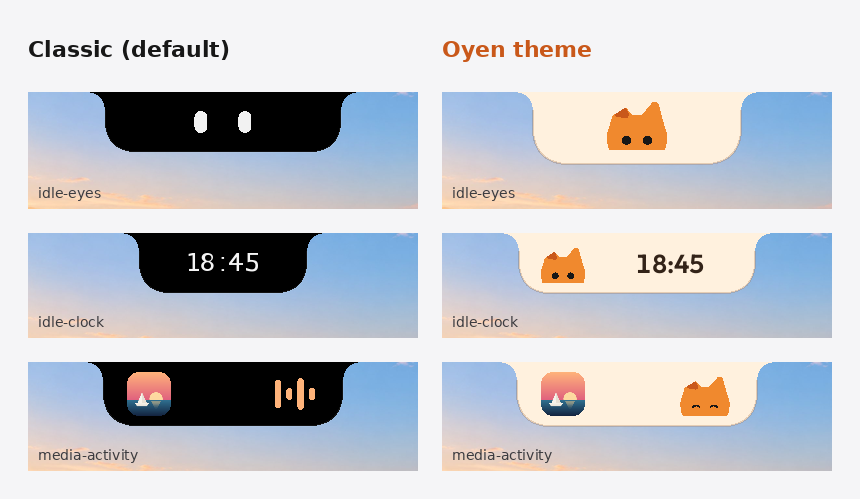
The Glass theme
Glass turns the island into liquid glass, after Apple's Liquid Glass. Its rim bends and magnifies what's under it, the middle is frosted, a light runs along the edge, and the shadow under it deepens over busy pages. The collapsed island turns light or dark with what's behind it, and the open island follows Windows' light or dark mode. Its tint goes only as deep as the text needs to stay readable (4.5:1