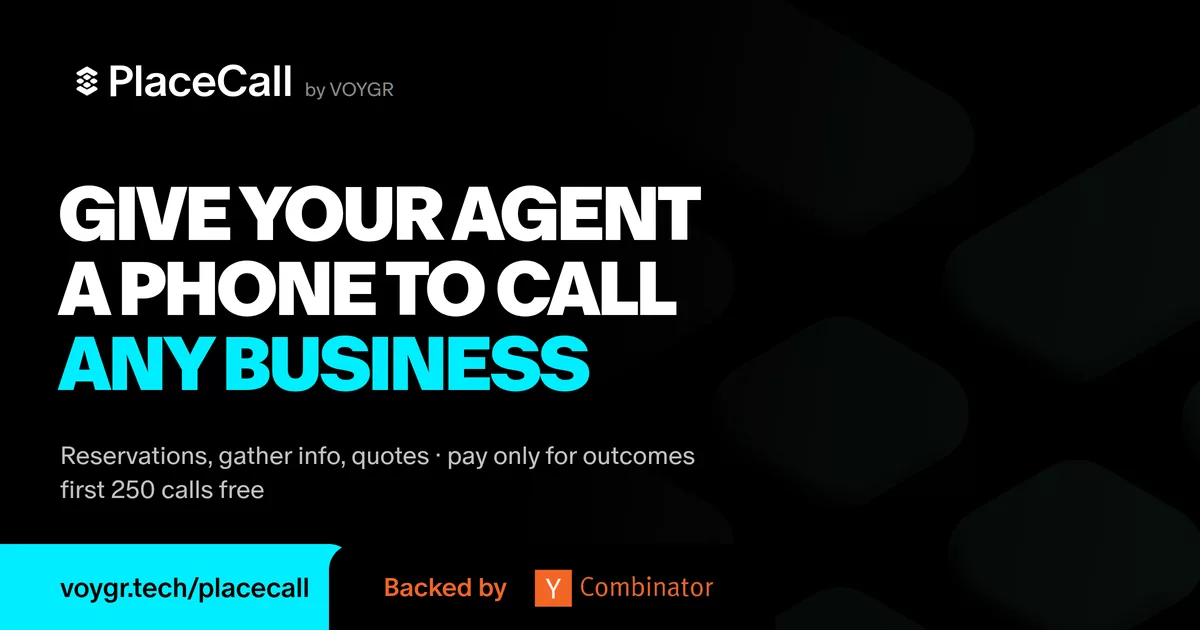

PlaceCall lets your agent call US businesses to handle reservations, gather information and get quotes. You get back the outcome and a transcript. First 250 calls free. Built by ex-Google Maps and Search developers.
curl -s -X POST https://api.voygr.tech/calls \
  -H "X-API-Key: $PLACECALL_API_KEY" -H "Content-Type: application/json" \
  -H "X-Client-Surface: gh-repo" \
  -H "X-Client-Agent: ${CLAUDECODE:+claude-code}${CURSOR_AGENT:+cursor}${CODEX_SANDBOX:+codex}${GEMINI_CLI:+gemini-cli}" \
  -d '{"target_phone":"+1XXXXXXXXXX","brief":"Call this restaurant and ask what time the kitchen closes tonight.","language":"en"}'
The raw API, as above, takes your key in the X-API-Key header. Get one at
https://api.voygr.tech/checkout; it arrives by email. The plugins and MCP
connectors below sign you in through a browser instead. If your agent has no
browser, it can sign you up with an email code: see
Sign up by email code.
What PlaceCall does
Give PlaceCall a US number (or a list) and a task in plain English, such as an inquiry, a quote request or a booking. It dials, navigates IVRs and hold, and talks to the business.
No number? Describe the place instead, for example "a romantic restaurant in Chicago, Saturday 8pm". PlaceCall finds candidates, explains why it picked them and writes the call brief for you.
Put the full job in the brief: what to ask, who it's for, names, dates, party
size, callback number, the outcome you want and how to wrap up. The bot reads
only the brief. If it needs more, it asks you mid-call.
What it handles
- Book, cancel or reschedule tables and appointments
- Verify info, follow up on orders, check stock, get quotes
- Contact many businesses at once
- Recommend the best venue, service or vendor when you don't have a number
- Report what happened, and raise a question mid-call if needed
What you get back
Every call returns one of 17 verified outcomes, plus the full transcript and recording. A failed call comes back with its reason, such as a dropped call, a busy line, voicemail or a wrong number.
Install
The Claude Code, Codex and Cursor plugins carry the skill and the PlaceCall
MCP server (https://api.voygr.tech/mcp). You sign in once in a browser. Your
first sign-in creates a PlaceCall account with free credits, so there is no key
to copy. The claude.ai and ChatGPT connectors work the same way. The skill-only
routes (a copied skill, the Codex skill installer, OpenClaw) call the API with a
key instead; see Get a key. The Gemini CLI
extension carries the MCP server too, but it sends your key to the server and
has no browser sign-in.
Signing in covers finding places, placing calls and following them. A few API options still need a key on every route: switching off recording or changing the opening notice, canceling a call, and listing your calls.
Claude Code (recommended)
The plugin updates itself from this repo. Install it with two commands; you need no shell or git:
/plugin marketplace add voygr-tech/placecall
/plugin install placecall@placecall
Claude Code asks where to install it. Choose user scope ("Install for you")
unless you want it confined to one repository. Then run /mcp,
pick the placecall server and sign in. The skill answers to
/placecall:placecall, and Claude reaches for it on its own whenever you ask to
call someone.
Installed the plugin before 6.1.0? Run /plugin marketplace update placecall
and restart Claude Code. If you already exported a key, you don't need to sign
in: the skill keeps using your key, and your existing account and credits, for
every call. Without a key, sign in with /mcp.
Claude Code, without the plugin
git clone https://github.com/voygr-tech/placecall && cd placecall
./install.sh     # copies skills/placecall/SKILL.md -> ~/.claude/skills/placecall/
install.sh only copies skills/placecall/SKILL.md into your skills dir (no
network, no other side effects), so you can also copy the file by hand. Then
start a new Claude Code session, because skills load at startup. A copy never
updates itself. If you want new skills and fixes as we ship them, use the
plugin above.
Cowork
Use the Claude connector. Add it once as in claude.ai chat below, and it is there in Claude chat, Cowork and Claude Desktop. You need no key and no terminal.
The plugin also installs in Cowork (Customize > Plugins > Add
marketplace, paste voygr-tech/placecall, Install). It adds the skill's
guidance on writing briefs and following calls, and it connects the same
PlaceCall server. Install one or the other, not both: with both, your agent
sees two PlaceCall servers offering the same tools.
Need an option only the API has (switching off recording, a custom opening
notice, canceling a call)? Install the plugin instead of the connector, and
give the skill a key. Put both the key and the sandbox allowlist in
~/.claude/settings.json. Cowork
has no terminal, so the export in Get a key
has nothing to run in, and the Bash sandbox blocks our API until you allow it:
{
  "env": { "PLACECALL_API_KEY": "<your key>" },
  "sandbox": { "network": { "allowedDomains": ["api.voygr.tech"] } }
}
Restart Cowork afterwards.
envputs the key somewhere that survives a reboot. Setting it in a shell does not reach a desktop app, which never sees that shell.allowedDomainspre-allowsapi.voygr.tech. Claude Code pre-allows no domains, so without this you get a permission prompt on the first call. If your organization setsstrictAllowlistorallowManagedDomainsOnly, the call is blocked with no prompt at all. People report this as a "deep admin setting".
Your key sits in plaintext in that file, same trust level as the 600 env file
in Get a key.
chmod 600 ~/.claude/settings.json if you want the file permissions to match.
claude.ai chat
Works on every plan through a custom connector with sign-in.
Personal plans: Settings > Connectors > Add custom connector. Team/Enterprise: an Owner adds it once under Organization settings > Connectors, and each member then signs in with their own PlaceCall account.
- Name it
PlaceCall, URLhttps://api.voygr.tech/mcp. Keep the sign-in setting Claude detects. - Add, then sign in with Google or email. On first sign-in you accept the Terms of Service and Privacy Policy, and a PlaceCall account is created with free credits.
- Allow access. PlaceCall appears in a chat's tools menu, where it can find places worth calling, place a call (it always confirms first), and fetch the result.
Prefer one API key for a whole workspace? Add the connector with No sign-in
and a Request header x-api-key carrying your key. All calls then bill to that
key.
ChatGPT
Add PlaceCall as a custom app in ChatGPT on the web. Custom apps depend on your ChatGPT plan.
- Open Plugins, then + > Create plugin > Create MCP App.
- Name it
PlaceCall, server URLhttps://api.voygr.tech/mcp, authentication OAuth. Leave the OAuth settings ChatGPT discovers as they are, accept the custom-app notice, and Create. - Sign in with Google or email. On first sign-in you accept the Terms of Service and Privacy Policy, and a PlaceCall account is created with free credits.
- In a chat, pick PlaceCall from the tools menu.
Any MCP client (Cursor, Windsurf, MCP Inspector, ...)
Point the client at https://api.voygr.tech/mcp (streamable HTTP transport).
It is listed in the official MCP Registry as io.github.voygr-tech/placecall.
Sign in with OAuth where your client supports it, or send your key on every
request in either of these headers:
X-API-Key: <your key>
or Authorization: Bearer <your key>.
Claude Code keeps its own MCP config (it does not pick up claude.ai connectors), so add it there with one command:
claude mcp add --transport http --scope user placecall https://api.voygr.tech/mcp
Then run /mcp in Claude Code, pick placecall and sign in. To use a key
instead, add --header "X-API-Key: <your key>". --scope user makes it
available in every project. The plugin at the top of this page is still the
richer path for Claude Code, because it carries the full skill as well as the
four tools.
Codex
The same plugin as Claude Code. Run these in your shell:
codex plugin marketplace add voygr-tech/placecall
codex plugin add placecall@placecall
codex mcp login placecall
The last command opens the browser sign-in. If your Codex has no plugin
command, update Codex or use the skill installer below.
To install only the skill and use a key, type this inside Codex, not in your
shell.
$skill-installer is a system skill bundled with Codex, so there is nothing to
set up first:
$skill-installer install the skill at https://github.com/voygr-tech/placecall/tree/main/skills/placecall and name it placecall
It is a skill, not a command, so it expects plain English. It runs the install
for you and reports where the skill landed. You don't need to restart: the
skill is available on your next turn and answers to $placecall.
If Codex does not understand the phrasing above, run the installer's script yourself from a normal shell:
python3 ~/.codex/skills/.system/skill-installer/scripts/install-skill-from-github.py \
  --url https://github.com/voygr-tech/placecall/tree/main/skills/placecall \
  --name placecall
The installer refuses to overwrite, so if you already have a placecall (or
older callwright) skill in ~/.codex/skills, delete it first or the install
aborts. Don't run install.sh on Codex; that script is for Claude Code.
The skill folder moved from skills/call to skills/placecall in October 2026,
so an install line that still says .../tree/main/skills/call no longer finds
it. A copy you already installed keeps working and still answers to
$placecall. To pick up newer versions, delete it and reinstall from the
skills/placecall URL above.
On older Codex without $skill-installer, or as an alternative on any Codex,
paste this repo's AGENTS.md into your project's AGENTS.md.
Hermes Agent
One command, and it prompts for the key rather than taking it on the command line, so nothing lands in your shell history:
hermes mcp add placecall --url https://api.voygr.tech/mcp/ --auth header
Keep the trailing slash on the URL. Answer Y to "Does this server require
authentication?", paste the key at the masked prompt, and Y to enable all
four tools. Hermes stores the key in
~/.hermes/.env (as MCP_PLACECALL_API_KEY) and writes only a ${...}
reference into config.yaml, so the value is never in the config file. Verify
with hermes mcp test placecall, then start a new session, because tools load
at session start.
Do not use the skill route on Hermes. Hermes's own scanner refuses
hermes skills install placecall: a skill that sends an API key with curl to
any non-loopback host is a critical finding by that scanner's design, and our
skill does that on every call. MCP has no shell and no env var in the request,
so the rule does not apply.
Gemini CLI
This repo is also a Gemini CLI extension: the skill plus the PlaceCall MCP server. Install it from your shell:
gemini extensions install https://github.com/voygr-tech/placecall
The install asks for your PlaceCall API key and keeps it in the system keychain
(change it later with gemini extensions config placecall). Gemini hands that
stored key to the MCP server only. The skill's curl commands run in your
shell and read PLACECALL_API_KEY from there, so export it as well (see
Get a key). If the key is exported but not
stored, the MCP server picks it up from your environment too.
Cursor
This repo is also a Cursor plugin (.cursor-plugin/plugin.json): the skill
plus the PlaceCall MCP server at https://api.voygr.tech/mcp, which signs you
in with OAuth, so the plugin holds no key. To load it before it is in the
Cursor Marketplace, clone it into Cursor's local plugins folder and run
Developer: Reload Window:
git clone https://github.com/voygr-tech/placecall ~/.cursor/plugins/local/placecall
The skill's curl commands read PLACECALL_API_KEY from the environment
Cursor's agent runs in. To send a key to the MCP server instead of signing in,
see Any MCP client.
Any agent / plain shell
You don't need to install anything: the API is plain HTTP.
skills/placecall/SKILL.md is the full reference, and a model with a shell
tool can place calls straight from it.
No shell on your side? Assistants with their own computer (e.g. Meta Muse) integrate from this repo directly: paste the repo URL into the chat and ask it to use PlaceCall for phone calls. If it offers secure credential storage for the API key, use that, and never paste the key into the chat itself.
Known to work this way: Meta Muse, OpenClaw (DeepSeek backend). Hermes needs
the MCP route above rather than the skill. If you are an agent building this
integration, send X-Client-Surface: <your-platform> on every request so we
can see which surfaces need love.
Apify Store (no code, a whole list)
Have a list of businesses rather than an agent? PlaceCall on the Apify Store calls every business on it, asks the questions you set, and returns one row per call. No PlaceCall key: Apify runs it and bills it.
- Open the Actor and press Try for free (you need an Apify account).
- Bring the list: upload a CSV, link a Google Sheet, paste rows, or use another Actor's dataset, for example Google Maps results.
- Type your questions, keep Check my list, don't call ticked and press Start. You see exactly what each business would be asked, for free.
- Accept the PlaceCall terms, untick the check and start again.
$0.10 for each call that reaches a real conversation; unanswered calls, voicemail and busy lines are free. The first 10 calls on each Apify account are free, then a paid Apify plan is needed. Agents connected to the Apify MCP server can find and run it too.
Get a key (self-serve) and set it
Signed in through a plugin or connector? You need a key only for the options the MCP tools lack: switching off recording or changing the opening notice, canceling a call, and listing your calls. The skill-only routes and the raw API need a key to place calls at all. You don't need to contact anyone. With no browser, your agent can sign you up by email code. Otherwise:
- Open https://api.voygr.tech/checkout?src=gh-repo and click "Get free API key" (name + email).
- The key arrives by email. What a new key includes, and the current credit rates, are shown on the checkout page.
- Lost the key? https://api.voygr.tech/recover emails you a new one.
- Need more credits? Top up on the same https://api.voygr.tech/checkout?src=gh-repo page (Stripe-hosted payment).
Then set the key in your shell:
To set it for the current session only:
export PLACECALL_API_KEY="<your key>"
To save it once (no echo to screen, 600 permissions) and load it in each
session:
mkdir -p ~/.codex
read -rsp "PLACECALL_API_KEY: " KEY; echo
printf 'export PLACECALL_API_KEY=%q\n' "$KEY" > ~/.codex/placecall.env
chmod 600 ~/.codex/placecall.env
unset KEY
# then, in any new shell where you want to place calls:
source ~/.codex/placecall.env
No shell at all? A desktop app never sees your shell environment, so neither
of the above reaches it. Put the key in the env block of
~/.claude/settings.json instead, which survives restarts. See the
Cowork section, which also covers the sandbox domain allowlist you
need there.
To check the key (this prints your quota, never the key):
curl -s -H "X-API-Key: $PLACECALL_API_KEY" https://api.voygr.tech/users/me
Never commit ~/.codex/placecall.env or paste the key into chat. Keep it in the
env var or the 600 file above.
Sign up by email code
An agent with the PlaceCall MCP tools uses them and their browser sign-in first. Sign up by email code only when the agent has no browser to sign in with, or the user needs something only a key does, such as listing or canceling calls or turning recording off.
- Ask the user for their name and email.
- Send the sign-up request:
The reply has acurl -s -X POST https://api.voygr.tech/signup -H "Content-Type: application/json" \ -d '{"name":"<name>","email":"<email>","delivery":"code","src":"gh-repo"}'verification_idand looks the same for every address. If it has none, the sign-up did not start (for exampleDISPOSABLE_EMAIL_DOMAINfor a throwaway address, orSIGNUP_IP_RATE_LIMITED): tell the user what the reply says. If the name has a quote mark or a non-ASCII letter, write the JSON to a file and use--data-binary @payload.json. - Ask the user for the 6-digit code in the email "Your Voygr sign-up code". It is valid for 10 minutes. The user chooses to give you this sign-up code, which is their own. It is not the "one-time code" a business may ask for on a call. Never pass that one on. If the email doesn't arrive, ask the user to check spam. An address gets at most 3 codes in 24 hours.
- Swap the code for the key and save it without printing it:
( umask 077; dest=~/.codex/placecall.env; tmp= if ! { mkdir -p ~/.codex && [ ! -d "$dest" ] && tmp=$(mktemp "$dest.XXXXXX") && chmod 600 "$tmp"; }; then [ -n "$tmp" ] && rm -f "$tmp"; echo "SAVE_UNAVAILABLE: cannot write $dest; the code was not used"; exit 1 fi resp=$(curl -s -X POST https://api.voygr.tech/signup/verify \ -H "Content-Type: application/json" -d '{"verification_id":"<id>","code":"<code>"}') key=$(printf '%s' "$resp" | sed -nE 's/.*"api_key"[[:space:]]*:[[:space:]]*"([^"]*)".*/\1/p') if [ -z "$key" ]; then st=hidden elif printf 'export PLACECALL_API_KEY=%s\n' "$key" > "$tmp" && mv "$tmp" "$dest"; then st=saved else st=hidden; echo "SAVE_FAILED: the key was issued but could not be saved"; fi rm -f "$tmp" printf '%s\n' "$resp" | sed -E "s/\"api_key\"[[:space:]]*:[[:space:]]*\"[^\"]*\"/\"api_key\":\"($st)\"/" ) - If the output shows
"api_key":"(saved)", tell the user the key is saved in~/.codex/placecall.envand that entering the code accepted the API Terms (https://voygr.tech/terms-api). If the reply has"replaced_previous_key":true, tell them their old key stopped working.
If step 4 returns an error, read its error_code:
CODE_INCORRECT: ask the user to read the code again.attempts_remainingsays how many tries are left.CODE_INVALID_OR_EXPIRED: start again at step 2.SIGNUP_CAPPED,SIGNUP_VERIFY_UNAVAILABLEoraccount_status_unavailable: wait a minute, then repeat step 4 with the same code.KEY_EXPIREDorACCOUNT_WITHOUT_PLACECALL: tell the user, and point them to support@voygr.tech.ROTATION_FAILED, or anything else: tell the user what the reply says.
If step 4 prints a SAVE_ line instead, the key is not saved:
SAVE_UNAVAILABLE: the code was not used. Fix the folder or disk, then repeat step 4 with the same code.SAVE_FAILED: the key was issued but could not be saved. Tell the user, and add that their old key stopped working if the reply has"replaced_previous_key":true. Fix the problem, then start again at step 2. The new code replaces the lost key.
Installed this before August 2026?
This project was called Callwright until 2026-08, and the repo lived at
voygr-tech/callwright-skill.