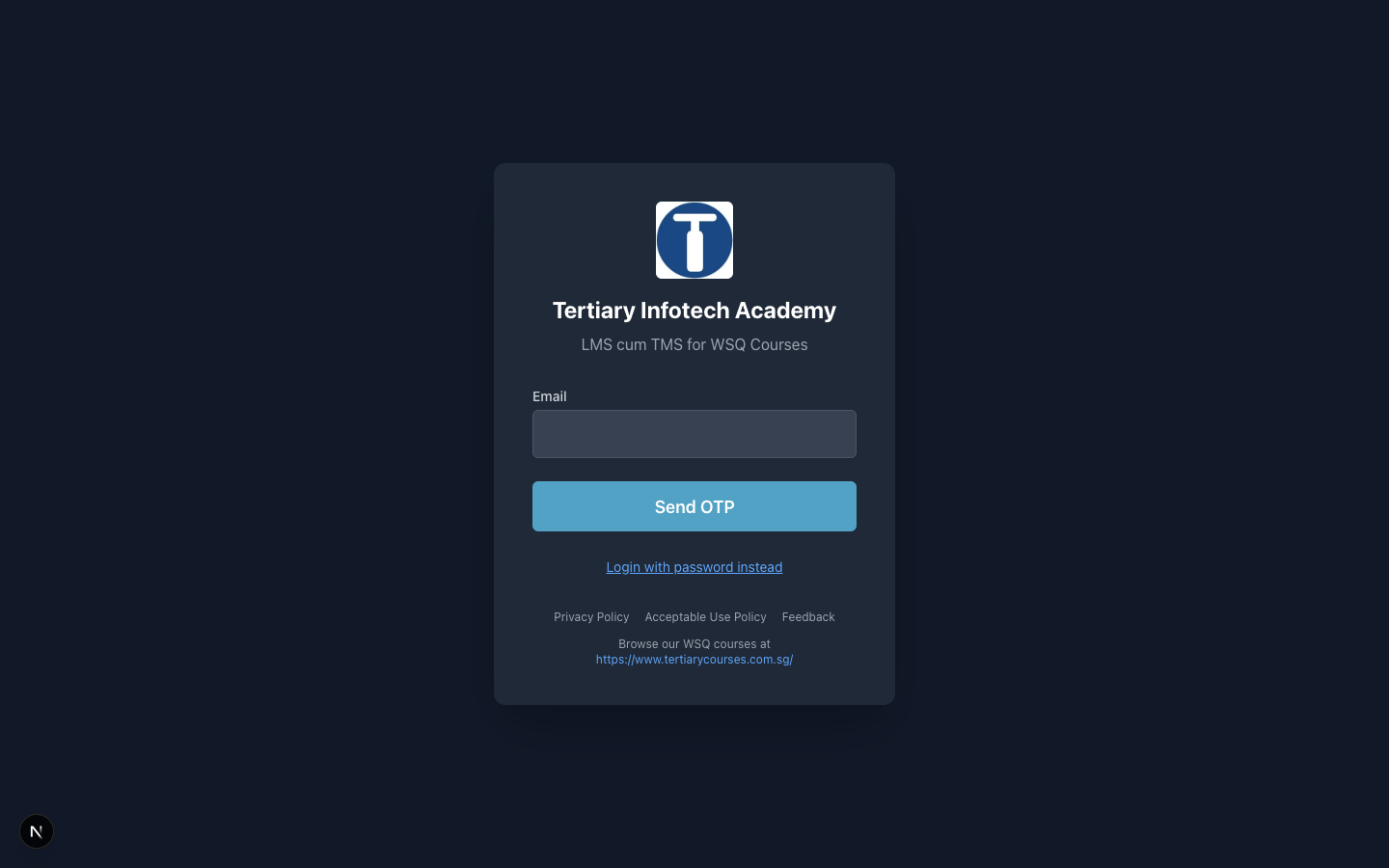
A comprehensive Learning Management System (LMS) and Training Management System (TMS) with AI capabilities, designed for Singapore's SkillsFuture training ecosystem.


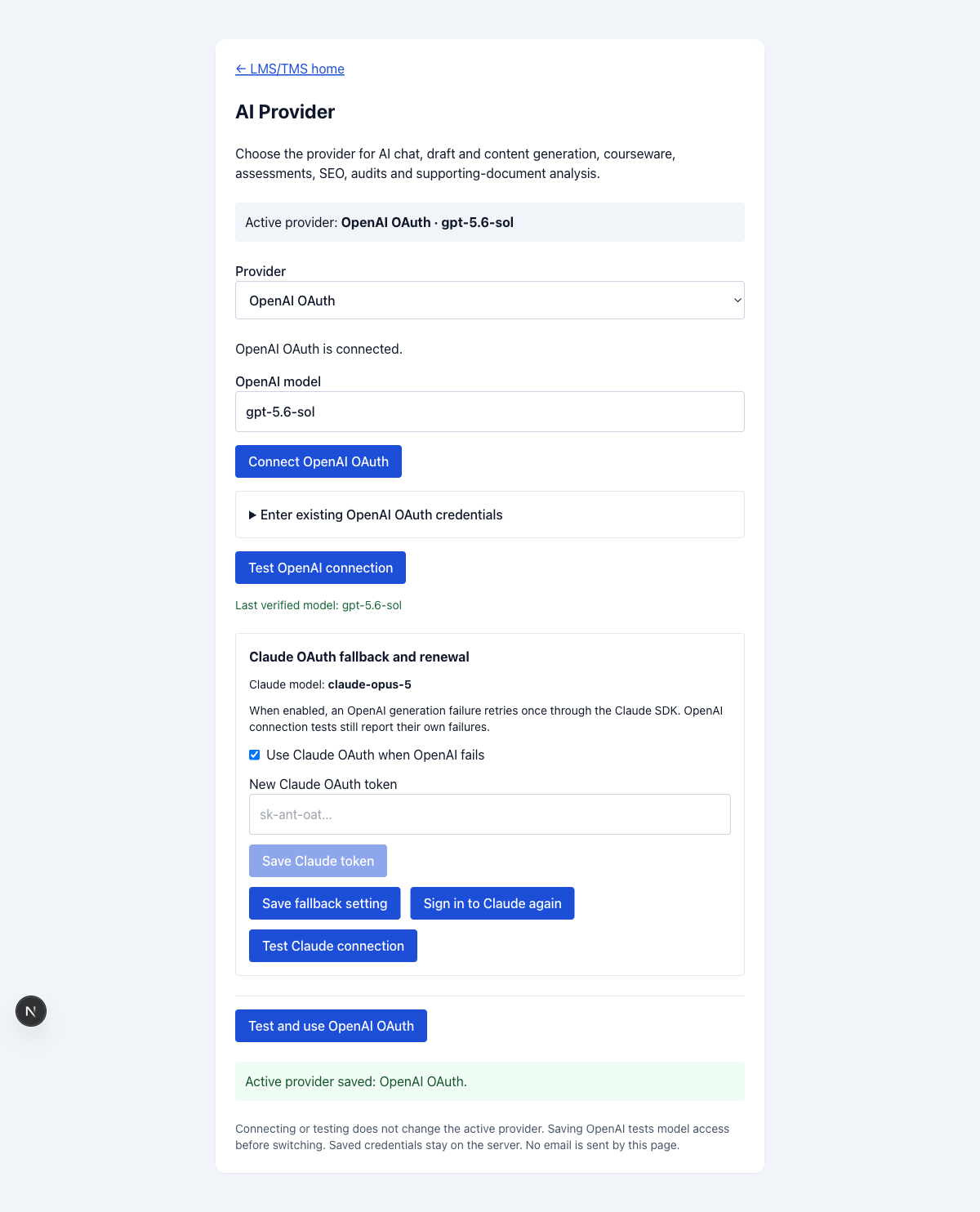
AI OAuth provider selection
AI Provider settings lets an
Admin or Training Provider connect OpenAI and Claude OAuth, test the connections,
and select the provider used by chat, courseware, assessments, audits, SEO and
supporting-document processing. OpenAI uses the Codex SDK with gpt-5.6-sol;
Claude uses the Claude SDK with claude-opus-5. Optional Claude fallback retries
failed OpenAI requests. Credentials are encrypted on the server.
See setup and verification.
Overview
AI-LMS-TMS is a full-stack, enterprise-grade web application that manages the complete training lifecycle - from course creation and scheduling to learner enrollment, progress tracking, assessments, and certification. Built with modern technologies and deep integration with Singapore's SkillsFuture ecosystem, it provides a seamless experience for training providers, trainers, and learners.
Why AI-LMS-TMS?
- AI-Powered Learning: AI chatbot powered by an external OpenClaw or Hermes agent, reached over WhatsApp/Telegram, plus a SEO metadata generator and GenAI authoring tools
- SSG Integration: Full SkillsFuture Singapore API support for course runs, enrolments, assessments, grants, and claims
- Multi-Role System: 7 roles with dedicated dashboards — Learner, Trainer, Admin, Developer, Finance, Payroll, Training Provider
- Multi-Tenant: Same codebase deployed for multiple tenants on Coolify — Tertiary builds via Dockerfile, other tenants (Chariot, Intellisoft) build via Docker Compose
- Financial Operations: QuickBooks integration, personal/company invoice workflows, grant calculators, claim tracking, billing history
- Singapore-Ready: NRIC/FIN validation, UEN verification, WSQ/CASL/IBF course support, funding calculations
- Automation: Task Scheduler, webhooks, n8n workflows for trainer invitations, certificate generation, enrollment sync, and more
- Support System: Built-in ticket system for learner, trainer, and admin support
- Workflow Guides: Interactive documentation for all system workflows (Training, Admin, Finance)
- External API: 200+ REST endpoints including external integrations for third-party bots
- Modern Stack: Next.js 16, TypeScript, Tailwind CSS, PostgreSQL, Docker, deployed on Coolify
Table of Contents
- Features
- User Roles
- Technology Stack
- API Documentation
- Project Structure
- Database Schema
- Getting Started
- Environment Variables
- Deployment
Features
Learner Features
- Course browsing and enrollment
- Courseware access — Learner Guide, Learner Slides, Activities/Lab and SkillsFuture link cards, unlocked from 8:30 AM SGT on the course start date
- Progress tracking through learning units and subtopics
- Assessment submission and grade viewing — the course page re-reads the trainer's publish state every minute while visible and on tab focus, so a Written/Practical exam published mid-class appears without a reload
- AI chatbot for personalized course assistance (external OpenClaw/Hermes agent via WhatsApp/Telegram)
- Certificate download after completion — issued only once the class has ended (from 6:00 PM SGT on the last day, or earlier if the trainer marks the learner Competent) and the minimum attendance is met; admins/trainers can still issue manually
- Job search integration
- My Calendar — personal month calendar of the learner's scheduled classes
- Header quick nav — My Classes, My Calendar and Ed Tools links in the top header (Billing remains in the sidebar as Billing History)
- Tools — the full trainer tools catalogue mirrored in the learner sidebar (Ed Tools, Project Mgt, Six Sigma, Cyber Security, Networking, Finance, HR, Data Analytics, ML, Statistical, DOE, SPC, Sustainability, K8s, Blockchain, Quantum, Design, GenAI, Agentic AI, Virtual Tools), shared via
components/toolsData.ts; clicking a tools group opens the same tool card page as the trainer role (GenAI Tools stays link-only for learners)
Trainer Features
- My Classes — View assigned classes (upcoming, ongoing, completed). Trainer mode is scoped server-side to classes the trainer is assigned to (
course_run_traineror the legacy assigned-trainer columns, matched by user id or any of the trainer's emails) — listing, opening, publishing assessments and grading all return403for unassigned classes - Trainer + Learner dual role — trainers who enrol in the provider's own courses sign in and pick Learner mode (their enrolled classes, lessons, assessment submissions) or Trainer mode (only their assigned classes), switchable from the header's View As menu. Gated per tenant by
training_provider.trainer_learner_dual_role(default off); enabling it backfills the Learner role onto every trainer and auser_role_maptrigger grants it to every new trainer. A trainer can never grade their own enrolment - My Calendar — personal month calendar of the trainer's assigned classes
- E-Attendance — Digital attendance tracking
- Assessment Grading — Rubric-based grading with Assessment Summary Record support; each learner row shows per-method submission status (WA Written, PP Practical, CS Case Study, RP Role Play, OQ Oral Questioning) ticked when the learner has submitted, alongside a manually-ticked TQ (TRAQOM survey) box — SSG publishes no per-learner survey completion feed, so the trainer confirms it — with per-method and TRAQOM completion counts (e.g. WA 3/7, TRAQOM 5/7) and a refresh button in the roster header, plus Mark All Competent and bulk certificate sending. A learner who holds several enrolment rows in the same run (a manual LMS signup plus the SSG-synced record) appears once, listing every email they enrolled under; the SSG row is primary (NRIC, certificate), submissions are unioned across rows, and competency/TRAQOM toggles update every row. Beside TQ sits a SIGN (assessor signature) box: the trainer records their assessor block once — name, NRIC, date and a mouse/touch-drawn signature (Trainer Profile → Assessor Signature, or the dialog on the roster) — and ticking SIGN stamps it into the "Assessor Name / NRIC / Date / Signature" block of every PDF, Word (DOCX) or OpenDocument (ODT) file the learner submitted, uploading the stamped copy next to the original in Google Drive; unticking restores the originals. A Mac Pages (.pages) submission is converted to PDF automatically and signed as
<name> (signed).pdf(the .pages file stays the original): headless LibreOffice does the conversion, andlib/assessment/pagesToPdf.tsrepairs the import first — answer boxes grow to fit instead of clipping, pasted screenshots (including HEIC) are put back in the boxes they were pasted into, in document order read from the Pages file itself (lib/assessment/pagesIwa.ts), and Mac font names are mapped to metric-compatible Linux fonts so the layout holds. The roster header carries per-method, TRAQOM, Assessor Sign and Competent counts plus a prominent Refresh, a Watch Demo link opens a 70-second narrated walkthrough of the sign-off flow (public/videos/assessor-sign-off-demo.mp4, learner details and NRIC masked), and each learner's email links to their Assessment Records folder in Drive (Course → Assessment Records → Session → Learner; the folder id is stored on upload and back-filled from the file's Drive parent for older submissions). Opening Assessment Grading auto-collapses the trainer's left sidebar to its icon rail so the wide roster has room; it re-expands on leaving the page (unless the trainer toggled it meanwhile) - Critical Reminders — a red-bordered block pinned under the course page's left menu. In Trainer mode (after Grading) it lists the four duties and rules that gate payout: TRAQOM is mandatory (a learner who misses the survey delays the trainer payout), mark each learner Competent in Assessment Grading once all assessments are in, digitally sign each learner's assessment there, and no trainer payment is made for learners who give an overall course review rating of 2 out of 5 or below; the grading items jump straight to the Grading section. In Learner mode (after Certificate) it lists the learner's own must-dos: TRAQOM is mandatory (learners must complete it to be marked COMPETENT), download the assessment questions as a Word document, and answer every question then submit the assessment online, watching for the green "submitted successfully" notification; each item jumps to the TRAQOM Survey or Assessment section
- Assessment Summary Record e-signing — the ASR (Virtual Class) card on the course page is signed inside the LMS instead of printed and scanned. The learner records their name, NRIC and a drawn signature once (Learner Signature dialog,
/api/learner/signature) and clicks Sign Assessment Summary Record; the trainer reuses their assessor block (the same one the grading roster stamps) and signs each learner from a roster of the class — or Sign All — with per-learner Learner/Trainer signed dates and a link to the PDF. Every signature regenerates the PDF from the course's ASR template (assessment_summary_record_url— PDF, Google Doc or Word) with all blocks signed so far: the Candidate and Assessor name, NRIC (last 3 digits + letter, as the form asks), signature and date are drawn into the sign-off table on the last page, whose cells are located from the label text so any course's template works, and the file is placed in the learner's Assessment Records folder in Drive (replaced in place, so the link stays stable). Unsigning removes that party's block and regenerates; a manually signed scan can still be uploaded as a fallback. A Watch Demo link on the trainer's card opens a 100-second narrated, captioned walkthrough of the online sign-off (public/videos/asr-sign-off-demo.mp4+.vtt, NRIC and learner details masked) — the digital sign-off applies to virtual classes only; physical classes keep the printed record. Tables:learner_signature,assessment_summary_record(database/migrations/add_assessment_summary_signature.sql) - Collapsed course page in Trainer mode — the Lesson topics (Labs, Topic 1…n) and the Assessment Summary Record (Virtual Class) card mount collapsed for trainers, so the course page opens as a compact list of headings that expand on click; learner, admin, developer and training-provider views keep them open by default. The Announcements and Google Meet / Zoom / Teams cards start collapsed for every role
- Announcements & class materials — sits right after E-Attendance on the class page (and in the left menu), collapsed by default with a post count in its header. An assigned trainer of the class (or staff) gets an always-open composer: type a message, paste a web link (the
https://is added if missing), attach a document with the button or by drag-and-drop (max 50 MB), then Post (or Cmd/Ctrl+Enter). Web addresses in the message become clickable, so a reference list fits in one post. Posts list in chronological order (oldest first, toggle to newest first) with the date, time and poster on each, and every learner of that class sees them on their LMS class page. Posting and deleting are limited to staff and the class's assigned trainers (requireCourseRunTrainer); attachments are stored underpublic/uploads/announcements/and served through the/uploads/*→/api/uploadsrewrite - Course Feedback & TRAQOM Survey card — the class page (Learner and Trainer modes) shows two QR codes side by side: the SSG TRAQOM survey (static link) and the in-house Course Feedback form at
/feedback/<course_run_uuid>, which pre-fills the course title, code, trainer name and class start/end dates from that run. The QR is derived from the loaded class detail (the same source as the title and dates on the page), so it always points at the class in session; the Attendance and Grading pages' Back to Class reload the whole class rather than only swapping the selection. A Training Provider can override the QR with an external feedback URL from the Training Provider profile. A single zoom icon in the section header (or a click on either QR) opens both codes side by side in a full-window view sized to the screen, so a trainer can project them to the class without browser zoom; the X icon, Esc or a click on the backdrop returns to the class page. - Training Hours — Trainer training hours tracking
- Past Attendance / Past Assessment — Historical records
- Lesson Delivery Guide / Assessment Guide
- Trainer Payout History — View past payouts and tier breakdown
Trainer Tools
- Ed Tools — Interactive classroom tools:
- Project Mgt Tools — RACI Matrix, Digital/AI Transformation, Agile/Scrum, Design Thinking Studio, BMC Studio
- Six Sigma Tools — 5 Whys, Fishbone Diagram, Pareto Chart, System Thinking, SIPOC
- Cyber Security Tools — Cyber Labs, Ethical Hacking Labs, Pentest Labs, Cryptography
- Finance Tools — Tax Calculator, Financial Planning & Analysis, Financial Ratio Calculators, Financial Trend Analysis, Credit Loan Analysis
- HR Tools — HR Recruitment, AI Interviewing, AI Job Coaching, MBTI
- Data Analytics Tools — Pivot Visualization, Anomaly Detection, Factor Analysis, Mock Data Generator
- ML Tools — Classification, Clustering
- Statistical Tools — Probability, Descriptive, Correlation, Regression, Hypothesis, Confidence Interval, Bayesian Inference (NovaStats)
- DOE Tools — Full Factorial, Fractional Factorial, Taguchi, Central Composite, Box-Behnken, Plackett-Burman, Latin Square, Response Surface (NovaDOE)
- SPC Tools — c, u, np, p, X-mR, X̄-R, X̄-s charts, Distribution, Process Capability (NovaSPC)
- Sustainability Tools — Carbon Footprint Calculator
- Networking Tools — IP Calculator, PCAP Analyzer, Regex Generator
- K8s Tools — Ubuntu Playground, Kubernetes Playground
- Blockchain Tools — Certify NFT, Supply Verify, Hashing Tool
- Quantum Tools — Quantum Labs, IBM Composer, Quantum Programming Studio
- Design Tools — Logo Maker, AR/VR Playground
- GenAI Tools — Curated links across:
- Text: ChatGPT, Gemini, Claude, Grok, DeepSeek, Kimi, Qwen, Perplexity
- Image: Firefly, Nano Banana, Microsoft Designer, Leonardo, Face Swap
- Video: Kling, Invideo, Veed, Descript, Pictory
- Music: Suno
- Presentation: Gamma, NotebookLM, Napkin
- UI Design: Figma, Stitch
- Agentic AI Tools —
- No Code Platforms: AgentX, Opal, Relevance AI, Promptly AI
- Low Code Platforms: n8n, Langflow, Flowise
- Voice Agents: ElevenLabs, Retell AI, Vapi
- Video Agents: HeyGen, Synthesia
- Virtual Tools — Google Meet, Microsoft Teams, Zoom (integrated for virtual class delivery — meeting links auto-generated and attached to course runs)
Admin Features
- Admin Dashboard — KPI cards: Ongoing Classes, Upcoming Classes, Completed Classes, Assigned Trainers (Local), Missing Trainers (Local/TPG)
- Workflow Guides — Interactive documentation organized by category (Training, Admin, Finance) with 10+ workflow guides including SSG Process Steps
- Support Tickets — Ticket management system for handling learner, trainer, and user support requests
- Sign-in Requests — Login-page self-registrations (auto-enrolled, needs attention, resolved, dismissed); correct a Course Run ID and Enrol & notify in one click
- Calendar & Scheduler — View and manage training calendar (top-level View Calendar), search by course code/title/name/date; WSQ class-days are live-matched against Google Calendar and any day with no matching event is highlighted (red dashed ⚠) with a "not on GCal" filter
- Course Management — View courses, trainers, funding validity. The course card view shows the funding validity end date colour-coded by urgency