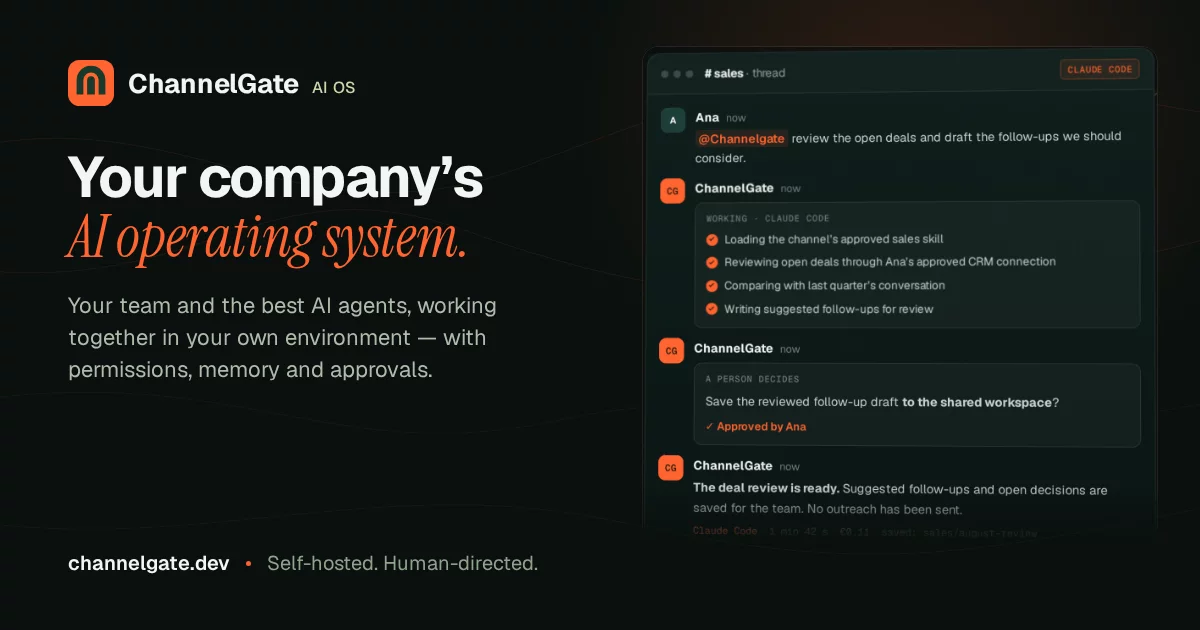

ChannelGate — Self-hosted AI agents for Slack, Teams and Google Chat
Run Claude Code and OpenAI Codex in team chat, with a container per conversation and control over tools, credentials and memory.
ChannelGate is a self-hosted AI agent gateway that brings coding, research and workflow automation into your team's conversations. Use it as a Slack AI bot, or connect Microsoft Teams and Google Chat. Agents can work with files, run code, use connected business apps through the Model Context Protocol (MCP) and Composio, and deliver results back to the thread, within the access you configure.
Your team works in chat. You choose the AI engine, who can use it, which tools and accounts it can access, and where its files and persistent memory live. ChannelGate runs on your Linux host using rootless Podman containers. Model providers still receive prompt/context, and connected apps use their external services; see privacy and data flow.
Support status: Slack is the primary supported surface. Microsoft Teams and Google Chat are Beta. Composio SDK mode is Enterprise-only and Beta; standard Composio MCP mode is available in every tier. OpenCode is experimental and restricted to its documented read profile.
Get started · Team benefits · Full feature list · Use cases · License and tiers · Documentation
Formerly Claude Gateway for Slack.
What you get
| Your team needs to… | ChannelGate provides |
|---|---|
| Put AI to work where decisions happen | Claude Code and Codex in chat threads, with file access, code execution and connected tools according to the channel's permissions. |
| Keep project work organized | A container, working folder, conversation history and persistent memory for each channel or DM, with separate sessions per thread. |
| Control access to tools and accounts | Approved users and channel guests, selectable permissions, MCP grants, and separate personal and shared connector identities. |
| Turn repeated requests into automation | Reusable skills, scheduled agent runs, reminders, follow-ups and background work that reports to the originating conversation. |
| Operate and inspect the deployment | A built-in admin UI, usage and cost reporting, audit history, backups and verified updates on infrastructure you control. |
Getting started
Requirements: Linux, Node.js ≥ 22.13, rootless Podman, and credentials for the engine you will
use. The default Claude setup uses the daemon user's host login, a configured setup token or
ANTHROPIC_API_KEY; Codex requires its own authentication. See the
installation guide for prerequisites and service-account setup.
git clone https://github.com/makeitfutureDev/channelgate.git
cd channelgate
npm run setup -- --without-whisper  # omit the flag to choose local voice transcription
npm start
The installer checks prerequisites, installs dependencies, scaffolds .env and builds the
container image with the engine CLIs and media tools. If the image build fails, fix the reported
prerequisite and run npm run build:image before sending the first prompt.
- Open the admin UI at http://localhost:4747. On a new install, use the admin password printed once at first boot, or your configured password. The UI starts without Slack credentials.
- Create a Slack app at https://api.slack.com/apps using the bundled
Slack app manifest. Generate an app-level token with
connections:write, install the app, and copy its bot token and signing secret. - Paste those three values into Settings → Save & connect. The connection applies live.
- In Users, approve the people who may talk to the bot. In Channels, configure the working folder, permissions, MCP connections and skills. Choose whether a channel admits approved members, admins only or nobody by default; explicit channel guest grants admit additional users. DMs require approval or admin status.
- DM the bot, or invite it to a channel and mention it:
@channelgate summarize the files in this folder.
For a shared deployment, follow the first team workflow checklist to set access, workspace context, skills and connected accounts before automating a recurring task.
For a service that starts at boot, follow the systemd installation steps. The service uses its own account and needs credentials configured for that account. For other chat surfaces, follow the Microsoft Teams and Google Chat setup guide.
The website, gateway and development channels
These are separate parts of a ChannelGate setup:
| Part | Where it runs | What it does |
|---|---|---|
Public website and customer portal (channelgate.dev) |
Vercel, with platform services | Product information, account signup and license management. It is deployed separately from this repository. |
| Gateway | The operator's Linux host | Connects to chat, runs agent turns in conversation containers, and serves the built-in admin UI at 127.0.0.1:4747 by default. Operators may expose that UI through their own tunnel or reverse proxy. |
| Development channel | A conversation in a connected chat workspace | Has its own workspace, container, permissions and agent sessions. It is a place to work on code or websites, not a deployment target by itself. |
Vercel can host a website built using a ChannelGate development channel; it does not host the
ChannelGate daemon or that channel's container. A website deployment and a gateway software update
are separate operations. A Vercel preview is a preview of the website, while channelgate.dev is
its production address; neither is a gateway development channel. See
privacy and data flow for the specific requests a gateway sends
to the platform.
Full feature list
These are the shipped product capabilities, grouped by the work they enable. Availability depends on the selected engine, chat platform and permissions; the support matrix below makes those differences explicit. FEATURES.md is the detailed engineering catalog, including edge cases and links to regression coverage.
Conversations and AI engines
- Threaded sessions: start a fresh session in a new thread and resume context in replies. Choose an engine and model for a thread, channel or gateway default.
- Claude Code and OpenAI Codex: use either engine with the same channel authorization, default container boundary and personal/shared connector separation.
- Model and reasoning controls: select models and effort using Codex's live model catalog and Claude's rolling aliases. Explicit thread/run pins are respected; a pinned engine failure reports its own error.
- Automatic fallback: eligible failures on a default engine can fall back to the other engine with an announcement when replay is safe. A user's explicit engine/model pin prevents that switch.
- Warm Claude sessions: reuse a live process for faster follow-ups; changes to the author, credentials or configuration retire stale processes. Codex resumes through a new process.
- Visible progress: streamed answers, tool activity, subagent progress, elapsed-time heartbeats and queue positions keep long turns visible. Quiet stretches report their status.
- Run controls: stop an active turn with
/stop, supported stop reactions or a stop message; steer supported active Claude sessions, queue follow-ups with/next, and resume afterward. - Session handoff:
/resumeconnects an eligible local engine session to a Slack thread in the same channel workspace; Claude also supports explicit context compaction. - Slack Assistant support: native assistant status, a persistent progress toolbox and a separate answer stream keep results readable during long tasks.
Permissions, isolation and credentials
- A container per conversation: ordinary engine runs, including scheduled and background agents, execute inside that conversation's rootless Podman container with its own persistent home.
- Admin-only sudo threads: in Slack, an organization admin can send the typed in-thread command
@agent /sudo(/sudoin a DM message) to run subsequent admin messages directly on the gateway host as the daemon OS user. The thread is admin-only until/sudo off; other senders are rejected before work starts. This deliberately removes the container boundary for that thread, so use it only for trusted host operations. - Read-only, Worker and Admin modes: choose the base permission level. Auto review and Lean context are separate options; permission bypass requires both an admin author and Admin mode. Each attempt tells the assistant whether its actual launch has admin permission bypass; the channel's Admin label and writable container tools do not establish that permission.
- Approval controls: interactive approvals and automatic review apply according to mode; tool permissions remain separate from the container's filesystem boundary.
- User and guest access: select approved-member access, admins only or locked access, with separate use/manage controls and channel guest grants. DMs require admin or approved status.
- Scoped MCP access: grant external tool servers per channel and select optional engine integrations. A channel can opt out of inherited organization tokens.
- Channel environment secrets: configure credentials for tools such as provider CLIs through write-only settings. Names are validated, rotations retire warm sessions, and known values are redacted from replies and job output. Runtime access and limits are documented below.
- Protected administration: password sign-in, masked secret listings, password-confirmed reveal for eligible settings, audit records and separately scoped API access.
MCP integrations and Composio accounts
- Connect business apps: use Composio's connected tools for workflows involving email, calendars, CRM, project management and other services available to your selected account.
- Separate personal and shared accounts:
composio-useris the requester's account andcomposio-agentis the channel/organization account. They resolve independently on each run. DMs use only the requester's personal Composio account. - Explicit account selection: “my” selects the requester's account; “your” selects the shared agent account. When both have the requested app and the account is ambiguous, the agent asks.
- Custom MCP servers: maintain an admin catalog of granted servers and non-interactive credentials; supported transports and optional integrations depend on the engine.
- Email accounts: connect an ordinary mailbox (IMAP + SMTP) to a conversation or to yourself from the admin UI or your chat platform's settings; the agent reads, files and sends with it through gateway tools while the passwords stay in the gateway, never in a container.
- Enterprise SDK provisioning (Beta): an organization Composio SDK key provisions separate Slack user/channel identities and reusable thread sessions. Standard MCP mode remains available without Enterprise entitlement.
Persistent memory and reusable skills
- Channel memory: portable
MEMORY.mdand topic files retain preferences, decisions and project knowledge. New sessions receive a bounded catalog and retrieve relevant memory on demand. - Memory search and review: full-text search with a plain-scan fallback, explicit memory read/write tools and a post-reply background reviewer support recall without loading every note.
- Standing instructions: maintain persistent channel rules alongside memory and task-specific skills, so recurring preferences do not depend on a single thread's context.
- Shared skill catalog: create, edit, import and organize reusable instructions, with organization, channel and personal grants plus live templates.
- Skills in both engines: granted skills are available to Claude and Codex. Organization and channel skills synchronize into the project; personal skills stay scoped to the requesting user.
- Skill maintenance: version history, rollback, source-revision review, change proposals, usage reporting, Git publishing and optional GitHub synchronization support repeatable team workflows. Import from GitHub, folders or peer gateways, and expose the catalog through its MCP endpoint. See the skills guide.
- Lean context: start with reduced optional context and integrations when a task needs a simpler workspace; the gateway's operating guide remains available.
Files, documents, voice and video
- Attachments: download supported images and documents into the channel's uploads folder; retrieve earlier Slack attachments on demand. Large downloads stream to disk, with a 500 MB ceiling.
- File explorer in Slack: the 📂 reply button opens the channel workspace with bounded previews, folder navigation and permission-checked editing, creation and sharing.
- Browser editor and uploads: with a configured public URL, open larger text files in a browser editor with Markdown preview and conflict checks, or upload nested folders directly to the workspace through short-lived, scoped links.
- Voice prompts: optional local Whisper transcription with Slack transcript fallback turns supported voice clips into text instructions. Raw audio is not passed to the coding engines.
- Video and screen recordings: bundled media tools and a video-analysis workflow extract frames and speech for the agent to inspect inside the channel workspace.
- Browser automation: bundled Playwright, Chromium and Chrome DevTools tooling support web interaction and screenshots when the channel grants the required tools.
- Google Drive synchronization: optionally schedule two-way synchronization between a channel workspace and its configured Drive folder using the connected account.
- Deliverables: create reports, scripts and other files in permitted modes, then browse or explicitly share them into the conversation. Outbound file support varies by platform.
Scheduled automation and background work
- Scheduled agent runs: recurring cron and one-time schedules run tasks in the configured conversation and deliver results through its chat connector.
- Reminders and follow-ups: plain reminders can post without an AI call; acknowledgement reminders, pending-response digests and no-response nudges help teams track work that needs a reply.
- Claude conversation loops:
/looprepeats a task in the same thread with configurable pacing and controls to inspect or cancel it. - Background agents and shell jobs: delegate work beyond the foreground turn, inspect status and logs, and receive the result in the originating thread.
- Recovery with explicit status: schedules and job records persist. Detached shell jobs can be recovered; background agents interrupted by a daemon restart are marked interrupted. Completed results can retry delivery without replaying unknown tool work.
- HTTP run API and Make.com: trigger agent work through
POST /api/runsor an approved, trusted bot posting a mention in Slack. The admin API page includes the Make.com module example, credential requirements and thread mapping. API runs support idempotency, status polling, cancellation, attachments and completion webhooks, including headless execution. The API key is an admin credential: a run behaves like an admin's message in its channel, using the channel's shared agent accounts rather than anyone's personal ones. An optionalconversationKeykeeps related external events in one persistent Slack thread and agent session, separately from event idempotency.
Slack reports and collaboration
- Native charts and data tables: post charts and sortable/filterable tables directly in the current Slack conversation using the gateway bot.
- Slack Lists and snippets: create structured trackers and share CSV/TSV or text snippets through bot tools restricted to the current channel.
- Canvases and broader Slack actions: use the Composio Slack toolkit with the selected personal or shared account; these are separate from the gateway's native bot tools.
- Channel history and thread retrieval: read the current channel through scoped bot tools; broader search uses an explicitly selected connector account.
- In-chat settings: authorized users can manage supported conversation settings from Slack; each action rechecks access, and administrative capabilities retain their own checks.
Administration, monitoring and operations
- Built-in web admin UI: manage users, conversations, permissions, models, MCP connections, secrets, skills, schedules, runtime settings and licenses. Supported connection settings apply live.
- Usage and costs: inspect runs by user, channel, engine and model, with tokens, Claude's reported cost and Codex estimates from configured rates. Estimates are not provider invoices.
- Audit and health: inspect event history, activity, queue state, engine availability and health checks, with operational detail protected by authentication.
- Local SQLite storage: operational records live in one WAL database; bootstrap settings and the MCP catalog stay in JSON, and work files and memory stay in channel folders.
- Container lifecycle management: persistent channel homes, image version pinning, idle-container reaping and configuration-aware recreation support ongoing operation.
- Backups and maintenance: backup/restore commands, restore drills, retention controls and runtime maintenance tools cover local state. See the operations runbook.
- Verified updates: the admin UI, Slack
/updateandnpm run updateuse the same locked update transaction with preflight checks, tests, restart verification and rollback on failure.
Use cases
Start with the relevant files, skills and connectors enabled in a channel. These are example requests; available accounts and permissions determine what the agent can do.
| Team workflow | Example request |
|---|---|
| Engineering | “Review the changes in this repository, run the relevant tests, and explain any regressions.” |
| Operations and reporting | “Read this CSV, summarize overdue items, and post a chart in this thread.” |
| Customer and project work | “Use my connected CRM account to summarize this deal and draft a follow-up for review.” |
| Recurring team updates | “Every Monday at 09:00, summarize the project files and post an update here.” |
| Process documentation | “Review this screen recording and write a step-by-step guide in the workspace.” |
Supported platforms and AI engines
| Chat platform | Status | Connection and scope |
|---|---|---|
| Slack | Primary supported surface | Socket Mode; channels, private channels, DMs and group DMs, na |