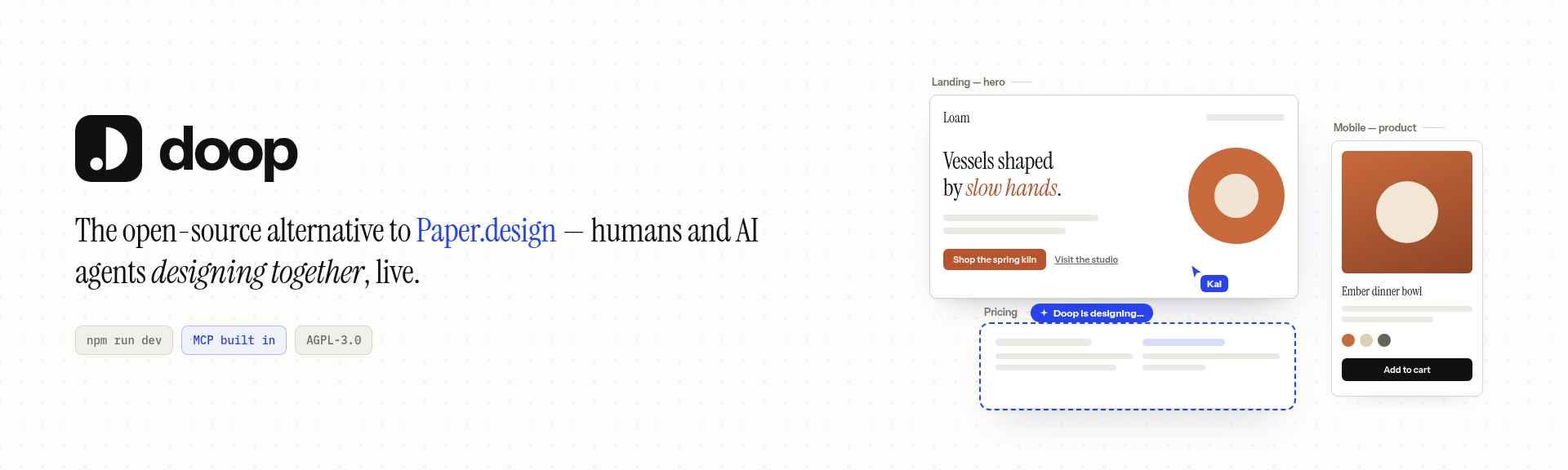
Doop is the open-source alternative to Paper.design — a multiplayer
design canvas for humans and AI agents. Every design lives on a shareable Canvas
(/c/<id>) holding Frames — artboards that render real HTML in sandboxed iframes. People edit
in the browser; AI agents edit through the built-in MCP server, streaming their designs in
live. Everyone sees everything as it happens: cursors, presence, frame edits, agent status, and an
activity feed.
Think of it as Claude Design for whichever agent you already use: Claude Code, Codex, ChatGPT, Cursor, OpenCode or any other MCP client designs on the same canvas, and the built-in Doop Agent runs on GPT, Claude, Gemini, DeepSeek, Kimi or Qwen models (every agent and model).
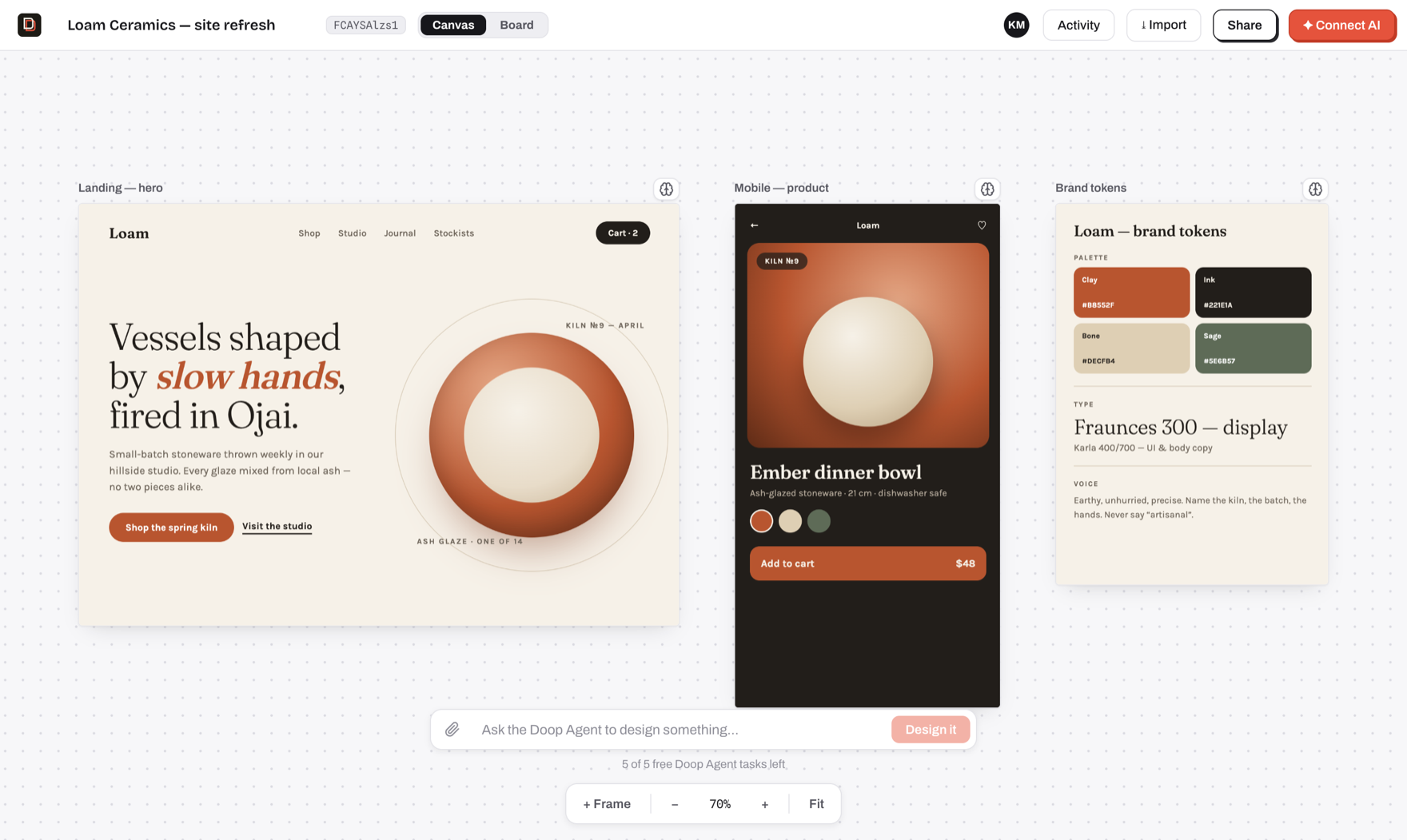
- Design with agents, not prompts-and-refresh — connect Claude Code (or any MCP client) once, then watch it sketch, stream and self-review designs on your canvas, next to your cursor.
- A built-in Doop Agent — queue a card or @mention a role and it designs on its own, no client
to connect. Runs on the model account each user connects (a ChatGPT subscription, or an
OpenAI, Claude, Gemini or OpenRouter key), or on the server's
ANTHROPIC_API_KEYfor as many free tasks asRESIDENT_TASK_LIMITgrants (none by default) (setup); the first-canvas welcome performance is scripted and runs without any of it. - Pages within a canvas — organize frames into named pages from the Layers panel. Add, rename,
drag to reorder, double-click to rename, or right-click to rename and delete empty pages.
Page edits support Undo/Redo; selected frames can move between pages. Agents can list pages
with
get_canvas, manage them withset_canvas_pages(passing the original list asexpectedPagesto protect collaborators), and target frames withpageId. - Clickable prototypes — wire elements to other frames (click, hover, press, key or delay;
navigate, overlay, back, scroll or link, with transitions) in Prototype mode or straight in the
HTML, then click through the flow with Play or share
/c/<id>/proto. Agents use the samedata-doop-*attributes plusget_prototype/set_prototype_start. - A real canvas editor — draw frames, shapes, pen paths and text, edit any element's fill, type and flex layout, snap to rulers and guides, zoom from 8% to 1600% (the editor).
- True multiplayer — live cursors, presence, follow mode, per-frame editing indicators, undo/redo, threaded comments on elements or the canvas, and an activity feed, all over one WebSocket room.
- Design memory — pin exemplar frames, capture decisions, and let the distiller propose durable style rules that every agent follows.
- Private by default — invite collaborators by email or share a link that can view, comment or edit; agents inherit exactly their human's access.
- Self-host in one command —
docker compose up, orbun run devwith zero configuration (embedded Postgres, no external services required).
Works with any agent
Doop isn't tied to one model vendor. Every agent below designs through the same MCP server, works as the person who connected it, and shows up live on the canvas with its own cursor, status and tasks. Connect AI in the top bar walks you through each one.
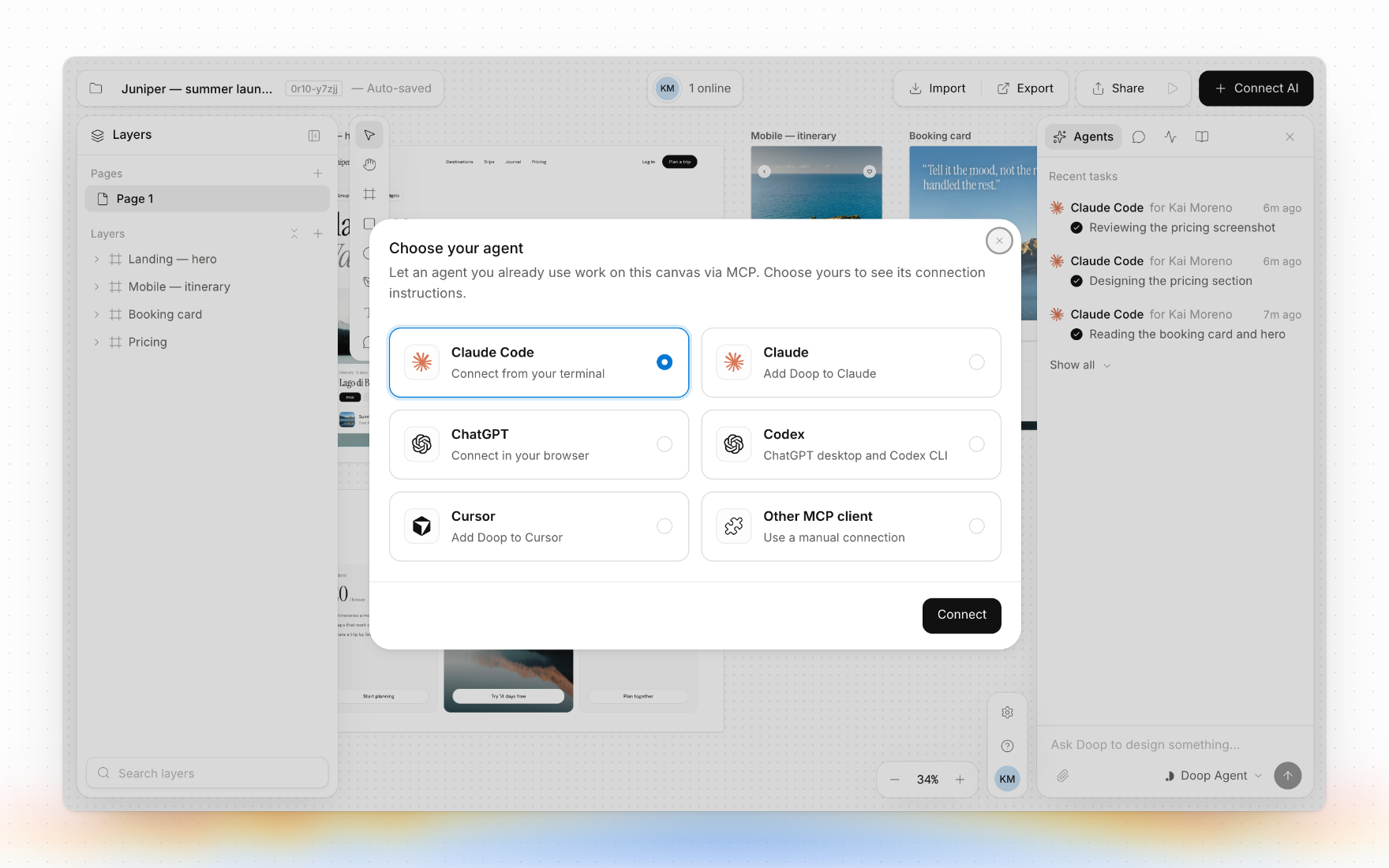
| Agent | How it connects |
|---|---|
| Claude Code | claude mcp add, OAuth in the browser (setup) |
| Claude (web and desktop) | Add to Claude in Connect AI (setup) |
| Codex (CLI and desktop) | codex mcp add, OAuth in the browser (setup) |
| ChatGPT | A custom MCP server in ChatGPT, guided by Connect AI → ChatGPT |
| Cursor | Add to Cursor in Connect AI |
| OpenCode, VS Code Copilot, OpenClaw and more | Any MCP client, over OAuth or with an agent key (setup) |
| Headless agents (n8n, Mastra, CI) | An agent key as a bearer header (setup) |
No agent of your own? The built-in Doop Agent runs on the model account you connect: a ChatGPT subscription, or an OpenAI, Claude, Gemini or OpenRouter key. OpenRouter brings DeepSeek, Kimi, Qwen, GLM and MiniMax (details).
Quickstart
git clone https://github.com/kgoedecke/doop && cd doop
bun install
bun run dev
Doop builds and installs with bun (bun.lock is the only
lockfile); the server itself runs on Node.
- Web app: http://localhost:4300
- API + WebSocket + MCP server: http://localhost:4400 (the web port proxies
/api,/ws,/mcp,/.well-known,/i/,/ingestand/local-agentto it)
bun run dev and bun run build also package the Claude Desktop extension with a Node script,
so Node must be on your PATH as well.
Everything works with no configuration: data persists to an embedded Postgres (PGlite) in data/pg,
and every optional integration (SMTP, stock photos, object storage, analytics) degrades gracefully
until its variable in .env.example is set (the ones that matter).
The built-in Doop Agent runs once a user connects a model account in Settings
(or on the server's ANTHROPIC_API_KEY if you raise RESIDENT_TASK_LIMIT) — agents you connect
yourself over MCP need no key.
Or self-host the production build with Docker:
BETTER_AUTH_SECRET=$(openssl rand -hex 32) docker compose up -d # app + Postgres on :4400
Production build without Docker: bun run build && bun run start (single server on :4400 serving
everything). Set DATABASE_URL to use a real Postgres — same code path as PGlite.
Prefer not to run anything? doop.design is the hosted version.
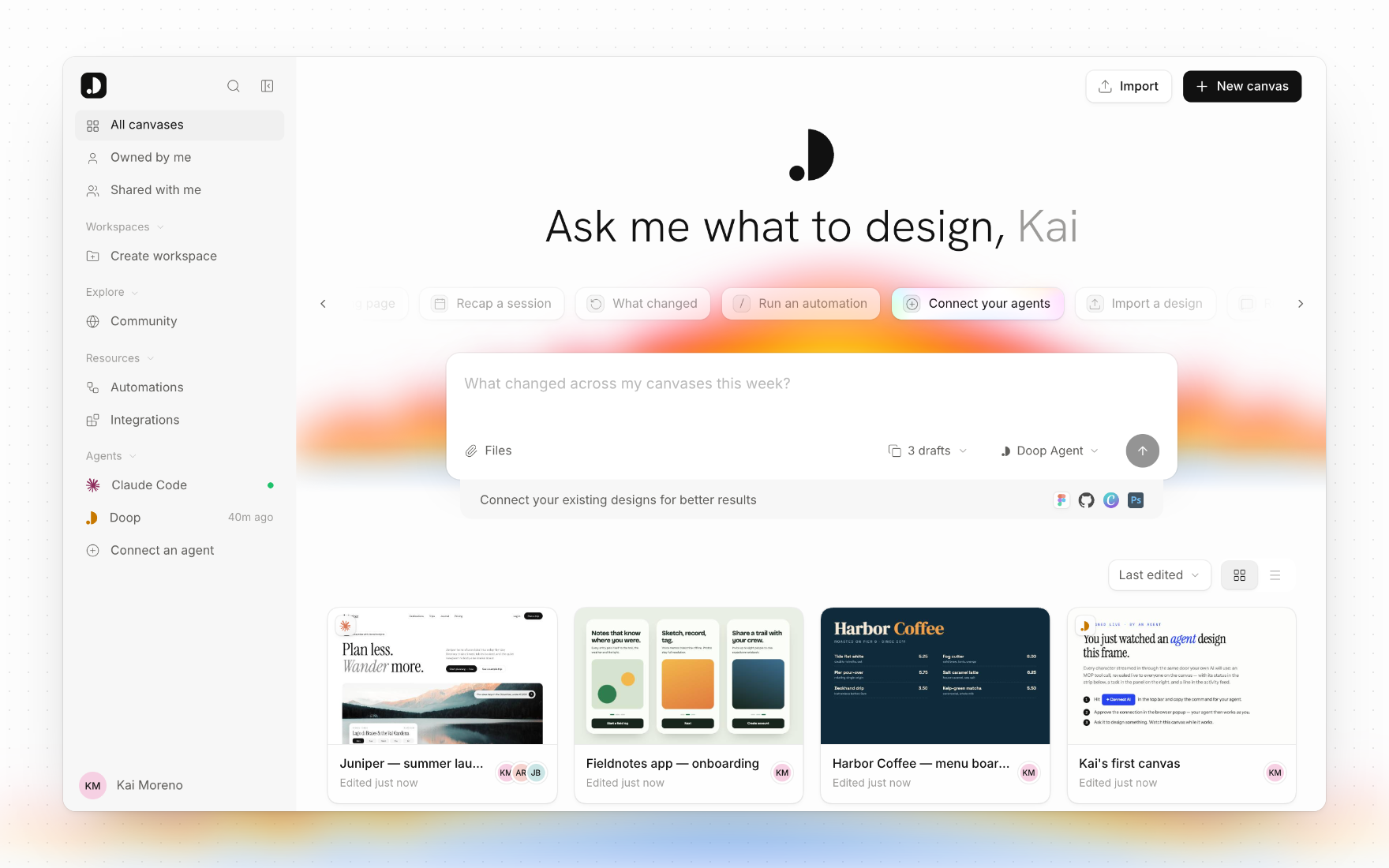
Once you sign in, Home is where you start: describe what you want and Doop makes a canvas with drafts queued for the Doop Agent, or pick up one of your canvases, workspaces and connected agents.
The canvas editor
The bottom toolbar holds the tools; every one has a single-key shortcut. Shapes drawn on the canvas become standalone elements, and shapes drawn inside a frame become positioned HTML/SVG layers of that frame, so agents read and edit them like any other markup.
| Tool | Key | What it does |
|---|---|---|
| Select | V | Click to select, drag the background for a marquee, ⇧/⌘-click to add to the selection |
| Hand | H | Pan (Space or the middle button pans from any tool) |
| Frame | F | Draw an empty frame |
| Rectangle | R | Draw a rectangle |
| Circle | O | Draw a circle or ellipse |
| Vector path | P | Bézier pen: snaps to its own anchors, previews closing the path; Alt skips snapping |
| Text | T | Place a text layer |
| Comment | C | Pin a comment to an element or to the canvas |
- Frames — drag to move, pull the corner handle to resize, snap to neighbours and guides. The Inspector edits name, position, size and the raw HTML, marks the frame ready for dev, exports it, and pins it as a style reference; Version history… in the frame menu previews and restores earlier designs.
- Elements inside a frame — click to select, drag a corner grip or edge to resize (⇧ keeps the
ratio; a
W × Hbadge shows the size), drag the element to move it within or across frames. The Design tab edits fill, stroke, text (font, size, weight, alignment), opacity, corner radius, rotation, position, flex layout (direction, gap, padding, wrap, alignment) and image fills; HTML shows its source; Prototype wires interactions. The floating toolbar adds Comment, Ask AI (pre-fills an@mention), Code, Edit text and Copy link. - Path editing — double-click a path to drag its anchors and Bézier handles, switch points between corner and curve, or delete them. Alt moves one handle on its own; ⇧ constrains its angle.
- Layers — a searchable tree of pages, frames and elements: drag to reorder or reparent, hide, lock, collapse, and right-click an element for copy, paste, duplicate, Copy HTML, Copy selector and Copy link to element.
- Rulers and guides — ⇧R shows rulers; drag out of one to add a guide. Guides belong to the page, undo like any edit, and everything snaps to them within 8 screen pixels.
- Zoom — 8% to 1600%. Wheel pans, ⌘/Ctrl + wheel or a pinch zooms; a 1px pixel grid fades in from 300%. The zoom menu has 50/100/200% presets and the rulers toggle.
- Panels — the right side panel has Agents, Comments, Activity and Memory tabs; Layers and the side panel can be resized, and ⌘. hides all UI.
- Themes — Light, Dark or System under Settings → Appearance.
- Phones — the canvas works on a phone: one-finger pan, pinch zoom, tap to comment, and bottom sheets for canvas actions, Layers and the Inspector.
| Shortcut | Action |
|---|---|
| ⌘Z / ⌘⇧Z (or ⌘Y) | Undo / redo your own edits |
| ⌘C / ⌘V / ⌘D | Copy, paste, duplicate frames or layers |
| ⌫ | Delete the selected element, else the selected frames |
| ⌘⇧H / ⌘⇧L | Hide / lock the selection |
| ⌥↑ / ⌥↓ | Move a layer up or down (Layers panel) |
| ⇧1 / ⇧2 | Zoom to fit everything / the selection |
| ⌘0 / ⌘+ / ⌘− | Zoom to 100%, in, out |
| ⇧R | Toggle rulers |
| ⌘. | Hide or show all UI |
| ⌘K | Open the Agents composer (on Home: the search palette) |
| Esc | Deselect, stop following |
Click a collaborator's avatar to follow their viewport; an agent's avatar flies you to what it is working on. Placeholder frames show where an agent that has picked up a card is about to design.
Comments, imports and exports
Comment on any element or anywhere on the canvas. The Comments tab lists the page's threads
(open or resolved) with their replies. @mention an agent role in a comment or a reply (for example
@doop) to queue a design card; the agent's answer comes back in the thread. People who miss a
comment get an email digest (opt out under Settings → Account), and canvases opened through a
view-only or comment-only link show a badge and disable editing.
The import source picker offers Website (one page, or discover a whole site and pick its pages),
Live app (the sync snippet), and
GitHub repo (through the GitHub App or a fine-grained token: Doop reviews the repo's screens and
components and queues cards for the Doop Agent to sketch them and extract the design system into a
style guide).
Right-click a frame and choose Export… to download PNG, JPG or a vector PDF (of the frame, or of
every selected frame as one PDF). Export in the top bar binds any frames of the page into one PDF. A progress toast tracks the
render; the desktop app opens its native save panel. Every frame also has a public live image at
/i/<frameId>.png?scale=2 (or .jpg) that re-renders when the design changes, handy as an
og:image or in docs.
Figma, Canva and Photoshop (PSD) import and export are currently available in Doop Cloud and not part of the open source.
Integrations
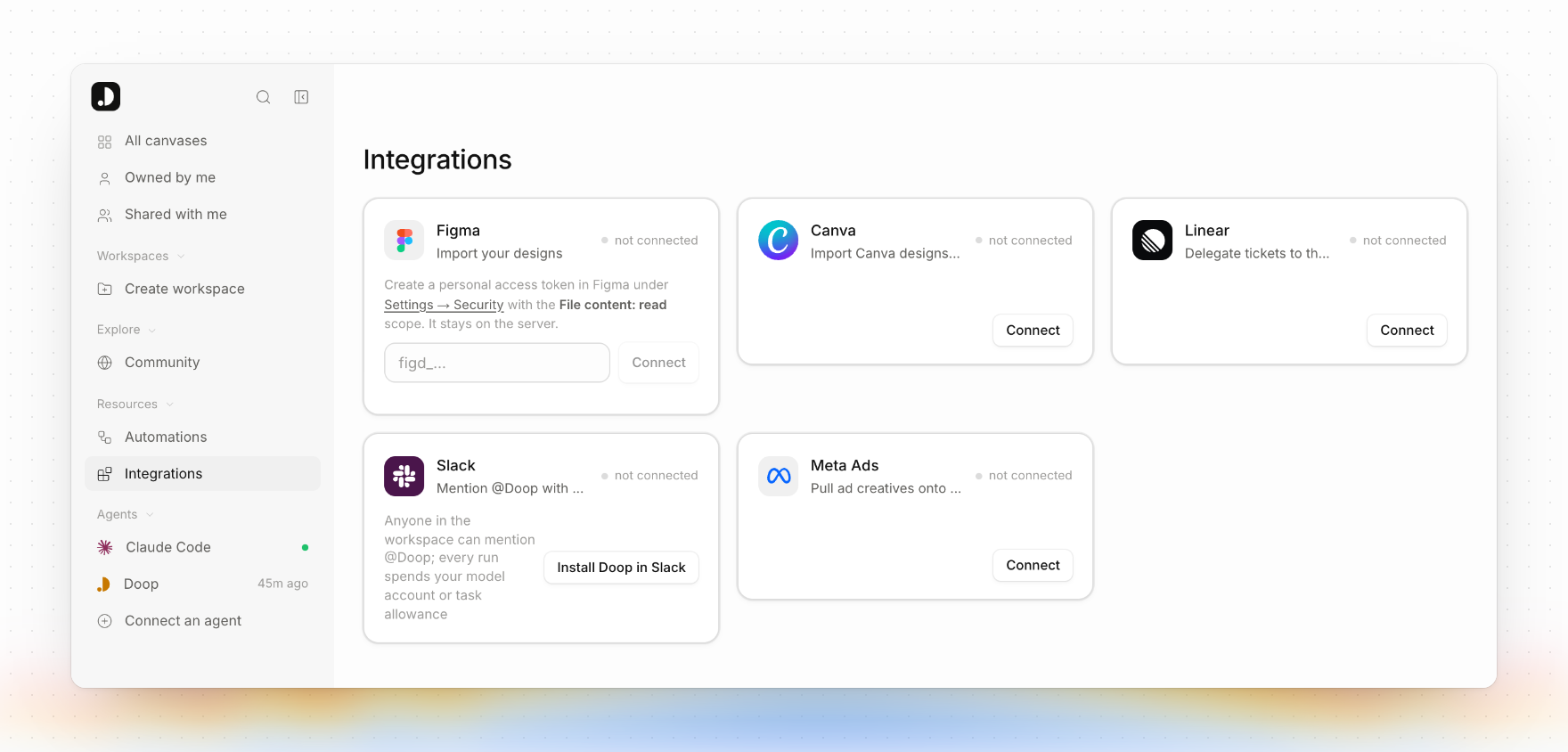
Integrations in the rail is where an account connects the outside tools Doop works with:
| Integration | What it does |
|---|---|
| Linear | Read issues through MCP, or delegate an issue to Doop: it designs a canvas and reports the result back to Linear (setup) |
| Slack | Mention @Doop with a brief; it designs a canvas and posts the result in the thread (setup) |
| Meta Ads | Pull ad creatives onto a canvas on a schedule with an automation |
The Figma integration (import frames as editable HTML, export frames back to Figma) and the Canva integration (import designs as editable frames, send frames back with live text) are currently available in Doop Cloud and not part of the open source. A self-hosted Integrations page shows Linear, Slack and Meta Ads.
Outbound webhooks (Settings → Webhooks) POST a signed JSON event to your own URL when a comment is created, replied to or resolved, when a frame is created, or when an agent finishes or fails a board card, with retries and a test ping (events and signatures).
To reference a specific element in feedback, select it and choose Copy link
in its floating toolbar, or right-click its Layers row and choose Copy link to
element. Opening the link selects the element and opens its properties on the
correct page. The URL includes the canvas ID, frame ID and URL-encoded CSS
selector, so an AI agent can locate it in the frame HTML. Canvas access rules
still apply. Selectors that use element IDs survive layout changes; selectors
based on sibling positions can change when the HTML is restructured.
Approve screens for development
Select a frame and turn on Development → Mark as approved in the inspector, or right-click one or more frames and choose Mark ready for dev. A green badge appears above the screen and in Layers. Hover the toggle row or a badge to see who approved it and when. Turn the toggle off to move an approved screen back to draft.
Changing the HTML or frame dimensions switches an approved screen to Needs review; review it and turn Mark as approved on again. Moving, renaming, hiding, locking, or moving between pages keeps approval. Copies start as drafts. An approval checks the frame revision so a concurrent edit cannot accidentally be approved, and waits for live design streams to finish.
Agents can read approvalStatus (draft, ready_for_dev, needs_review) and
approval attribution in get_canvas and get_frame. Call
get_canvas({ canvas_id, approval_status: "ready_for_dev" }) to find approved
screens, then re-read get_frame before implementing. Only ready_for_dev is
current sign-off. Approval is set by people in the app. In Automations, choose
Designs are approved to run a workflow when frames on a selected canvas become
ready for dev. Without an enabled workflow, approval only records sign-off.
The REST equivalent is PUT /api/frames/:id/approval with
{ status: "ready_for_dev" | "draft", expectedUpdatedAt }. The signed-in user's
identity supplies the attribution; the endpoint uses the same canvas access rules
as editing and returns 409 when the reviewed revision is stale.
Clickable prototypes
Turn frames into a flow you can click through. Switch on Prototype mode (top bar), pick an element and add an interaction in its Prototype tab, or drag the handle on its right edge onto another frame. Each interaction is a trigger (click, hover, press, a key or a delay) and an action (go to a frame, open one as an overlay, go back, close the overlay, scroll, open a link), with an optional transition: dissolve, slide or push. Connectors on the canvas show where every element leads, and a Start flag marks the frame each page's flow begins on.
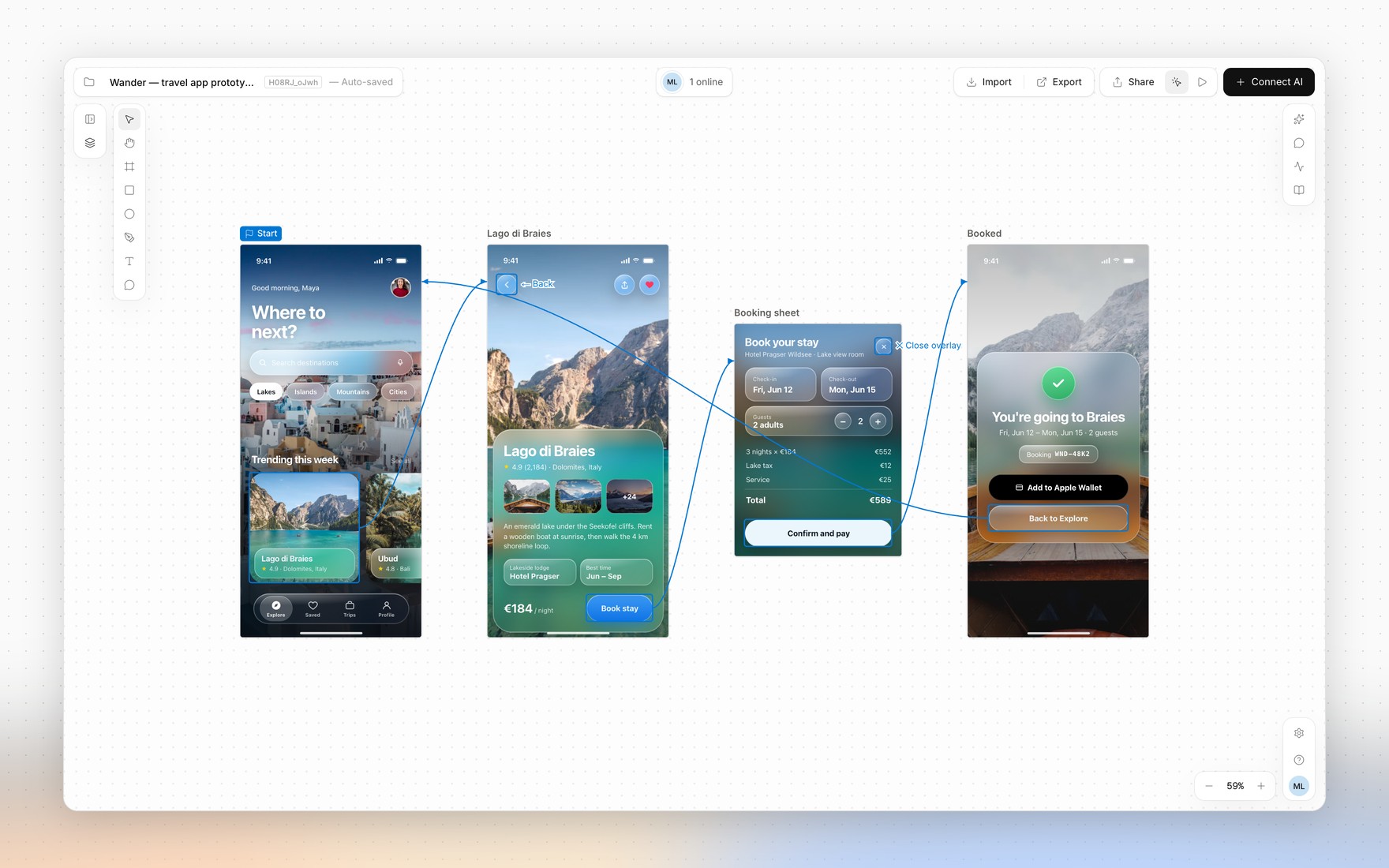
Press Play to run it full screen, or share /c/<canvas-id>/proto: the player follows the
same canvas access rules, and the browser's Back and Forward walk the flow. Frames stay live
while you play, so an edit on the canvas shows up on the screen you are looking at.
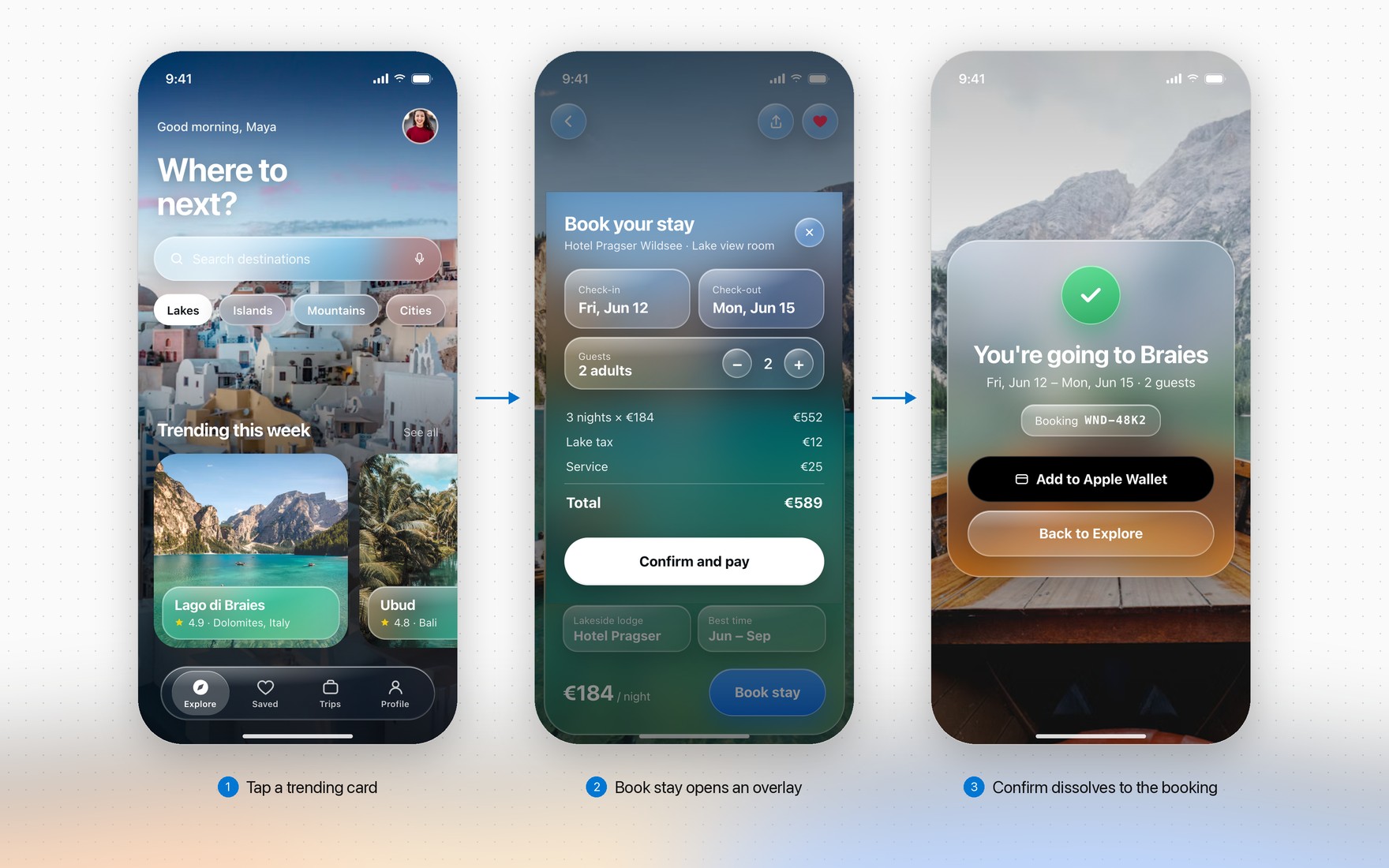
Interactions are plain attributes on the element in the frame HTML, so they sync, version and export with the frame, and agents write them with the same tools they design with:
<button data-doop-on="click" data-doop-action="navigate:<frameId>" data-doop-transition="push-left">Book stay</button>
Agents check their wiring with get_prototype, which flags links to missing frames, and set
the start with `set_prototype