FluidEQ 2.1
Your sound, finally worth watching.
fluideq.com · Download · What's new · Report a bug
FluidEQ is a free, open-source system-wide parametric equalizer for Windows 10 and 11, processed by its own audio engine or by Equalizer APO — your choice. Tune once per output, and the right sound follows the right device without you touching anything again.
Coming from another equalizer?
| You use now | Read |
|---|---|
| Equalizer APO | FluidEQ vs Equalizer APO — FluidEQ runs on it, or on an engine of its own |
| Peace | FluidEQ vs Peace Equalizer — Peace needs Equalizer APO underneath; FluidEQ does not |
| FxSound | FluidEQ vs FxSound — no virtual audio device |
| Boom 3D | FluidEQ vs Boom 3D — free, with surround on headphones in the Room |
Headphone corrections. 6,229 headphones and 12,594 corrections are built in, made by AutoEq, oratory1990 and Rtings from measurements by crinacle, Innerfidelity, Super Review and others, and collected by OPRA. Find yours, and who made it: every model has a page with its corrections drawn and given as Equalizer APO settings.
New in 2.1
Every output gets a sound of its own. The whole list is in the release notes; these are the headlines.
- Every output keeps its own sound. The EQ, the preset, the Tone, the DSP rack, the Room and the leveling come back with each output the moment you switch to it, and a second output plays straight from the FluidEQ Engine with a sound of its own.
- Tune each ear on its own. Any band can become one band per ear, in the EQ and in the DSP rack.
- My curves. Your own list of curves beside OPRA's library: from Squiglink, a .txt file, your EQ or an OPRA pick, each named, drawn and one press from playing, and the whole list exported or imported as one file. Squiglink has a tab of its own, and the EQ mode card switches corrections in one press.
- Songs that remember how you like them: tune a song once and it plays that way every time, on the output you tuned it on.
- A De-esser in the DSP rack that turns down only a voice's sharp S.
- Share Audio works both ways between two computers, each direction with its own switch, pause and volume.
- Every band's numbers on the graph, with EQ mode as a card beside it.
- Ask the Studio for a change and watch it on the stage: a chat beside the Studio's stage, running on your own Claude Code.
New in 2.0
The biggest release FluidEQ has had; these were its headlines.
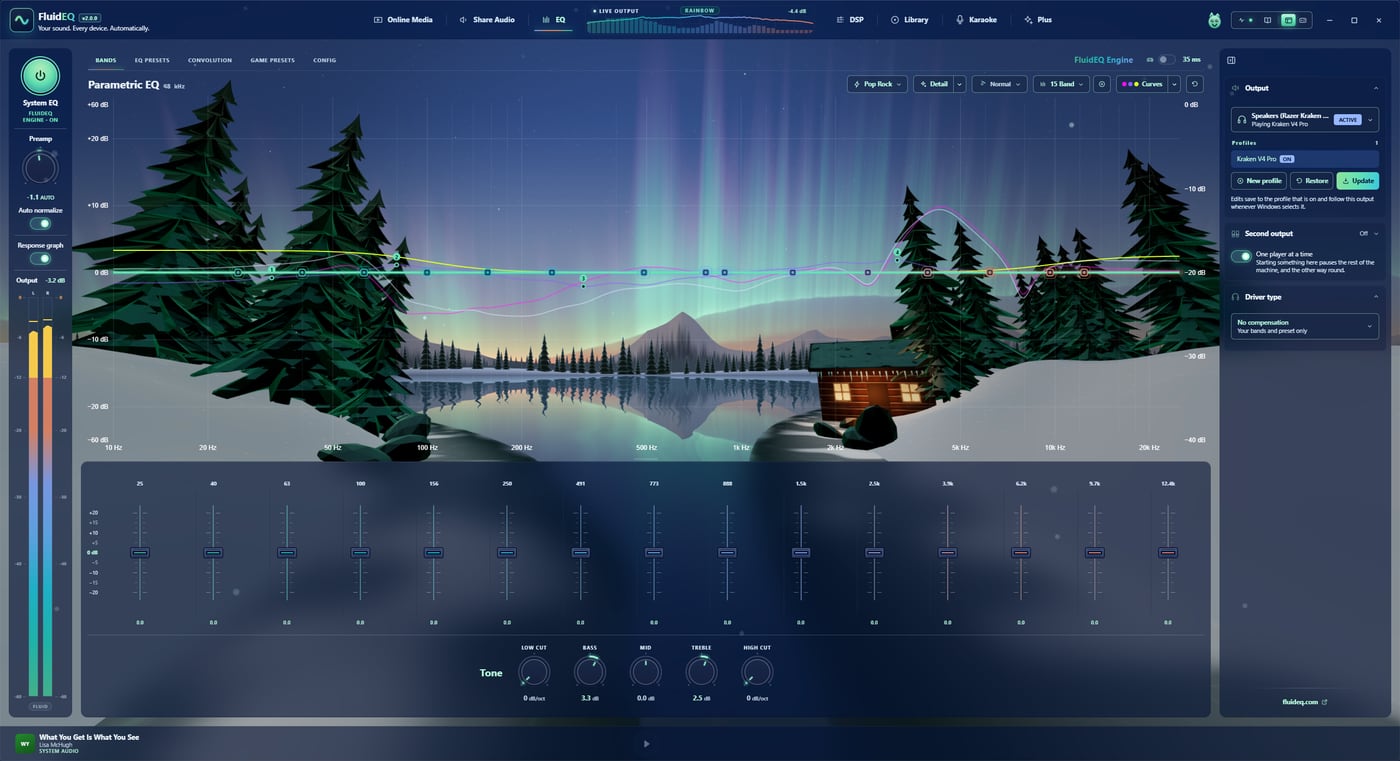
- A new window, in new colours. One slider, Brightness, takes the whole window from near-black to a light ocean blue. With a visualizer scene on the graph the window can take its colours, glow with it, or let it play behind everything on the Backdrop.
- Every look on your graphics card. The graph's forty looks draw at your screen's own refresh rate, eighteen of them new, and a visualizer scene can be a real 3D world that steps on the kick and leaps at the drop. Move the mouse across one and it throws sparks, petals or snow.
- Sound exactly as you drew it. On the FluidEQ Engine the treble plays as drawn to 20 kHz, every change and every preset switch crossfades instead of clicking, and Auto normalize lands on a new curve's level in one step.
- Presets that sound like the music. 107 whole chains, 83 of them music styles, measured again and levelled so a switch changes the character and not the volume, each explaining itself beside the list.
- Bass, Mid and Treble, like an amplifier, as a curve of their own, with a low and a high cut either side, and every band left as you set it.
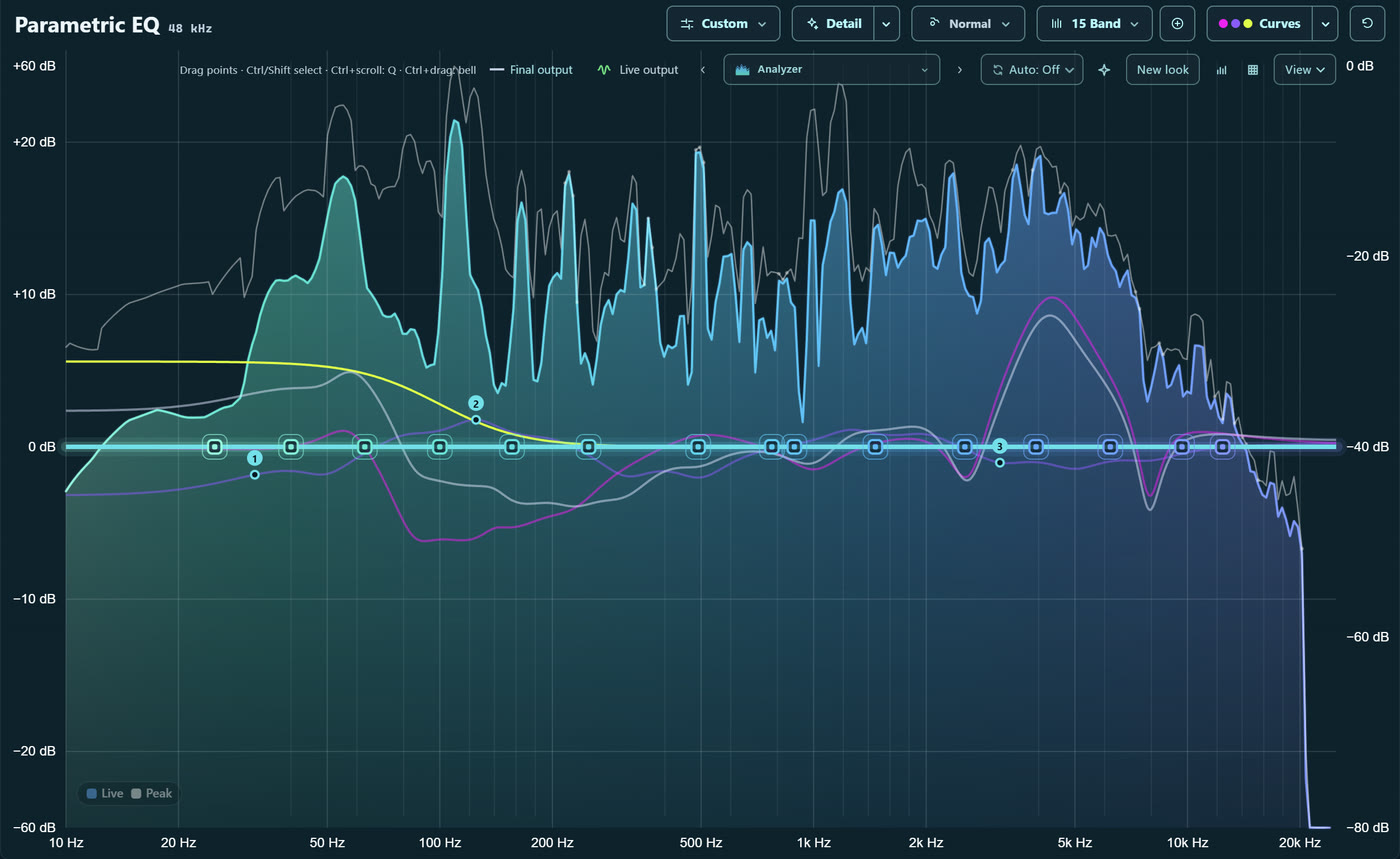
- A graph that reads sound like a studio. Twelve measuring views, the live sound 80 dB deep and down to 10 Hz.
- The Room. Twenty-four rooms that turn headphones into a listening room, every channel a speaker around you — all of them free.
- Every game, its own sound, switched when the game comes to the front and put back when it closes.
- FluidEQ folded into a player: the classic amp, or on the Backdrop a player of glass over the visualizer.
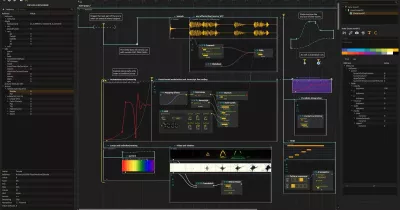
- Make your own visualizer. The Studio turns an idea into a scene that moves with your music, with your own AI assistant; a new account can try it free for fifteen days.
- Ask the guide in your own words, in any of ten languages, and it takes you to the control.
What it does
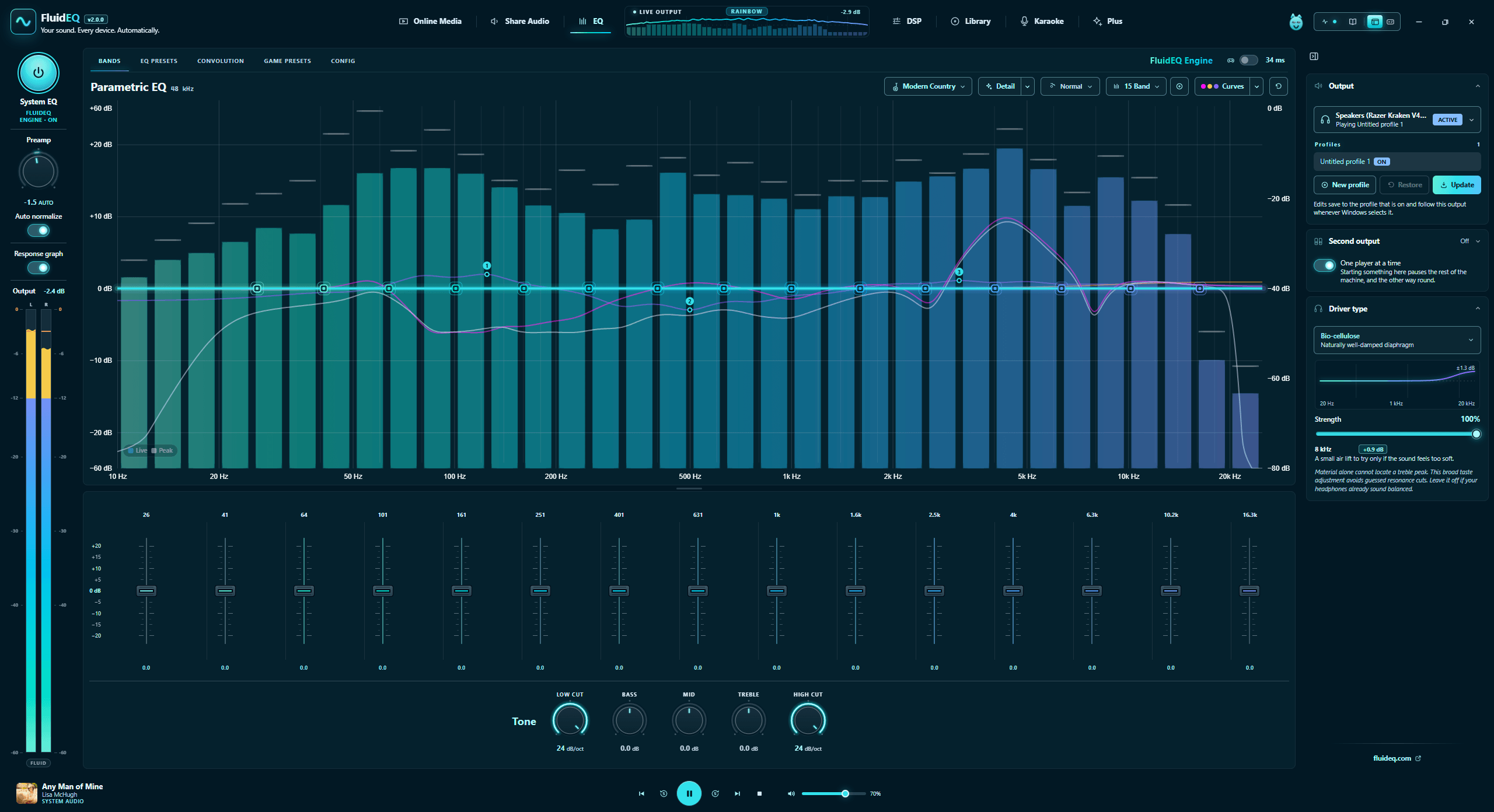
Follows your output. Every setting below belongs to the device you tuned it on. Plug in your headphones and their tuning comes back; switch to speakers and theirs does. FluidEQ maps the stable Windows endpoint ID, not the display name, so it survives renames and re-plugs. Games can have a sound of their own too: give one a preset under Game presets, and FluidEQ switches to it when the game comes to the front, keeps it until the game is closed, however often you alt-tab, and then puts back what you had.
Seven layers, one chain. Each is written as its own file in the Equalizer APO config, included in this order:
| Layer | What it is |
|---|---|
| Convolution | A measured impulse response applied before anything else — from the AutoEq catalogue or a WAV of your own. |
| Driver type | Twelve compensation profiles for the kind of transducer you are listening on: dynamic and planar headphones, dynamic, balanced-armature and hybrid IEMs, three diaphragm materials, four sizes. |
| Headphone correction | A published measurement for your exact model, applied as a layer beside your tuning rather than into it. |
| Parametric EQ | Your own bands, up to 128 of them. Peak, low/high shelf, low/high pass, band pass and notch, each with frequency, gain and Q. |
| Tone | Bass, Mid and Treble, turned with no band selected: two shelves and a bell, as a curve of their own that never rewrites your bands. |
| Preset | The tone of the preset you pick — one of 107 whole DSP chains, 83 of them music styles — as a curve of its own, on either engine. |
| Smart EQ | What a measurement of your own output asked for, one-shot or continuously maintained. |
A low cut and a high cut, either side of the Tone knobs, follow the preamp: they only take away, so no headroom is reserved for them. The treble of every layer plays exactly as drawn up to 20 kHz on the FluidEQ Engine, or built the way Equalizer APO builds it, as you choose in the EQ mode menu.
Any layer can be switched off without being lost. Every one of them has a switch on its chip, and the four curves — driver, headphone, preset and Smart EQ — have a strength from 0 to 100% beside it. Switching one off leaves its file out of the chain and touches nothing it holds, so pressing the switch again puts exactly the same settings back: which is how you find out whether a correction is actually an improvement, the same passage both ways, a second apart. It survives a restart, because a config with an include missing is a truthful config.
Everything active is named on the EQ page, so a bump in the graph is never a mystery — you can see what put it there and remove it in one click.
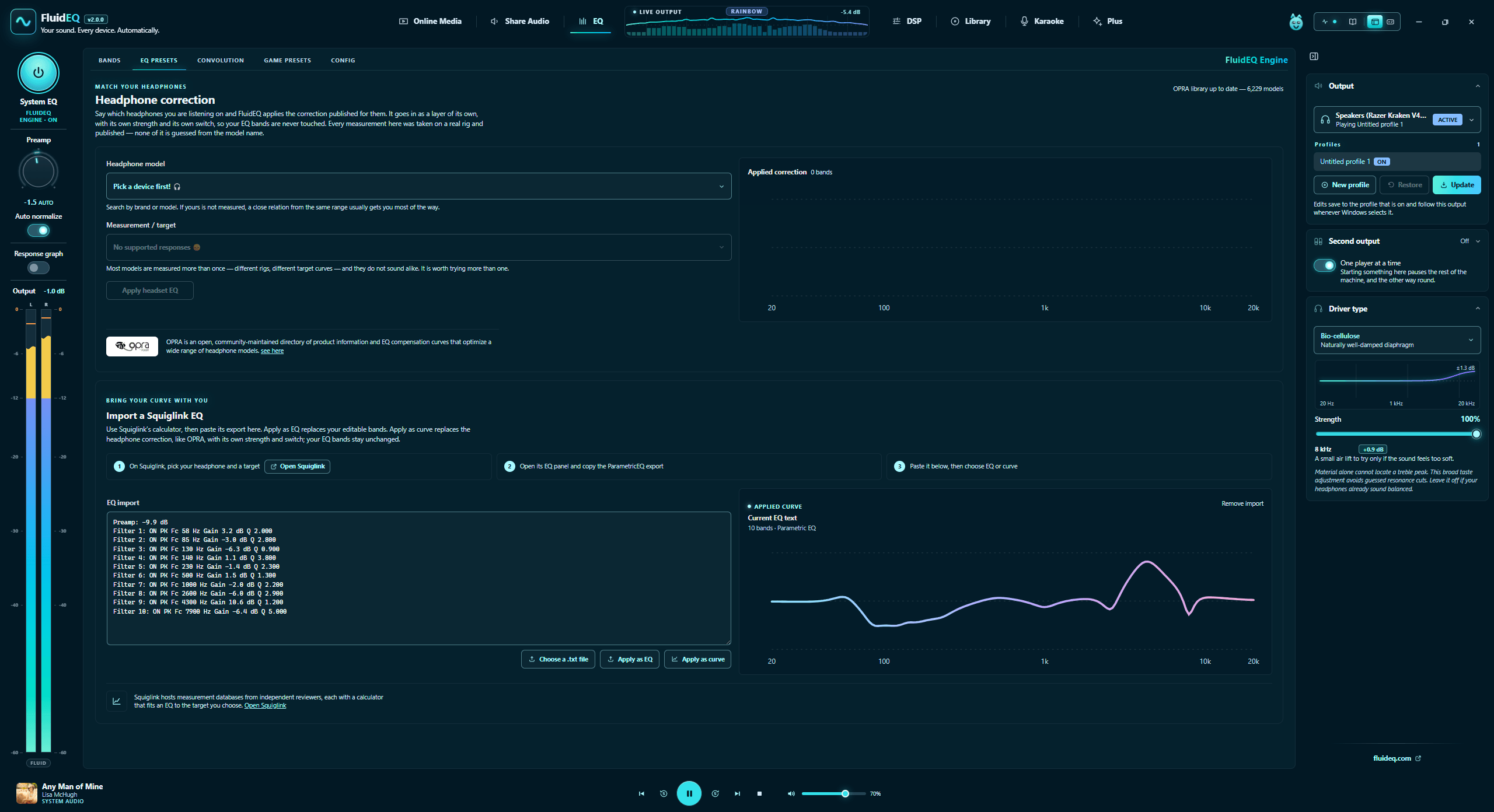
Start from a measurement. 6,229 headphones and 12,594 published curves ship offline from OPRA, the community directory of headphone EQ profiles, grouped by brand and credited to whoever measured them. For anything not in it, the EQ Presets tab links to Squiglink so you can export its EQ text and import it locally. Published corrections remain their own layer; an external export becomes editable EQ bands with a visible source and curve preview.
Smart EQ. Measures what is actually coming out of your output and flattens what it hears, rather than assuming a target. It subtracts the rest of the chain as it measures, so it corrects the recording and the hardware rather than undoing your own tuning. Continuous EQ is the same measurement as a mode rather than a press: it moves a fraction of the way and measures again, for as long as there is music, so only what every record agrees about survives — which is your headphones and your room. Three of them: Detail corrects peaks and dips, Balance also evens out a bright or warm recording, and Target brings every record to the same tonal balance.
One preamp, computed. Every layer contributes to a single Preamp: line
derived from the real combined response, so adding a preset or a convolution
cannot clip you — and removing one gives the headroom back.
Computing it from the response alone is a worst case, though: it assumes the music has full-scale energy at the exact frequency where your chain peaks, and real music never does. So auto-normalize — still the one switch it always was — also measures what is actually coming out, and reserves what the programme asks for rather than what the chain could theoretically need. A 6 dB boost at 10 kHz stops costing 6 dB of volume when the music up there is 30 dB down.
The two halves answer questions neither can answer alone. The arithmetic is a proof about what happens inside Equalizer APO, so it holds whatever plays and wherever the volume sits, and it stays underneath as the floor: a cold start, a silent room or a measurement that is wholly wrong behaves exactly like the worst case, never like distortion. The measurement covers what happens after, where Windows applies its own volume and ends the path with a limiter — whether that fires depends on a number the main process cannot compute. A sample-peak supervisor holds the output under −0.3 dBFS, which is the limiter's own documented figure with two tenths of margin. Nothing measured is stored; every launch starts at the worst case and works up. A clip indicator watches where the output really clips, not where the chain theoretically could.
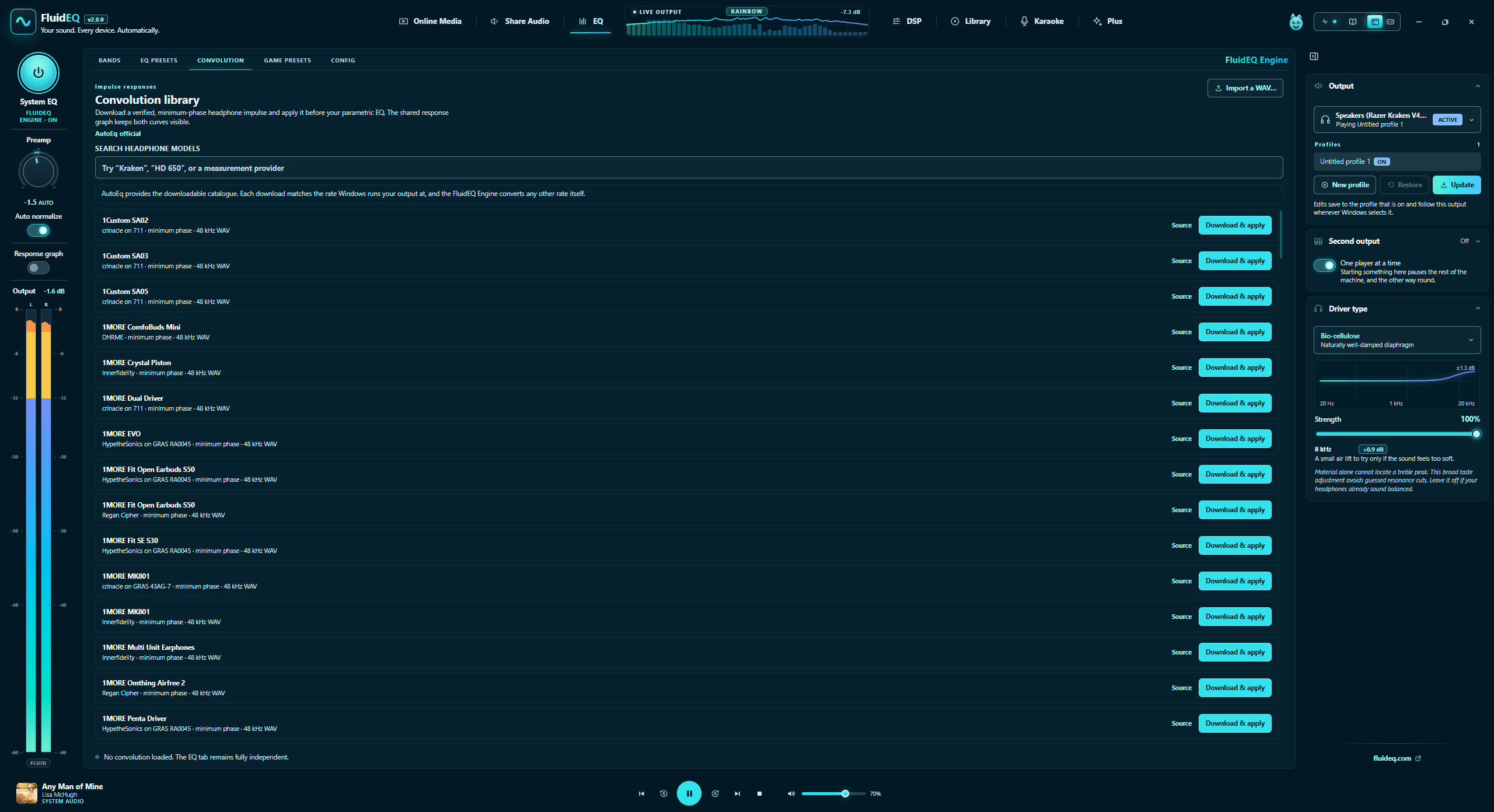
Import what you already have. An Equalizer APO ParametricEQ or GraphicEQ file, a FluidEQ profile, or any WAV impulse response. The Convolution tab also carries the AutoEq catalogue itself, searchable by model or by whoever measured it, so a verified impulse can be fetched and applied without leaving the app.
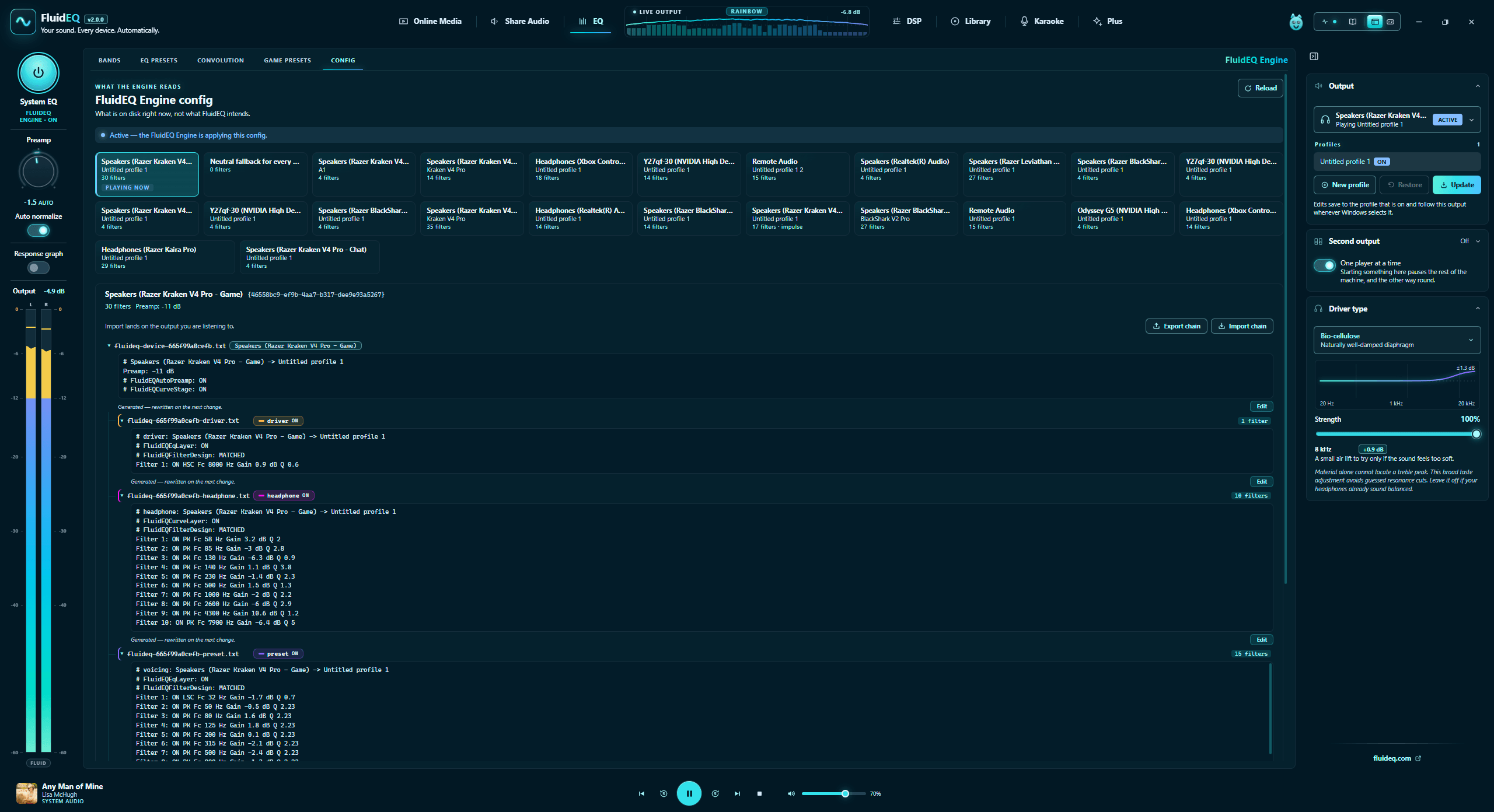
Send a chain to somebody. A Config tab shows the config the engine has
actually got on disk, per output, as the include tree it really is — what each
file holds, which layers are on, and any include pointing at nothing. Every
output also gets one file FluidEQ never rewrites, for the APO commands that have
no interface here. From that tab a whole chain exports to a .fluideq file and
imports back onto the output you are listening to.
One transport, at the foot of every tab. It follows whichever of FluidEQ's own players is going — the Library, Karaoke, Online Media — and when none of them is, it shows what the rest of the computer is playing and names it, with play, pause, skip and seek reaching that player instead. Where a loaded page exposes its own Previous, Next, Play and Pause, Online Media uses those rather than guessing. Only one thing plays at a time: starting a song in the Library stops the Karaoke stage, and starting either stops Online Media. It will stop players outside FluidEQ too, if you ask it to. Its volume slider is Windows' own volume, so it sets the level of everything the computer plays.
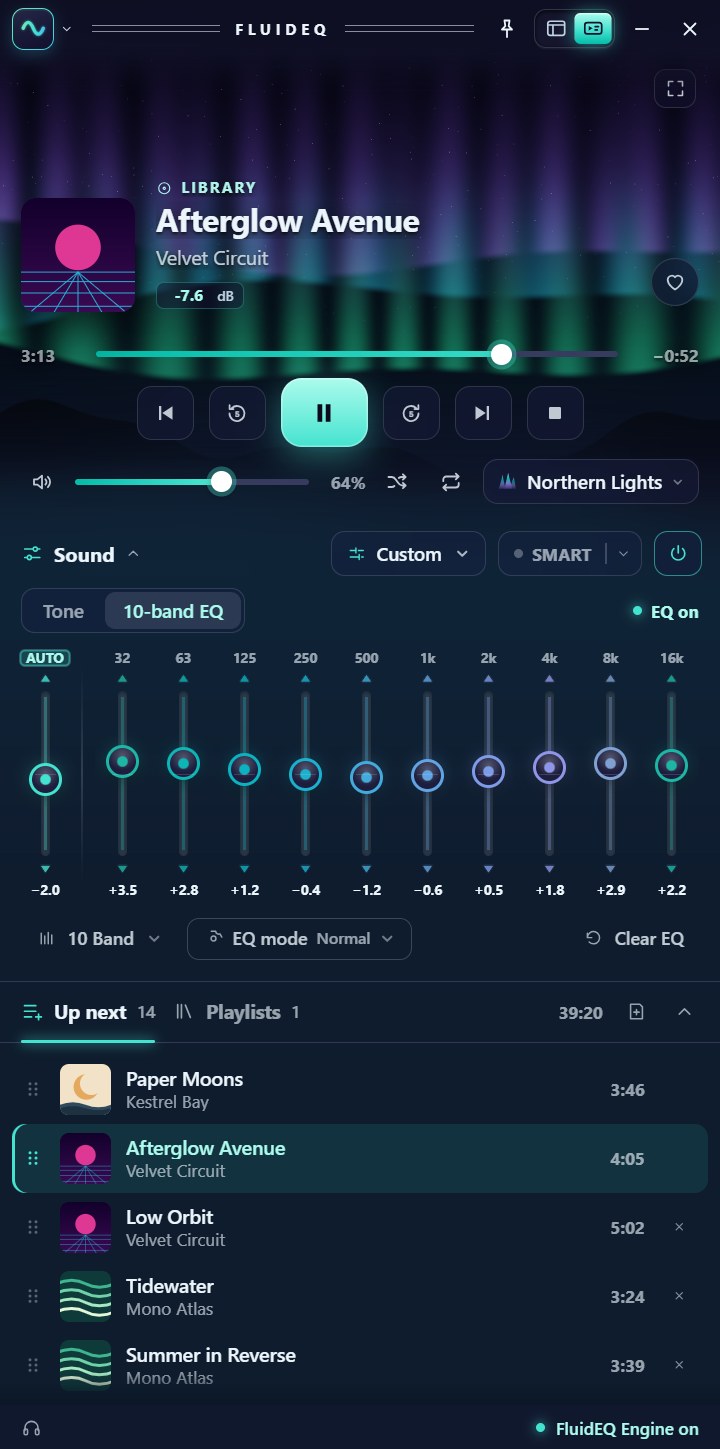
Shrinks to a player. One switch in the title bar, beside Help, turns the window into the Compact player: one column, the same in every window colour. The visualizer is at the top with the song over it, then the transport, then Sound — the Bass, Mid and Treble knobs or your EQ's own bands, with presets, Smart EQ and EQ mode — and Up next and Playlists at the foot, each folding away when you want the room. With a visualizer scene it is always the Backdrop, the scene playing behind all of it. Music dropped anywhere on it goes on the end of Up next. It keeps one width, and its height is yours, from its top edge or its bottom one. It folds to one line, stays on top of other windows if you ask it to, and the full app and the player each remember their own size and place. Its volume, like the transport's, is the computer's own. The same switch brings the full app back on the page you left.
Watch the sound, however you like to. The graph measures what is playing the way studio analysers do: twelve views, from the Analyzer, a spectrogram and a waterfall to stereo, loudness and phase, the live sound drawn 80 dB deep and down to 10 Hz, a twelfth of an octave per point, on scales that hold still while the music moves. Or it draws the music: forty looks in all, every one on your graphics card at your screen's own refresh rate — terraces, a skyline, LED and neon bars, glass towers, a synthwave road — each one yours to recolour and reshape in a designer that opens on the look you are using. The stereo output meter has ten looks of its own: bar, segments, LEDs, fluid, mercury, needle, pulse, stack, flow and centre.