

Foldocs
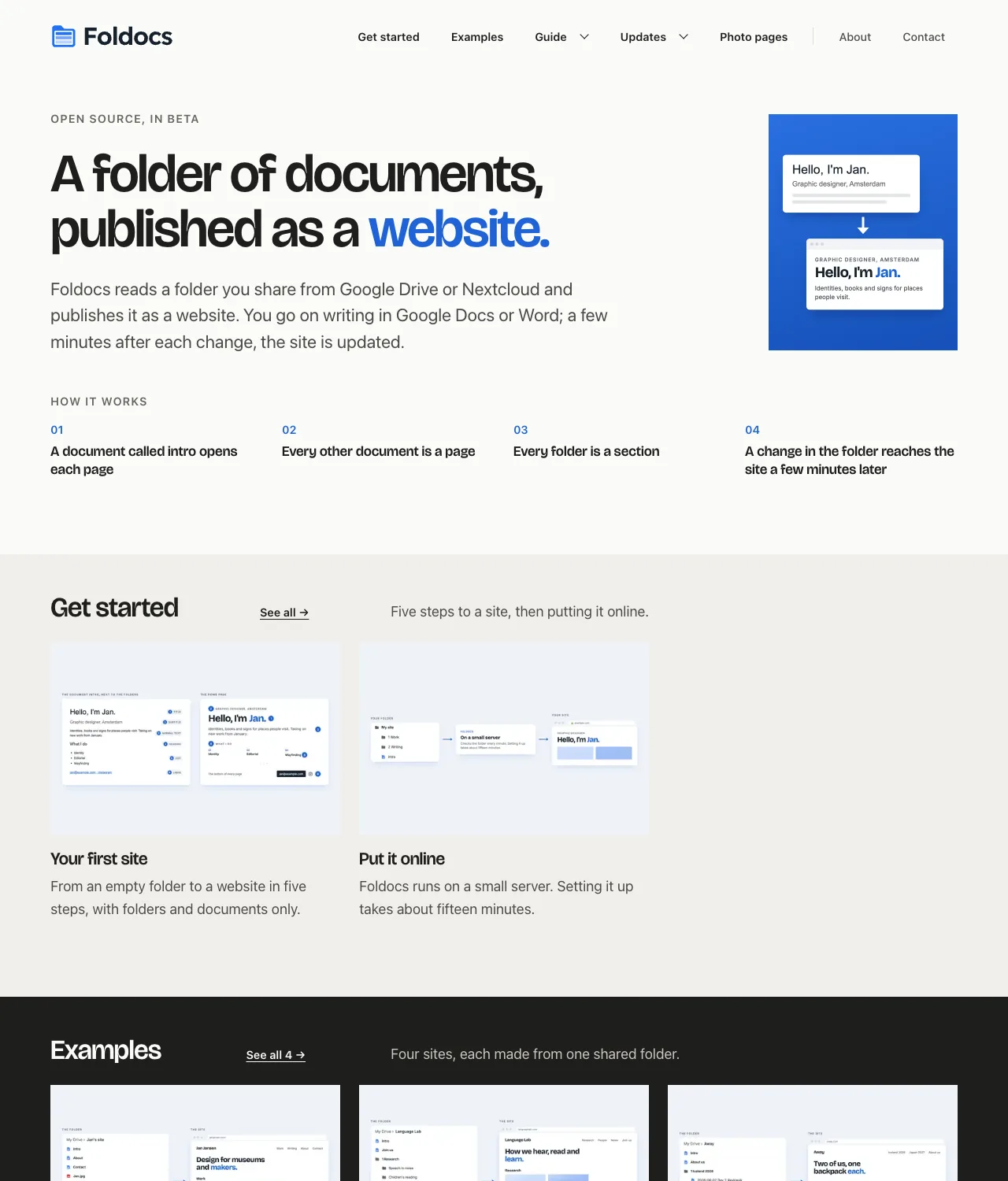
A folder of documents, published as a website.
Foldocs reads a folder you share from Google Drive or Nextcloud and builds a static website from it. Documents become pages, folders become sections and photos become photo pages. A small Python service checks the folder every minute and rebuilds what changed; any web server can host the result.
Rather try before you host? You can now try a free (limited) preview at try.foldocs.com!
Foldocs has no editor or database of its own. The folder is where you write, and the site is a read-only copy of it. Reading the folder takes only its share link (and, for Drive, an API key), because the folder is public, as the site is. Sites come with a feed, dark mode, accessible markup and the metadata search engines use, and themes can present the same folder as a personal site, a blog or a folder index.
Foldocs 0.1 is the first release. It runs real sites, but settings and themes may change before 1.0.
foldocs.com is made with Foldocs, from a public Google Drive folder. It documents Foldocs, shows that folder beside the site, and links each page to its document. The same folder is also built as a blog and as a folder tree.
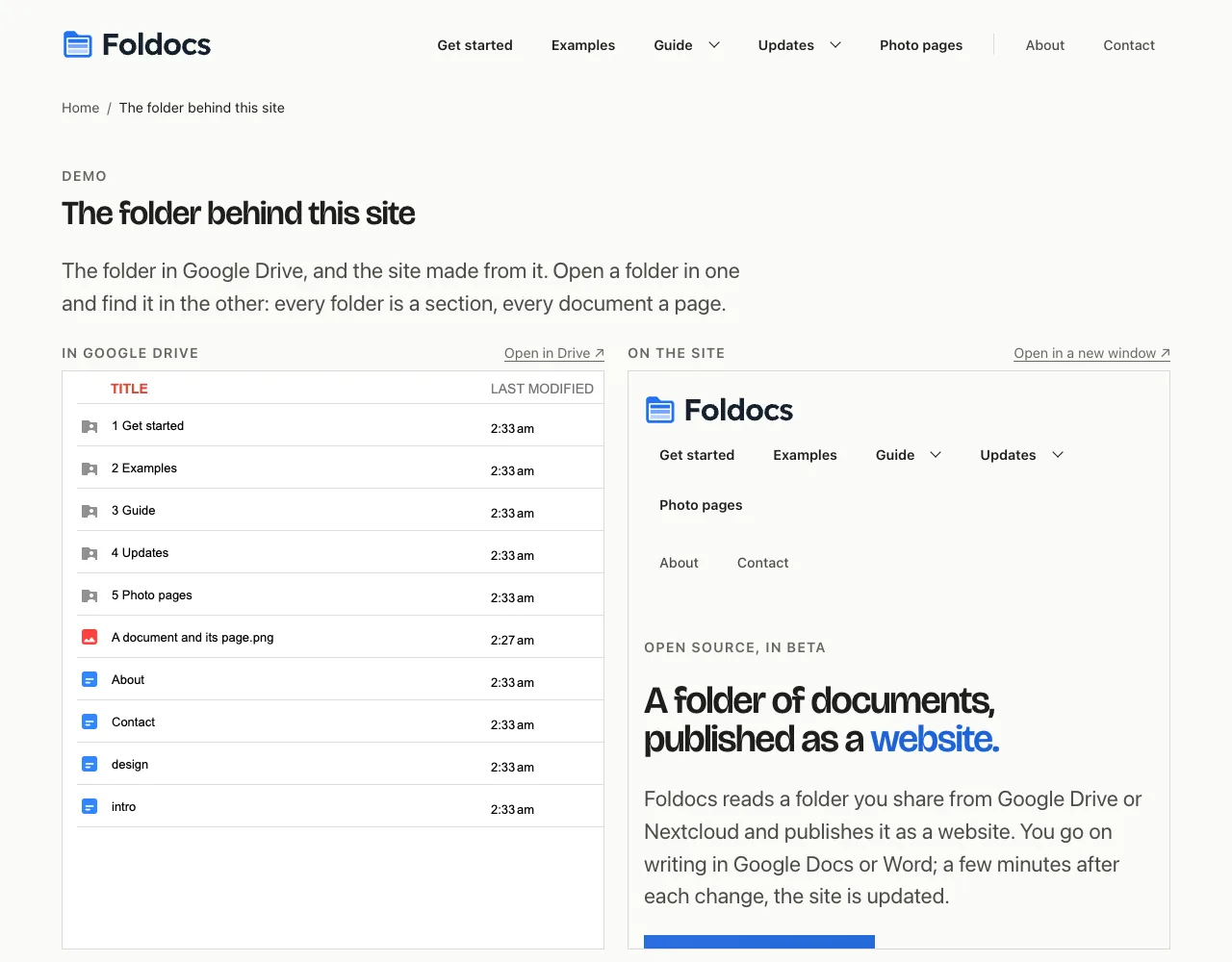
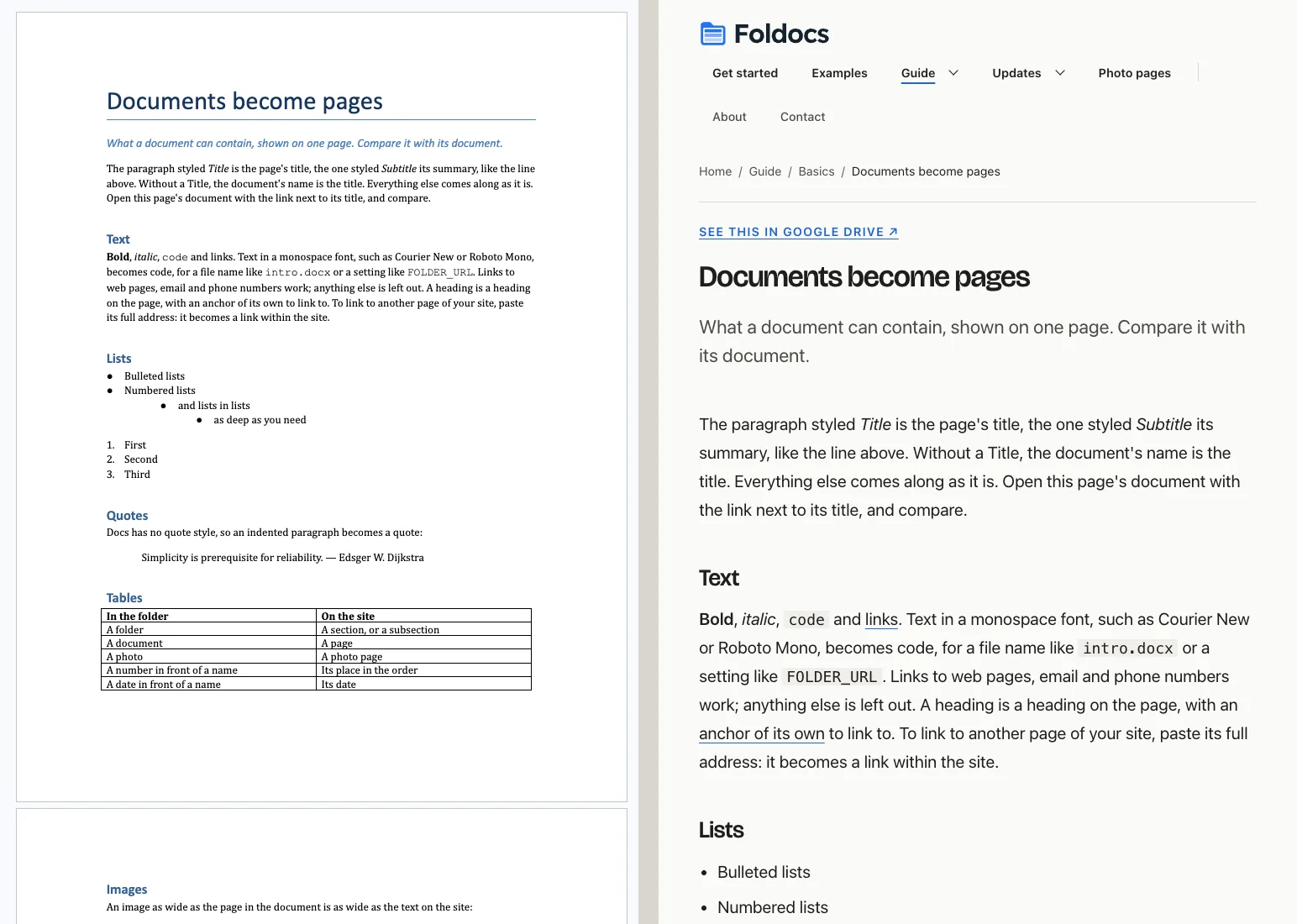
The Drive folder beside the site, and a Google Doc beside the page made from it:
The same folder in the other two bundled themes, as a blog and as a folder tree:
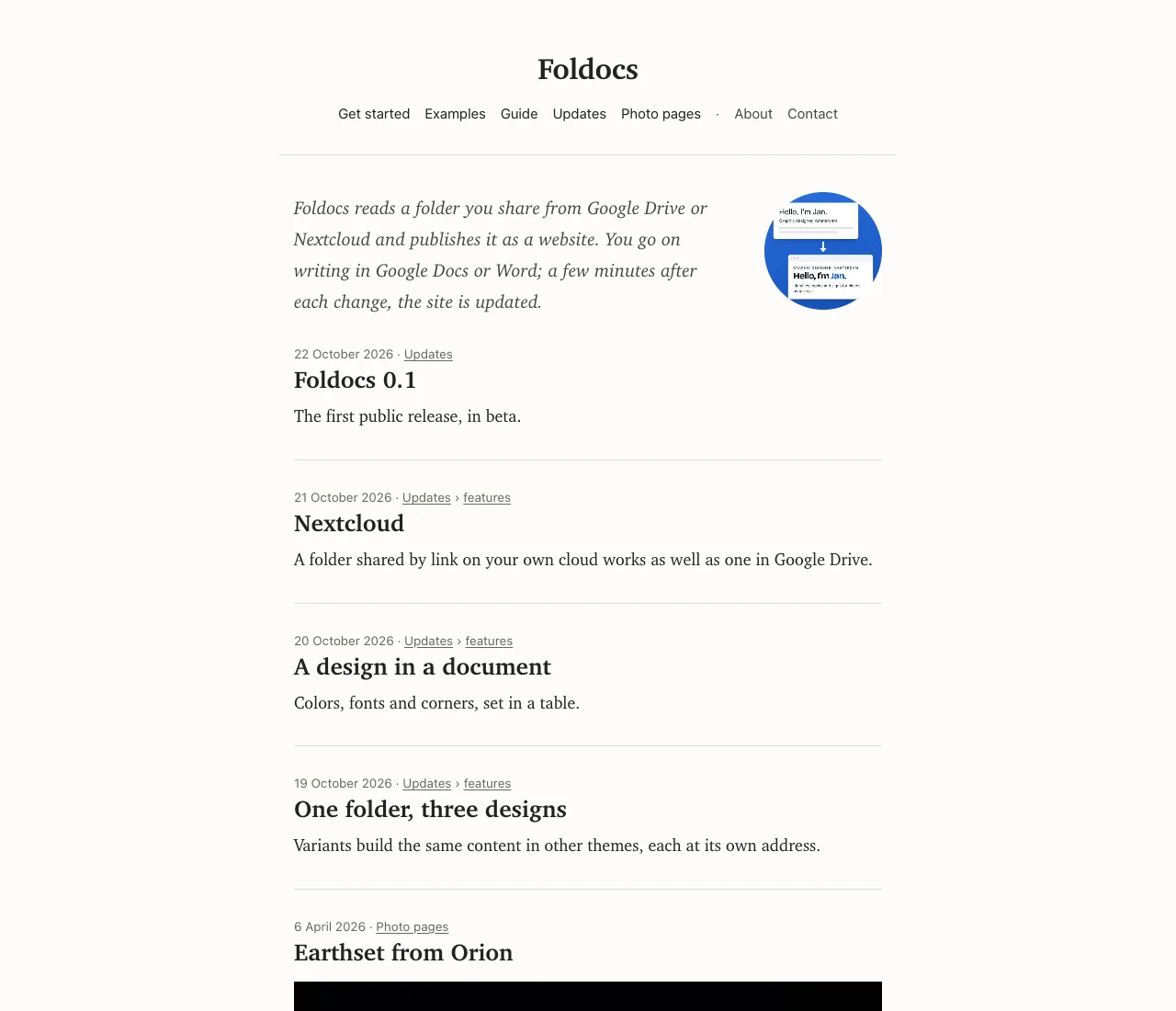
|
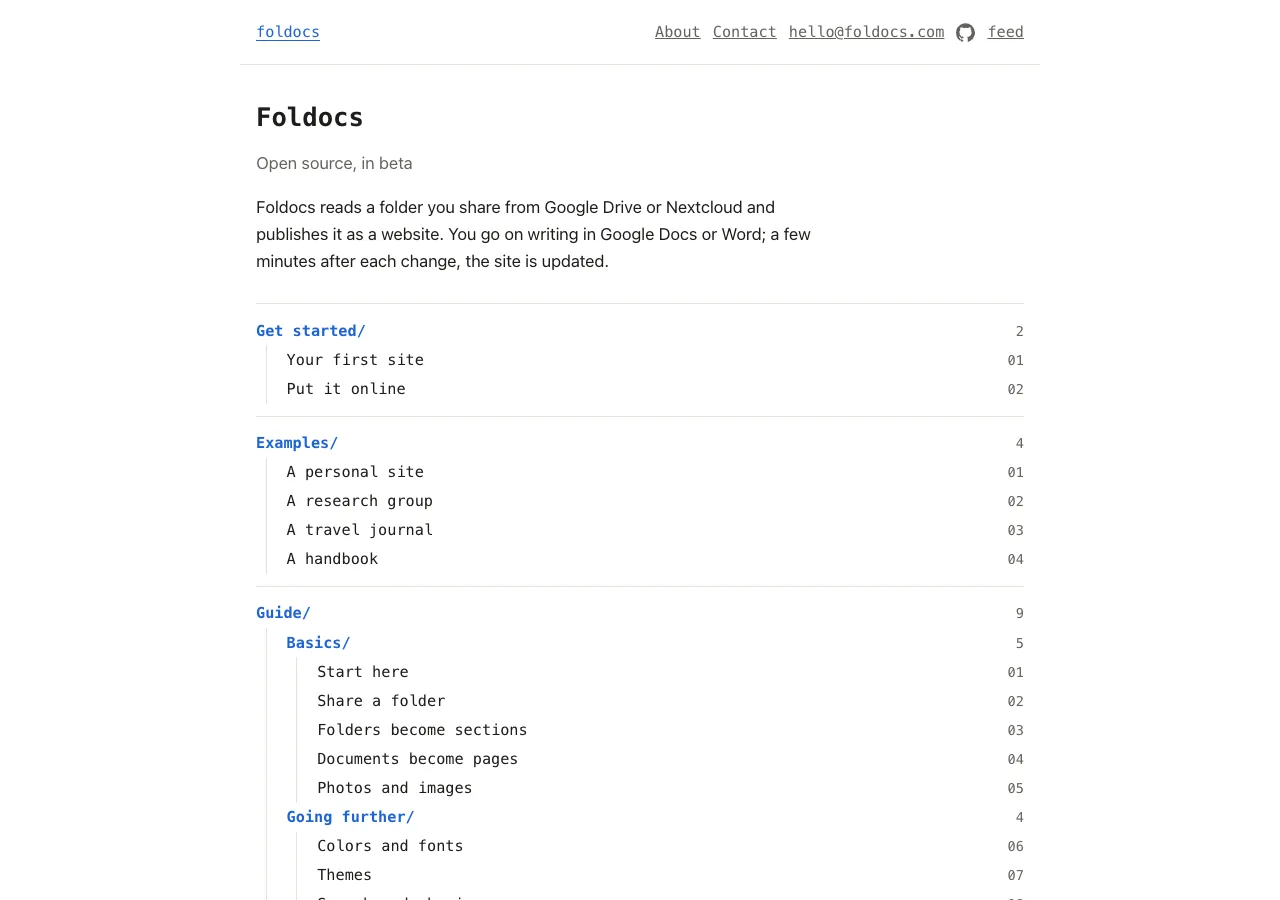
|
The idea
Every folder in the shared folder works the same way, the shared folder itself included:
- A document called
introopens the folder's page. In the shared folder, that is your home page: its headline, introduction and topics, and your contact links. In a folder in it, that section's page. - Every other document adds a page. Next to your folders, a page in the menu, like About or Contact. In a folder, one of its pages: a post, a project, a note.
- Every folder adds a section, with a page of its own and a row on the home page. A folder in a folder is a subsection, and works the same way again; the menu lists a section's subsections under it.
- A photo next to your folders is your portrait; in a folder, a photo page of its own.
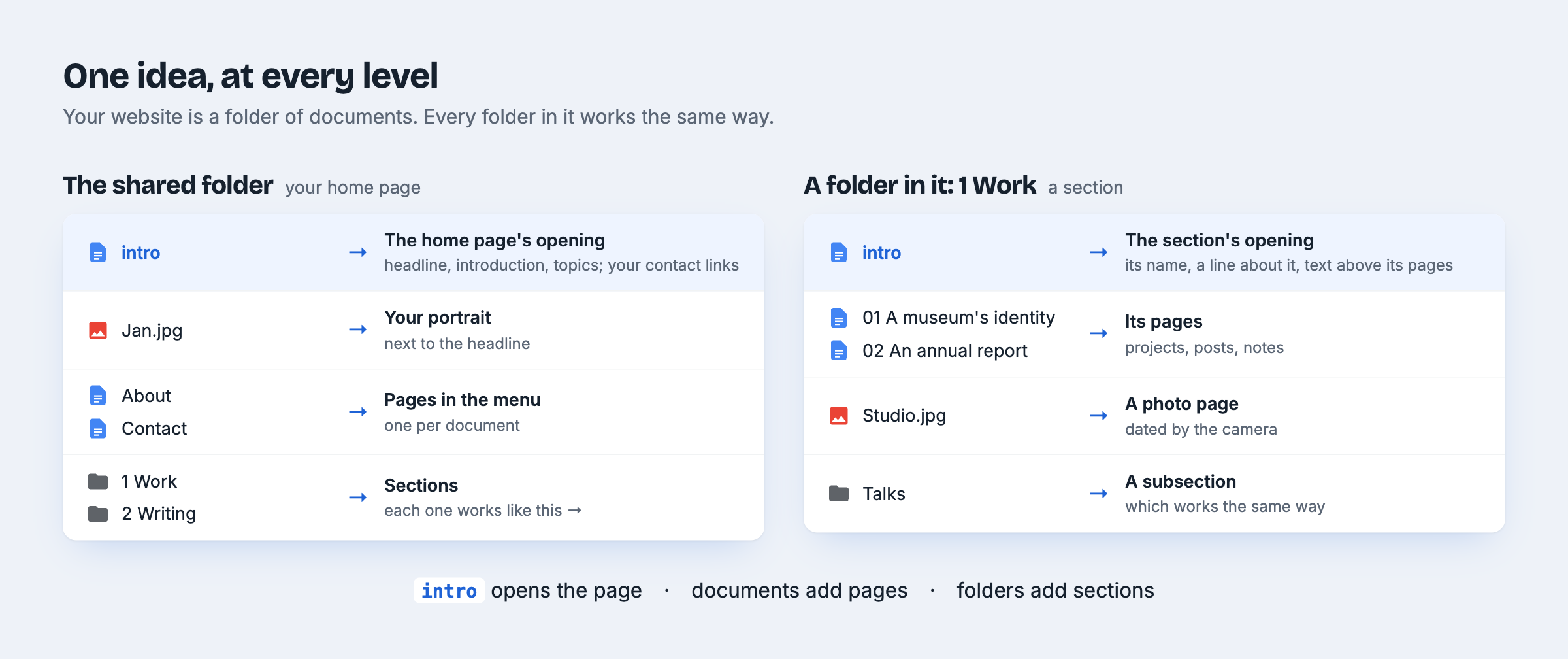
One more name: a document called design, next to your folders, sets your colors and fonts.
Neither intro nor design is a page itself; write both in lowercase, so they stand out among
your pages (Foldocs ignores case).
Quick start
You need a folder shared with a link, in Google Drive or Nextcloud (The folder), and Python 3.13 with uv, or Docker (Deployment).
git clone https://github.com/graus/foldocs && cd foldocs
uv sync
cp .env.example .env                    # fill in FOLDER_URL, SITE_URL, AUTHOR (and GOOGLE_API_KEY for Drive)
uv run --env-file .env foldocs sync     # fetch the folder and build the site into data/public
uv run --env-file .env foldocs serve    # preview at http://localhost:8000
foldocs loop keeps the site up to date (what the Docker service runs); foldocs build
rebuilds from the cache after a theme change; foldocs check-theme <folder> checks a theme.
Your first site, step by step
Start with an empty folder in Google Drive or Nextcloud. Five steps make it a website, following the idea above.
1. Share the folder. Google Drive: Share → General access → Anyone with the link, as
Viewer. Nextcloud: a read-only Share link. Copy the link; it is the one setting Foldocs needs
to find the folder (FOLDER_URL, see The folder).
2. Put a document called intro in it. This document is the top of your home page. Use the
paragraph styles from the style menu (Normal text ▾ in Google Docs, the Styles gallery in
Word):
In the shared folder's intro |
On the home page |
|---|---|
| A line in the Title style | The big headline: Hello, I'm Jan. |
| A line in the Subtitle style | The small label above it: Graphic designer, Amsterdam |
| A normal paragraph | The introduction under the headline |
| A bulleted list (optional) | Numbered topics under it; a heading right above the list names them |
| Links to your email and profiles (optional) | Not at the top, but in every page's footer: see below |
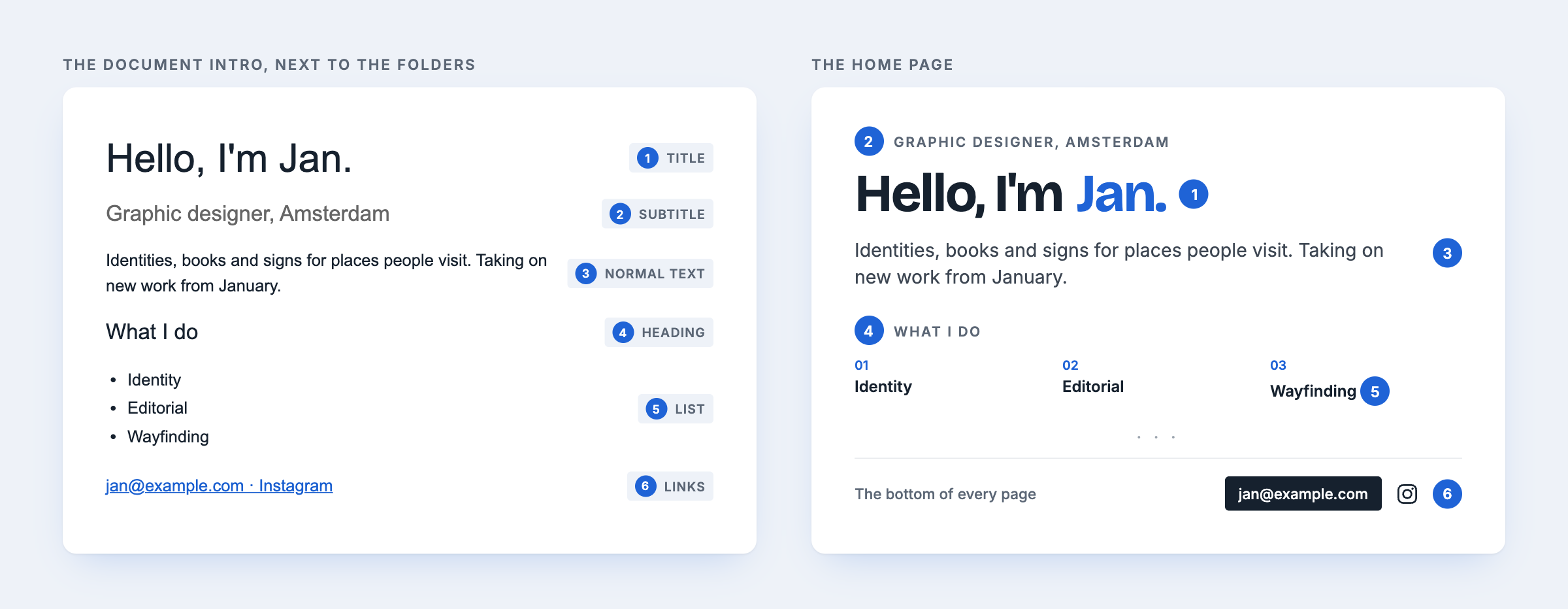
Your contact links go in the intro too, anywhere in it, say as a last line:
jan@example.com · LinkedIn · Instagram, each a link. They don't show at the top, but at the
bottom of every page: the first email link as a button, links to your profiles as their logos.
Foldocs recognizes LinkedIn, Bluesky, X, Instagram, Threads, Facebook, Mastodon, GitHub, GitLab,
YouTube, Vimeo, TikTok, Behance, Dribbble, Medium, Substack, ORCID and Google Scholar; other links
stay in the intro only. No email link, no button: your address is on the site only if you put
it there.
Put a photo (JPG, PNG, HEIC, WebP or GIF) next to it, and it is the portrait beside the headline
(the newest photo, if there are more). Any other document next to it is a page in the menu, after
the sections, with an address from its name: About at /about/, Contact at /contact/.
3. Add a folder per section. Each one is a row on the home page, a page of
its own and an item in the menu: 1 Work, 2 Writing. The number sets the order and isn't
shown. An intro document in a section is optional and opens its page:
In a section's intro |
On the section's page |
|---|---|
| A line in the Title style | The section's name, instead of the folder's |
| A line in the Subtitle style | The line under it, also under its row on the home page, and its description for search engines |
| The rest | Text above the section's pages: what's in it, and why. Its first image is the section's picture in link previews |
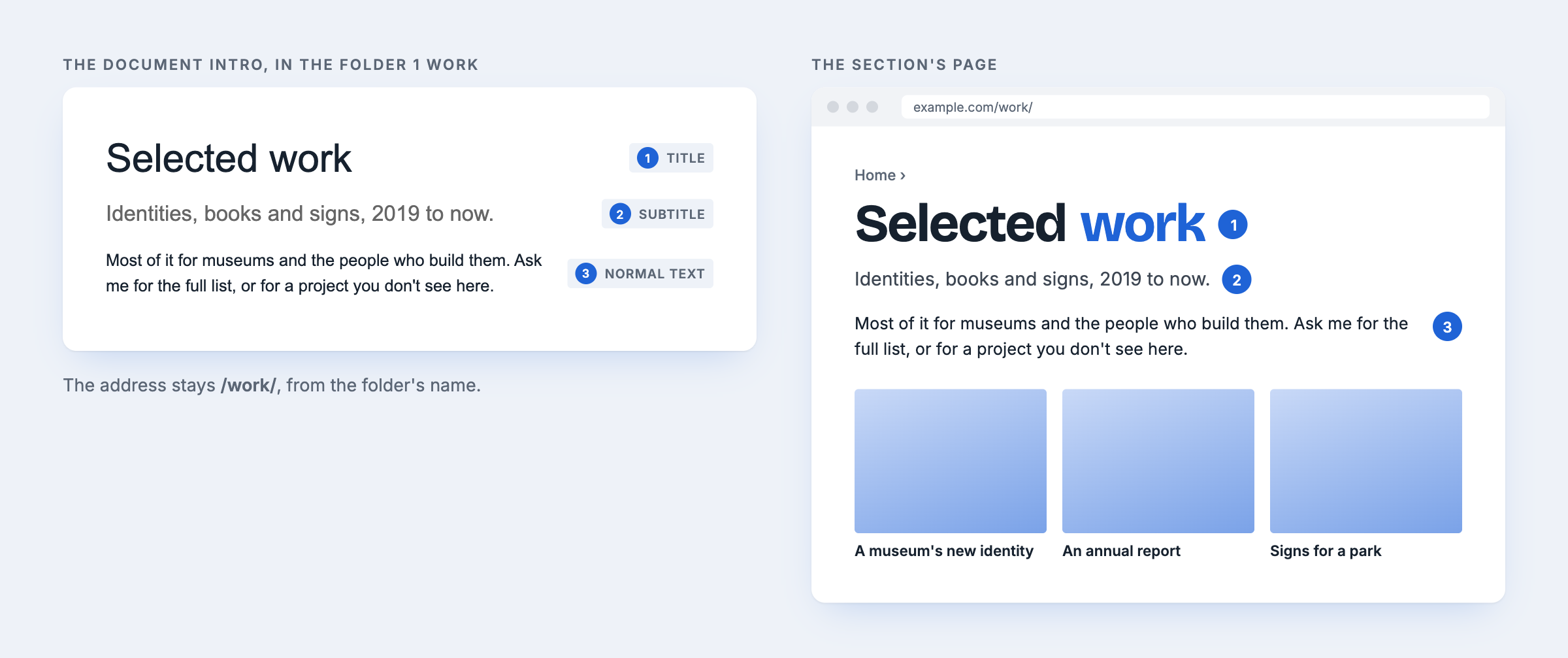
The folder's name still makes the section's address (/work/), so retitling the intro breaks no
links. A folder in a section can have an intro too.
4. Add documents to a section. Each document is a page: its Title line is the page's
title, its Subtitle line the summary on its card, and the rest the page itself, with headings,
lists, links and tables. A link to another document, photo or folder in your folder (a Doc's
address, or a path such as ../Trip/Day one.md in a Markdown or Word file) leads to its page on
the site.
5. Add images. Two ways, for two things:
- In a document (Insert → Image): the image is on that page, as wide as you made it in the document. The first image is also the page's picture on its card and in link previews.
- As a file in a section folder: the photo gets a page of its own, dated by when it was taken, and shows up in the section's row like a document.
The whole structure, with everything optional:
My site/                       shared: anyone with the link can view
├── intro                      the home page's opening, and your contact links
├── 1 About                    /about/    ┐ any other document here: a page in the menu,
├── 2 Contact                  /contact/  ┘ after the sections; a number sets the order
├── design                     colors and fonts (see Themes)
├── me.jpg                     the portrait: the newest photo here
├── 1 Work/                    a section: a row on the home page, a page, a menu item
│   ├── intro                  its name (Title), a line (Subtitle), text above its pages
│   ├── 01 First project       numbered files keep their order
│   └── 02 Second project
└── 2 Writing/                 the next section; newest first
    ├── 2024-05-01 Old post    a date in front backdates a file
    ├── A new post             dated by when it went into the folder
    └── Essays/                a folder in a folder: a subsection, nested as deep as you like
- Order. A number in front of a name sets the order and isn't shown: a folder whose files are all numbered keeps their order, any other shows its newest files first, dated. On the home page a section is a row of its first three pages, with a link to the rest.
- Documents are Google Docs, Word files (
.docx) or Markdown files (.md). They keep their headings, lists, links, tables, footnotes (not in Markdown) and images; an indented paragraph becomes a quote, and text in a monospace font (or Word's HTML Code style) becomescode. In Markdown, a#heading that opens the file is its Title (or front matter'stitle:, withsubtitle:ordescription:), and an image is another file in the folder, linked by its path:. - Photos are dated by when they were taken and captioned by their description where the service has one. Drawings and diagrams are fitted rather than cropped.
- Hidden files and folders, whose names start with a dot, are not on the site; a Markdown file can still show the images in one.
- Everything else in the folder is on the site, about five minutes after you last touched a file (Foldocs waits, so that an edit in progress isn't published). Keep drafts elsewhere.
The site never links to the folder (image addresses hide file IDs), except where a theme does on purpose, like the default theme's demo page.
The folder
The folder can live in any of these services. Whichever it is, you give Foldocs its share link,
as the Share dialog gives it, in FOLDER_URL: Foldocs tells the service from the address.
Everything else (the layout of the folder, the themes, the deployment) is the same.
Google Drive
- In Drive, share the folder: Anyone with the link, as Viewer, and copy the link
(
https://drive.google.com/drive/folders/…) intoFOLDER_URL; the folder's ID alone works too. Work and school accounts may not allow this; a personal account does. - In the Google Cloud console, create a project (no billing
needed), enable the Google Drive API, and create an API key restricted to it. It goes
in
GOOGLE_API_KEY. Withgcloud, the key is thekeyStringin the last command's output:
gcloud projects create my-site-drive
gcloud services enable drive.googleapis.com apikeys.googleapis.com --project my-site-drive
gcloud services api-keys create --project my-site-drive --display-name site \
  --api-target=service=drive.googleapis.com
Pages are Google Docs, or Word or Markdown files uploaded as they are. The default theme has a demo page with the folder beside the site and a page on how it works.
Nextcloud
Share the folder with a Share link, read only. The link (https://your-cloud/s/…) goes in
FOLDER_URL, and its password, if you gave it one, in FOLDER_PASSWORD. No
account or key is needed. Pages are Word files (.docx) or Markdown files (.md), as the Text
app writes them: the images you paste into one are kept in a hidden folder beside it, and show on
its page. Compared with Drive:
- Files only. OpenDocument files (
.odt) are skipped, so set Collabora or OnlyOffice to save as.docx. - No captions. Photos have no descriptions to caption them with.
- Dates. An undated file gets its creation time, or failing that its upload time.
- Links. A link to a page's source opens the share at the file's folder.
- No demo or how-it-works page. The default theme's two pages explain a Drive folder, so a site made from a share goes without them.
Other services
Foldocs doesn't read OneDrive or Dropbox. Unlike Drive and Nextcloud, neither lets a shared
folder be read without an account: both need an app registered with the service and a login.
Adding a service is one module in foldocs/sources/, which
describes what it must do. Adding a kind of document is one module in
foldocs/formats/: it reads the file into clean HTML, and the rest
is the same for every format.
Configuration
Settings are environment variables, from .env (all of them are in .env.example):
| Variable | ||
|---|---|---|
FOLDER_URL |
required | The folder's share link, from Drive or Nextcloud |
SITE_URL, AUTHOR |
required | The site's address, and whose site it is |
FOLDER_PASSWORD |
The share link's password, if it has one (Nextcloud) | |
GOOGLE_API_KEY |
Drive | A Google API key (the same for every folder) |
THEME_DIR |
The theme (default: the bundled default) |
|
TIMEZONE |
For dates (default Europe/Amsterdam) |
|
NOINDEX |
1 keeps the site out of search results, for a preview |
|
DATA_DIR |
Where the cache and the built site go (default data) |
Themes
A theme is a folder of Jinja templates, static files and a theme.toml with its addresses and
words; the engine has no look or language of its own. Three come with it:
| Theme | Presents the folder as |
|---|---|
default |
A personal site: headline and intro, then a row per section on alternating bands |
journal |
A blog: one column, newest first, an archive by folder |
index |
The folder tree itself |
All three extend base, which holds the page head, feed, sitemap and shared CSS. The engine
fills the head: titles, descriptions, link previews and schema.org structured data, so themes
don't have to. Themes share one set of design tokens (--color-*, --font-*, --text-*,
--space-*), and foldocs check-theme checks a theme's colors against WCAG AA in light and dark mode.
Your own theme usually extends one and overrides only what differs:
# my-theme/theme.toml
extends = "default"
language = "nl"
stylesheets = ["colors.css"]   # after default's: override a few tokens

[strings]                        # the words the templates use; translate the ones you show
see_all = "Alles bekijken →"
notice = "Een voorstel: het ontwerp maken we samen af."   # a line atop every page (optional)
themes/base/theme.toml lists every word: months and home (the first breadcrumb) at the top,
the rest under [strings].
Templates and static files are looked up in your theme first, then in what it extends; an
inherited extra page is switched off with template = "", and sources = ["drive"] keeps one
to sites made from that source (drive or nextcloud; the default theme's demo and how-it-works
pages explain a Drive folder). In Docker, THEME_DIR can be anywhere on the host, as a path
starting with ./ or /.
Small additions need no templates of their own: in the default theme, static/logo.svg (and
logo-dark.svg) replaces the name in the header; in any theme, static/favicon.svg and
static/apple-touch-icon.png become the icons, static/share.png (1200×630) is the link preview
of any page without an image of its own, and templates/_head.html goes into every page's
<head>, for a verification tag, say.
Variants show the same site in other designs: each theme in your theme's variants/ folder
(say variants/journal/, extending journal) is built too, and served at journal.<your host>
with a banner back to the original.
Your site's design, from the folder. A document called design (it is not a page) next to
your folders changes a few of those tokens without touching a theme. It holds a table, a row per
setting, and an empty cell keeps the theme's value:
| Setting | Light | Dark | |
|---|---|---|---|
| Accent | #00875a |
#5fd3a1 |
links, buttons, marks |
| Background | #f6f1e7 |
the page; panels, bands and borders follow | |
| Text | the text; secondary text follows | ||
| Heading font | Fraunces, serif |
titles and headings | |
| Body font | Lora |
running text | |
| UI font | menus, labels, dates | ||
| Corners | 8px |
rounding of images, cards and buttons |
The first row is a header (unless it names a setting). Colors are hex; Dark is for visitors
in dark mode, and empty there keeps the theme's dark value. A font is a family on
Google Fonts, by name or by the link to its page: it is downloaded
with the document and served by the site itself, so visitors' browsers never ask Google. Other
names in the list stay as they are, for whoever has them installed, and a generic family at the
end (serif, sans-serif, monospace) is what shows while the font loads. Every value
is checked against what its setting takes; anything else is logged and skipped, so nothing but a
color, a font name or a length reaches the stylesheet. The same settings apply to every theme
and variant. Your theme can look at them too, as design.
Deployment
With .env filled in as in Quick start, docker compose up -d --build runs two
containers: sync (the loop, as an unprivileged user) and web (Caddy serving the built site).
web publishes no port of its own. It joins the Docke