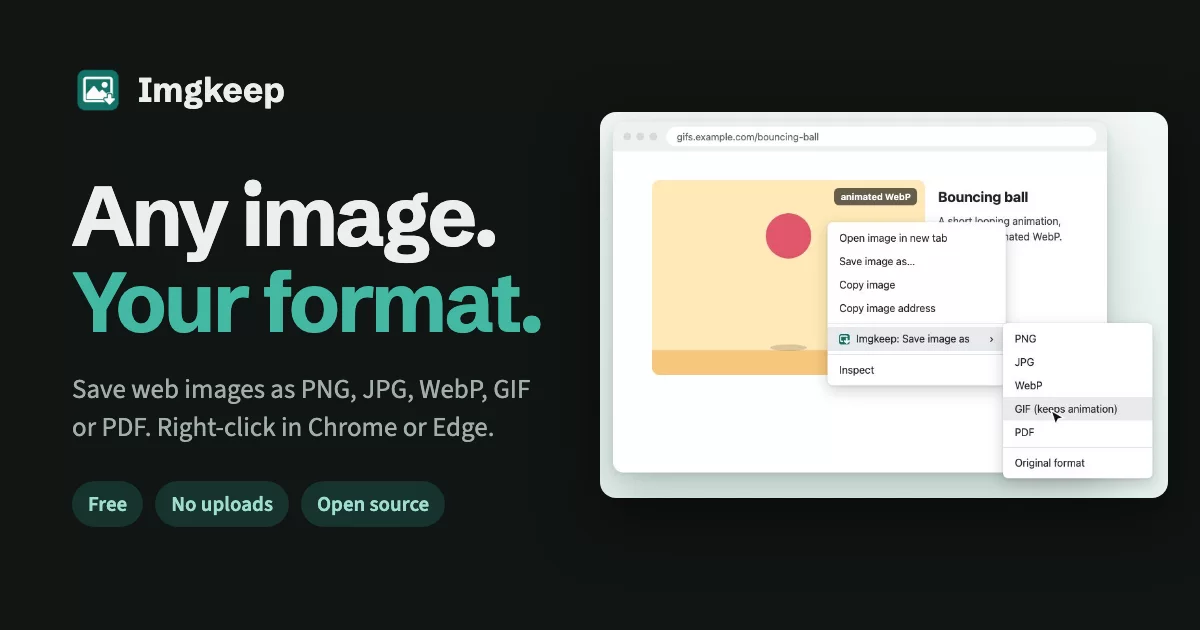
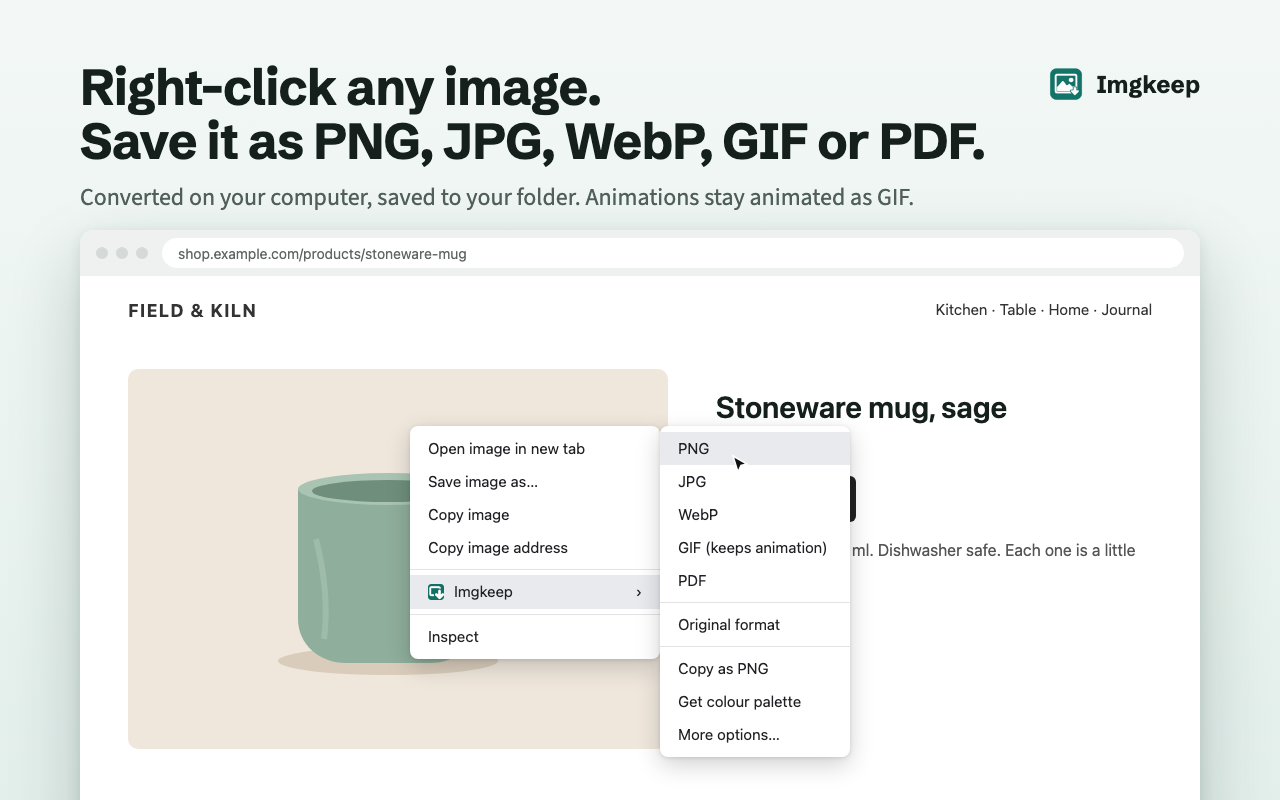
Right-click any image and save it as PNG, JPG, WebP, GIF (animation included) or PDF. Imgkeep converts it on your computer and saves it where you want.
Install: Chrome Web Store · Microsoft Edge Add-ons · Website: imgkeep.app · Free, MIT licensed
Why
Chrome now often saves images as WebP or AVIF, which many apps still can't open. The most popular fix, "Save image as Type" (1M+ users), was sold in late 2025 and removed from the Chrome Web Store as malware in March 2026 after it started injecting affiliate links (9to5Google). Imgkeep does the same everyday job, built so it can't do that.
Built to be trusted
- Four permissions:
contextMenus,downloads,storage,offscreen, plus two optional ones (activeTab,scripting) that stay off until you turn on Find image here. Imgkeep only looks at a page when you ask it to find an image there, just that page, just then. It never changes a page. See PERMISSIONS.md. - No remote code. Network use: fetching the image you clicked, and (since 0.7.0) one anonymous daily summary of feature use to PostHog (EU; Aptabase until 0.8.1), on by default and off in Options. Never images, addresses, file names or identifiers.
- No review prompts, welcome tabs, badges or upsells. A small window opens only when a save needs your decision.
- Plain JavaScript ES modules, no build step, no npm dependencies. One small library is vendored as a single readable file: gifenc (MIT) in
extension/lib/gifenc.js, for making GIFs. Since 0.10.0 there is one compiled part: the AVIF encoder inextension/vendor/avif(libavif 1.0.1 with libaom, via @jsquash/avif 2.1.1, unchanged). The static check pins its exact bytes (SHA-256), andextension/vendor/avif/READMEsays how to compare them with the published package. It's loaded only when you save as AVIF.
Privacy policy: extension/PRIVACY.md · Feature ideas and votes: GitHub Discussions
If Imgkeep helps you, a rating on the Chrome Web Store helps others find it. (The extension itself will never ask.)
How it works
- One network request: the image you right-clicked, fetched in an offscreen document (
extension/offscreen.js). Nothing else is ever requested. - Local conversion: PNG, JPG and WebP are drawn on a canvas at the image's natural size. For GIF,
ImageDecoderreads animated WebP, AVIF and APNG frame by frame and gifenc encodes them (extension/lib/gif.js); animated GIFs are saved byte for byte. - No host permissions at install: if a site blocks cross-origin reads, a small window asks whether to allow that one site (
https://that-site/*). It asks only after you click, and you can remove the site in Options. - Enforced by tests:
tests/static-check.mjsfails the build if the permissions change, iffetch(appears in any file other thanoffscreen.js, or if any extension file references an outside URL.
What it does
Right-click an image → Imgkeep → PNG, JPG, WebP, GIF (keeps animation), PDF, Original format, Copy as PNG, Get colour palette or More options….
-
Get colour palette (0.11.0): the image's 5, 8 or 12 main colours, largest first, with how much of the image each one covers. Click one to copy it as HEX, RGB or HSL; copy them all as CSS variables, a Tailwind snippet, JSON or a list; or save them as a PNG swatch strip, a
.gplpalette (GIMP, Inkscape, Krita) or an.asefile (Adobe Illustrator, Photoshop, InDesign). Worked out on your computer (extension/lib/palette.js: k-means in Lab colour space with a fixed seed, so the same image always gives the same palette). Also in More options, so it works for images found by Find image here. -
Reads WebP, AVIF, SVG, PNG, JPG, GIF and
data:images. -
GIF keeps animation: an animated GIF is saved exactly as it is; animated WebP, AVIF and APNG are converted frame by frame, keeping each frame's timing and transparency. A still image saved as GIF becomes a one-frame GIF. GIFs are made at most 800px wide (larger ones are scaled down, keeping their shape).
-
PDF: one page, exactly the image's size (1 pixel = 1 point). Photos are stored as JPEG at your JPG quality; images with transparency are stored losslessly and keep their transparency. Very large images keep every pixel, but their page is scaled to PDF's 14,400-point limit.
-
JPG gets your background colour behind transparent areas (default white).
-
Quality: JPG 92 and WebP 90 by default, adjustable from 50 to 100.
-
File names from a template, default
{name}. Tokens:{name}(file name from the URL,imagefordata:URLs),{host}(withoutwww.),{date}(YYYY-MM-DD),{time}(HHMMSS),{w},{h}. The subfolder setting takes the same tokens, e.g.Imgkeep/{host}. Characters that are illegal on Windows or macOS are removed. -
Never overwrites a file.
-
Maximum width (Options → Quality and size, off by default): wider images are scaled down to fit, keeping their shape; smaller ones are never enlarged. Applies to every format except Original format. GIFs also stay within their own 800px limit; a GIF that is already a GIF is saved as it is.
-
Checked output: each converted file's first bytes must match the chosen format, and the file extension comes from them. A mismatch is an error, never a mislabelled file.
-
Copy as PNG: puts a PNG (transparency kept) on the clipboard. It runs in a small Imgkeep window, because the browser only lets a focused page write images to the clipboard; that's why no clipboard permission is needed. The window closes itself after "Copied". If the clipboard refuses, nothing on it changes and you can save the PNG instead.
-
Find image here (opt-in): on sites that cover their photos with another layer (Instagram, Pinterest, Facebook, X, Tumblr, Flickr, Threads), right-click → Imgkeep: Find image here…. Imgkeep runs
extension/lib/find-image.jsonce in that tab: it takes the layer under the pointer, picks the image that overlaps it most (its largestsrcsetversion), and opens it in More options; if the layer covers the whole screen (a sign-in wall) or nothing matches, a picker shows the images on screen. Uses the optionalactiveTabandscriptingpermissions, off until turned on in Options or on first use. -
Uninstall form: after an uninstall, the browser opens a short, optional Google Form asking why (
extension/lib/uninstall.js,store/uninstall-form/). Only the version is in its address; it collects no emails. -
"Last used" first: the format of your last save from the menu is offered again as the top item ("JPG (last used)"), above a separator, so it's always in the same spot. Stored in local storage.
-
"New" labels and one rating ask: items added since your previous version say "New" in the menu for 30 days after an update. After real use (15 successful saves or copies, 7 days, last 3 saves worked) Imgkeep asks once for a rating: after a copy or a save in More options, and as a menu item for up to 14 days. Any answer, or none, ends it for good. Counted in local storage only (
extension/lib/review.js). Options always has a quiet "Rate Imgkeep" link. -
More options…: a window with a live preview and the result's real dimensions and file size (1 kB = 1,000 bytes), plus format (PNG, JPG, WebP), maximum width, quality (JPG and WebP), JPG background and file name. Save uses your save mode and folder like any other save; Copy as PNG copies at the chosen width.
-
Nine languages: English, Arabic, French, German, Hebrew, Hindi, Japanese, Portuguese (Brazil) and Spanish, following the browser's language. Arabic and Hebrew are laid out right to left.
Save modes
| Mode | What happens |
|---|---|
| Downloads folder (default) | chrome.downloads into your downloads folder (plus subfolder). The browser adds " (1)" if the name exists. |
| A folder you choose | Pick a folder once in Options. The offscreen document writes the file straight into it, creating subfolders and adding " (2)", " (3)"… instead of overwriting. If the browser needs your OK again, a small window asks you to reconnect and then writes the file. |
| Ask every time | The browser's Save As dialog for each image. |
If a site blocks cross-site image reads, Allow and save requests access to that one site and retries, and Save original format instead downloads the file untouched. You can remove sites in Options → Sites you've allowed.
Load it unpacked
- Open
chrome://extensionsand turn on Developer mode. - Click Load unpacked and pick the
extension/folder. - Right-click any image. Settings: the extension's Details → Extension options, or the Extensions (puzzle) menu → ⋮ → Options.
Needs Chrome 116 or newer, or Microsoft Edge. Tested automatically on the current Chromium (macOS locally, Linux and Windows in CI); 116 is the declared minimum (offscreen documents and the APIs used all exist there) but isn't tested automatically.
Known limits
- Folder reconnect after a restart. The browser forgets folder access when it restarts unless you chose Allow on every visit. Then the first save asks you to reconnect (one click). This can't be done silently: the browser requires a click to grant folder access.
- Page
blob:images can't be saved yet. Some sites draw images fromblob:URLs that only exist inside the page. Find image here doesn't offer them either (it only returns web addresses). A screenshot works. - Original format and Ask always use Downloads. In folder mode, Original format still saves through the browser's downloads (with your subfolder and name template). Ask every time uses the Save As dialog.
- Original format without a file extension in the URL is named by the browser from the server's answer, without your subfolder or template.
- Very large images may exceed the browser's canvas limit; you'll see "too large to convert".
- PNG, JPG, WebP and PDF output is always a still image: animated images are saved as their first frame. Choose GIF to keep the animation.
- GIF output is limited to 600 frames and about 150 million source pixels in total (width × height × frames), and stops after 90 seconds. Bigger animations show a "too large" or "took too long" message.
- GIF has 256 colours per frame and on/off transparency, so photos and soft edges look coarser than in the original. Converting to GIF is a trade-off for compatibility.
- Videos can't be saved as GIF yet.
- Unsupported sources:
blob:images that only exist inside a page, CSS background images and<canvas>drawings (the right-click menu doesn't offer them as images), and formats Chrome itself can't decode (HEIC, TIFF). Some hotlink-protected sites refuse requests that don't come from their own pages; then Original format or Open image is the way out. - More options converts to PNG, JPG and WebP. GIF and PDF are in the right-click menu.
- Copy as PNG needs its window to keep focus until the copy is done. If you click away while it's converting, it offers Try again.
Free Image Converter
imgkeep.app/convert/ converts images in the browser with the same code as the extension (site/convert/lib is a checked copy of extension/lib, kept identical by npm run site-lib and a test). It makes no network request while converting and works offline once loaded: tests/converter.spec.mjs checks both. No uploads, no sign-up.
Guides
Step-by-step help on imgkeep.app, with and without an extension:
- Why Chrome saves images as WebP (and how to get JPG or PNG)
- How to save WebP as JPG or PNG in Chrome
- How to save AVIF as JPG or PNG
- Chrome saves images as JFIF? How to get JPG
- How to save an animated WebP as a GIF
- How to save an image as a PDF in Chrome
- A safe alternative to Save image as Type
- When right-click won't save an image
- How to get an image from the web into Canva, Figma or Google Slides
Development
Requirements: Node.js 20 or newer. The extension needs nothing; Node is only for tests and store images.
npm install
npx playwright install chromium
npm test
npm test generates fixtures if missing, runs the static trust check (tests/static-check.mjs), then Playwright:
tests/extension.spec.mjs: the real extension in Chromium against two local servers (one with CORS, one without).- Conversions: WebP→PNG, PNG→JPG (white corners), JPG→WebP, AVIF→PNG, SVG→PNG,
data:input, large files. - GIF: animated GIF kept byte for byte; animated WebP keeps frame count, timing and transparency; still image → one-frame GIF; scaled to 800px; over the frame limit → "too large".
- Saving: Original format, subfolder and name template, never overwriting, folder mode.
- The ask window (site access, errors, folder), the options page and the context menu.
- Outputs are decoded and checked for format, size and pixels.
- Conversions: WebP→PNG, PNG→JPG (white corners), JPG→WebP, AVIF→PNG, SVG→PNG,
tests/tools.spec.mjs: 0.6.0 features. Checked output (MIME, bytes and extension agree), maximum width (2400 × 1200 → 1600 × 800, small images unchanged, PDF and Original format), transparency and JPG background, the size cap (at or under the cap, or a clear failure without a file), missing/corrupt/empty sources, Copy as PNG (read back from the clipboard, no download; a refused clipboard is left unchanged and offers a PNG download), More options (preview size equals the saved file, chosen width and name), concurrent saves, and that nothing is held in memory afterwards.tests/engagement.spec.mjs: "New" labels after updates from different versions (and their expiry), the rating ask's rules (thresholds, failures, once per window, 14-day menu item, any answer ends it), the right store per browser, and the Options links.tests/settings.spec.mjs: file-name templating, GIF size limits, resizing, output type detection and the size-cap search.tests/site.spec.mjs: every website page loads with no console errors and no third-party requests, has a unique title, description and canonical, and is in the sitemap. Also checks thatprivacy.htmlmatchesPRIVACY.mdand that there are no trackers.
Other scripts:
| Command | What it does |
|---|---|
npm run check |
Static trust check only |
npm run icons |
Redraws extension/icons/*.png, the site icons and the Edge store logo (Python 3, standard library) |
npm run fixtures |
Regenerates test images (AVIF needs macOS sips; the file is checked in) |
npm run version-css |
After editing site/style.css: stamps every page's stylesheet link (style.css?v=…) so visitors get the new styles at once. A test fails if you forget. |
npm run store |
Renders store/*.png from store/scenes.html, with real captures of the options page and ask window |
npm run video |
Renders the 28-second demo video store/imgkeep-demo.webm (1280×720) and its poster from store/video/demo.html, using the ffmpeg Playwright installs. --stills saves a few frames to check first. |
sh scripts/package.sh |
Runs the tests, then builds dist/imgkeep-<version>.zip |
Translations
All text lives in extension/_locales/<lang>/messages.json; English (en) is the source and the fallback. Pages mark text with data-i18n attributes and scripts call t(key) from extension/lib/i18n.js. The offscreen document has no chrome.i18n, so it sends error details as "@messageKey" plus substitutions and the ask window translates them.
To add a language: copy en/messages.json to _locales/<code>/ (Chrome's locale codes, e.g. it, zh_CN), translate each message, and keep $PLACEHOLDERS$, {tokens}, <code>/<strong> and the placeholders blocks as they are (tests/i18n/build-locale.py copies them for you). npm run check lists anything missing or broken, and checks the store limits: name ≤ 75 characters, summary ≤ 132. Then add the store description to store/listing-translations.md.
tests/i18n.spec.mjs opens the extension in Hebrew and Japanese (options, ask window, More options). Chromium follows the LANGUAGE variable on Linux and --lang on Windows, so these tests run in CI and are skipped on macOS, where the browser takes the system language.
Imgkeep Pro waitlist link
The Options page shows a Get notified link under "Imgkeep Pro — coming soon" only when PRO_WAITLIST_URL is set in extension/lib/settings.js, for example export const PRO_WAITLIST_URL = "https://imgkeep.app/pro";. The static check only allows URLs on imgkeep.app and the Chrome Web Store, so host the waitlist page on imgkeep.app (or add its host to ALLOWED_URL in tests/static-check.mjs on purpose).
Repository layout
extension/   the extension (load unpacked; source of the store zip)
site/        imgkeep.app (GitHub Pages)
tests/       Playwright tests, fixtures, local servers, static check
store/       listing copy, scenes and rendered store images
scripts/     package.sh, make-icons.py, version-css.mjs
docs/        DEPLOYMENT.md (site, domain and store setup), qa/ (release QA reports)
Releasing a new version
- Bump
versioninextension/manifest.json(andpackage.json), and move the CHANGELOG's notes under the new version. sh scripts/package.shruns every test, then buildsdist/imgkeep-<version>.zip.- Upload and submit, with the store scripts (credentials live outside the repo in
~/.config/imgkeep/):node scripts/cws-publish.mjsshows Chrome's published and in-review versions (the default; it changes nothing).--submituploads and submits for review, and the store publishes after approval;--stagedwaits for a manual Publish;--upload-onlystops before submitting.sh scripts/edge-publish.sh --submituploads to Edge Add-ons and submits for certification, with the notes fromstore/edge-listing.md(or pass them as an argument).--upload-onlyonly replaces the draft. With no option it just prints its usage.- The scripts upload the package only. If the store listing changed (descriptions in
store/listing.md,store/edge-listing.md,store/listing-translations.md, or the privacy answers), edit it in the dashboards first. Don't submit while the previous version is still in review: a new submission replaces it.
- After approval, upd