

OpenLayer
The free, open-source ComfyUI plugin for Photoshop.
Local AI layers, inside Photoshop.


Get it on Adobe Exchange
·
Download the latest .ccx
·
Website
·
Getting started
·
Discussions
- Free, with no subscription. No credits, no metering, no account, no upload quota.
- Nothing leaves your computer. ComfyUI runs on your own machine, on your own models.
- Results arrive as real layers in Photoshop — named, positioned, and editable. Not a flattened PNG you paste in and hope for.
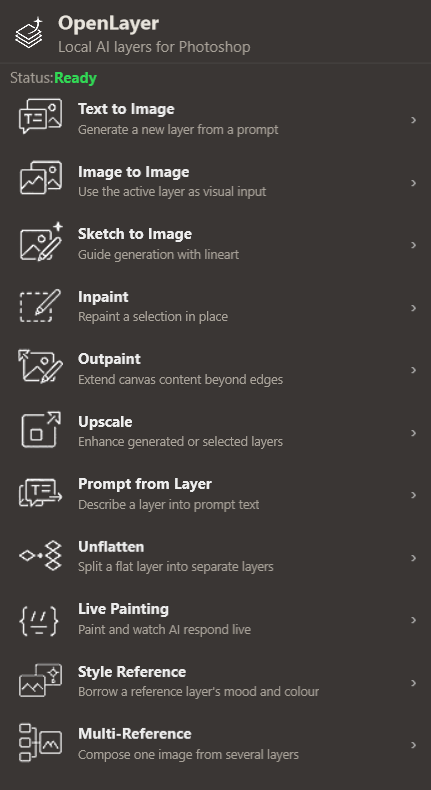
- Fourteen generation tools, from text-to-image and editing by instruction through inpainting and background removal to multi-image composition and depth/line-art/normal passes, plus an experimental one that splits a flat picture back into layers.
- New in v0.39: one button to a working setup. On a fresh ComfyUI, the Start here card in Setup downloads FLUX.2 Klein 4B (Apache-2.0, 12.5 GB) into the right folders, and Text to Image opens on it at 1024 × 1024: seven clicks from an empty ComfyUI to your first layer, plus choosing ComfyUI's models folder once.
- Also with Qwen-Image 2.1 — transparent cut-out layers straight from the model, lettering that comes out spelled right at native 2K, and instruction editing. Its weights are for research and evaluation only, so the 2.1 presets are opt-in, never a default, and labelled "(research licence)".
You need: Photoshop 2024+ · a local ComfyUI server · a GPU with 8 GB VRAM or more (12 GB is what this project targets).
How it fits together: ComfyUI is a free app that runs AI image models on your own graphics card. OpenLayer is the panel inside Photoshop that talks to it — you work in Photoshop, ComfyUI does the generating in the background, and every result comes back as a layer.
Alpha.
v0.39.0-alphais a public testing checkpoint, not production software. It is stable enough to work with, and honest about where it stops — see what works and what does not.
The tools
Every tool reads from your open document and writes back to it as a layer. Nothing is uploaded anywhere; ComfyUI runs on your own machine.
| Tool | What it does |
|---|---|
| Text to Image | Generate a new layer from a prompt — or a transparent cut-out |
| Image to Image | Use the active layer as visual input |
| Edit Image | Change a layer or a selection by describing it — "make the jacket red", or bring in a second layer: "put the teapot from <image2> here" |
| Sketch to Image | Guide generation with your line art |
| Inpaint | Repaint a selection in place |
| Outpaint | Extend canvas content beyond the edges |
| Upscale | Enhance generated or selected layers |
| Remove Background | Cut the subject out onto its own layer, with real alpha |
| Layer Maps | Read a depth, line-art or normal pass off a layer, at its exact size |
| Prompt from Layer | Describe a layer back into prompt text |
| Unflatten ✦ | Split one flat layer into separate layers, each with real transparency |
| Live Painting | Paint and watch the model respond live |
| Style Reference | Borrow a reference layer's mood and colour |
| Multi-Reference ✦ | Compose one image from several layers |
| Layer Tools | Export layers, selections, and masks |
| History · Prompt Wallet | Review past generations; save and reuse favourite prompts |
| Setup · Settings | See what you still need to download; defaults, ports, diagnostics |
✦ experimental
An AI assistant can drive it too. Every generation tool except Live Painting is reachable over the Model Context Protocol, so Claude or Codex can work the panel's own buttons in your open document — "generate a foggy forest, then upscale it" instead of eleven clicks. Off by default, and it runs entirely on your machine: see Agent Bridge (MCP) for what it is and how to start it.
See it in Photoshop
Real sessions, not mockups — every result a local generation on a 12 GB card, landing in the document as an ordinary layer. Click any picture to see it full size.

|
Text to Image — prompt in, layer out Type what you want, press Generate, and the picture arrives in your open document as a new named layer. Progress and preview stay beside the canvas the whole time. Recorded on an earlier build; the panel looks different now. |

|
Sketch to Image — your drawing, finished The line drawing on the right goes in; the illustration comes out. Pose, ears and tail follow your strokes exactly — the model only fills in the rest. |

|
Sketch to Image — from a painted source Not only for line art: give it a shaded or painted layer and it keeps your shapes and values. |

|
Live Painting — paint rough, watch it render Brush a crude shape and the preview turns it into a photograph while you paint. Import Refined as Layer keeps the one you like. |

|
Multi-Reference ✦ — several layers, one picture A street layer and a figure layer composed into one scene. Clothing, props, setting and light carry across; a specific person's face does not, and the panel tells you so. |

|
Unflatten ✦ — one flat photo back into layers A single photograph came back as three layers with real masks — look at the Layers panel. The small white speck in the middle mask is the hiker, on his own layer, with the mountain behind him already painted in (masks close up). Needs a subject standing clear of its background; edges are a starting point for Select and Mask. Photo: Hiking in the mountains in Schilt, CC0. |

|
Outpaint ✦ — grow the canvas Enlarge the canvas in Photoshop, and the model paints what belongs in the new space. Experimental — try it on a duplicate. |
✦ experimental
Watch it run — full sessions against a real ComfyUI and a real Photoshop window, unedited: Inpaint and Outpaint, live · Start to finish, one server (recorded on an earlier build)
Installation
Install from Adobe Exchange (Install button, Creative Cloud does the rest), or download the .ccx and double-click it. Then start ComfyUI. That is the whole process — the details
below are for when something does not go that way, and for building from source.
You will also need the Adobe Creative Cloud desktop app, which is what installs the .ccx.
1. Install the plugin
Option A, Adobe Exchange: open the OpenLayer listing and click Install. Creative Cloud installs it and Photoshop lists it under Plugins › OpenLayer. The listing carries the version Adobe approved (v0.37.0) and can trail the latest GitHub release. It is not yet shown to visitors in the EU, so use Option B there.
Option B, the latest alpha: use the Download button above, or grab
openlayer-latest.ccx
directly, and double-click it. Creative Cloud installs the panel. Photoshop then lists it under
Plugins › OpenLayer. Release notes for the version you just got are on the
Releases page.
Two things worth knowing:
- The Exchange install is Adobe-reviewed. The direct
.ccxis not signed, so Creative Cloud shows a "not verified by Adobe" prompt for it. That is expected — click through it. - Keep the
.ccxon the same drive as Photoshop. The installer only searches the drive the file is sitting on, so a.ccxonD:with Photoshop onC:fails silently.
If double-clicking does nothing (a Windows 11 quirk)
Creative Cloud sometimes opens with no progress and no error. Install directly instead:
"C:\Program Files\Common Files\Adobe\Adobe Desktop Common\RemoteComponents\UPI\UnifiedPluginInstallerAgent\UnifiedPluginInstallerAgent.exe" /install "path\to\openlayer-latest.ccx"
UnifiedPluginInstallerAgent.exe /list all shows what is installed and /remove OpenLayer
uninstalls it. /list needs all or the exact product name ("Photoshop 2025 64") — a partial name
like "Photoshop" prints nothing and no error, which looks exactly like "nothing installed".
Verified on Windows 11 with Photoshop 2025. macOS and other Photoshop versions are unverified — reports either way are welcome.
2. Start ComfyUI
Use your normal launch command. OpenLayer defaults to 8188, which is ComfyUI's own default port, so
an untouched install already matches:
python main.py --listen 127.0.0.1 --port 8188 --preview-method auto
You do not have to move your server. If ComfyUI is already running somewhere else, open
Settings › Find ComfyUI Active Port — OpenLayer scans for it, connects, and reports Ready.
Upgrading from v0.20 or earlier? The default port changed from
8190to8188. OpenLayer used8190for twenty releases; it now uses the port ComfyUI itself starts on. If you had ever connected successfully, your address was saved and nothing changes for you. If the panel does come up pointing at8188while your server is on8190, it scans for the running server by itself on first launch — and Settings › Find ComfyUI Active Port puts it back in one click at any time.8190is still in the scan list.
--preview-method auto is optional but recommended: it streams live sampler previews into the panel
while generating.
3. Get the starter model
On a fresh ComfyUI, open Setup in the panel. Its Start here card downloads FLUX.2 Klein 4B (Apache-2.0, three files, 12.5 GB, no sign-in) with one button, into the right ComfyUI folders, and checks each file against the checksum Hugging Face publishes. Once it is in, Text to Image and Image to Image open on Klein. What it runs and why.
4. Generate
Open a document, open the panel, open a tool, type a prompt, press Generate. Full first-run walkthroughs for each tool are in Getting started.
Building from source instead
Needs Node.js 18+ and the Adobe UXP Developer Tool.
npm install
npm run build
Then load dist/manifest.json in the UXP Developer Tool and click Load.
npm run typecheck   # local checks, no Photoshop or ComfyUI needed
npm test
npm run dev         # panel layout iteration in a browser
npm run package     # writes the .zip and .ccx into packages/
Required files
You do not need all of this. Most tools share the same few files, so the list is much shorter than it looks — and the panel's Setup screen shows this same list checked against your own machine, with the folder each file goes in and whether you already have it. It works with ComfyUI stopped, which is the state most people are in when they go looking.
Sizes are as Hugging Face reports them. "Add-on" below means a ComfyUI custom node — an extension you install once through ComfyUI-Manager, not something you download into a models folder.
Start here — 12.5 GB, and five tools work
The FLUX.2 Klein 4B stack is the best ratio in the whole list. Apache-2.0, ungated, no add-ons, and every node it uses is core ComfyUI. It generates a 1024×1024 image in about 12 seconds on a 4070 Ti. The Start here card at the top of Setup downloads all three files with one button, and Text to Image and Image to Image open on Klein once they are in.
| File | Folder | Size |
|---|---|---|
flux-2-klein-4b-fp8.safetensors |
models/diffusion_models/ |
4.07 GB |
qwen_3_4b.safetensors |
models/text_encoders/ |
8.04 GB |
flux2-vae.safetensors |
models/vae/ |
336 MB |
That is Text to Image, Image to Image, Edit Image, Inpaint and Multi-Reference — five tools,
12.5 GB. Inpaint also needs the
comfyui-inpaint-cropandstitch add-on,
and Inpaint and Multi-Reference are experimental. Add 4x-UltraSharp.pth (67 MB,
models/upscale_models/) and Upscale works too.
Also get an SD 1.5 checkpoint
Three more tools are built on SD 1.5 and cannot run without one. It is not pinned or downloadable
from Setup, because any SD 1.5 checkpoint works and the choice is yours —
epicrealism_naturalSinRC1VAE.safetensors is what the presets are tested against. Roughly 2 GB, into
models/checkpoints/.
| Tool | Why it needs one |
|---|---|
| Style Reference | Its only preset is SD 1.5 — without a checkpoint the tool cannot run at all |
| Live Painting | The fast tier pairs an SD 1.5 checkpoint with an LCM LoRA from models/loras/ |
| Sketch to Image | All three ControlNet presets (LineArt, Scribble, Depth) build on SD 1.5 |
It also unlocks the Standard checkpoint preset in Text to Image, Image to Image and Inpaint. If you have ever used ComfyUI or Automatic1111 before, you almost certainly have one already.
Two tools need nothing at all: Layer Tools works with ComfyUI stopped, and Upscale costs 67 MB.
The five stacks
Almost every preset is one of these. Install a stack once and every tool that uses it lights up.
| Stack | Files | Size | Licence |
|---|---|---|---|
| FLUX.2 Klein 4B | Klein 4B fp8 + qwen_3_4b + flux2-vae |
12.5 GB | Apache-2.0, ungated |
| Z_image_Turbo | z_image_turbo_bf16 + qwen_3_4b + ae |
20.7 GB | ungated |
| Krea-2 Turbo | Krea-2 fp8 + qwen3vl_4b_fp8 + qwen_image_vae |
18.6 GB | ungated |
| Flux Fill | flux1-fill-dev + clip_l + t5xxl_fp16 + ae |
34.2 GB | non-commercial |
| Qwen-Image 2.1 | 2.1 int8 + qwen3vl_8b_w4a8 + qwen_image_2.1_vae |
14.2 GB | research only · ComfyUI 0.37+ |
qwen_3_4b.safetensors (8.04 GB) is shared by Klein and Z_image_Turbo — if you have one, the other
costs 12.3 GB, not 20.7 GB. ae.safetensors is shared by Z_image_Turbo and Flux Fill.
Text to Image — Klein, Z-Image, Krea-2, or any checkpoint you own
| Preset | Needs | Extra |
|---|---|---|
| Standard checkpoint | any SD 1.x / SDXL checkpoint you already have | — |
| FLUX.2 Klein | Klein stack | — |
| Z_image_Turbo | Z_image_Turbo stack | — |
| Krea-2 Turbo | Krea-2 Turbo stack | — |
| Qwen-Image 2.1 | Qwen-Image 2.1 stack | research licence · the one preset with Transparent Background · native 2K |
| Flux1-dev fp8 | flux1-dev-fp8.safetensors → models/checkpoints/ (17.3 GB) |
non-commercial licence |
| Flux.2 dev (GGUF) | flux2-dev-Q4_K_M.gguf (20.1 GB) + mistral_3_small_flux2_fp8.safetensors (18.0 GB) + full_encoder_small_decoder.safetensors (250 MB) |
add-on: ComfyUI-GGUF · non-commercial · also needs the gguf Python package inside ComfyUI's environment — without it the add-on registers no nodes and gives no error at all |
Image to Image — nothing new if you did Text to Image
Every Image to Image preset reuses a stack you may already have: Klein, Z_image_Turbo, Krea-2 Turbo, or your own SD 1.x / SDXL checkpoint. **Edit Im



.jpg)