
Owl
Private dictation and meeting notes, in English and Chinese. An open-source Wispr Flow alternative.
Press Option+Space, talk, and Owl types what you said into the app you're in. Speech recognition runs on your computer. Owl also cleans up filler words, edits selected text by voice and takes meeting notes.
Owl started as a fork of Handy by CJ Pais. It's developed on its own now and isn't affiliated with Handy, so please file Owl issues here. Its look borrows from Wispr Flow, which it isn't affiliated with either.
Features
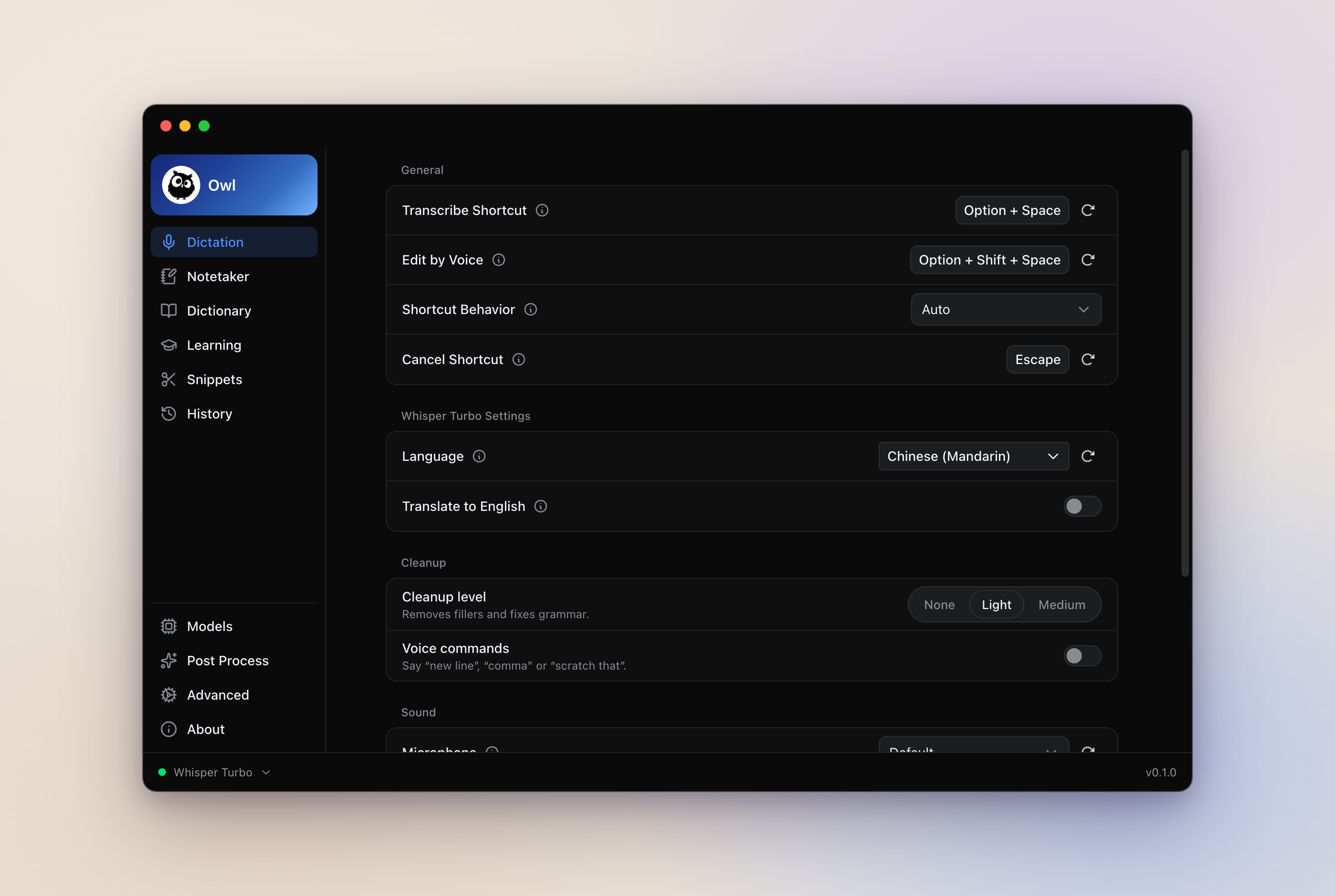
- Dictation. Hold Option+Space while you talk, or tap it to start and tap again to stop. Escape cancels. If no text box has focus when you finish, Owl leaves the text on your clipboard and shows a Copy button.
- English and Chinese. Several speech models handle Mandarin and English in one sentence. Owl writes Chinese in Traditional or Simplified characters.
- Cleanup. Owl removes filler words and stutters on your computer. With an AI provider it also fixes grammar, numbers and lists.
- Edit by voice. Select text, press Option+Shift+Space and say what to change. Needs an AI provider.
- Dictionary and snippets. Teach Owl names it gets wrong, and save text you can paste by saying a phrase like "my email". When you fix a word right after dictating, Owl offers to add it to the dictionary.
- Learning. Off by default. Owl tries changes to its own settings and keeps the ones that score better on your recent dictations. Each one can be undone.
- Meeting notes. Owl records your mic and the call, writes a live transcript and labels who said what. With an AI provider it writes the notes too.
- Command line and AI agents. The
owlcommand prints and transcribes meetings, andowl mcplets agents like Claude Code read them.
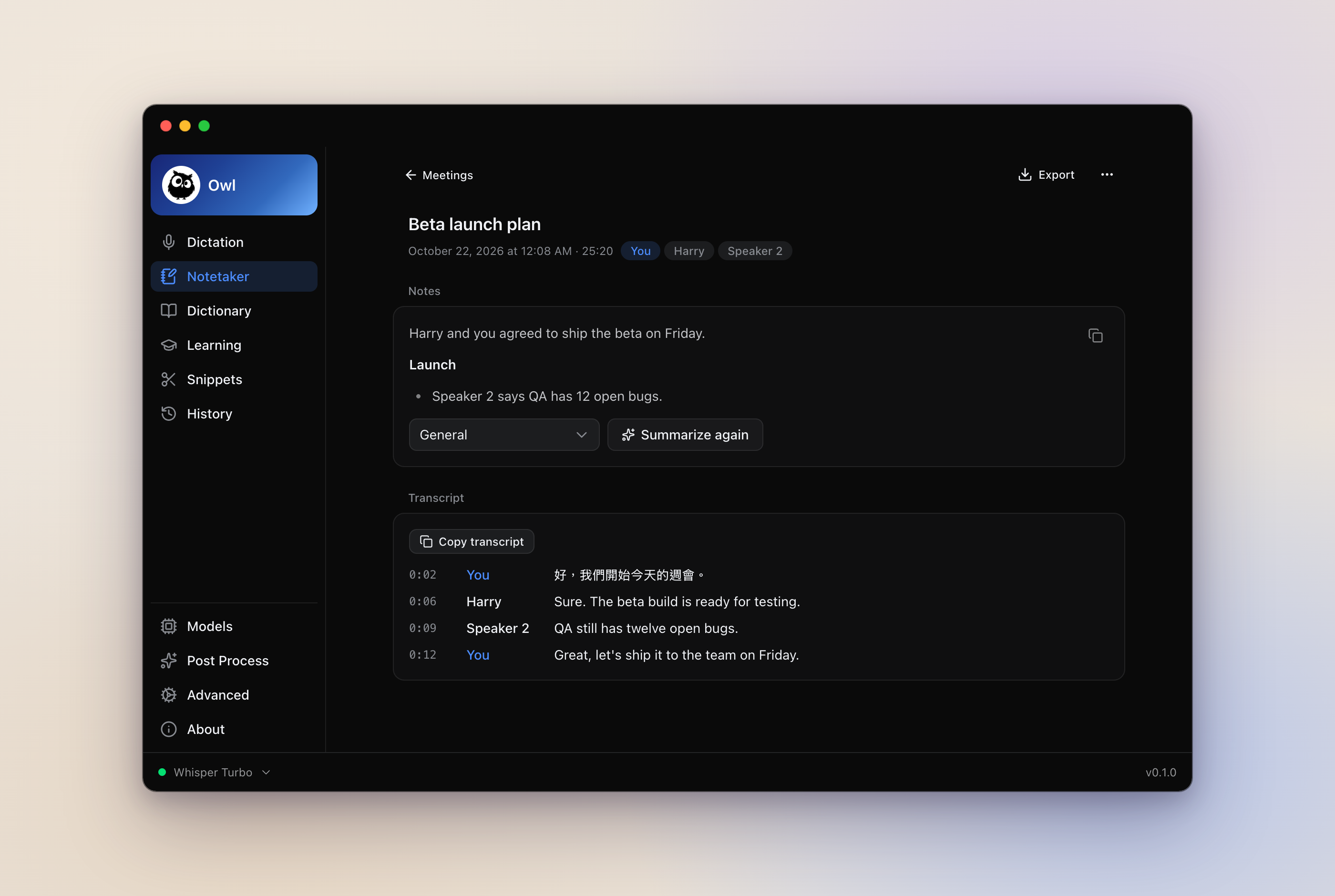
The screenshots use Owl's fake demo data.
Privacy
Speech recognition, speaker labels and echo removal run on your computer. Your audio and text only leave it if you turn on an AI step and pick a hosted provider. The only other network use is downloading the models you choose.
For AI steps you can use Apple Intelligence on macOS 26, a local server such as Ollama, or OpenAI, Anthropic, OpenRouter, Groq, Cerebras, Z.AI or Amazon Bedrock with your own key. You can also sign in with ChatGPT and use your plan.
Owl keeps the audio of your last 5 dictations, plus any you save. Your data
lives in ~/Library/Application Support/com.hao.owl/.
Status
Early, and built for one person's daily use. There are no downloads yet, so you build Owl yourself. I build and use it on macOS 26. The Windows and Linux code is there but untested.
Requirements
Meeting notes need macOS 14.2 or later to hear the other side of a call. For Windows and Linux, Handy's build notes list what you need.
Install
1. Build
git clone https://github.com/FOwen123/Owl.git
cd Owl
bun install
bun run tauri build
The first build takes a while. If CMake fails with a message about an old
policy version, run CMAKE_POLICY_VERSION_MINIMUM=3.5 bun run tauri build.
2. Install and open
cp -R src-tauri/target/release/bundle/macos/Owl.app /Applications/
open /Applications/Owl.app
Owl asks for Microphone and Accessibility access. Accessibility is how it pastes into other apps. Then pick a speech model to download. Qwen3-ASR 1.7B is good with Mandarin and English mixed. Parakeet Unified is fast for English only.
Your first meeting also asks for System Audio Recording, so Owl can hear the call.
Update
cd Owl
git pull
bun install
bun run tauri build
osascript -e 'quit app "Owl"'
rm -rf /Applications/Owl.app
cp -R src-tauri/target/release/bundle/macos/Owl.app /Applications/
tccutil reset Accessibility com.hao.owl
open /Applications/Owl.app
macOS treats every rebuild as a new app, so the old Accessibility switch stops
working. The tccutil line clears it, and Owl asks again. Your settings,
history and meetings stay.
Uninstall
Quit Owl and delete /Applications/Owl.app. To remove your data too, delete
~/Library/Application Support/com.hao.owl/.
Command line
Install the owl command from Advanced > Other apps > Command line in
Owl's settings.
owl meetings                 # list meetings
owl meeting 12               # print one as Markdown
owl transcribe call.m4a      # transcribe a file as a new meeting
owl --toggle-transcription   # start or stop dictation
To let Claude Code read your meetings and dictations, run
claude mcp add owl -- owl mcp. It can only read.
Troubleshooting
Shortcuts stopped working (Secure Input)
macOS Secure Input is probably on. Password fields and some apps turn it on,
and it usually goes away by itself. To find the app holding it, run
ioreg -l -w 0 | grep kCGSSessionSecureInputPID, then ps -p <PID>, and quit
that app.
Accessibility stays on "Waiting..." after a rebuild
Quit Owl, run tccutil reset Accessibility com.hao.owl, open Owl and allow it
again.
Meetings only have my side
Turn Owl on in System Settings > Privacy & Security > System Audio Recording.
BUILD.md has more, including build errors.
Contributing
Issues and pull requests are welcome. BUILD.md covers development and the checks to run, AGENTS.md the code layout, and DESIGN.md the look.
Credits
- Handy by CJ Pais and contributors. Owl is built on it.
- transcribe.cpp, ggml / whisper.cpp, transcribe-rs and Silero VAD for speech recognition.
- Streaming Sortformer v2.1 by NVIDIA for speaker labels.
- LocalVQE, Apache-2.0, for echo removal.
License
MIT, like Handy. Handy's copyright notice is kept in LICENSE.