
p5.brush.js
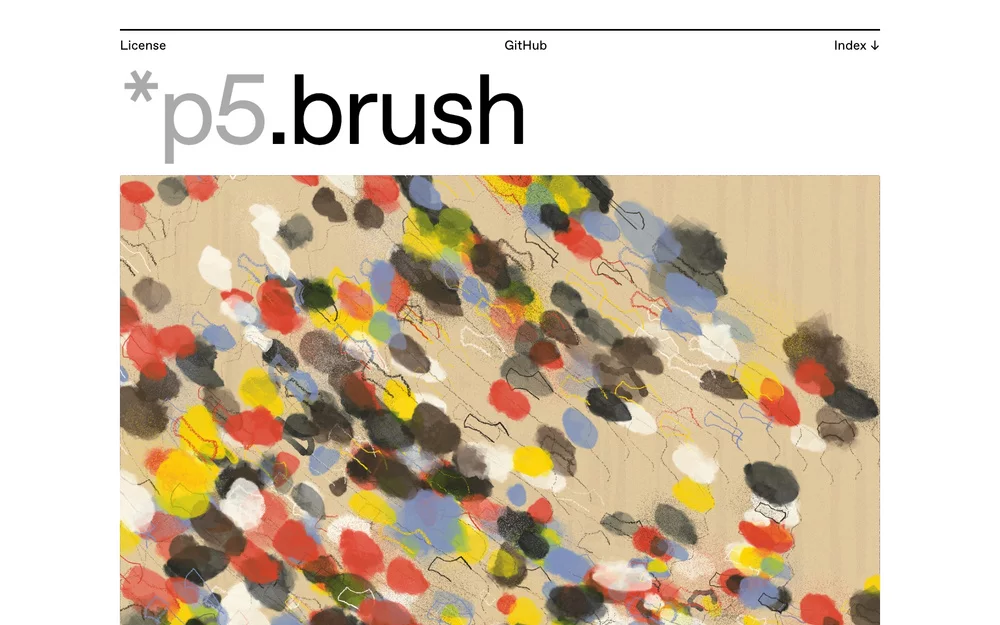
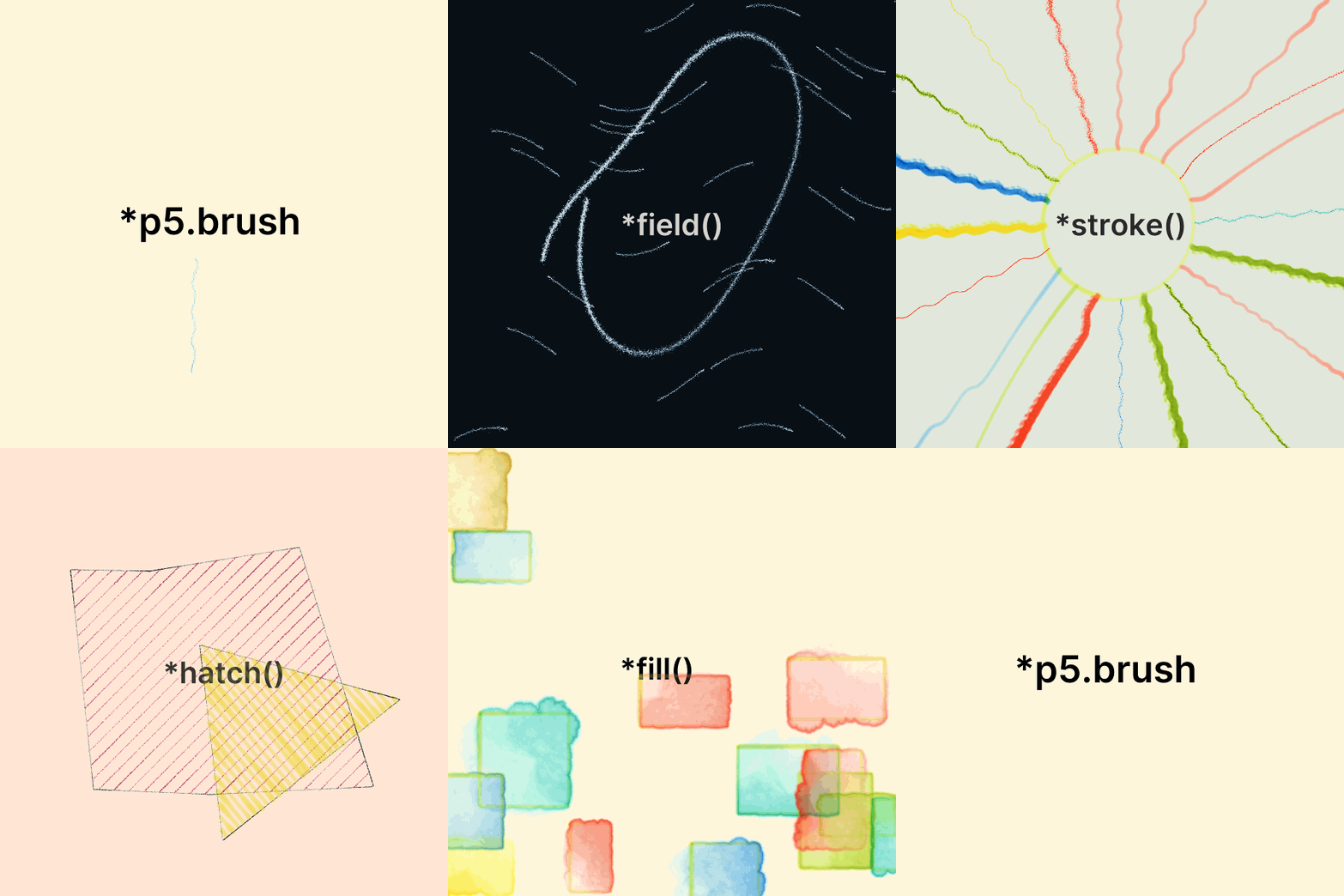
p5.brush.js adds natural drawing tools to p5.js — pencils, charcoal, markers, watercolor fills, hatch patterns, and vector fields that bend strokes organically. It's built for generative art and high-resolution printing.
Visit the library website here! (more examples soon)
🖌️ Try the interactive Brush Maker →
Design custom brushes with live preview and generate ready-to-pastebrush.add()code.
🌊 Try the interactive Flow Field Generator → Design custom vector fields with live preview and generate ready-to-paste
brush.addField()code.
▶️ Check the teaser live → Live on the p5.js Web Editor, where you can read and edit code.
Two builds
p5.brush ships in two flavors:
| p5 build | Standalone build | |
|---|---|---|
| File | dist/p5.brush.js |
dist/brush.js |
| Requires | p5.js 2.x + WEBGL canvas | Nothing — WebGL2 browser only |
| Canvas setup | createCanvas(w, h, WEBGL) |
brush.createCanvas(w, h) |
| Transforms | p5's push/pop, translate, rotate, scale |
brush.push/pop, brush.translate, etc. |
| Angle mode | Follows p5's angleMode() |
brush.angleMode(brush.DEGREES | brush.RADIANS) |
| Seeding | randomSeed() / noiseSeed() |
brush.seed() / brush.noiseSeed() |
| Frame flush | Automatic | brush.render() at end of each frame |
| Clear | p5's background() |
brush.clear(color?) |
This README covers the p5 build. For the standalone build see docs/standalone.md.
Table of Contents
- Installation
- Quick Start
- Core Concepts in 1 Minute
- Features
- Reference
- Examples
- Contributing
- License
- Acknowledgements
Installation
Important note: p5.brush requires p5.js 2.x or higher.
Local Installation
To set up your project, add p5.min.js and p5.brush.js to your HTML file. You can download the latest version of the p5.brush.js library in the dist folder.
Place the script tags in the following order:
<script src="path_to/p5.min.js"></script>
<script src="path_to/p5.brush.js"></script>
Replace path_to with the actual path to the script in your project directory or the URL if you are using a CDN.
Use a hosted version of the p5.brush.js library
Alternatively, you can link to a p5.brush.js file hosted online. All versions are stored in a CDN (Content Delivery Network). You can find a history of these versions in the p5.js CDN. In this case you can change the link to:
<!-- Online version of p5.brush -->
<script src="https://cdn.jsdelivr.net/npm/p5.brush@latest"></script>
Install with NPM and other modular-based apps
Install the npm package. p5.brush requires p5.js as a peer dependency for the p5 build.
npm install p5.brush --save
The package exposes two subpaths — pick the one that matches your build:
// p5 build (default) — requires p5.js 2.x
import * as brush from 'p5.brush'

// Standalone build — no p5.js required
import * as brush from 'p5.brush/standalone'
If you are using p5 and p5.brush as modules, you will need to use instance mode. Read below.
Note for p5 instance mode
In instance mode, p5 functions are scoped to a variable instead of the global namespace — useful when mixing with other libraries or using p5 as an ES module.
Call brush.instance(p) inside your sketch function before setup and draw. After that, all brush.* calls work normally without any p. prefix.
const sketch = (p) => {
  // Tell p5.brush which p5 instance to use
  brush.instance(p);

  p.setup = () => {
    // Canvas must be in WEBGL mode — brush initializes automatically
    p.createCanvas(700, 410, p.WEBGL);
  };

  p.draw = () => {
    p.background(240);
    brush.set("HB", "#333", 1);
    brush.line(100, 100, 400, 300);
  };
};

new p5(sketch);
Quick Start
If you already know the basics of p5, this is the shortest path to drawing with p5.brush:
- Create a
WEBGLcanvas. - Pick a brush with
brush.set(name, color, weight). - Draw with a primitive like
brush.line(),brush.rect(), orbrush.circle().
function setup() {
  createCanvas(700, 410, WEBGL);
  background("#f6f1e8");
  brush.scaleBrushes(3);

  brush.set("HB", "#2f2a26", 1.4);
  brush.line(-220, -80, 180, 40);

  brush.fill("#d7c3a3", 120);
  brush.noStroke();
  brush.circle(120, 20, 70);

  brush.set("rotring", "#1f4b99", 0.8);
  brush.noFill();
  brush.hatch(7, 35);
  brush.rect(-140, 40, 120, 90, "center");
}
If you are new to the library, a good first sequence is:
brush.scaleBrushes(...)if you are using built-in brushesbrush.set(...)to choose the stroke brushbrush.fill(...)orbrush.hatch(...)if you want interior texturebrush.line(),brush.rect(),brush.circle(), orbrush.polygon()to draw
Core Concepts in 1 Minute
- p5.brush follows p5's drawing model: first you set drawing state, then you draw shapes.
brush.set(),brush.stroke(),brush.strokeWeight(),brush.fill(),brush.hatch(), and related functions configure how upcoming shapes should look.brush.line(),brush.rect(),brush.circle(),brush.arc(),brush.beginShape(), andbrush.polygon()actually draw geometry.brush.noStroke(),brush.noFill(),brush.noHatch(), andbrush.noWash()turn parts of that state back off.- Vector fields are optional. If you never call
brush.field(...), your shapes still draw normally. - Most sketches only need a small subset of the API: choose a brush, maybe add fill or hatch, then draw primitives.
You can think of the library in three layers:
- Style: choose how marks look with
brush.set(),brush.fill(),brush.hatch(), and related state functions - Geometry: draw lines and shapes with
brush.line(),brush.rect(),brush.circle(),brush.beginShape(), and more - Advanced control: add vector fields, custom brushes, clipping, buffers, and classes when you need them
Features
p5.brush.js enhances the p5.js framework with a set of tools that allow for sophisticated drawing and rendering techniques.
- Custom Configuration: Customize your drawing strokes with the ability to select different buffers and leverage a custom random number generator to introduce variability in procedural designs.
- Vector Field Integration: Direct the motion of your brush strokes with vector fields, crafting fluid, dynamic visuals within your sketches.
- Dynamic Brush System: Select from an array of brushes, each offering distinct characteristics, to create a variety of effects and textures.
- Brush and Field Management: Manage and switch between brushes and vector fields with ease, adapting to the needs of your project seamlessly.
- Extensibility: Expand the library's capabilities by integrating your own custom brushes and vector fields, tailoring the toolset to your artistic vision.
- Custom Brush Tips: Load and use your own custom brush tip assets.
- Interactive Brush Tips: Utilize pressure-sensitive brush tips for interactive drawing, adding a level of responsiveness to your canvas work.
- Hatch Patterns: Implement hatching techniques with precision control over the patterns' density and orientation, enhancing your artwork with automated detailing.
- Intuitive Spline and Curve Generation: Generate smooth and accurate curves and splines effortlessly, simplifying the process of intricate path creation.
- Watercolor Fill System: Achieve the subtle nuances of watercolor with a digital fill system designed to blend and diffuse colors in a naturally fluid way.
With p5.brush.js, your digital canvas becomes a playground for innovation and expression, where each tool is fine-tuned to complement your unique creative process.
Reference
p5.brush.js provides a comprehensive API for creating complex drawings and effects. Below are the categorized functions and classes available in the library.
Table of Functions
| Section | Functions | Section | Functions |
|---|---|---|---|
| Configuration | brush.load(), brush.scaleBrushes(), brush.instance() |
Fill Operations | brush.fill(), brush.noFill(), brush.wash(), brush.noWash(), brush.fillBleed(), brush.fillTexture() |
| Vector Fields | brush.field(), brush.noField(), brush.refreshField(), brush.listFields(), brush.addField(), brush.wiggle() |
Hatch Operations | brush.hatch(), brush.noHatch(), brush.hatchStyle(), brush.mass(), brush.noMass() |
| Brush Management | brush.box(), brush.add(), brush.clip(), brush.noClip() |
Primitives | brush.line(), brush.flowLine(), brush.beginStroke(), brush.move(), brush.endStroke(), brush.spline(), brush.rect(), brush.circle(), brush.arc(), brush.beginShape(), brush.vertex(), brush.endShape(), brush.polygon() |
| Stroke Operations | brush.set(), brush.pick(), brush.stroke(), brush.noStroke(), brush.strokeWeight() |
Exposed Classes | brush.Polygon(), brush.Plot(), brush.Position() |
| Utility Functions | upgrade notes, angle behavior |
Configuration
This section covers functions for initializing the drawing system and configuring how the library behaves in your sketch. In particular, brush.scaleBrushes() is usually important when you use the built-in brushes.
Seeding: p5.brush automatically hooks into p5's
randomSeed()andnoiseSeed(). Calling either of those functions seeds both p5 and the library simultaneously — no separatebrush.seed()call is needed.
brush.load(buffer)-
Description: Redirects brush drawing to a secondary canvas target. Not needed for the main canvas — the library initializes on the first brush drawing operation after
createCanvas(..., WEBGL). Pass ap5.Graphicsbuffer or an activep5.Framebufferto draw into that target instead; callbrush.load()with no argument to switch back to the main canvas. Framebuffers created fromp5.Graphicsare not supported. -
Parameters:
buffer(p5.Graphics | p5.Framebuffer): Optional. An offscreen target to draw into.
-
How to use it:
p5.Graphics: create it withWEBGL, callbrush.load(pg), draw with brush functions, then callbrush.load()to restore the main canvas before presenting it withimage(pg, ...).p5.Framebuffer: create it from the main sketch withcreateFramebuffer(...), enter itsdraw()orbegin()/end()scope, callbrush.load(fb)while it is active, draw with brush functions, then callbrush.load()again after leaving the framebuffer scope.brush.load(...)only changes the target used by p5.brush. If you also use native p5 drawing calls, call them on the same target yourself, for examplepg.background(...)forp5.Graphics.pg.createFramebuffer()is not supported.
-
Example (draw into a buffer):
function setup() { createCanvas(400, 400, WEBGL); brush.load(); brush.set("HB", "black", 1); brush.rect(40, 40, 150, 100); // Switch to a buffer let buffer = createGraphics(200, 300, WEBGL); brush.load(buffer); brush.set("HB", "black", 1); brush.rect(40, 40, 150, 100); image(buffer, 20, 40); // Switch back to main canvas brush.load(); } -
Example (draw into a framebuffer):
function setup() { createCanvas(400, 400, WEBGL); brush.load(); const layer = createFramebuffer({ width: 200, height: 200 }); layer.draw(() => { brush.load(layer); brush.set("HB", "black", 1); brush.circle(100, 100, 80); }); brush.load(); image(layer, 20, 20); } -
Typical workflows:
// p5.Graphics
const pg = createGraphics(300, 200, WEBGL);
pg.background(250);
brush.load(pg);
brush.set("HB", "black", 1);
brush.circle(150, 100, 70);
brush.load();
image(pg, 20, 20);

// p5.Framebuffer
const fb = createFramebuffer({ width: 300, height: 200 });
fb.draw(() => {
  background(250);
  brush.load(fb);
  brush.set("HB", "black", 1);
  brush.circle(150, 100, 70);
});
brush.load();
image(fb, 20, 240);
-
brush.scaleBrushes(scale)- Description: Adjusts the global scale of all currently registered brush parameters, including weight, scatter, and spacing, based on the given scaling factor.
- Parameters:
scale(Number): The scaling factor to be applied to the brush parameters.
- Important: If you are using the built-in brushes,
brush.scaleBrushes()is usually not optional in practice. Without it, the built-in brushes will often look much too small or otherwise wrong for your canvas size. For a600x600canvas,brush.scaleBrushes(3)is a good starting point, but the final value should still be confirmed visually. - Note: This affects the brushes that already exist when you call it. If you only want the built-in brushes scaled, call it before adding custom brushes. If you add custom brushes later, call
brush.scaleBrushes()again to scale them too. - Usage:
Use// Usually needed when working with built-in brushes brush.scaleBrushes(3);brush.scaleBrushes()early insetup()so the built-in brushes match your canvas scale before you start drawing.
brush.instance(p)- Description: Call this inside your sketch function before
setupanddrawwhen using p5 in instance mode. Tells p5.brush which p5 instance to render into. After calling this, allbrush.*functions work normally — no need to prefix them withp.. - Parameters:
p(p5): The p5 instance passed as the argument to your sketch function.
- Example:
const sketch = (p) => {
  // Must be called before setup/draw
  brush.instance(p);

  p.setup = () => {
    // Canvas must be WEBGL
    p.createCanvas(700, 410, p.WEBGL);
    brush.load();
  };

  p.draw = () => {
    p.background(240);
    brush.set("HB", "#333", 1);
    brush.line(100, 100, 400, 300);
  };
};

new p5(sketch);
- Description: Call this inside your sketch function before
Vector Fields
Vector fields let you bend and redirect strokes so they follow a flow across the canvas. If you do not use them, p5.brush still works like a normal drawing library.
Basic vector-field functions
brush.field(name)- Description: Activates a named vector field. When a vector field is active, it influences the flow and direction of the brush strokes for shapes drawn thereafter. It is important to note that certain shapes may be exempt from this influence; such exceptions will be clearly documented in the API for each specific geometry.
- Parameters:
name(String): The identifier for the vector field to be activated. This can be a name of one of the predefined fields or a custom field created withbrush.addField().
- Default Fields: The library comes with a set of built-in vector fields:
hand,curved,zigzag,waves,seabed,spiral, andcolumns. These, as well as any custom fields added, can be activated using this function. - Usage:
Once a vector field is activated, it affects how the subsequent shapes are drawn, aligning them with its directional flow, unless stated otherwise in the documentation// To activate the "waves" vector field brush.field("waves"); // To activate a custom vector field named "myCustomField" brush.field("myCustomField");
brush.noField()- Description: Deactivate the currently active vector field, returning the drawing behavior to its default state where shapes are not influenced by any vector field.
- Usage:
brush.noField();
brush.wiggle(wiggle)- Description: Activate the built-in
"hand"vector field with a given wiggle intensity. A shorthand for adding a subtle hand-drawn wobble to strokes without callingbrush.field("hand")directly. - Parameters:
wiggle(Number): Intensity of the wobble, e.g. 1–10.
- Usage:
brush.wiggle(3);
- Description: Activate the built-in
brush.refreshField(time)- Description: Updates the current vector field values using its time-dependent generator function. Ideal for animations that require the vector field to change over time, influencing the movement of strokes and shapes in a natural way.
- Parameters:
time(Number): The time input for the vector field generator function, typically related to the frame count.
- Usage:
This function will invoke the generator function of the active vector field with the provided time argument, allowing the field to evolve and create fluid, dynamic animations in the rendering.// In the draw loop, refresh the vector field based on the frame count function draw() { brush.refreshField(frameCount / 10); // Additional drawing code }
brush.listFields()- Description: Retrieve an array containing the names of all available vector fields, including built-in fields and any custom fields added with
brush.addField(). - Returns:
Array<string>- An array of vector field names. - Usage:
let fieldNames = brush.listFields();
for (let name of fieldNames) {
  console.log(name);
}
- Description: Retrieve an array containing the names of all available vector fields, including built-in fields and any custom fields added with
Advanced vector-field functions
brush.addField(name, generatorFunction, options)- Description: Creates your own custom vector field. A vector field is just a grid of angles — each cell tells the brush "point in this direction". You give the field a name and a function that fills the grid. Once added, activate it with
brush.field(name)just like any built-in field. - Parameters:
name(String): Any name you want, e.g."myField".generatorFunction(Function): A function(t, field) => fieldthat fills every cell of the grid with an angle and returns it.tis a time value you can use for animation (pass it viabrush.refreshField(t)).options(Object): Optional configuration for custom field angles.angleMode:"degrees"(default) or"radians". This controls how the values written intofield[column][row]are interpreted.
- How the grid works:
fieldis a 2D array —field[column][row]. You loop through every column and row and set each cell to an angle. By default those angles are interpreted as degrees. Small angles (±10°) make subtle curves; large ones (±90° or more) make dramatic bends. - Simplest example — a diagonal flow that slowly rotates over time:
brush.addField("diagonal", function(t, field) {
    for (let col = 0; col < field.length; col++) {
        for (let row = 0; row < field[0].length; row++) {
            field[col][row] = 45 + t * 10; // 45° angle, changes with time
        }
- Description: Creates your own custom vector field. A vector field is just a grid of angles — each cell tells the brush "point in this direction". You give the field a name and a function that fills the grid. Once added, activate it with