
One control room for a Proxmox homelab. Peira is a Linux desktop app from Peira Labs that runs your Proxmox VE cluster and the services around it from a single window — every tab talks to its service's own API, natively, with no embedded web pages. Say it PAY-rah.
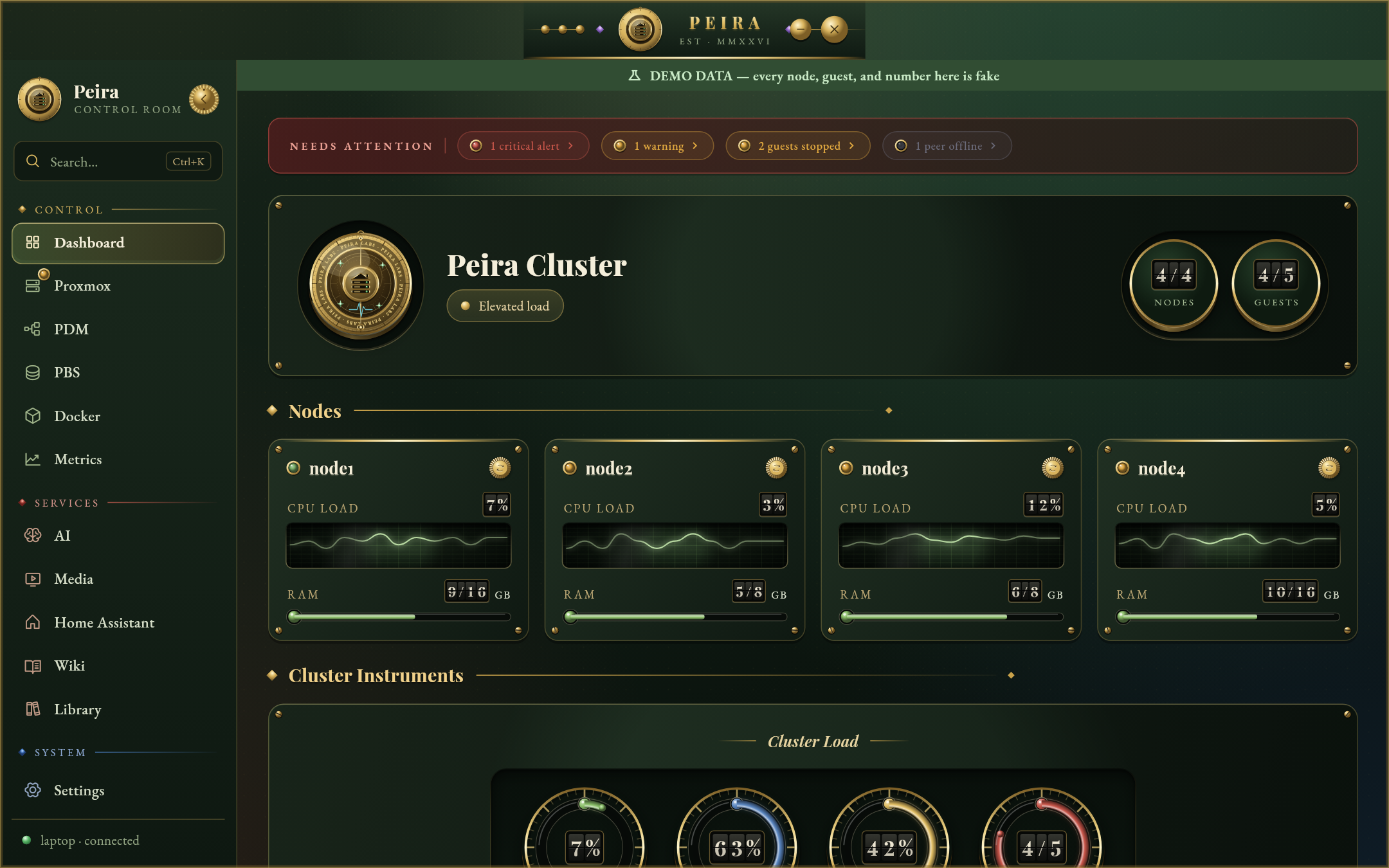
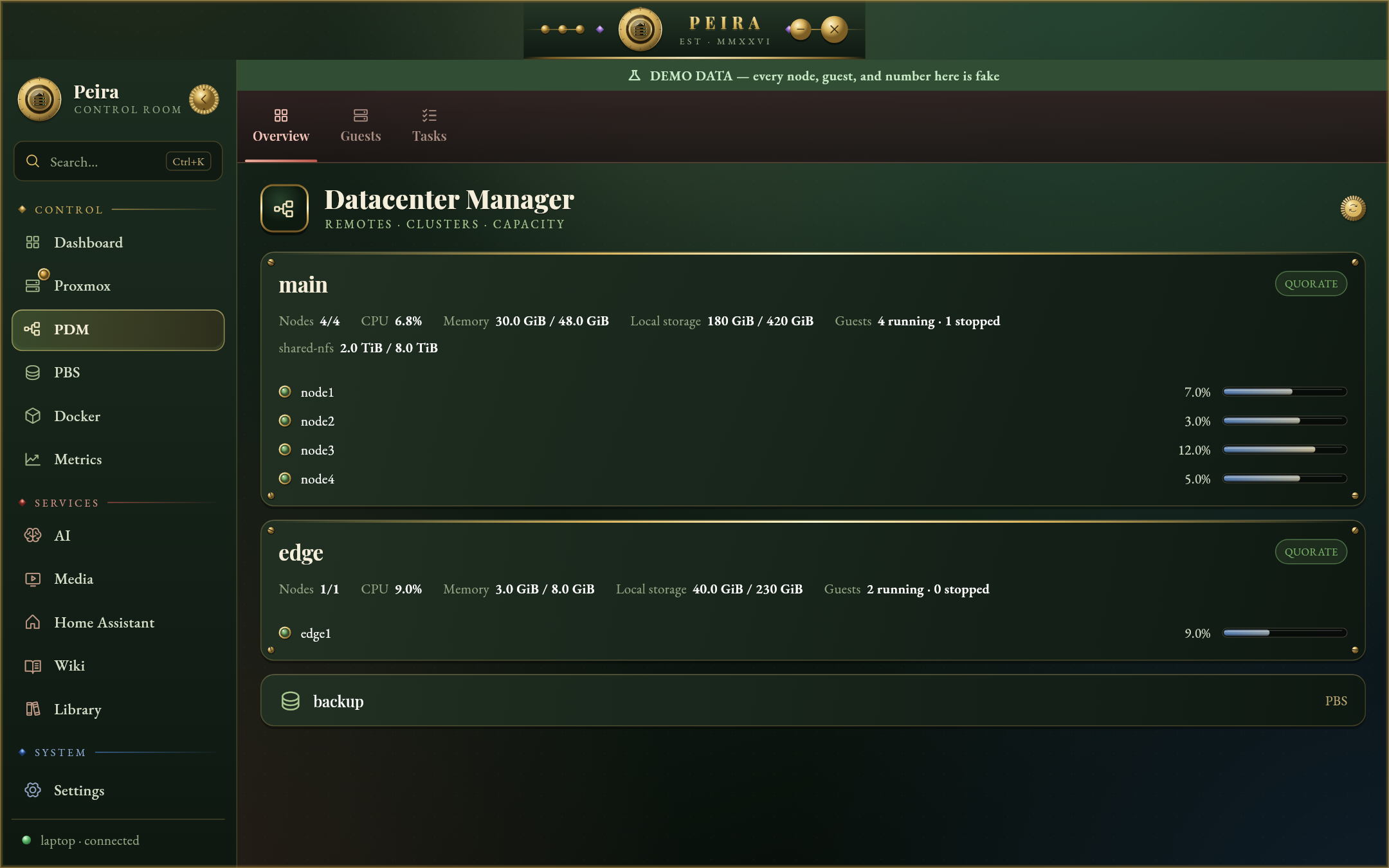
- Proxmox VE, natively: nodes, containers and VMs with live charts, start/stop/reboot, snapshots, clones, backups and restores, serial consoles, and create-from-template. Proxmox Datacenter Manager and Proxmox Backup Server get their own tabs.
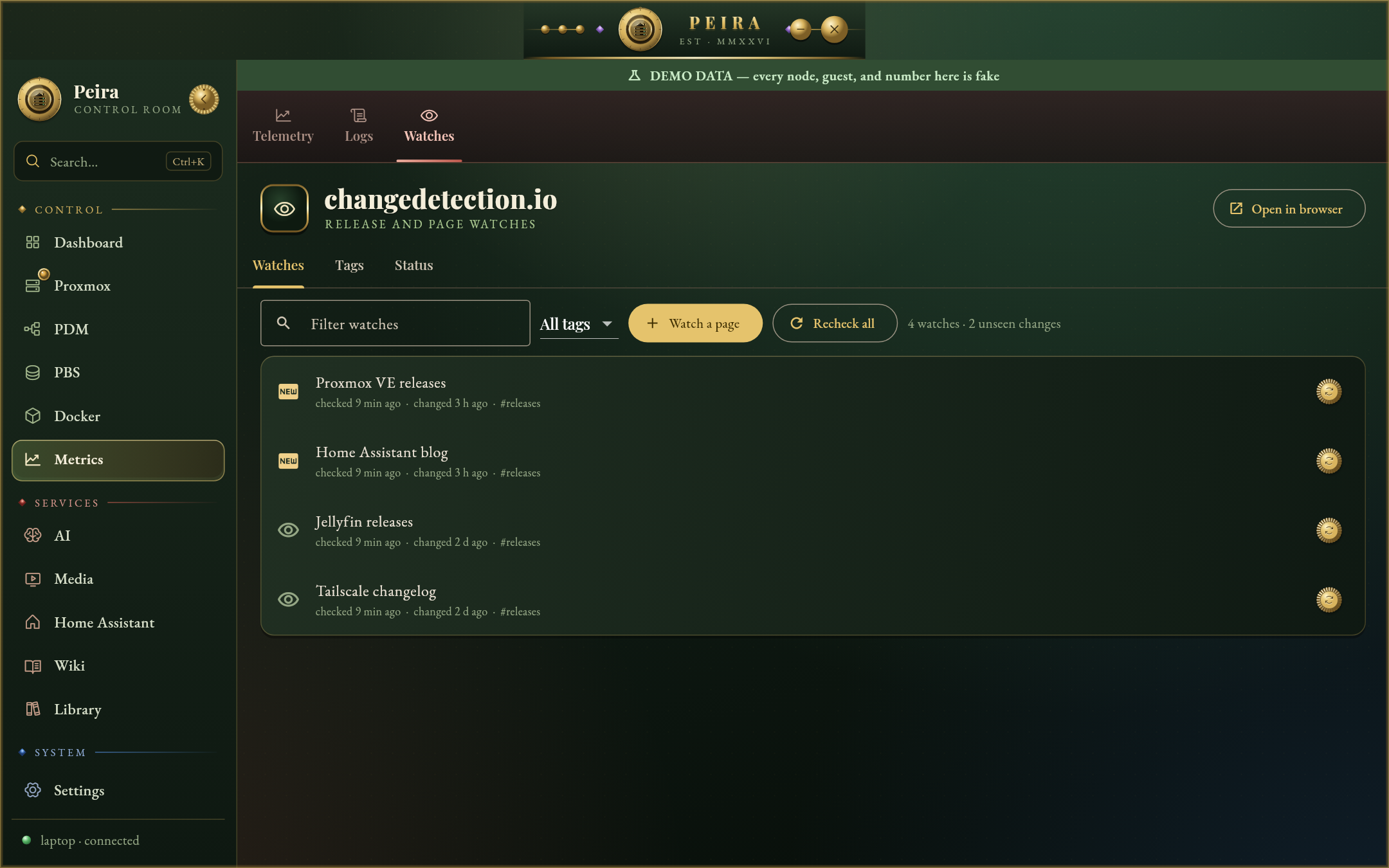
- Your services, natively: Home Assistant (every entity and its controls, services, logbook), Immich (library, albums, people, job queues), Paperless-ngx (search, edit, upload), Karakeep (bookmarks, tags, lists, feeds), Seerr (discover, request, approve), Open WebUI (chat, history, knowledge), Wiki.js (pages, search, history), SearXNG (private search) and changedetection.io (watches and diffs). Each tab has an Open in browser button for whatever its API cannot do.
- Metrics and media: Prometheus telemetry, Loki logs, Jellyfin and Plex status, Radarr, Sonarr, Prowlarr and qBittorrent.
- A terminal whose SSH targets come from the live Proxmox inventory, and a Tailscale view.
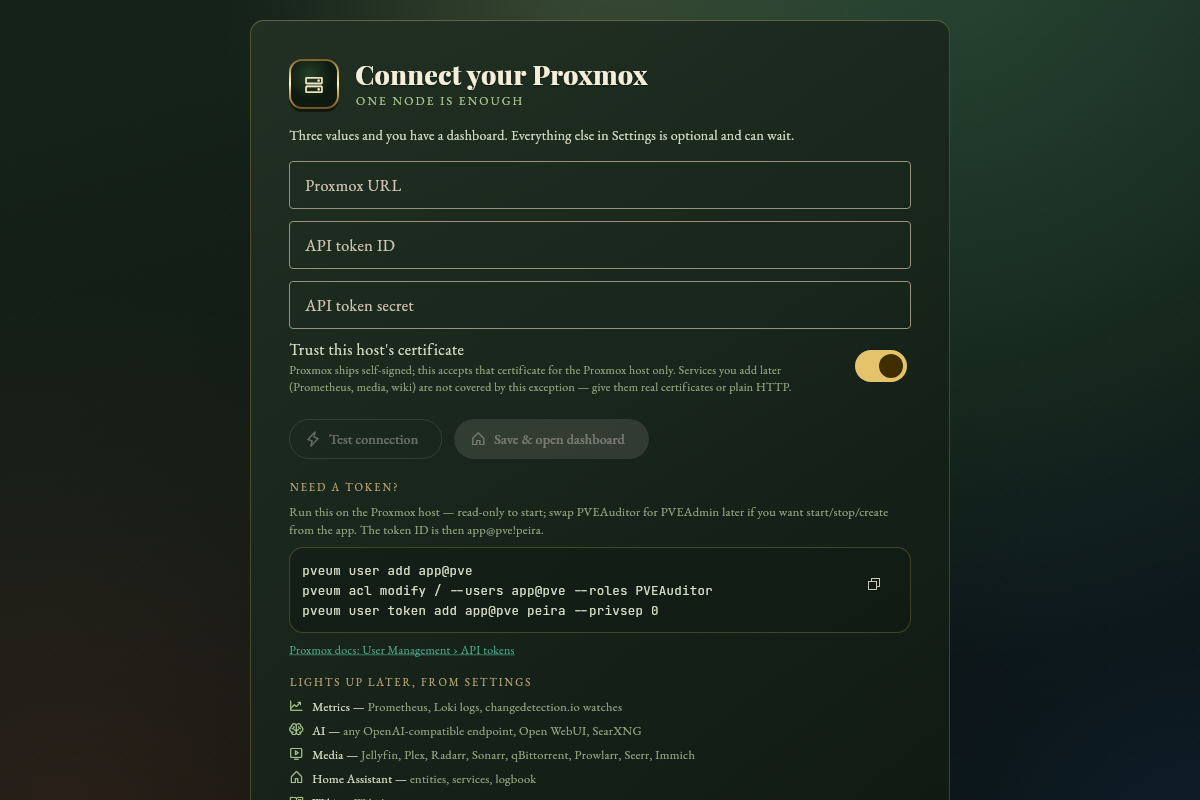
- Set up in one step: fill in a setup file once and import it; tabs for services you don't run stay out of the sidebar; a built-in guide walks you through the rest on first launch.
- Eight theme families, each with dark and light variants.
| Proxmox VE | Home Assistant |
|---|---|
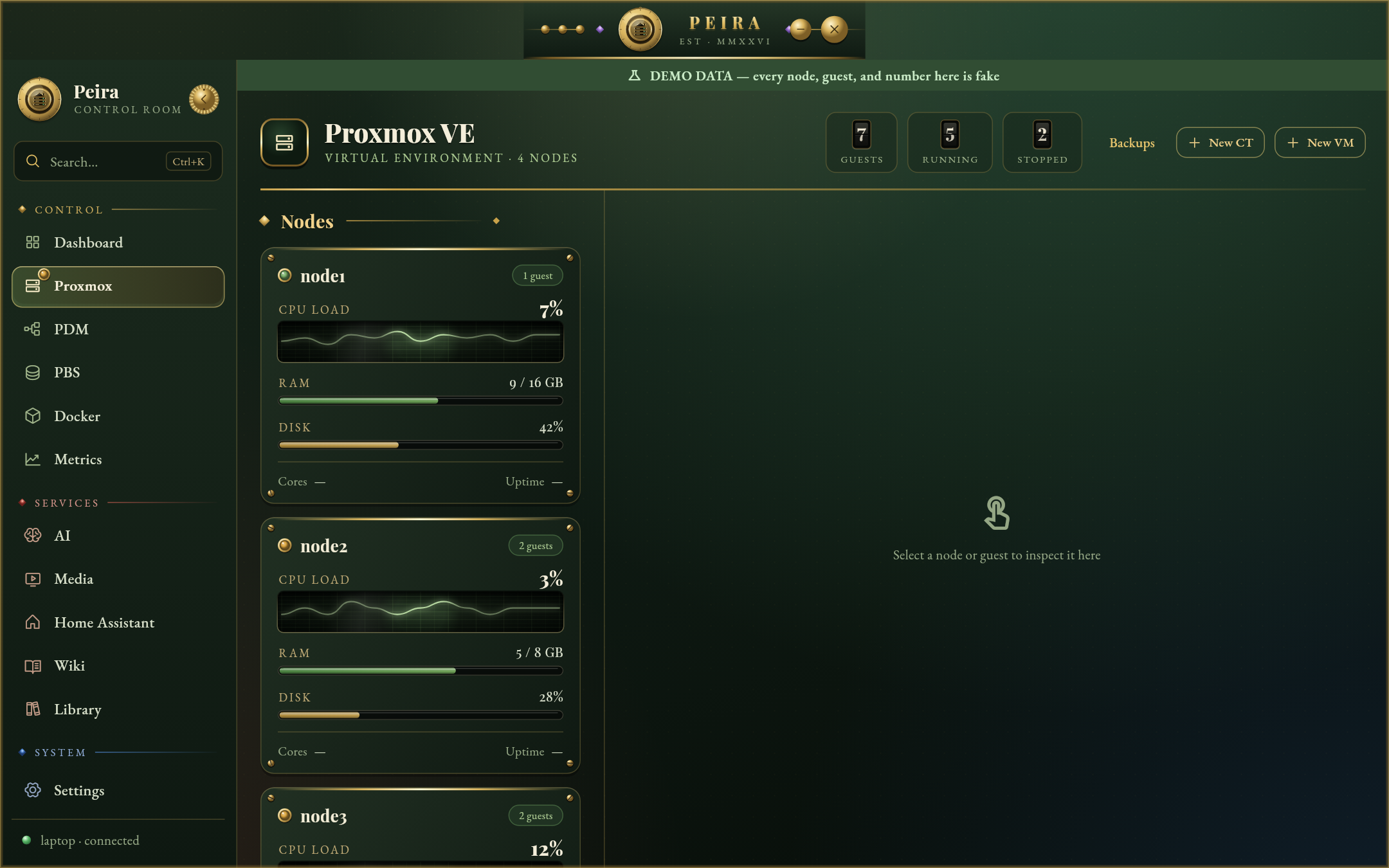 |
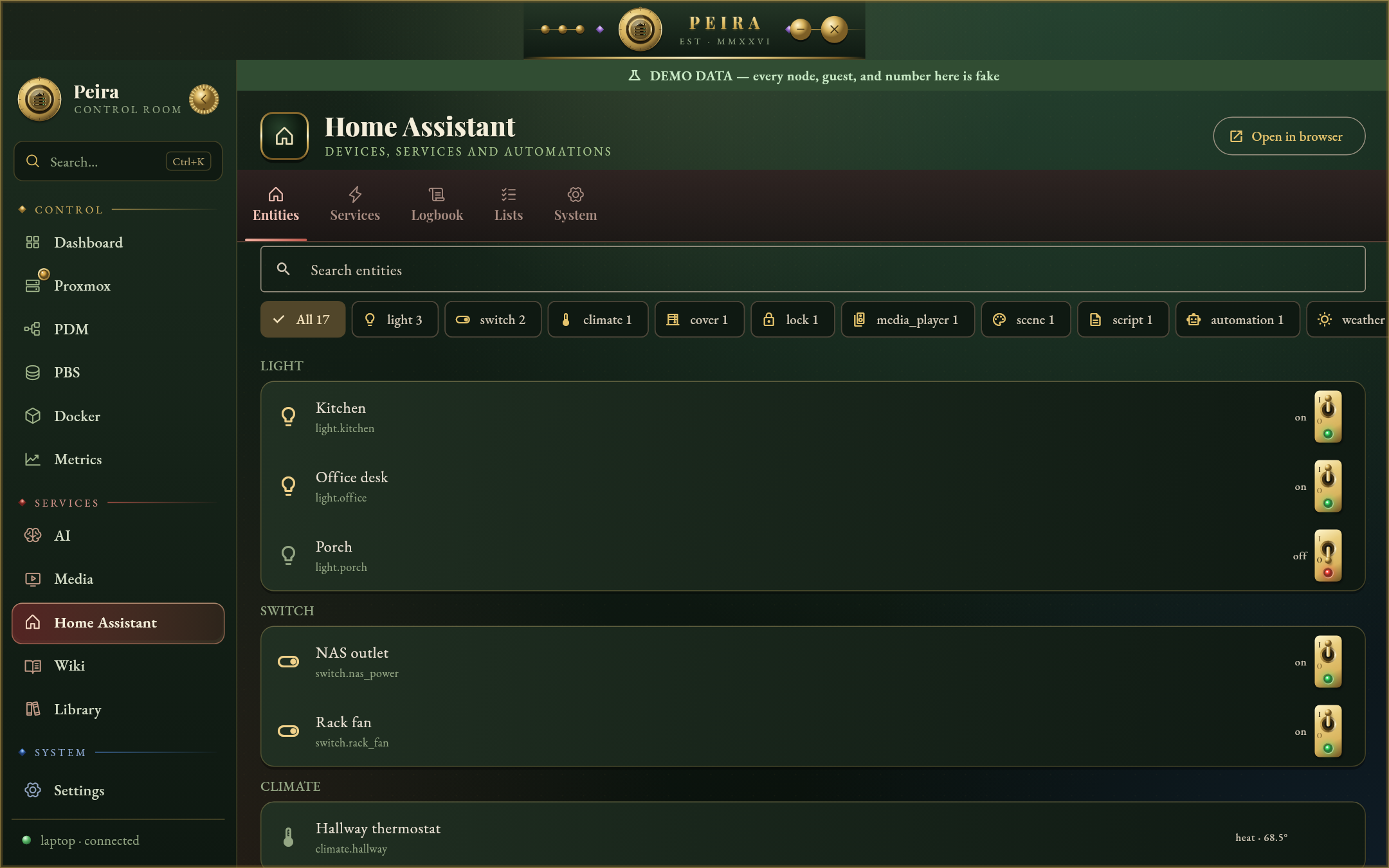 |
| Documents (Paperless-ngx) | Wiki (Wiki.js) |
|---|---|
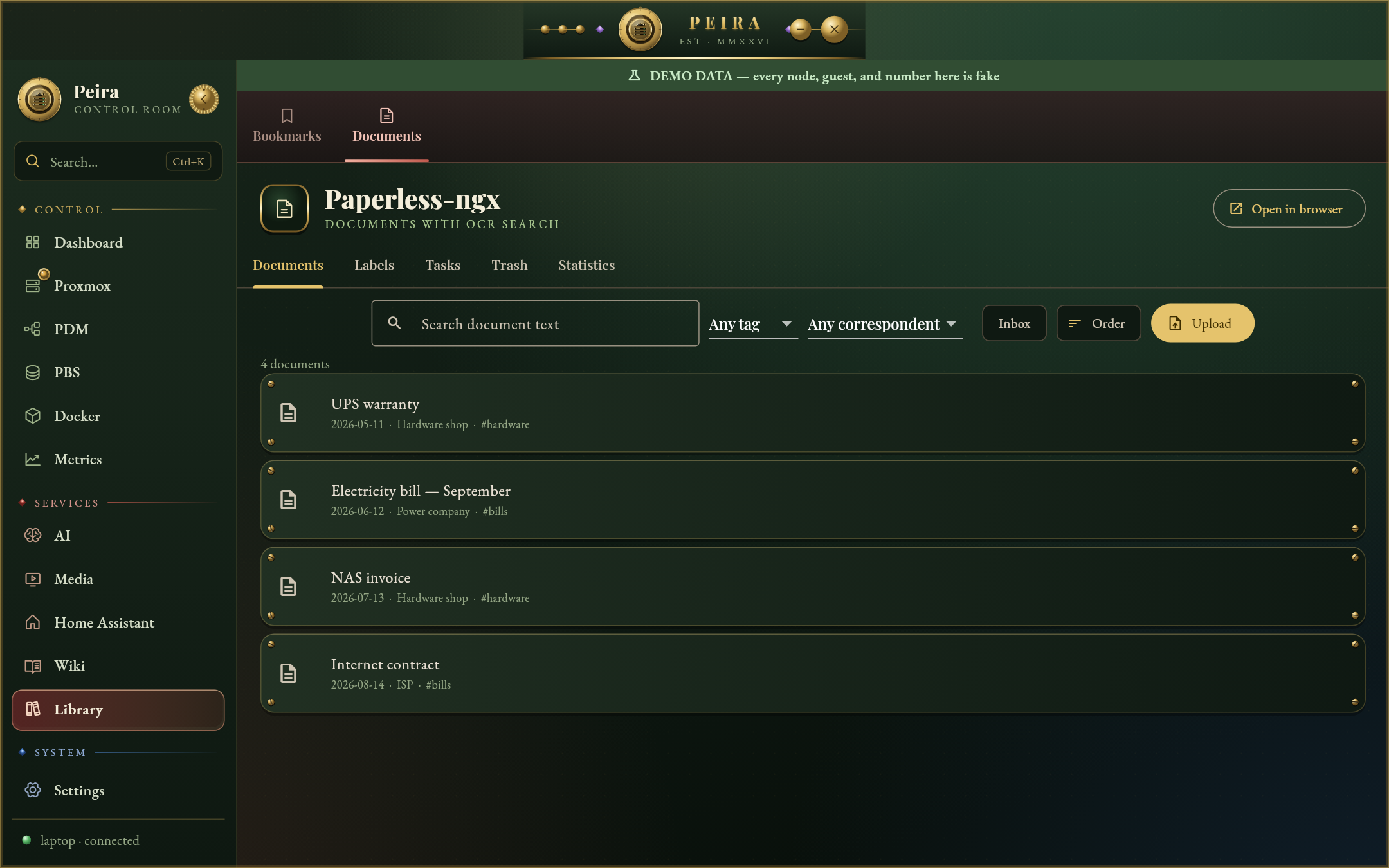 |
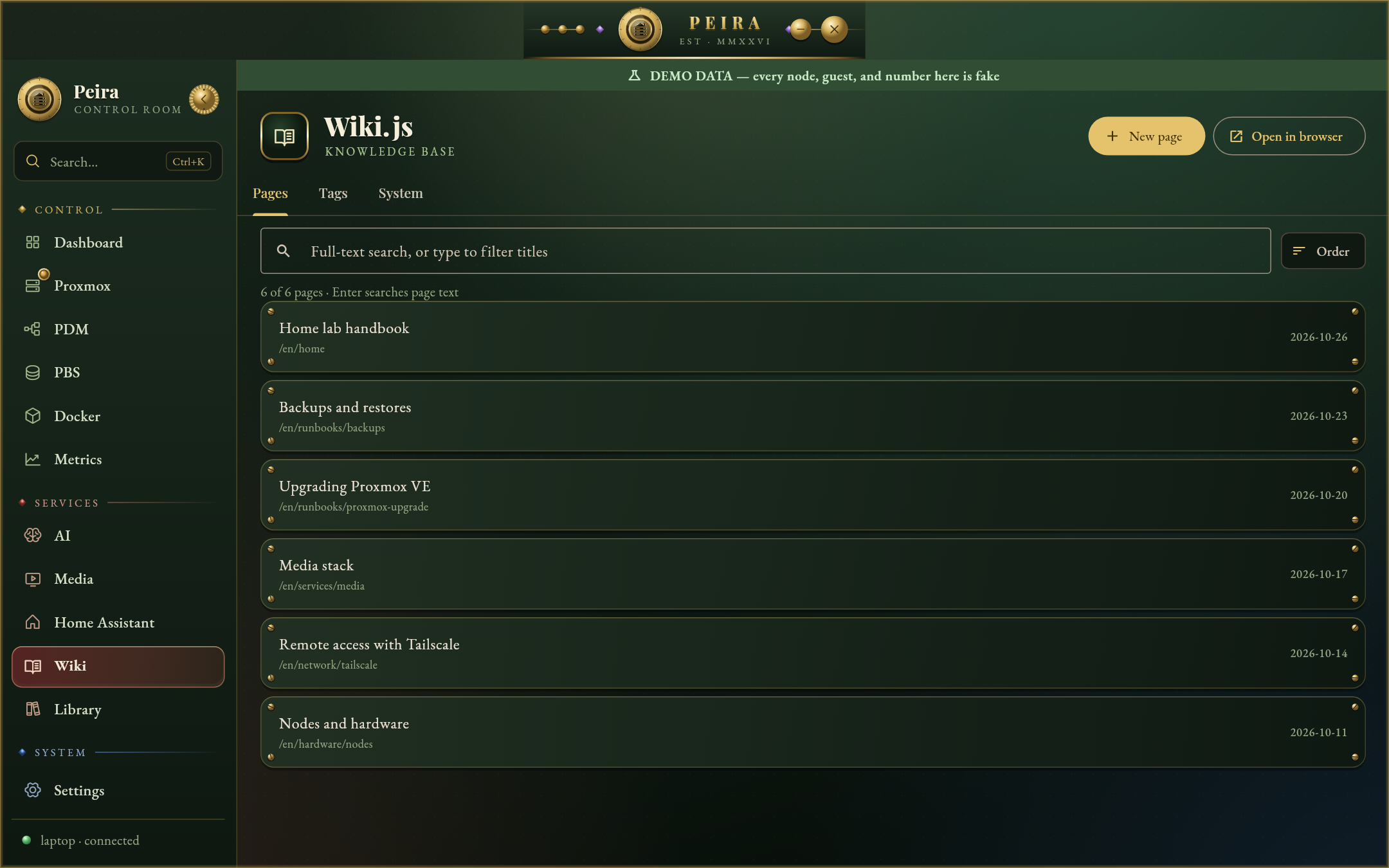 |
| Watches (changedetection.io) | First launch |
|---|---|
 |
 |
| Datacenter Manager | Backup Server |
|---|---|
 |
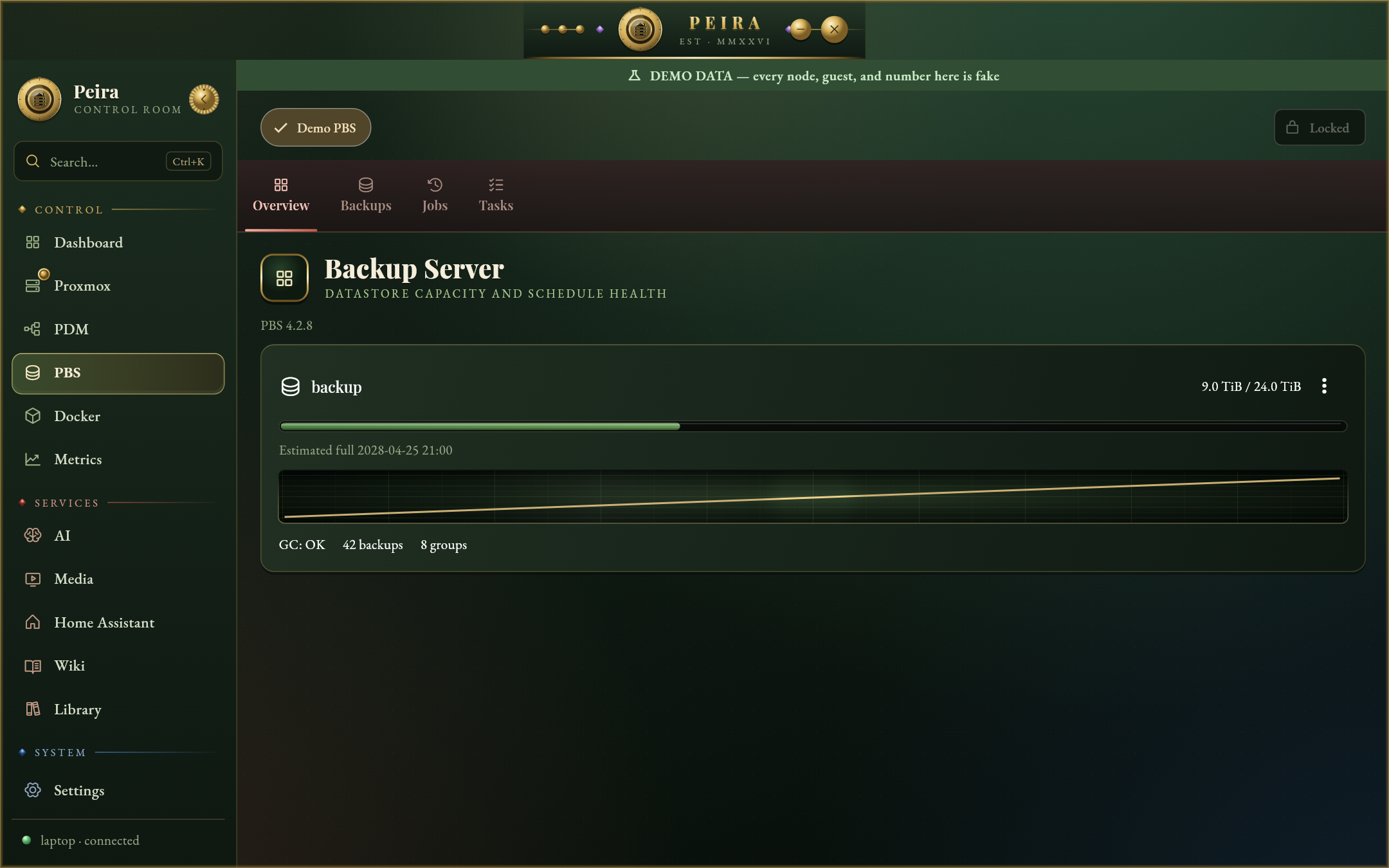 |
Every screenshot is demo mode: the nodes, guests and services are fake.
Themes
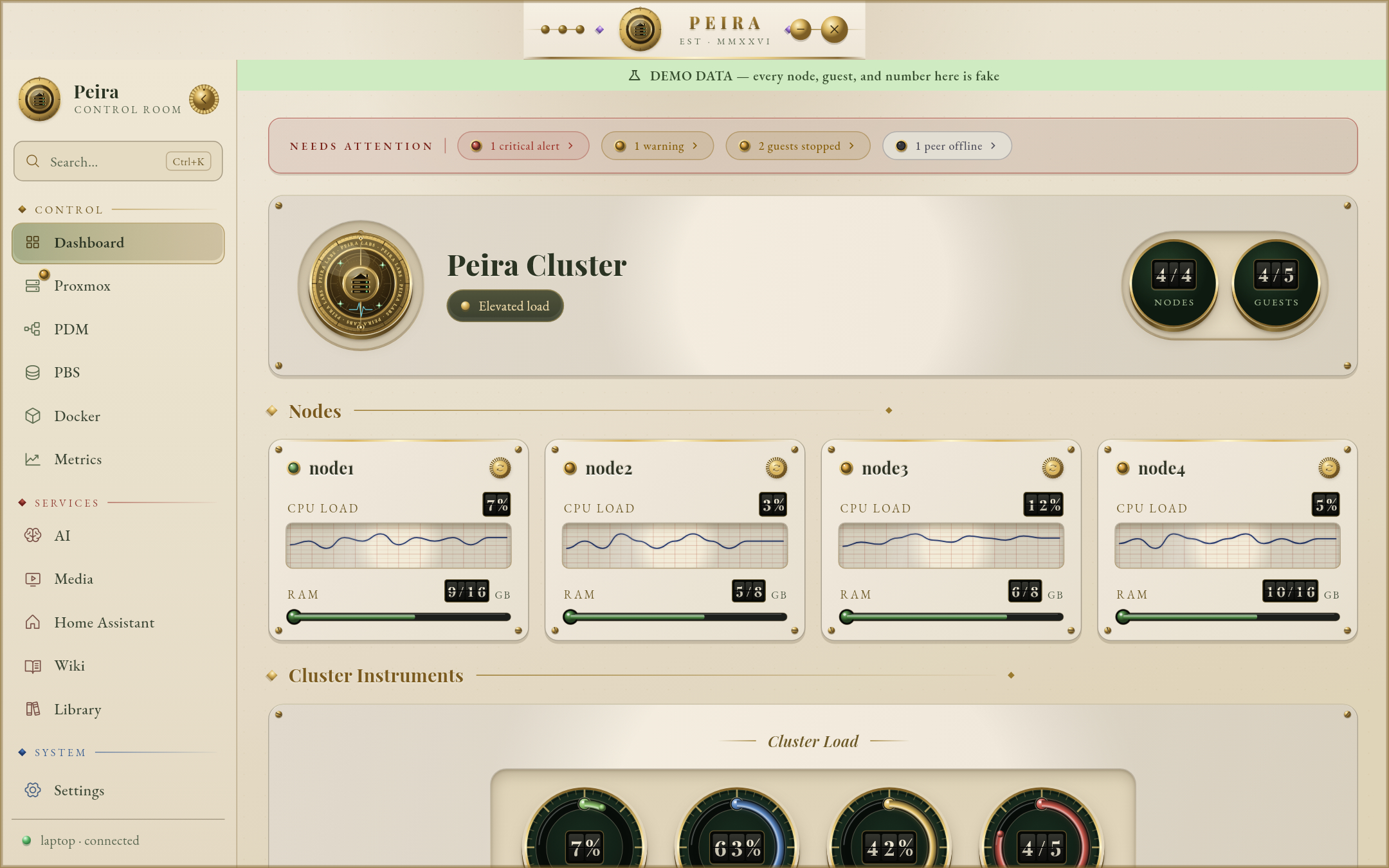
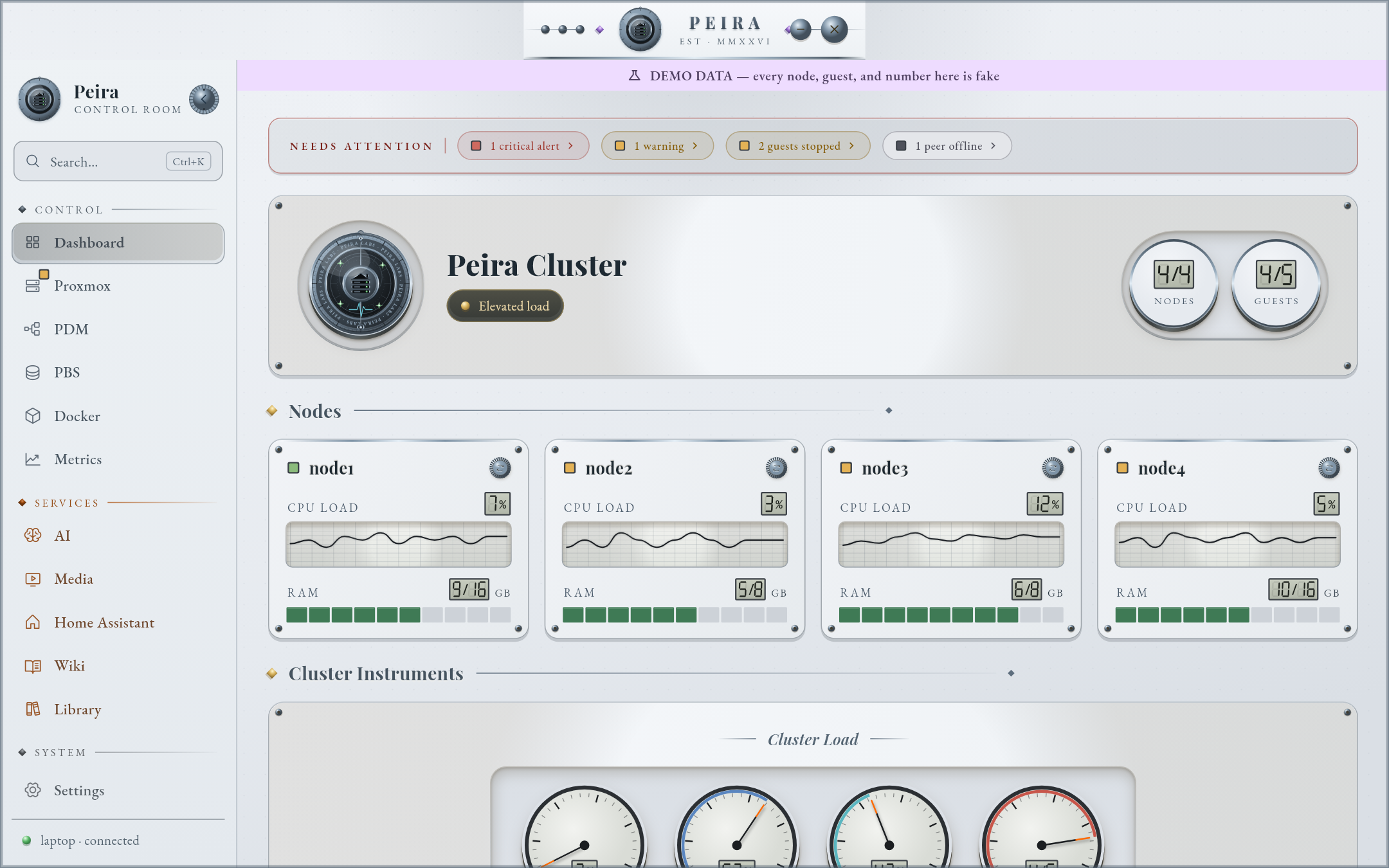
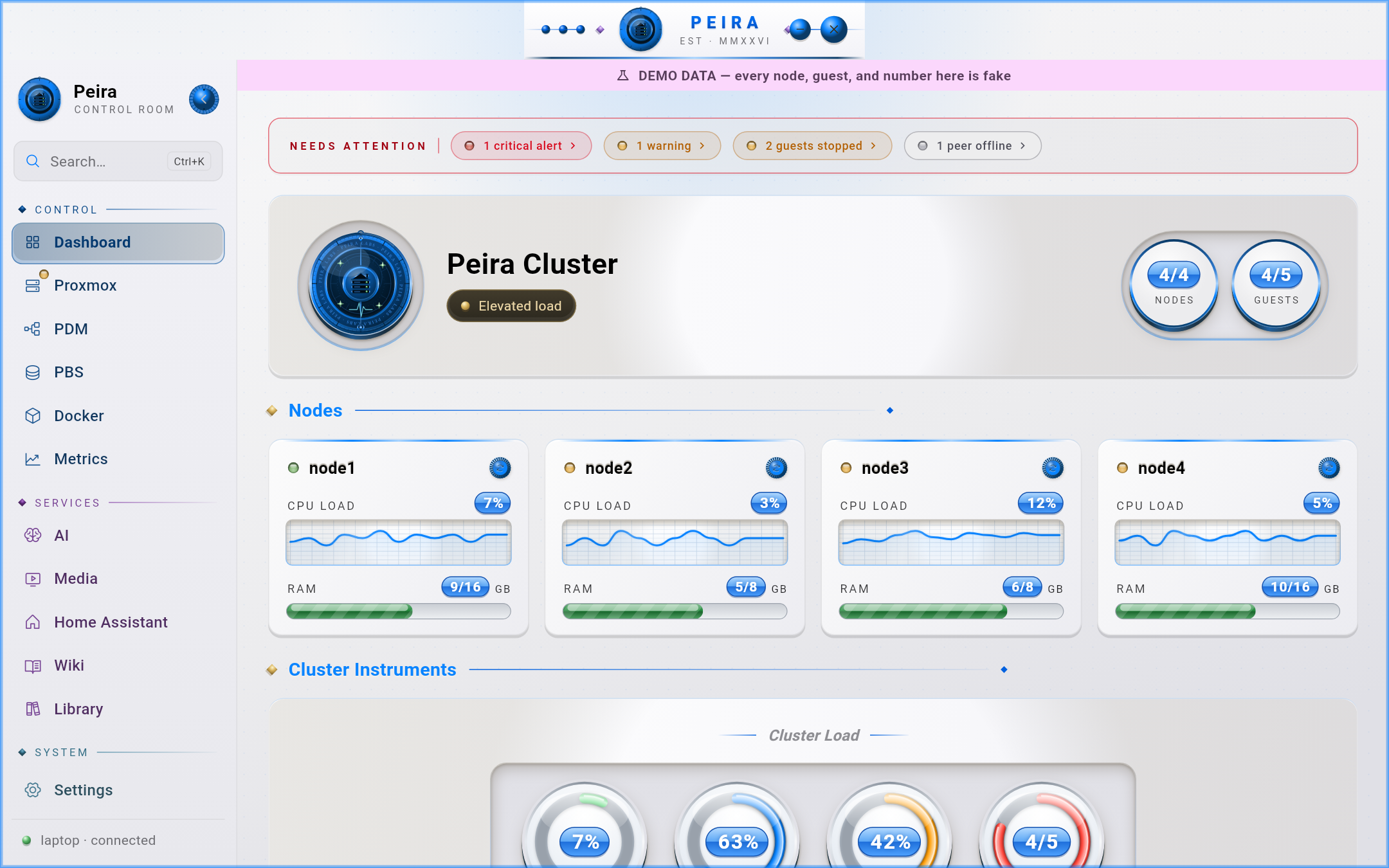
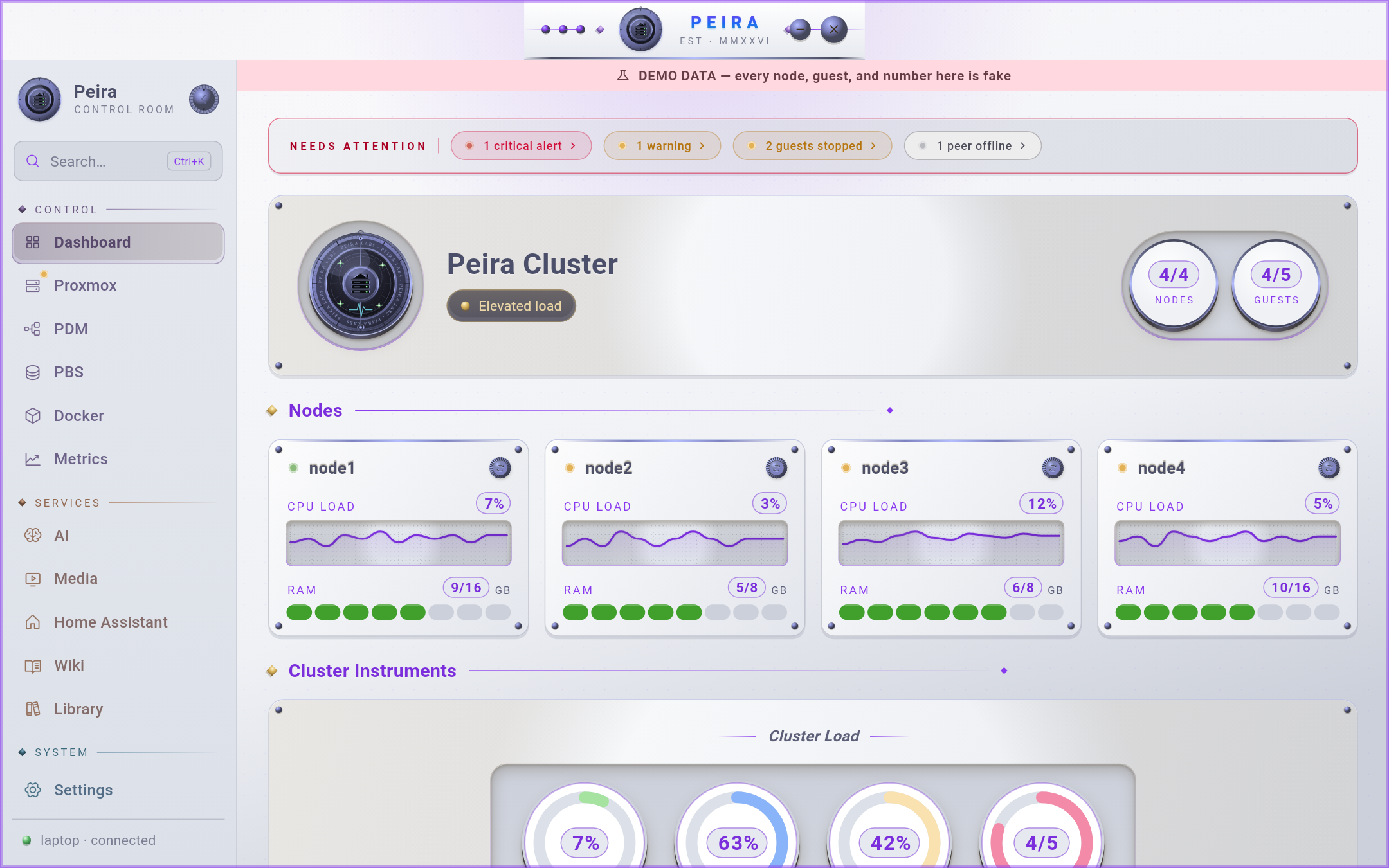
Eight built-in theme families, each re-skinning the entire shell — background, masthead, panels, nav rail, and ornaments — with its own colour palette and typography (serif, sans, or monospace). Every family has dark and light variants; pick one in Settings. The shots below are demo mode.
| Family | Dark | Light |
|---|---|---|
| Brass — green & gold, engraved serif (default) | 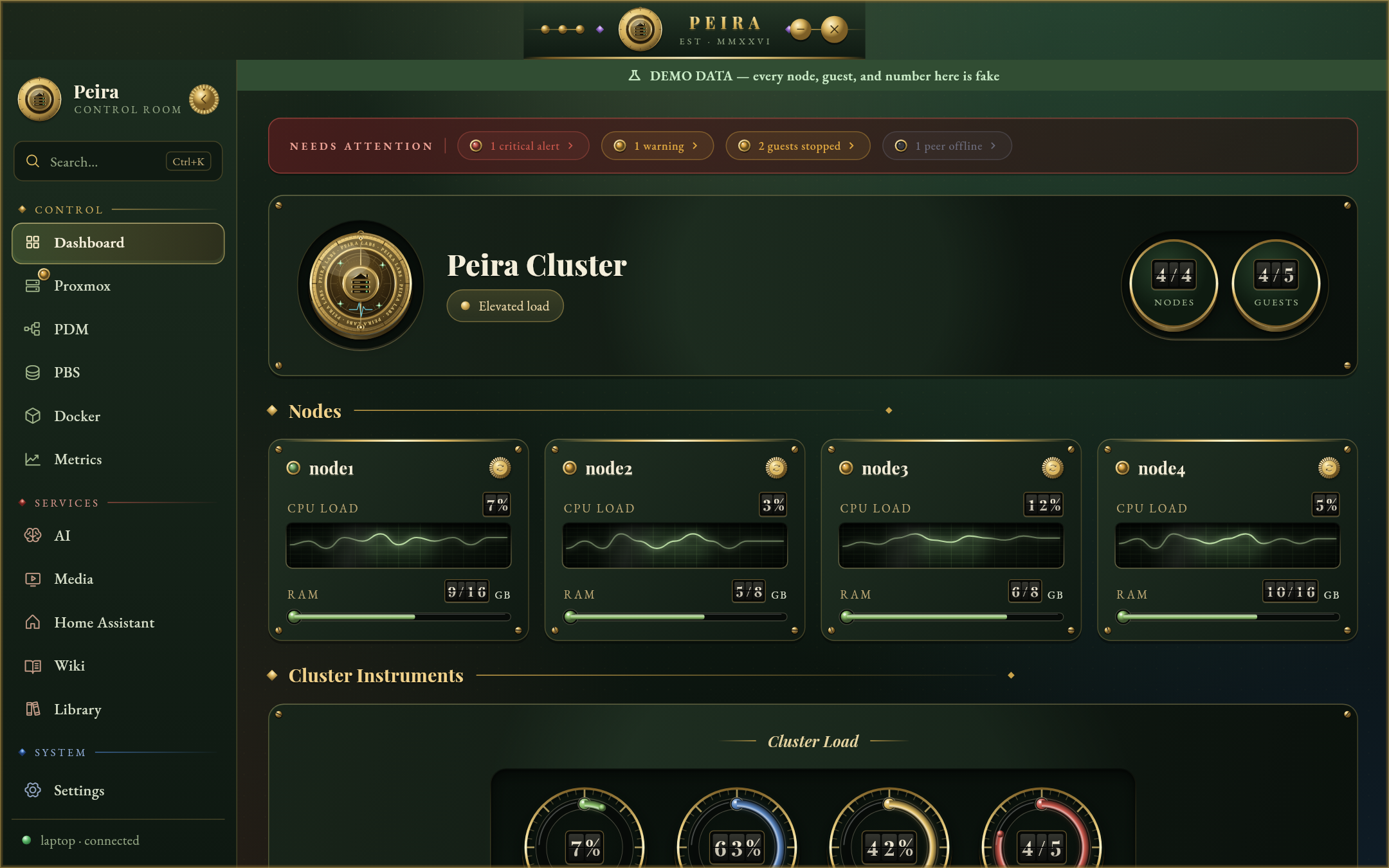 |
 |
| Graphite — neutral slate, clean sans | 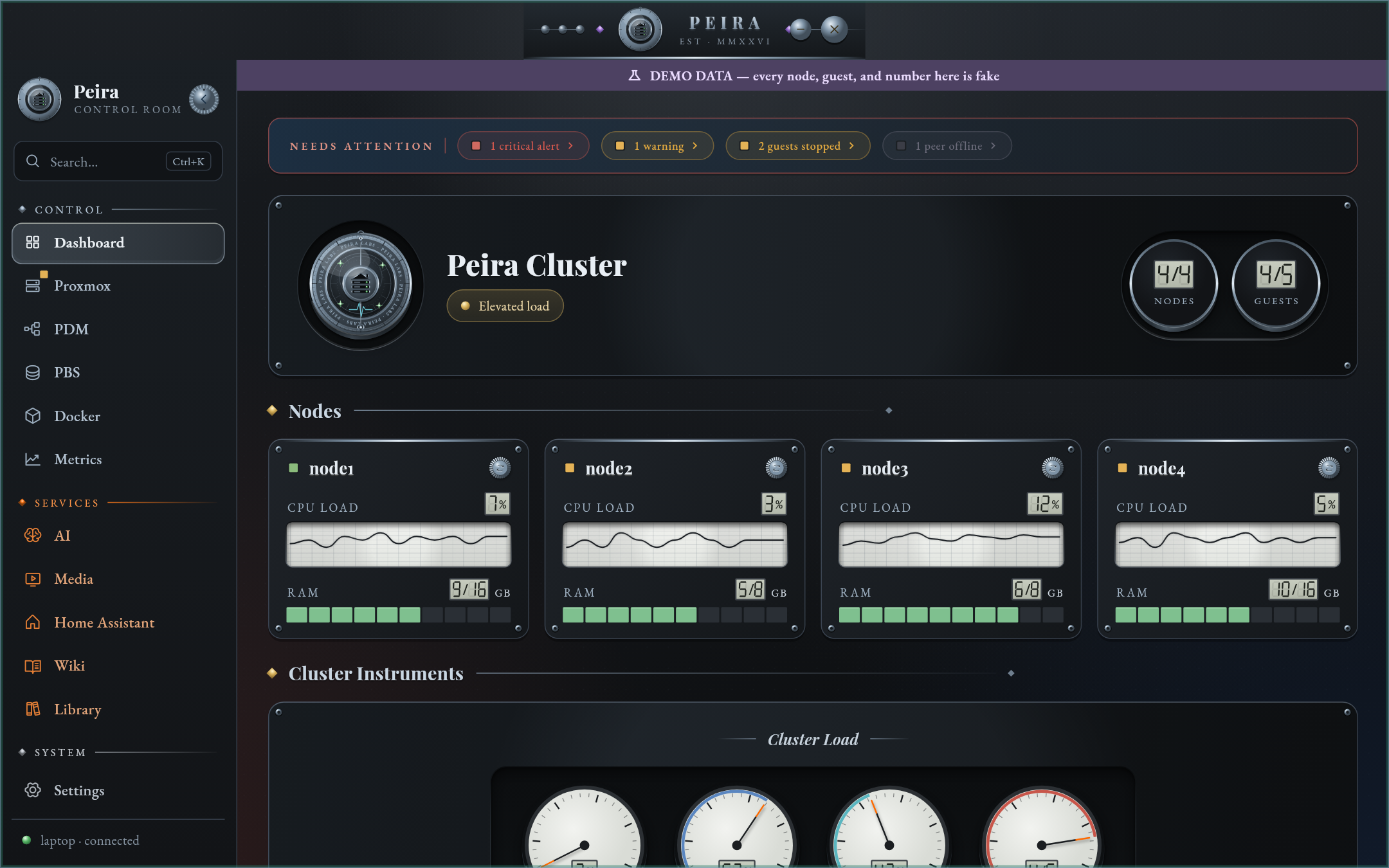 |
 |
| Terminal — black & neon-green phosphor, monospace | 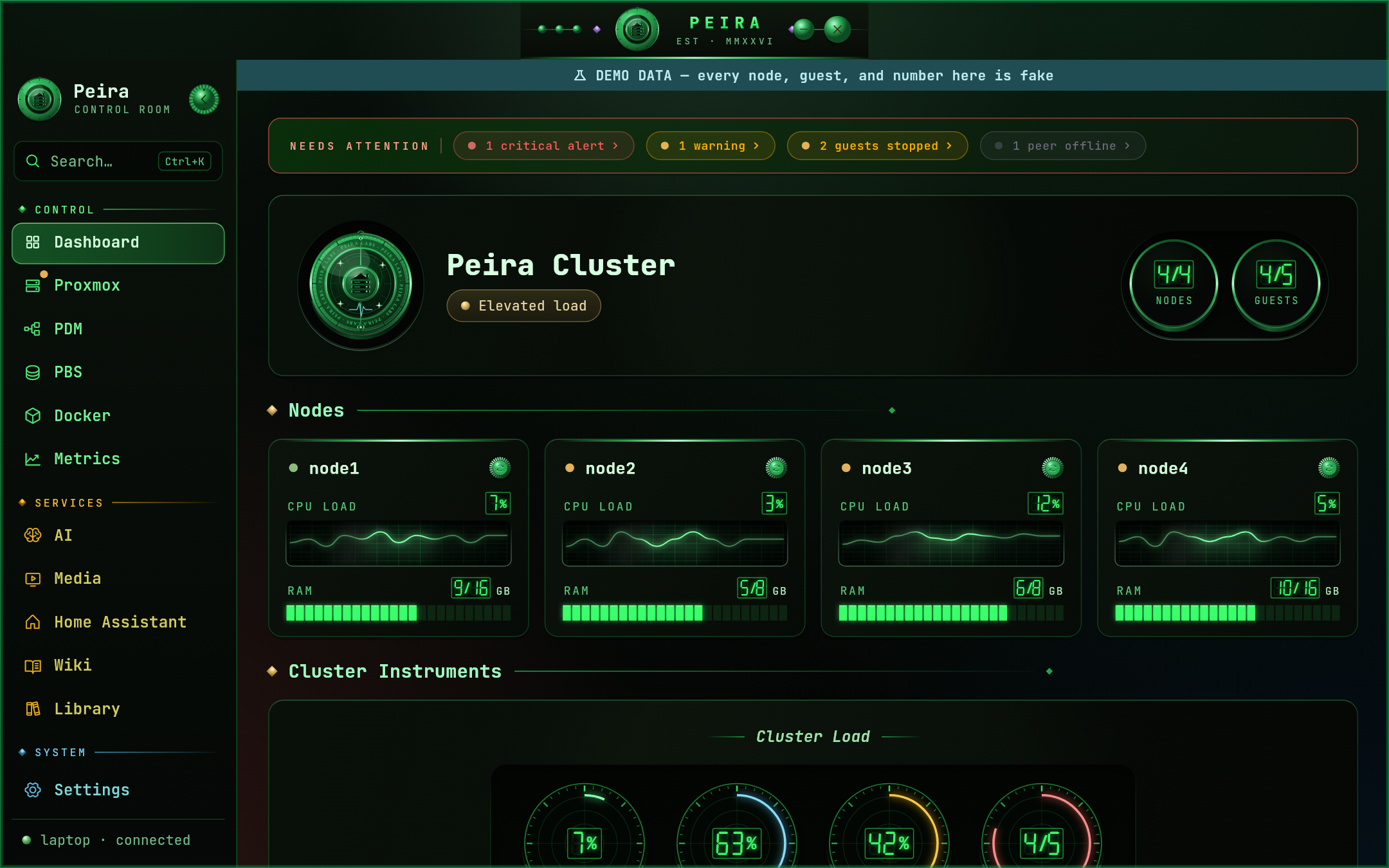 |
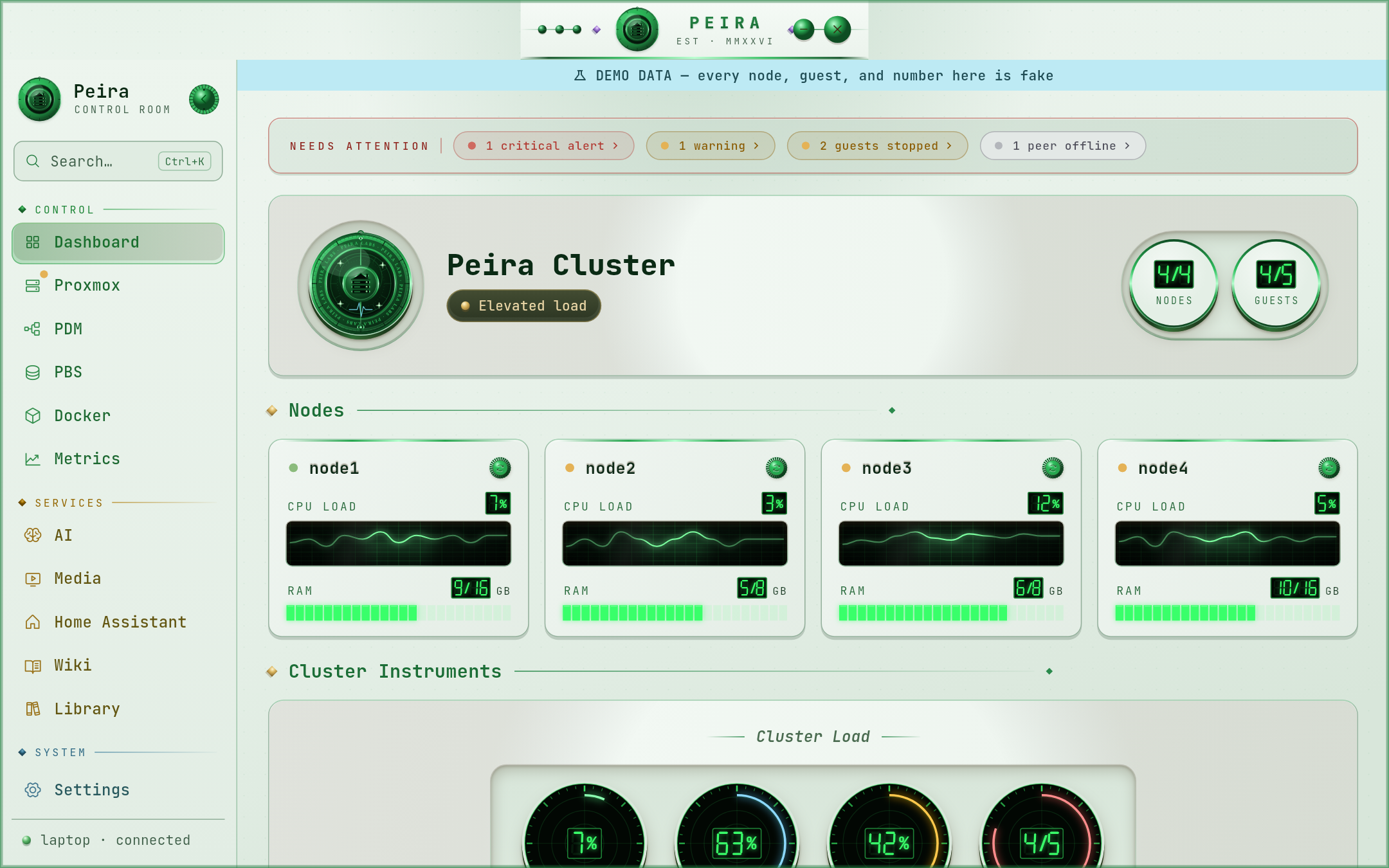 |
| Nord — cool arctic blue | 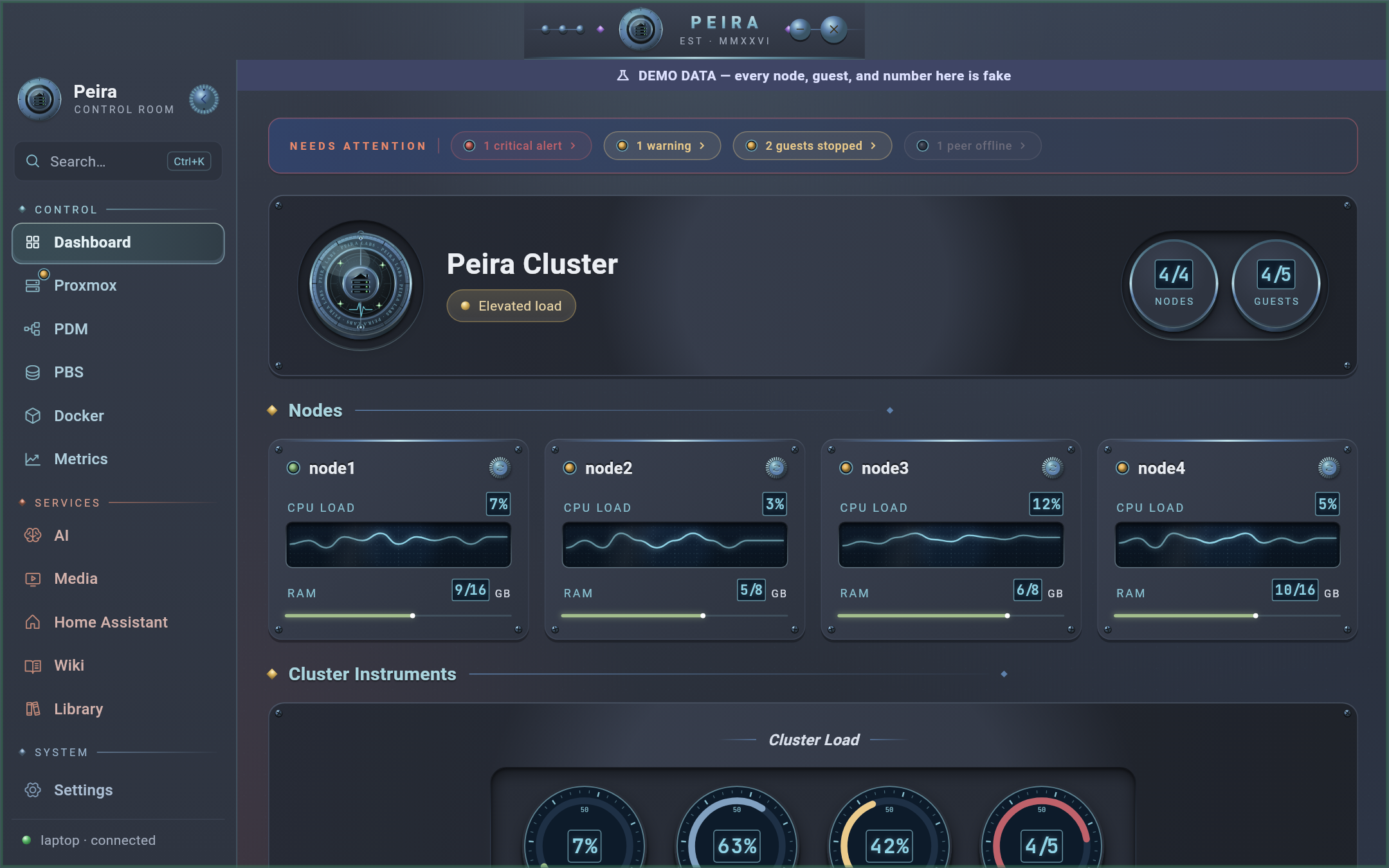 |
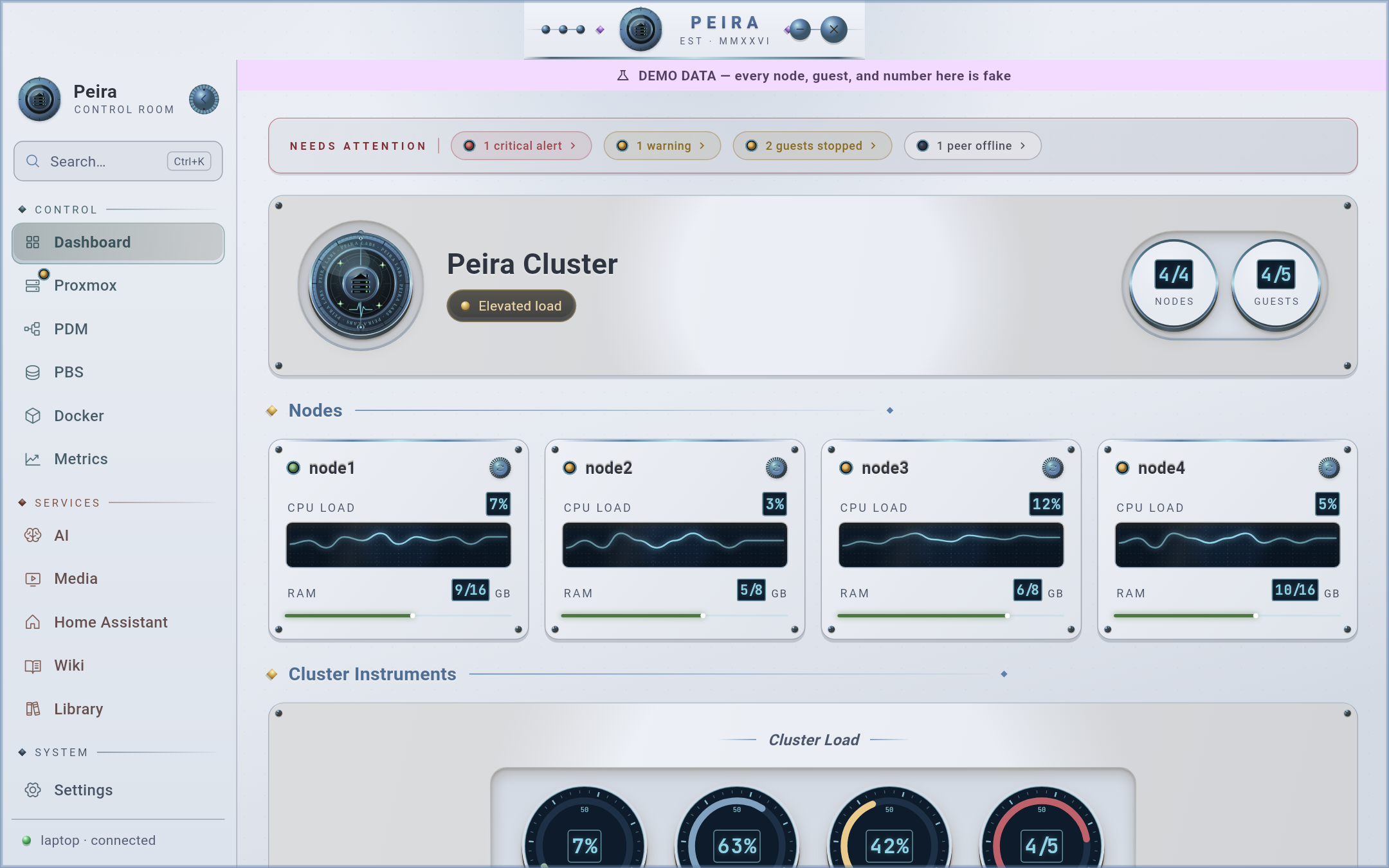 |
| Ember — warm crimson | 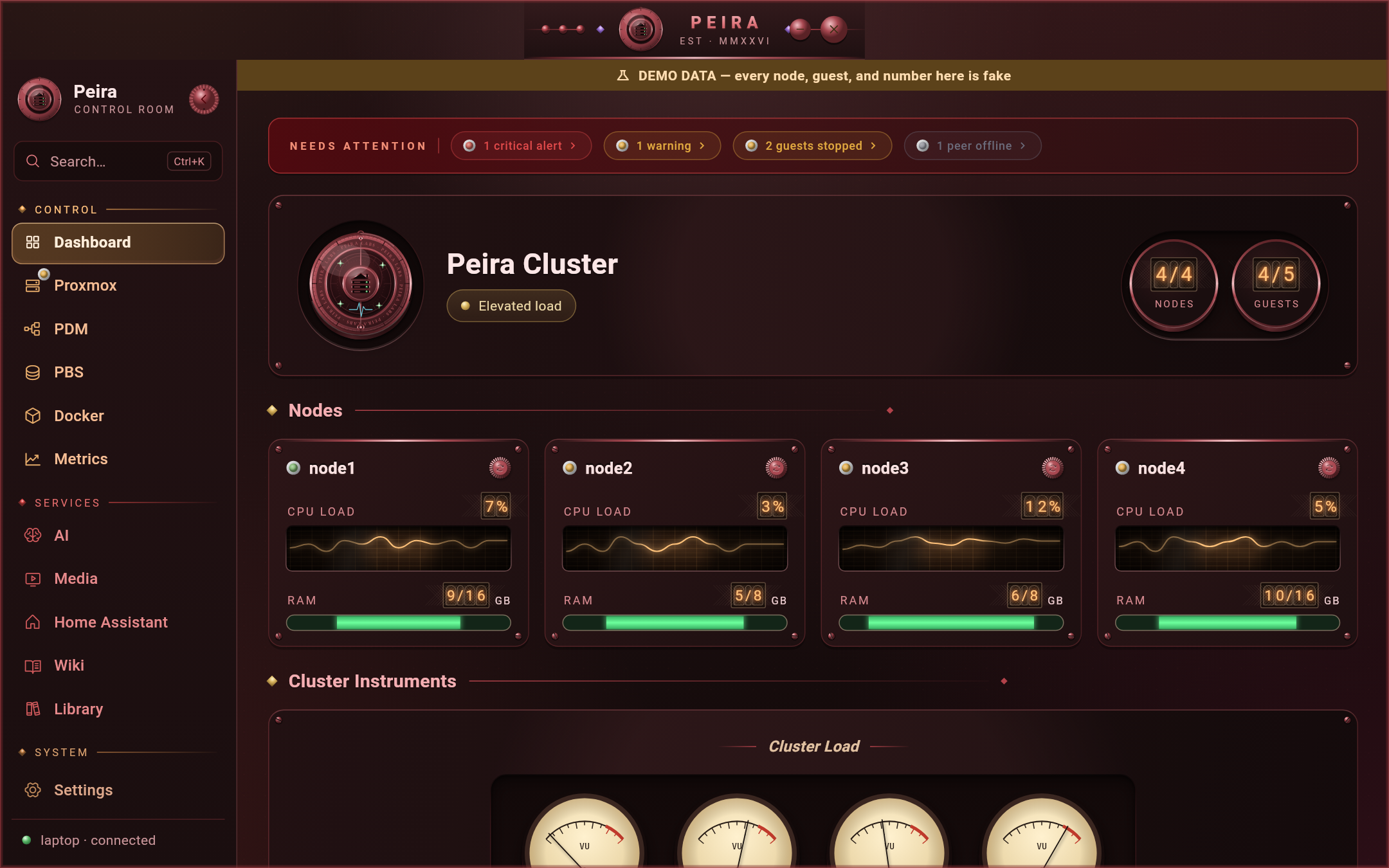 |
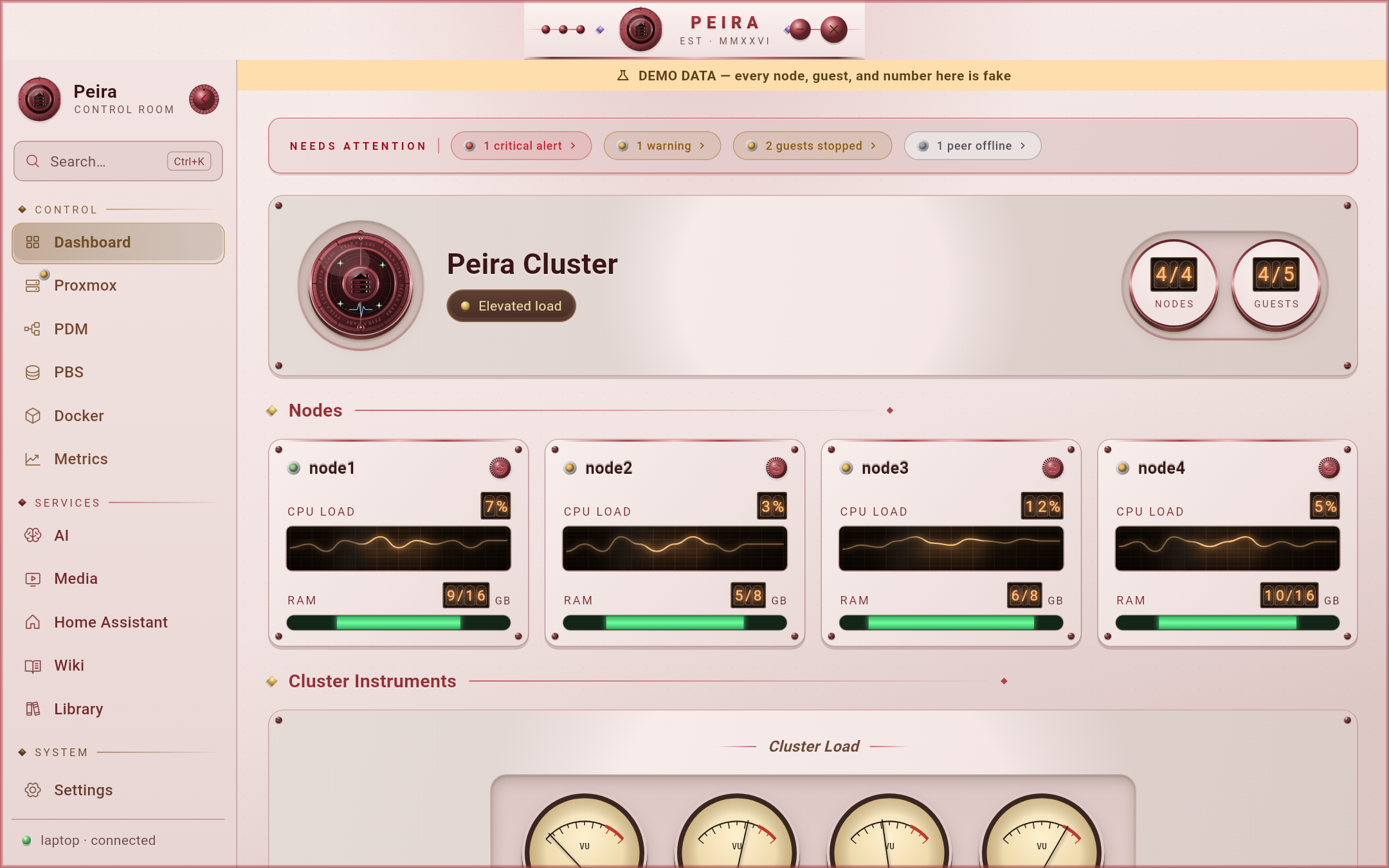 |
| Obsidian — matte black | 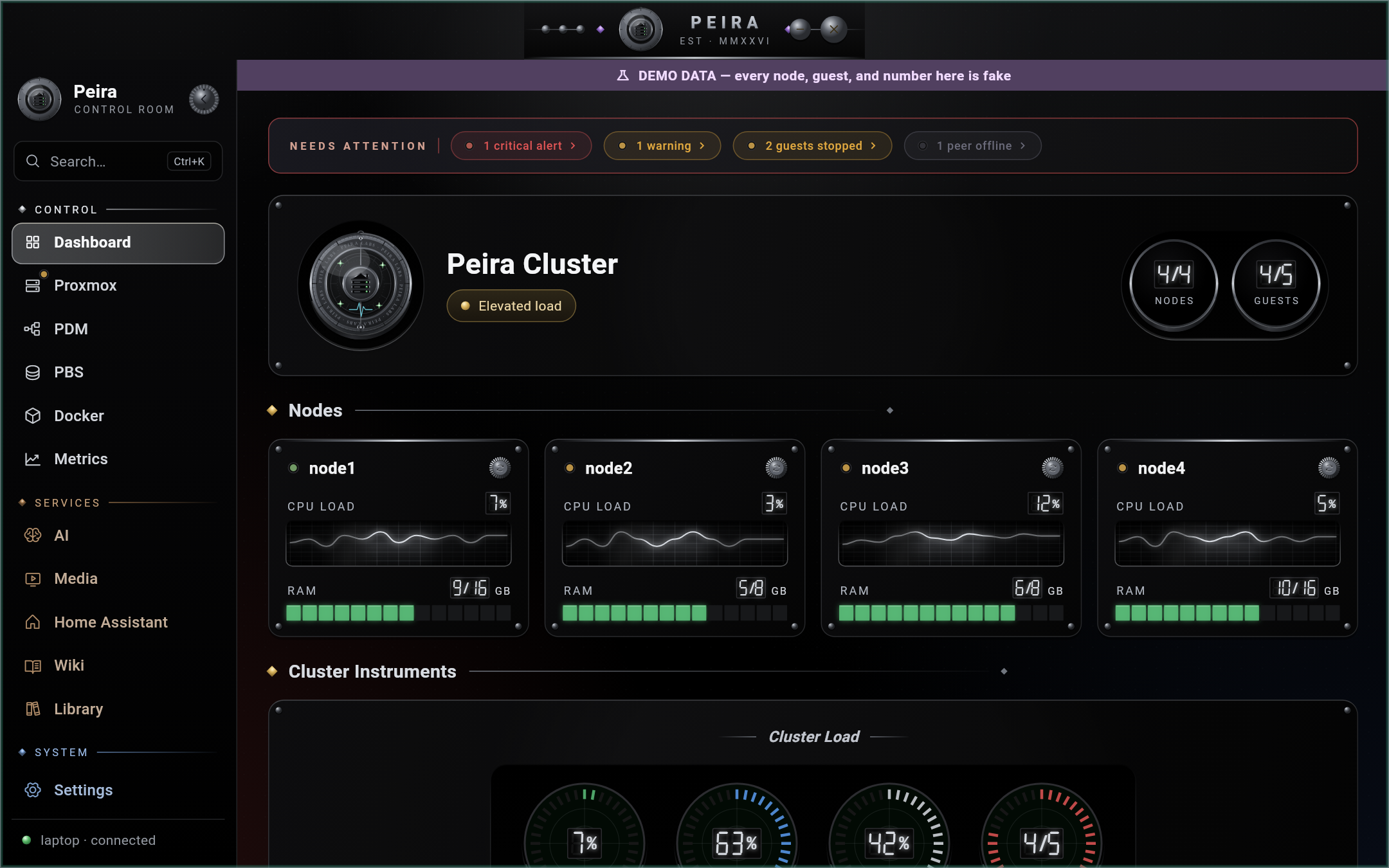 |
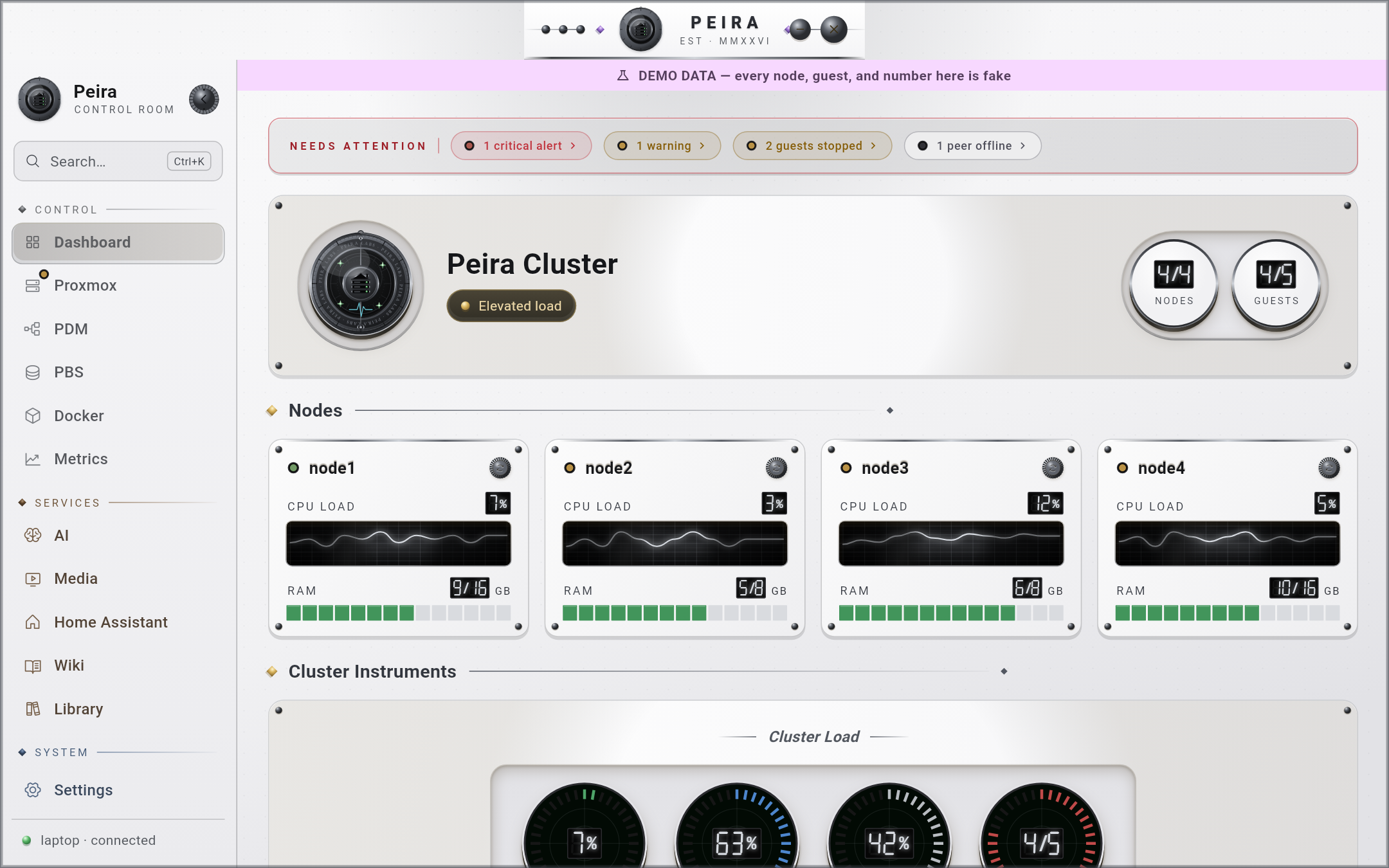 |
| Aqua — macOS-inspired | 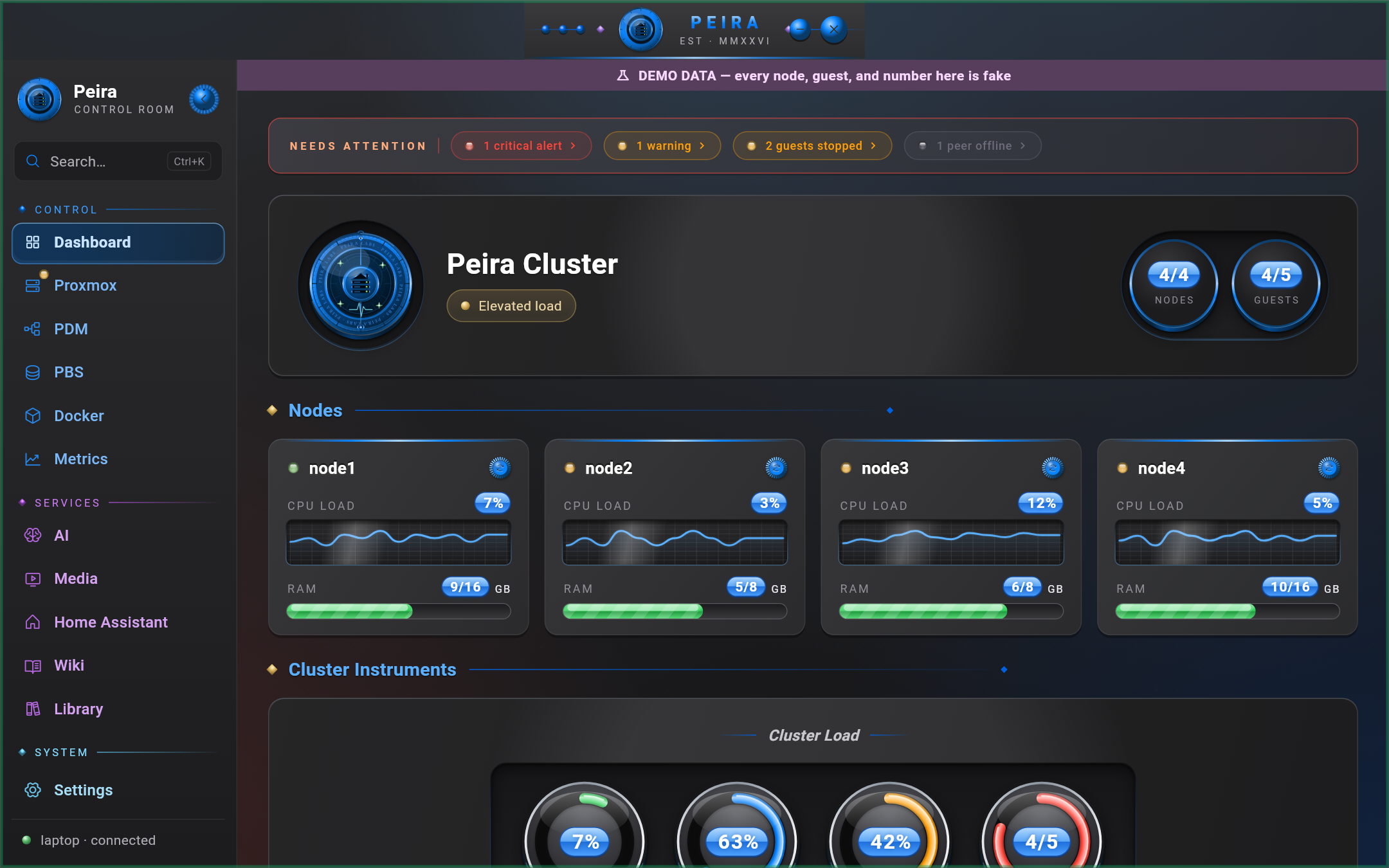 |
 |
| Catppuccin — soft modern pastel | 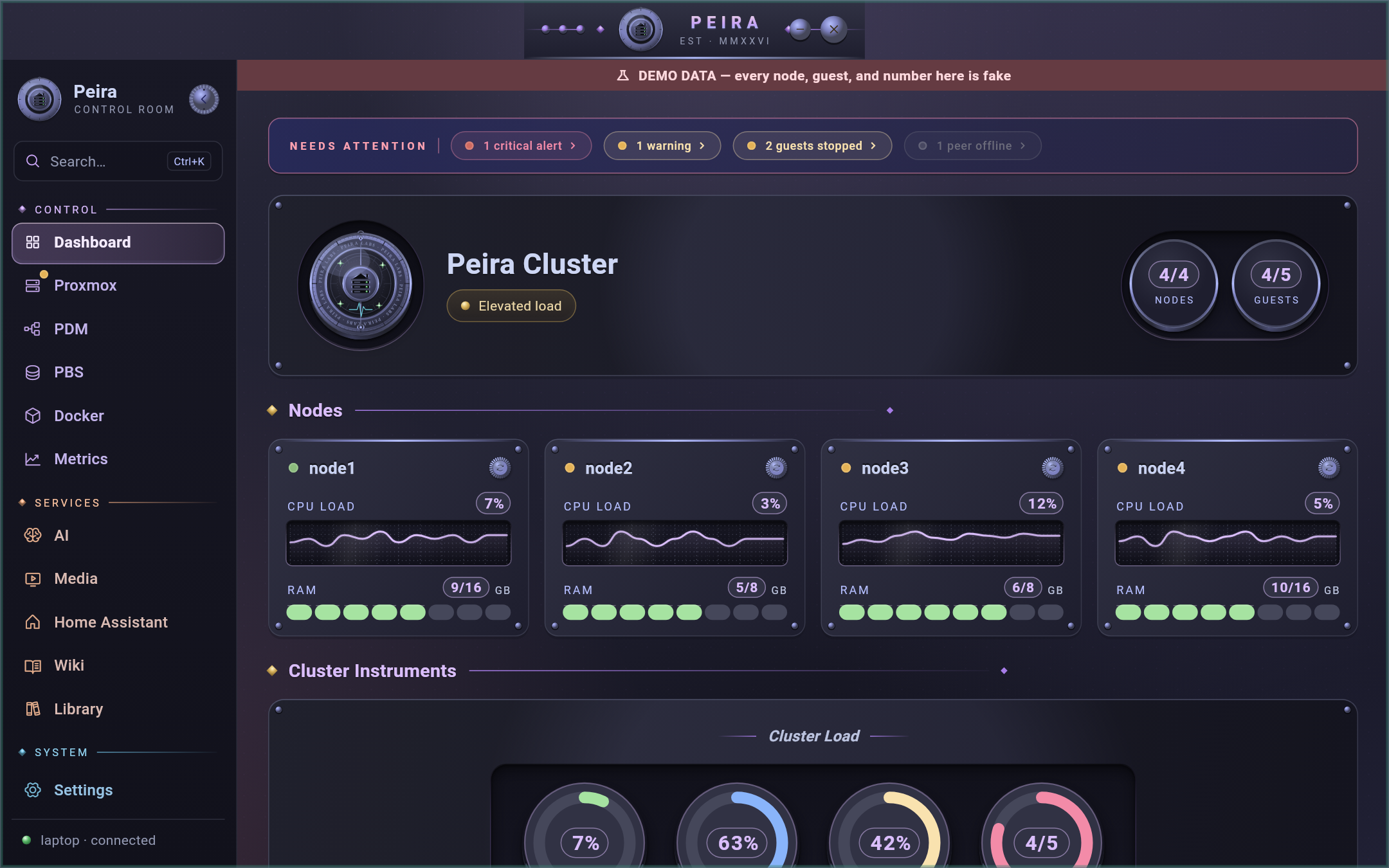 |
 |
Requirements
- Proxmox VE and an API token — that's the only hard requirement. A
read-only token (
PVEAuditor) lights up everything except management actions; the first-run wizard shows the exactpveumcommands. - A Linux desktop with GTK 3 (X11 or Wayland) and a Secret Service (GNOME Keyring, KWallet or KeePassXC) for credential storage.
- Everything else — Prometheus, Grafana, media services, AI endpoints, Home Assistant and the rest — is optional; each tab appears once its service is configured.
Set up
- On first launch the wizard connects Proxmox (URL plus an API token; it shows
the exact
pveumcommands). - For each service you run, add its URL and API key in Settings. The guide (it opens on first launch, and lives in Settings › Guide) lists where every key comes from.
- Or do it all at once: fill in
setup/setup.example.json and import it from
Settings › Import setup file, or save it as
~/.config/peira/seed.jsonfor the next launch (it is deleted after import). See docs/setup-file.md.
Keys are stored in your system keychain, never in plain files; each one only reaches its own service.
Install
Download the AppImage from the releases page (named
Peira-v<version>-x86_64.AppImage), then:
chmod +x Peira-v*-x86_64.AppImage
./Peira-v*-x86_64.AppImage
Verify a release before running it. Releases are signed with the Peira Labs
release key, fingerprint
659A D4F9 BD11 8838 ECBA D6DB 587E C679 3F57 6180
(docs/release-signing-key.asc). Import it
once and check that the fingerprint matches:
curl -fsSL https://raw.githubusercontent.com/peiralabs/peira/main/docs/release-signing-key.asc | gpg --import
gpg --fingerprint 659AD4F9BD118838ECBAD6DB587EC6793F576180
Then, in the folder with the downloads:
sha256sum -c SHA256SUMS
gpg --verify SHA256SUMS.asc SHA256SUMS
Good signature from "Peira Labs <noreply@peira.dev>" means the checksums
are genuine. gpg also warns that the key is not certified with a trusted
signature; that is expected unless you sign the key yourself.
Updates are manual by design — an AppImage cannot replace itself in place. The public build's Settings › Updates checks the releases API when you ask it to (a single GET; no telemetry of any kind).
Want to look around without a Proxmox cluster?
./Peira-v*-x86_64.AppImage --demo
Demo mode boots a fully populated, obviously-fake lab — no configuration,
no keyring writes, no network access — with a persistent banner so demo
screenshots can never pass as real. (MOL_DEMO=1 works too.) It's also the
reproduction environment for bug reports: if it happens in --demo, it's
not your setup.
What this assumes about your setup
The app was built against a real homelab, and some of that lab's shape shows through. Here is exactly what it expects, what is configurable, and what degrades gracefully:
- Proxmox VE is the center. First launch is a setup wizard that needs
only your Proxmox URL and an API token (ID like
user@pve!token). A read-only token (PVEAuditorrole) lights up the dashboard and inventory; management actions — start/stop, snapshots, create/delete — need a token with write privileges. A standalone single node and a multi-node cluster both render correctly. - Several Proxmox setups are named profiles. Settings › Connection profiles saves each Proxmox connection under a name and switches between them in the app.
- PDM and PBS are optional tabs. The PDM tab needs a Proxmox Datacenter
Manager token (
Auditorto view;Administratoron/resourcefor power actions and cross-cluster migrate). The PBS tab takes up to two Proxmox Backup Servers, each with a read/verify token; deleting, pruning and editing ask for the PBS user's password, which is held in memory only and never stored. Roles and limits: docs/pdm-and-pbs.md. - Self-signed certificates are trusted for the Proxmox host only. That is a deliberate boundary with a settings toggle, not a global bypass. Other services presenting self-signed certs need OS-level trust or plain HTTP.
- The terminal connects as
rootby default. Node and container targets come from live Proxmox inventory as<user>@<node-ip>; the username is configurable (Settings › Terminal) for setups that disable root SSH per Proxmox's own hardening guidance. Container entry runspct enteron the owning node, which requires root there — a non-root username is wrapped insudo, so that user needs sudo rights on the node. Nodes must be SSH-reachable from the machine running the app. - Consoles open in the app, not a browser. A container's console is a live
shell. A VM's console is a serial console, so new VMs are created with a
serial0device and the guest OS must use that serial port (most server and cloud images do) — a VM with no OS, or one that only outputs to VGA, shows a blank console. - VMs are created as bare hardware; you install the OS. Attach a bootable
installer ISO and run it in the console (server and Alpine ISOs output to
serial; desktop ISOs use VGA). Provisioning a VM directly from a cloud image
(disk import + cloud-init) is not supported yet — a cloud
.imgwill not boot when attached as a CD-ROM. - The Wiki tab targets Wiki.js v2 through its GraphQL API (with an API key from Administration › API Access). Other wikis are not supported.
- Metrics needs Prometheus scraping
node_exporteron your nodes. The guest-metrics panel additionally needs prometheus-pve-exporter — an optional install, separate fromnode_exporter; the rest of the tab works without it. Grafana (with a Viewer-role API key) powers the alerts feed; it is optional. - Services are optional and live wherever you run them — NAS, containers, VMs. Each tab appears once its service has a URL, and asks for exactly the key it is missing; Settings › Show tabs for services not set up lists them all. Nothing assumes a NAS.
- AI Chat speaks to any OpenAI-compatible endpoint (Ollama, LiteLLM, vLLM, OpenRouter…) — endpoint, model name, and optional API key are settings. The Ollama tab is a native model library for a local Ollama daemon.
Every endpoint and credential is stored in the system keychain via
flutter_secure_storage — never in plain files.
Compatibility — what was actually tested
| Environment | Status |
|---|---|
| openSUSE Tumbleweed, GNOME on X11 (1.15 text scaling) | Daily-driven by the maintainer |
| Ubuntu 24.04 | Automated acceptance: launch, wizard + token round-trip through GNOME Keyring |
| Fedora 44 | Same automated acceptance |
| Arch (2026-04 base) | Same automated acceptance |
| Wayland session (GNOME/KDE default) | Supported — the app runs natively on the Wayland GDK backend; nothing needs XWayland. Verified on openSUSE + GNOME/Wayland. |
| Windows / macOS | Never; out of scope |
Two honest footnotes: the automated acceptance ran under headless X11 with software rendering (it verifies function, not GPU paths), and the window has a 1100×700 desktop minimum — small screens are not the target.
Known problems live in KNOWN_ISSUES.md — read the keyring section before filing a startup bug. Security reporting and the threat model live in SECURITY.md; contribution mechanics in CONTRIBUTING.md; third-party licensing in THIRD_PARTY_NOTICES.md.
Project status: maintained, best-effort
A personal project with a written maintenance policy — weekly triage window, honest scope boundary (no Windows/macOS, no non-Proxmox hypervisors, no telemetry, no auto-update), and a pre-agreed degradation plan so the repo never silently rots. Read it before filing feature requests.
Building
flutter pub get
dart run build_runner build --delete-conflicting-outputs
flutter analyze
flutter test
flutter build linux --release
The Flutter version is pinned in .tool-versions. tool/build_appimage.sh packages the release bundle
as an AppImage and audits the binary's full link closure against
tool/appimage_system_deps.txt.