


Proxion
Try it in your browser: https://c2tech-sys.github.io/proxion/ (sample data, no install)
Proxion is a modern, open-source web console for Proxmox VE that overlays the stock UI: daily-driver views for the things you look at all day, vSphere-style object pages for VMs/CTs/nodes, an embedded console and terminal, and deep links back to the stock UI for everything else.
It's a pnpm monorepo: a Vite/React frontend, a Fastify API/proxy server,
and a generated Proxmox VE API client. The read-only PVE proxy
(/api/pve/*) is permanently write-blocked; the writes Proxion does
perform -- guest power actions, rename/notes, snapshots, backup and
restore, clone, convert to template, migrate, hardware edits, node reboot/shutdown, storage uploads and deletes,
restore, clone, VM creation, migrate, hardware edits, node reboot/shutdown, storage uploads and deletes,
console thumbnails and per-user preferences -- each go through their own
allow-listed route,
checked against your real PVE privileges -- see
Feature status below.
Screenshots
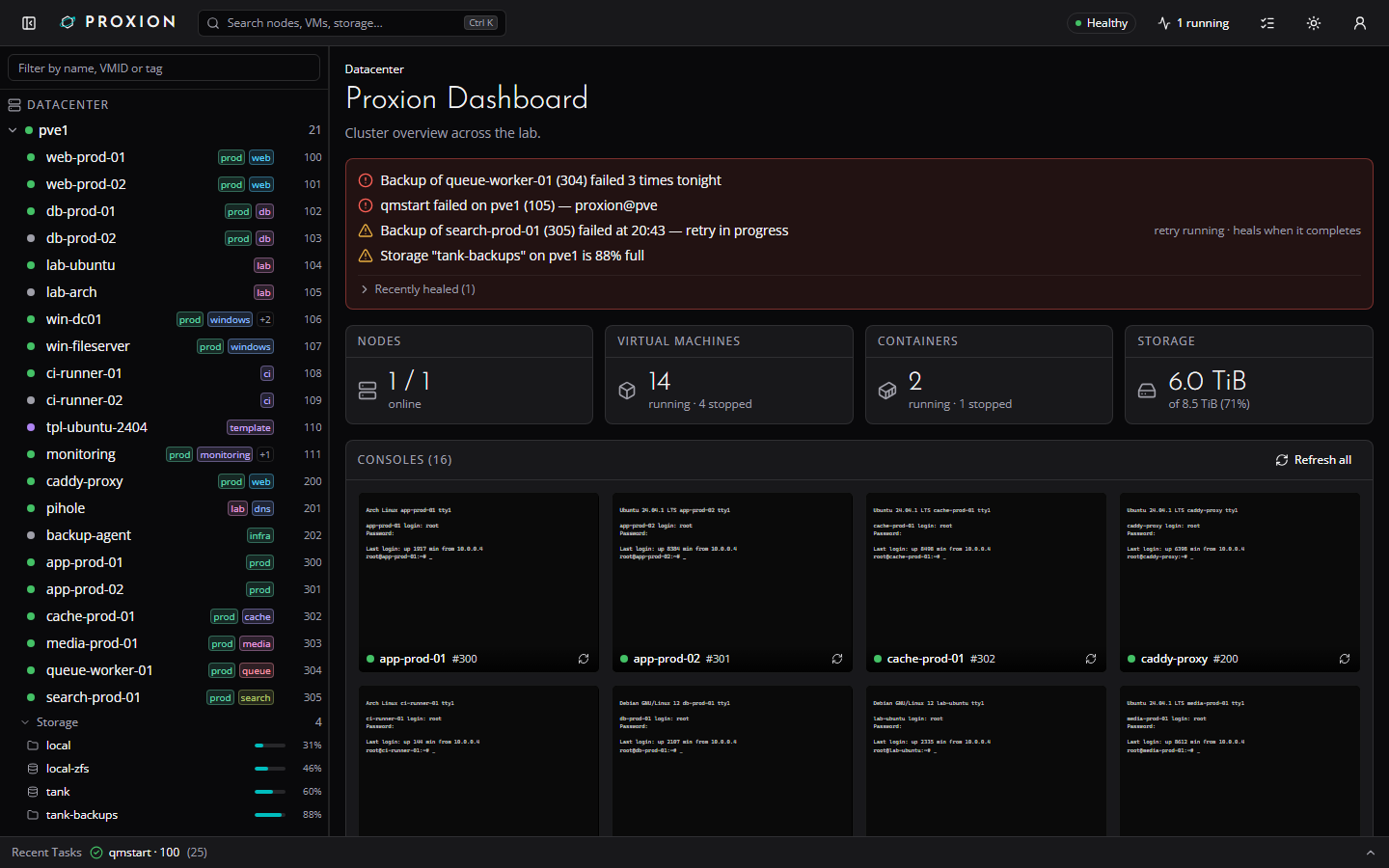
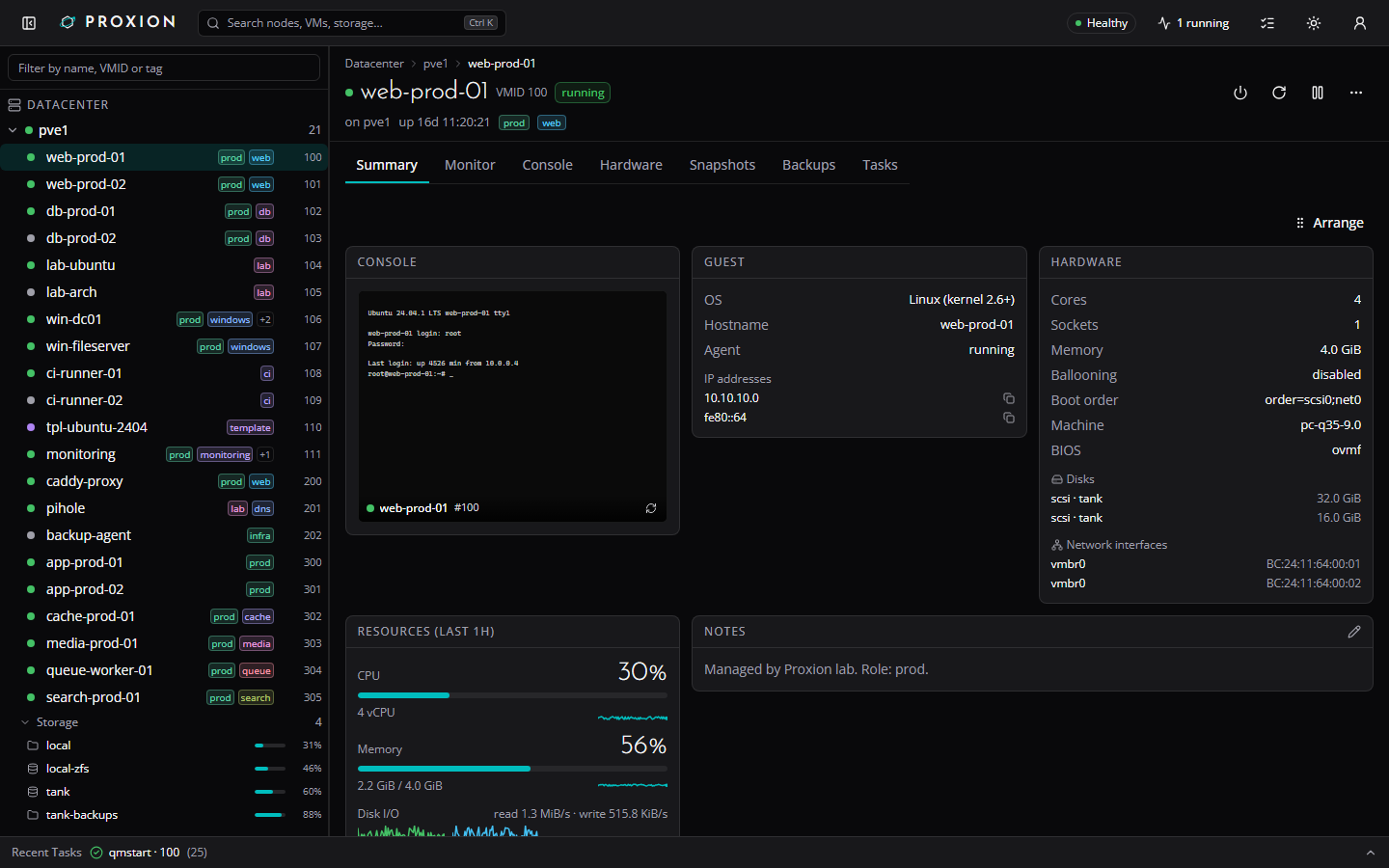
| Dashboard | VM summary |
|---|---|
 |
 |
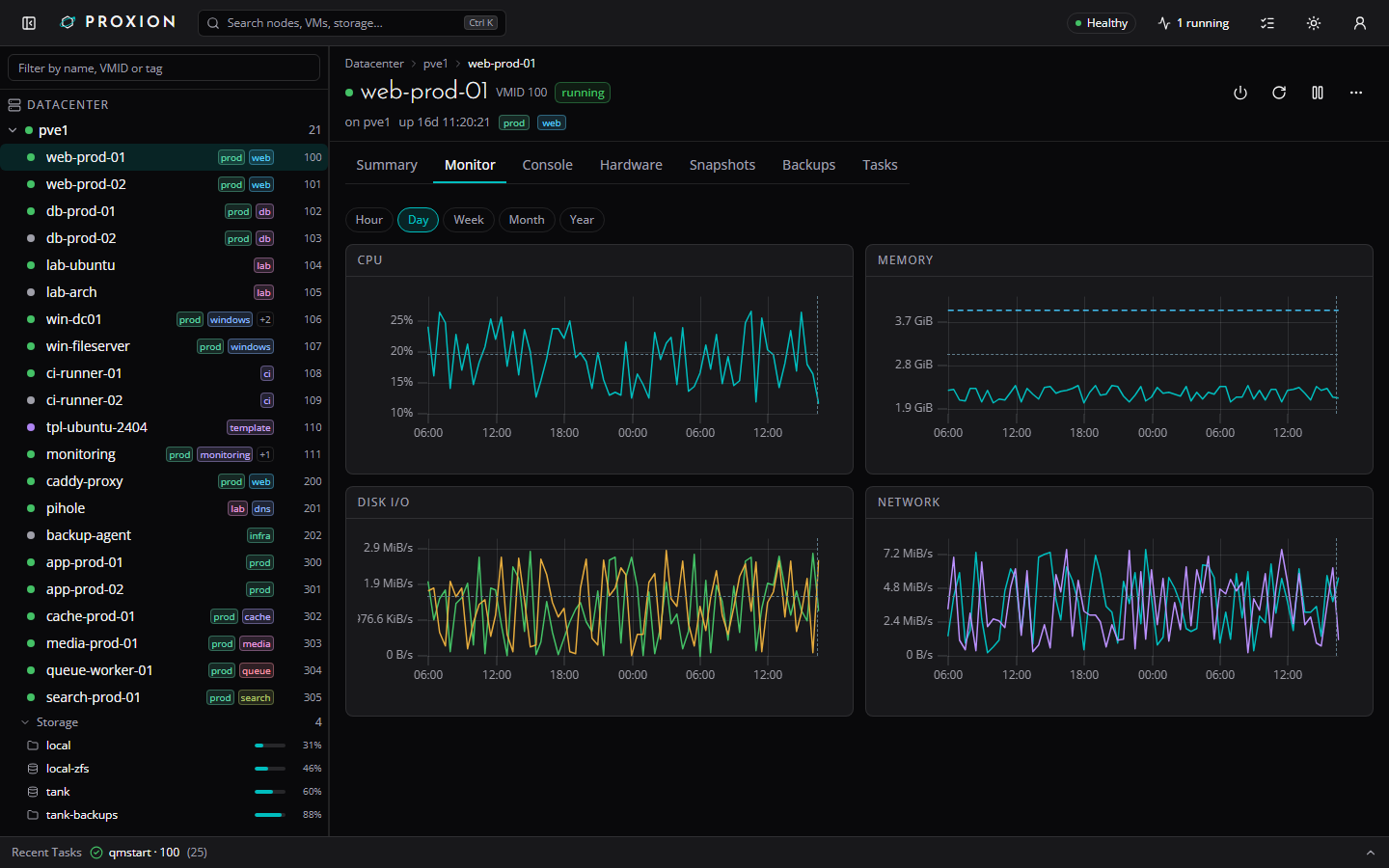
| VM monitor charts | VM hardware |
|---|---|
 |
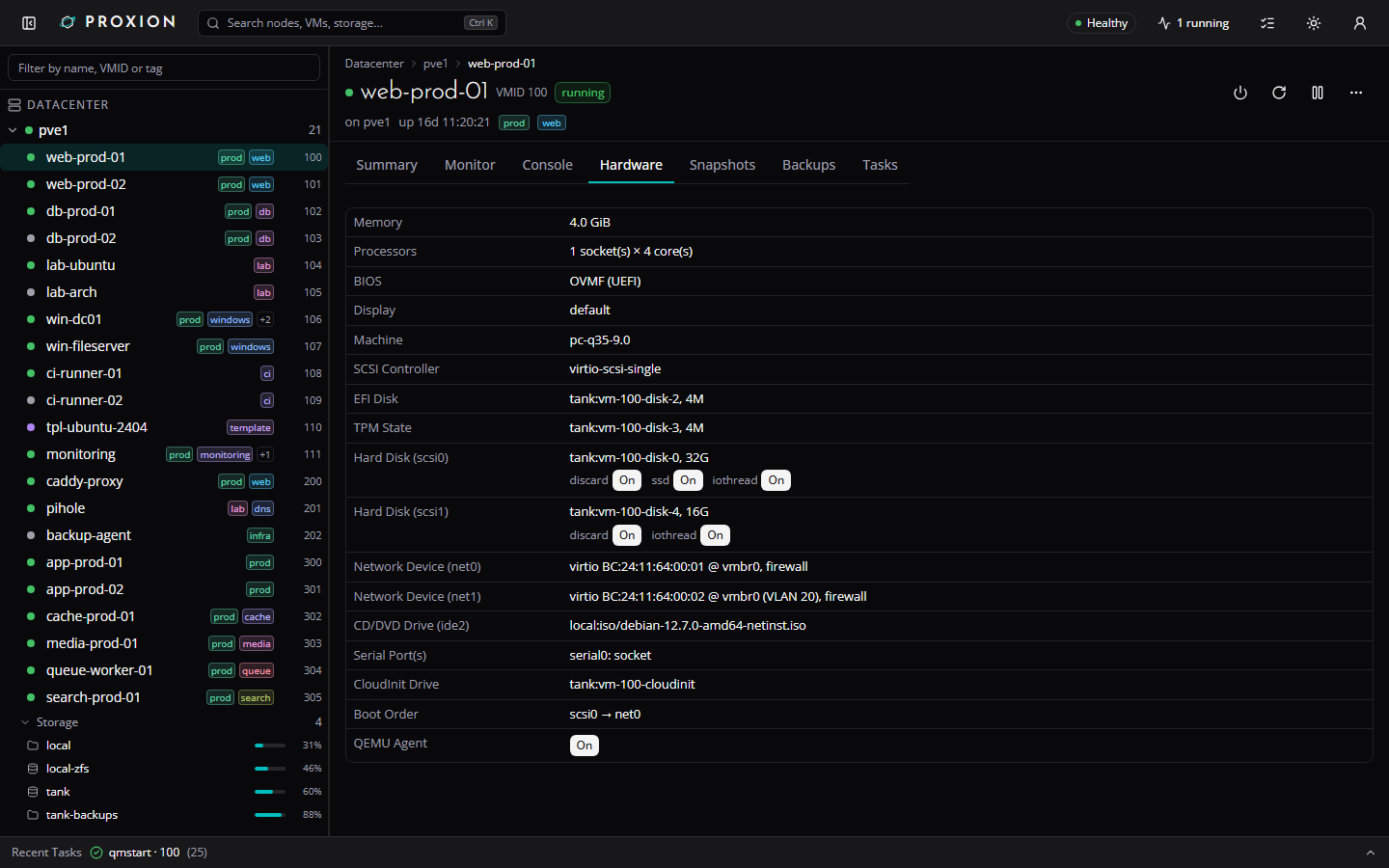 |
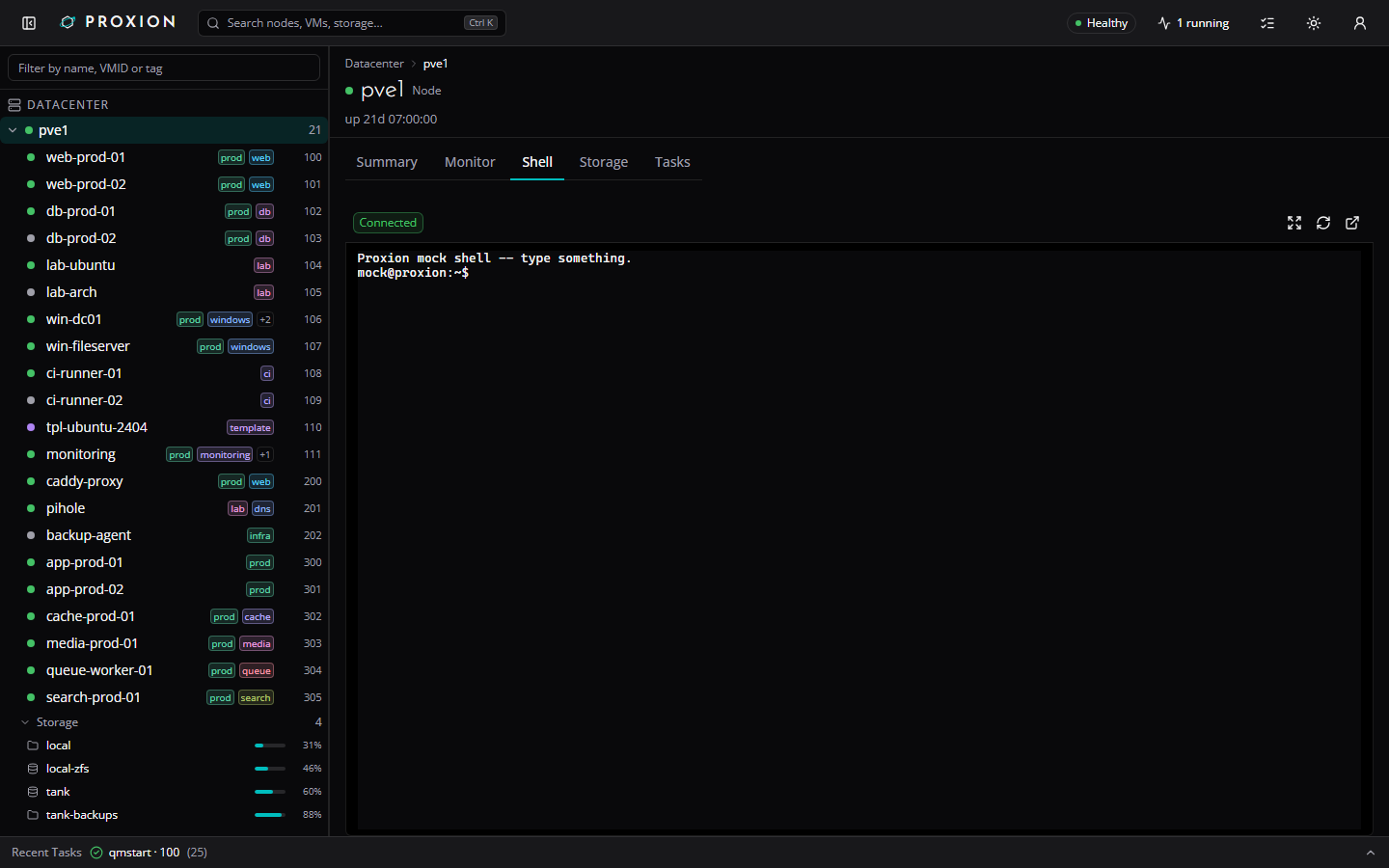
| Preferences | Guest action confirmation |
|---|---|
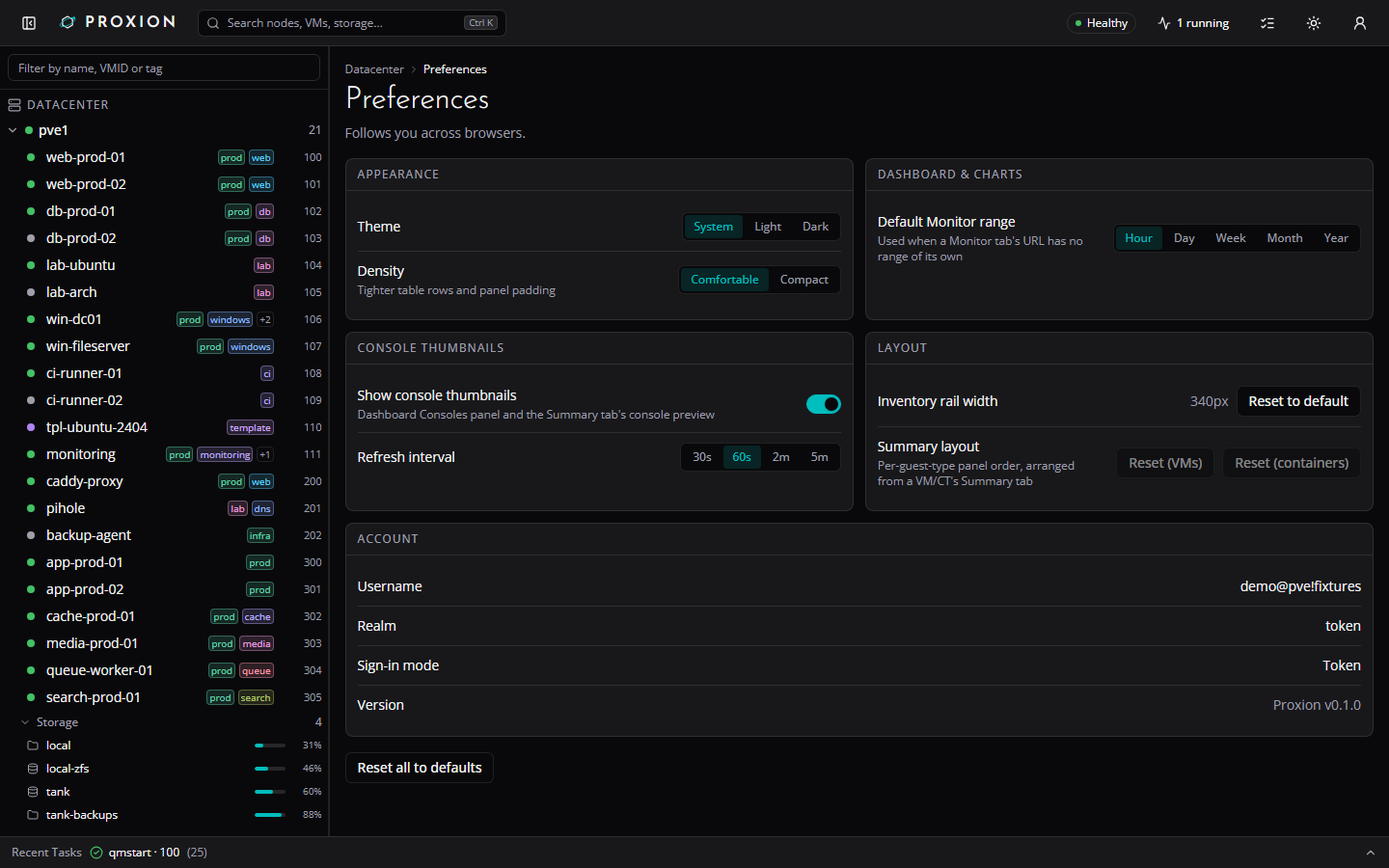 |
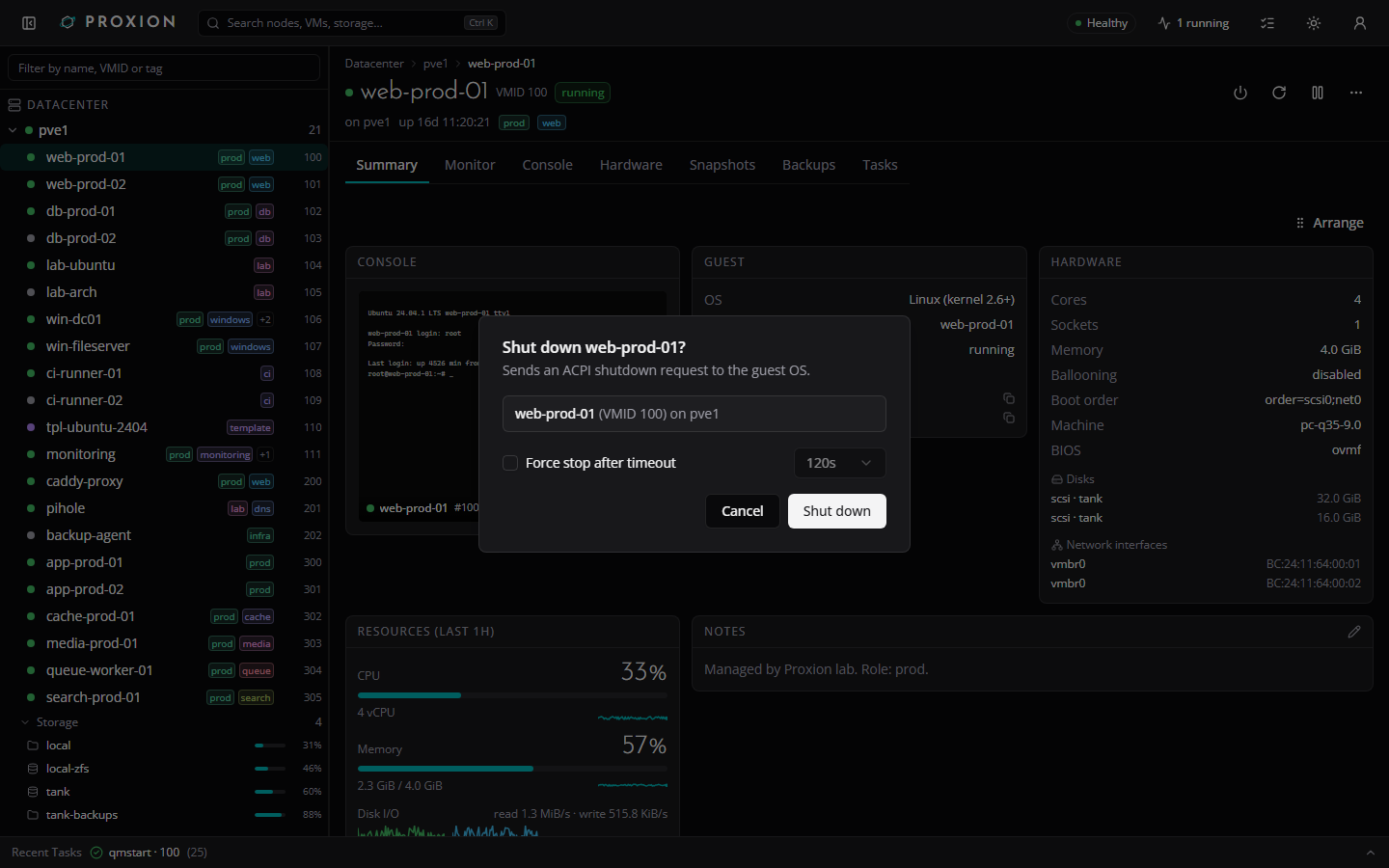 |
Quickstart
Get from nothing to a running Proxion in one docker compose up.
1. Create a read-only PVE user + API token
Run on a Proxmox node as root (or an equivalently privileged user) -- this gives Proxion's live dashboard/task feed just enough to read your cluster, plus console access for the embedded VNC/terminal bridges:
pveum role add ProxionReadOnly -privs "Datastore.Audit,Mapping.Audit,Pool.Audit,SDN.Audit,Sys.Audit,VM.Audit,VM.Console"
pveum user add proxion@pve
pveum aclmod / -user proxion@pve -role ProxionReadOnly
pveum user token add proxion@pve dev --privsep 0
The last command prints the token's secret once -- copy it somewhere safe;
you'll paste it into .env as PVE_TOKEN_SECRET below (PVE_TOKEN_ID is
proxion@pve!dev). You still sign in to the app itself with your own PVE
username/password (Proxion never stores it) -- this token is only for the
always-on cluster poller.
2. Get your PVE cert's TLS fingerprint
PVE's default certificate is self-signed, so Proxion pins to it instead of either trusting a real CA or disabling verification:
pvenode cert info
# or: openssl s_client -connect pve.example.local:8006 </dev/null 2>/dev/null \
#       | openssl x509 -fingerprint -sha256 -noout
Copy the Fingerprint (sha256) value into PVE_TLS_FINGERPRINT below.
3. Configure and start
cp .env.example .env
# edit .env: PVE_URL, PVE_TLS_FINGERPRINT, PVE_TOKEN_ID, PVE_TOKEN_SECRET, SESSION_SECRET, ...
cp docker-compose.example.yml docker-compose.yml
docker compose up -d
docker-compose.example.yml pulls the published image
(ghcr.io/c2tech-sys/proxion:0.1.0) by default; uncomment the build: .
line instead if you'd rather build it locally from this checkout.
Open http:// and sign in with your own PVE username and password.
Try it without a Proxmox host
No cluster handy? Run the UI against static fixtures instead -- no server, no PVE, no Docker:
pnpm install && pnpm demo
Production notes
- Put Proxion behind TLS -- see docs/deploy.md for reverse-proxy config (nginx/Caddy) and the Caddy + Azure DNS kit for a mesh-only deployment with a real Let's Encrypt certificate.
- Set a real
SESSION_SECRET(openssl rand -hex 32) -- required in production. - Review
PROXION_COOKIE_SECUREif Proxion itself is served over plain HTTP behind something else that terminates TLS. - The optional per-node host agent avoids a
vncproxytask-log entry for every console thumbnail capture. - Storage uploads stream through the Proxion container itself, so any reverse
proxy in front of it must allow large request bodies (Caddy does by
default); see
PROXION_UPLOAD_MAX_BYTESbelow to cap the largest upload this server will forward to PVE. - After a deploy, a tab left open from before the update shows a banner offering a reload once it notices the server is running a newer build than the tab itself.
Feature status
Reads go through a permanently read-only proxy. The writes this app
performs -- guest power actions, rename/notes, snapshot
create/delete/rollback, and migrate (below) -- each go through their own
allow-listed route, gated on a signed-in session and the matching PVE
privilege on that guest. Nothing else here can edit config or otherwise
change your cluster -- /api/pve/* itself stays a read-only proxy.
| Area | Status | Notes |
|---|---|---|
| Auth | Works | Pass-through PVE login (username/password/realm), signed httpOnly session cookie, transparent ticket renewal. |
| Dashboard | Works | Cluster-wide totals, cluster nodes table, top CPU/memory consumers, per-storage usage, and an alerts strip (failed tasks, storage over 85% full) from the live poller. |
| Inventory tree | Works | Datacenter -> node -> VM/CT, type-to-filter, status dots, tag chips, right-click context menu (open, console, shell, copy VMID/IP). |
| Guest list | Works | vSphere-style "VMs and Templates" view at /guests: every guest across the cluster in one sortable, filterable table (search, status/type/node filters, per-user column visibility), sharing the inventory tree's own right-click actions. Row checkboxes (plus a select-all-in-view header checkbox) multi-select guests for bulk Start/Shut down/Reboot/Stop, confirmed in one dialog that lists what's applicable, skips guests it isn't (wrong power state, or a template), and runs them with limited concurrency. |
| Command palette (Cmd/Ctrl-K) | Works | Search nodes/VMs/CTs by name, VMID, IP, tag. |
| VM/CT Summary tab | Works | Guest info, hardware, resource gauges, notes, related objects, last backup. |
| VM/CT Monitor tab / node Monitor tab | Works | Resource graphs from PVE's RRD data, hour through year (plus decade for nodes), with time-range chips and a unified hover tooltip. |
| VM/CT Hardware tab | Works (edit CPU/memory/CD-ROM/disk size/boot order, add/detach/remove disks and mount points, add/remove CD/DVD drives, add/edit/remove network devices, BIOS/machine type and version/display/SCSI controller, add EFI disk and TPM state, session sign-in only) | Full device breakdown: disks, EFI disk, TPM state, NICs (VLAN/rate), CD-ROM, cloud-init, boot order, serial/USB/PCI passthrough. A pencil on a row edits it: processors (sockets, cores, CPU type; lxc: cores) needs VM.Config.CPU; memory (+ balloon minimum for a VM, swap for a container) needs VM.Config.Memory; a CD/DVD drive's ISO (or "No media") needs VM.Config.CDROM; "Add CD/DVD drive" (a VM only) takes the first free IDE/SATA/SCSI slot (or one you pick) with no media or an ISO, and the trash on a CD/DVD row removes the drive (the ISO file stays on its storage; the cloud-init drive is never offered), both also VM.Config.CDROM; growing a disk (+N GiB, never a shrink) needs VM.Config.Disk; a VM's boot order (tick the devices to boot from and move them up or down; a VM only) needs VM.Config.Options; adding, editing or removing a network device (model, bridge, VLAN tag, firewall, rate limit, MTU, disconnect; a container's name, IPv4/IPv6) needs VM.Config.Network (PVE also checks SDN.Use on the bridge) -- options the dialog doesn't show (queues, trunks, ...) are kept on edit. "Add disk" (a VM) / "Add mount point" (a container) creates a new volume on an image-capable storage of the node (bus, size, format limited to what the storage supports, cache/discard/SSD/IO thread for a VM; path, backup, read-only, ACL for a container) and needs VM.Config.Disk on the guest plus Datastore.AllocateSpace on the storage; "Detach" (VM.Config.Disk) keeps the volume as an unused disk, and "Remove" on an unused disk destroys the volume permanently after typing its slot name (VM.Config.Disk; PVE enforces any further storage privilege itself). Changes PVE holds back until the guest restarts are listed in a banner with the affected rows badged "pending". Needs a signed-in session -- the shared service token stays read-only here too. A VM's "Add device" menu adds a USB device (Spice port, host vendor:device ID, host port, or a mapped device), a PCI passthrough device (host device grouped by IOMMU group, or a mapped device; All functions, PCI-Express, ROM-Bar, Primary GPU, MDev type) or a serial port (a socket); each device row can be edited (not serial) or removed, all needing VM.Config.HWType -- PVE itself restricts raw (non-mapped) USB/PCI devices to root@pam and checks Mapping.Use on mapped ones, and its message is shown as-is; the host device and mapping pickers need Sys.Modify / Mapping.Audit and fall back to typing the identifier without them. Containers' dev<n> passthrough stays read-only. A VM's BIOS (SeaBIOS or OVMF), machine type (i440fx or q35, the version pinned or "Latest (default)" from the node's own list, a virtual IOMMU on q35, or reset to PVE's default), display (adapter and video memory) and SCSI controller each get a pencil too, all needing VM.Config.HWType; switching to OVMF can add the EFI disk in the same save, and "Add EFI disk" / "Add TPM state" (shown only while the VM has none; storage, pre-enrolled keys or TPM version) need VM.Config.Disk on the guest plus Datastore.AllocateSpace on the storage. Other disk options are not editable yet. |
| VM/CT Options tab | Works (session sign-in only) | A row list modelled on PVE's Options panel. VM: name, start at boot, start/shutdown order (order, up, down), OS type, protection, tags, QEMU guest agent (+ trim cloned disks), local time for RTC, tablet pointer, ACPI, KVM, hotplug. Container: hostname, start at boot, start/shutdown order, protection, tags, DNS servers, DNS search domain, plus read-only unprivileged / architecture rows. A pencil on a row edits it: name, start at boot, order, OS type, protection, tags, guest agent and local time need VM.Config.Options; tablet, ACPI, KVM and hotplug need VM.Config.HWType; a container's hostname and DNS settings need VM.Config.Network. Protection asks for confirmation. Name/hostname reuses the existing rename action. Editing the guest agent keeps the sub-options the dialog doesn't show (type, freeze-fs-on-backup). PVE enforces the datacenter tag policy itself and its message is relayed. Changes PVE holds back until the guest restarts are listed in a banner with the affected rows badged "pending". The shared service token stays read-only. |
| VM Cloud-Init tab | Works (edit settings and regenerate the image, session sign-in only) | A VM with a Cloud-Init drive gets PVE's Cloud-Init panel: user, password (hashed by Proxmox, never shown back or logged), DNS domain and servers, SSH public keys (shown decoded, one per line), package upgrade, type, and one IP config row per network device (DHCP, or a static address with gateway, IPv4 and IPv6). A pencil on a row edits it and "Regenerate image" rebuilds the cloud-init drive; all of it needs VM.Config.Cloudinit. Changes PVE holds back are listed in a banner with the affected rows badged "pending". A VM without a Cloud-Init drive shows a hint to add one on the Hardware tab (adding the drive is not done here). Needs a signed-in session -- the shared service token stays read-only. |
| VM/CT Snapshots tab | Works (create/delete/rollback, session sign-in only) | Snapshot tree, plus taking, deleting and rolling back snapshots (RAM-included snapshots and post-rollback guest start for qemu). Needs a signed-in session and VM.Snapshot (VM.Snapshot.Rollback for rollback) on the guest -- the shared service token stays read-only here too. |
| VM/CT Backups tab | Works (backup now / restore / delete, session sign-in only) | Every backup volume across backup-capable storages, with verification status, plus starting a backup (vzdump), restoring one (over an existing guest or to a new VMID), and deleting one from its own row menu. Needs a signed-in session and VM.Backup on the guest plus Datastore.AllocateSpace on the storage for backup; for restore, VM.Allocate on the target VMID for a new id, or VM.Backup/VM.Allocate on it to overwrite an existing guest (which must be stopped); for delete, Datastore.Allocate on the storage, or Datastore.AllocateSpace plus VM.Backup on that guest -- the shared service token stays read-only here too. |
| VM/CT Firewall tab | Works (rules + options + aliases + IP sets, session sign-in only) | The guest's own firewall: an options card (enable the firewall -- with a confirmation when the input policy is DROP, since that can cut your own access -- input/output policy, DHCP, NDP, router advertisement, MAC filter, IP filter, log levels) and the rule table with add / edit / delete / enable-disable / move up and down, including rules that apply a cluster security group. Edits, deletes, moves and option changes forward PVE's digest of the last read, so a firewall someone else just changed is refused rather than overwritten. Needs a signed-in session and VM.Config.Network on the guest (what pve-firewall itself checks) -- the shared service token stays read-only here too. Three inner tabs: Rules (the options card and the rule table), Aliases (add, edit, rename and delete named addresses and networks for this guest) and IP Sets (create, rename and delete this guest's sets, and add, edit and remove entries with the nomatch exclusion flag); the rule dialog's source and destination fields suggest the guest's own aliases and IP sets next to the inherited datacenter ones. Alias and IP set writes go through /api/actions/guest/{node}/{type}/{vmid}/firewall/{aliases,ipsets} with the same VM.Config.Network check and forward PVE's digest of the last read. The firewall log and the node firewall are not covered (the datacenter firewall is the next row). |
| VM/CT and node Tasks tabs | Works | |
| Node Summary / Storage / Tasks tabs | Works | Storage lists are sorted by name by default and no longer reorder between refreshes: the dashboard Storage panel and the Storage tab are sortable (name / node / type / used / free / usage) and the choice is saved in your user preferences (the inventory tree is always name-sorted). |
| Storage browser | Works | vSphere-style datastore page at /storage/$node/$storage: summary strip (status, type, shared/usage) plus a searchable, sortable content browser (type chips, owner links to guests), linked from the inventory tree, command palette, dashboard and node Storage tab. |
| Embedded VNC console / terminal | Works | noVNC-protocol VNC console and xterm.js terminal, each with a toolbar (Ctrl+Alt+Del, scale-to-fit, reconnect) and a dedicated pop-out window. The VNC console's Paste types the text into the guest as keystrokes (US layout assumed). |
| Node shell | Works | xterm.js terminal against the node's own shell, with pop-out. |
| Console thumbnails | Works | Dashboard "Consoles" panel, VM/CT Summary preview, and an inventory-tree hover card (hover or keyboard-focus a running guest row) of each running guest's display, captured server-side over VNC (needs VM.Console); one vncproxy task per capture. |
| Recent Tasks drawer | Works | Live, via the SSE task feed. |
| Preferences | Works | Theme, density, default Monitor range, console thumbnails on/off + refresh interval, inventory rail width, and your Summary panel order -- stored server-side per user, so they follow you across browsers. Read-only under the shared service token. |
| Power actions | Works (session sign-in only) | Start/Shut down/Reboot/Pause/Resume/Stop/Reset from the VM/CT object header (Start/Shut down/Reboot/Stop also in the inventory tree's context menu), each behind a confirmation |