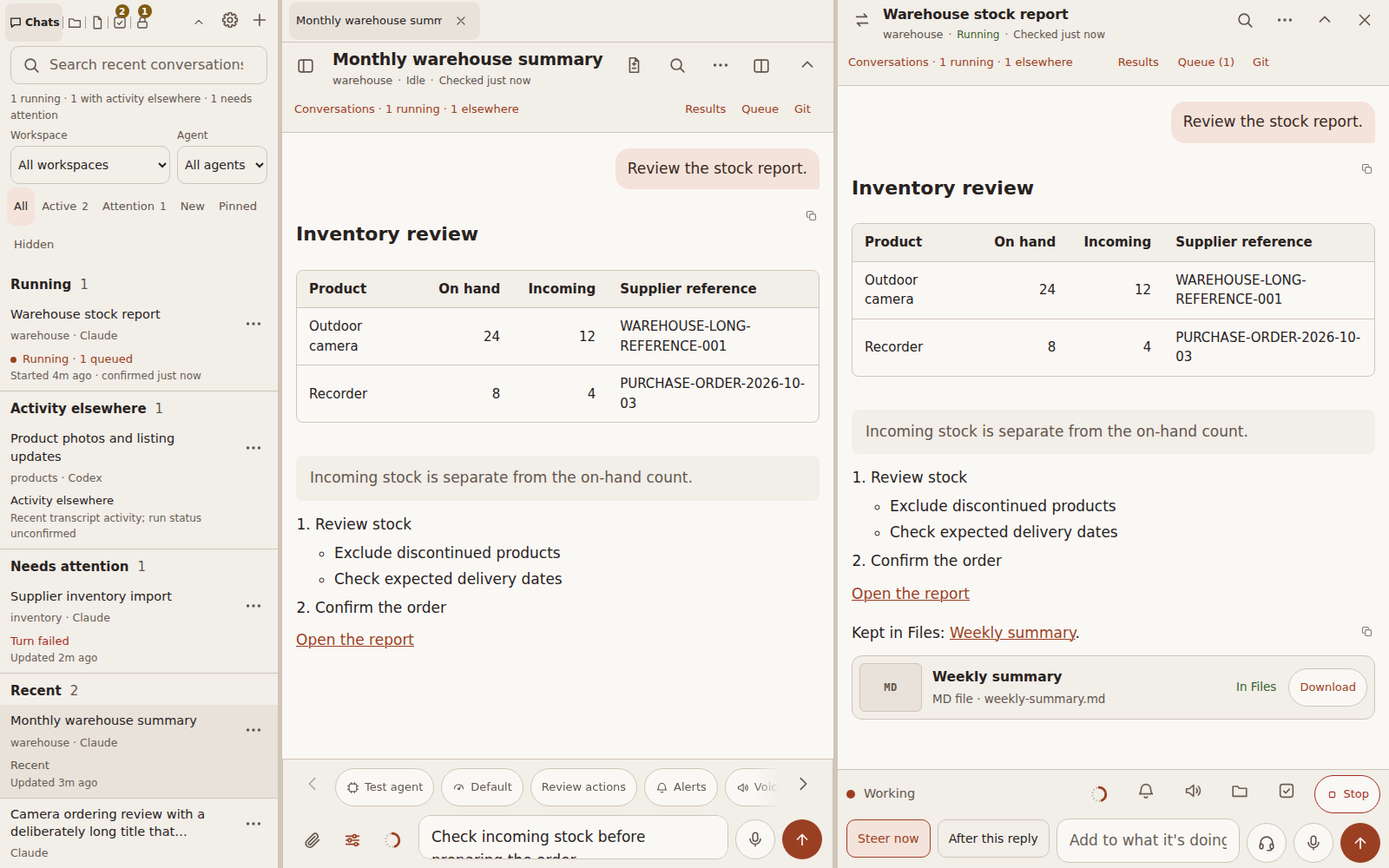
- Side chat and Branch. Two ways off a Claude or Codex conversation. Side chat asks a quick question
about it while it works (the speech-bubble button, Ctrl+; or a message that starts with
/btw): nothing is saved and nothing changes. Branch starts a new saved conversation that carries on from there with everything so far and can do work on its own; the original stays as it is, and each links to the other.
Pocket Code
Run ten Claude Code and Codex sessions at once, and always know which one needs you.
Pocket Code is a self-hosted workspace for people who use Claude Code or Codex for more than one thing at a time. Sessions run on your server, so closing the browser, locking the phone or restarting the app changes nothing. A session rail sorts what is running, what is waiting on you and what just finished. Saved prompts start recurring work in a tap. Agents answer with buttons, offer a to-do when work needs a later check, keep the reports they produce in Files, and use credentials from an encrypted Vault without ever seeing them. At your desk it is tabs and four-way split view. On your phone it is the same workspace, installed as an app.
It has two modes on the same server: Developer mode, the full workbench for people running coding agents, and Assistant mode, a calm message box for people who use Pocket as their work assistant (email, quotes, documents) and never want to see the machinery. And it includes Inbox Watch, which reads your Gmail on the schedule you set and puts in Pocket's Inbox only what actually needs you, keeping that list tidy as things get handled.
This checkout documents 1.87.0 / build 179. See the changelog for release status and GitHub Releases for published versions. An unreleased changelog entry is a candidate, not a release.
Screenshots use synthetic demo sessions, not private conversations.
The manual explains each feature, how to set it up and how it works, one page per feature, for you and for the agents working with you: Pocket points every agent it starts at it.
Highlights
Every session, on every screen
Run Claude Code and Codex side by side: a searchable session rail, tabs, and up to four conversations in split view at your desk. Install it on your phone and the same sessions are there, with the draft you left.
Projects, files and tasks beside the work
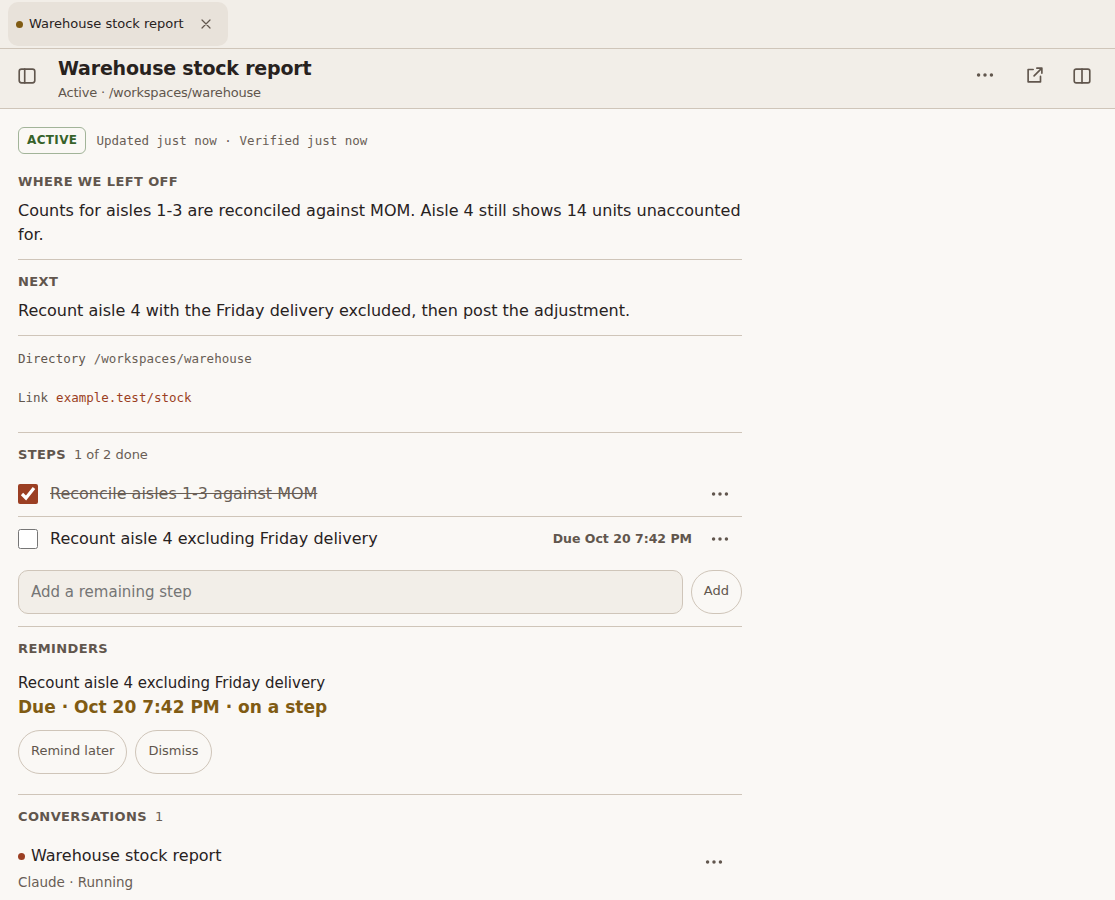
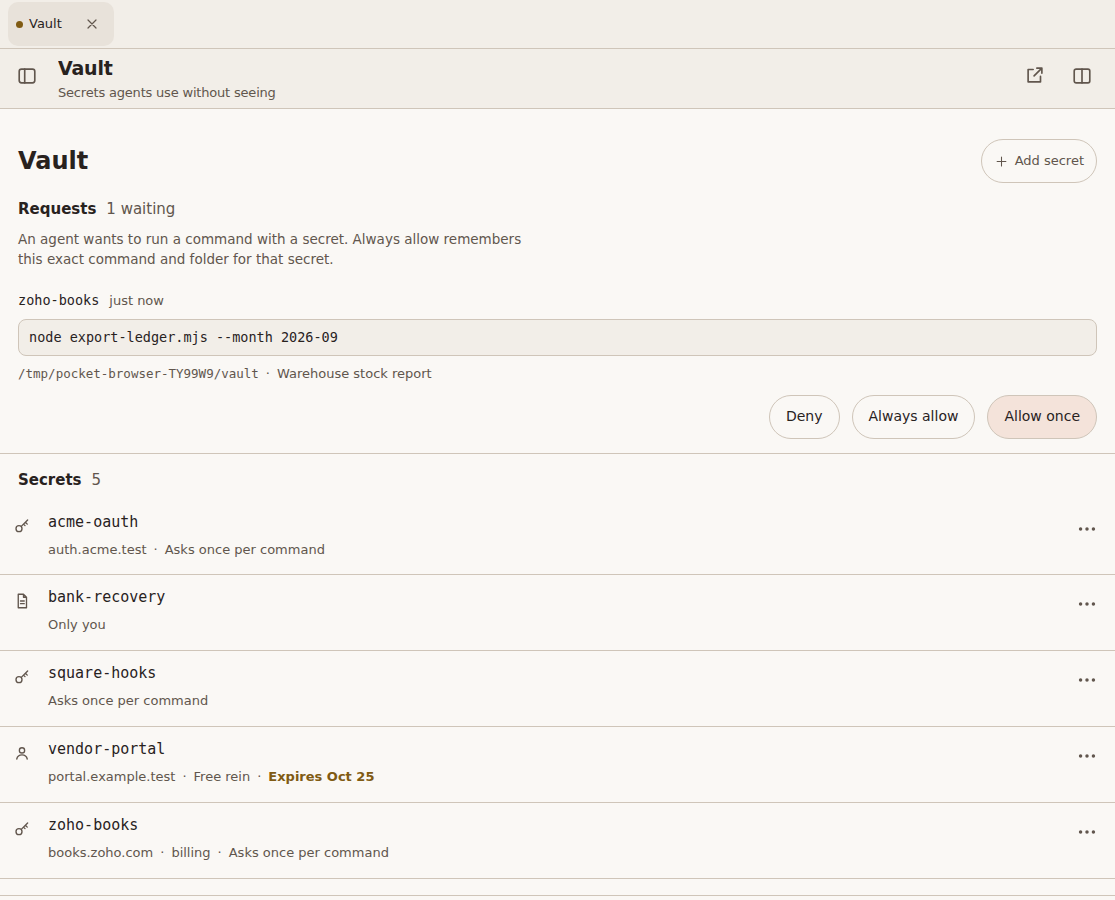
Four optional libraries keep what comes out of a session from getting lost. Projects hold where you left off, the next step, a checklist and reminders; Start conversation opens a new conversation briefed on where the project stands and linked to it. Files keeps the reports, dashboards and spreadsheets agents produce, rendered in place and shared only when you ask. Tasks are to-dos with an optional date, linked to the session they came from; Start opens a new session with the task already written in, and a start link lets an agent or a job on the server hand Pocket a briefing that opens the same way. The Vault keeps API keys, tokens and logins encrypted on the server; agents use them by name, in commands or typed into a web page's login form, and never see the values. You decide how much they may do without asking, and every use is recorded. Lists keep up on their own: something an agent adds mid-turn shows up without a reload.
 |
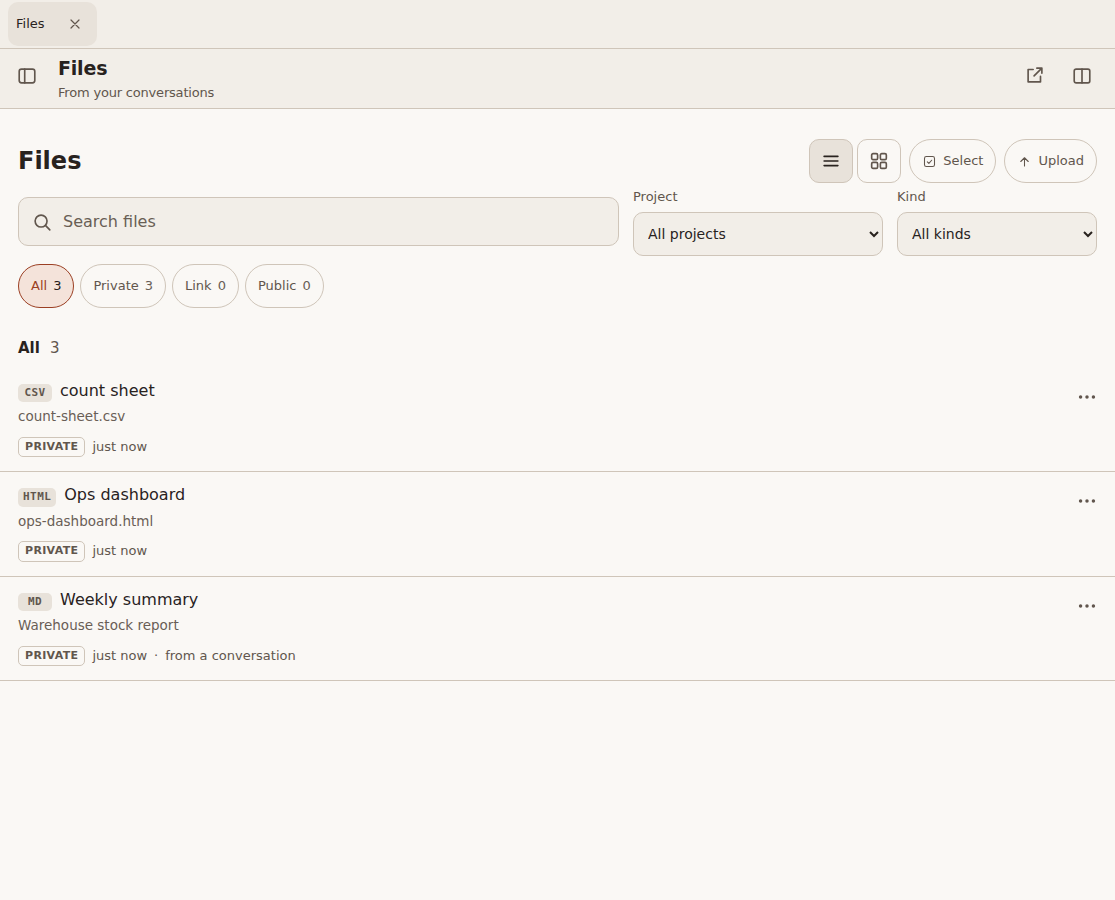 |
| Projects: the next step, a checklist and reminders | Files: what the work produced, private until shared |
 |
|
| Vault: agents ask before they use a secret, and never see its value | |
Developer mode or Assistant mode
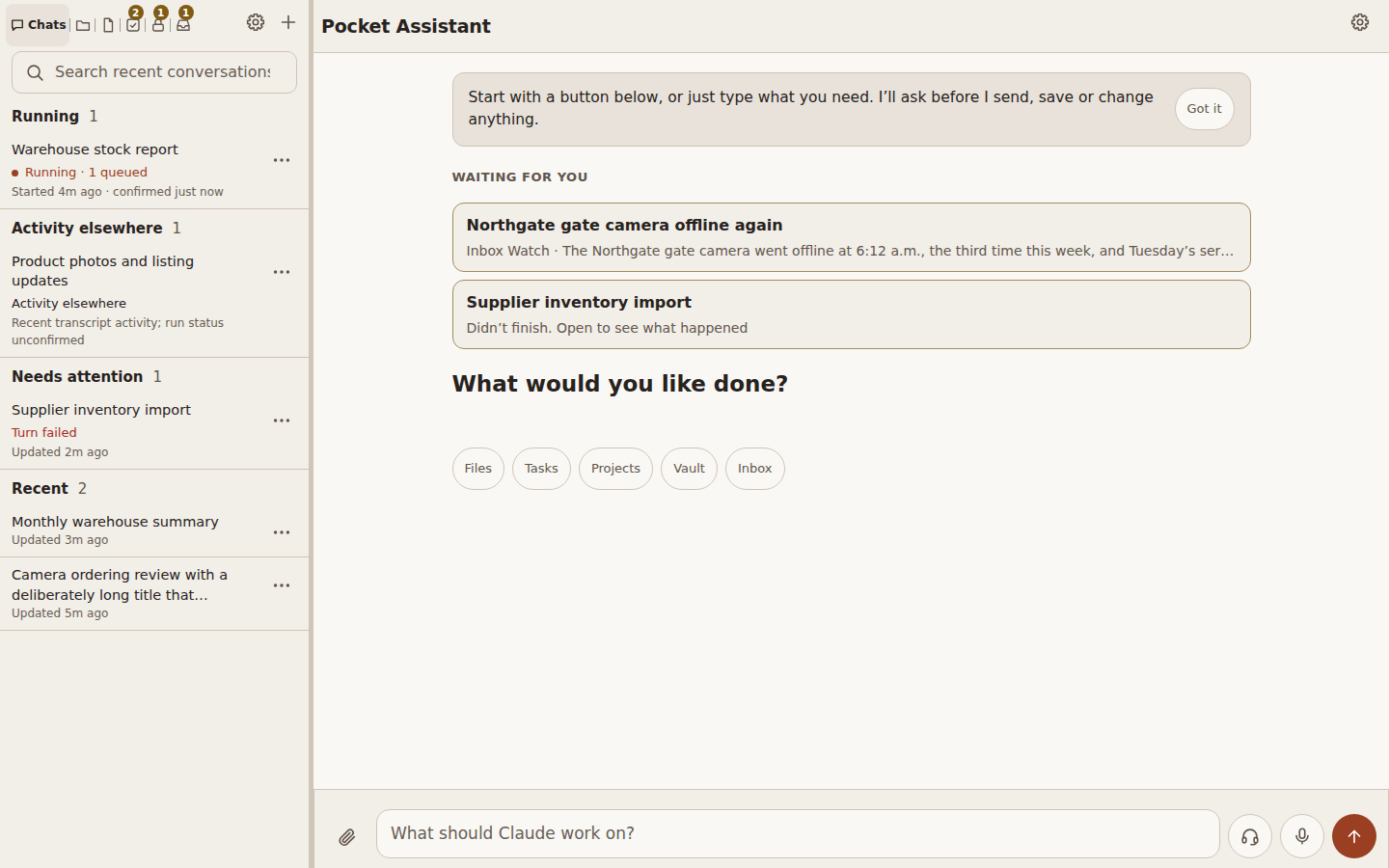
Pocket has two faces on the same server, sessions, Files, Tasks and Vault.
- Developer mode is the workbench: the session rail, tabs and split view, the model, reasoning and permission chips on every message, Results, Queue, Git, changed files, the subagent panel, cost and timing. For people who run coding agents and want to see the machinery.
- Assistant mode is for people who never write code: an account manager drafting a proposal, a warehouse manager marking stock, anyone making a deck or a document. It opens on the message box ("What would you like done?"), shows what is waiting for you and your recent conversations, picks the model for you, keeps steps and approvals in plain words, and calls the app Pocket Assistant. Nothing is removed underneath: every conversation, file and task is the same one the developer view shows, and Show details still opens the raw step.
Switch in Settings → Appearance → Mode (this Pocket, every device). An
administrator can set it for an install with POCKET_ASSISTANT_MODE=on or lock it with
locked, which is how a seat for an employee is provisioned. If you write code or run
coding agents, stay in Developer mode; if Pocket is your assistant for office work, use
Assistant mode.
Inbox Watch: your mailbox, read for you
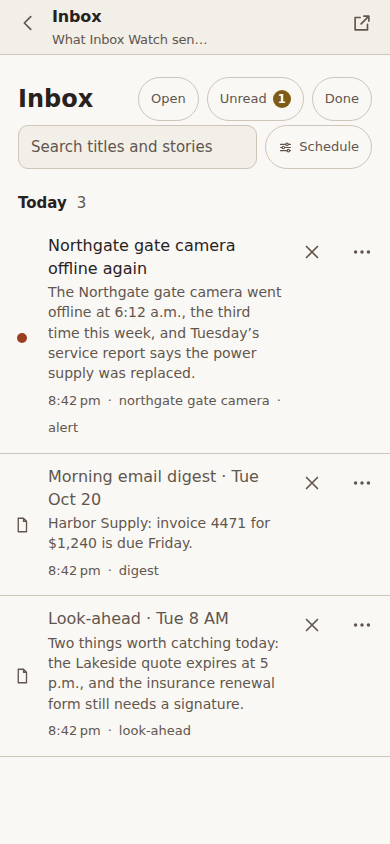
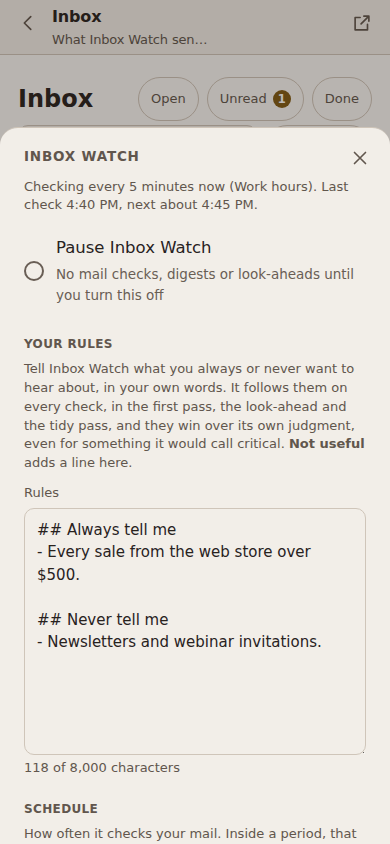
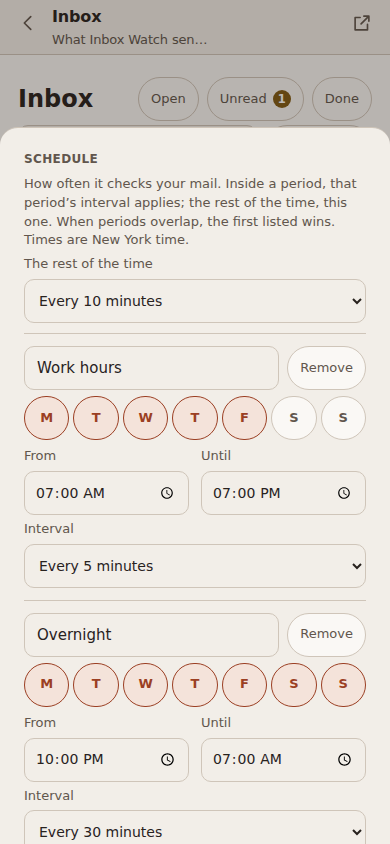
Turn it on and Pocket reads your Gmail, through the Gmail connector you already linked to Claude Code or Codex (1.74: nothing to install or sign in to), on the schedule you set, and interrupts you only when an email tells you something the email itself does not: the third outage this week at the same site, a reminder that contradicts what the customer asked for, a bill that is now due. Each alert lands in Inbox with Start a conversation, which opens one already briefed with the story and the Gmail links. A morning digest and a look-ahead cover the rest. Schedule, models and cost (1.70) sets when it checks (periods with their own days, hours and interval), quiet hours, the digest and look-ahead times, the models, and a first pass that skips clearly routine mail before the model reads it, and shows what each day cost. Your rules (1.73) are your own words about what you always or never want to hear about ("tell me about every sale from my web store", "never tell me about shipping notices"); the watcher follows them on every check, and they win over its own judgment. With Keep the Inbox tidy (1.71) it also takes off your list what has since been resolved or handled, saying why, so the Inbox holds only what still needs you. More below.
 |
 |
 |
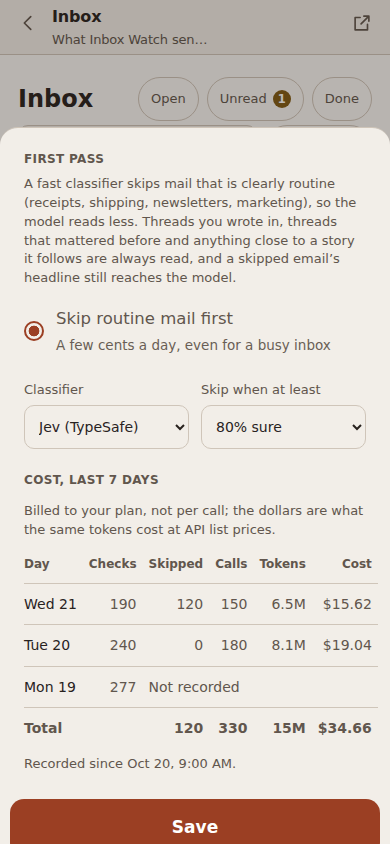 |
| What it sent | Your rules | When it checks | First pass and cost |
On your phone, with agents that work with you
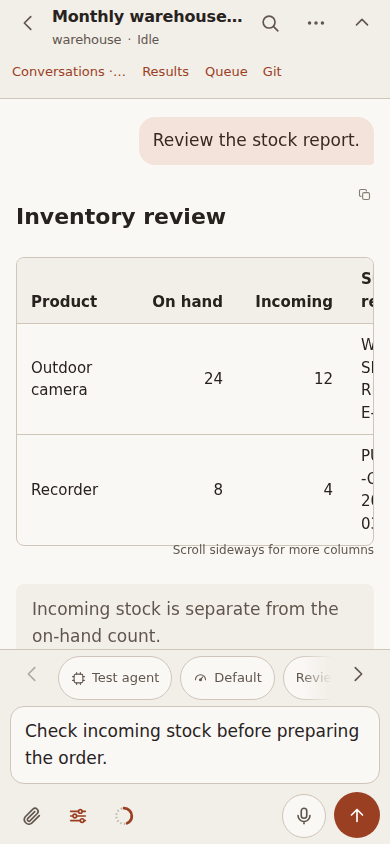
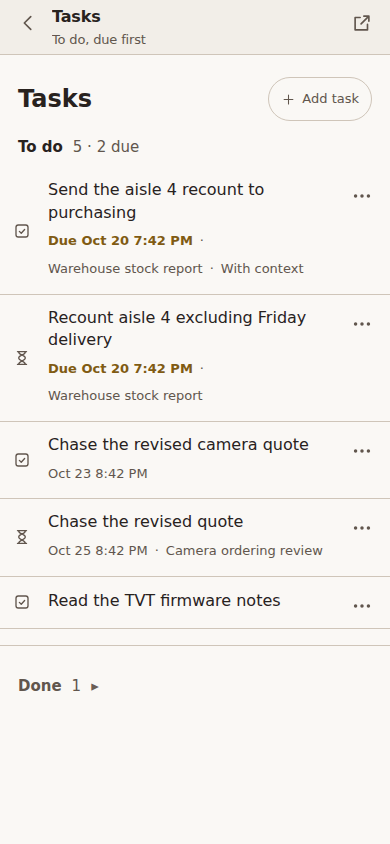
When a reply ends with a decision, the options appear as buttons: one tap answers. When the work needs a later check, such as a report that needs weeks of data or a reply you're waiting on, the agent offers a task as one of those buttons. Tap it and the task is filed with the date and a short briefing on the session. Agents keep projects and files current the same way, through commands and skills that ship with Pocket.
 |
 |
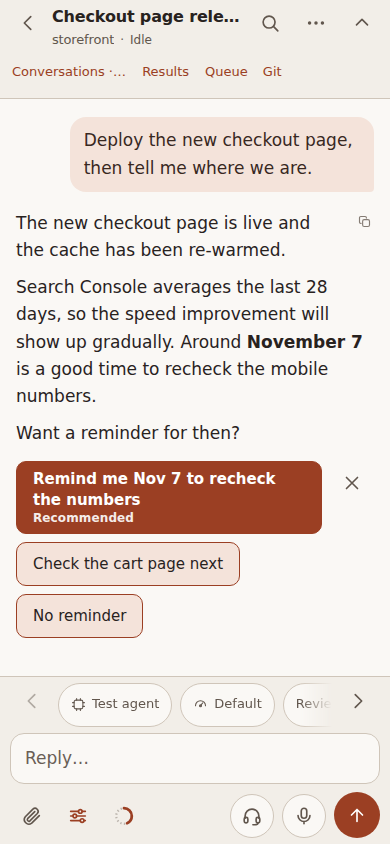 |
| A session on the phone | Tasks, due first | An agent offers a task |
- Answer with a tap. Suggested replies, native agent questions and action-approval cards appear in the conversation.
- Steer or queue. Redirect a running turn, or save a follow-up for after it.
- Choose how it runs. Model, reasoning effort, Review actions or Full access, and Codex's Plan first mode, per turn.
- Know where things stand. Confirmed server work versus activity elsewhere, a context ring with usage and plan limits, and push alerts when a turn finishes.
- Choose your appearance. Light, Dark or System, with orange, blue or purple highlights. Saved per browser and synchronized across its Pocket windows and split panes.
- Talk to it (beta). Speak through the mic beside Send and hear a short summary back, all processed on your own server.
Who it's for
- One person running many agents. Pocket Code has a single login and is built around one operator keeping several sessions moving without losing track of any of them.
- Developers, and anyone technical who uses coding agents for other work too. The author runs inventory reports, email, accounting and server operations through it, not just code.
- People who already run Claude Code or Codex on a Linux machine and want to run more of it, from more places, with less babysitting.
- Office staff who never write code, through Assistant mode: one Pocket per person on their own small server, opening on a message box, with the developer controls out of sight.
It is not a hosted service, not a terminal or editor replacement, and not a multi-user team product. Projects, Files, Tasks and the Vault are off by default; a session works the same without them.
Why it exists
I built Pocket Code because one Claude Code session at a time was the bottleneck. With it I run ten, see at a glance which ones are waiting on me, start the routine ones from saved prompts, and let the agents file the to-dos, keep the files and use the credentials. It roughly doubled what I get done with AI in a day, and it did that without adding clutter.
What you can do
Sessions and the desktop workspace
- Find any session. Search titles at once and, after a short pause, inside conversations too; a result opens at its match. Filter by workspace, agent and state (Active, Attention, New, Pinned); pin, reorder pins, rename, hide or move work. Scheduled runs sit in their own Automated group.
- Titles that keep up. Untitled sessions get a generated title that follows the work as it moves on. Optionally sync names with code-server.
- Tabs and split view. Keep open sessions as tabs with status marks; open up to four conversations side by side, start a new session in a pane, swap panes and resize them. Results, Queue and read-only Git inspection can stay in a side panel.
- Start faster. Choose the agent, workspace, model and reasoning on New session; start from an installed skill; save a start as a saved prompt or repeat a recent start. Saved prompts live on the server, so the phone and desktop share them.
- Read the output. Streamed reports, tables, code, images and checklists, with tool calls folded behind a one-line summary. Find text in a conversation, copy messages or code, and open linked results. Message times and day dividers, text size and a highlight colour (Orange, Blue or Purple) are in Settings.
On your phone
- Install it as an app. The PWA keeps drafts and attachments through reloads and keeps the composer, paperclip and Send in reach. Header and message settings collapse independently.
- Catch up quickly. Coming back to a session with unseen work opens at the end, with a New since line and, for anything longer than a short exchange, a While you were away summary of what was done and decided.
- Know what needs you. Attention collects questions, approvals, failed turns and replies you have not opened; Mark as reviewed clears one, on every device.
- Get alerts. Optional push notifications, chosen by kind per device (finished turns, due tasks and reminders, Vault requests, Inbox alerts), a count of due items on the app icon, an on-screen chime and per-session muting. Push needs HTTPS, server keys and browser permission. Due tasks and reminders can also go by email when the server has an SMTP address.
Appearance
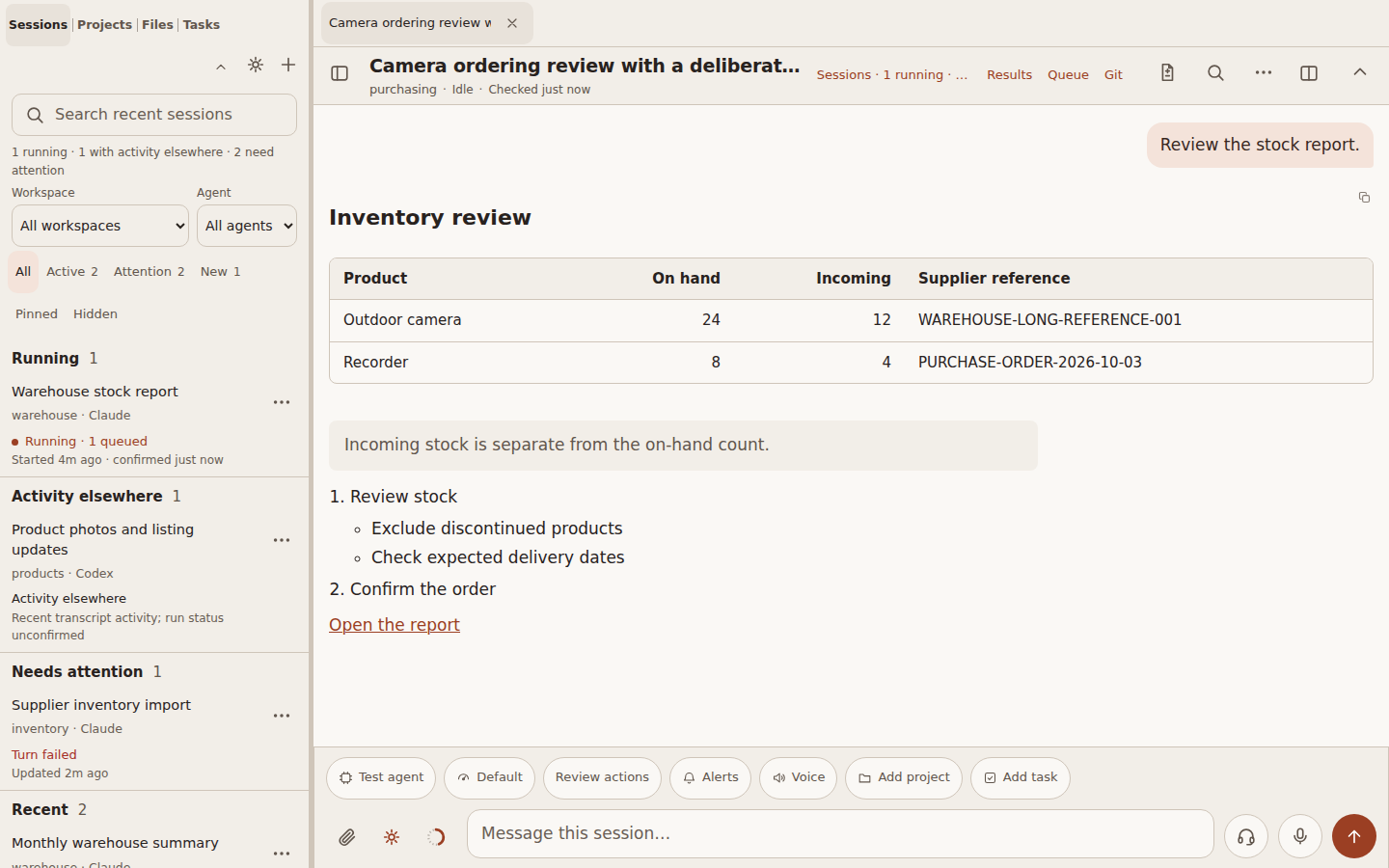
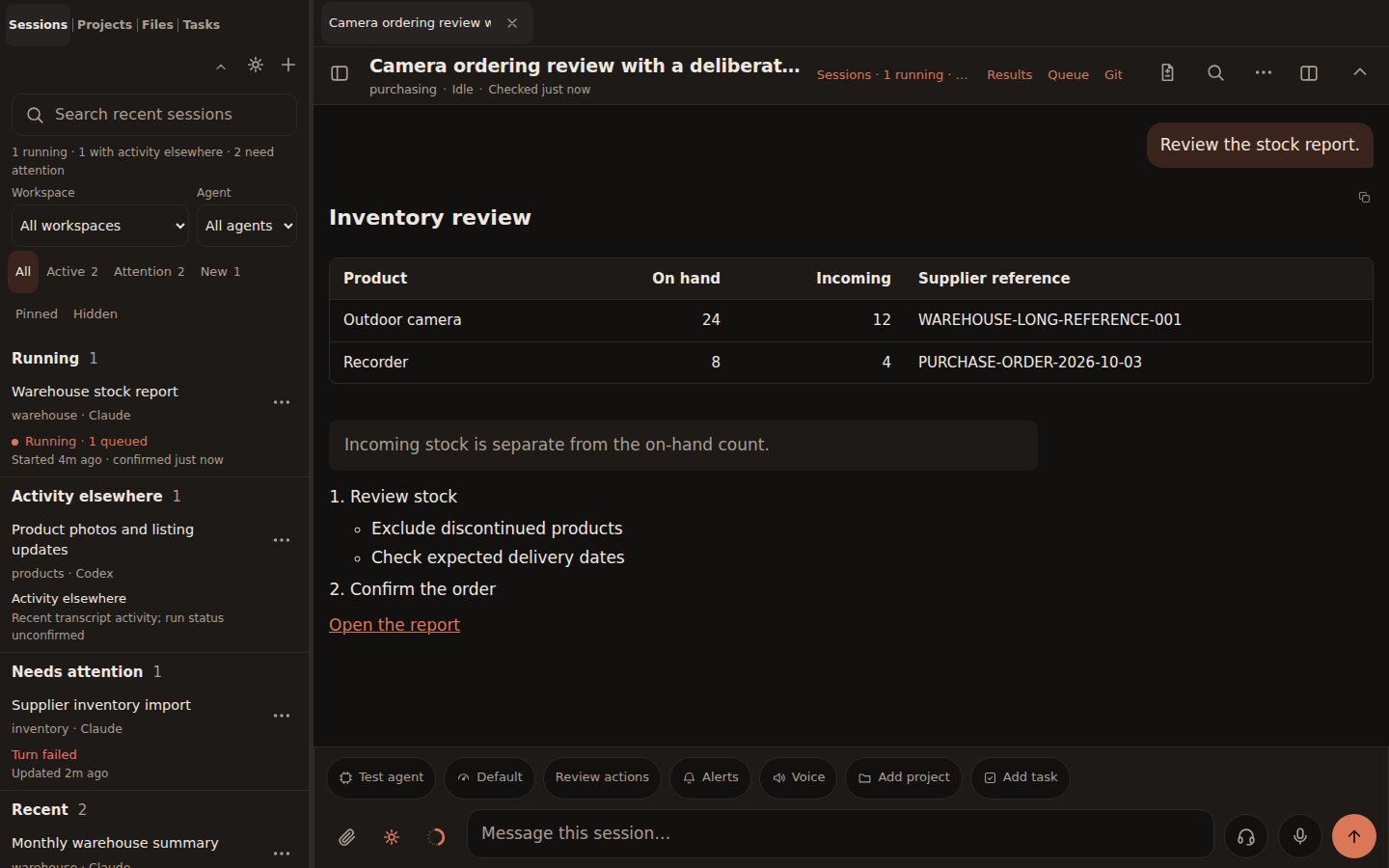
Choose Light, Dark or System in Settings → Appearance. Orange, blue and purple highlights adapt to each mode. Your choice stays on this browser, including its split panes and other Pocket windows. New browsers follow the system; existing browsers keep dark mode until you change it.
Mode lives in the same place: Settings → Appearance → Mode offers Developer mode and Assistant mode, the one you are in pressed, for this Pocket on every device (see Developer mode or Assistant mode). When an administrator locked Assistant mode for the install, both options show disabled with the reason.
| Light | Dark |
|---|---|
 |
 |
Projects, files, tasks, Inbox and the Vault (optional)
Each is off until Settings → Projects, files, tasks & vault turns it on for the install (in Assistant mode, Settings → Features, unless the mode is locked). On the desktop the rail head switches between Chats, Projects, Files, Tasks, Vault and Inbox, an icon for each; with five or more, only the pressed one shows its name (1.69). Open lists refresh when the window comes back into focus, when a turn ends in any Pocket window on the device, and when you open them, so an item an agent adds shows up without a reload.
- Projects keep a card for each piece of work: where you left off, the next step, a checklist, reminders (announced once when due) and the sessions that worked on it. Start conversation opens a new conversation in the project's directory, briefed on the card and linked to it. With Tasks on, open reminders are listed with the tasks, due first; without it, a Scheduled view lists them. See Projects.
- Files keeps the reports, dashboards and spreadsheets that came out of the work, in a grid or a list. HTML renders sandboxed; PDFs, images, Markdown and CSV render in place. Files are private until you share one by link or publicly; removed files wait 30 days in the trash, and Select removes several at once; Delete forever and Empty trash free the space now. Keep a file from a session's Results, upload one, or let agents keep deliverables. See Files.
- Tasks are to-dos with an optional date and time, the session they came from and, if you want it, a short briefing on that session. Start opens a new session with the task written in, ready to send. See Tasks.
- Inbox (1.69) is what Inbox Watch sent: alerts, digests and look-aheads in one list, newest first. A row opens its sheet: the whole text with Gmail links, Start a conversation (a new conversation briefed with the story; nothing starts until you press Start) or Open in Files, Open in Gmail, Resolved, Not useful and Dismiss; X on the row dismisses. Resolved and Not useful reach the watcher on its next run. See Inbox Watch.
- Vault (1.39) keeps API keys, tokens, logins and notes encrypted in one file on the
server. See Vault.
- Set up in one switch. Turning it on creates the key, saves it to the install's
.envand shows a recovery key to save once (1.44). Settings can download the recovery key again, rotate the key, or restore a lost one from the recovery key. - Used by name, never seen. An agent runs
pocket-vault run --env TOKEN=zoho-books -- <command>: the command gets the value in its environment and the agent gets the output with the value replaced. Values never appear in arguments, transcripts or MemStem. - You set how much agents may do. Agent access is Free rein, Ask once per command (the default) or Ask every time; any item can be Only you. A request is answered from the push notific
- Set up in one switch. Turning it on creates the key, saves it to the install's