A native Linux label editor for Brother QL printers and Avery Zweckform sheets — a P-touch Editor clone, in Python.
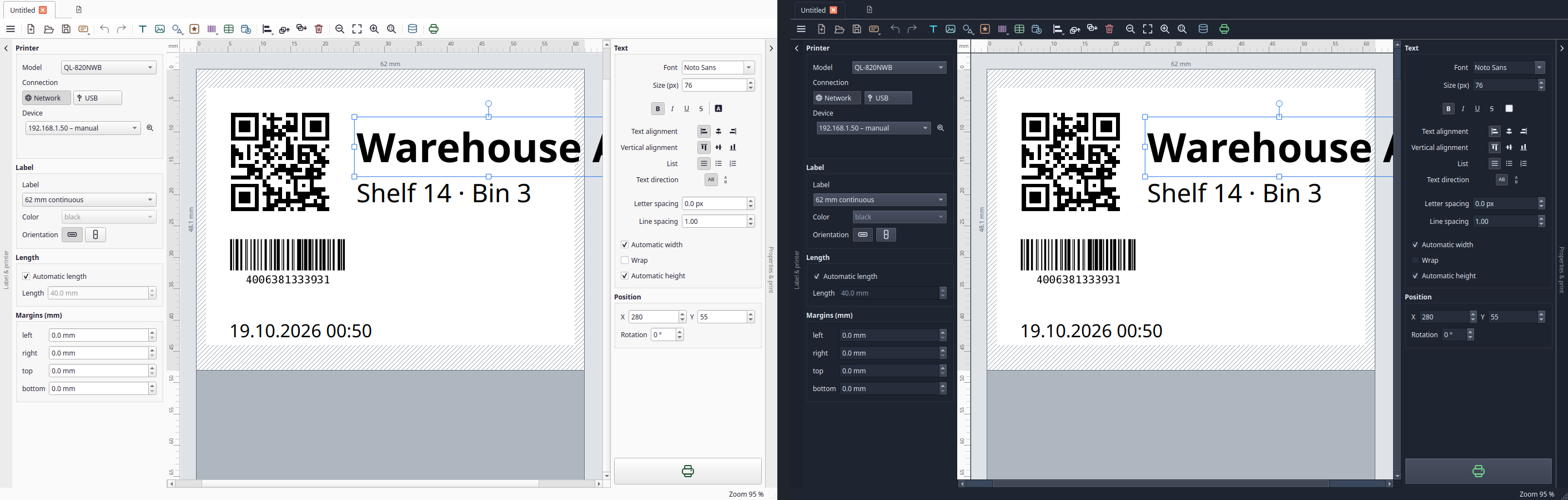
QLInux designs labels on a real canvas (text, images, barcodes, QR codes),
shows an exact monochrome print preview and prints straight to the printer —
over the network (tcp://…:9100) or USB. The same label can fill an Avery
Zweckform sheet and go to a normal printer, or to a PDF at actual size. No
browser, no WebUSB, no vendor driver.
Supported printers
Every model the brother_ql library
supports — QLInux hard-codes no model. Label sizes (currently 23 types), DPI
and cutter support all come from that library:
QL-500, QL-550, QL-560, QL-570, QL-580N, QL-650TD, QL-700, QL-710W, QL-720NW, QL-800, QL-810W, QL-820NWB, QL-1050, QL-1060N
The model list even appears in the app: menu → About QLInux.
Avery Zweckform sheets
Set the left panel’s target to Label sheet. Brother tape, printer and length step aside; the panel then shows the Zweckform product, the first label, a millimetre offset and the system printer. The sizes are the A4 templates from gLabels, including the usual address labels 3474 and 3475. The canvas becomes one label of that product, so you design the die-cut, not the whole page.
A connected CSV fills the sheet the same way it fills a tape job: the selected rows, every row, or a from–to range, one record per label. Copies repeat a record in the next cells. First label starts later on the first page when some cells are already used; later pages start at the first cell. Under that control the panel draws the sheet, one small number per cell, from 1 at the top left and then row by row. Cells before the start look used, the chosen cell is highlighted, and a click on the first free cell sets the start. On a CD label the number sits in the centre hole, so the chosen ring stays readable. The print sheet’s Filled line says how many cells of each page are taken.
PDF and Print keep the page at actual size. Fitting the page to the printable area would shift the die-cut. If the printer does not start at the paper edge, the offset nudges the whole sheet, up to 20 mm either way.
The product belongs to the open label. The offset, the system printer and the first cell stay with this machine, the same way the Brother address does.
Features
- Canvas: text, images, barcodes, QR codes, lines, shapes, tables, date/time stamps and clip art. The usual editing: move, scale, rotate, align, reorder, undo and redo.
- Database (CSV): connect a CSV file in the bottom database panel and drag a column onto a text, barcode or QR code (or onto an empty spot for a new bound text). The value comes from the current record; select another row in the grid to change it. The inspector's Database field changes the bound column. The merged values stay on the label if the CSV is later disconnected or missing. With a CSV connected, print can use the selected row, every row, or a from–to range. Copies repeat each of those labels.
- Label media: pick tape by model, fixed or automatic length (always the total length, including margins), orientation across/along the tape, red printing where supported.
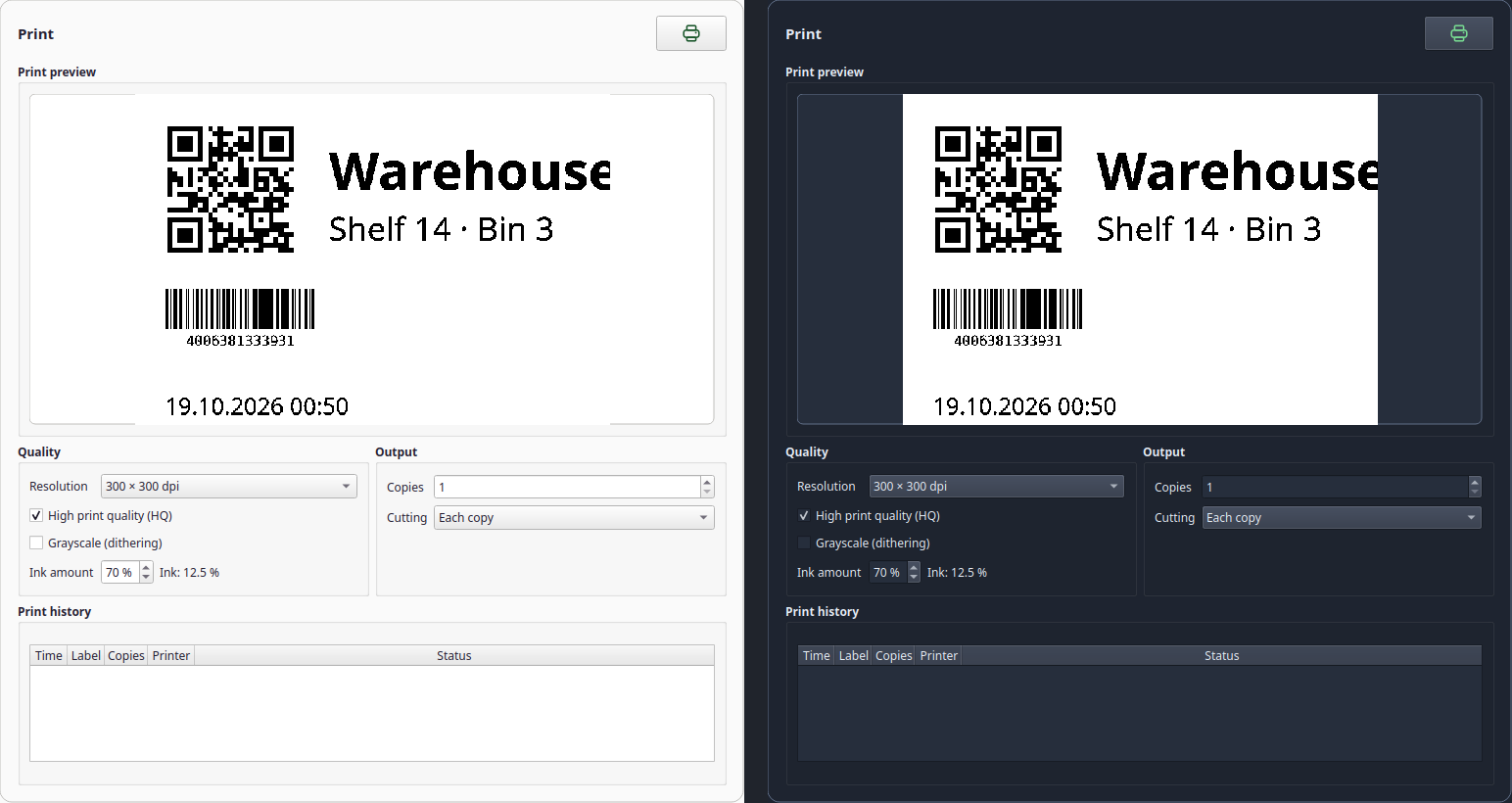
- Print: the toolbar button opens a sheet with the 1-bit preview, quality and output options, copies, cutting, and the session history. Printing starts from the button in that sheet.
- Avery Zweckform sheets: the left panel’s target Label sheet lays the same design onto an A4 sheet, using the gLabels Zweckform templates. The canvas becomes one label of that product. With a CSV connected, the selected rows, every row, or a from–to range fill the grid, one record per label; copies repeat a record in the next cells. The first label skips fields already used on a partial sheet. The drawing under that control numbers every cell, and a click sets the first free one. Save a PDF or send it to a normal printer at actual size. A millimetre offset nudges the whole sheet when the printer does not start at the paper edge.
- Printer: network or USB. Printers are found with mDNS and SNMP, USB devices show up in the list, and the last one is selected again when it is still there. Detect label reads the tape over USB. The network port has no read-back, but QLInux asks the printer over SNMP. It warns before sending to a printer with a fault (open cover, wrong tape) and marks a job red in the session history if the printer reports one after it. After a clean job it remembers the loaded tape and asks before printing a different one.
- Preview in real print dots, plus a 1:1 overlay on the canvas (Ctrl+Shift+P).
- Templates: seven ready-made labels plus your own stored as
.qlxfiles. - German and English UI (switch at runtime). Appearance follows the system, or stays light or dark. Dialogs open as sheets in the main window.
Requirements
- Linux with a desktop (X11 or Wayland), Python ≥ 3.10
- A Brother QL printer, reachable over the network or via USB. Avery Zweckform sheets use any normal printer instead, or a PDF
- Everything else is pinned in
requirements.txt
Install
Ready to run (AppImage): download the latest build for your machine from Releases (≈ 68 MB, the Qt runtime is included), make it executable and start it — no installation, no root:
# x86_64
chmod +x QLInux-*-x86_64.AppImage
./QLInux-*-x86_64.AppImage

# aarch64 (64-bit ARM: Raspberry Pi OS 64-bit, Ubuntu/Debian arm64, …)
chmod +x QLInux-*-aarch64.AppImage
./QLInux-*-aarch64.AppImage
The aarch64 AppImage needs glibc 2.39 or newer (Ubuntu 24.04, Debian 13 / Raspberry Pi OS Trixie). Older systems such as Raspberry Pi OS Bookworm do not start it.
From source:
git clone https://github.com/loeffelandi/QLInux.git
cd QLInux
bash scripts/bootstrap_venv.sh     # creates .venv, installs pinned deps,
                                   # applies the Pillow-10 patch to brother_ql
.venv/bin/python -m ql_editor
Releases carry a single-file AppImage per architecture — build it yourself
with one command (no installation, no root). A .deb is deliberately not
planned: PySide6 and python-barcode are not in the distribution archives, so
a package would have to carry the whole Qt runtime anyway; the AppImage does
exactly that, just without root.
AppImage
bash packaging/build_appimage.sh      # builds dist/QLInux-<version>-<arch>.AppImage
./dist/QLInux-*-$(uname -m | sed 's/arm64/aarch64/').AppImage
The script takes the architecture from the build machine (x86_64 or
aarch64). A published GitHub release builds both files in
.github/workflows/appimage.yml and attaches
them together.
The build uses PyInstaller (requirements-dev.txt) and fetches appimagetool
once into packaging/.cache/ (not in the repository). What is bundled: the
application plus its Python dependencies, including the Qt runtime and the XCB
helpers Qt needs to open a window. Those helpers must be installed on the
build machine (e.g. libxcb-cursor0); otherwise PyInstaller omits them and
the AppImage exits without a GUI. Excluded is what the app never uses —
QtWebEngine, QML/Quick, Multimedia, SQL, Charts — otherwise the file would be
several hundred megabytes larger.
The icon comes from packaging/make_icon.py, the desktop entry from
packaging/ql-editor.desktop: both are plain files in the repository, not
generated blobs. Settings still live in ~/.config/QLInux/QLInux.conf, so an
AppImage and a source checkout share them.
Getting started
- Start QLInux. In the Printer panel pick Network or USB.
- Press the magnifier next to the device list — network printers are found via mDNS and SNMP; a single device is selected automatically. Only if nothing is found: “Add by IP address…” as the last entry of the list.
- Select the tape, type your text, drop in images, barcodes or QR codes.
- Open Print, check the preview and options, then print from the sheet.
For an Avery Zweckform sheet, set the left panel’s target to Label sheet, pick the product, and print or save a PDF from the same sheet. A Brother printer is not part of that job.
Settings (last printer, tape, print options, language, appearance) are stored in
~/.config/QLInux/QLInux.conf.
Modifier keys on the canvas
| Keys | Effect |
|---|---|
| Ctrl + mouse wheel (Cmd on macOS), pinch | Zoom |
| Shift + mouse wheel | Scroll horizontally |
| Ctrl + click | Add or remove an object from the selection |
| Ctrl + drag | Duplicate the selected object and move the copy |
| Shift + arrow keys | Move the selected object in larger steps |
| Shift + click in a table | Extend the cell selection |
| Tab / Shift + Tab in a table | Next or previous cell while typing |
| Ctrl + click in the database grid | Add or remove a row; the last row stays selected |
| Shift + click in the database grid | Select a range of rows |
| Rotating without Shift | Stick to the nearest 90° until the pointer moves clearly away |
| Shift while rotating | Rotate in 15° steps |
Database grid
The canvas previews the first selected row. Print with Selected records prints every selected row.
Ruler guides
Drag down from the top ruler for a horizontal guide, or right from the left
ruler for a vertical one. Drag a guide back onto that ruler to remove it.
Guides stay on the label and are stored in the .qlx file. Moving or resizing
an object snaps to these guides as well as to the label and to other objects.
Align to guides uses the same targets.
Margins
Margins start at 0 mm. The printer's feed and the non-printable strip at each edge of the tape are already included automatically, so they are not margins.
- Left and top move the objects when you change them; they keep their distance to the edge, and the dotted frame moves with them.
- Bottom sets the tape length when the length is automatic.
- Right cuts off everything beyond it, also across the tape, where it does not change the tape width. Along the tape it also sets the length.
Content that lies beyond a margin is hatched on the canvas and is neither shown in the preview nor printed.
Saving and opening labels
File → Open… (Ctrl+O) and File → Save (Ctrl+S). The arrow next to the save button in the toolbar opens Save as… (Ctrl+Shift+S)
store a label as a .qlx file — plain JSON, so it stays readable, diffable
and diff-friendly in a repository.
A document carries the label medium (model, tape, orientation, length,
margins, colour), the canvas objects and any ruler guides. It deliberately does not carry
your printer address, print options or window size: those belong to the
machine, so opening a label from somebody else never changes your printer.
The window title shows the file name, with a * while there are unsaved
changes.
Double-clicking label files
The AppImage declares both .qlx (QLInux label, own icon) and .lbx (Brother
P-touch label) as its file types. Double-clicking such a file starts QLInux and
opens it. To make QLInux the default app, pick it under Open with in your file
manager, or from a terminal:
xdg-mime default ql-editor.desktop application/x-qlinux-label
xdg-mime default ql-editor.desktop application/x-brother-lbx
A file opened from the file manager always gets its own tab. If QLInux is already running, the file opens as a new tab in that window and the window comes to the front. Starting QLInux again with no file does the same focus and the second process exits, instead of opening another window. On Wayland the compositor may ignore that raise, so the running window is not always focused. Only when QLInux is not running yet does a new window start; the empty starting label is then replaced by the file, unless you already changed it.
Opening a Brother .lbx file
File → Open… also accepts P-touch Editor files (.lbx). QLInux reads the
tape, the orientation and the objects, then treats the result as a new unsaved
label — Save asks for a .qlx, it does not write back into the .lbx.
What comes across: text (one font per box; horizontal alignment; rotation in
90° steps stays inside the box), images (resampled from the embedded bitmap
down to the label size), lines and frames. Text inside a cable template comes
across too; the template itself does not. Text is not shrunk to fit the way
P-touch does it. Rotation in the file is counter-clockwise (checked against
P-touch Editor on a vertical logo). Database text fields come across as bound
text. QLInux opens the CSV at the path stored in the .lbx when that path
points at a file, and otherwise looks for a CSV next to the .lbx. If neither
can be read, the last merged text stays on the label. What does not: barcodes, tables, date/time fields, image cropping,
and red ink on two-colour tapes. Those are listed in a note after import. Mixed-style runs inside one text box
keep the box's base font, and Brother's monochrome image settings (threshold,
dither) are not copied — the print dialog has its own.
USB permissions
Reading the inserted tape (and the printer status) over USB needs write access
to the device node. QLInux offers “Set up access” in the Printer panel
when it is missing; it installs a udev rule with TAG+="uaccess"
(scripts/install-udev-rule.sh → /etc/udev/rules.d/70-brother-ql.rules).
The network port (TCP 9100) needs no permissions — but it has no read-back,
so Detect label only works over USB. The SNMP check (UDP 161, community
public) needs no permissions either. It only runs if the printer answered
SNMP before the job; with SNMP switched off, jobs are reported as sent. If the
printer goes silent after a job, the history says “Sent, no status reply”.
Development
bash scripts/bootstrap_venv.sh
.venv/bin/pip install -r requirements-dev.txt
.venv/bin/ruff check .
.venv/bin/ruff format --check .
.venv/bin/mypy
QT_QPA_PLATFORM=offscreen .venv/bin/python -m pytest -q      # headless test suite
python scripts/verify_api.py            # documents the real brother_ql API
The same suite runs on every push and pull request
(.github/workflows/tests.yml, Python 3.12 on
Ubuntu x86_64 and aarch64). Ruff and mypy run once, on the x86_64 job.
The tests run headless: tests/conftest.py forces the Qt offscreen platform
and redirects XDG_CONFIG_HOME to a temporary directory, so a test run never
opens a window and never touches your settings. How to add a test without
making that suite slow again is in docs/tests.md.
Architecture and every measured printer detail (raster commands, cut commands, 600 dpi mode, USB permissions) are documented in docs/API_NOTES.md.
Templates
Menu → Templates has ready-made labels — address label, parcel label, cable, folder spine, price tag, WiFi QR, inventory. They all use 62 mm endless tape with automatic length, so they fit on any endless tape; the printer model is deliberately not part of a template (that is the printer's business). The sample texts come in the interface language.
Save as template… stores the current label in
~/.config/QLInux/templates/ — as a .qlx file, the same format Save uses.
That means a template is an ordinary label file: you can copy, mail or edit it.
Your own templates then appear in the same menu.
Status
| Milestone | Content | Status |
|---|---|---|
| M1 | Setup, API verification, data model | ✅ |
| M2 | Rendering core + print wrapper (headless) | ✅ |
| M3 | PySide6 GUI (canvas, panel, preview) | ✅ |
| M3.11–M3.13 | Collapsible panels, print quality, resolution per model, USB support | ✅ |
| M3.14–M3.16 | Printer selection without addresses, USB permissions (udev), German/English UI | ✅ |
| M3.17–M3.19 | Rulers, network printer discovery (mDNS + SNMP) | ✅ |
| M3.20–M3.21 | IP entry behind a list entry, copies and cutting | ✅ |
| M4.1 | Labels as files: open, save, save as (.qlx), unsaved-changes marker |
✅ |
| M4.2 | Templates (built-in and your own) | ✅ |
| M4.3 | Packaging: AppImage (PyInstaller + appimagetool) | ✅ |
| M4.4 | Open Brother P-touch files (.lbx, import only) |
✅ |
| Database | CSV source, field bindings, record preview, LBX database import | ✅ |
| Database | Database panel, drag-and-drop binding, database field in the inspector | ✅ |
| Database | Print the selected row, all rows, or a record range | ✅ |
| Database | Numbering on one object | ✅ |
| Sheets | Avery Zweckform A4 templates, database fill, PDF and system printer | ✅ |
License
QLInux is released under the GNU General Public License, version 3 or later
(GPL-3.0-or-later) — see LICENSE. This is required by its core
dependency: brother_ql is GPL-3.0-or-later.
Thanks to
| Library | Author | License | Used for |
|---|---|---|---|
| brother_ql | Philipp Klaus | GPL-3.0-or-later | printer commands, tape and model sizes |
| Qt for Python (PySide6) | The Qt Company | LGPL-3.0 | user interface (windows, canvas, sheets) |
| Pillow | Fredrik Lundh and contributors | MIT-CMU | rendering and raster data |
| pyusb | Wander Lairson Costa and contributors | BSD-3-Clause | USB connection |
| qrcode | Lincoln Loop and contributors | BSD-3-Clause | QR codes |
| python-barcode | Thorsten Weimann and contributors | MIT | barcodes |
| gLabels | Jim Evins and contributors | GPL-3.0-or-later | Avery Zweckform sheet measurements |
Disclaimer
QLInux is not affiliated with Brother Industries, Ltd. or Avery Zweckform. “Brother” and “P-touch” are trademarks of Brother Industries, Ltd. “Avery” and “Zweckform” are trademarks of their owners. Use at your own risk — printing wrong labels is your printer's fault only in the most literal sense.
Developed by
Sustain – Andreas Schäfer · www.sustain-vt.de
Bug reports and pull requests are welcome: https://github.com/loeffelandi/QLInux/issues