


slidecast
Present any HTML slide deck in ways PowerPoint never could: a presenter view with your notes, your phone as a remote, and an audience that follows you live and takes part.
See how it works on the website →
What is slidecast?
More and more presentations are written as a web page: you ask an AI
assistant for a deck and get back one index.html. It looks great, but it
lacks what PowerPoint gives you on presentation day: speaker notes only you
can see, a preview of what comes next, a timer, a remote control, a second
screen for the audience.
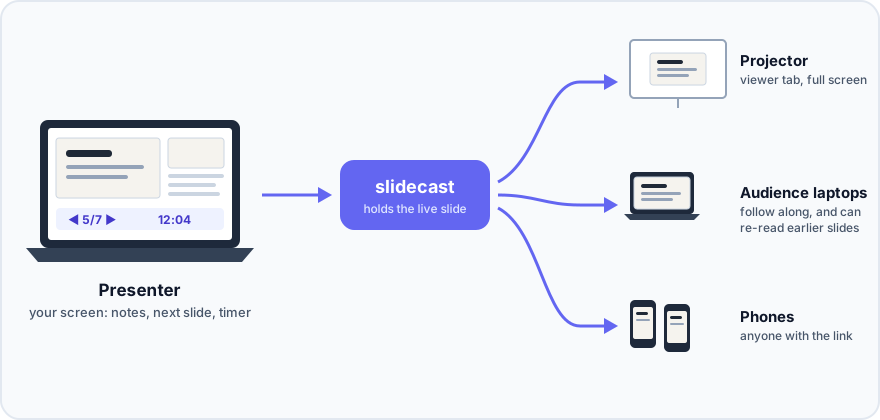
slidecast adds all of that to any HTML deck. You run it on your computer (or on a small server), open the presenter view on your screen and the viewer on the projector, and from then on every screen showing the deck moves with you: the projector, your phone, your audience's laptops.
How it works
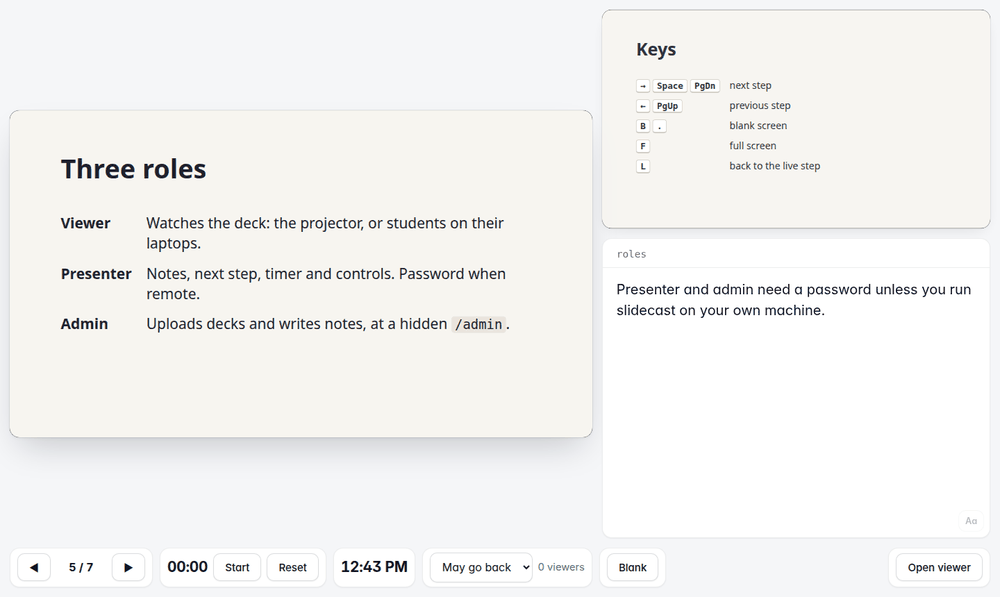
- Presenter view: current and next slide, speaker notes, timer, clock, and a button to black out every screen. Drag the dividers to give more room to the slide, the next one or your notes. It also works on a phone.
- Viewers in sync: every screen follows your slides within a second.
- Any remote: keyboard, a presentation clicker, or your phone.
- An audience that takes part: viewers raise their hand, with an optional note, and you queue and answer them from the presenter view. They can give a name only you see, or stay anonymous.
- Rooms you open and close: open the deck you are about to present with one click; the main address takes everyone to it.
- Notes in the browser: write them slide by slide in the admin panel; they are saved next to the deck.
- Made for AI decks: a deck is just a folder with an
index.html. The deck format includes a prompt to give your AI assistant. - Yours: it runs on your computer, your network or your own server. No account, no cloud service, no tracking. English and Spanish interface.
The presenter view
What you can do with it
From the simplest setup to the most complete one:
- A laptop and a projector. A teacher plugs the laptop into the projector. The laptop screen shows the presenter view with notes and timer; the projector shows the slides. Exactly like PowerPoint's presenter mode, but for HTML.
- Your phone as a remote. Leave the laptop on the lectern and walk around the room: the presenter view on your phone shows your notes and moves the slides on the projector.
- The audience follows on their own devices. Students or colleagues open a link on their laptop or phone and see the slides there, in step with you. Handy in large rooms, for people at the back, or for anyone joining remotely.
- Everyone at their own pace. You choose what viewers may do: stay locked to your slide, go back to re-read an earlier one (and return to you with one click), or browse the whole deck freely. You can change it in the middle of the talk.
- Interactive slides. An HTML slide can contain anything a web page can: simulations, sliders, quizzes, live charts, videos. Each person can play with them on their own screen while you keep presenting.
A deck is a web page, so the possibilities are endless: if a browser can show it, slidecast can present it.
Getting started
What you need
-
Node.js 20 or newer. Download the LTS version from its website and install it like any other program.
-
slidecast itself. Either click the green Code button at the top of this page and choose Download ZIP (then unzip it), or, if you use git:
git clone https://github.com/Pablomg02/slidecast.git
The commands below are typed in a terminal (on Windows: PowerShell) opened in the slidecast folder.
1. On your own computer
This is all you need for a laptop and a projector.
npm install
./start.sh
On Windows, type npm start instead of ./start.sh and then open
http://127.0.0.1:4321/admin in your browser.
Your browser opens slidecast's admin page. There:
- Upload your deck: a single
.htmlfile, or a.zipwith the deck's folder. - Click Presenter next to your deck.
- Click Open viewer in the presenter view, drag that new window to the
projector and press
Ffor full screen.
That's it: move through the deck from the presenter view with the arrow keys
or a clicker. No password is needed while everything happens on your
computer. To stop slidecast, press Ctrl+C in the terminal or close it.
No deck yet? Try the demo: node bin/slidecast.js serve examples/demo
and open the address it prints.
2. On your local network
For your phone as a remote, or for an audience on the same Wi-Fi as you.
Other devices need a password to present, so set one first (8 characters or more, with at least one letter and one digit). You only do this once:
node bin/slidecast.js passwd presenter
./start.sh --network
On Windows, the second line is npm start -- --host 0.0.0.0.
slidecast prints the addresses other devices can use, something like
http://192.168.1.20:4321. Then:
- On your phone, open
http://192.168.1.20:4321/<deck>/presentand type the presenter password. - Open the room: in the admin page click Open (or Open only this one) next to the deck. Rooms start closed, so nobody can watch before you are ready.
- Your audience opens
http://192.168.1.20:4321(it goes straight to the open room) orhttp://192.168.1.20:4321/<deck>/view; no password.
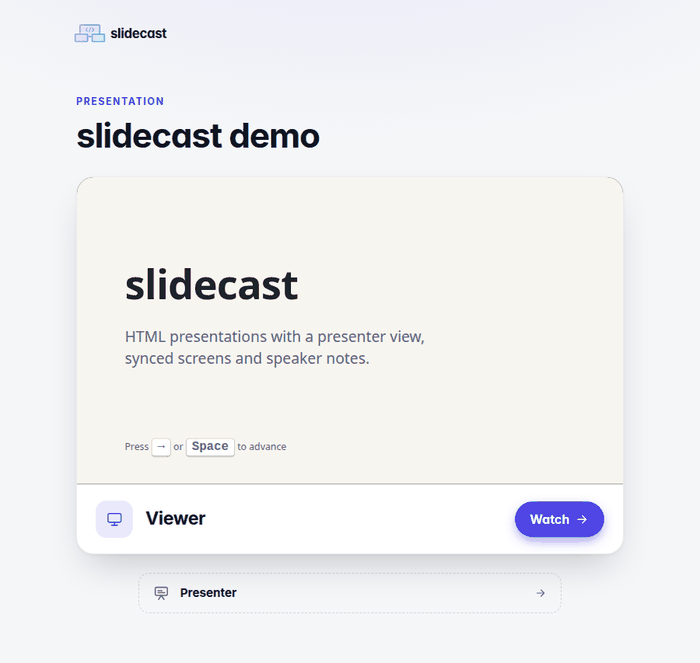
<deck> is the deck's Name in URL in the admin page. You can also share
just http://192.168.1.20:4321/<deck>: it opens a page where each person
chooses to watch or to present.
If you also want to upload decks from another device, set an admin password
too: node bin/slidecast.js passwd admin.
Tip
If the other devices cannot connect, check that they are on the same Wi-Fi, and that your computer's firewall allows connections on port 4321. Some public or university networks block connections between devices; in that case use one of the options in the next step.
3. From anywhere
To reach slidecast from other networks (your phone on mobile data, an audience following from home, a server that is always on), see Access from other networks. It covers:
- Tailscale, to connect your own devices (laptop and phone) wherever they are;
- Cloudflare Tunnel, to share a public link with anyone, from your own computer or from an always-on Raspberry Pi.
Making decks
Any HTML presentation works best when slidecast knows where its slides are.
The quickest way to get one is to ask your AI assistant: copy the prompt in
docs/deck-format.md,
add what your talk is about, and upload the index.html it gives you.
To start from a working example instead, run
node bin/slidecast.js new my-talk and edit decks/my-talk/index.html.
Speaker notes are written in the admin panel (Edit notes). They are
stored in a deck.json file next to the deck, so they travel with it.
During the presentation
Keys
These work in the presenter view, and most presentation clickers send them, so clickers work out of the box.
| Key | Action |
|---|---|
→ ↓ Space PageDown Enter |
Next step |
← ↑ Shift+Space PageUp Backspace |
Previous step |
Home / End |
First / last step |
B or . |
Black out every viewer's screen (press again to come back) |
F |
Full screen |
L |
In a viewer: back to the presenter's slide |
Clicker connected to the projector's computer instead of yours? When the viewer window is allowed to present (on the computer running slidecast, or after signing in as presenter), it shows a Controlling badge and the clicker drives the presentation from there too. Stop controlling turns it back into a plain viewer.
What viewers may do
Chosen per deck in the admin panel, and switchable live from the presenter view:
- Follow the presenter: viewers always see your slide.
- Can go back (default): viewers can look at earlier slides, never ahead of you; a Back to live button returns to your slide.
- Browse freely: viewers can browse the whole deck.
A viewer who tries a move the mode does not allow gets a short notice saying why.
Your audience: names, hands and the room
Each deck is a room. The admin opens and closes it (in the admin panel, or with Open room / Close room in the presenter view); Open only this one closes the others. The main address follows the open room: with one open it goes straight there, with several it shows a list to choose from (this can be turned off), and with none a page asking for the link. Viewers cannot enter a closed room: they wait and join by themselves when it opens. Presenters can always enter, to get ready. Closing a room sends everyone out and forgets them.
On joining, viewers are asked for a name, or join anonymously as "Participant 007". Only presenters see the names; viewers see only their own. They can raise their hand, with a note of up to 280 characters. In the presenter view:
- Hands lists them: Queue puts one in the queue, Attend moves it to the top and tells the viewer you are attending to them, Resolve lowers the hand and deletes the note. Lower all clears them all, and the switch turns hands off (during an exam, say).
- People lists who is in the room. Remove takes someone out, and reloading the page does not bring them back. If they come back with a new identity (another browser, a private window), tick Do not admit more people: whoever is in stays, nobody new gets in.
- The admin can also remove another presenter's device; that device then needs the password again.
In each deck's Settings you can set how many presenters (devices, 1–20, 20 by default) and viewers (1–1000, 200 by default) a room takes at once, and turn off names or hands. The admin is never turned away by the presenter limit.
Admin panel
At /admin you can upload decks, delete them (they go to a trash folder,
never erased), edit notes, set passwords, rename decks, open and close rooms,
and set each deck's viewer mode and room limits.
Download gives you a deck as one .zip with its files and its notes
(deck.json); uploading that zip again gives back the same deck. Update
replaces a deck with a new version and keeps the notes by slide id: before
anything changes it loads the new version, shows which notes are kept and
which are deleted (those of slides or steps the new version no longer has),
and, if the zip brings its own deck.json, lets you choose which notes to use.
The previous version stays in the trash folder. Keep slide ids stable (names
like intro, not positions like s3) so notes stay on the right slide; the
ⓘ next to Update explains the rules.
Under Appearance you can give the site your own name (browser tab, top of each page, home page), change the home page message and the accent colour, and hide the "Made with Slidecast" link at the foot of the public pages. These only change how the pages look, never how they work.
Passwords and privacy
| Password | What it allows | Needed |
|---|---|---|
| Presenter | Moving the slides. One for every deck, or one per deck. | When presenting from another device. |
| Admin | The admin panel. | When managing decks from another device. |
| Viewer (optional) | Watching one deck. | Only if you want to keep a deck private. |
On the computer running slidecast you are presenter and admin without any
password. From any other device, presenting and the admin panel stay closed
until you set the password. Set them with node bin/slidecast.js passwd … or
in the admin panel.
Passwords are stored only as one-way hashes, so nobody can read them back. If
you forget one, set a new one on the computer running slidecast:
node bin/slidecast.js passwd admin (or presenter); add --clear to remove
it.
Decks run in a sandbox: a deck written by an AI or downloaded from the Internet cannot read your passwords or act as the admin. Details in docs/security.md.
Viewers' names and hand notes are kept in memory only while the room is open: they are never written to disk or to the logs, never shown to other viewers, and they are gone when the room closes or slidecast restarts.
Updating
- Downloaded as a ZIP: download the new version and copy your
decksand.slidecastfolders into it (they hold your decks, notes, passwords and settings). - With git:
git pull && npm install, then start it again. - On a Raspberry Pi installed with the script:
sudo slidecast-update.
Reference
Addresses
| Address | Who | What |
|---|---|---|
/ |
everyone | The open room; with several open, the list of them (or a page asking for the link); with none, that page. A signed-in admin always gets the list of decks. |
/<deck> |
everyone | Choose viewer or presenter. |
/<deck>/view |
viewers | The deck, full window, following the presenter. |
/<deck>/present |
presenter | Current and next step, notes, timer, clock, controls. |
/admin |
admin | Decks, passwords and settings. |
/admin/edit/<deck> |
admin | Notes editor. |
Command line
slidecast serve [path] [--data dir] [--state dir] [--host h] [--port p] [--trust-proxy] [--open]
slidecast passwd admin | presenter [--deck slug [--viewer]] [--clear] [--state dir]
slidecast new <slug> [--data dir]
slidecast --help | --version
Run it as node bin/slidecast.js … from the slidecast folder, or install the
slidecast command for your user with npm install -g ..
serve <folder with index.html>serves only that deck;serve <folder>serves every deck inside it. Default:./decks.- Settings, password hashes, sessions and the live step go to
./.slidecast. Both folders are ignored by git. When./.slidecastwould end up inside the deck being served (cd my-deck && slidecast serve .), they go to~/.config/slidecastinstead (%APPDATA%\slidecaston Windows). --host 0.0.0.0makes slidecast reachable from your network (default127.0.0.1, this computer only); default port4321.--trust-proxyis for Cloudflare Tunnel. Behind another proxy, make sure it overwritesCf-Connecting-IPandX-Forwarded-For, or clients can choose their own address for the sign-in limits.- Environment variables mirror the options:
SLIDECAST_HOST,SLIDECAST_PORT,SLIDECAST_DATA,SLIDECAST_STATE,SLIDECAST_TRUST_PROXY=1.
Documentation
- Access from other networks: Tailscale and Cloudflare Tunnel.
- Raspberry Pi with Cloudflare Tunnel: an always-on server, installed with one command.
- Deck format: folder layout,
deck.json, the API a deck exposes, and a prompt for your AI assistant. - Security: threat model, protections, reporting a vulnerability.
Contributing
Bug reports, ideas and pull requests are welcome: see CONTRIBUTING.md. For security problems, follow SECURITY.md instead of opening a public issue.
License
MIT © Pablo Magariños Docampo