
A self-hosted diary. Write each entry as text, record voice notes, or do both; every voice note is transcribed to text automatically.
You run it on your own accounts: the app on your Cloudflare Worker, entries in your Supabase database, audio in your R2 bucket. No one else hosts your diary, and only the emails you list can sign in. The one outside service is OpenAI, which receives each voice note to transcribe it.
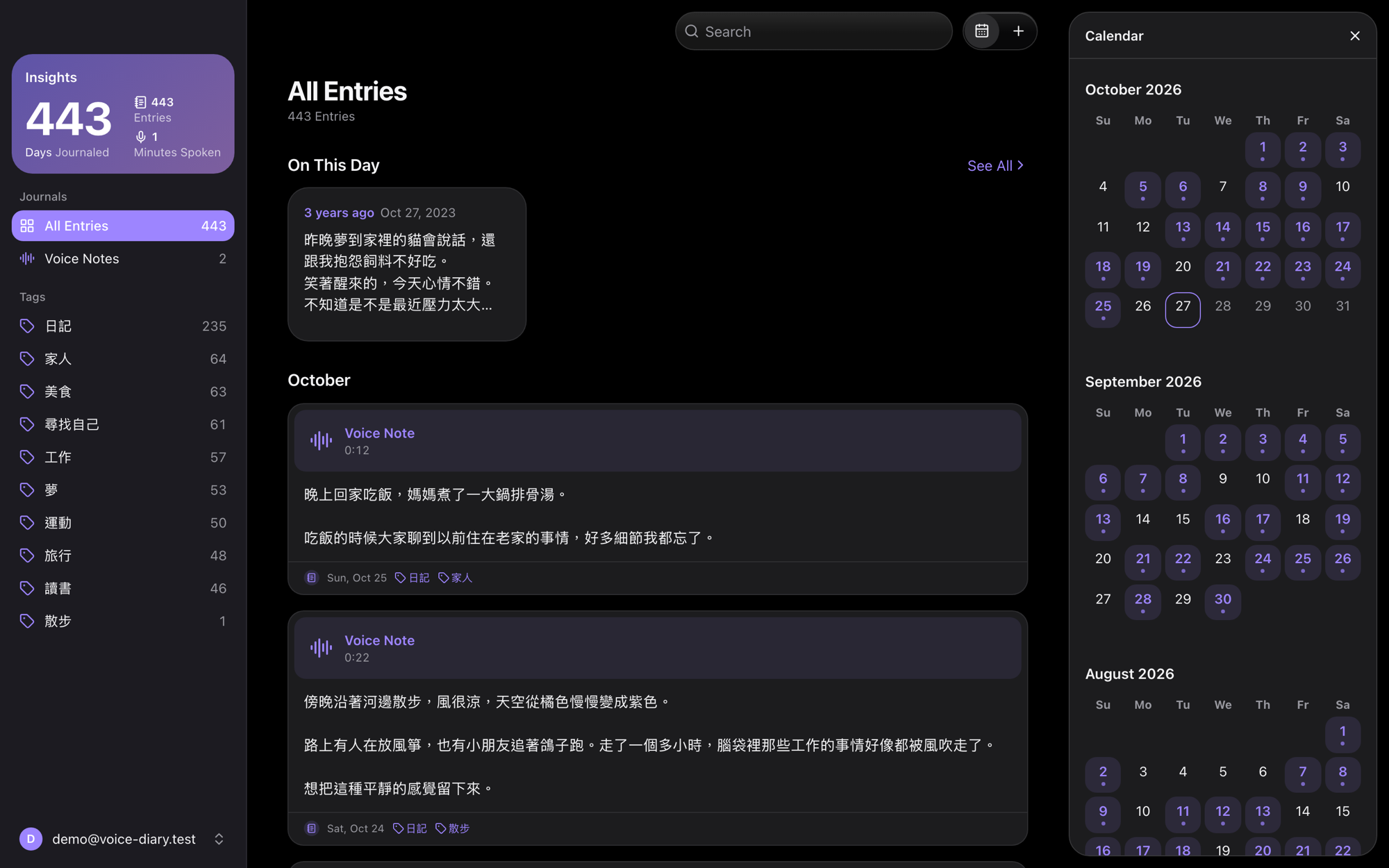
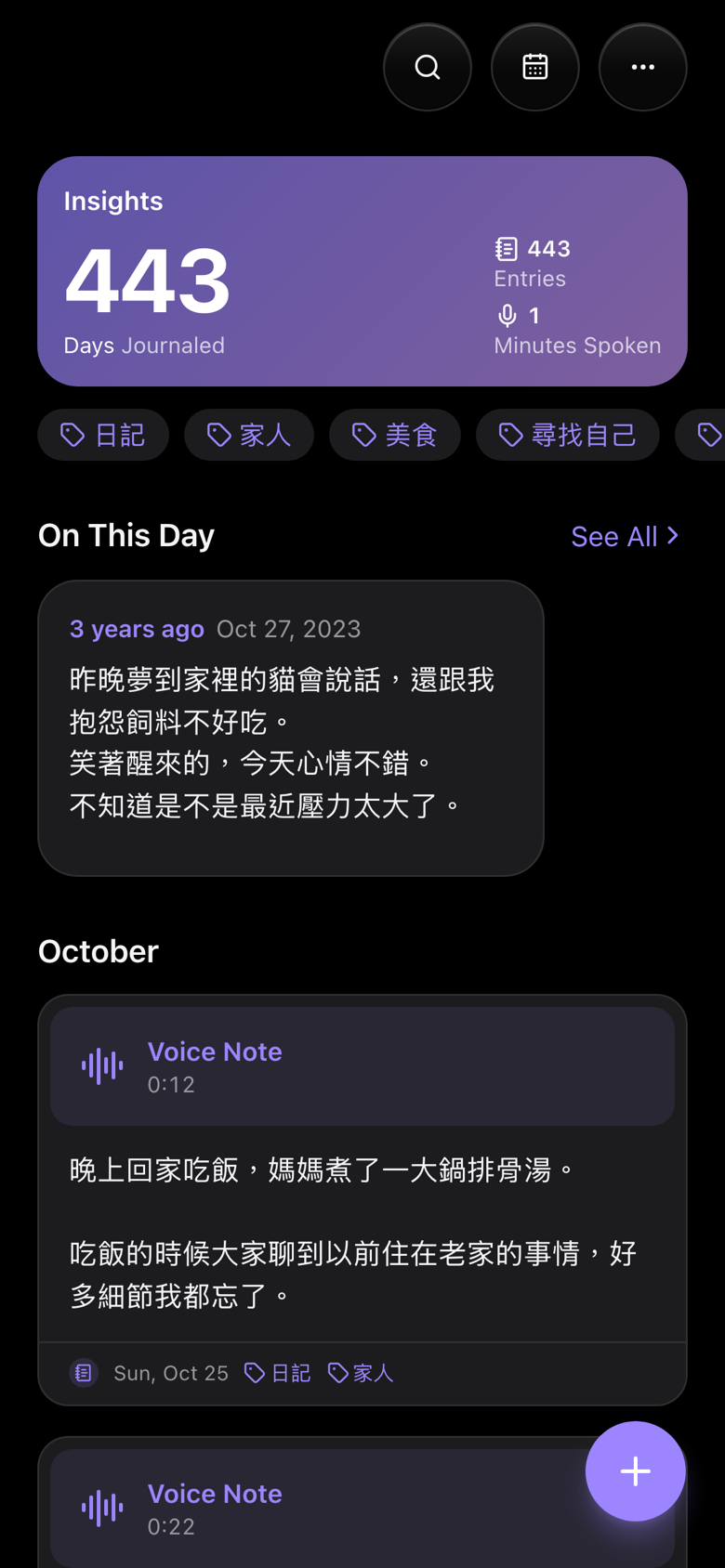
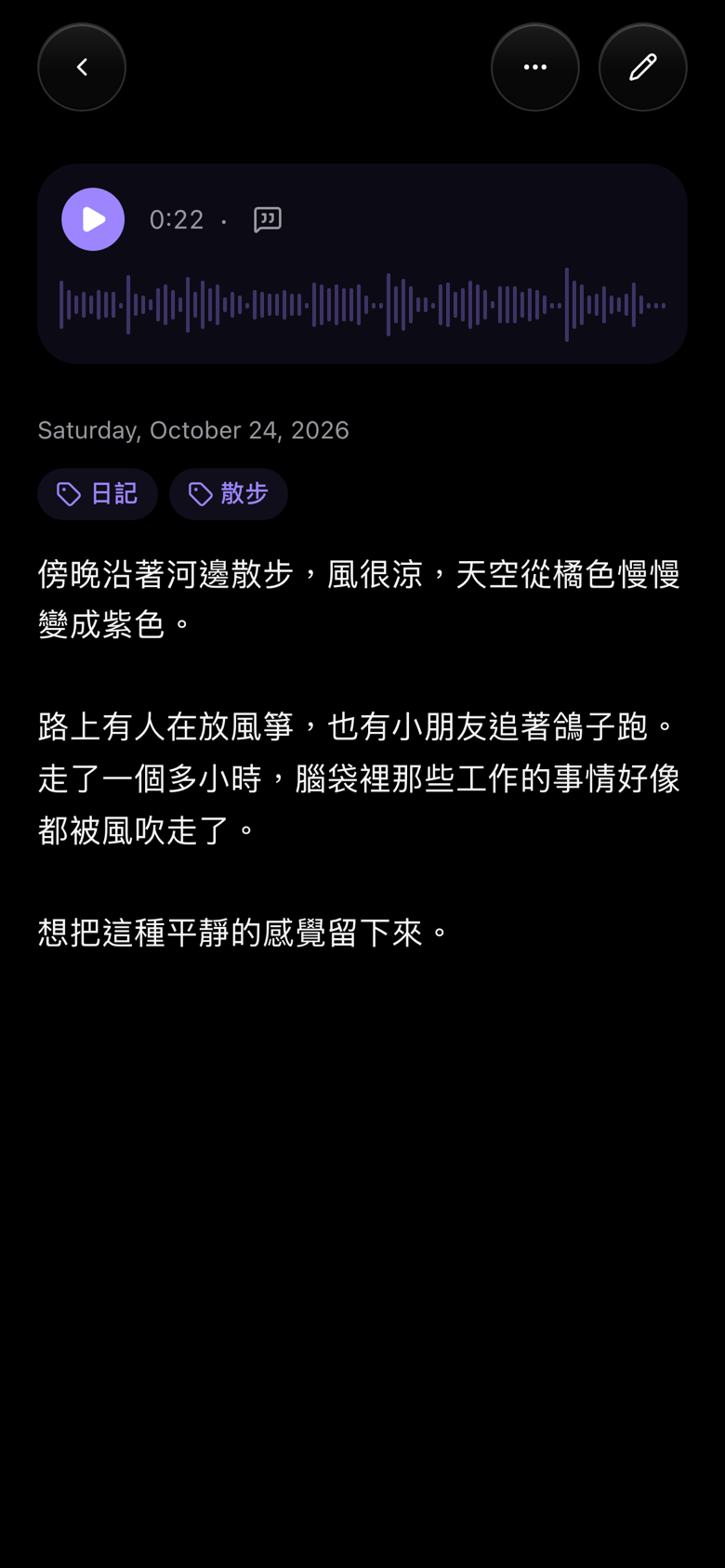
- TanStack Start (file routes in
src/routes, server functions insrc/server, a session middleware insrc/start.ts) with TanStack Query for the pages' data, built by Vite and run as a Cloudflare Worker - Supabase: Google sign-in plus Postgres, with row-level security so each user sees only their own entries
- Cloudflare R2: audio files, uploaded straight from the browser through presigned URLs
- OpenAI
gpt-transcribe: speech-to-text
Host your own
- Create a Supabase project, an R2 bucket, an OpenAI API key and a Google OAuth client (see Production).
- Add your email to the sign-in lists (see Who can sign in).
- Store the values from
.env.exampleas Worker secrets and runpnpm run deploy. - Optionally bring your old diary along (see Importing from Journey) and add the app to your phone's home screen (see On a phone).
How a voice note is saved
- The browser records with
MediaRecorder(WebM/Opus on Chrome and Firefox, MP4/AAC on Safari). When recording stops, the voice note shows up right away, playing from the local audio; the steps below run in the background. createRecordingUploadchecks that you own the entry and returns a presigned PUT URL that lasts 5 minutes.- The browser uploads the audio straight to R2.
saveRecordingchecks the object's size (25 MB max) and inserts arecordingsrow.transcribeRecordingdownloads the audio, transcribes it, stores the transcript and adds the text to the end of the entry. The editor shows the transcript in the voice note and adds the text to the body in the same render.- If transcription fails, the recording is kept and its menu offers Add Text to Entry to try again.
Environments
Only the database is separate between local development and production. R2 and OpenAI are shared:
| Service | Local development | Production |
|---|---|---|
| Supabase | Supabase in Docker (supabase start) |
Hosted project on supabase.com |
| Cloudflare R2 | The voice-diary bucket |
Same bucket |
| OpenAI | One API key | Same key |
| Where the values live | .env.local on your machine |
The Worker's secrets |
.env.localis for local development only. Git ignores it, along with every.env*file except.env.example.- Production values are never kept in a file in this repository. Enter them in the host's settings.
- Local and production recordings don't mix in the shared bucket: object keys start with the user's id (
<user-id>/<entry-id>/...), and the local and hosted databases give the same Google account different ids. supabase db resetwipes the local database but not R2. The recordings it leaves behind stay under the old local user's id; delete that folder in the R2 dashboard if you want the space back.
Local development
Requires Docker, the Supabase CLI and pnpm.
1. Supabase in Docker
supabase start            # starts Postgres, Auth and Studio; applies supabase/migrations
supabase status           # shows the API URL and publishable key for .env.local
-
Google sign-in needs an OAuth client (see Google sign-in below). Put its ID and secret in
supabase/.env, usingsupabase/.env.exampleas the template, then restart withsupabase stop && supabase start. -
Sign-ups are limited to listed emails here too (see Who can sign in below). Add yours in Studio's SQL editor, or the first Google sign-in is rejected with "This diary is private.":
insert into public.allowed_emails (email) values ('you@gmail.com'); -
Studio (a database GUI) runs at http://127.0.0.1:54323.
-
To fill the local diary with invented entries (for demos and screenshots), sign in once, then run
SUPABASE_SECRET_KEY=<secret key from supabase status> pnpm seed --email you@gmail.com --apply. Add--voice 2to read the two most recent entries aloud with OpenAI text-to-speech and attach them as voice notes, uploaded to R2. It replaces every entry of that account, audio included, and refuses to run against anything but the local database. -
To apply a new migration and keep local data, run
supabase migration up --local. To rebuild from scratch, runsupabase db reset. This wipes local data. -
Analytics is disabled in
supabase/config.tomlbecause its container runs out of memory on Docker Desktop's default limits.
2. Cloudflare R2 and OpenAI
Set up once, shared with production: see Cloudflare R2 and OpenAI below.
3. .env.local
cp .env.example .env.local
Fill it in: SUPABASE_URL and SUPABASE_PUBLISHABLE_KEY from supabase status, the R2 and OpenAI values (the same ones production uses), and ALLOWED_EMAILS with the same emails as the local allowed_emails table. Then run:
pnpm install
pnpm dev
Linting and formatting use the Oxc toolchain: pnpm lint runs oxlint (.oxlintrc.json), pnpm fmt formats with oxfmt (.oxfmtrc.json, which also sorts Tailwind classes) and pnpm fmt:check reports unformatted files. Unit tests use Vitest with React Testing Library, next to the code they cover (*.test.ts[x]): pnpm test watches, pnpm test --run runs once.
The dev server runs at https://localhost:3443. vite-plugin-mkcert creates a locally trusted certificate with mkcert (microphone access needs HTTPS). The first run may ask for your macOS password to trust mkcert's root certificate. The dev server runs the server code in workerd, the Workers runtime, which reads .env.local too. pnpm dev and pnpm build first draw the icons and launch images into public/ (scripts/app-images.tsx). pnpm build writes the Worker to dist/, and pnpm preview runs that build locally.
Cloudflare R2
One private bucket serves both local development and production. In the Cloudflare dashboard, open R2 Object Storage:
- Create bucket named
voice-diary. Keep it private (no public access). - On the R2 Overview page, under Account Details, select Manage next to API Tokens. Create an Account API token with permission Object Read & Write, scoped to the
voice-diarybucket. Copy the Access Key ID and Secret Access Key right away; the secret is shown only once. The Account ID is also under Account Details, and it is the subdomain of the S3 endpoint shown with the token (https://<ACCOUNT_ID>.r2.cloudflarestorage.com). - In the bucket's Settings → CORS policy, allow the local dev server and your production domain:
[
  {
    "AllowedOrigins": ["https://localhost:3443", "https://your-domain.com"],
    "AllowedMethods": ["PUT", "GET"],
    "AllowedHeaders": ["Content-Type"],
    "MaxAgeSeconds": 3600
  }
]
OpenAI
Create an API key at OpenAI → API keys. It is used for speech-to-text, by both local development and production.
Google sign-in
- In Google Cloud Console → APIs & Services → Credentials, configure the OAuth consent screen, then create an OAuth client ID of type Web application.
- Under Authorized redirect URIs, add Supabase's callback, not the app's:
- local:
http://127.0.0.1:54321/auth/v1/callback - hosted:
https://<project-ref>.supabase.co/auth/v1/callback
- local:
- Local: copy the client ID and secret into
supabase/.env. Hosted: paste them into Supabase → Authentication → Sign In / Providers → Google. - A new consent screen is in Testing, where Google only lets listed accounts sign in. Under Audience → Test users, add every Google account that will use the diary, locally or in production.
The flow: Continue with Google → Supabase → Google → Supabase → /auth/callback in this app, which exchanges the one-time code for a session cookie.
Who can sign in
The diary is private; three lists decide who gets in, and each must include your Google account:
| List | What it does |
|---|---|
| Google OAuth Test users | Google refuses other accounts while the consent screen is in Testing |
public.allowed_emails table |
The Before User Created hook (public.restrict_signups) rejects sign-ups from any other email |
ALLOWED_EMAILS environment variable |
The app signs out any account that is not listed, even one that already exists |
The table and the variable are kept per environment (local and production), so a personal email never lands in this repository.
Production (Cloudflare Workers)
The app runs as a Cloudflare Worker, configured in wrangler.jsonc: the Worker serves the pages and server functions, and the built files in dist/client (scripts, styles, icons, launch images) are served as static assets without reaching it. The Worker is placed in Tokyo (aws:ap-northeast-1), next to the hosted Supabase project, since a page makes several database calls one after another.
1. Supabase
-
Create a project at supabase.com, in Tokyo (or change the Worker's
placementto match). -
Apply the migrations from this repository:
supabase login supabase link --project-ref <project-ref> supabase db push -
Add the emails allowed to sign up:
insert into public.allowed_emails (email) values ('you@gmail.com'); -
Under Authentication → Hooks, add a Before User Created hook of type Postgres, using the function
public.restrict_signups. Sign-ups from any other email are then rejected before an account is created. -
Enable Google under Authentication → Sign In / Providers (see Google sign-in). The app only uses Google, so leave the email provider's sign-up off.
2. The Worker
Sign in once with pnpm dlx wrangler login. Store every variable from .env.example as a Worker secret, with production values, one at a time (each command asks for the value):
pnpm dlx wrangler secret put SUPABASE_URL
The hosted Supabase URL and publishable key are under Project Settings → API Keys in Supabase; ALLOWED_EMAILS should list the same emails as public.allowed_emails. Then deploy:
pnpm run deploy
Each deploy builds the app and uploads it. Secrets stay with the Worker between deploys.
3. The app's URL
Once the first deploy gives the app its URL (e.g. https://voice-diary.<your-subdomain>.workers.dev):
- In Supabase, under Authentication → URL Configuration, set the Site URL to it and add
<app URL>/**to Redirect URLs. - Add it to the R2 bucket's CORS origins (see Cloudflare R2), so browsers can upload voice notes.
On a phone
The app ships a web app manifest, so it can live on the home screen and open full screen, without the browser's address bar. On iPhone, open the app's URL in Safari (or Chrome), choose Share → Add to Home Screen, and keep Open as Web App on. The home screen app keeps its own cookies, so sign in once more inside it. iOS saves the launch image (the icon shown while the app opens) at the moment you add it, for the light or dark mode the phone is in then, so let the page finish loading for a few seconds before tapping Add, and add it again if you later want the other mode's image.
Importing from Journey
scripts/import-journey.mts copies entries from a Journey export: each entry's text, date and tags. Photos, voice notes, places, weather and moods are left out.
-
Export from the Journey app (Mac or iPhone): Settings → Data & Cloud Services → your sync service → Export/Backup, and unzip it. Journey on the web can't export entries synced with Google Drive.
-
Sign in to the diary once with the account to import into, so it exists.
-
Check what would be imported. This writes nothing:
pnpm import:journey <folder of .json files, or one merged .json> --email you@gmail.com -
Import, with the target project's URL and secret key (locally, both from
supabase status; hosted, under Project Settings → API Keys):SUPABASE_URL=… SUPABASE_SECRET_KEY=… pnpm import:journey <export> --email you@gmail.com --apply
The key only opens a session for that account; the entries are written as that user, through row-level security. Rich text becomes plain text with blank lines between paragraphs, and each entry is dated in the time zone it was written in. Every Journey entry maps to the same diary entry, so running the import again skips what is already there.