

Hosted version: bambooai.org
BambooAI is an AI-powered data analysis workbench designed to make the analytical process transparent, reproducible and open to scrutiny. It gives you visibility into how an AI reaches its conclusions, along with the tools to inspect, challenge and refine its work.
At its core is an LLM Analyst working in a persistent Python environment. Given a dataset and a question, the Analyst explores the data, writes and executes code, examines results and develops its analysis iteratively. You can follow the investigation as it unfolds, ask follow-up questions, revisit earlier steps or branch into a different line of enquiry without losing the previous work.
BambooAI preserves the complete computational record: executed code, outputs, figures, intermediate results, working notes and model interactions. Numerical findings are linked to the code that produced them, while a code map helps trace how results were derived. At the end of an analysis, the supporting computation is replayed in a fresh Python kernel to check reproducibility.
You retain control over the models, the depth of analysis and the direction of the investigation. Adaptive mode introduces a separate Reviewer model that can challenge assumptions, question the evidence and request further tests. Completed analyses can also be turned into reusable routines and applied to new datasets.
The underlying principle is simple: AI-generated analysis should be open to the same scrutiny as any other analytical work. Reproducible calculations are an important part of that, but the choice of methods, assumptions and interpretation must also remain open to examination.
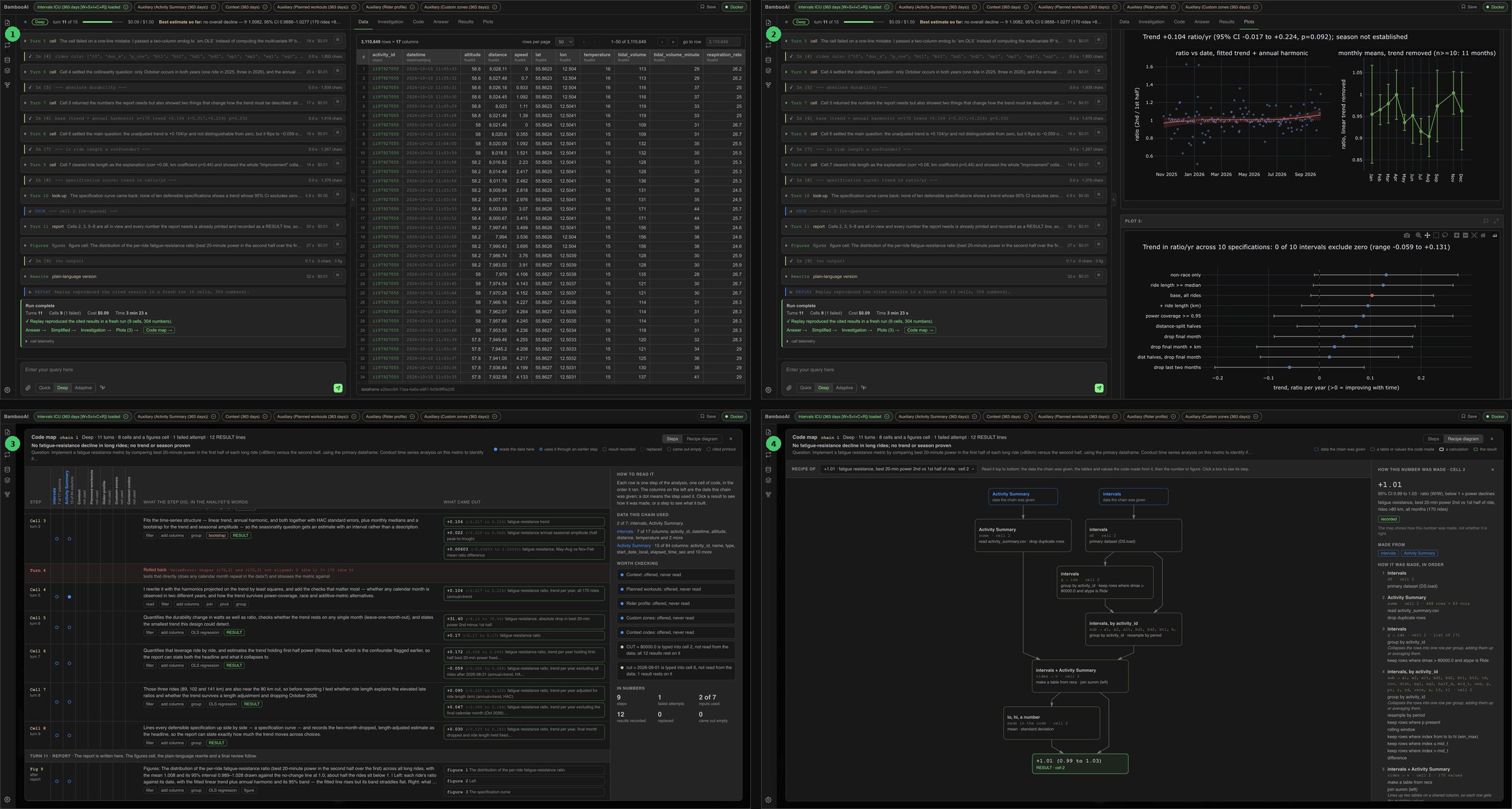
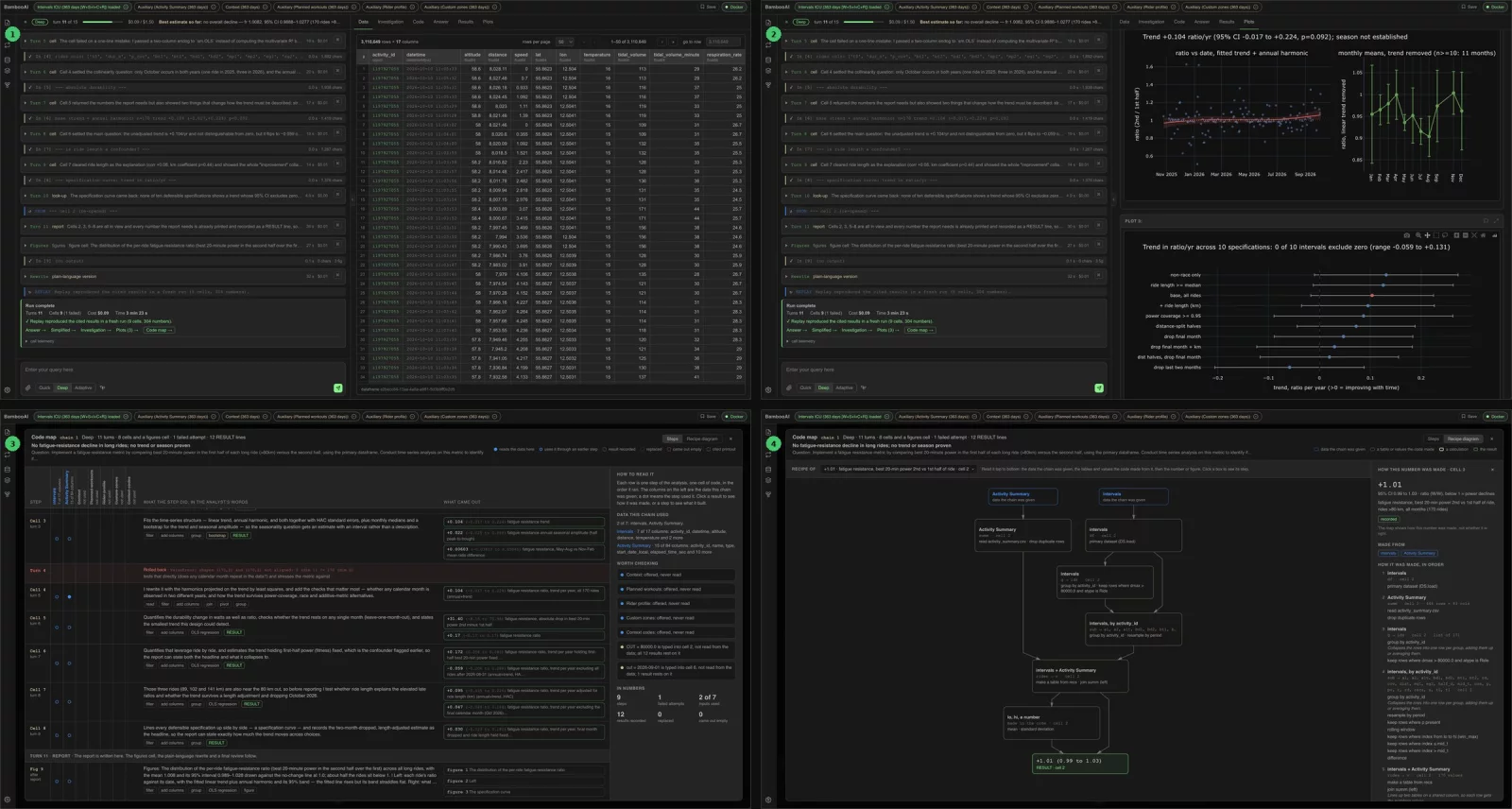
1 · a run: the turns and cells on the left, the data on the right · 2 · the report's figures · 3 · the chain's code map · 4 · the recipe of one of its numbers.
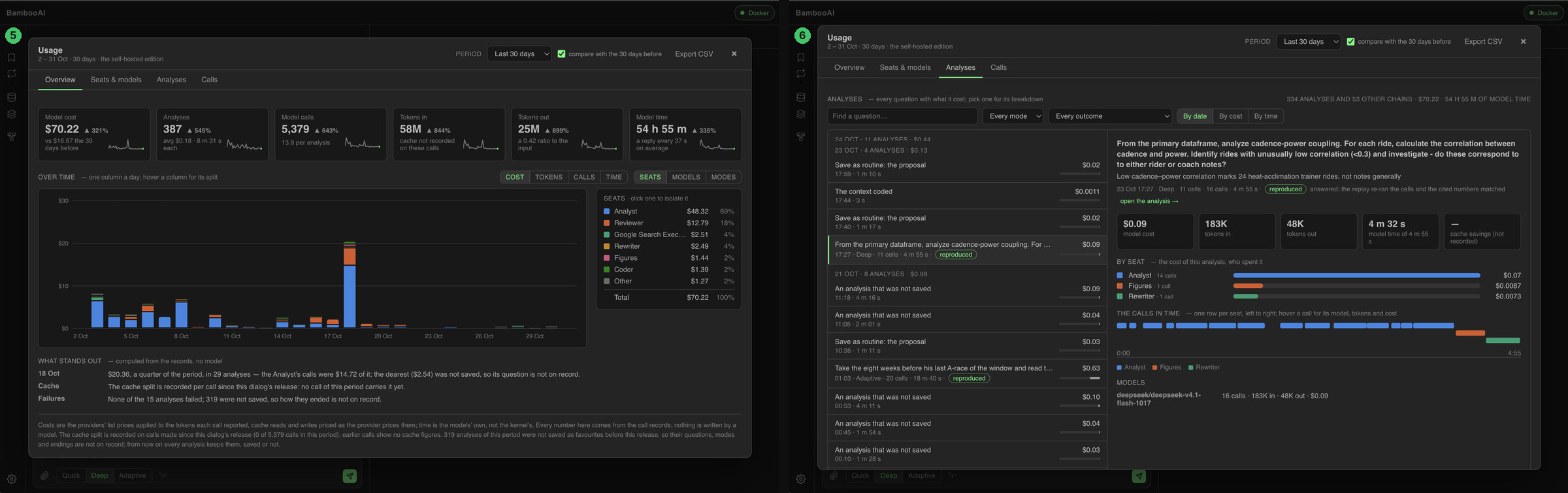
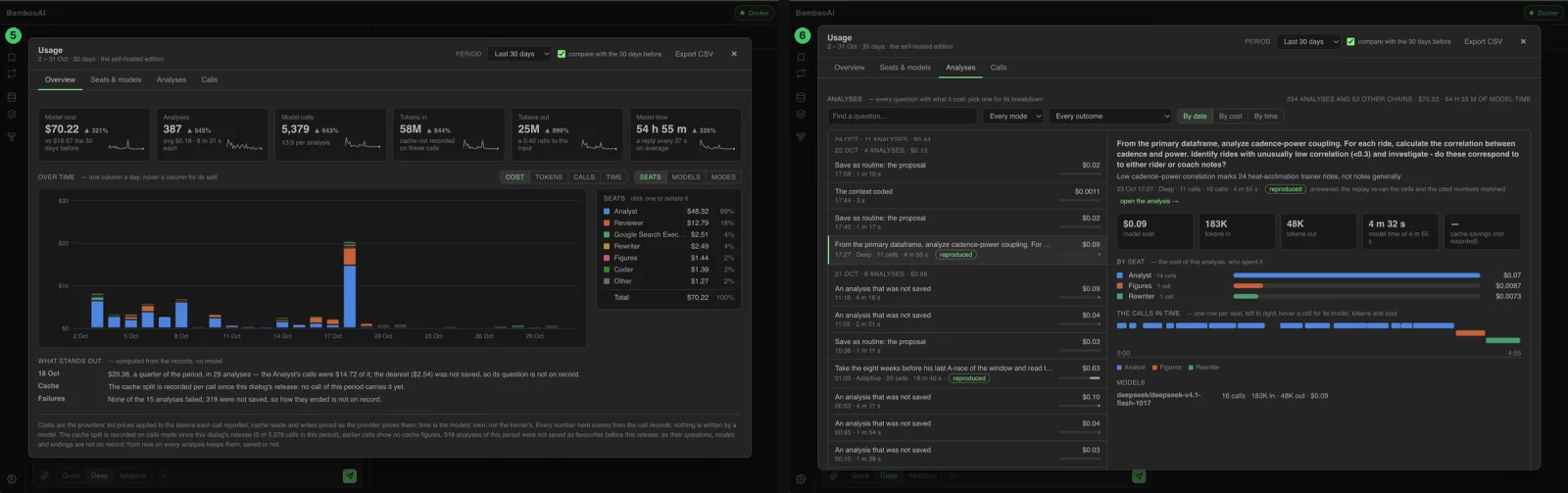
5 · Usage: what a month of analyses cost and where the money and the time went, by day and by seat · 6 · one analysis: its seats, its calls in time, its models.
Table of Contents
Overview
BambooAI is built around the idea that an AI-generated analysis should be something you can examine, reproduce and build upon. Rather than treating the final report as the only output, it preserves the analytical work that led to it.
How the analysis works
A primary Analyst model investigates a question through a series of steps, using a persistent Python kernel. It can explore datasets, write and execute code, examine results, consult documents and external sources, and decide what to investigate next. Each step builds on what has already been learned.
The Python environment retains variables, dataframes and intermediate calculations throughout the investigation. Successful code executions are committed to the workspace; failed executions are rolled back to the previous state. Follow-up questions can reuse earlier work, while branching allows alternative approaches to be explored without losing the original analysis.
Inspecting and verifying the work
BambooAI records the analytical process as it happens. The user can inspect executed code, outputs, figures, intermediate results, working notes and model interactions, including token usage, execution time and cost.
Numerical estimates are recorded alongside the computations that produced them. Reports reference those calculations, and an automatically generated code map helps trace results through the underlying data transformations and intermediate steps.
Once an analysis is complete, BambooAI reconstructs the supporting computation in a fresh Python kernel and runs it again against the original data. This replay verification checks whether the reported numerical results can be reproduced.
Reproducibility is an important safeguard, but it does not establish that a statistical method was appropriate or that a conclusion was justified. BambooAI makes the underlying evidence available so those questions can be examined independently.
Review and user control
The analytical workflow is configurable. Users can select models, reasoning settings and analysis depth, and intervene as an investigation develops.
In Adaptive mode, a separate Reviewer model examines the available evidence at regular intervals. It can challenge the Analyst's approach, request additional tests, question assumptions or recommend narrowing a conclusion. The Analyst and Reviewer operate under separate instructions and can use different models.
Other specialised roles handle supporting tasks such as document reading, figure generation and report rewriting. These roles can be configured independently.
From exploration to reusable analysis
An investigation does not have to end with a report. BambooAI can turn completed analyses into reusable routines, preserving the recorded method while allowing selected inputs to change. The original computation can be used to check the routine before applying it to new datasets, without requiring another LLM-driven investigation.
The application supports a range of commercial and open-weight models, including locally hosted models served through Ollama or vLLM. Python execution runs in an isolated container by default, independently of model inference. BambooAI can be deployed locally or used through the hosted service.
BambooAI originated in sports science and physiological data analysis, where repeated measurements, statistical uncertainty and the ability to trace results back to their source are particularly important. Its integrations with Intervals.icu, Endura and SweatStack reflect those origins, but the underlying analytical environment is general-purpose and works with ordinary tabular data, supporting documents and external sources.
Installation
Requirements: Python 3.11 or newer, with Docker running (Docker Desktop on macOS and Windows, Docker Engine on Linux). Docker is where the model-written code runs; see Where the Code Runs for the alternative.
Option 1, pip (recommended)
pip install bambooai
bambooai serve
Option 2, from the repository
git clone https://github.com/pgalko/BambooAI.git && cd BambooAI
python3 -m venv .venv && source .venv/bin/activate
pip install -e .
bambooai serve
Option 3, hosted. bambooai.org runs the same analyst as a service, with nothing to install.
Quick Start
- Start the app with
bambooai serve. On first use it creates the working folder~/bambooai, writes a.envfile, builds the executor image from the Dockerfile in the package, starts the container, and openshttp://127.0.0.1:5001. The initial build takes several minutes: it installs pandas, numpy, scipy, statsmodels, scikit-learn, matplotlib, plotly and the other analysis libraries. - Stop the app with Ctrl+C and add your model key to
~/bambooai/.env. An OpenRouter key is enough for the default preset,cost; theperformanceandmaxpresets put the Analyst, Figures, Rewriter and Promoter seats on Claude and need an Anthropic key as well. AddGEMINI_API_KEYto enable web search. For locally hosted models, use the Ollama or vLLM configuration below instead. - Run
bambooai serveagain. Upload a CSV, Parquet, JSON or XLSX file and ask a question. Choose Quick, Deep or Adaptive in the composer. - Open Models & Compute from the gear menu to choose and save a preset:
cost,performanceormax. Usage shows what the analyses cost and where the money and the time went.
The working folder:
~/bambooai/
├── .env                          keys and settings; read at start, never written by the app
├── LLM_CONFIG_template.json      the seats per preset: model, provider, reasoning effort, max_tokens, prices
├── bambooai.sqlite               chains, labels, usage, the saved preset, integration credentials (encrypted)
├── config/<user>/LLM_CONFIG.json the configuration built from the template for the chosen preset
├── storage/<user>/threads/       one JSON per thread: runs, cells, reports, reproduction results (a thread not saved is discarded at the next start)
├── storage/<user>/usage_ledger.jsonl  one line per analysis as it ended - question, mode, outcome - for the Usage dialog; kept
├── storage/<user>/favourites/    saved chains
├── storage/<user>/routines/      saved routines: versions, runs and their records
├── storage/<user>/context/       the codebook and the coded passages of each Intervals.icu subject
├── memory/<user>/                the memory pack
└── logs/<user>/                  bambooai_run_log.json: every model call with tokens, time and cost
serve uses this folder for your configuration and saved work. Upgrading the package does not change it;
deleting it starts you fresh. Use BAMBOO_HOME or bambooai serve --home DIR to choose another location.
The data the executor loads lives elsewhere: in the Docker volume bambooai-datasets, which outlives the
container (see The Dataset cache and the store).
Features
- Three analysis modes. Quick for a lookup or definition, Deep for a full analysis within a turn budget, and Adaptive for longer investigations with periodic review.
- Follow-up questions. Continue with the calculations and variables from the previous run, or start a new question with a fresh workspace. Runs form chains you can step through; see Follow-up questions for what happens when the data changes.
- Reports and figures. Keep both the technical report and a plain-language version for non-technical readers. A separate, cheaper model can handle the rewrite. Ask about a plot using its chat button; an image-capable Analyst can receive the picture along with your question.
- Data and documents together. Work with several datasets, load training data from Intervals.icu, Endura or SweatStack, and browse loaded data in the Data tab. Attach up to four papers, notes or transcripts per thread as PDF, Word, Markdown or text; their passages can be read and cited alongside the analysis.
- The words beside the numbers. An Intervals.icu load can bring the messages, notes, calendar entries and planned workouts written around the training. They are coded against a codebook, read in the kernel like any table, quoted verbatim in the report, and set against the numbers; see The words beside the numbers.
- Routines. Save a finished analysis as a method with a few inputs and run it again on another window or file, without a model. Each run is checked against the data it gets, recorded, and compared with the run before; see Routines.
- A Dataset cache that remembers. Loaded frames and files stay in the executor and are reused; Intervals.icu activities are kept once parsed, so a new window downloads only what is missing. Datasets the analysis writes appear in the same cache.
- Web search with sources. With a Gemini key, the Analyst can look up published figures using Google AI grounding, compare them with your data, and cite the sources in its report.
- Memory across runs. Saving a run records what was learned about the dataset, including column quirks and approaches that worked, for use in later analyses of the same data.
- Your choice of models. Use OpenRouter, OpenAI, Anthropic, Google, Groq, Mistral, xAI, DeepSeek, Ollama or vLLM. Each role, such as Analyst, Reviewer or Rewriter, has its own model and reasoning settings. See Models and Seats for configuration.
- A workspace you can return to. Save chains, organise them with labels, review usage and costs, and export reports as PDF. The app has light and dark themes.
How It Works
A run is the work needed to answer one question. It consists of turns: on each turn the Analyst reads the question, the dataset's description, its working note, the cells and their outputs, and its remaining budget. Long outputs are shortened in the prompt and can be reopened when needed. It then takes one action:
| Action | What it does |
|---|---|
CELL |
Run one Python cell in the kernel; its printed output becomes input for the next turn. |
SHOW n |
Reopen the full output of an earlier cell. |
NAMES |
List the variables the kernel holds. |
RECALL |
Consult the memory pack for this dataset. |
SEARCH |
Search the web with Google AI grounding; return a summary with sources. |
READ |
Read relevant passages from attached documents, or from the words loaded beside Intervals.icu data, through the Reader role, when configured. |
ASK |
Ask you a question; your answer continues the thread in the next run. |
REPORT |
Write the report and end the analysis turns. |
The Analyst follows the rules in analyst/contract.md, shared across models. These ask for a
best estimate and its uncertainty, the conditions it holds under, how it was established,
and references to the cells that support it. They also ask the Analyst to make exclusions visible,
distinguish association from causation, account for repeated observations rather than treating them
as independent subjects, and say what the available data or budget could not establish.
During the analysis, cells perform calculations rather than draw plots. Figures are created once the report is written.
Reports and checks
After REPORT:
- Figures. The
Figuresrole receives the report and the cells, then writes one Plotly cell drawing the one to three figures the reader needs from the objects already in the kernel. It can replyNONEwhen a number or table is sufficient. A failed cell is returned with its error for up to three corrections. The report gains a Figures section citing the cell and discloses when the requested figures could not be drawn. - Plain-language version. The
Rewriterrole produces a version for a non-technical reader. Both versions are kept, and both open with the report's title - its first line, written by the Analyst as a statement of what was found - which heads the Answer tab and the PDF export. The export's top section puts it above the question as the Analyst understood it (its own statement of what it answered, so a follow-up reads whole without the thread), what data the report stands on (the source, the window, the files), and the day, mode and reproduction verdict, so a report can be handed to someone who has never seen BambooAI or the data; the body is whichever version is on screen, with its figures on a print layout and its citations marked. The browser offers the title as the file's name. - Reproduction check. The successful cells are assembled in execution order, through the last cited cell or the run's last figure cell, and rerun against the original data in a fresh kernel. Earlier cells are retained so their imports, variables and changes to the data are available. Numerical values from the original cited cell outputs are compared with the fresh output. The closing card shows the outcome and how many numbers were checked; the figures produced by the replay appear in the Plots tab.
BambooAI also checks the technical report's numbers against its recorded evidence and the plain-language version's numbers against the technical report. Unmatched numbers are flagged for the reader rather than silently changed. These checks help expose discrepancies, but an analysis can reproduce and still use an unsuitable method or draw an unsupported conclusion.
-
Code map. When a chain ends, BambooAI builds a map of how it got from its data to its numbers, read mechanically from the committed cells and the kernel's record - no model is asked, so the same chain always gives the same map, and nothing of it reaches a prompt. Code map on the closing card (or the eye on a chain's box in the thread map) opens it, and a
[cell n]citation in the report opens it on that number's recipe: one row per cell with the inputs it read, what came out (the RESULT lines by status, the figures), and for each number its recipe - the data it rests on, the tables and values the code made in order, the settings typed into the code, the choices (seeds, thresholds, resample counts) - with a short list worth checking (an input never read, a value typed into the code that every result rests on, a result that came out empty or was replaced). The map shows how a number was made, not whether it is right.docs/CODEMAP_DESIGN.mdhas the design. -
Reach report. The kernel records what each cell touched outside the data: the hosts it connected to and the bytes each way, the files it opened outside the data, the environment names it read, the programs it started - and whether the question asked for it (the host, the file or the name appears in the question). The closing card lists the reaches with their cells, the cells the executor refused (the restricted-module list; a refused cell is shown as not run, not as a failure), and the box the cells ran on in one line; the same tags sit on the cell rows, in the Investigation tab and in the code map.
tools/reaches_report.pytallies the record over the stored threads per model. Nothing of it reaches a prompt; it observes and reports, it does not prevent (the one address the kernel refuses is the cloud instance metadata service).docs/REACH_DESIGN.mdhas the design.
Modes and budgets
Each mode sets a turn budget and a dollar budget the Analyst can see. The budgets are set per
preset through tier_properties in the configuration. In the performance preset, Quick allows
4 turns, Deep 15, and Adaptive 50, with a review after every 8th turn.
In Adaptive mode, the Reviewer has its own brief and can use a stronger model. It reads the
question, the working note, the results so far, the Analyst's turns since the last review, and the
code an