
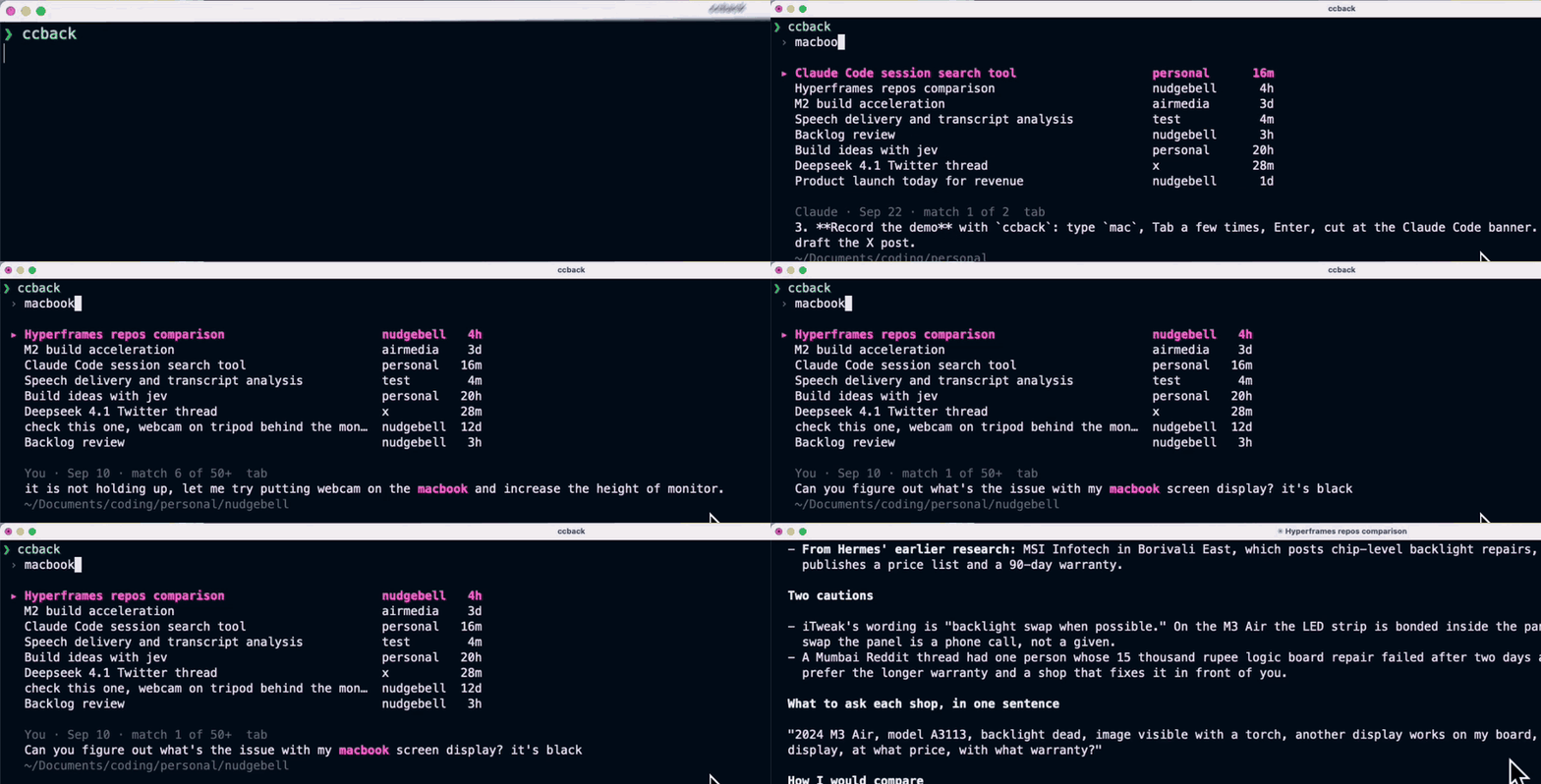
Search your Claude Code conversation history by what was said in it, and jump straight back in.
Install
npm install -g ccback # gives you `ccback` and the short `ccb`
Works on macOS, Linux and Windows. Needs Node 22 or newer.
Why not /resume?
/resume picker |
ccback | |
|---|---|---|
| Search matches | session titles, not what was said inside | everything you and Claude wrote |
| Shows the matching message | no | yes, step through each match with Tab |
| Sessions listed | the current project (all projects behind a key) | every project folder at once |
| Search type | text filter | full-text and semantic, ranked |
| Opens the session | in the current project; for other projects it copies a cd command |
yes, in its original folder, from anywhere |
Without ccback: /resume → switch to all projects → scan titles that are mostly your first message → preview one, wrong session, try the next. A word you said deep inside the conversation finds nothing.
With ccback: type what you remember → Enter.
Claude Code keeps your session transcripts under ~/.claude/projects. ccback indexes what you and Claude wrote in each one and shows which folder it lived in.
Everything runs locally. Nothing leaves your machine, and your Claude directory is only ever read.
Use it
ccback                       # the picker, most recent sessions first
ccback recording videos      # the picker, pre-filled — Enter resumes that session
ccback -w recording videos   # the same search in your browser
ccback -p invoices --json    # plain results, for scripts and pipes
Words are always the search. Everything else is a flag, so ccback web project looks for "web project". A word that is not a flag ccback knows stays a word, even with a dash in front of it — ccback -p -weird searches for "-weird" — and everything after -- is search text, always.
In the picker:
| Key | Action |
|---|---|
| type | search as you type |
| ↑ ↓ / Ctrl+P Ctrl+N | move between sessions |
| Tab / Shift+Tab | step through this session's matches |
| ← → | move the cursor in the search box |
| Enter | resume the session in its original folder (claude --resume <id>) |
| Ctrl+Y | copy cd '<folder>' && claude --resume '<id>' |
| Ctrl+O | open the full transcript in the browser |
| Ctrl+E | show the whole message behind a snippet |
| Ctrl+R | cycle the order: best match → newest first → oldest first |
| Esc | quit |
Best match ranks by how well a session fits your words and meaning, with a small preference for recent activity when it is close. Ctrl+R steps past it: newest first and oldest first order the sessions by last activity and walk a session's own matches by the clock, and the preview header names the order whenever it is not best match.
Smart search needs no key: it sets itself up on its own, in the background.
Smart search
Two things run at once: keyword search (SQLite FTS5, BM25, stemming) and semantic search, which matches by meaning — "video editing workflow" finds the session where you said "cut the clips and add captions". Results are merged, so you get both.
The first time you open the picker or the browser UI, ccback downloads a small embedding model (all-MiniLM-L6-v2, about 23 MB) and starts indexing meaning in the background. Keyword results are there from the first keystroke and quietly get better as it finishes; on a large history the first pass takes a few minutes. After that, a day of new conversation is a top-up of a few seconds, because unchanged text keeps the embeddings it already had.
With --keyword-only or CCBACK_KEYWORD_ONLY=1, or when the embedding libraries are not installed, none of that happens and nothing nags you about it: keyword search is the whole tool.
Install options
The default install includes the libraries that run the embedding model on your machine, so it is about 140 MB to download and about 520 MB on disk. They ship binaries for macOS, Linux and Windows in one package; only yours is ever loaded.
To use keyword search alone, run ccback --keyword-only, or set CCBACK_KEYWORD_ONLY=1 in your shell to make that permanent: no model is downloaded and nothing is embedded. A global install still carries the libraries, because npm install -g ignores --omit=optional; in a project-local install, npm install ccback --omit=optional does skip them and brings the install down to about 40 MB.
A shorter command
Want something shorter to type? ccback --alias offers to add alias sf=ccback to your shell startup file, on bash, zsh and fish. Pick your own name with ccback --alias qq.
Before it offers, it makes sure the name is free:
- not a program on your
PATH, not a shell builtin or reserved word, and not already an alias, abbreviation or function in your startup file; - on fish, not a file in your fish functions directory either (
~/.config/fish/functions, or underXDG_CONFIG_HOMEwhen you have set one).
It then shows you the exact block it would append — a blank line, a comment saying ccback added it, and the alias — and asks before adding it, unless you pass --yes. What it will and will not do:
- it writes to the startup file your shell really reads, so
ZDOTDIRandXDG_CONFIG_HOMEare honoured; if either points outside your home directory it says so and prints the line instead of writing anywhere; - nothing else in the file is touched, and it never follows a symlink out of your home directory;
- if it cannot write the file, it prints the line for you to paste;
- piped or scripted, it prints the line and changes nothing, unless you pass
--yes, which answers the question and skips it while still running every check; - under a shell it does not know, and on Windows, it prints the line to add instead of guessing at a file.
Everything else
-w, --web              open the browser UI (a second run reuses the one already up)
-p, --print            plain results instead of the picker (automatic when piped)
    --json             machine-readable results
    --sort best|recent|oldest  the picker's starting order (recent = newest)
    --stats            what the index holds, and where
    --reindex [--full] update the index now; --full rebuilds it from scratch
    --keyword-only     skip smart search for this run
    --alias [name]     offer to add a short command to your shell
    --yes              with --alias: skip the question, still run every check
    --limit N   --cwd <path>   --since <date>   --until <date>   --role user|assistant
    --projects-dir <path>   --port N   --no-open   --no-sync
-h, --help             -v, --version
-p and --json never download anything: if the smart-search model is not on
this machine already, they answer with keyword results and say so in modeUsed.
ccback --reindex is what sets smart search up from a terminal.
--sort sets the order the picker opens in, and the order -p/--json print
the sessions in — there, both recent and oldest mean the most recently used
session first, because a printed list has no matches to step through.
--port 0 asks the operating system for any free port, and a busy port is
stepped past rather than refused.
--no-sync skips the index update. If the folder it would have read is not the
one the index was built from — a different --projects-dir, or a default that
has moved since — it says on stderr which folder the results came from, leaving
stdout exactly what a pipeline expects. The picker shows the same sentence as
its one status line until you type, and the browser UI as a quiet line under the
results.
Single-letter flags can be bundled: -pw is -p -w.
The browser UI has the same search, a folder and date filter, a best-match / most-recent switch, and a transcript reader with one button: copy the resume command.
Where things live
- Transcripts:
$CLAUDE_CONFIG_DIR/projectsor~/.claude/projects(override with--projects-dir). Read-only. - Index, model cache and the running-server marker:
~/.ccback(override withCCBACK_HOME). Safe to delete; it is rebuilt on the next run. - Subagent transcripts are not indexed.
Sessions missing?
By default Claude Code deletes sessions you haven't used in 30 days from its projects folder, without showing a message (Claude Code docs). Once a transcript is gone, ccback can't find it either: the next index sync drops it.
To keep them, set a large cleanupPeriodDays in your Claude settings (~/.claude/settings.json, or settings.json under $CLAUDE_CONFIG_DIR). 0 fails validation, so use a big number:
{
  "cleanupPeriodDays": 3650
}
More detail: Claude Code sessions disappeared? It deletes them after 30 days.
Privacy
The web UI binds to 127.0.0.1 only, rejects requests with a foreign Host header, sends no CORS headers, and serves a strict Content-Security-Policy. Transcript text is never rendered as HTML. The only network request ccback ever makes is the one-time model download.
The running server records itself in ~/.ccback/web.json, which holds the secret that identifies it. That file is created 0600 on macOS and Linux. Windows has no POSIX file modes: there it lives in %USERPROFILE%\.ccback and is protected by the ACL that folder inherits, which grants you, SYSTEM and local administrators — so on a shared Windows machine an administrator can read it.
Contributing
Issues and pull requests are welcome. You need Node 22 or newer.
git clone https://github.com/Aditya-A-G/ccback.git
cd ccback
npm install
npm test            # builds first, then runs the suite
npm run typecheck
npm run build
The tests need no network, and they never read or write your real ~/.claude
or ~/.ccback: every run gets its own temporary home, and the suite fails if
anything under the real one changes.
License
MIT. See LICENSE.