
Video & Screenshot Uploader for ClickUp
Record your screen or capture and annotate screenshots, then attach them to a new or existing ClickUp task — all from the browser's side panel. For Chrome and Firefox.



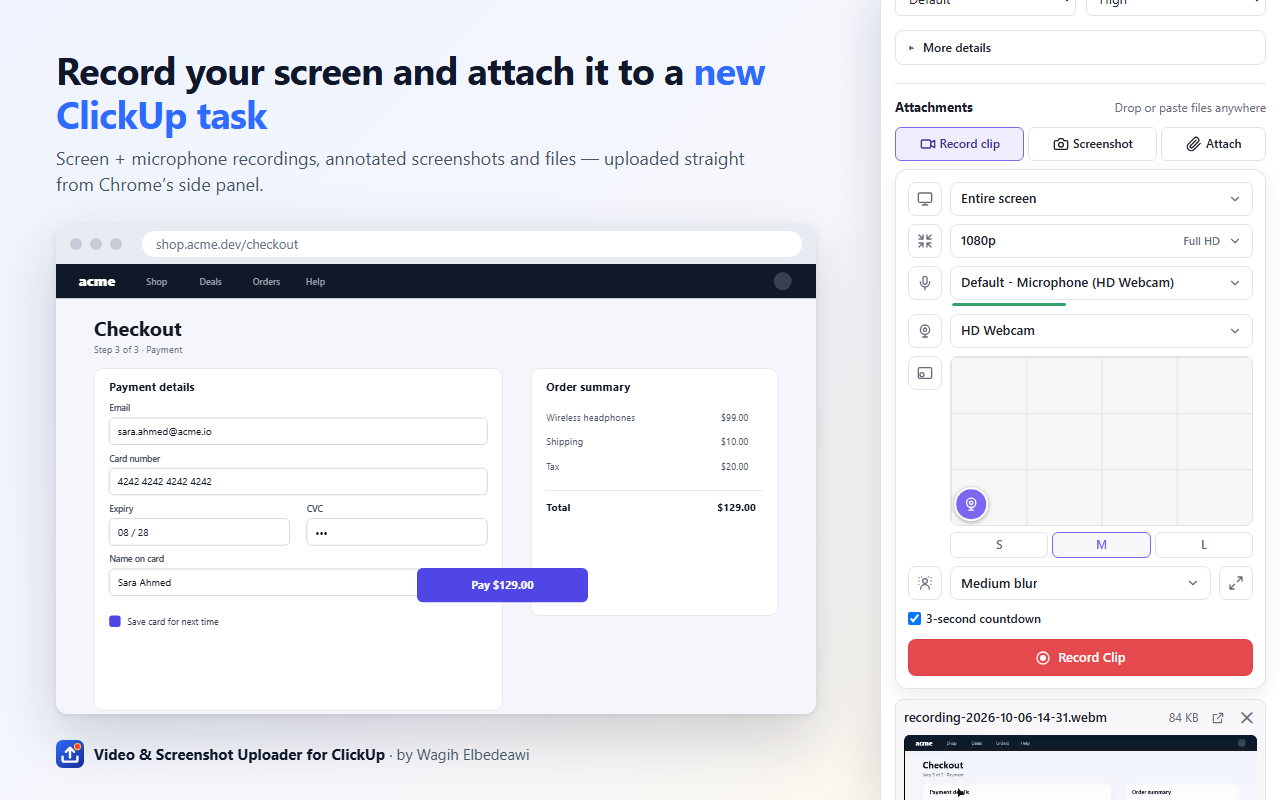
The official ClickUp Chrome extension can't attach videos to tasks. This one can, and it adds an annotation editor for screenshots too.
Not affiliated with, endorsed by or sponsored by ClickUp. "ClickUp" is a trademark of its owner, used only to describe compatibility.
Features
- Record clip: your entire screen, a window or a tab, at 720p–4K or native resolution, with your choice of microphone and system audio. Optionally add yourself as a movable camera bubble. Pause, resume and mute the mic while recording, with a 3-second countdown to get ready. Keeps recording with the side panel closed (Chrome).
- Screenshots: visible tab, a selected area or the entire screen, then draw, add text, blur sensitive details or crop.
- Create a task with title, a rich-text description (headings, bold, lists, checklists, links, code), status, priority, plus optional assignees, due date, tags and custom fields.
- Add to an existing task: paste a link or open the task and it's detected automatically, with an optional comment.
- Save to Clips: a third tab saves recordings to your workspace's Clips Hub, with ClickUp's automatic transcript, optionally as soon as the recording stops. The public API can't create Clips, so this tab talks to ClickUp's own web-app API and needs you to be signed in to ClickUp in the browser; it is undocumented and may stop working after a ClickUp update. The task upload never depends on it.
- Private by design: uses your own ClickUp API token, stored only in your browser. No servers, no analytics, no tracking (privacy policy). Everything goes to ClickUp's API; only the Clips tab also talks to ClickUp's web-app hosts.
Supported browsers
| Browser | Status | Notes |
|---|---|---|
| Chrome 123+ | Supported | Also Edge, Brave, Opera, Vivaldi and other Chromium browsers (install from the Chrome Web Store). |
| Firefox 128+ | Supported | Same UI in Firefox's sidebar. Differences: no "Current tab" source (Firefox's picker shares screens and windows), no system audio, the sidebar must stay open while recording, stop recordings from the panel (Firefox's own "Stop Sharing" button in the sharing indicator does nothing for sidebar pages), and Settings opens in a tab. |
| Safari | Not supported | Safari has no sidebar API and needs an Xcode wrapper app. |
Install
From the stores:
- Chrome, Edge, Brave, Opera, Vivaldi: Chrome Web Store
- Firefox: Firefox Add-ons
Both listings are awaiting their first store review. Until they are approved, install by hand:
Chrome
- Download
video-and-screenshot-uploader-for-clickup-<version>.zipfrom the latest release and unzip it. - Open
chrome://extensionsand turn on Developer mode (top right). - Click Load unpacked and select the unzipped folder.
- Pin the extension and click its icon. The side panel opens.
Firefox
Firefox only installs add-ons signed by addons.mozilla.org. The -firefox.zip from a release is not signed, so
Install Add-on From File on it fails with "could not be verified". Until the listing is live, either:
- Try it out (temporary): unzip
video-and-screenshot-uploader-for-clickup-<version>-firefox.zip, openabout:debugging#/runtime/this-firefox, click Load Temporary Add-on… and pick the unzippedmanifest.json. The add-on is removed when Firefox quits. - Install it for good: have AMO sign it. In the Developer Hub choose
Submit a New Add-on → On your own, upload the zip, and download the signed
.xpiit produces (usually within minutes). That.xpiinstalls in any Firefox, and a public listing can be added later under the same add-on ID.
Then click the extension's toolbar icon. The sidebar opens.
Set up your token
- In ClickUp go to Settings → Apps (https://app.clickup.com/settings/apps) and copy your personal API token (
pk_...). - Click ⚙ in the side panel (or open the extension's Options), paste the token, then Save. You should see "Connected as
The token is kept in the extension's local storage on this machine only. Revoke on the settings page removes it from the browser. To invalidate the token itself, regenerate it in ClickUp.
Usage
New task: pick Workspace → Space → Folder (or "No folder") → List, enter a title and an optional description (format it with the toolbar or Markdown shortcuts like - and **bold**), status and priority. Then press Create task & upload.
- The panel opens on the list you used last.
- Each dropdown remembers your last pick inside each parent, and picks the only option automatically when there is just one. Once a list is chosen the four dropdowns collapse into a single "Space › Folder › List" row; click Change to pick another location.
- More details (collapsed by default) adds assignees, due date (optionally with a time), tags and custom fields. A badge shows how many are set.
- Supported custom field types: text, number, currency, email, URL, phone, date, checkbox, dropdown, labels and rating. Other types are listed so you can set them in ClickUp afterwards. Required fields are checked before submitting.
Existing task: open a task in ClickUp and the panel picks it up from the current tab. You can also paste a task URL, a task ID, or a custom ID like DEV-123, then press Check. Add a comment (collapsed) posts a comment after the upload. You can also post just a comment.
Clips: no task at all. Record (or attach) videos and press Save to Clips to put them in your workspace's Clips Hub, where ClickUp transcribes them. Tick Save to Clips when recording stops and a recording you start in this tab is saved the moment you stop it. This tab is video-only (the Screenshot tool is hidden and Attach takes videos), needs you signed in to ClickUp in this browser (a ClickUp tab is opened in the background if none is open). The tab you used last is the one the panel opens on.
Attachments: a toolbar with three tools.
-
🎥 Record clip opens the recording card:
-
Source: Entire screen, Window or Current tab. Chrome's share picker opens on the matching pane. Tick "Share audio" there to include system or tab audio. (Firefox: Entire screen or Window; its picker has no tab sharing or system audio.)
-
Resolution: 720p (HD), 1080p (Full HD), 1440p (2K), 2160p (4K) or Native (Auto). The capture is scaled down to fit; bitrate follows the real size.
-
Microphone: "No microphone" or any of your devices, with a live level meter. Until the extension has mic permission, the list shows "Default microphone" and an option to allow access.
-
Camera bubble: "No camera" (the default) or one of your cameras. You then appear in the clip as a round, mirrored bubble. A small preview of the recording shows where it goes: drag it anywhere (it snaps to the corners) and pick S, M or L. The same control appears while recording, so you can move the bubble off something it covers. If the camera can't be opened, the clip is recorded without it.
-
Background blur: with a camera picked, choose No blur (the default), Medium blur or High blur. The background behind you is blurred and you stay sharp, in the bubble preview and in the clip. The ⤢ button next to it opens a large Camera check preview with a No blur / Medium / High switch, to compare the levels before recording. It runs on your device with Google's open-source MediaPipe, packaged in the extension; no frame is sent anywhere. It needs WebGL: if it can't start, the card says so, and a recording that asked for blur leaves the camera out rather than show your background.
-
3-second countdown (on by default): after you pick what to share, the recording starts 3 seconds later, so you can switch to what you want to show. Stop during the countdown cancels.
Choices are remembered. Press Record Clip to start. While recording, the strip in the panel has Pause / Resume (the paused part is left out of the clip) and Mute / Unmute for the microphone. In Chrome you can close the side panel while recording: a red REC badge shows it's running (II while paused). Stop with the browser's "Stop sharing" bar, or reopen the panel and press Stop. Recordings are written to disk as they go, so long ones don't fill memory.
In Firefox the recorder lives in the sidebar itself, so keep the sidebar open while recording (switching tabs is fine) and stop it with the panel's Stop button: the "Stop Sharing" button in Firefox's sharing indicator has no effect on sidebar pages. If the sidebar does get closed, the part recorded so far is kept and shows up as an attachment the next time the sidebar opens.
-
-
📷 Screenshot ▾ has three modes:
- Visible tab captures the visible part of the current tab.
- Select area lets you drag a rectangle on the page. Esc or a plain click cancels.
- Entire screen captures a screen, window or tab via the browser's picker.
Each screenshot opens in an editor tab with Draw, Text, Blur (pixelates, safe for passwords and emails) and Crop. There are 8 colors, 3 sizes and undo/redo (Ctrl+Z / Ctrl+Shift+Z), with shortcuts P, T, B and C. An area selection opens already cropped; undo brings back the full screenshot.
-
📎 Attach picks files. You can also drop or paste files (Ctrl+V) anywhere in the panel.
-
Recordings and screenshots you haven't uploaded are kept, even if you close the panel, until you upload or remove them. The ↗ button on an attachment opens it full size in a tab (the side panel itself can't go fullscreen), where recordings play at 1×, 1.5× or 2×.
-
Recordings are WebM (VP9/Opus in Chrome, VP8 or VP9/Opus in Firefox), which plays in ClickUp's viewer. ClickUp's limit is 1 GB per file.
If the task is created but an upload or the comment fails, the task link stays on screen and the button turns into Retry, so nothing is duplicated. Rate-limit responses (HTTP 429) are retried automatically.
Microphone and camera permission
Browsers usually can't show the microphone or camera prompt inside a side panel. When that happens, the panel shows Grant microphone access / Grant camera access (or "Allow access…" in the device list). Click it, allow the device in the tab that opens, then record again. You only need to do this once per device. In Firefox, tick Remember this decision in the prompt, otherwise it asks every time.
If site access was turned off for the extension (Chrome: Details → Site access; Firefox: about:addons → Permissions), screenshots and task auto-detection stop working until it is turned back on.
Buy Me a Coffee link
If the extension saves you time, you can buy me a coffee ☕.
For maintainers: the link is BUY_ME_A_COFFEE_URL in lib/links.js (https://buymeacoffee.com/wagih.elbedeawi). It drives the compact button in the side panel footer and the "Support this extension" box in Settings; clearing it hides both. The button recreates Buy Me a Coffee's official style locally, because MV3 doesn't allow their remote widget script. The Cookie font is bundled in fonts/ under the SIL Open Font License.
Contributing
Contributions are welcome! Start with CONTRIBUTING.md. It covers setup (no build step: load the folder unpacked), coding guidelines and how to test. What's planned, and why, is in ROADMAP.md. Please follow the Code of Conduct. Report security issues privately as described in SECURITY.md. For help, see SUPPORT.md.
Releasing
npm test && npm run test:smoke   # unit + headless UI tests in Chrome (also run in CI)
npm run test:smoke:firefox       # the same UI tests in headless Firefox
npm run render                   # regenerate icons/ and store/images/ (needs Chrome or Edge)
npm run package                  # → dist/<name>-<version>.zip (Chrome), dist/<name>-<version>-firefox.zip and dist/firefox/
Then:
- Bump
versioninmanifest.jsonand add the release to CHANGELOG.md. - Tag it and attach both zips to a GitHub release.
- Upload the Chrome zip to the Chrome Web Store, using store/listing.md for every dashboard field (description, permission justifications, data-usage answers and reviewer test steps).
- Upload the Firefox zip to addons.mozilla.org, using store/firefox-listing.md. The Firefox manifest is generated from
manifest.jsonbyscripts/lib/firefox-manifest.mjs; the add-on ID in there must never change.
The privacy policy lives in docs/privacy-policy.html. It's served by GitHub Pages at https://clickup-uploader.macawshub.com/privacy-policy.html.
Project layout
manifest.json           MV3 manifest (Chrome; the Firefox one is derived at package time)
background.js           opens the side panel / sidebar; coordinates the recorder, REC badge
sidepanel/              main UI: sidepanel.js (form, uploads, recorder host), recorder-card.js (Record clip),
                        details.js ("More details"), menu.js (dropdowns)
lib/icons.js            inline SVG icon set
lib/platform.js         Chrome vs Firefox feature detection and wording
lib/capture-session.js  one recording / screen grab → IndexedDB; hosted by offscreen/ (Chrome) or the sidebar (Firefox)
offscreen/              Chrome: hidden document that owns recordings and "Screen" screenshots
editor/                 screenshot annotation editor (draw, text, blur, crop)
options/                API token settings + revoke
permissions/            one-time microphone permission page
icons/                  extension icons (generated from store/src/icon.svg)
lib/clickup-api.js      ClickUp API v2 client (429 retries, XHR for upload progress)
lib/recorder.js         getDisplayMedia + mic → MediaRecorder (WebM), pluggable chunk sink
lib/attachments-db.js   IndexedDB: pending attachments, screenshot drafts, recording chunks
lib/screenshot.js       tab / area capture (injected area-selection overlay)
lib/storage.js          chrome.storage helpers
lib/geometry.js         pure helpers (selection rects, due dates)
store/                  Web Store + AMO listings, images and their HTML sources
docs/                   GitHub Pages site: landing page + privacy policy
fonts/                  Cookie font for the Buy Me a Coffee button (SIL OFL)
vendor/mediapipe/       Google MediaPipe (Apache-2.0), unmodified, for the camera-bubble background blur
lib/background-blur.js  the blur itself: segmenter loading, drawing, the telemetry guard
scripts/                asset renderer, zip packager (+ Firefox manifest), headless Chrome/Firefox helper (Node 22+, no deps)
tests/                  unit/ (node:test) and smoke/ (headless Chrome and Firefox against demo data)
AGENTS.md               architecture notes for contributors and AI agents (CLAUDE.md imports it)
No build step: edit a file, then click the reload icon on chrome://extensions. For Firefox, run npm run package and reload dist/firefox/ from about:debugging.
ClickUp API used
GET /team, /team/{id}/space, /space/{id}/folder, /space/{id}/list, /folder/{id}/list, /list/{id}, /list/{id}/member, /list/{id}/field, /space/{id}/tag, /task/{id}, /user.
POST /list/{id}/task, /task/{id}/attachment, /task/{id}/comment.
License
MIT © Wagih Elbedeawi. The bundled Cookie font (fonts/) is licensed under the SIL Open Font License 1.1. The background blur uses Google MediaPipe (vendor/mediapipe/, unmodified), licensed under the Apache License 2.0.