

cPanel Monaco Editor
The VS Code editor, inside cPanel's File Manager.
Made by Monir Saikat · monirsaikat1@gmail.com · MIT License
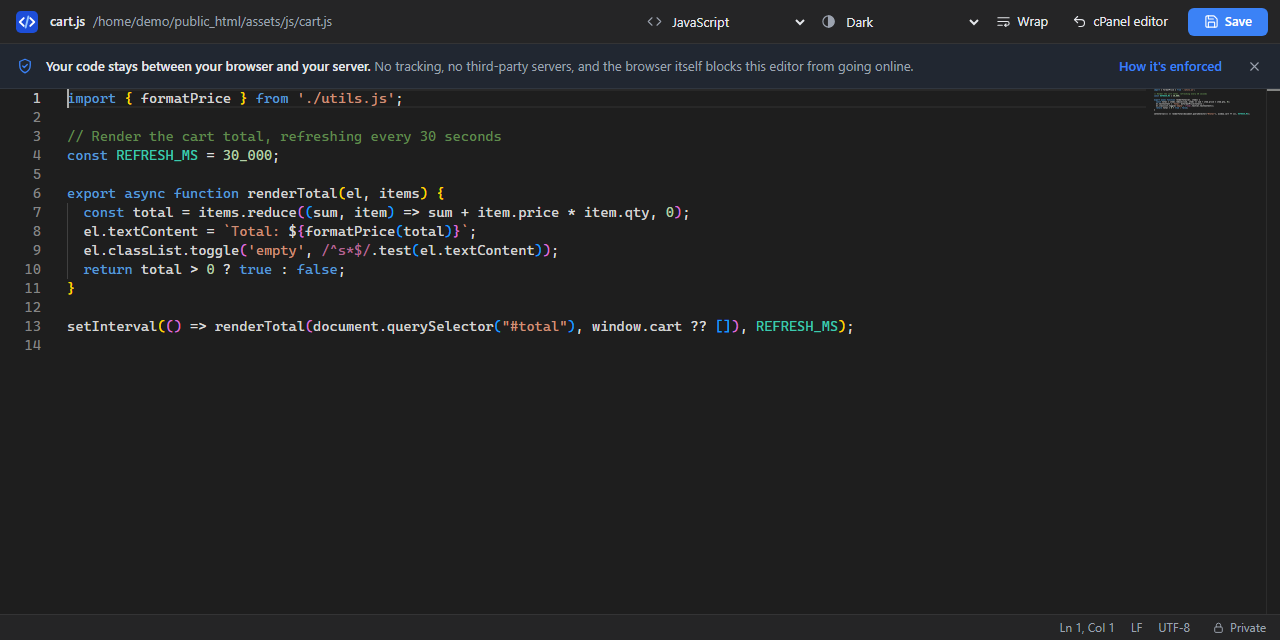
A Chrome and Firefox extension that replaces the code editor in cPanel's File Manager with Monaco, the editor that powers VS Code.
Open any file in File Manager the way you normally do. Instead of cPanel's built-in editor, you get proper syntax highlighting, multi-cursor editing, find & replace, code folding, a minimap, and the keyboard shortcuts you already know from VS Code.
Features
- Real VS Code editing: multi-cursor, bracket matching, folding, command palette (
F1), find & replace with regex, sticky scroll. - Fast file explorer and tabs: browse your account's folders in a sidebar and open several files side by side as tabs, without going back to File Manager. Folders load in parallel, and the tree you saw last time appears instantly while it refreshes in the background. Each tab has its own unsaved-changes dot and its own undo history.
- Autocomplete for PHP and HTML: HTML tags, attributes and closing tags (also in the HTML part of
.phptemplates), plus PHP built-in functions with parameter placeholders, keywords, superglobals and snippets (foreach,pubf,try…). - Project-aware PHP completion: after
->and::it knows the methods, properties, constants and enum cases of your own classes, including inherited and trait members, and followsnew Foo, type hints,@varcomments,$this->propand call chains such as$user->posts()->first()->. Typing a class name from another file adds theuseimport for you, anduse App\Mo…completes from your project. Class names, method signatures and Eloquent$fillablefields are indexed in the background, a few files at a time, and remembered between visits. - Settings page like VS Code's (
Ctrl+,or the gear in the toolbar): search, a category tree, a bar beside every setting you've changed and a one-click reset. About 50 settings: font, cursor, tab size and indentation, word wrap, minimap, whitespace, suggestions, color theme, Auto Save (after a delay, when the editor loses focus, or when the window does), Format On Save, trim trailing whitespace, final newline, hidden files in the explorer, the PHP index and formatter version, and Emmet. Settings apply live. Use the Server tab to keep different settings for a particular cPanel server, and type@modifiedin the search box to see everything you've changed. - PHP documentation built in: completion for PHP's own functions (with parameter placeholders), classes and constants such as
PHP_EOL; hover any function, method, class, constant or variable for its signature, a description, parameter notes and a link to the manual; parameter hints appear as you type a call and follow the argument you're on, for built-in functions, your own classes' methods and functions in the file. Built-in classes work everywhere the project index does, so$date->,catch (Exception $e) { $e->and a class thatextends Exceptionall complete. Afternew,extends,implements,instanceofandcatch (only classes are offered. Covers the core extensions most sites use (standard, SPL, date, json, mbstring, PDO, mysqli, curl, DOM, and more) for PHP 8.4. - Go to definition (
F12orCtrl+Click): jump to where a class, method, property, constant or function of your project is declared, in the same file or another one.Ctrl+Shift+Olists the classes and functions of the current file, and typing#in Go to file (Ctrl+P) finds a class, method or function anywhere in the project. - Outline and breadcrumbs: an Outline tab in the sidebar lists the classes, functions, rules or headings of the current file (PHP, JavaScript, TypeScript, CSS/SCSS/Less and Markdown) and follows the cursor. A breadcrumb bar above the editor shows the path to the file and the class and function you're in; click a folder to show it in the explorer, or a symbol to pick one of those beside it.
- Problems and the PHP error log in a panel under the editor (
Ctrl+J, or the warning count in the status bar). Problems lists every error and warning in the open files; click one to go there. Error log shows the end of the nearesterror_log(or the file you name in Settings), newest first, with repeated messages folded into one line, and keeps itself up to date while it is open. Click an entry to open the file at the line that failed. - Open in browser: the globe button in the toolbar, or Open in browser in a tab's or file's menu, opens the address the file is served at, worked out from your account's domains and their folders.
- PHP syntax errors underlined as you type, before a broken file reaches your live site.
- WordPress: in a WordPress site, its functions and classes (
get_post_meta(),WP_Query,$wpdb->…) complete with documentation and parameter hints, and hook names complete insideadd_action('…'),add_filter('…'),do_action('…')andapply_filters('…'). - Format PHP:
Shift+Alt+Fformats the file with Prettier's PHP plugin, in a background thread so the editor never freezes. Syntax errors are reported with their line number and your file is left untouched. - Go to file (
Ctrl+P): fuzzy-search every file in the explorer's folder by name or path. The list from your last visit appears instantly and is refreshed in the background; the open file's project folder is indexed first. Add:42to jump straight to line 42. - Find and replace in files (
Ctrl+Shift+F): search the text of every file in the explorer's folder, with match case, whole word, regular expressions and a "files to include" filter. Type a replacement to see each match struck out next to what replaces it, click a result to compare the file before and after, then replace in one file or all of them. - File operations: create, rename, copy, cut and paste, duplicate, move (drag and drop), change permissions, compress, extract and delete (move to trash) files and folders from the explorer's right-click menu.
Ctrl+clickandShift+clickselect several at once. - Upload and download: drop files or whole folders from your computer onto a folder in the explorer to upload them, or use Upload files and Upload folder. Download saves any file to your computer.
- Split editor (
Ctrl+\): a second pane beside the editor, for another file or another part of the same one. Open to the side in the explorer or a tab's right-click menu puts a file there. - Markdown and SVG preview (
Ctrl+Shift+V): a live preview beside the file that updates as you type and follows your scrolling, with highlighted code blocks, tables and task lists. - Image preview: PNG, JPEG, GIF, WebP, AVIF, BMP and ICO files open as pictures, with their dimensions and size. Click to switch between fit and actual size.
- Laravel and Blade:
.blade.phpfiles get Blade highlighting ({{ }},{!! !!}, comments and@directives), directive snippets after@, and PHP completion inside echoes and directives. In a Laravel project,view('…'),@include('…'),route('…'),config('…')andenv('…')complete the names of your views, routes, config keys and.envkeys. - Never lose work: unsaved changes are kept as a draft in your browser and offered back if the page reloads, crashes or the session expires.
- No silent overwrites: before saving, the editor checks whether someone else changed the file on the server and shows you both versions side by side if they did.
- Review before saving: compare your changes with the server's version at any time.
- Local history: the last 20 saved versions of each file are kept in your browser for 30 days, with a side-by-side compare and one-click restore.
- Remembers your tabs: the files you had open come back the next time you open the editor on the same account.
- File icons for hundreds of file types and well-known folders, from the Material Icon Theme used in VS Code.
- Emmet: type
ul>li*3,.card,m10and the like in HTML, PHP, CSS, SCSS and Less files, then pressTaborEnterto expand. - Automatic language detection from the file name: PHP, JavaScript, TypeScript, HTML, CSS/SCSS/Less, JSON, Markdown, YAML, XML, SQL, Python, shell,
.htaccess,.envand more. You can switch manually from the dropdown. - Saves straight to your server with
Ctrl+S/Cmd+S, using your existing cPanel login. The Save button shows a spinner while it works. - Unsaved-changes protection: a dot on each modified tab and next to the file name, a
●in the browser tab title, a prompt before closing a modified tab, and a browser warning if you try to leave with unsaved work in any tab. - 16 themes plus "Match system": Light, Dark, GitHub Light/Dark, One Dark, Dracula, Monokai, Nord, Tokyo Night, Catppuccin Mocha, Gruvbox Dark, Night Owl, Solarized Light/Dark, and high-contrast Light/Dark. The toolbar recolors to match, and your choice is remembered.
- Word wrap toggle, also remembered.
- Transparent about privacy: a banner and a Private button in the status bar explain exactly what the extension can and can't do, and how to check each claim yourself.
- Escape hatch: one click on cPanel editor brings back the original editor.
- Fully offline: Monaco is bundled inside the extension. Nothing is downloaded from a CDN, and your code is never sent anywhere except your own cPanel server.
Installation
The extension isn't on the Chrome Web Store yet, so you load it manually. It takes about two minutes.
Option A: download a release (recommended)
No Node.js or build step needed.
- Open the latest release and download
cp-monaco-vX.Y.Z.zip. - Unzip it somewhere permanent (for example
Documents/cpanel-monaco). Chrome loads the extension from that folder every time, so don't delete it. - Go to
chrome://extensions. - Turn on Developer mode (top-right toggle).
- Click Load unpacked and select the unzipped folder, the one that contains
manifest.json.
To update, download the new zip, replace the folder's contents, and click the reload icon on the extension's card.
Option B: from source
You need Node.js 18 or newer.
git clone https://github.com/monirsaikat/cp-monaco.git
cd cp-monaco
npm install
npm install downloads Monaco and copies it into extension/monaco/ automatically. Then:
- Go to
chrome://extensions. - Turn on Developer mode.
- Click Load unpacked and select the
extensionfolder inside the project.
Edge, Brave, Opera, Vivaldi and other Chromium browsers work too. Use their extensions page (
edge://extensions,brave://extensions, …) and follow the same steps.
Firefox
The Firefox add-on is built from the same source with a Firefox-specific manifest. It needs to be signed by Mozilla before it can be installed permanently in regular Firefox.
Firefox packages Monaco 0.49 because Monaco 0.52's TypeScript worker exceeds Mozilla's 5 MB JavaScript validation limit. The rest of the extension is shared with Chrome.
For a temporary local test, run npm ci and npm run build:firefox, open about:debugging#/runtime/this-firefox, choose Load Temporary Add-on, and select dist/firefox/manifest.json. Temporary add-ons disappear when Firefox closes.
To submit to addons.mozilla.org, upload the dist/cpanel_monaco_editor-<version>.zip produced by npm run build:firefox, or cp-monaco-firefox-v<version>.zip from a GitHub release. The ZIP has manifest.json at its root. Select Firefox desktop (version 140 or later). The manifest declares website content and activity because reading and saving files sends requests to the user's own cPanel server; the add-on sends nothing to its developer or third parties. Mozilla may ask for a source archive because bundled third-party libraries are minified; provide the matching GitHub release's source archive and these build steps (npm ci && npm run build:firefox). The dependencies and their licenses are listed under Credits & licenses below.
How to use it
- Log in to cPanel and open File Manager.
- Select a file and click Edit in the toolbar, or right-click the file and choose Edit.
- If cPanel asks about the character encoding, click Edit again.
- The editor opens in Monaco. Make your changes and press
Ctrl+S(or click Save).
A "Saved … at …" message appears in the bottom-left corner when the file has been written to the server.
Working with several files
The explorer on the left starts at your home folder, with the folder of the file you opened already expanded. Click a file to open it in a new tab, or click its tab again later to switch back. The buttons at the top of the explorer show the parent folder, refresh the listing, and open Go to file.
- Toggle the explorer with
Ctrl+Bor the sidebar button at the far left of the toolbar. Drag its edge to resize it. - Close a tab with
Alt+W, its ×, a middle-click, orDeletewhile the tab is focused. Switch tabs withAlt+PageUp/Alt+PageDown, or jump straight to one withAlt+1…Alt+9. Ctrl+Psearches files under the explorer's top folder. The first search in a session builds a list of files folder by folder, starting with the folder that holds the file you opened, which can take a few seconds on big sites. It skips folders that never hold site code (.git,node_modules,vendor, caches, andmail,logs,tmp,ssl,etcandperl5in your home folder) and stops after 10,000 files. If your site is bigger than that, use the explorer to show a smaller folder first.- Images, archives, fonts and other binary files are listed but can't be opened. Files over 5 MB ask for confirmation first.
- Files opened from the explorer are read and saved as UTF-8. The file you opened from File Manager keeps the encoding cPanel reported for it.
- The tabs you had open are reopened next time (up to 12), as long as you open the editor on the same server and account.
Creating, renaming and deleting
Right-click a file or folder in the explorer (or press Shift+F10) for New file, New folder, Rename (F2), Move to trash (Delete) and Copy path. The two buttons next to the folder name create a file or folder inside the folder you last selected.
The same menu has:
- Cut, Copy and Paste (
Ctrl+X,Ctrl+C,Ctrl+Vin the explorer) and Duplicate. Pasting where the name is taken asks for a new name. You can also drag a file or folder onto another folder to move it; the editor asks before moving. Open tabs follow a moved file. - Permissions changes the mode (for example
644for files,755for folders). - Compress makes a
.zip,.tar.gz,.tar.bz2or.tarnext to the file or folder, depending on the name you give it. Extract here unpacks an archive into its own folder. - Upload files and Upload folder send files from your computer into that folder, and so does dropping files or folders on it. A dropped folder is recreated with everything inside it, up to 2,000 files at a time. Existing files are replaced, and existing folders merged into, only after you confirm.
Ctrl+clickadds a row to the selection andShift+clickselects a range. Cut, copy, drag, compress and move to trash then apply to everything selected;Escclears the selection.- Download saves a file to your computer.
Move to trash uses cPanel's trash, not permanent deletion: you can get files back from File Manager with View Trash. If you trash a file that's open with unsaved changes, its tab stays open, and saving creates the file again.
Split editor and previews
- Split in the toolbar (
Ctrl+\) opens the current file in a second pane on the right. Switch the left pane to another tab to see two files side by side, or right-click a file or a tab and choose Open to the side. Both panes edit the same text when they show the same file, andCtrl+Ssaves the pane you used last. Drag the divider to resize. - Preview (
Ctrl+Shift+V) appears for Markdown and SVG files and shows the rendered result beside the source, updating as you type. Links to other files in the project open them in the editor. Pictures stored next to the file are shown; pictures on other websites are not, because the editor is blocked from the network. Raw HTML in Markdown is shown as text. - Image files open as a picture instead of text. Pictures over 25 MB aren't previewed.
Laravel
Files ending in .blade.php open in Blade mode. Type @ for directive snippets (@foreach, @section, @can…).
When the file is inside a Laravel project (a folder with an artisan file), these complete as you type inside the quotes:
| Inside | Suggests |
|---|---|
view('…'), @include('…'), @extends('…'), @component('…') |
Views in resources/views, in dot notation |
route('…'), to_route('…') |
Names from ->name('…') and Route::resource() in routes/*.php |
config('…') |
Keys from config/*.php, such as app.name |
env('…') |
Keys from .env.example and .env (names only, never values) |
Route names built from a group prefix (->name('admin.') on a group) are listed without the prefix. Turn this off with Laravel › Name Completion in Settings.
Find in files
Press Ctrl+Shift+F (or click Search above the explorer) and type. Click a result to open the file with the match selected.
- Aa, ab and .* toggle match case, whole word and regular expressions.
- Files to include takes a comma-separated list. Text like
wp-content/themesmatches anywhere in the path, and patterns like*.phporinc/**/*.jsmatch file names. - Replace: type the new text in the Replace box. Each result shows the match struck out and the replacement after it. Click a result to see the whole file before and after, with Replace in this file. The button next to the box (or
Enter) replaces in every listed file, after asking. Files that are open are changed in the editor and left for you to save; the others are saved to the server at once, and the version from before is kept in each file's History. In regular expression mode,$1and$&insert parts of the match. - cPanel can't search on the server, so the first search downloads each file once (up to 1 MB each, 5,000 files) and keeps it in memory for later searches. Refresh in the explorer clears that cache. Open tabs are searched as you've edited them, saved or not.
Drafts, conflicts and history
Editing live files on a server is risky, so the editor keeps a safety net:
- Drafts. About a second after you stop typing, unsaved changes are stored in your browser. If you come back to the file after a reload, a crash or an expired session, a bar above the editor offers to Restore, Compare or Discard them. A draft is removed once you save or deliberately discard it.
- Conflict check. Every save first re-reads the file. If it changed on the server since you opened it, nothing is written. Instead you see the server's version next to yours, and you can edit yours, Overwrite server version, or **Use