A web app for crossword construction
Version: Exet v1.09.1, October 21, 2026
Author: Viresh Ratnakar
Exet is free, open source software for setting crosswords. You can use Exet from my serving site:
- English: exet.app or https://viresh-ratnakar.github.io/exet.html.
- Hindi: https://viresh-ratnakar.github.io/exet-hindi.html.
- Portuguese (Brazilian): https://viresh-ratnakar.github.io/exet-brazilian.html.
You can also download and use/serve your own copy of the software. For that, you need files from this repository as well as a few files from Exolve, the companion software that enables interactive crossword solving in a browser.
These are all the files needed from this repository:
exet.html,- One set from the following word list files should be used:
- English ("Lufz" word list):
- English ("Nediger List" word list):
- Hindi ("Lufz" word list):
- Portuguese (Brazilian) ("Lufz" word list):
exet.js,exet-autofill.js,exet-analysis.js,exet.css,exet-lexicon.js,exet-storage.js,about-exet.html,exet-version.txt,no-unches.png,t-unches.png,l-unches.png,tl-unches.png,
And here are the files needed from Exolve:
exolve-m.css,exolve-m.js,exolve-from-puz.js.exolve-to-puz.js.exolve-from-ipuz.js.exolve-to-ipuz.js.exolve-exost.js.
Exet comes with a permissive MIT license. The full license notice is provided in
the LICENSE file as well as reproduced at the bottom of this file.
Exet has no library/package/software dependencies. You should be able to use it from any modern browser. The experience may not be great on smaller screens like phones, though. I would recommend using Chrome or Firefox on a desktop or laptop computer, with Page zoom set to fill up your screen (125% for my setup).
Exet saves all revisions of all crosswords that you work on, in the browser's local storage (you can back up all of Exet's local storage into a file). Exet never sends your crosswords to wherever it might be getting served from.
You can download the crosswords that you create with Exet in the Exolve format, in the .puz format, and as PDFs. You can also grab embeddable HTML code for adding your crossword to any web site or blog, using Exolve (but see the known caveats in the Exolve documentation).
In late 2025, I set up a free, no-strings-attached crossword hosting service called Exost. You can upload crosswords to it from its own site, or from Exolve Player, or from Exet.
As of now, Exet only suggests English, Hindi, and Portuguese (Brazilian). I'll add support for more languages over time.
I welcome bug reports and feature requests. You may contact me via email too, at viresh@exet.app. There's also a discussion group for the community: "Exolve-Exet-Etc".
If you use Exet and like it, please consider posting links to it and/or writing reviews, to help spread the word.
Word List, aka, Lexicon
For English, Exet provides two word list options that you can switch between (and it remembers your choice and sticks with it). You can do this from the "Word list" setting shown under the grid.
English: Lufz
The "Lufz" list of English words used by Exet for providing grid-fill suggestions is a modified version of the "UKACD" words list, which comes with its own copyight notice that is reproduced near the bottom of this page. I made the following modifications to the UKACD words list:
- Added a variety of words, idioms, proverbs collated from several web sources.
- Replaced all accented characters with non-accented ones.
- Deleted all punctuation characters other than spaces, hyphens, and apostrophes.
- Removed lots of swear words and offensive words.
- Attached a popularity score to each word/phrase using a dump of all of Wikipedia's English-language articles.
- Attached pronunciations (when available) using CMUdict.
- Created an index of the lexicon suitable for use by my JavaScript code. Source code for the last few steps is available in my Lufz GitHub repository.
- I also added stemming info and regional spelling variants. Stemming info is added using the Porter2 algotithm implementation in wink-porter2-stemmer (but I added many more stemming overrides). Details are in the Lufz README file.
- I have been periodically updating the lexicon, adding words and phrases scoured from various web sources, and from 99-scoring entries from "Nediger List".
This list is sorted by popularity in Wikipedia, and the rank of an entry reflects its popularity (1 = highest).
English: Nediger List
In June 2026, I added support for an additional word list, the "Nediger List", that now has 348,311 entries that were manually curated and scored by Will Nediger. I have not added or removed anything from this list (and will continue to update it periodically to keep it sync with its source).
I have updated the scores used in this list. The original scores were from this set and with these semantics (paraphrased from Will Nediger's notes):
- 25 (entries to use only if absolutely necessary)
- 49 (entries that are likely too racy for many mainstream venues),
- 51 (entries that can be used in most circumstances),
- 99 (for up to 7 letters, entries that are very easy and/or inferable, and for 8 or more letters, entries that would be considered assets in many venues).
In the version used by Exet, the entries are secondarily sorted by popularity of occurrences in Wikipedia's English-language articles (using a process similar to the one that I use for Lufz). The scores have been augmented by a decimal component (e.g., 51.42845) that captures the popularity ranking.
Hindi
The Hindi "Lufz" lexicon, including popularity scores and pronunciations, is taken from Verma et al. (2020) Shabd: A Psycholinguistic Database for Hindi. (submitted).
Portuguese (Brazilian)
The Portuguese (Brazilian) "Lufz" lexicon was assembled from the following sources:
- The entries come from Dictionary collection in Portuguese (pt-BR) by Fernando Serboncini. Its MIT License is copied below.
- Pronunciations are taken from dicionario-fonetico, which is derived from the Common Orthographic Vocabulary of the Portuguese Language.
- I trimmed away some swear words (using my English exclusion list).
- I added importance score using occurrences in Portuguese Wikipedia.
- The lexicon was huge, so I retained only entries that I found at least 1 occurrence for in Wikipedia.
Using exetLexicon in other apps
The exetLexicon JavaScript object can be set up in other apps too,
by loading two script files.
- One of these word-list-specific sets of files:
exet-lexicon.js
This provides functionality such as getting anagrams, homophones, spoonerisms, and words/phrases matching a pattern.
User-specified custom word lists are not supported (but):
Exet is a webapp. Most of the memory usage comes from the large lexicon and
supporting indices (for word look-ups, anagrams, pronunciations, etc.).
Allowing users to point to a word list file of their own and have that be used
instead of Exet's default lexicon is possible, in theory. It would bring in
a whole bunch of additional complexity. Like, using indexedDB to store the
base lexicon and variants, so that the user can switch between lexicons.
Like, adding background workers to "prepare" a new word list before it can
be used, which would involve building indices, borrowing pronunciations from
the base lexicon where possible, etc.). I did go down this path and was about
60% done, before deciding to abandon it, in September 2025. I abandoned that
path primarily because of the substantial additional complexity (without
commensurate pay-off, in my opinion).
You can use the "preferred fills" feature as a substitute for full custom word lists: just load your custom word list as the list of preferred fills, and then set the minimum popularty threshold to 100% (which will prevent any words outside the preferred fills list from getting suggested or used in autofill). The only limitation is that you're limited to 50,000 words (which is probably sufficient for most users).
Just like "Nediger List", I can add support for loading other word lists by processing it myself, creating indexed lexicon file(s) to load, and providing an option in the "Word list" menu. If you know of a suitable candidate, please let me know. I'll only do this for open-source lists with MIT Licenses or similar.
Crossword construction walk-through
To use Exet, you simply open a link to exet.html, such as this one on
my site, in a browser.
The first time you open Exet, it might take a few seconds to load, as it fetches a large (25 MB for English) lexicon file.
After it loads, your browser screen should look something like this:
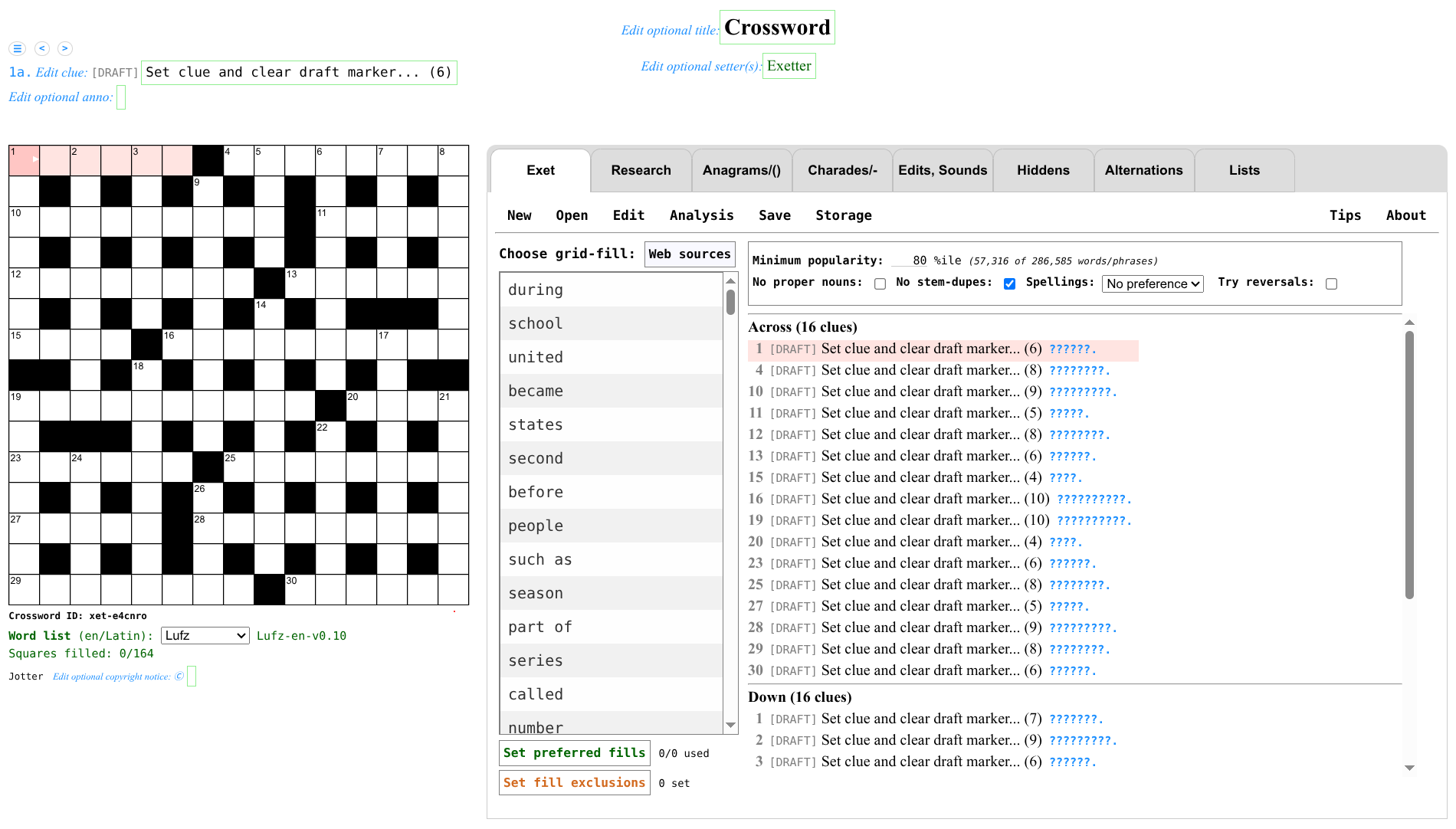
Normally, Exet would start with the last crossword that you were working on. When you open Exet for the very first time, it creates a 15x15 blocked grid of the "Commonwealth" variety (i.e., a standard chequered grid, as opposed to a U.S.-style grid where each square is doubly checked), with blocks added "automagically" (see below). You can pass a URL option to default to a completely blank grid as the first grid it creates: exet.html?newgrid=blank. You can always use the menu to create a "New" grid of the sort you need.
There are three phases in crossword construction:
- Constructing the grid
- Filling the grid
- Providing the clues
Of course, setters often go back and forth and can overlap the phases (and Exet certainly lets you do that). But a walk-through of Exet is perhaps best done by separating out and describing these three phases individually.
For a demonstration of some of these steps, please check out this short, introductory tutorial video on YouTube, made by Debsamita Basu.
Constructing the grid
The "New" menu allows you to start with several "new grid" options:
- New blocked lattice grid (with blocks added)
- This allows you to create one of four variants of a chequered grid, wih blocks added to create a reasonable grid. You can always edit it further by adding or removing blocks. This is the standard blocked grid used in "commonwealth" puzzles (i.e., non-U.S.-style).
- New blocked lattice grid (no added blocks)
- This allows you to create one of four variants of a chequered grid, wih no further blocks added. You can add blocks to such a grid manually or "automagically" at any later point in time.
- New US-style doubly checked grid (with blocks added)
- This creates a U.S.-style crossword (each square is doubly checked), with blocks added to create a reasonable grid. You can always edit it further by adding or removing blocks.
- New blank grid (add blocks/bars later)
- This is a completely blank grid to which you would manually add blocks or bars (or both). For barred grids, or for blocked grids that you want to craft yourselves, this is where you should start. A sub-menu lets You choose whether you want the grid to be a U.S.-style puzzle without enums.
After creating a grid, you can customize it by manually adding/removing blocks/bars, or by letting the software "automagically" add blocks.
You can also create a 3-D grid from the "New" menu. In a 3-D grid, there are multiple "layers," with "down" clues running through the layers and "across" and "away" clues within the layers. See the Exolve documentation for details on 3-D crosswords.
The "Open" menu lets you open previously created crosswords, or return to an older revision of the current crossword, or open an Exolve file or a .puz/.ipuz file. When you open an existing HTML file that contains a puzzle in the Exolve format, the software remembers the HTML part that comes before and after the Exolve part, and will replicate it whenever you save again in the Exolve format.
Next to the "Open" menu is the "Edit" menu, useful for tweaking the grid, autofilling it, and adding/modifying crossword features such as ninas:
- Toggle block (.)
- Add automagic blocks (#)
- Toggle barred cell:
- Toggle bar-after (|)
- Toggle bar-under (_)
- Autofill
- Leads to an autofill options panel.
- Accept autofilled entries (=)
- Jump to most constrained light (!)
- Mark grid cell:
- Toggle encircling (@)
- Toggle marking prefilled (0)
- Toggle nina ($)
- Toggle colouring (^)
- Clear all markings!
- Clear current light (Ctrl-q)
- Clear all the lights! (Ctrl-Q)
- Reverse current light
- Add/edit special sections:
- Preamble
- Explanations
- Questions
- Other Exolve sections
- Edit regexp constraints
- Preferences:
- [ ] Spellcheck clues/annos
- [ ] Allow asymmetry
For the actions that modify the grid in non-cosmetic ways (.|_), symmetric changes are automatically applied to the other end of the grid. This can be turned off by checking the "Allow asymmetry" checkbox in the "Edit → Preferences:" submenu. The chosen setting for this toggle will persist for that particular crossword (but will reset to the default of enforcing symmetry for a new crossword).
"Add automagic blocks" essentially adds some blocks to the grid, while maintaining the British chequered format (that has no consecutive unchecked cells) or the American format (that has all cells checked), whichever of the two formats is the state of the grid at that time. "Add automagic blocks" can be used repeatedly. More details on what "Add automagic blocks" does are provided in the appendix.
When you add or remove blocks/bars, that invalidates all the lights whose lists of cells changes as a result of the modification. Other lights may be impacted only with a number change (other than that impact, they continue their previous state made up of any existing clues, linked group memberships, regexp constraints). Invalidated lights get reset (they lose any existing clues, regexp constraints, and any linked groups that they were a part of get broken up).
Reversing the current light
When you choose the option to reverse a light from the Edit menu, the orientation of the cell is reversed. This entails the following direction changes:
- Across (a) ↔ Back (b)
- Down (d) ↔ Up (u)
- Across (ac) ↔ Back (ba) in 3-D
- Away (aw) ↔ Towards (to) in 3-D
- Down (dn) ↔ Up (up) in 3-D
Exet will prompt you to confirm before going ahead with a reversal (as it is such a drastic action).
When you reverse a light, you retain the clue (and annotation) that you might have already written for it (but you will probably need to revise it!). You will also retain any linked group that the light may be a part of (but the order of cells in the group will change!). Reversing a light has no impact on other lights/clues (except that their numbering may change).
If there was a regexp constraint on the light, it is retained after reversal (it now gets applied in the reversed direction).
Filling the grid
You can fill any light by typing into its cells. You can also use grid-fill suggestions shown to the right of the grid (in the "Exet" tab). These grid-fill suggestions are ordered by their popularity in English Wikipedia articles.
The grid-fill suggestions include phrases