
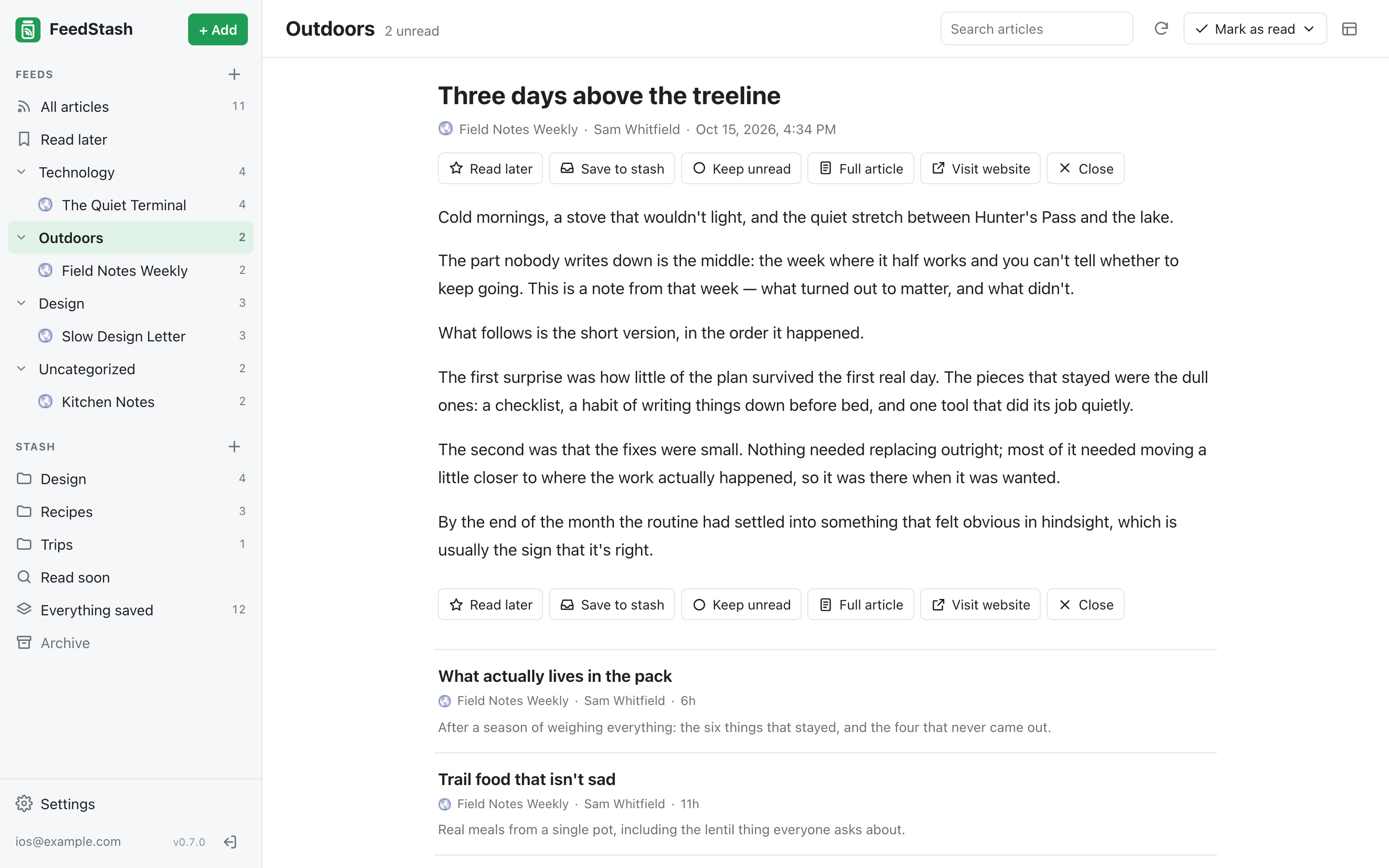
Everything you want to read, in one self-hosted app: the feeds you follow, and the links, notes, screenshots and emails you save from anywhere. It runs as one Docker container and keeps everything in SQLite. Sign in with a password, Google, or any OpenID Connect provider. The browser extension and email worker live in clients/, and there's a free iPhone and iPad app that keeps read state in step with the web app.
liftbridgelabs.app/products/feedstash · questions and bug reports: GitHub issues or support@liftbridgelabs.app · privacy
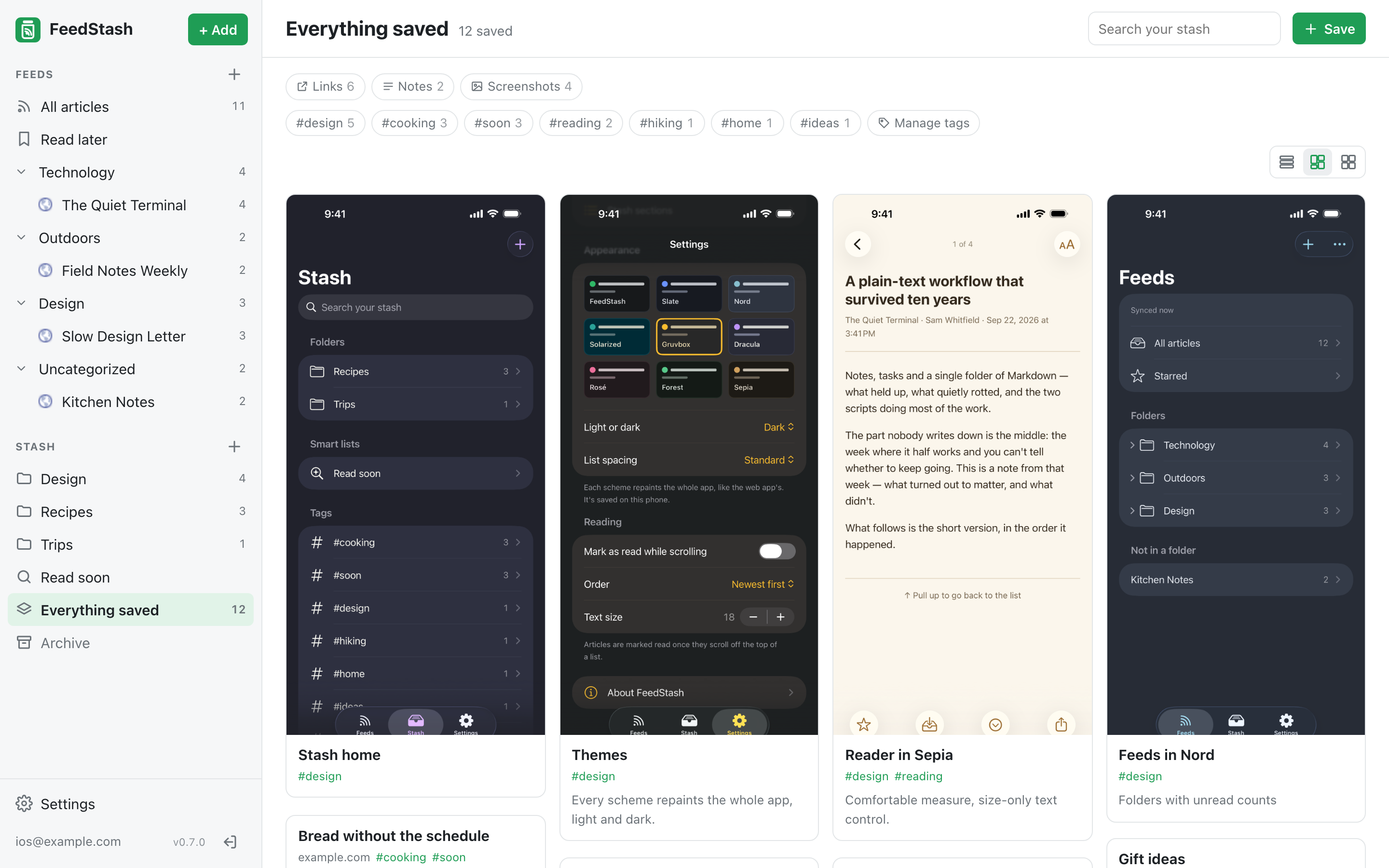
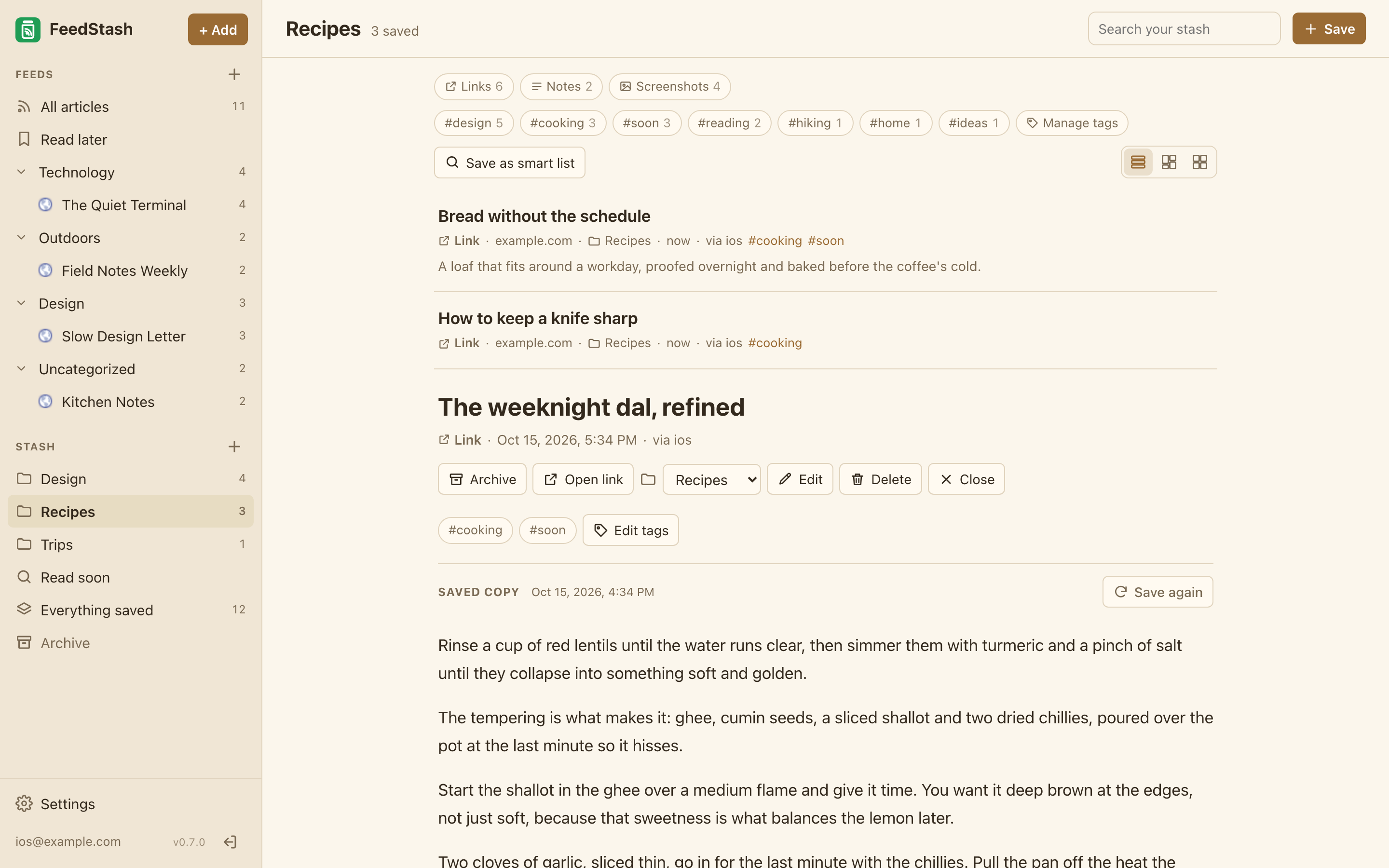
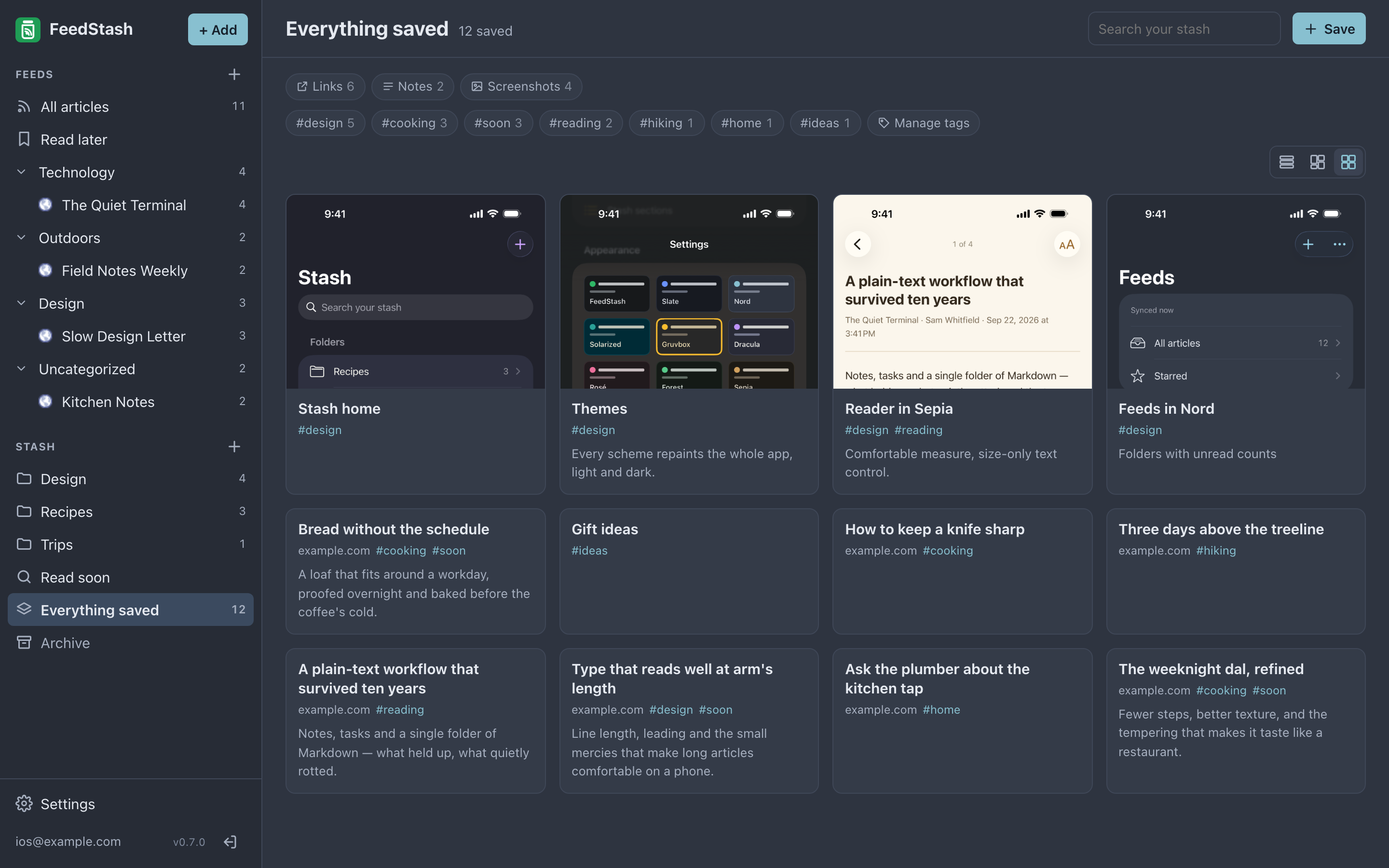
| The stash as a grid | A saved copy, in Sepia | Tiles, in Nord dark |
|---|---|---|
 |
 |
 |
Features
Feeds
- Folders and feeds. Follow a site or feed URL (the feed is found automatically), or a subreddit by typing
r/and its name, from the + beside Feeds, which also makes folders. + Add → Discover feeds has starter packs to search by name or topic. Rename, move, reorder by drag and drop, or unfollow — in the sidebar, or all at once under Settings → Feeds → Organize feeds. - Mark as read. Everything, or only articles older than 12 hours, 1 day or 1 week, with Undo. Articles can also be marked read as they scroll off the top of the list (off by default).
- Auto-refresh. Feeds are fetched in the background; new articles appear on their own, or behind a "↑ N new articles" button while you're reading.
- Search. The search box in the toolbar (or press
/) searches the full text of the articles in the feed or folder you're viewing, read ones included. In the stash, the same box searches what you've saved. - Full articles. For feeds that only send a summary, Full article in the reader fetches the article's own page and shows its readable part (Feed version switches back). Choose Open articles as… → The full article in a feed's ⋯ menu and every new article opens that way, fetched in the background and kept for offline reading in the phone app. Needs
PAGE_CAPTUREon (the default). - Open on the website. For sites whose feed is only a teaser, Open articles as… → The website opens that feed's articles on the site itself, in a new tab (in the phone app, its browser), and marks them read.
j/kthen only move between them. The choice is kept per feed on the server, so every device agrees. - Muted words. Under Settings → Feeds → Muted words, list words or phrases you don't want to read about, everywhere or only in one folder or feed. New articles holding one (in the title, or in the text too if you choose) arrive already read, so every device and app agrees without knowing about muting. Muting a word can also mark the unread articles it matches as read, with Undo.
- Auto-save to the stash. Tick Auto-save for a feed (in Organize feeds, or its ⋯ menu) and its new articles go straight to your stash instead of waiting to be read.
- OPML import and export, e.g. from Feedly.
Stash
- Capture from anywhere. The browser extension, forwarding an email, the share sheet on iPhone and iPad, or + Add → Save something in the web app: one form for a title, notes, links and pictures (paste them straight in), and FeedStash works out whether it's a link, a note or a screenshot. An item can hold several labeled links and up to 20 pictures.
- Email to your stash. Connect a mailbox under Settings → Stash → Email to your stash (Gmail, iCloud, Fastmail, Yahoo, Zoho or any IMAP server, with an app password) and anything you forward there is saved: subject as the title,
#hashtagsas tags, links saved with previews, and the first image attached. Write$Folderin the subject to file it (a folder that doesn't exist yet is created), or$"Two words"for a name with spaces — markers also work on a body line that holds nothing but markers, so$5 offin a newsletter stays text. FeedStash checks the mailbox itself, so this needs no open ports and works behind a proxy that asks for its own sign-in. For instant delivery on your own domain, the Cloudflare email worker is the alternative: Settings → Apps → Email with Cloudflare has the script to download and the steps. - Come back to it. Everything you save is in Everything saved. Show any view as a list, a Pinterest-style grid or even tiles; each folder, smart list and tag remembers its own. Edit, tag, search, filter by kind and tag, and archive or delete what you're done with.
- Link previews and saved copies. When you save a link, FeedStash fetches the page in the background: the list shows its title, description and image, and opening the item shows a readable copy of the article that stays even if the site changes or goes away.
- Full-text search. Stash search covers titles, notes, links, tags and the text of saved pages, and matches other forms of a word ("reefs" finds "reef").
- Folders. Keep saved items together by project or topic: make a folder in the sidebar, then drag items onto it, pick it as you save, or use the folder picker on an open item. An item is in one folder at a time; tags still work across everything.
- Smart lists. Any search or filter can be saved to the sidebar with Save as smart list. It always shows what matches now.
- Rules. Under Settings → Stash → Stash rules, say what happens to something new: by website, address, title, feed or kind, it can be tagged, filed in a folder or archived. Rules run on everything that arrives (except bulk imports), and Run on everything saved applies them to what's already there.
- Save articles. "Save to stash" on any feed article (or press
b). - Import saved links from Feedly boards, browser bookmarks, Pocket or Raindrop, choosing for each file where its links go and how they're tagged.
Appearance. Light, dark or following your system, in nine full color schemes — FeedStash, Slate, Nord, Solarized, Gruvbox, Dracula, Rosé, Forest and Sepia — under Settings → You → Appearance. Each one repaints the whole app, not just the accent color. Article lists come as Magazine (a picture beside each title), Titles only or Cards (a big picture above each title, side by side on a wide screen), in compact, standard or comfortable spacing (the view options menu in the toolbar). All of it is kept per browser, so each device can look however you like.
Accounts. Several people can share one server; each has their own feeds and stash. Admins add and remove accounts in Settings → Admin → Accounts, or Invite someone: a one-use link (it lasts a day, a week or 30 days, and can name the email address the account gets) that lets whoever has it make their own ordinary account with their own password, so send it only to them. Pending invites are listed there and can be canceled. Each person also chooses how long their read articles are kept (Settings → You → Your account, 30 days by default; Read later is never deleted), and can hide the feeds or the stash if they only use one (Use).
Updates. After an update, admins see what changed the first time they open FeedStash, and the version in the sidebar says when a newer release is out (UPDATE_CHECK). Settings → Admin → About FeedStash has the version and links for feature requests, problems and support.
Keyboard: press ? in the web app for the list (it's also under Settings → You → Reading). j/k open the next/previous article, n/p select without opening, o open, v open original, m toggle read, s read later, b save to stash, c save something, / search, r refresh, Shift+A mark all read, Esc close.
Quick start
docker run -d --name feedstash --restart unless-stopped \
  -p 8672:8672 \
  -e BASE_URL=http://localhost:8672 \
  -v feedstash-data:/data \
  liftbridgelabs/feedstash:latest
Open http://localhost:8672 and create the first account; it becomes the admin.
With Docker Compose instead:
cp .env.example .env        # set BASE_URL, and sign-in options if you want them
docker compose up -d --build
Everything FeedStash stores lives in /data: the database (feedstash.db), uploaded images (uploads/) and the generated session key (secret.key).
Signing in
Turn on any combination. The sign-in page shows whatever is configured.
Passwords (on by default)
On a fresh install the first visit shows Create the first account. That account is an admin and can add more accounts, set their passwords, and make other admins under Settings → Admin → Accounts. Everyone can change their own password in Settings.
- Setup only works from your own network (your LAN, Docker, Tailscale), so nobody who finds a new server on the internet can claim it first. Setting up a server you can only reach over the internet, like one on a VPS? Set
SETUP_TOKENto something only you know and enter it on the setup page. - If
ALLOWED_EMAILSorALLOWED_DOMAINSis set, the first account must use one of those addresses. - After 10 wrong passwords for one account (or 30 from one address) within 15 minutes, sign-in is paused for that account or address.
- Set
PASSWORD_LOGIN=falseif you only want Google or OIDC.
Locked out? Reset a password from the server:
docker exec -it feedstash python -m app.cli set-password --email you@example.com
Google and single sign-on (Pocket ID, Authentik, Authelia…)
The easiest way is in the app: an admin opens Settings → Admin → Sign-in → Add sign-in, picks Google or OpenID Connect, and pastes in the client ID and secret. The form shows the redirect URI to give the provider, <BASE_URL>/auth/sso/callback (one for each address in BASE_URL), so you can create the client there first. FeedStash checks the issuer address when you save, and you can add more than one provider, turn one off, or remove it. Each button can have an icon (a built-in one, or an image link such as the logo your provider serves) and a color, with a preview as you choose; Google's button keeps Google's own look. Try it runs a real sign-in in a new tab and reports whether it worked, which address came back and whether that address may sign in, without signing you out or making an account; it works on a provider that's turned off, so you can check one before anyone sees its button. Sign-in buttons → All hidden turns every Google and single sign-on button off at once, handy while testing; passwords keep working. The client secret is stored encrypted with the server's SECRET_KEY.
Each OpenID Connect sign-in has Who can sign in with this: Everyone Pocket ID allows (named after the sign-in) leaves it to a provider you run yourself, where you decide who gets in (a user group on its FeedStash client in Pocket ID or Authentik, say), so there's no list to keep. Only people on FeedStash's allowed list checks the list below the providers: addresses, or whole domains for a company or school (* in the addresses lets in everyone). Google always uses the allowed list, since anyone can have a Google account.
- Google: in Google Cloud Console → APIs & Services → Credentials, set up the OAuth consent screen (External; add yourself as a test user; "Testing" is fine for personal use), then Create credentials → OAuth client ID → Web application with the redirect URI from Settings. Google only accepts
httpsaddresses (andlocalhost), so Google sign-in won't work on a plainhttp://192.168.x.xaddress. - OpenID Connect: create a confidential client using the authorization code flow, with the redirect URI from Settings and the scopes
openid email profile. The issuer address is, for example,https://id.example.comfor Pocket ID,https://auth.example.com/application/o/feedstash/for Authentik,https://auth.example.comfor Authelia, orhttps://sso.example.com/realms/homefor Keycloak.
Or in the server's settings
Google and one OIDC provider can also be set with environment variables, which suits setups kept in a compose file. These show in Settings → Admin → Sign-in, where they can be turned off and on, but can only be changed in the server's settings. Their redirect URIs are <BASE_URL>/auth/google/callback and <BASE_URL>/auth/oidc/callback.
| Variable | Example |
|---|---|
GOOGLE_CLIENT_ID / GOOGLE_CLIENT_SECRET |
From Google Cloud Console |
OIDC_ISSUER |
https://id.example.com |
OIDC_CLIENT_ID / OIDC_CLIENT_SECRET |
From the provider |
OIDC_NAME |
Button text: "Sign in with Pocket ID" |
ALLOWED_EMAILS / ALLOWED_DOMAINS |
Added to the list kept in Settings |
Google and OIDC sign-ins need an email on the allowed list. If someone already has a password account, signing in with Google or OIDC under the same (verified) email opens that same account. An admin can also give a Google or OIDC account a password in Settings.
Configuration
All settings are environment variables (see .env.example).
| Variable | Default | Meaning |
|---|---|---|
BASE_URL |
http://localhost:8672 |
The address you open FeedStash at, or several separated by commas (e.g. https://feedstash.example.com,http://192.168.1.50:8672 for away and at home). Google/OIDC sign-in returns to whichever one you used; the first is the main address. Session cookies are Secure whenever you're on https. |
PASSWORD_LOGIN |
true |
Password accounts and first-run setup. |
GOOGLE_CLIENT_ID, GOOGLE_CLIENT_SECRET |
Google sign-in (or add it in Settings → Admin → Sign-in). | |
OIDC_ISSUER, OIDC_CLIENT_ID, OIDC_CLIENT_SECRET |
OpenID Connect sign-in (or add it in Settings → Admin → Sign-in). | |
OIDC_NAME, OIDC_SCOPES |
single sign-on, openid email profile |
Button label and requested scopes. |
ALLOWED_EMAILS, ALLOWED_DOMAINS |
Comma-separated. Who may sign in with Google or OIDC, along with the list in Settings → Admin → Sign-in. | |
PUID, PGID |
1000, 1000 |
The user and group the app runs as. The container makes /data theirs on start. |
PORT |
8672 |
Port inside the container. |
FORWARDED_ALLOW_IPS |
private networks in the Docker image, 127.0.0.1 otherwise |
Addresses or ranges whose X-Forwarded-* headers are trusted. The default covers a reverse proxy on the same machine or network. Set it to your proxy's address if the proxy reaches FeedStash from a public one. Never *: anyone could then claim any address and get past the sign-in rate limit, and setup would need SETUP_TOKEN. |
SETUP_TOKEN |
Lets the first account be created from outside your own network, by entering this on the setup page. When set, it is asked for everywhere, your own network included. Setup closes once the first account exists, so you can remove it afterwards. | |
LOG_REQUESTS |
changes |
Which requests get a line in the log, until an admin changes it under Settings → Admin → Logs: changes (saves, edits and anything that failed), errors (only failures), all (every request, including health checks and page loads, thousands of lines a day) or none. |
UPDATE_CHECK |
true |
Once a day, while an admin has FeedStash open, ask GitHub for the latest release so the sidebar can say when there's an update. Nothing is sent but the request itself. false turns it off. |
SECRET_KEY |
generated | Signs session cookies. Generated once into /data/secret.key when empty. |
SESSION_DAYS |
30 |
How long you stay signed in. |
REFRESH_INTERVAL_MINUTES |
15 |
How often feeds are fetched (5 or more). |
RETENTION_DAYS |
90 |
Feed articles older than this are deleted, read or not; Read later and the newest 50 per feed are kept. Read articles can go sooner: each account sets its own limit in Settings (30 days after reading by default). Stash items are never deleted automatically. |
MAIL_POLL_MINUTES |
5 |
How often a mailbox connected under Settings → Stash → Email to your stash is checked. Nothing runs at all until someone connects one, and it stops again when the last one is disconnected. |
PAGE_CAPTURE |
true |
Fetch the web page behind each saved link for its preview, readable copy and search text. Turn it off if the server shouldn't reach out to the sites you save. |
DEV_LOGIN |
false |
Local testing only: skips sign-in entirely. |
KEEP_PER_FEED |
50 |
How many of each feed's newest articles RETENTION_DAYS always keeps. |
COOKIE_SECURE |
depends on BASE_URL |
Force the session cookie's Secure flag on (true) or off (false). Normally worked out from BASE_URL: on for https addresses, and per request when you list both. |
DATABASE_PATH |
/data/feedstash.db in the image |
Where the database lives; secret.key and uploads go next to it. |
HOST |
0.0.0.0 in the image, 127.0.0.1 otherwise |
The address the server listens on. |
SCHEDULER_ENABLED |
true |
Fetch feeds on a timer. Off is only for tests. |
FEEDSTASH_VERSION is set by the image to its release; it's what the sidebar and /api/health show.
Deploying
The image runs on amd64 and arm64. It starts as root just long enough to give /data to PUID:PGID (only when the owner is wrong), then runs the app as that user.
unRAID
Use the template in deploy/unraid/feedstash.xml: copy it to /boot/config/plugins/dockerMan/templates-user/my-feedstash.xml, then Docker → Add Container and pick feedstash. Google and single sign-on are set up after install, in Settings → Admin → Sign-in, so the template leaves out the server settings for them; add GOOGLE_*, OIDC_* or ALLOWED_* as variables if you'd rather set sign-in on the server. Or add the container by hand:
| Field | Value |
|---|---|
| Repository | liftbridgelabs/feedstash:latest |
| Port | container 8672 → any free host port |
| Path | container /data → /mnt/cache/appdata/feedstash |
| Variables | BASE_URL, PUID=99, PGID=100, plus any sign-in settings |
Point /data at a pool (/mnt/cache/...), not /mnt/user/...: SQLite doesn't do well on the /mnt/user FUSE layer, and make sure the mover doesn't move the appdata share. To update: Docker → feedstash → Force update.
Synology and other NAS
In Container Manager → Project, create a project from this compose file, change the volume to a folder such as /volume1/docker/feedstash:/data, and set PUID/PGID to the owner of that folder (run id your-user over SSH; on Synology the group is usually 100).
A Linux server behind a reverse proxy
cp .env.example .env    # BASE_URL=https://feedstash.example.com
docker compose up -d
Point the proxy at port 8672. Caddy:
feedstash.example.com {
    reverse_proxy localhost:8672
}
With Nginx Proxy Manager, add a proxy host for the container's IP and port 8672 and request a certificate; websockets aren't needed. The image trusts X-Forwarded-For only from private networks, which is where a proxy like this runs, so nothing needs setting. If your proxy reaches FeedStash from a public address instead (a proxy on a VPS in front of a home server), set FORWARDED_ALLOW_IPS to that address.
To use FeedStash both through the proxy and directly at home, list both addresses, the proxy's first: `BASE_URL=https