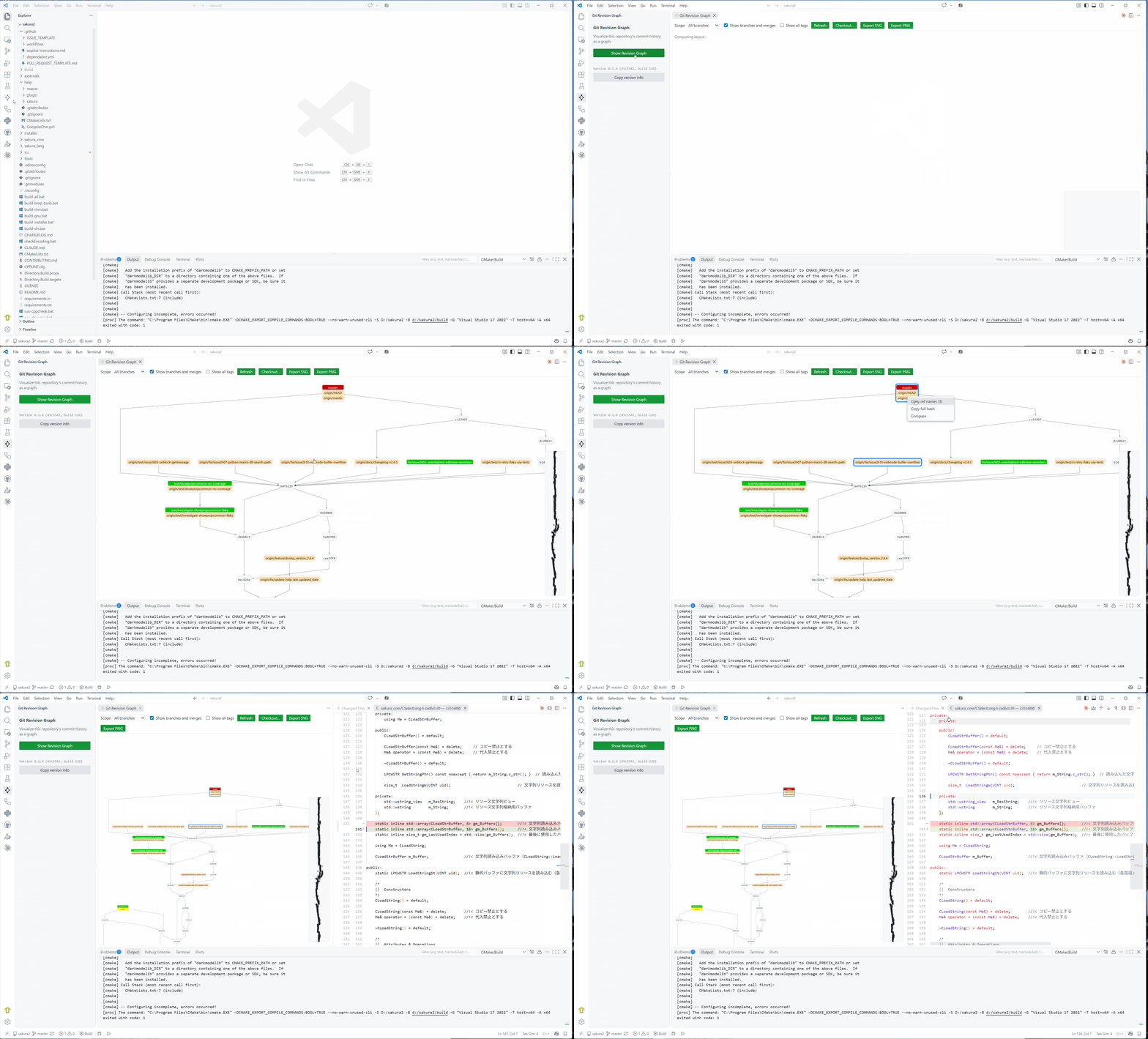

A VSCode extension that visualizes a Git repository's commit DAG (branches, merges, tags) as an SVG graph, inspired by TortoiseGit's "Revision Graph" feature.
The UI follows VS Code's own display language setting automatically — Japanese, Simplified Chinese, Spanish, Brazilian Portuguese, Russian, Korean, French, German, and Traditional Chinese are included today.
Installation
Install from the Marketplace — search for "Git Revision Graph" in VSCode's Extensions view, or run:
code --install-extension tmatma.vscode-git-revision-graph
Alternatively, install from a .vsix file:
- Get a
.vsix: download an artifact from a CI run on GitHub, or build one yourself (see docs/DEVELOPMENT.md). Two copies of the same contents are published — pick whichever's more convenient:vsix-v<version>-build<N>(a.zip; unzip it to get the.vsixfile and the install scripts)vsix-v<version>-build<N>.tar.gz(extract withtar -xzf vsix-v<version>-build<N>.tar.gz) — keeps the bundled.sh/.commandinstaller scripts' executable bit intact, which the zip download strips
- Install it — don't double-click the file (
.vsixis also Visual Studio's extension package extension, so Windows may open it with the wrong application). Instead:- From the command line:
code --install-extension vscode-git-revision-graph-<version>.vsix - Or in VSCode: Extensions view →
...menu → "Install from VSIX..." → select the file
- From the command line:
Using Remote-SSH (or Dev Containers/WSL)? This extension runs in the
remote extension host, not the local one, since it shells out to git in
the workspace. Running code --install-extension/install.sh from a plain
ssh session on the remote host is not reliable: whatever code is
first in that session's PATH may be an unrelated local install on the
remote machine, or resolve to nothing at all — either way, the extension
doesn't end up where the Remote-SSH connection actually looks for it, and
VS Code reports it as installed locally but "disabled ... defined to run in
the Remote Extension Host". Instead, any of:
- From a shell on the remote host (e.g. scripted over
ssh, or a plain terminal there): copy the.vsixandscripts/install-remote-ssh.shover and run the script — it finds the running VS Code Server's own CLI shim under~/.vscode-serverdirectly, rather than relying onPATH. Needs a VS Code window to have connected to that host at least once already (that's what creates the shim). - Install it normally on your local machine first (Marketplace or a
.vsix, as above) — once connected via Remote-SSH, the Extensions view then offers a one-click "Install in SSH: <host>" button; or - Run "Install from VSIX..." from the Command Palette of the Remote-SSH-connected window itself (not a separate terminal) — that always targets the extension host you're actually connected to.
Note that "Install in SSH: <host>" installs the exact same version
already installed locally (whatever .vsix you sideloaded, or
whichever Marketplace version you have) — it doesn't fetch a different
or newer one. If you install/uninstall on one side, the other side's
copy is unaffected until you explicitly repeat the action there too;
the two are entirely independent installs that happen to share a
version number.
Usage
- Open a folder that's a Git repository.
- Run the "Show Revision Graph" command from the Command Palette
(
Ctrl+Shift+P/Cmd+Shift+P), click the branch icon in the Source Control view's title bar, or click the graph icon in the Activity Bar and press Show Revision Graph there. - The commit graph opens in a new tab as an SVG, scrolled/zoomed to the current branch (shown in red — the checked-out branch itself, not a separate "HEAD" label).
Toolbar, along the top of the panel:
- Scope: All branches / Local branches / Current branch / From..To
range. For a range, leave To blank for
HEAD, and From blank to go from the very start of history. - Show branches and merges: on by default. A commit that's neither a branch/merge point nor referenced by any branch/tag is never shown as its own node either way — only where the DAG actually branches or merges is ever drawn. What this toggles is whether a merge unreachable from any branch/tag, and not needed to connect ones that are, gets pruned too: off shows only merges relevant to something you can see; on shows every merge, matching TortoiseGit's own default.
- Show all tags: when off, a tag alone doesn't stop a commit from being hidden by the collapsing above; when on, every tagged commit is kept regardless.
- Refresh: re-applies the current settings (mainly useful after typing into From/To, which otherwise apply on blur/Enter).
- Checkout…: opens a QuickPick listing every local and remote branch — type to filter, arrow keys to move the selection, Enter to check it out. Always a plain, no-options checkout (no force/merge/new branch); for more control, right-click a specific node in the graph instead.
- Export SVG / Export PNG: save the full graph (not just the currently visible/zoomed area) to a file. PNG export rasterizes in the browser and isn't theme-matched (colors fall back to their default values); it also has a size ceiling from the browser's canvas limits — on a very large repo, use Export SVG instead (vector, no size limit).
Navigating the graph:
- Drag to pan.
- Mouse wheel to pan, Ctrl (Cmd on macOS) + wheel to zoom, centered on the cursor.
- A minimap in the bottom-right corner shows the whole graph with a rectangle marking the current view — click or drag anywhere on it to jump there (zoom level is kept).
- Hover a node for its full hash, author, date, and commit message.
- Click a node to select it; Ctrl (Cmd on macOS) + click a second node to select it too.
- Right-click a node for:
- Checkout (unless it's already the current branch) — opens a "Switch / Checkout" panel (target branch/tag/commit is fixed to whatever you clicked; create a new branch, track, force, merge local changes, or update submodules, TortoiseGit-style).
- Create branch here… / Create tag here… — prompts for a name (and, for a tag, an optional message; leaving it empty makes a lightweight tag instead of an annotated one), warning first if a branch/tag with that name already exists. Creating a branch doesn't switch to it automatically — you're offered a "Switch to" action afterward.
- Copy ref name(s), if it has any refs (every ref on the node, as
its full path —
refs/heads/...for a branch,refs/remotes/...for a remote-tracking branch,refs/tags/...for a tag — one per line). - Copy full hash.
- Copy commit info — the same text
git show -swould print for that commit (hash and ref decorations, author, date, and full message). - With two nodes selected, right-clicking either of them also offers Compare, which opens a "Changed Files" panel (added/deleted line counts per file); click a file there to view its diff in VSCode's native diff editor.
- Compare with default branch — the same "Changed Files" panel,
against whatever the repo's default branch is (
origin/HEAD, or a localmain/masterif that isn't set). Offered on any single node, no second selection needed. - Compare with current branch — the same "Changed Files" panel,
against whatever's currently checked out (
HEAD), regardless of the repo's default branch. Also offered on any single node. - Right-click a specific local branch's ref chip (not a remote branch or tag, and not just anywhere on the node) for Rename (prompts for the new name, warning first if a branch with that name already exists) or Delete (asks for confirmation first). Rename is offered on the current branch too — unlike Delete, git doesn't refuse to rename the branch you're on.
Development
See docs/DEVELOPMENT.md for build/dev setup and implementation notes.
License
GPLv2 — see LICENSE.