
Free and self-hosted. After a Strava activity ends, Glucava adds your Dexcom glucose stats (time in range, min, max, average, sparkline) to its description:
🩸 TIR 92% | min 78 | max 164 | avg 112 mg/dL
▁▂▃▃▄▅▄▃▃▂▂▃
Strava's API is paywalled, so Glucava edits the description through a headless Chrome session with your own cookies. One Go binary (PocketBase + web UI); Chrome/Chromium must be installed.
Not a medical device. Glucava copies numbers from your CGM into a Strava description for your own reference. It does not measure, diagnose, alarm or advise, and it must never be used for treatment decisions or as a replacement for your CGM app's alarms. It can be wrong, late or silent (a source can be down, a timestamp off, Strava's page can change). Use at your own risk; see the warranty disclaimer in the license.
Glucava is an independent project. It is not affiliated with or endorsed by Strava, Dexcom, Abbott, Glooko or Nightscout; those names belong to their owners. Automating Strava's web UI may breach Strava's terms of service (see SECURITY.md); the session is your own and the volume is low, but the risk is yours.
Screenshots
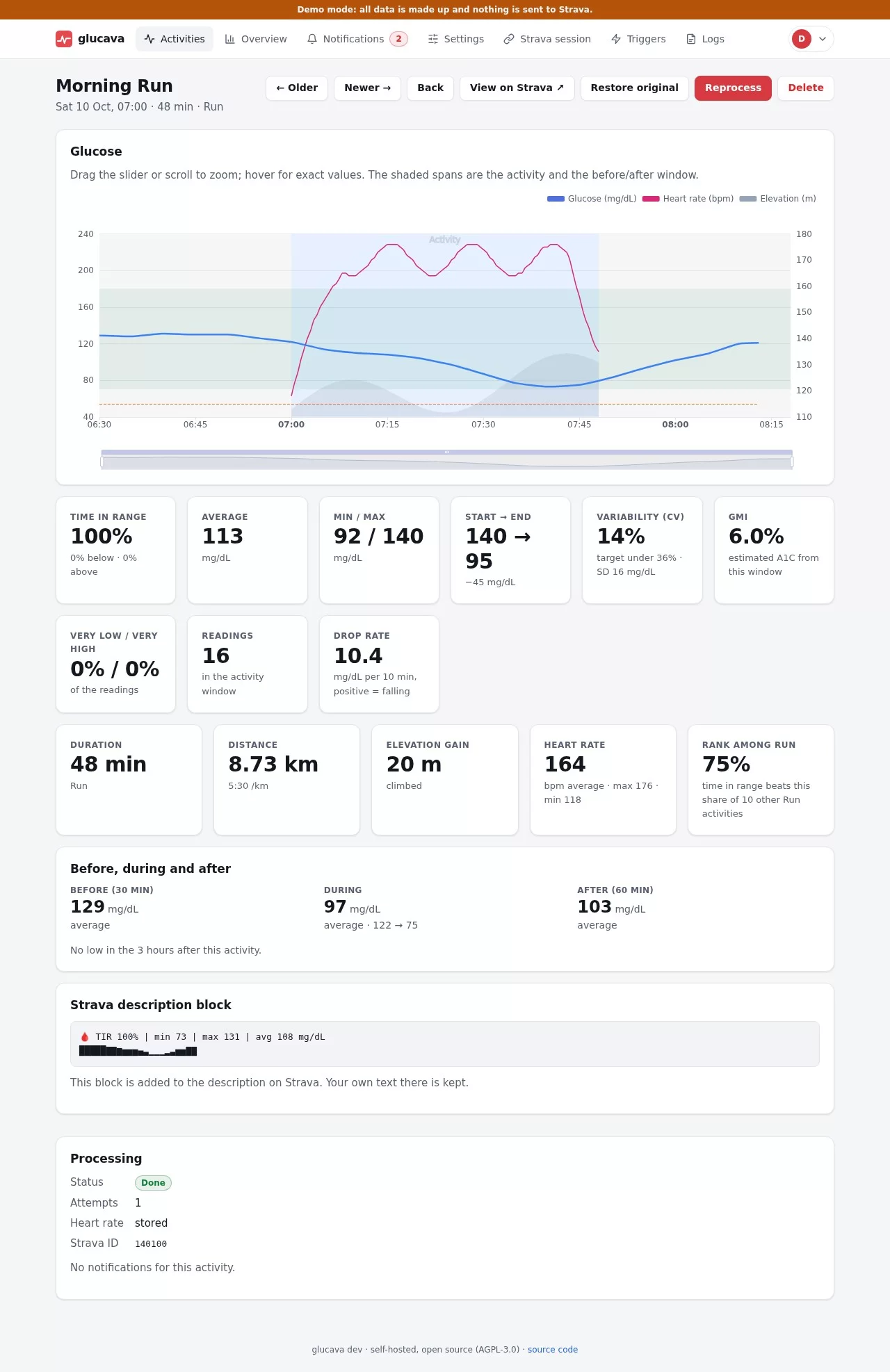
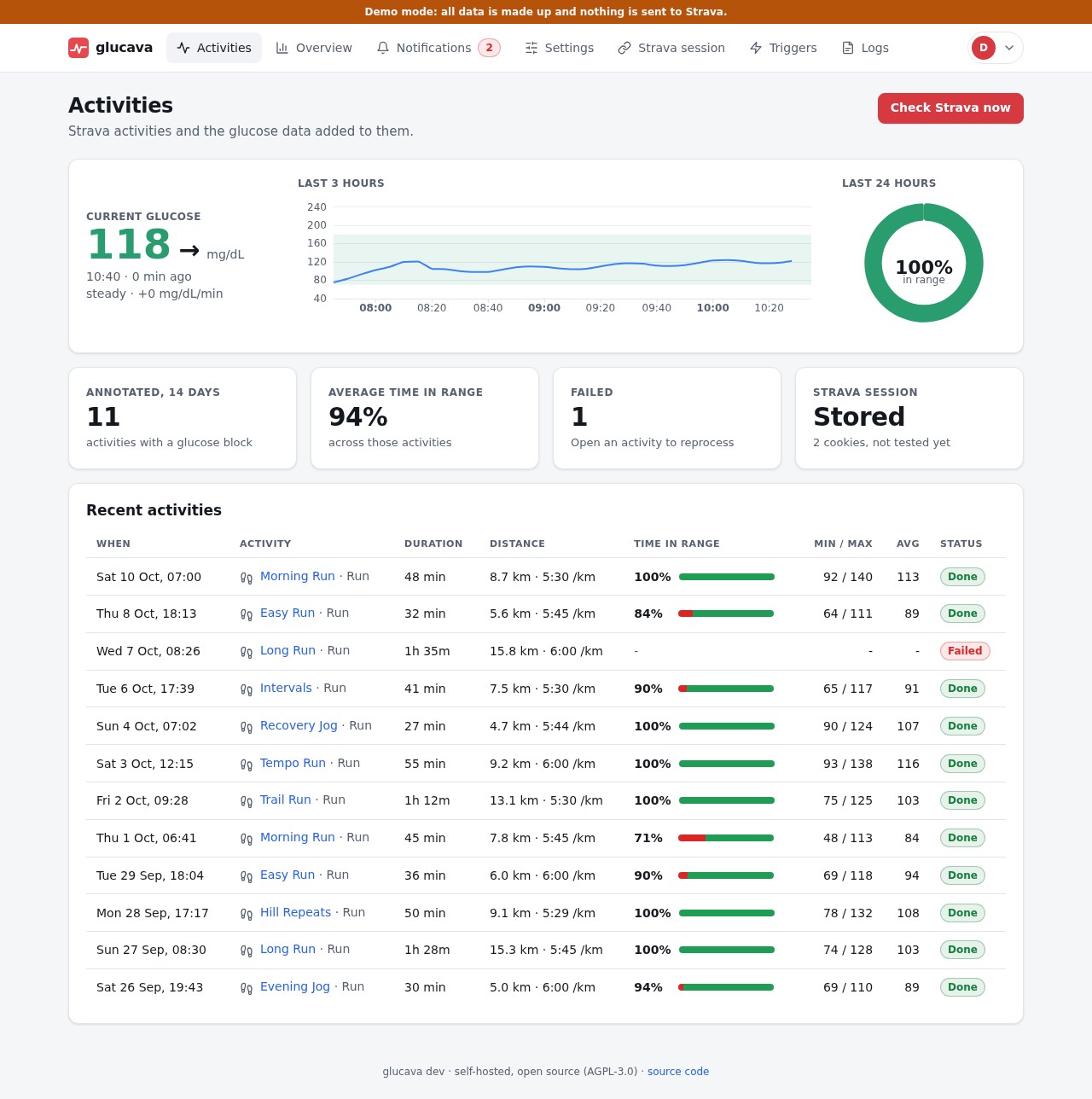
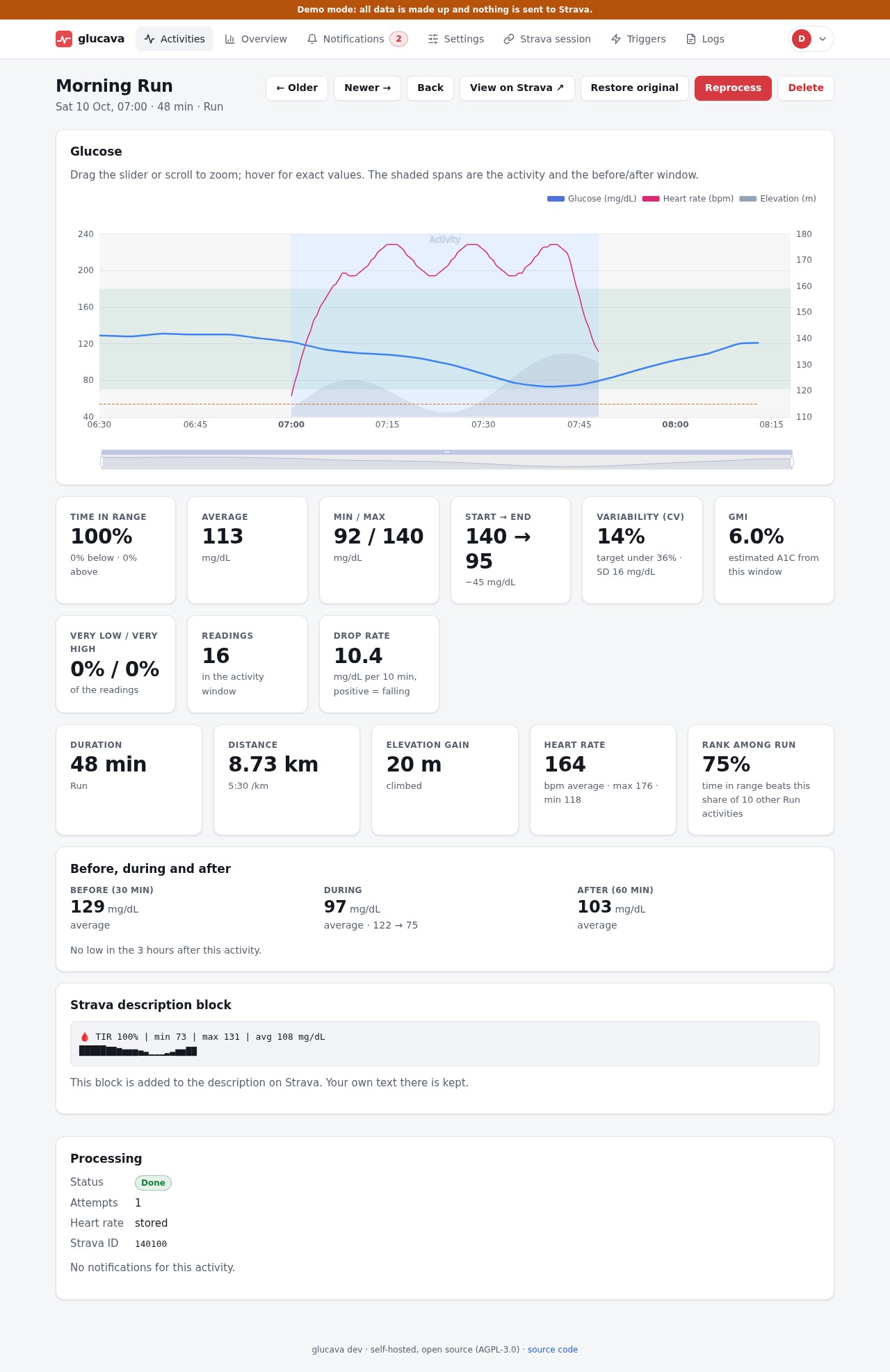
All from demo mode (make mock), so the data is made up. The UI follows your light or dark preference.
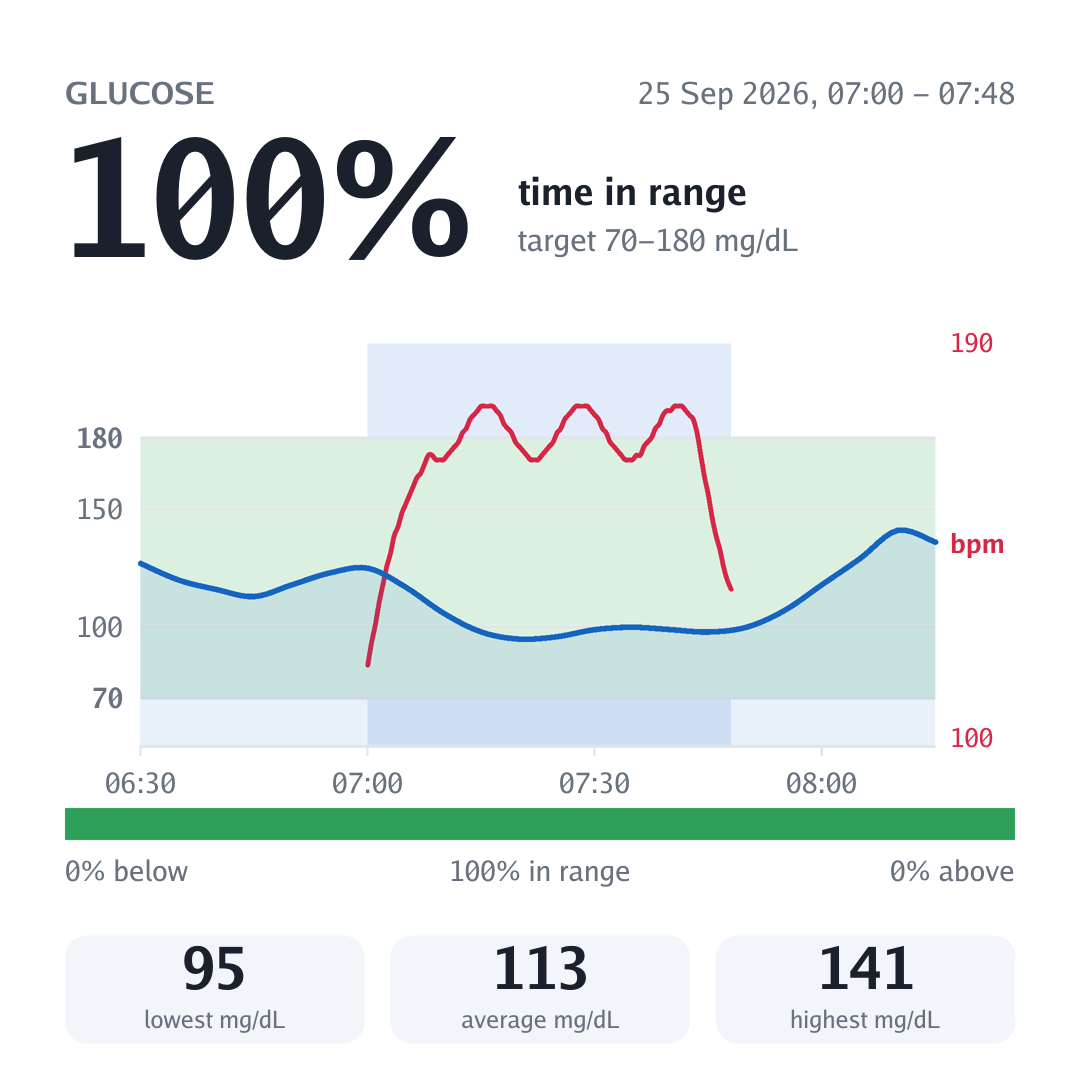
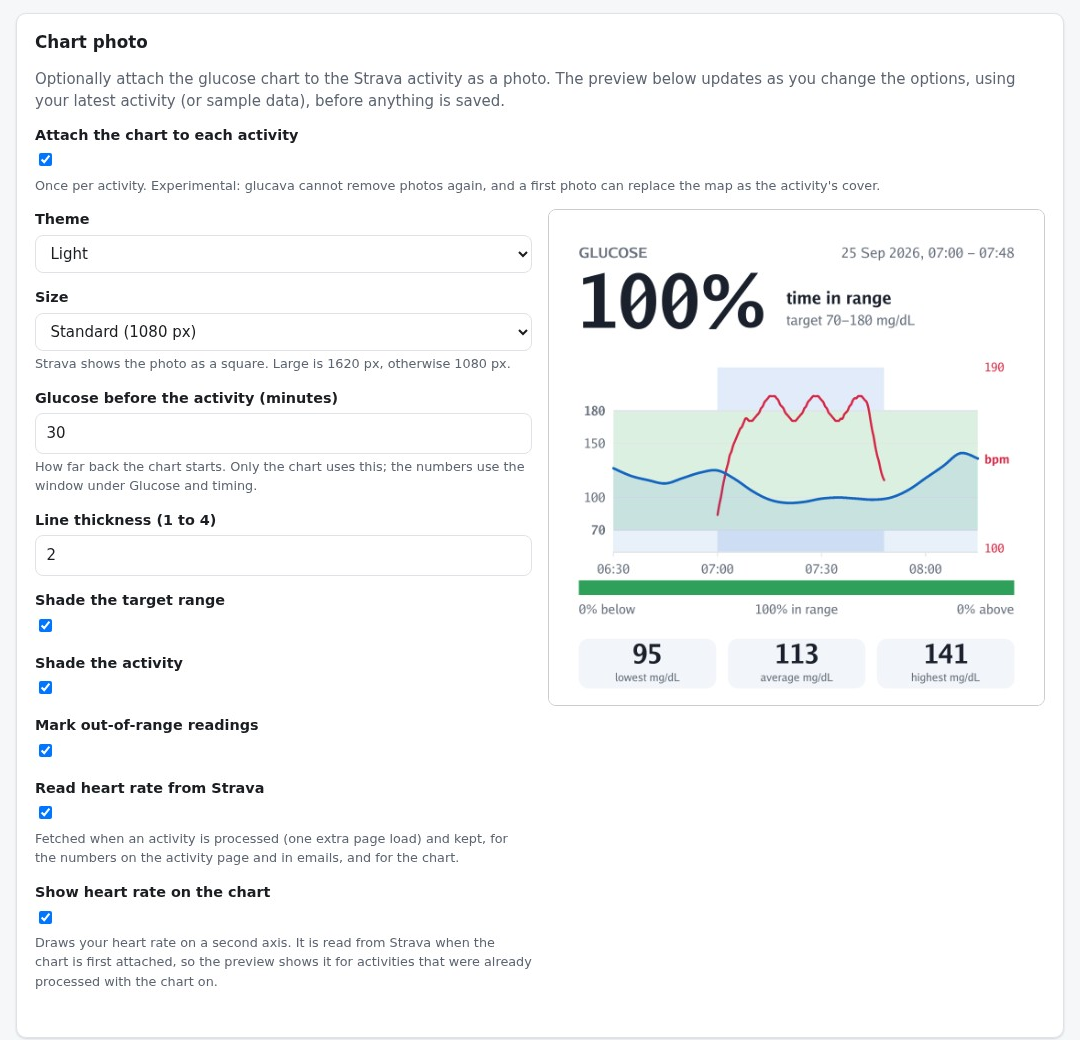
The optional chart photo (square, as Strava shows it) and the settings card that styles it, with a live preview:
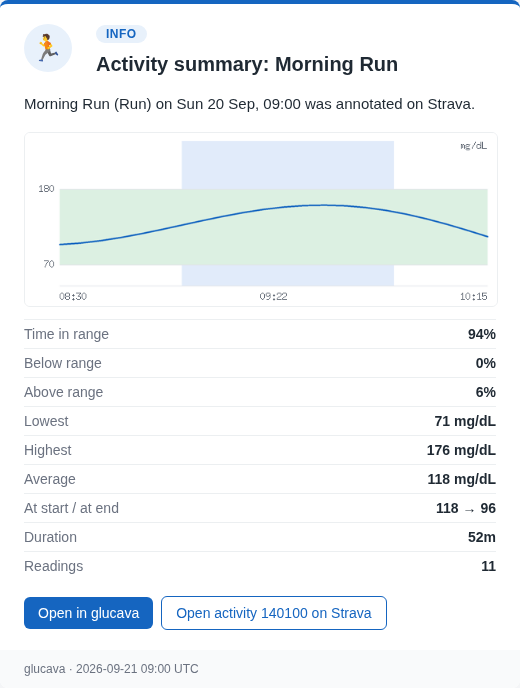
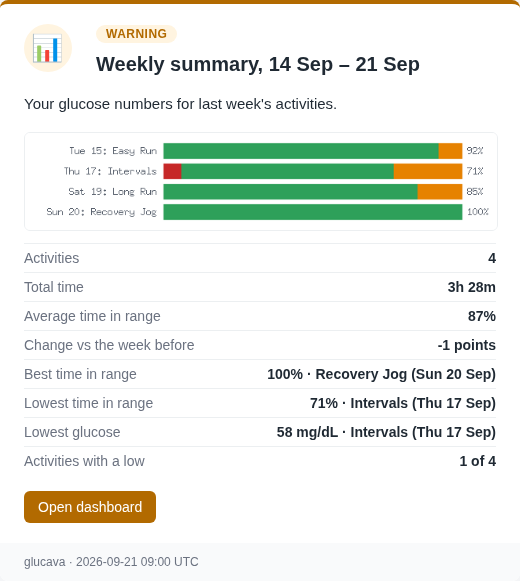
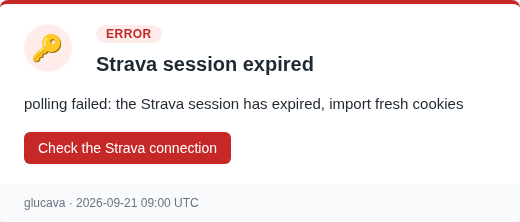
Notification emails (HTML with a plain-text fallback, inline charts drawn by glucava):
Quick start
make mock # fake Strava + Dexcom data, http://127.0.0.1:8090 (make help lists all targets)
Real use, with Docker:
docker build -t glucava .
docker run -d --name glucava -p 127.0.0.1:8090:8090 -v glucava:/data \
  -e GLUCAVA_ADMIN_EMAIL=you@example.com \
  -e GLUCAVA_ADMIN_PASSWORD='long-random-password' \
  -e GLUCAVA_SECRET_KEY="$(openssl rand -base64 32)" glucava
Put a TLS reverse proxy in front. Then:
- Sign in, open Settings, enter Dexcom Share credentials (or
glucava dexcom set <user> --region us|ous|jp). Enable Share in the Dexcom app. "Test connection" checks the login. - Open Strava and click Open sign-in browser. A browser running on the Glucava server appears on the page; sign in to Strava in it as usual (email and password, Google, Apple or Facebook, verification codes). Glucava never sees your password: when you reach your dashboard it keeps only the session cookies, encrypted, and closes the browser. Passkeys do not work in it; choose password or another option. Alternatively paste a strava.com cookie export (or
glucava strava cookies import file.json). - Run
glucava strava checkto verify the session and edit-page selectors without saving.
Usage
- Polling: Settings → poll interval. New activities from the last 24 h are processed as soon as they finish; the description text uses activity-only glucose (start minus "Minutes before start" through end) and never waits on anything else.
- Post window and delayed reprocess: "Minutes after end" (
post_minutes) only widens the chart photo's curve with cooldown glucose after the activity; it plays no part in the description text. Dexcom Share can also lag a few minutes behind the wall clock, so the very last readings are sometimes still missing at the moment an activity ends or its Post window closes. "Reprocess once more after (minutes)" (post_buffer_minutes, default 5, 0 turns it off) automatically reprocesses the activity once more after that buffer, refreshing the stats and description text with whatever readings arrived since, and is also when the chart photo's first upload happens if the chart is on — never earlier, since a photo cannot be replaced once attached. Turning the buffer off (0) goes back to attaching the chart immediately after the Post window. - Push trigger: create a token on the Tokens page (shown once), then call it from Tasker or Apple Shortcuts when the Strava notification arrives:
curl -X POST -H "Authorization: Bearer gst_..." https://host/api/triggerFor Android/Tasker, the Tokens page generates a ready-to-import.prf.xml(download button and QR code, next to a freshly created token) instead of building one by hand: Strava notification → check now, deliberately unfiltered (Strava's own notification wording varies by type and locale, and an extra check is harmless). See docs/triggers.md for Tasker, HTTP Shortcuts/MacroDroid, and Apple Shortcuts setup. - Manual: open an activity for a preview, then Process or Reprocess. Existing text is kept; only the 🩸 block is replaced. Detection does not rely on the emoji or wording alone (a coincidence or a copycat app could share those), or on guessing where the block ends from its shape — it carries two invisible Unicode code points at its start and two more at its end as a fingerprint, so glucava always finds exactly its own block, however many lines it has. An older block written before this existed (0.1.2 and earlier, no fingerprint) is still recognised by its text and shape and gets the fingerprint the next time it is reprocessed.
- By id: the Strava session page has a "Process a specific activity" field for an activity the poller never saw at all (e.g. it predates glucava, or is older than the polling window). It pages through your Strava training log looking for that id, same as Reprocess otherwise.
- Delete: the activity page has a "Delete" button, with a confirmation dialog, that removes glucava's own record only. It never touches Strava beyond a best-effort attempt to restore the original description first, if one was saved; that attempt failing (e.g. the activity is already gone from Strava) does not stop the local delete. Use this to clean up after an activity you deleted on Strava — glucava recognises that case (the edit page redirects elsewhere) and stops retrying it, but does not delete its own record for it automatically.
- Notifications: ntfy, webhook (HMAC-signed) or email on failures and expired sessions. Email is set up under Settings → Email (SMTP host, credentials, recipient);
GLUCAVA_SMTP_*(below) can seed it on first start. Emails are HTML cards with an icon, a plain-text fallback, an inline glucose chart in the activity summary and a time-in-range bar chart in the weekly one (drawn by glucava itself, embedded in the mail, nothing loaded from the internet), and link back to the right page of the web UI when a public URL is set. Two optional summaries, both off by default and email-only: a summary after each processed activity and a weekly summary (Monday, 08:00 in the server's time zone (setTZin a container), for the week before). - Chart photo (experimental, off by default): with
chart_imageon, glucava also attaches the glucose chart to the activity as a photo, once per activity (a reprocess never adds a second one, and glucava cannot delete photos). It drives Strava's edit page like the description write, so it depends on the photo file input there:glucava strava inspect <id>reports whether the input is found, and it is a "no photo control" failure alert if not. Note that Strava may use a first photo as the activity's cover instead of the map. The look (theme, size, shaded ranges, dots, line thickness) is set under Settings, with a live preview that updates as you change the options; with the option on, each activity page also shows the exact image. The activity-span and target-range shading, the out-of-range dots, the heart rate curve and the elevation profile (chart_elevation, a faint terrain silhouette behind the glucose curve, fetched from Strava the same way heart rate is) are each a toggleable "panel" that can also be reordered (chart_panel_order): where activity and target-range shading overlap, whichever is listed later wins. - Heart rate: with
hr_readon (default) glucava reads the activity's heart rate from Strava's web session when it processes an activity, thins it to about 300 points and keeps it per activity, like the glucose readings. It shows on the activity page (average, max, min), in the activity summary email, in the activities CSV (hr_avg,hr_max,hr_min), and as a second curve on the chart photo (chart_hr). An activity without heart rate data is processed as before; a failed read is logged and never fails the run. To fill it for an activity processed earlier, reprocess it. - Chart lead-in: the chart photo starts
chart_pre_minutes(default 30) before the activity so you see where glucose came from. Only the chart uses this; the description numbers keep usingpre_minutes. - Custom description text: Settings → Description text lets you replace the wording written to Strava. Pick a built-in preset (Default, Minimal, Clinical, Emoji, Numbers only), or write your own Go
text/templateusing{{.TIR}},{{.TIRWindow}},{{.Min}},{{.Max}},{{.Avg}},{{.StdDev}},{{.CV}},{{.GMI}},{{.VeryLow}},{{.VeryHigh}},{{.Unit}},{{.Distance}},{{.Elevation}},{{.Pace}}and{{.Sparkline}}({{if .Sparkline}}...{{end}}to only draw it when there is one).{{.TIR}}covers the activity window (pre_minuteslead-in, nothing after);{{.TIRWindow}}covers the wider window the chart photo draws from (chart_pre_minutes/post_minutes) — the chart and the description can legitimately show different percentages for the same activity, since they cover different spans, and{{.TIRWindow}}is how to show or explain that in the text too. Ifpost_minutesis set,{{.TIRWindow}}starts out computed from whatever glucose data has arrived so far and is corrected on the delayed reprocess pass once the rest lands (same as the chart photo).{{.Distance}}(e.g. "12.02 km") and{{.Elevation}}(e.g. "143 m") are the activity's totals from Strava's own listing;{{.Pace}}is a single sport-aware field already in the right unit and label (pace for Run/TrailRun/Walk/Hike/Swim, speed for Ride/VirtualRide/EBikeRide/Handcycle), empty for a sport with no meaningful distance metric (Workout, WeightTraining, …) or a manual/trainer entry with no distance recorded. The preview updates as you type, using your latest activity or made-up sample data, before anything is saved; an invalid template is rejected on save, and — as a backstop — falls back to the default rather than skip an activity if one somehow got through anyway. Scriptable asdescription_template, like every other setting. - Glucose gap alert: when no glucose reading has been stored for 3 hours (setting
gap_alert_hours, 0 turns it off) glucava raises one alert per gap, through the usual channels. It catches a stopped sensor share or a broken Dexcom login, and does not try to replace the sensor app's own low/high alarms. - Canary: once a day, glucava dry-runs the edit page against your most recent activity (no save) to catch a broken selector or an expired session before it silently fails a real one; a failure notifies like any other event.
- Overview page: a whole-range glucose summary and per-source health list (independent of activities — the signal that a live connection or a backfill import is actually working), trends over time (time in range and average glucose, one point per day), a breakdown by activity type, and the raw activity table with a link to the CSV export, over a selectable date range (7/30/90 days or all time). Each card can be turned off independently under Settings → Description and chart → Overview page.
- Report (PDF): the Overview's Download report button (and Settings → Your data) downloads a printable A4 report for the range you are looking at, including a custom range and the comparison with the previous period: key numbers, the five time-in-range bands against the consensus targets, the daily profile (AGP), a day-by-day chart, time of day, lows and highs, the per-activity-type table, the newest activities and the glucose sources, in your unit (mg/dL or mmol/L). It is typeset by Typst from data and charts glucava draws itself, with an embedded font (Inter, SIL OFL, see
internal/report/fonts/OFL.txt), so the output is identical on every host and nothing is fetched from the internet; a month is two pages and takes well under a second. The official Docker image includes thetypstbinary. When running the binary yourself install Typst (0.15 or newer) on thePATHor pointGLUCAVA_TYPSTat it; without it the download answers with a 503 that says so and everything else works. The same URL works from scripts with a session cookie:/export/report.pdf?range=30d(alsorange=7d|14d|90d|all,from=YYYY-MM-DD&to=YYYY-MM-DD,compare=prev). It is not a medical device and says so in every page footer. - Dexcom Share itself only serves ~24 h of history, but a background job stores every reading it sees into glucava's own database as it arrives, so an activity can still be reprocessed later as long as its window is within Settings → Your data → retention (default 365 days). An activity missed entirely while it was still fresh (e.g. glucava was not running, or the reading never got ingested) cannot be recovered after the fact — unless you can still get that period as an export file:
make glucose-import FILE=export.csv FORMAT=librebackfills readings from another app's export directly into the same database, so an older activity can be reprocessed against them.glucava glucose import --formatcurrently understandsglooko(a Glooko export — either the zip download directly, orcgm_data_*.csvfrom its extracted folder; verified against a real export),libre(a LibreView CSV export; unverified against a real file — see the code comment) andnightscout(anentries.jsonexport). A zip is decoded entirely in memory and never extracted to disk: the entry name is only ever compared as a string, never used to build a filesystem path, so a malicious entry name cannot write outside the intended location; decompression is capped to bound a zip bomb. Adding another format is one function; see the extension point below.
Configuration
| Variable | Meaning |
|---|---|
GLUCAVA_ADMIN_EMAIL, GLUCAVA_ADMIN_PASSWORD |
first user, created on start only while no user exists; change it later under Settings → Account or with glucava user |
GLUCAVA_DEXCOM_USERNAME, GLUCAVA_DEXCOM_PASSWORD, GLUCAVA_DEXCOM_REGION |
Dexcom Share login, stored on first start if no credential is stored yet (alternative to make dexcom); safe to remove afterwards |
GLUCAVA_RETENTION_DAYS |
readings/events retention in days (0 = forever); overrides the UI setting on every start, not just the first |
GLUCAVA_PUBLIC_URL |
address of the web UI, e.g. https://glucava.example.com; used for links in emails. Seeds the Public URL setting while none is saved |
GLUCAVA_SMTP_HOST, GLUCAVA_SMTP_SENDER_ADDRESS |
seed the SMTP settings on first start (only while none are saved; afterwards edit them in Settings → Email) |
GLUCAVA_SMTP_PORT (default 587), GLUCAVA_SMTP_USERNAME, GLUCAVA_SMTP_PASSWORD, GLUCAVA_SMTP_TLS=1, GLUCAVA_SMTP_SENDER_NAME (default glucava), GLUCAVA_SMTP_TO |
rest of the seed; TO is the recipient. The password goes into the encrypted vault, and is stored later too if you add it after the first start |
GLUCAVA_SECRET_KEY |
encryption key for stored secrets (default: <data dir>/secret.key) |
GLUCAVA_TRUSTED_PROXIES |
comma-separated IPs/CIDRs of your reverse proxy. Only then are X-Forwarded-For/-Proto believed (per-client rate limits, Secure cookie). Unset = direct peer only |
GLUCAVA_SOURCE |
live glucose source (default and currently only: dexcom); an unknown name stops the server at start |
GLUCAVA_CANARY_INTERVAL |
how often the edit-page canary runs, e.g. 12h; off disables it (default 24h) |
GLUCAVA_POLL_LOOKBACK |
how old an activity may be and still be picked up by polling (default 24h) |
GLUCAVA_RETRY_BACKOFF |
waits before each retry of a failed job, comma-separated (default 1m,3m,10m) |
GLUCAVA_NOTIFY_COOLDOWN, GLUCAVA_NOTIFY_MAX_AGE |
one notification per event and activity per cooldown (default 6h); undeliverable events older than max age are dropped (default 24h) |
GLUCAVA_STRAVA_SELECTOR_DESCRIPTION, GLUCAVA_STRAVA_SELECTOR_SAVE |
JSON array of CSS selectors for Strava's edit page, tried before the built-in ones, so a Strava markup change is a config fix, not a release. Check with glucava strava check |
GLUCAVA_USER_AGENT |
browser user agent for the Strava session (default built in) |
GLUCAVA_ADMIN_UI=1 |
expose PocketBase admin UI and API (off by default) |
GLUCAVA_NO_SANDBOX=1 |
Chrome --no-sandbox (set in the Docker image) |
CHROME_PATH |
Chrome binary |
Email notifications (Gmail example)
Glucava sends through any SMTP server; Gmail works well for a personal setup.
-
Turn on 2-Step Verification for the Google account.
-
Create an app password at https://myaccount.google.com/apppasswords (16 characters; your normal password is rejected). Type it without spaces.
-
Either fill in Settings → Email, or seed it from
.envbefore the first start:GLUCAVA_SMTP_HOST=smtp.gmail.com GLUCAVA_SMTP_PORT=587 GLUCAVA_SMTP_TLS=0 # 587 uses StartTLS; for port 465 set GLUCAVA_SMTP_TLS=1 GLUCAVA_SMTP_USERNAME=you@gmail.com GLUCAVA_SMTP_PASSWORD=your-16-char-app-password GLUCAVA_SMTP_SENDER_ADDRESS=you@gmail.com # must be the Gmail address (or one of its aliases) GLUCAVA_SMTP_TO=you@gmail.com -
Press Send test notification on the Settings page.
-
Under What to email, choose the kinds you want:
- Failure alerts (on by default): expired session, failed update, missing glucose data, canary failure, rejected trigger.
- Summary after each activity (off): one mail per newly processed activity with time in ra