
Godot MCP Server
The npm bridge that connects AI coding assistants to the Godot 4.2+ editor over the Model Context Protocol. Your assistant can create scenes, edit scripts, inspect nodes, run playtests, and read the results back, directly inside the editor while you watch. It pairs with the Godot MCP Toolkit editor plugin, which hosts the WebSocket servers this bridge talks to.
Runs fully locally. No telemetry, no cloud services, no account. Nothing leaves your machine.
This is an independent community project, not affiliated with or endorsed by the Godot Foundation or Anthropic.
Desktop only: Windows, macOS, and Linux. Requires Node.js 22 or newer.
📐 Architecture → covers how the server is built: the entrypoint and startup, the WebSocket bridge, the catalogue and dispatch pipeline,
discover_tools, the GDScript LSP client, and the registry consumer. Also rendered at npgamedev.github.io/godot-mcp-server/architecture.
Why this one?
Built to fit your workflow, not the other way around.
The number that says the most is 150+ operations. That is the real work on offer: create a node, paint a tilemap cell, key an animation track, read a live node mid-playtest, and roughly a hundred and fifty more. Those operations are packaged into up to 113 tools (an always-on core plus 28 on-demand groups), because a tool is a slot in your client's tool budget and an operation is a thing you can actually do. Related actions sit behind one tool, which keeps the list short while the operation count tells the honest story of breadth. Some operations are version-gated, so older Godot versions (down to 4.2) expose fewer. "Up to" is literal.
Two things drive the design, and they carry equal weight:
- You can extend it without a fixed ceiling. The toolkit's extension API lets a project register its own tools in GDScript. They hot-reload and reach the agent through this bridge exactly like built-ins, and there is no fixed cap on how many you add. The limit is what the current system supports, and each iteration raises that ceiling and gives extensions more room. C#/.NET projects extend the same way, which is the proof that this fits every project instead of being a bolt-on. Heuristic or third-party-dependent tools stay out of the core on purpose, and the extension API is where they belong.
- You can check the results. The agent's context window is a budget, so the tool surface starts small (~9,500 tokens) and grows only when the agent asks for more. The evidence section below says what CI asserts on every build, what the test manifests cover, and what was measured when. Links, not adjectives.
Tested primarily with Claude Code, and compatible with any MCP client.
Quick start
1. Install the bridge
npm install -g @npgamedev/godot-mcp-server
Requires Node.js 22 or newer (node --version to check). Clients can also run it without a global install via npx -y @npgamedev/godot-mcp-server, which is the form the config files below use.
2. Install and enable the Godot plugin
Install the Godot MCP Toolkit from the Godot Asset Store (or GitHub Releases), then enable it: Project Settings → Plugins → Godot MCP Toolkit → Active.
You should see: the MCP dock appears, and the Output log prints
[MCPServer] listening on 127.0.0.1:6550
(the port may land anywhere from 6550 to 6560; the dock's status section names the live one).
3. Configure your MCP client
The easiest path: let the plugin write the config. Project → Tools → MCP Toolkit → Write .mcp.json creates a correct .mcp.json at your project root (Windows wrapper included), and the dock keeps it healthy.
For every other client (Claude Desktop, Cursor, Windsurf, VS Code, Cline, Codex CLI, Gemini CLI) and the per-OS gotchas, use the client setup guide. It is the canonical setup matrix.
Prefer to write .mcp.json by hand?
{
  "mcpServers": {
    "godot-mcp-toolkit": {
      "command": "npx",
      "args": ["-y", "@npgamedev/godot-mcp-server"]
    }
  }
}
Current Claude Code on Windows starts this form unchanged. If Claude Code on Windows shows the server failed with spawn npx ENOENT or EINVAL, update Claude Code or wrap the command in cmd /c. The wrapped form, also the usual fix when another Windows client fails the same way (see the client setup guide):
{
  "mcpServers": {
    "godot-mcp-toolkit": {
      "command": "cmd",
      "args": ["/c", "npx", "-y", "@npgamedev/godot-mcp-server"]
    }
  }
}
Prefer to let the agent set it up?
Paste this into Claude Code from your project directory. It was tested end-to-end with Claude Code, apart from the Windows step. Other clients adapt via the client setup guide. The agent drives the command-line steps; you open the editor and reconnect the client when it asks.
Set up the Godot MCP Toolkit for this project:
1. Install the bridge: npm install -g @npgamedev/godot-mcp-server (check Node >= 22 first).
2. If this project has no .mcp.json, create one with a "godot-mcp-toolkit" server entry
   running "npx -y @npgamedev/godot-mcp-server". On Windows, if the server fails to start
   with spawn npx ENOENT or EINVAL, tell me to update Claude Code, or wrap the command in cmd /c yourself.
3. Fresh setup only: if addons/godot_mcp_toolkit exists but project.godot has no
   [editor_plugins] entry enabling it, add the enable line so the plugin loads on first launch.
   If this project is already open in Godot, tell me to enable it via Project Settings > Plugins instead,
   do not edit project.godot under a running editor.
4. Then STOP and tell me to: open the project in Godot, confirm the dock shows
   "[MCPServer] listening", and reconnect you (the MCP client) so the new config loads.
5. After I confirm, run one read-only probe (list the scene tree or read project settings)
   and report what you see.
macOS, launching your client from Finder/Dock? The standard config connects either way for modern clients. If yours won't, the client setup guide has the fix, from PATH diagnosis to the safe fallbacks.
4. Connect and ask for something
Launch your MCP client from the project root. The server discovers the plugin through a shared project registry and authenticates with a per-session token automatically.
Then try the first prompt below. This is the kind of result it produces:
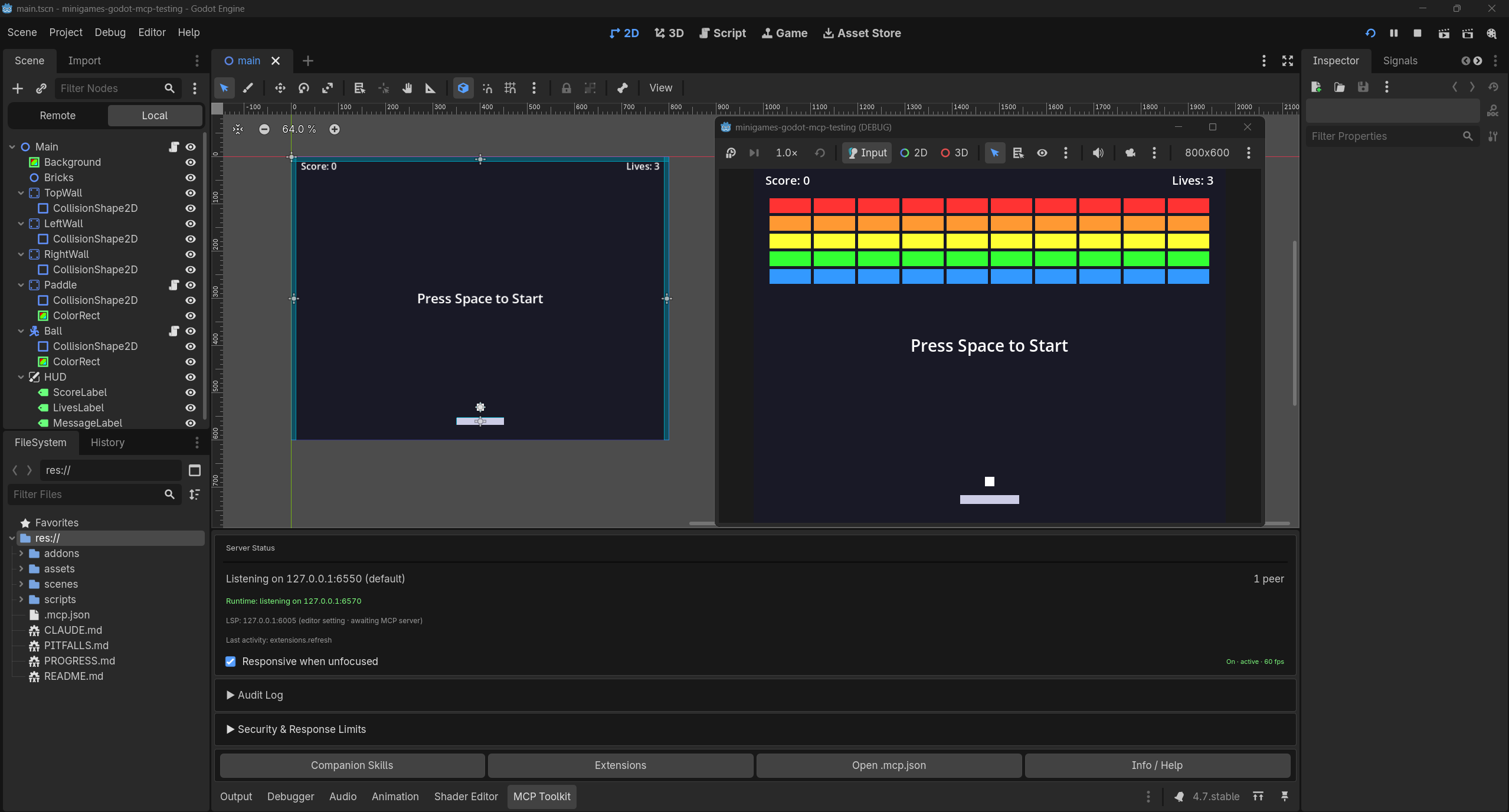
If a step does not produce its "you should see", head to the troubleshooting guide. It starts with a 60-second checklist and a connectivity probe.
Try asking…
- "Build a small brick-breaker: paddle, ball, a wall of bricks, a score label, and a game-over screen, then playtest it."
- "Add a CharacterBody2D named Player to the main scene, with a Sprite2D and a CollisionShape2D under it."
- "Create a main menu scene with a Start button that switches to the game scene when clicked."
- "Run the game, then tell me the Player's position and velocity while it's running."
The last three run in seconds. The first one is a real project, the same kind of small game we build end-to-end when validating a release, in a single agent session. Larger games span multiple sessions, with or without MCP.
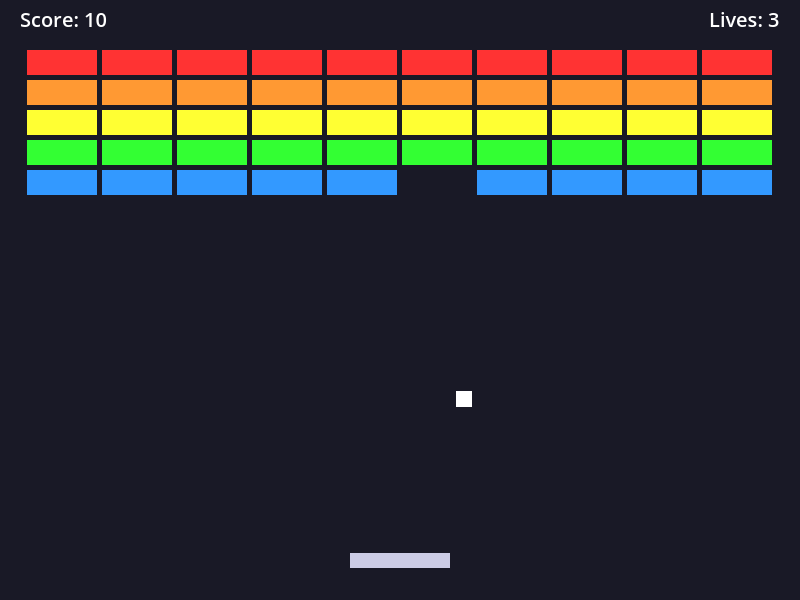
The brick-breaker from prompt 1 above.
What the tools cover
The always-on core handles the everyday work: scenes, nodes, scripts, project settings, playtests, screenshots, input simulation, code execution. Specialized surfaces load on demand, and the assistant activates them mid-session with discover_tools, by keyword or by name:
| Group | What it unlocks |
|---|---|
3d_tools |
3D primitives, lights, cameras, and environment setups |
animation_authoring |
Keyframes, tracks, and AnimationTree state machines |
asset_ops |
Asset listing, dependency queries, binary imports |
audio |
Audio buses, effects, and volume settings |
classdb |
Godot class hierarchy: properties, methods, signals, inheritance |
cleanup |
Deleting files, scripts, scenes, resources, folders; closing scenes |
debugger |
Debugger state, breakpoints, execution flow |
editor_advanced |
Editor screenshots, filesystem refresh, wait-for-idle |
input_map |
Input actions and their key/controller bindings |
layer_naming |
Physics, render, and navigation layer names |
lsp_code_analysis |
GDScript diagnostics, symbols, hover, project-wide compile check |
lsp_code_navigation |
Completion, go-to-definition, find references |
navigation |
Navigation regions, meshes, obstacle avoidance |
particles |
GPU particle systems |
path_editing |
Path2D curves; collision shapes from sprite textures |
placeholders |
Procedural placeholder textures and sound effects |
procedural |
Gradients, curves, and noise resources |
resource_io |
Loading and writing .tres/.res resources |
runtime_advanced |
Live node state, runtime property sets, AnimationPlayer control |
scene_advanced |
Scene diffs; batch instantiation |
scene_inheritance |
Inherited scenes (variants) |
signals |
Emitting signals at editor-time or runtime |
spriteframes |
SpriteFrames animations; spritesheet imports |
theme |
UI theme overrides: styleboxes, fonts, colors, constants |
tilemap |
TileMap cell reads, paints, bulk fills |
tileset |
TileSet resources, atlas sources, layers, alternatives |
tileset_edit |
Per-tile physics, terrain, navigation, visuals, custom data |
user_data |
user:// save files: read, write, delete, list |
Those 28 groups are the built-in surface. A project can add more: register your own tools through the toolkit's GDScript extension API and they reach the agent through this bridge like any built-in, with no fixed cap on how many, and the ceiling only rises as the toolkit grows.
The authoritative per-tool list (every tool, operation, parameter, and version gate) is the generated tool reference. Which tools exist on which Godot version is in the shipped compatibility guide.
Tested on: Godot 4.2–4.7.x
How it is designed
A few deliberate choices shape the tool surface:
- Consolidated tools, counted operations. Related actions share one tool with an action parameter instead of one tool each. The short tool list fits every client's tool budget and costs fewer context tokens; the 150+ operation count is what says how much the toolkit can really do.
- Read/write discipline. Every tool carries read-only and destructive annotations, so clients can auto-allow safe tools and gate risky ones. Read-only mode can hide every mutating tool with one switch.
- Two channels. The bridge dials the Editor channel (the WebSocket server inside the editor) for authoring, and the Runtime channel (the server inside the running game) during playtests. One side channel, the GDScript language-server client, connects to Godot's LSP directly.
- Registry-driven discovery. Every endpoint (editor port, runtime port, LSP, auth token) resolves from the plugin's machine-wide project registry, so there is no blind port scanning and no manual setup for multiple editors or git worktrees.
- Version-adaptive. Tools degrade gracefully across Godot 4.2 to 4.7: version-gated tools are filtered from the list rather than failing cryptically, and the surface completes itself once the editor's version is known.
Configuration
Everything works with zero configuration; the registry handles discovery. The variables below override the dial (connect) side. The listen side (the ports the editor and game bind) is configured on the plugin: see the shipped advanced configuration guide.
Environment variables
| Variable | Default | Description |
|---|---|---|
GODOT_MCP_EDITOR_PORT |
auto | Editor WebSocket port to dial (default: discovered from the project registry) |
GODOT_MCP_RUNTIME_PORT |
auto | Running game's WebSocket port to dial |
GODOT_MCP_LSP_PORT |
auto | GDScript language-server port to dial |
GODOT_MCP_LSP_HOST |
127.0.0.1 |
GDScript language-server host to dial |
GODOT_MCP_PROJECT_PATH |
cwd |
Absolute path to the Godot project |
GODOT_MCP_TOKEN_PATH |
auto | Auth-token file override (default: the path the plugin publishes in the registry) |
GODOT_MCP_READ_ONLY |
0 |
Set to 1 to hide every mutating tool (server-enforced) |
GODOT_MCP_RATE_LIMIT |
0 |
Max tool calls per second (0 = unlimited) |
GODOT_MCP_SCRIPT_READ_LIMIT |
the project's setting | Overrides the editor's cap on script-read responses, in bytes (minimum 65536) |
GODOT_MCP_WS_BUFFER_LIMIT |
the project's setting | Overrides the editor's per-connection WebSocket buffer size, in bytes (minimum 262144). Applies to connections the editor accepts after the server pushes it, so it takes effect from the next connection |
GODOT_MCP_SKIP_VERSION_CHECK |
unset | Set to 1 to turn off the connect-time version check, floor messages included; the server prints one line saying so. The plugin writes it into an entry it builds for a local server build |
GODOT_MCP_CONFIG_VERSION |
written by the plugin | Config-schema version stamp in .mcp.json; the server warns on stderr if it is missing or does not match |
CLI flags
Dial-target overrides, resolved with precedence CLI flag > env var > registry discovery > default:
| Flag | Equivalent env var |
|---|---|
--editor-port <n> |
GODOT_MCP_EDITOR_PORT |
--runtime-port <n> |
GODOT_MCP_RUNTIME_PORT |
--lsp-port <n> |
GODOT_MCP_LSP_PORT |
--lsp-host <h> |
GODOT_MCP_LSP_HOST |
--tools-count |
none; prints the static tool/operation/group summary and exits |
--list-eager |
none; prints the always-on and meta tool names as JSON and exits |
--help |
none; prints usage and exits |
Both --flag value and --flag=value forms are accepted.
Multiple editors / pinned ports
With no configuration, the server discovers each editor's port through the shared project registry, so parallel editors and git worktrees need no setup. Pin a port only when you need a deterministic setup (CI, containers).
Important
A pinned port must be pinned on both sides with the same value: the editor binds where its environment says, and the server dials where yours says. An environment variable is not a sync channel. It is two independent per-process reads, and the common failure is
.mcp.jsonpinning the server while the editor launches without the value (a desktop shortcut does not inherit a shell's export). The server fails fast with a message naming the mismatch instead of hanging; if you don't want to manage this, don't pin.
Read-only mode
For supervised environments (classrooms, CI, demos, reviewing an unfamiliar project), set GODOT_MCP_READ_ONLY=1 in the server's env. Every mutating tool is left unregistered, absent from the tool list entirely, no matter what the client or the model asks for. Turn it off and reconnect the client to restore full access; the tool list is decided at connect time. For per-tool permission rules on top (auto-allowing reads, prompting on writes), see the permissions section of the client setup guide.
Headless mode
Most tools work under godot --headless --editor: file, scene, node, script, ClassDB, and project tools all function without a display. Screenshot tools return HEADLESS_UNSUPPORTED, and everything that needs a running game degrades with clear errors (a headless environment has no display for the game process to present). The canonical per-tool headless matrix is in the shipped compatibility guide.
Token efficiency
The tool catalogue consumes context-window tokens, so the surface starts small and grows on demand: the startup surface costs ~9,500 tokens, the full surface (every group activated) ~29,100, and read-only mode ~8,700. Per-group costs, the measurement method, and the regeneration command are in docs/token-efficiency.md.
How we know it works
CI fails the build if any of these numbers drift: 113 tools (34 always-on + 2 meta, 79 on-demand) in 28 groups, covering 150+ operations; 40 tools visible in read-only mode.
- Every tool has smoke coverage (happy path, guards, error hints), mapped in the smoke coverage manifest. Cross-tool stateful flows run as their own deterministic suite (
npm run flows), and dispatch behavior (mutation serialization, cancellation, disconnects) as another. Separate suites, separately maintained. - Every tool is also exercised end-to-end from GDScript in the toolkit's interactive sweep, mapped in the sweep coverage manifest. Last full pass: 479 cases on Godot 4.7 (2026-07-03).
- CI exercises Godot 4.2 through 4.7, on Windows, macOS, and Linux, in both GDScript and C# (mono) editors. The floor (build, unit t