📔 Jisho: Offline Japanese Dictionary for VS Code
[![CI status][ci_badge]][ci]
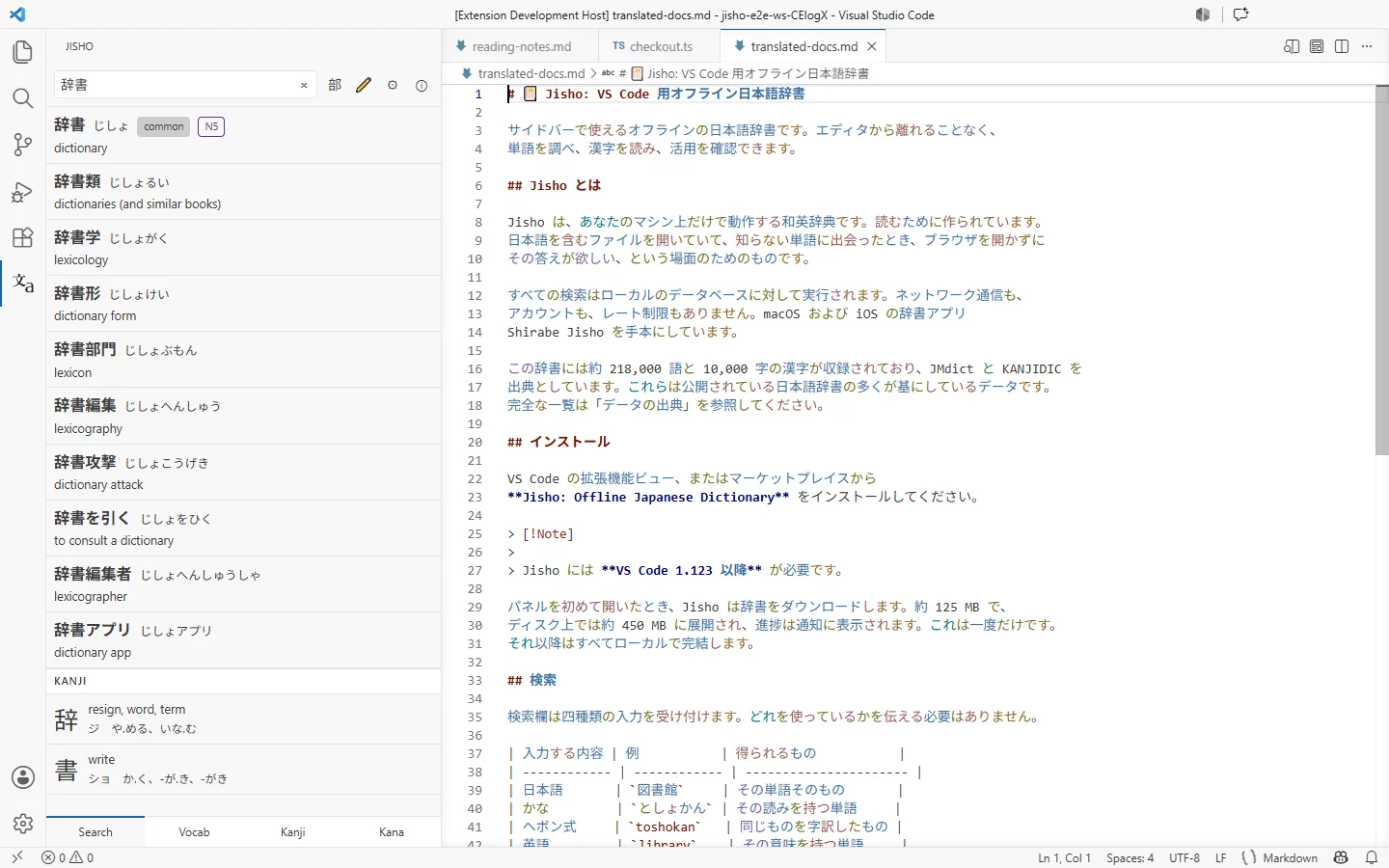
An offline Japanese dictionary in your sidebar. Look up a word, read a kanji, or check a conjugation without leaving your editor.
Contents
What Jisho is
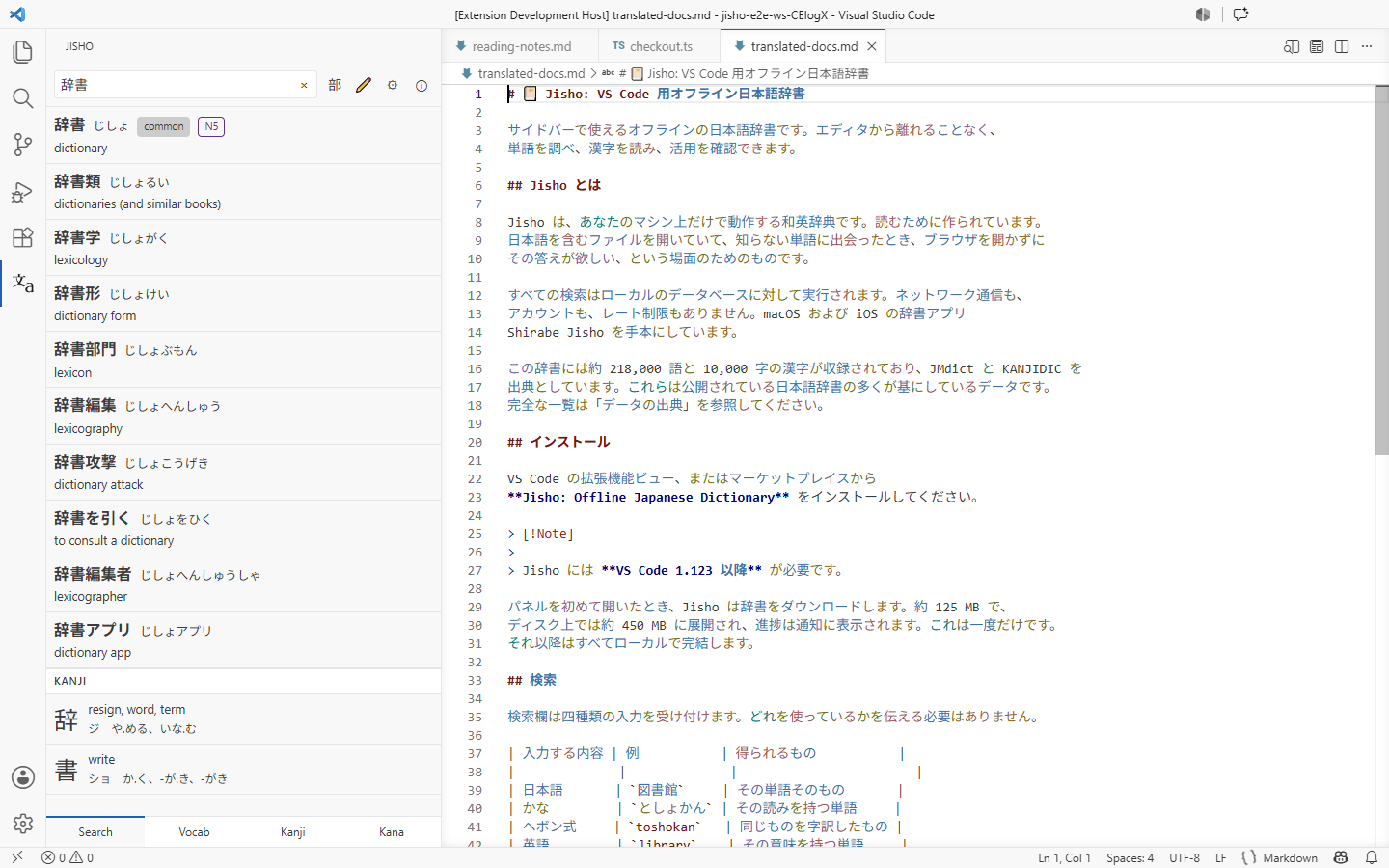
Jisho is a Japanese-English dictionary that runs entirely on your machine. It is built for reading: you are in a file with Japanese in it, you meet a word you do not know, and you want the answer without opening a browser.
Every lookup runs against a local database. There is no network request, no account, and no rate limit. It is modelled on [Shirabe Jisho][shirabe], a macOS and iOS dictionary.
The dictionary covers about 218,000 words and 10,000 kanji, drawn from [JMdict and KANJIDIC][jmdict], the same data behind most open Japanese dictionaries. See Data sources for the full list.
Install
Install Jisho: Offline Japanese Dictionary from the Extensions view in VS Code, or from the [Marketplace][marketplace].
[!Note]
Jisho requires VS Code 1.123 or newer.
The first time you open the panel, Jisho downloads its dictionary. That is about 125 MB, which expands to around 450 MB on disk, and a progress notification tracks it. This happens once. After that, everything is local.
Getting Started
This walkthrough covers one lookup, start to finish.
1. Open the panel. Run View: Show Jisho from the Command Palette (Ctrl+Shift+P, or Cmd+Shift+P on macOS). Jisho also adds an icon to the activity bar, though with several extensions installed VS Code may fold it into the … overflow menu.
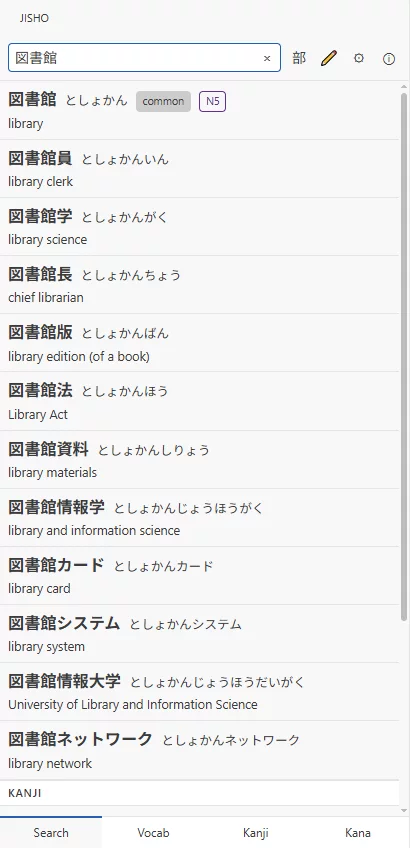
2. Type what you are looking for. Japanese, romaji, or English all work. Results are ranked by relevance, so the word you probably meant leads and its compounds follow.
3. Select a result to open its page. Every entry gives you its readings, meanings grouped by part of speech, and example sentences.
4. Select any Japanese word in an example to jump to its entry, and ← Back to return.
That is the whole loop: search, read, follow a link, go back.
Searching
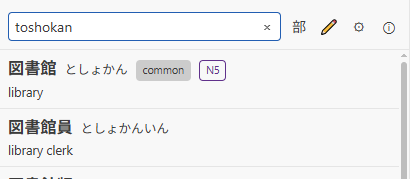
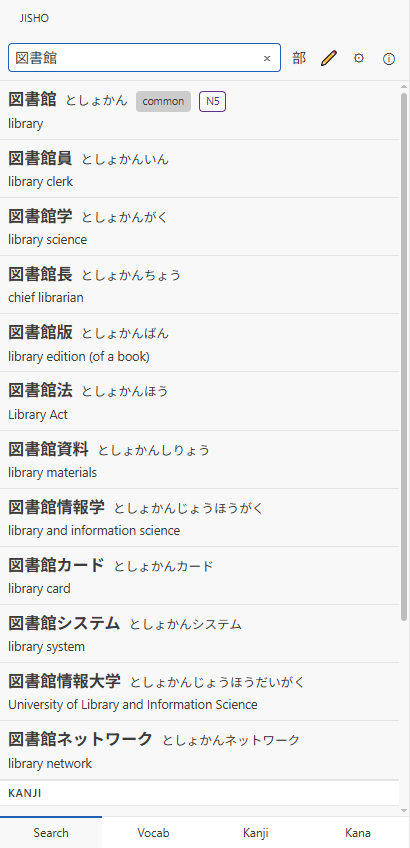
The search field takes four kinds of input, and you do not have to tell it which you are using.
| You type | Example | You get |
|---|---|---|
| Japanese | 図書館 |
The word itself |
| Kana | としょかん |
Words with that reading |
| Hepburn romaji | toshokan |
The same, transliterated for you |
| English | library |
Words meaning that |
Results are ranked by relevance, so the word you probably meant comes first.
The four buttons beside the field are, in order: 部 for the radical picker, the pencil for handwriting, the gear for settings, and the ⓘ for the About page.
Conjugated words
Type a word as it appears in your text. Jisho works back to the dictionary form: 食べました finds 食べる, 読まなかった finds 読む.
Names
Personal and place names come from a separate database, so a name in your text resolves instead of returning nothing. The names database downloads the first time you need it.
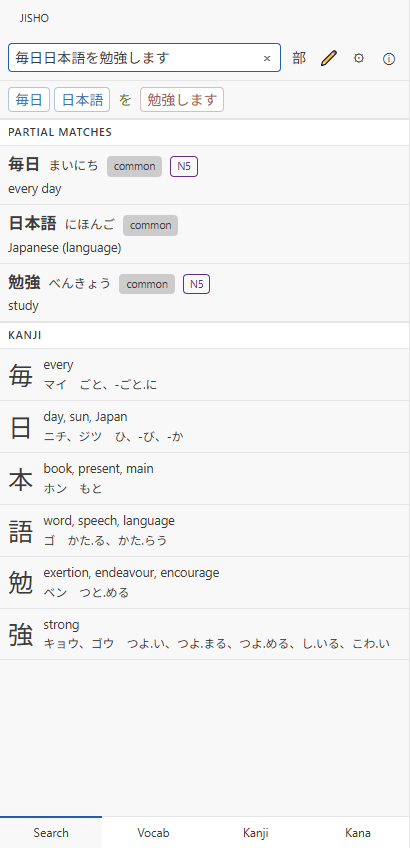
Whole sentences
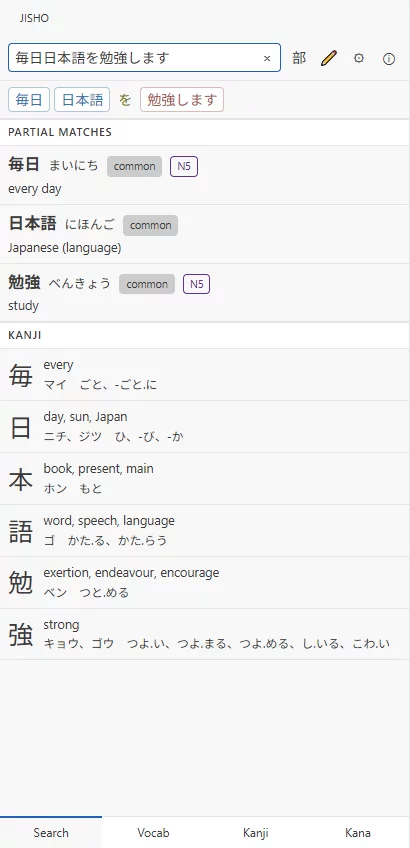
Paste a sentence and Jisho breaks it into words, each labelled with its part of speech. Select any one of them to search it on its own.
Each word in the bar is colored by its part of speech, using the same palette as the editor highlighting, so the shape of the sentence is visible before you read any of it.
The bar separates the sentence's full match from its partial matches, so a phrase that is itself an entry does not get buried under its own components. Selecting a word narrows the results to that word alone.
Reading a word
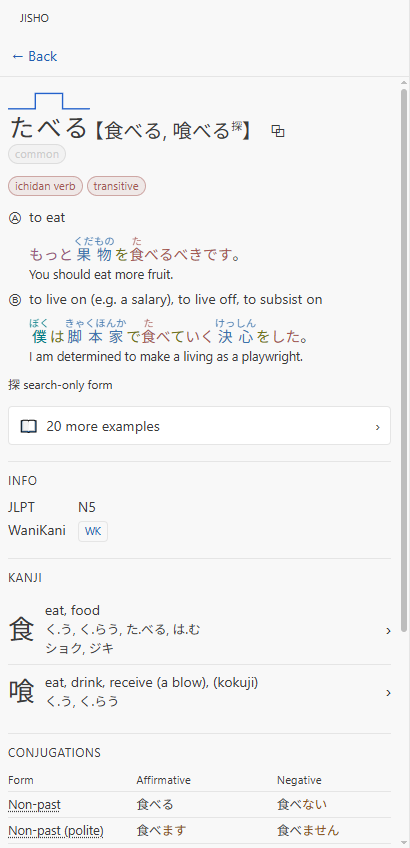
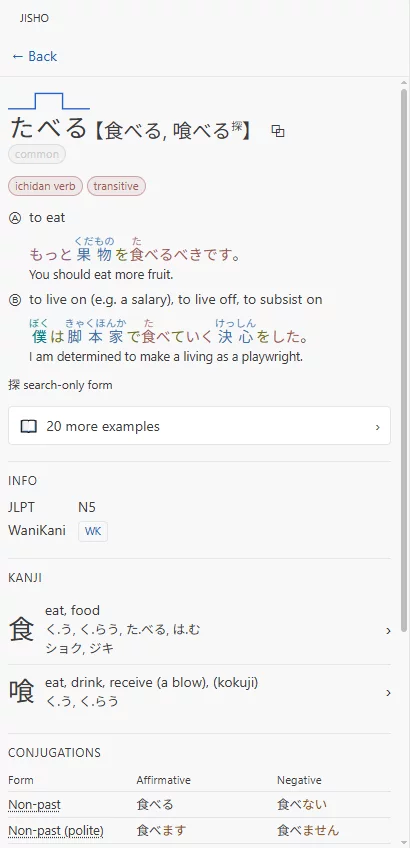
A word's page is arranged so the answer you most likely want is at the top: the reading and its writings first, then the meanings, then everything you might want after that.
Meanings are numbered and grouped by part of speech, since a word that is both a noun and a verb is really two words sharing a spelling. Example sentences sit under the meaning they belong to.
The top of the entry carries the most information per line, so it is worth reading closely.
The line above the reading is its pitch accent: where the pitch drops, which is the part of Japanese pronunciation that dictionaries usually leave to a number.
Tags mark what the word is and how common it is. Select a tag to see every other word that carries it.
Beside each reading are two buttons. The 🔊 button speaks the reading aloud, and appears only when your system has a Japanese voice installed. The copy button is covered under Copying below.
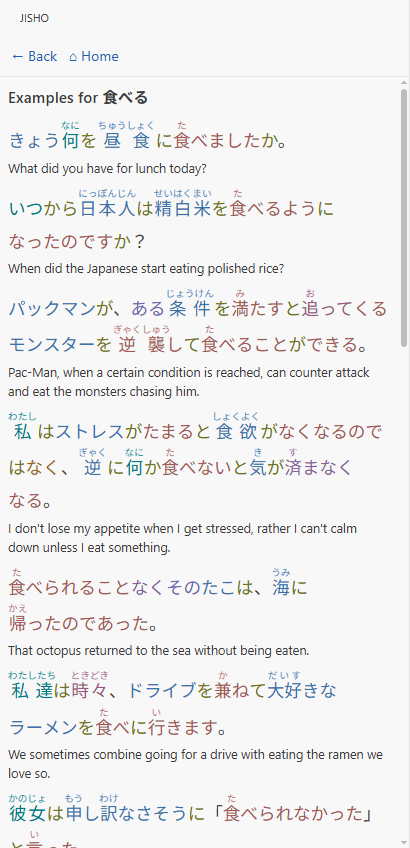
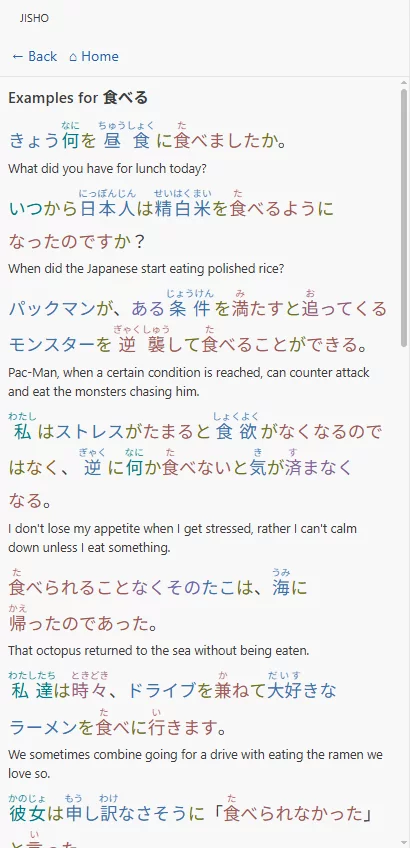
Example sentences
A few examples sit inline under each meaning. Select more examples for the full pool.
Every sentence has furigana over its kanji, so a word you cannot yet read is still pronounceable. Each is paired with an English translation.
Every Japanese word in a sentence is a link to its own entry, which makes the examples a way to read outward from a word rather than a list to skim. Following one and coming back with ← Back is the loop the panel is built around.
Copying
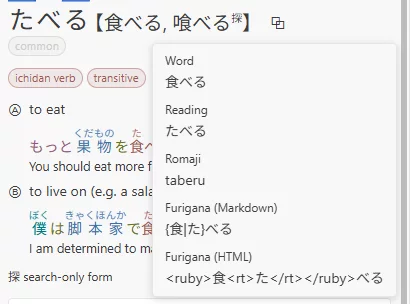
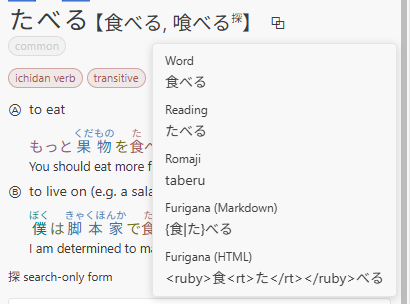
Select the copy button beside a reading to copy the word in whichever form you need.
Each option previews what you will get, including the two furigana markups, Markdown ruby ({食|た}べる) and HTML (<ruby>食<rt>た</rt></ruby>べる). Markdown ruby needs a renderer that understands it; see Add furigana to a selection.
Conjugations
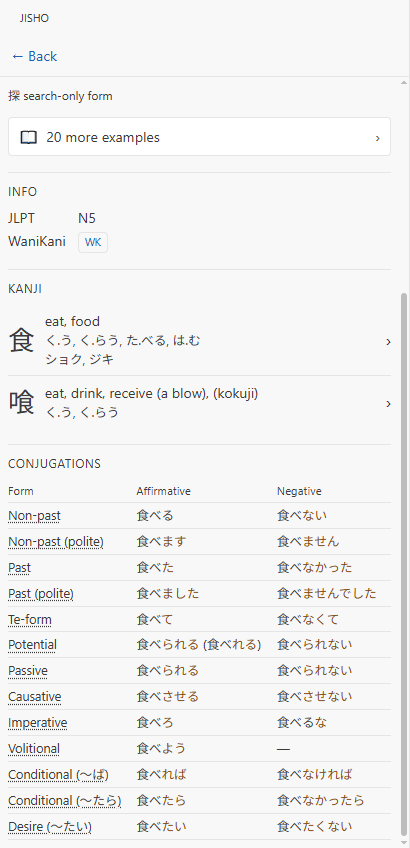
Below the entry's meanings, verbs and adjectives get a full conjugation table: non-past and past, plain and polite, te-form, potential, passive, causative, imperative, volitional, the two conditionals, and the desire form.
Select a form's name to read what it does and when to use it, which is the part a table alone does not tell you.
The same view carries two sections above the table. Info holds the word's JLPT level and a WaniKani link where there is one. Kanji lists the characters the word is written with, each opening its own page.
Searching for Kanji
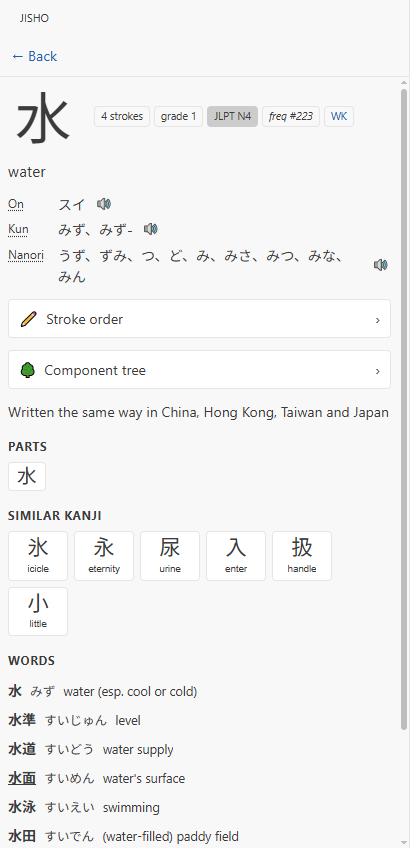
Kanji are results in their own right, not only parts of words. A search that matches a character lists it in its own Kanji section, below the words.
Selecting a character opens a page for the character itself.
The badges along the top are the character's measurements: how many strokes it takes, the school grade it is taught in, its JLPT level, and how common it is in written Japanese.
Below them come the readings. On readings are borrowed from Chinese and usually appear in compounds; kun readings are native Japanese and usually stand alone. Nanori are the readings a character takes in names, which often match neither.
Parts lists the components the character is built from, each opening its own page. Similar kanji lists the ones most likely to be confused with it: characters that differ by a stroke or a single radical. Words lists vocabulary written with it, most common first.
Stroke order
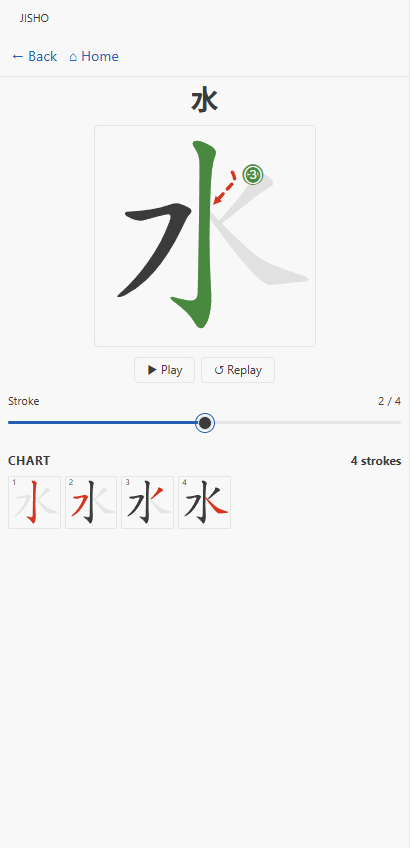
Every kanji and every kana has an animated stroke-order diagram.
Drag the scrubber to move through the strokes one at a time, or let it play. The numbered marker shows where each stroke begins and the dashed arrow shows which way it goes.
Below the player is a chart of the whole character, one frame per stroke, for when you want to see the order at a glance rather than watch it.
Finding a character you cannot type
Two ways in, for when you can see a character but have no way to enter it.
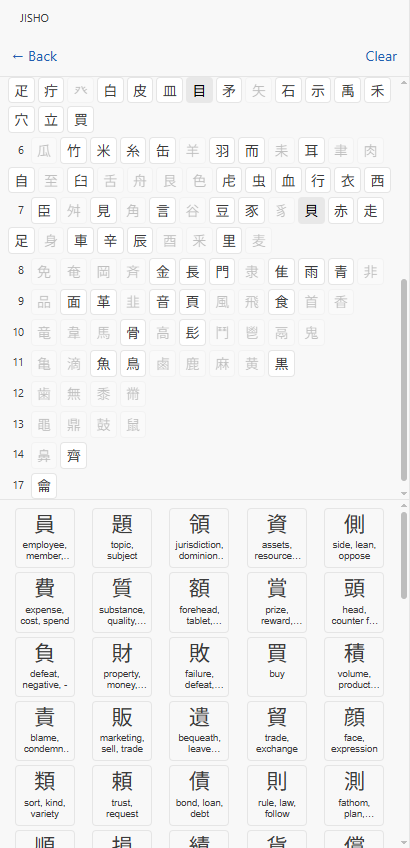
By its radicals
Select the 部 button beside the search field, then pick components you can see in the character. Radicals are grouped by how many strokes they take, so a component you can count is quick to find.
As you select, radicals that cannot appear alongside your choices grey out. A combination that would match nothing is never offered, so you can keep adding components until the list is short enough to scan.
Matches appear underneath, each tile showing the character with a short meaning. Selecting one opens its kanji page.
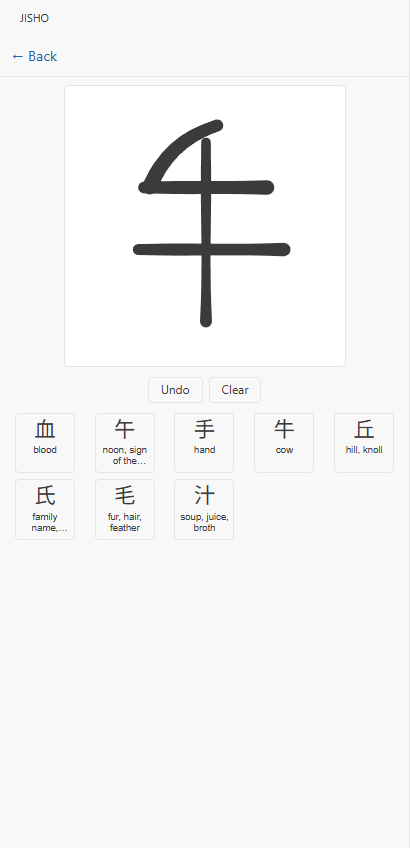
By drawing it
Select the pencil button and draw the character. Stroke order and stroke count do not matter, and you do not have to finish. The screenshot shows four strokes of a character that takes six.
Candidates update after every stroke, each labelled with its meaning so a near-miss is easy to spot. Drawing part of 年 turns up 牛, 午 and 手 alongside it, which is the point: you do not have to know a character to find it, only to see it.
Select one to add it to your search.
Browsing
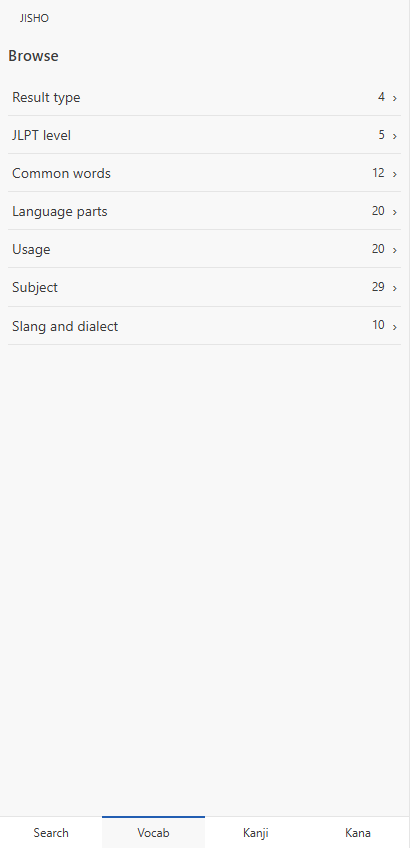
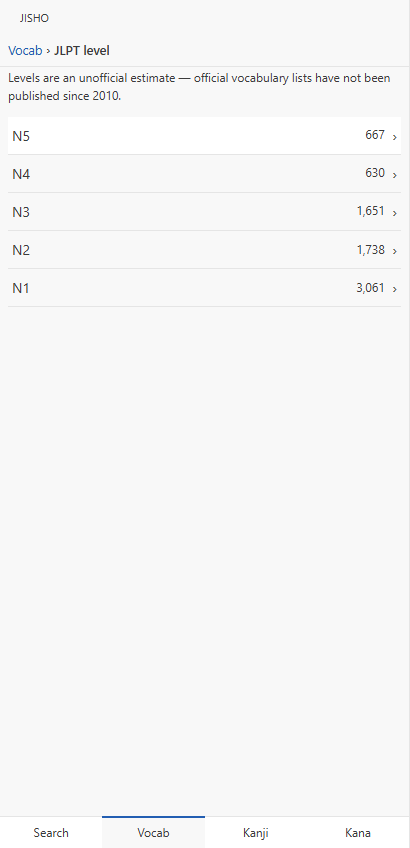
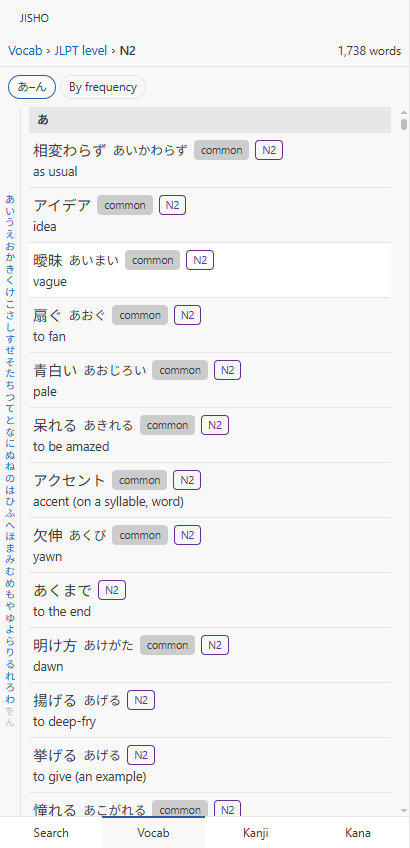
The four buttons along the bottom of the panel switch between searching and browsing.
- Vocab: by JLPT level, how common a word is, language part, usage, subject, or dialect.
- Kanji: by JLPT level, school grade, or frequency.
- Kana: the gojūon chart.
Browsing is two steps, shown above from left to right: a category opens its groups, and a group opens its list. The counts beside each row are live, so a category tells you how much is behind it before you commit to opening it.
The breadcrumb across the top tracks where you are, and every step in it is a link back.
Vocabulary
Vocabulary lists open in gojūon order (あ–ん), which is the order kana are taught and the one to reach for when you know roughly how a word sounds. The rail down the side jumps you to a kana, so a 1,700-word list stays navigable. Switch to By frequency for the most common words first.
Selecting an entry will open that word's page.
Kanji
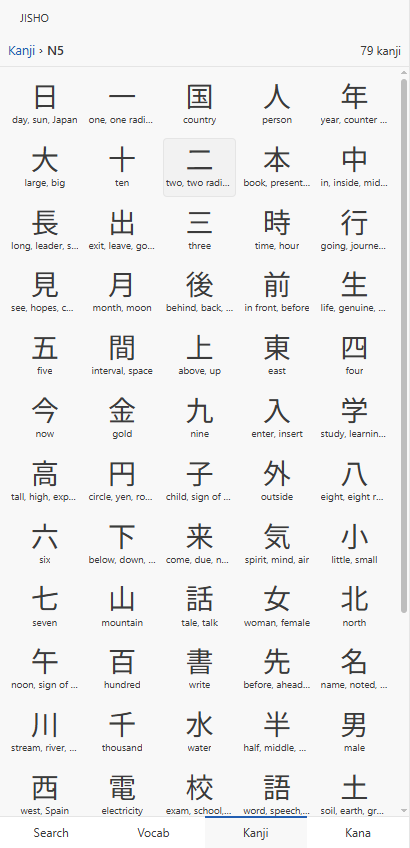
Kanji browse as a grid instead, each character with its meaning.
The grid fits far more on screen than a list would, which suits browsing a level or a school grade where you are looking for what you do not recognise rather than for one particular character.
Each tile carries a short meaning under the character, so the set is scannable without opening anything.
Selecting a tile opens that character's page.