
Kikumap
English · 简体中文
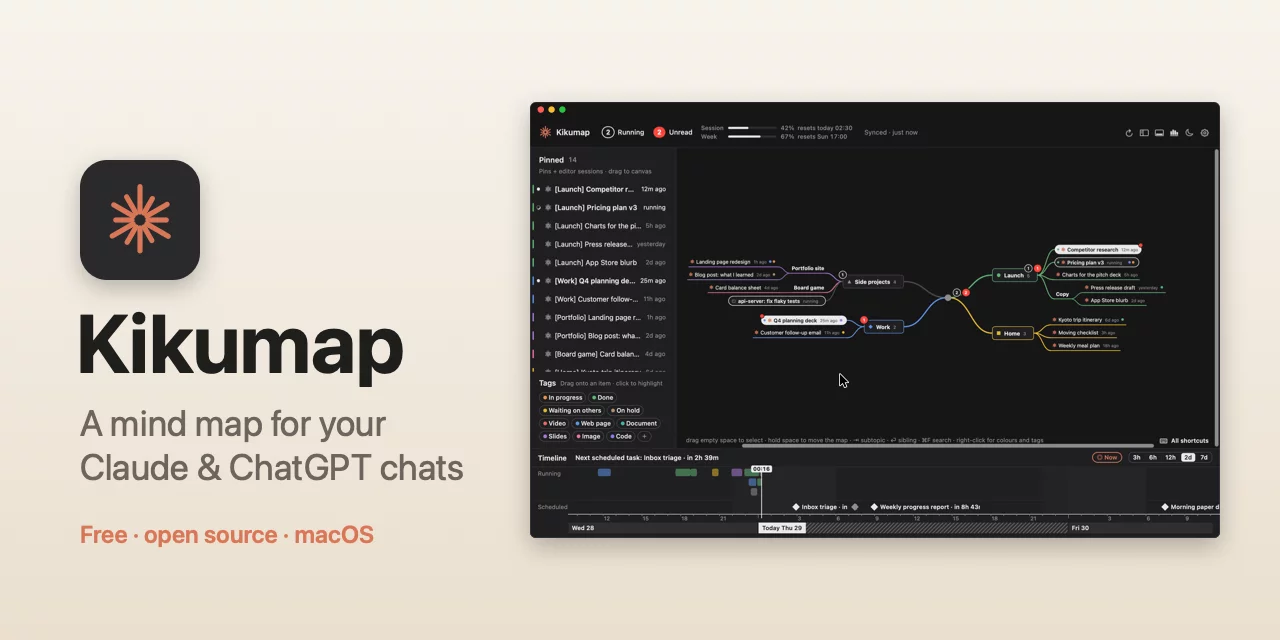
A mind map for your Claude and ChatGPT chats.
See which chats are running and which are waiting for you, from the menu bar or your desktop.
Sort them into a map. Take them with you.



⬇︎ Download for macOS

Website · Features · Install · Privacy · FAQ · Support ❤️
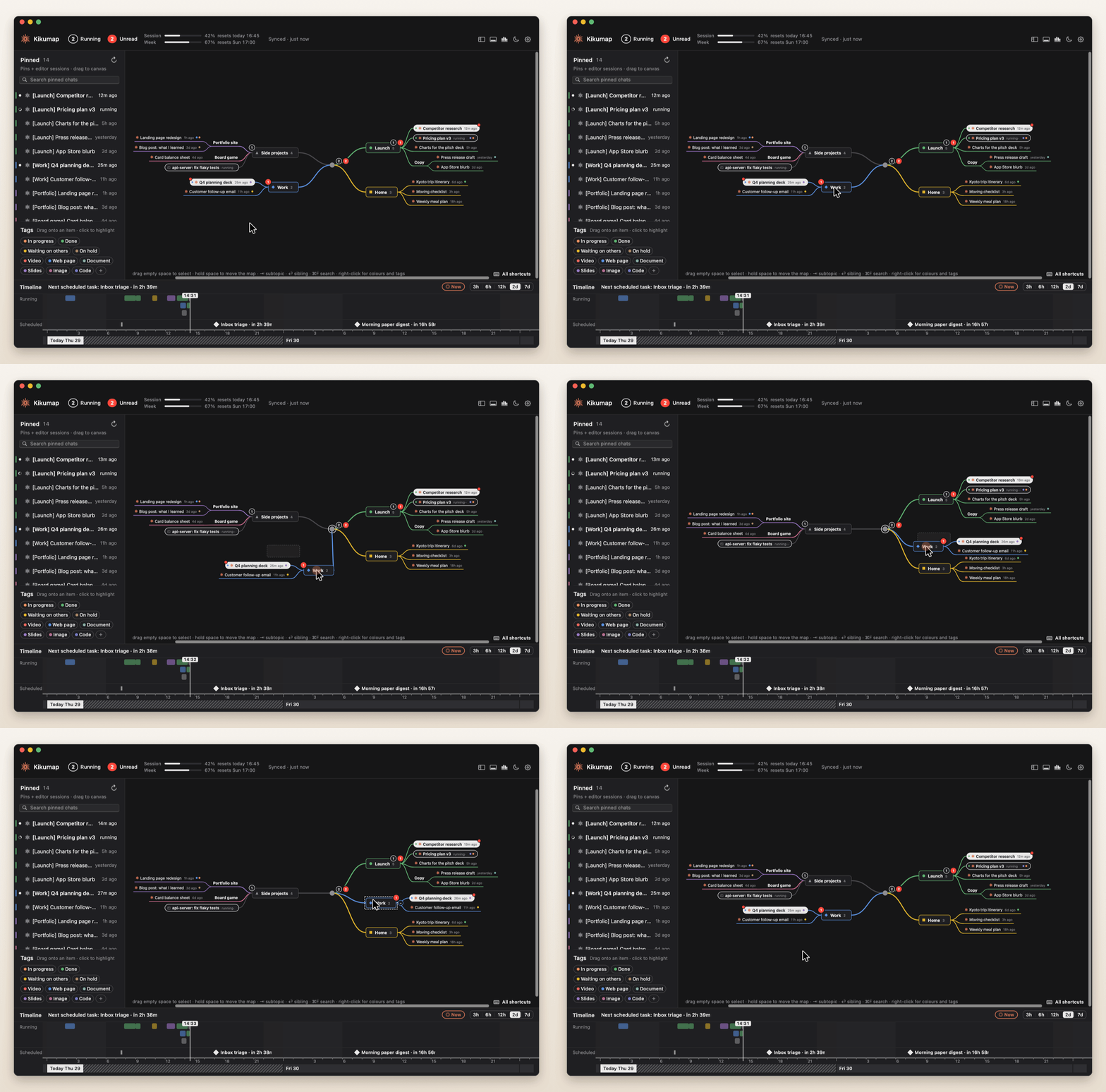
You pinned a dozen chats in Claude and ChatGPT. One is planning your trip, one is fixing a test, one finished ten minutes ago and you haven't looked. Kikumap sits in your menu bar and keeps track of both: what's running, what's done, what needs your OK. Open it and your pinned chats are laid out as a mind map that you arrange, MindNode-style. A desktop widget shows the same at a glance, with your Claude and ChatGPT usage.
Native and featherlight. Swift and AppKit only: no Electron, no web view, no helper processes, no third-party code. A 2.5 MB download that waits for changes instead of polling, and stops drawing entirely when its window is hidden.
Note
Beta. The Claude app has no public API, so Kikumap reads its window through macOS Accessibility; ChatGPT's threads come from the files its desktop app keeps on your Mac. When either app changes, parts of Kikumap may stop working until it's updated. Kikumap is an independent project, not made by or affiliated with Anthropic or OpenAI.
Features
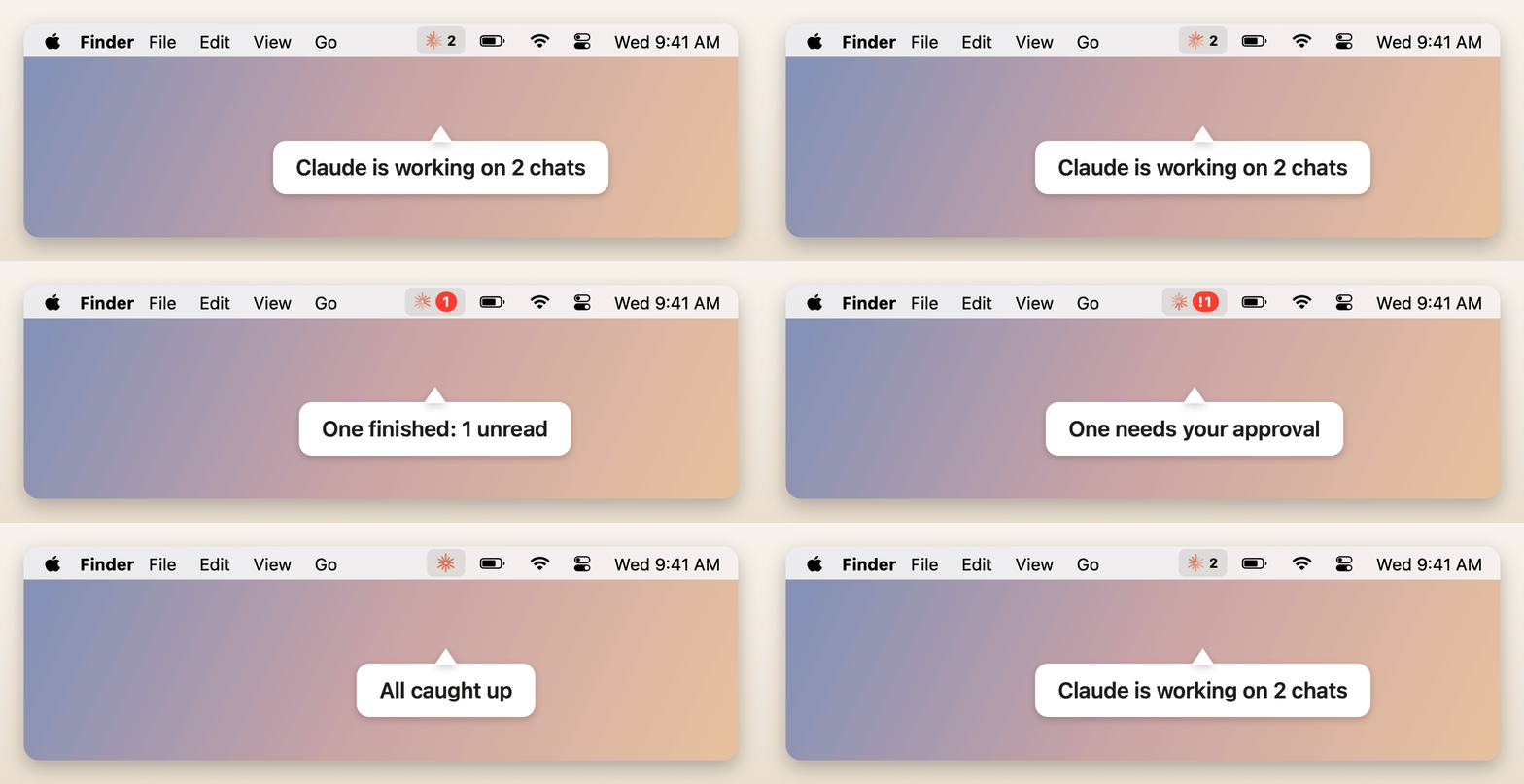 |
Know what Claude and ChatGPT are doingOne icon in the menu bar. The orange flower spins while a chat is running. A red badge counts chats that finished and you haven't read, with ! when one needs your approval. Hear it instead of checking. A sound plays when a chat finishes or needs you, and Kikumap can then say which one ("Pricing plan is done") in the voice, speed and words you choose. Or use your own sound file. Works with the Claude desktop app, Claude Code (Terminal, VS Code, the app's Code mode) and, new in 0.9.5, the ChatGPT desktop app. Everything you pin in ChatGPT shows next to Claude's chats, marked GPT, in ChatGPT's order: pinned threads and the threads in pinned projects. Running and unread follow ChatGPT's own dots. Codex sessions in VS Code show like Claude Code sessions: while they run, while unread, and for 12 hours after. Nothing to set up: Kikumap reads what ChatGPT keeps on your Mac. |
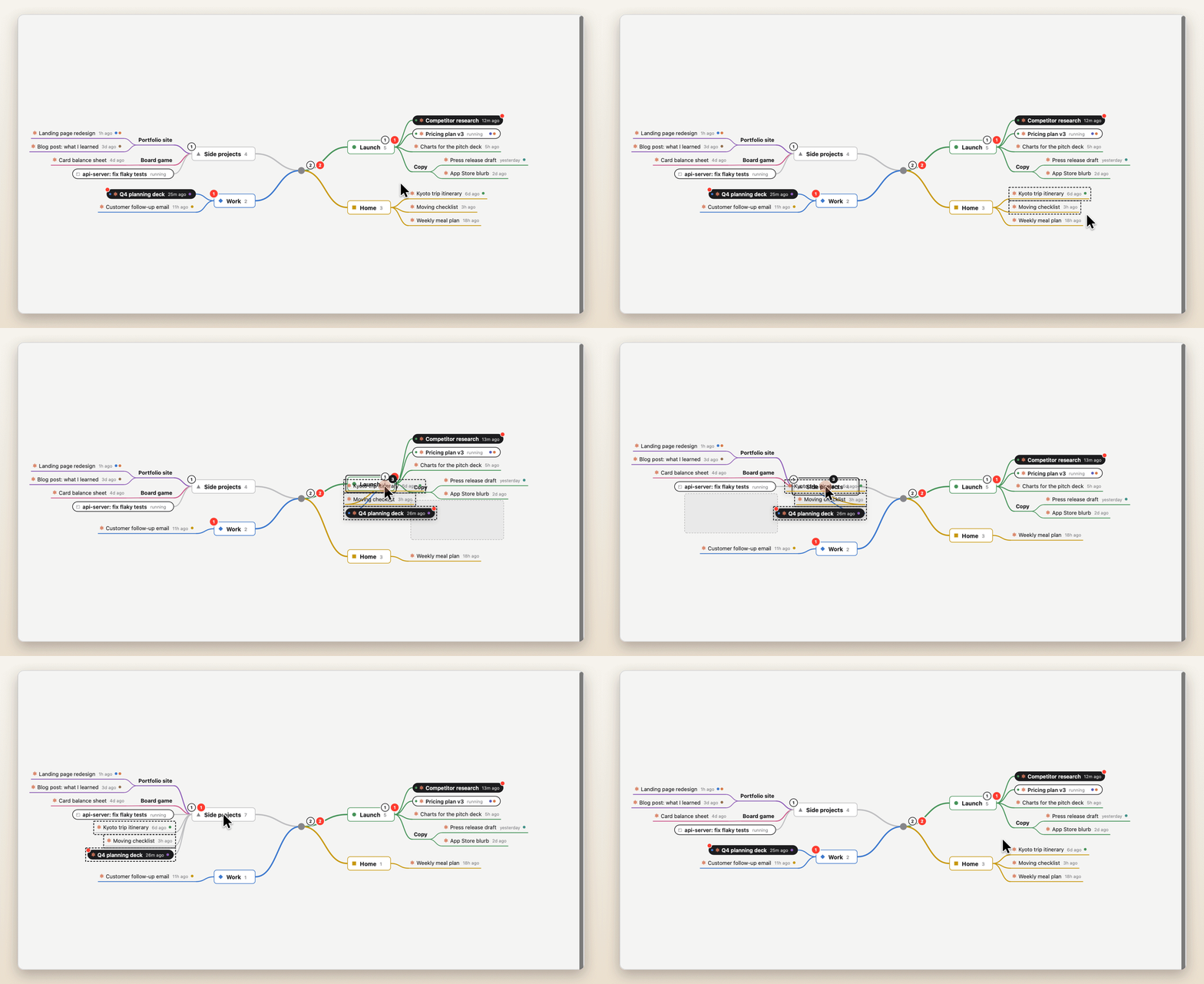
Your chats, as a mapThe left column mirrors the chats you pinned in Claude and ChatGPT, in each app's order, and your Claude Code sessions. The map starts empty: nothing goes on it until you put it there. Drag them onto your own topics. While you drag, the item rides a live branch and the rest of the map slides aside to show where it will land. The map never rearranges itself on its own. Several at once: drag a box on empty space (or ⌘/⇧-click), or ⌘/⇧-click in the left column, then drag any one of them. They all come along, in order. Hold space and move the mouse, or swipe with two fingers, to move around the map. The left column and the timeline can be hidden (⌃⌘S, ⌃⌘T) or resized by dragging their edge, and ⌘+ / ⌘- make everything in the window bigger or smaller. Real conversations carry a small orange mark, so they stand apart from plain topics. Hover one for two buttons: open it in Claude or ChatGPT, or mark it unread again (⇧⌘U) so it waits for you until you've opened it. |
 |
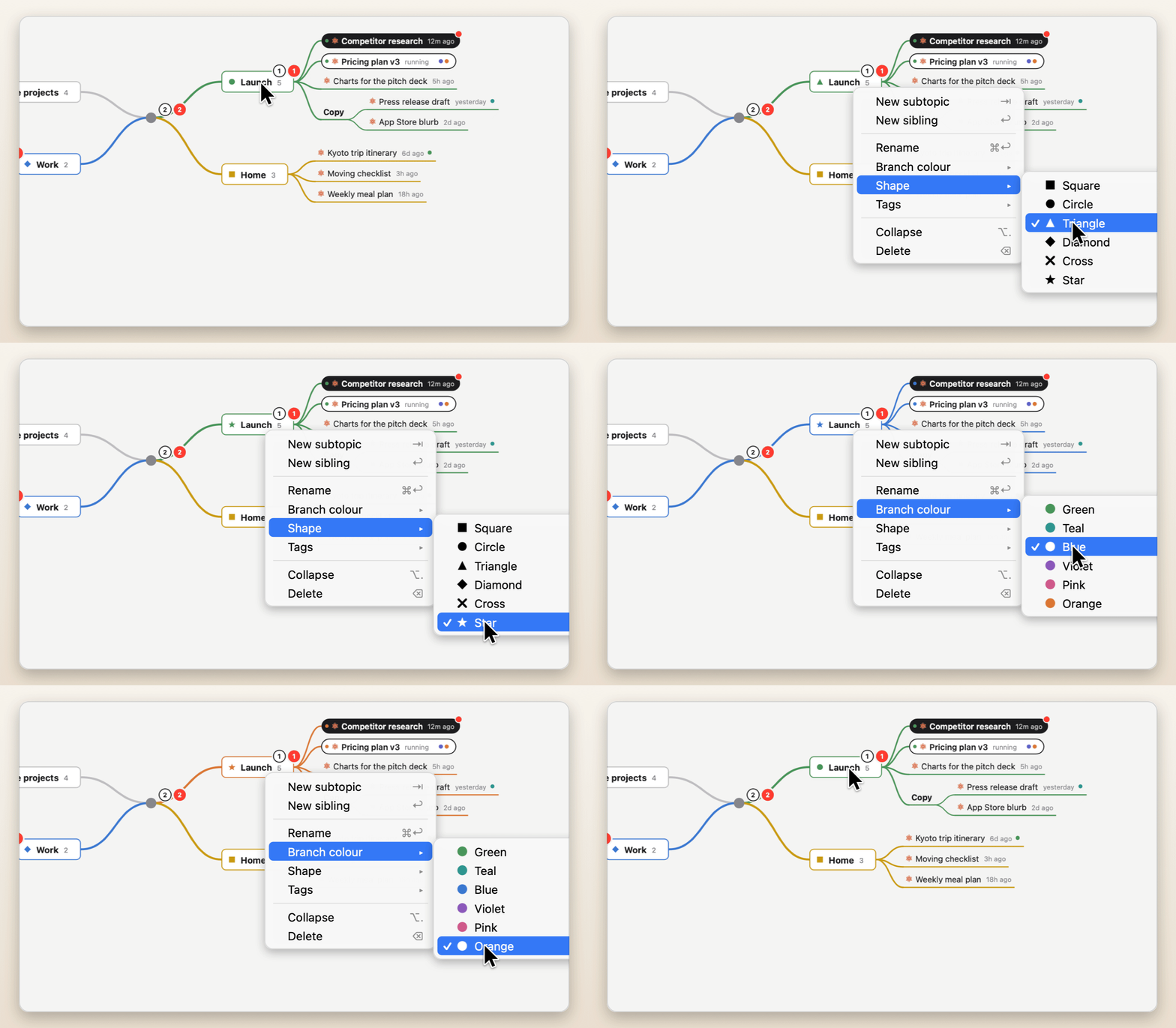 |
Make it yoursRight-click any topic for a branch colour and a shape: square, circle, triangle, diamond, cross or star. Colours flow down the branch, into the timeline and the menu. |
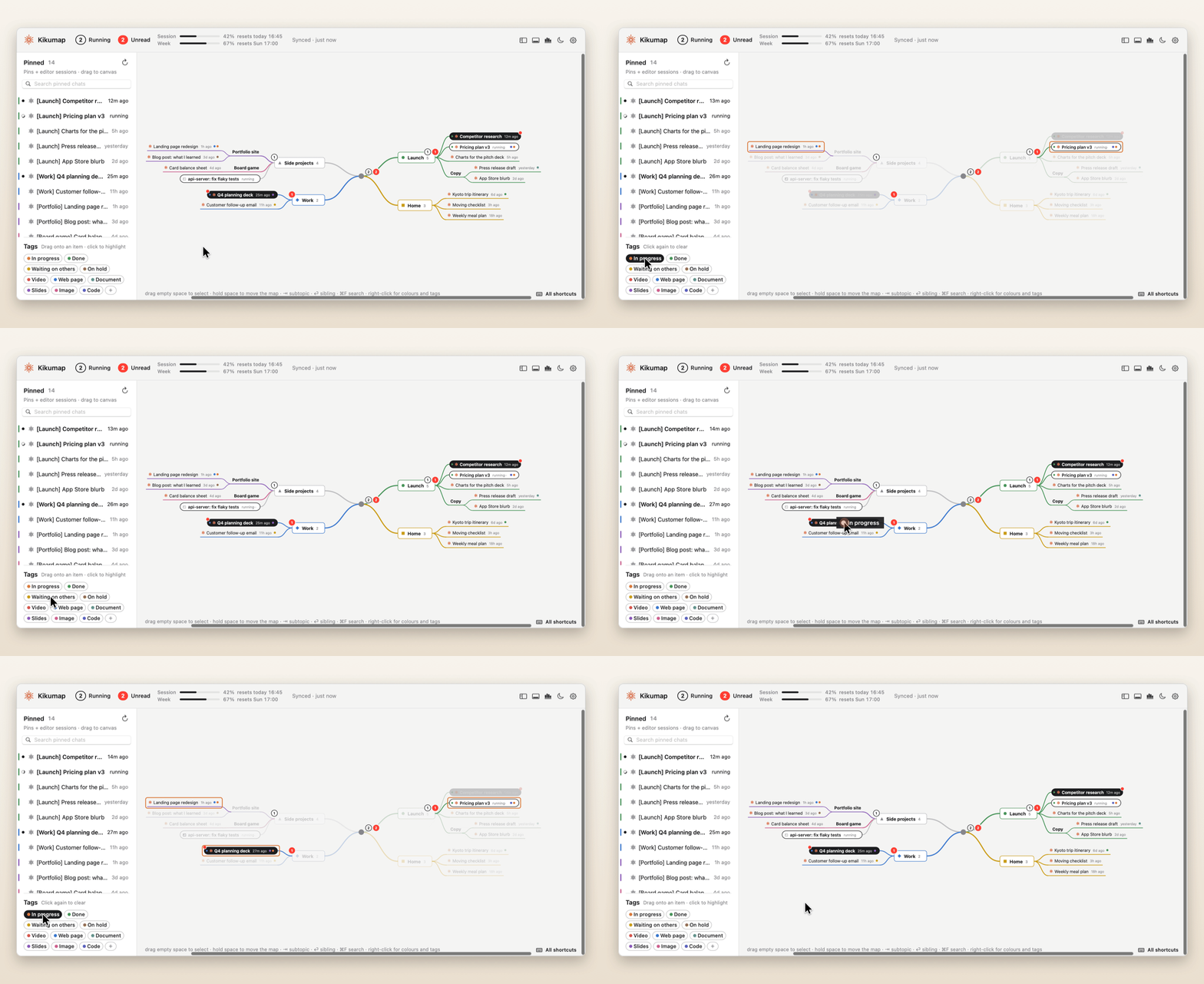
Tag anythingTags like In progress, Waiting on others or Slides. Pick them from the right-click menu, or drag one from the shelf straight onto a chat. Click a tag to highlight everything that has it; the rest of the map fades back. Click again to clear. |
 |
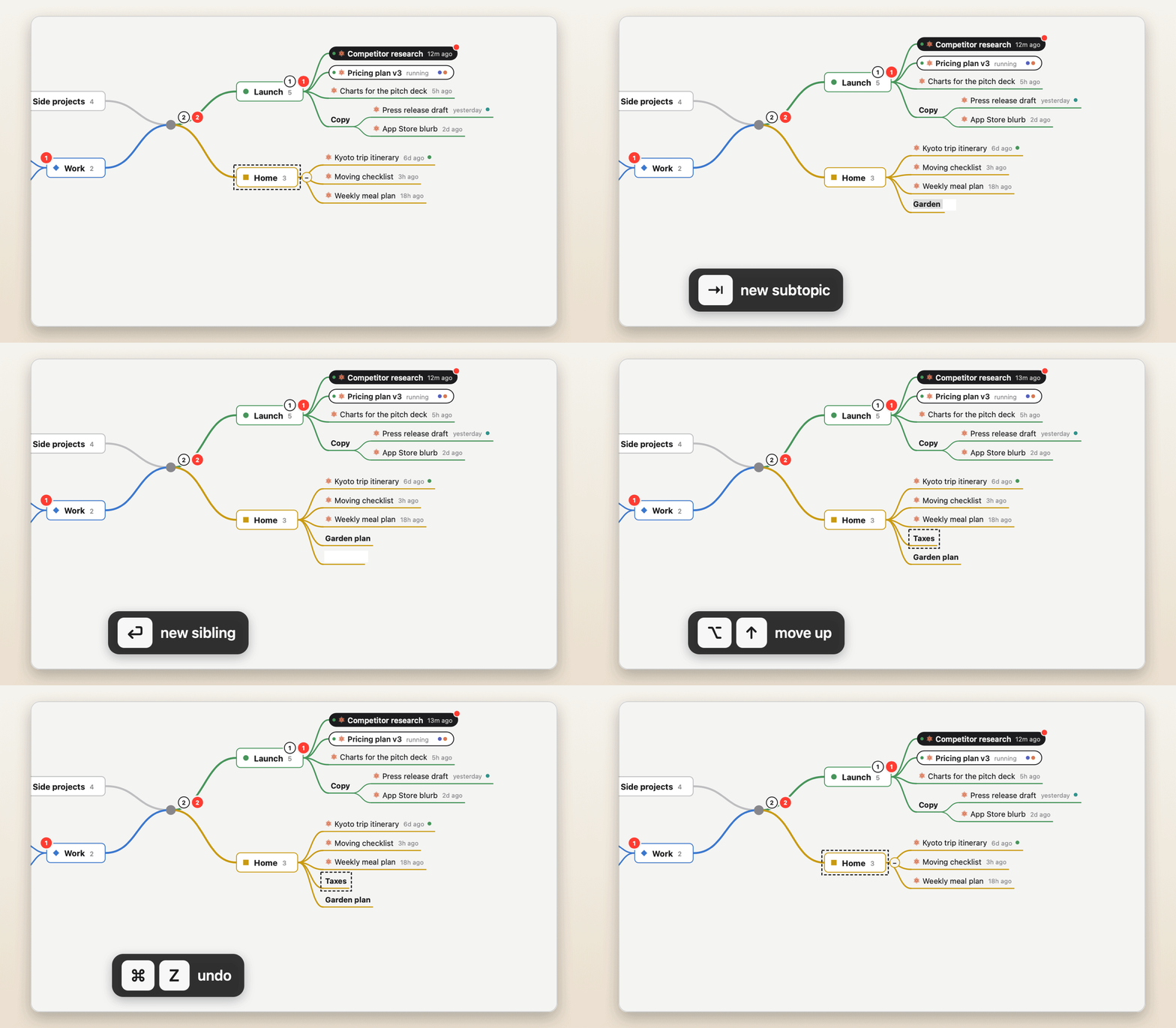 |
Keyboard-firstLike a real mind-map app: ⇥ new subtopic, ⏎ sibling, ⌘↑↓ reorder, ⌘Z undo. Also ⌫ delete, ⌥. fold, ⌘F search, and a tap on space to open a chat in its app. |
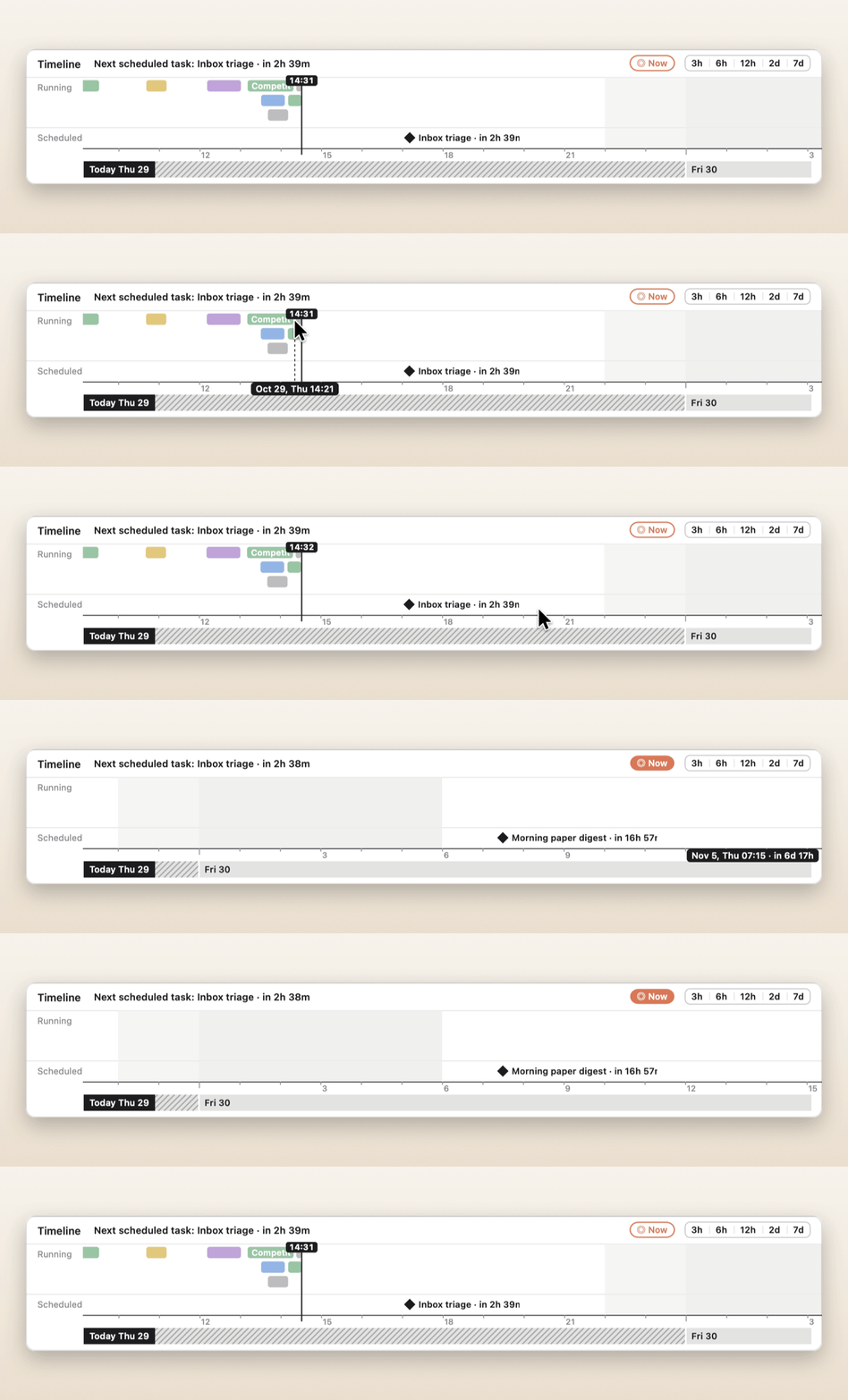
What ran, and what's nextThe timeline shows when Claude and ChatGPT worked on each chat, in your branch colours; chats running at the same time get rows of their own. Drag ahead to see your scheduled tasks (with usage turned on), each with a live countdown. Click anything to open it. |
 |
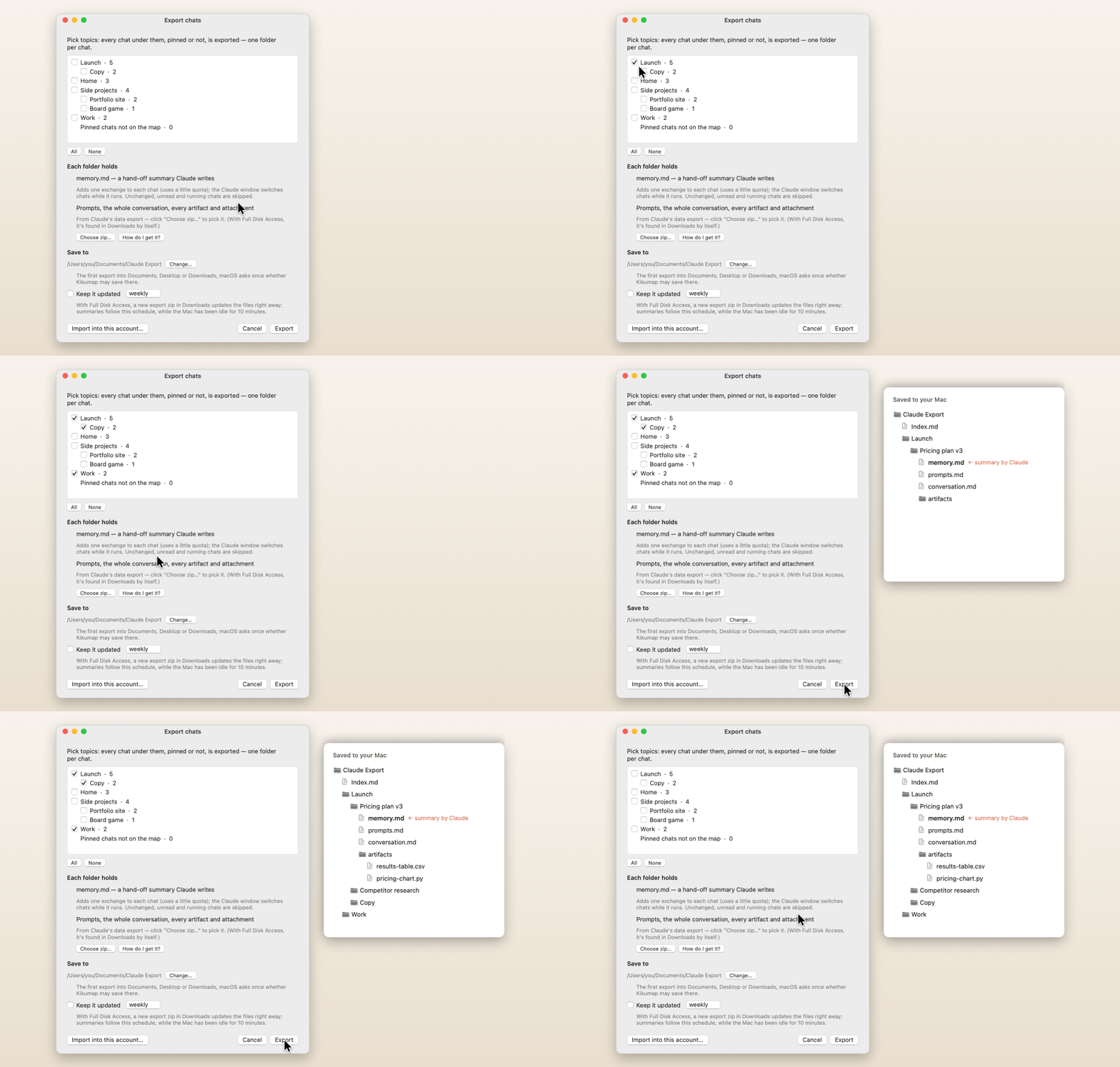 |
Take everything with youTick topics and export every chat under them, pinned or not, one folder per chat:
The export can keep itself up to date. Import starts a new pinned chat per folder (in a new Claude account, say), with the artifacts attached and the summary sent in, so you pick up where you left off. |
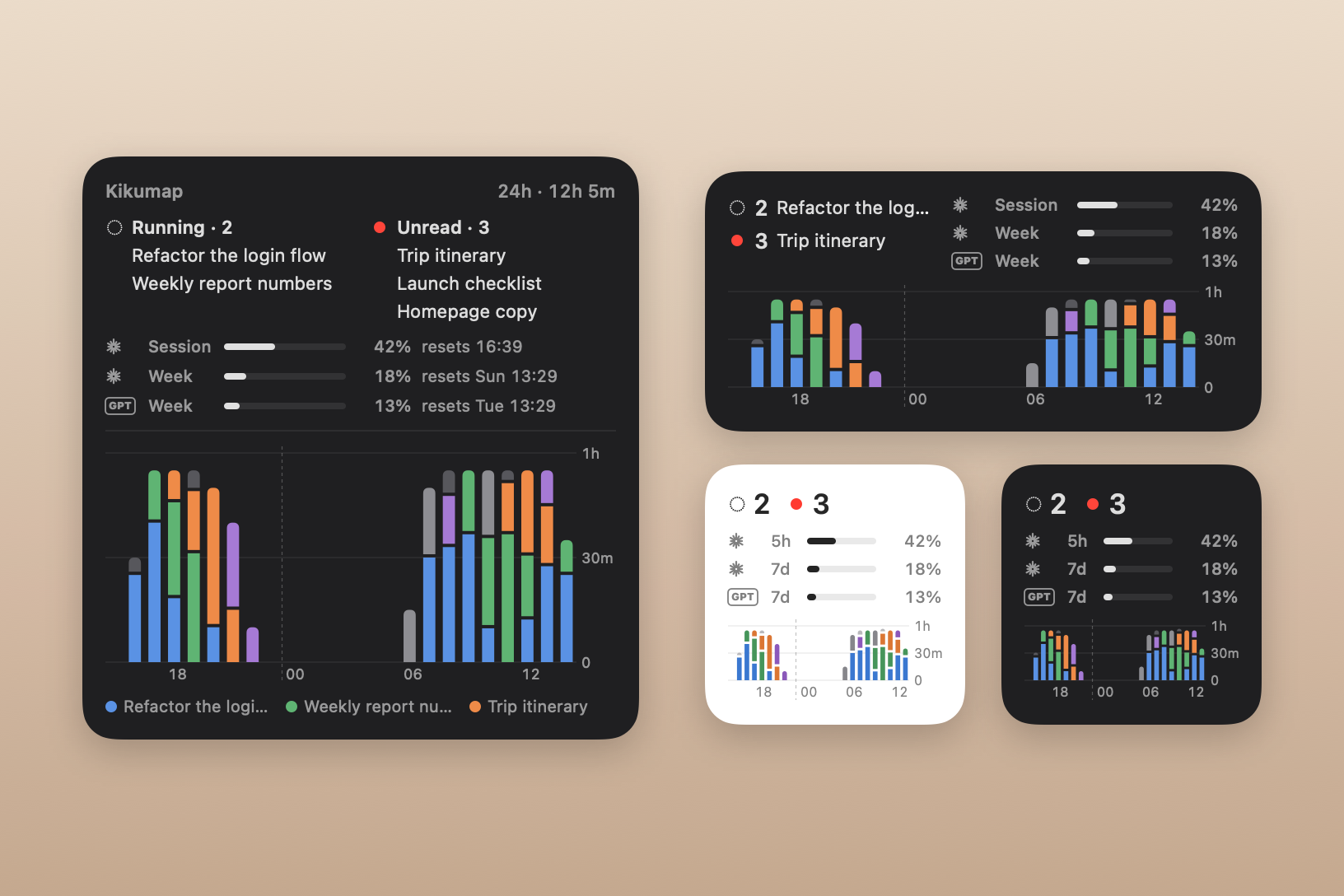
On your desktop newA widget for the desktop or Notification Center, in three sizes. Running and unread chats on top; then your usage, Claude's (the 5-hour session and the week), ChatGPT's, or both, each row marked with whose it is; and below, the last 24 hours as bars, a colour per chat. Click a chat to open it. Right-click the desktop → Edit Widgets and search for Kikumap. macOS 14 or later. |
 |
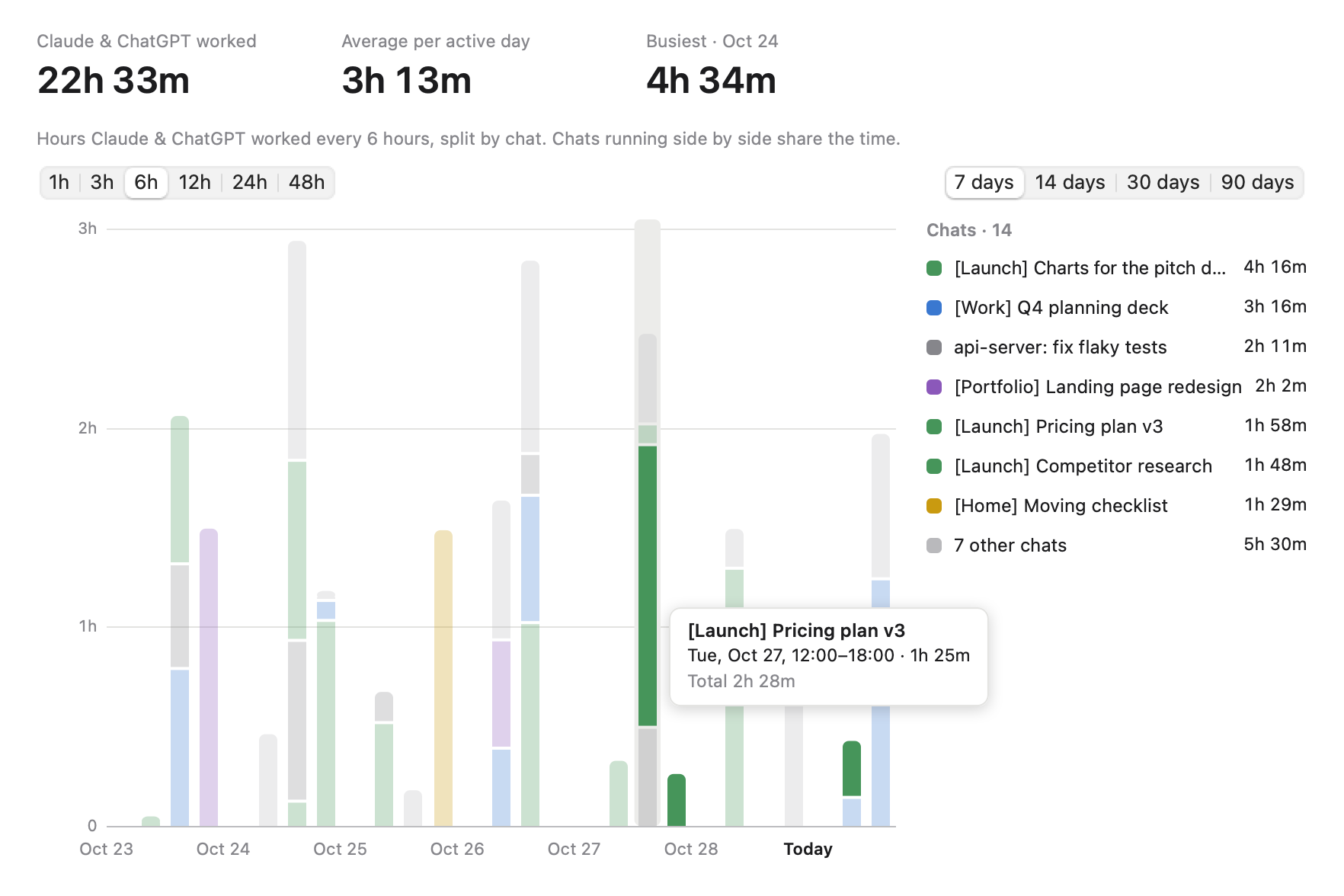 |
How much got done newHow long Claude and ChatGPT worked, split by chat, in bars of 1, 3, 6, 12, 24 or 48 hours over the last 7, 14, 30 or 90 days. Hover for the details, click a segment to open the chat. View → Statistics (⌘Y), or the chart button at the top of the window. |
And a lot more
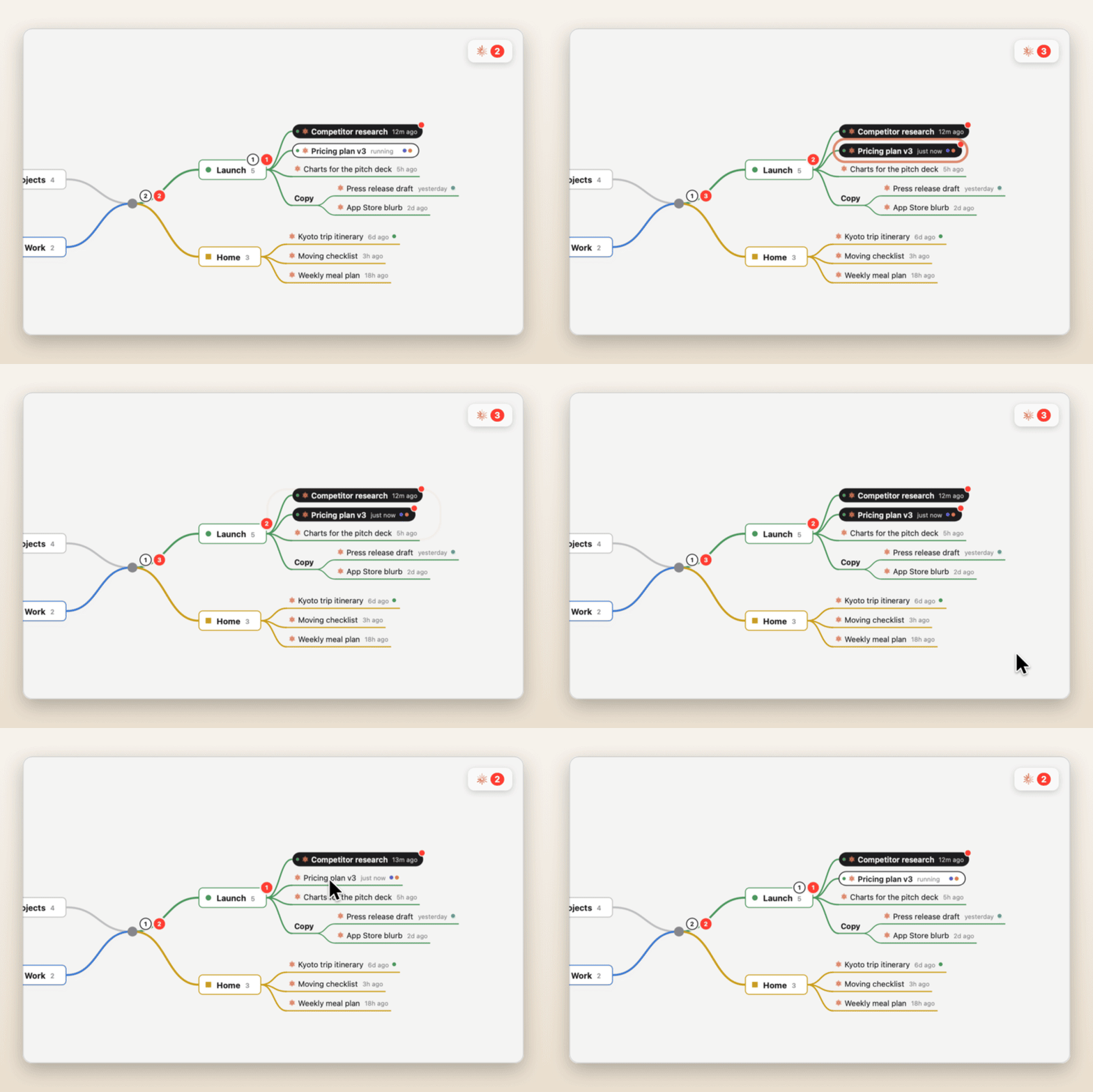 Finished chats light up A chat that's done but unread turns solid on the map, with a red dot. |
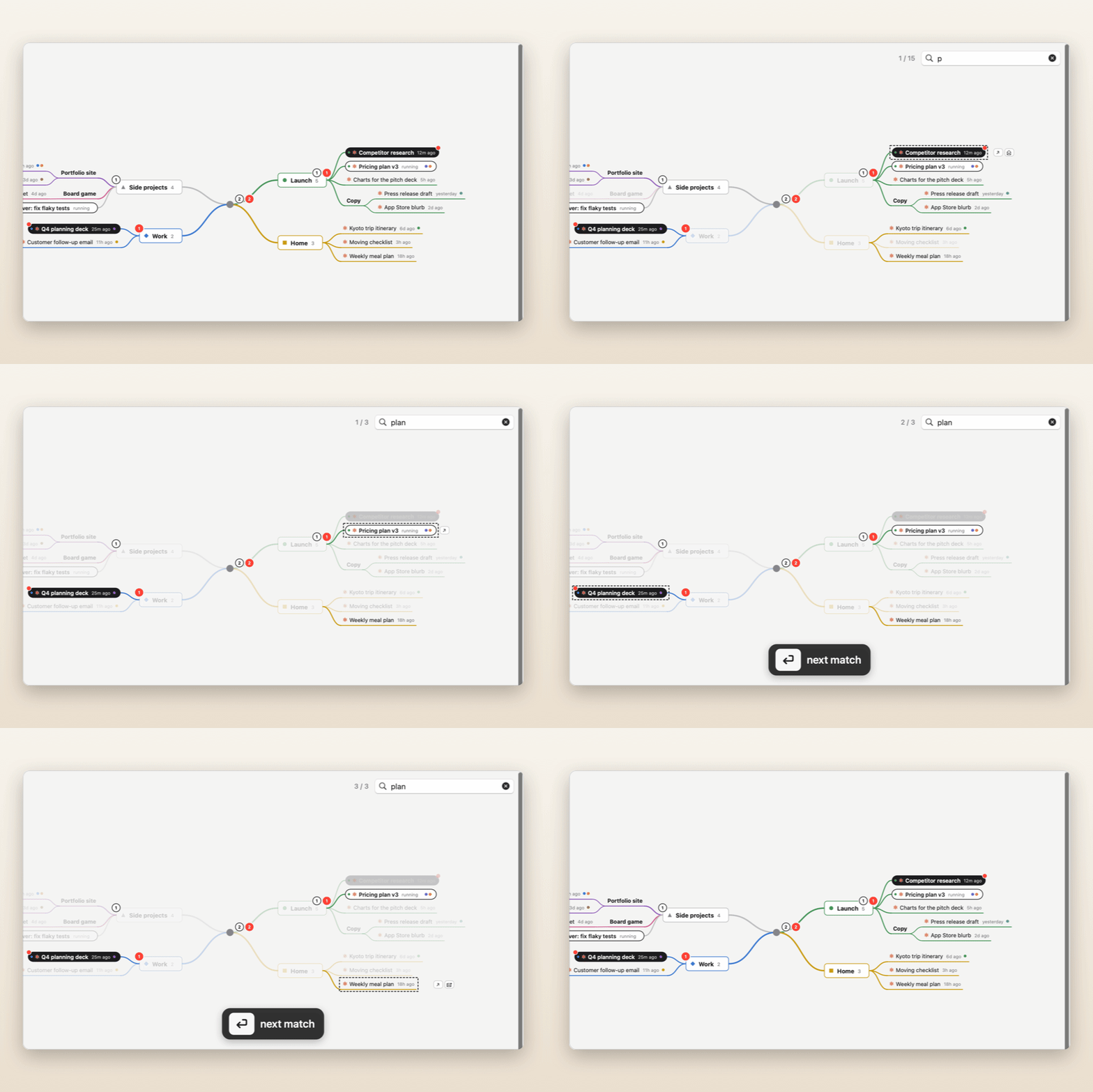 Find anything ⌘F searches topics, chats and tags; ⏎ jumps to the next match. |
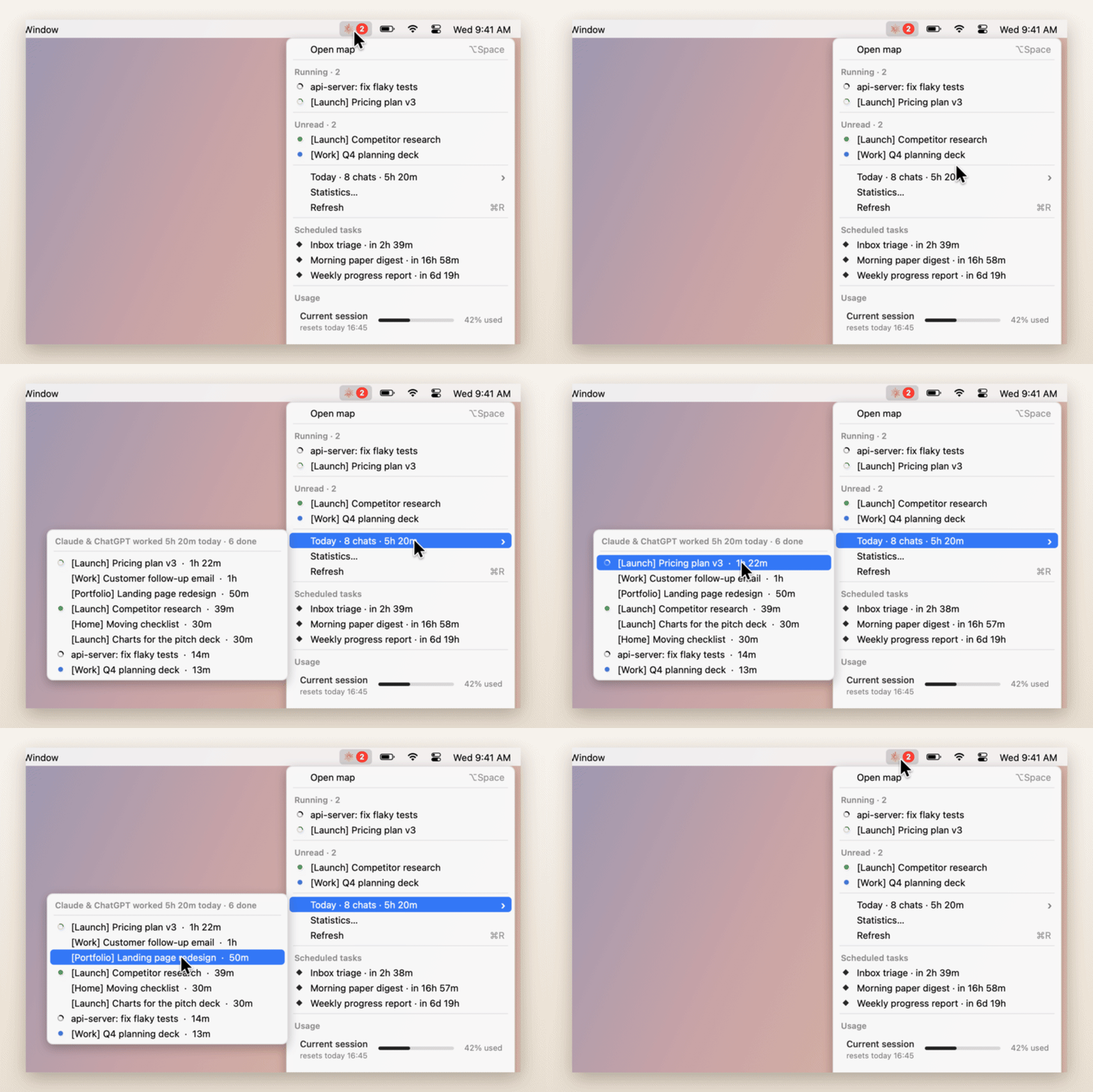 Your day at a glance Which chats Claude and ChatGPT worked on today, and for how long, in the menu. |
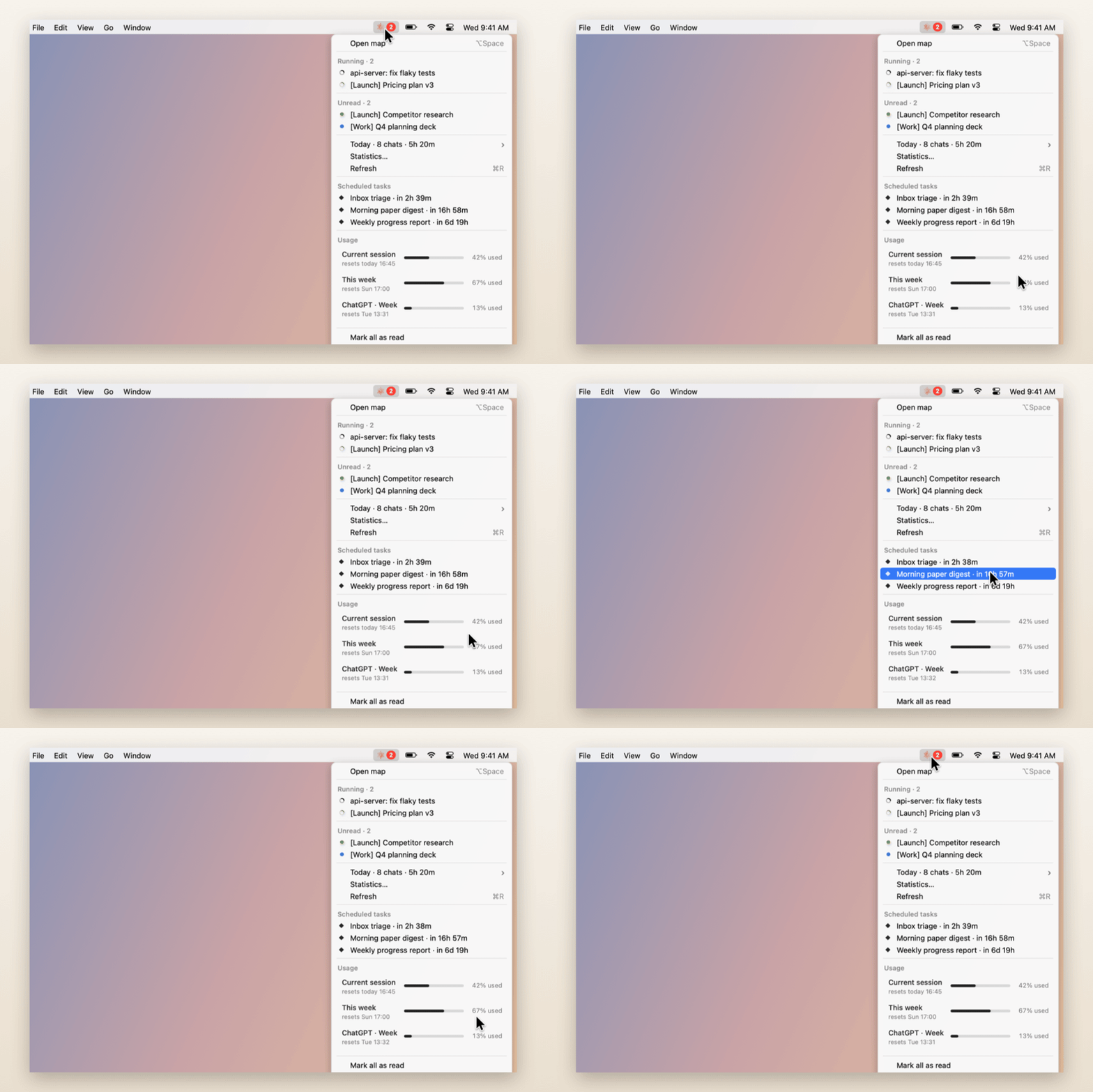 Usage in the menu This session and this week, like claude.ai, plus what's scheduled next. |
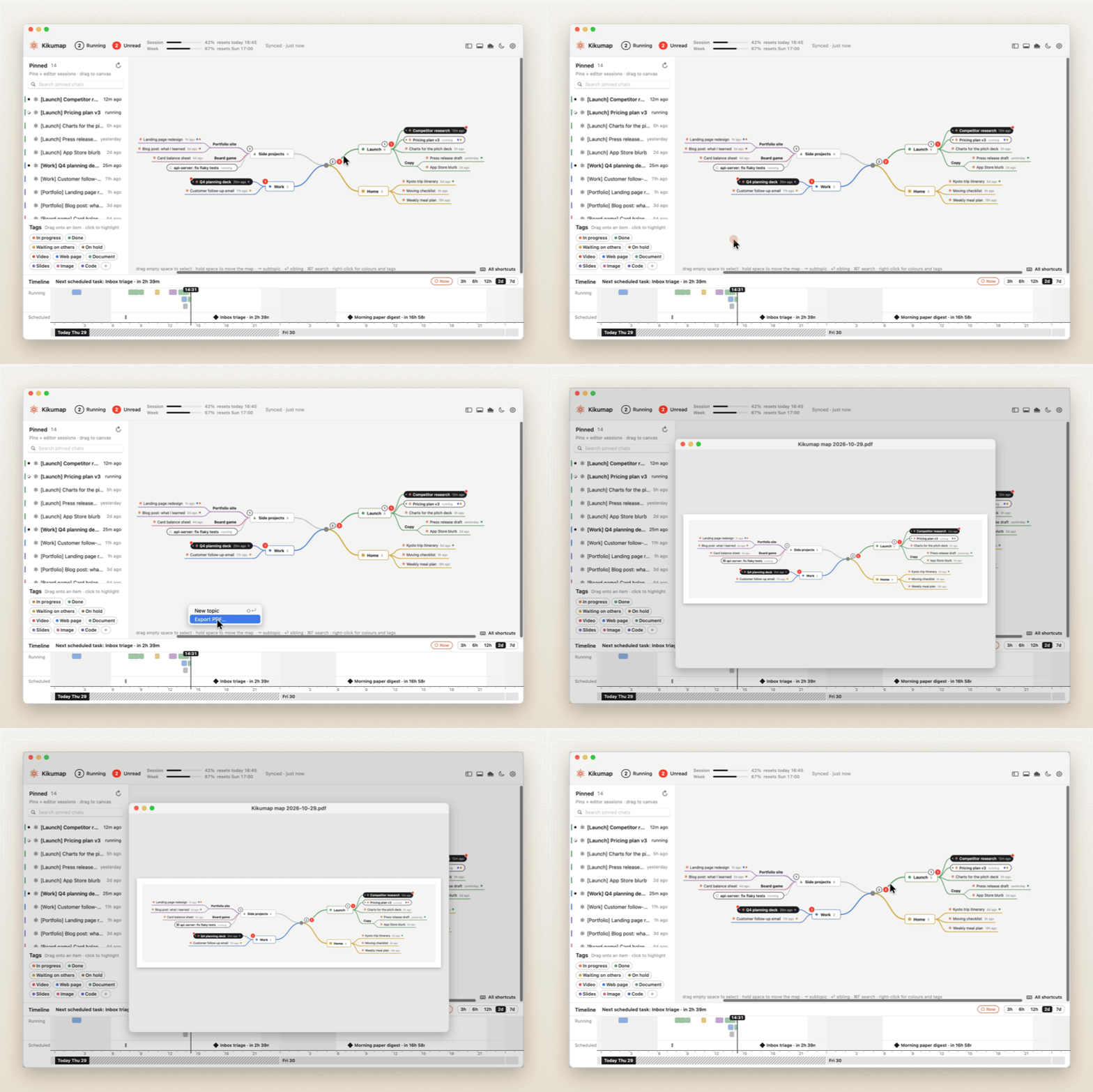 The map as a PDF The whole map on one light page, ready to print or share. |
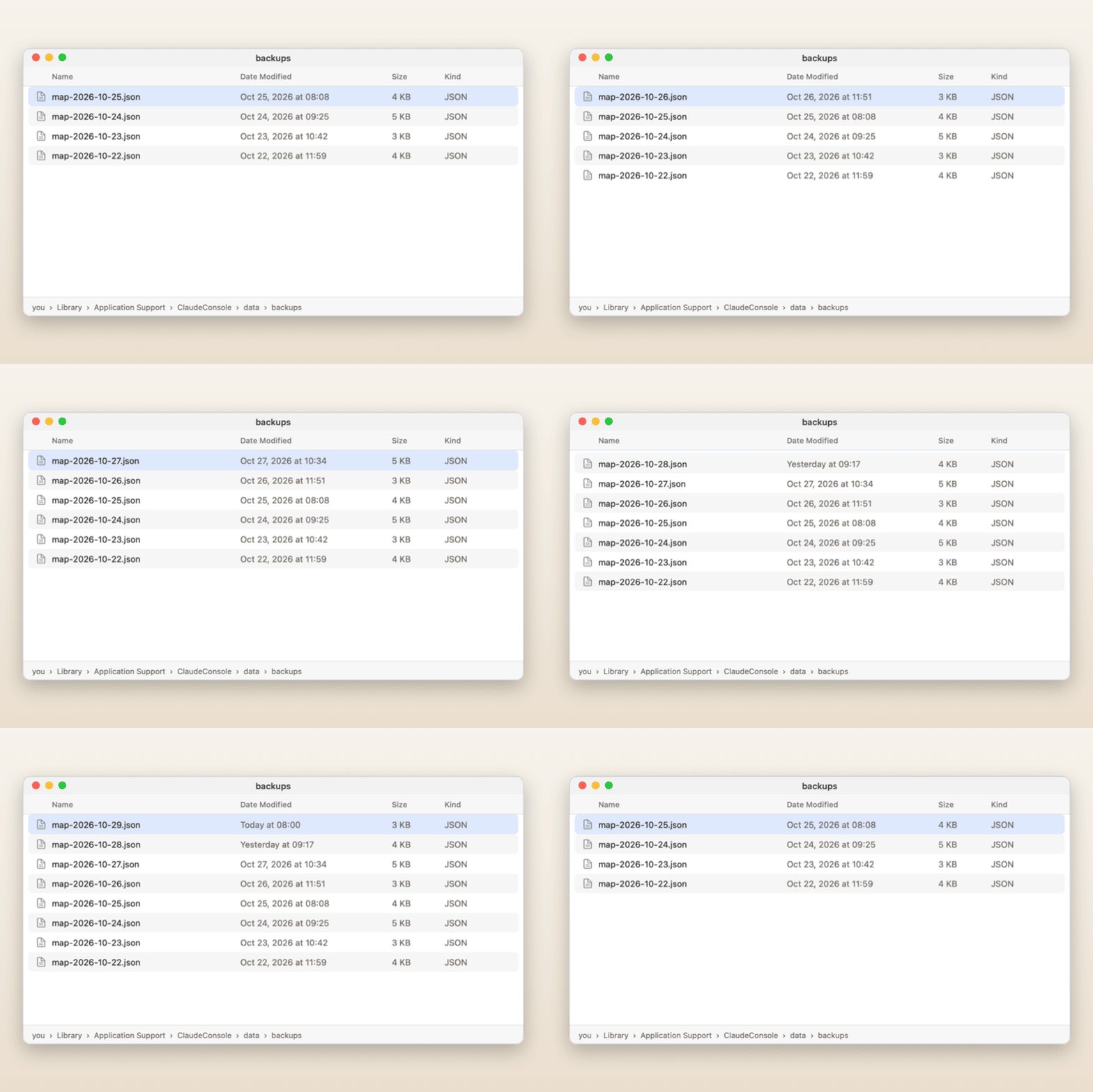 Daily backups A copy of your map every day, before your first change. |
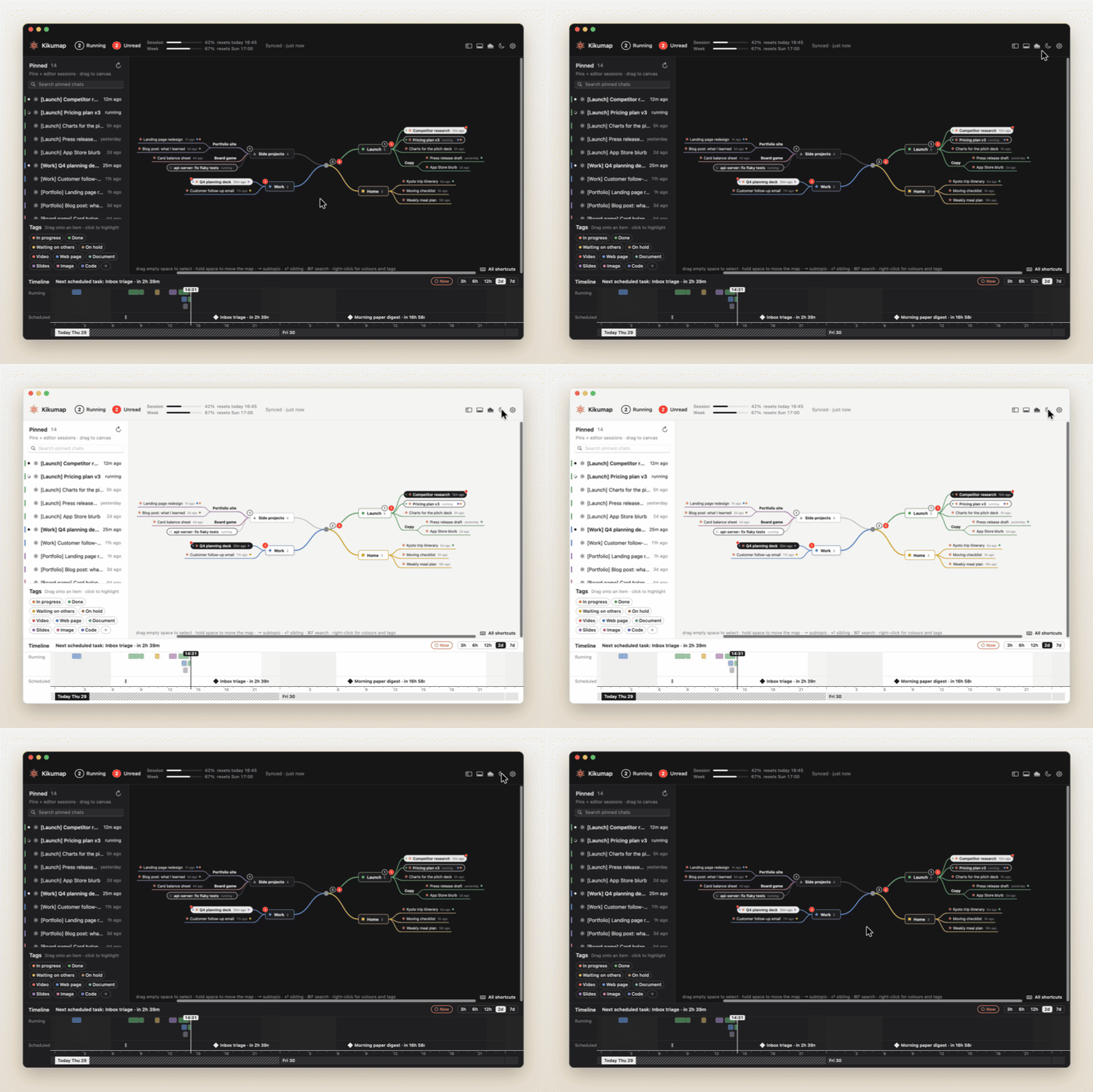 Light or dark Follows your Mac, or flip it with the moon. |
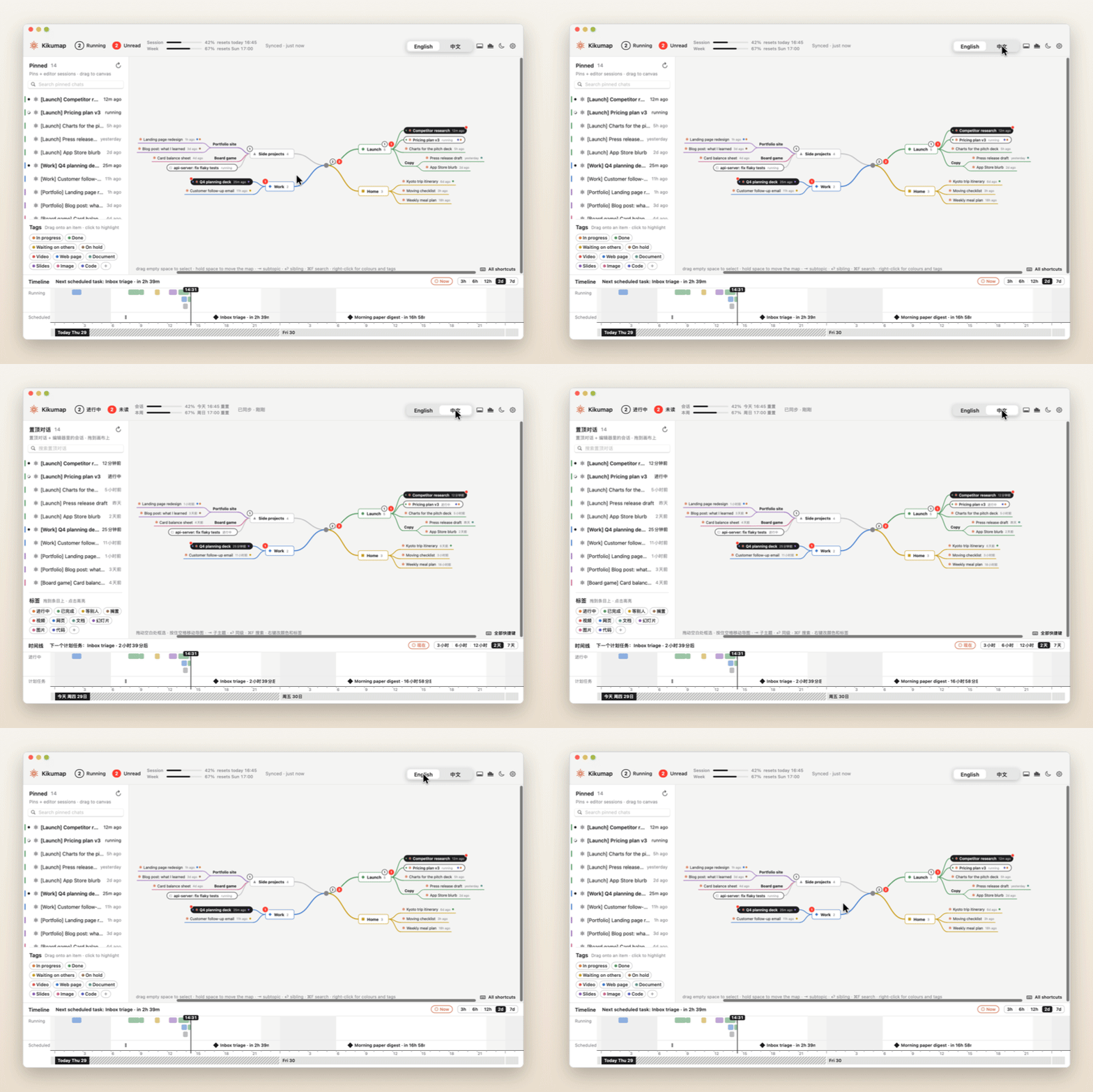 English · 中文 Every label, menu and tag in either language. |
Install
Download Kikumap.dmg (Apple silicon and Intel, macOS 13 or later), open it and drag Kikumap to Applications.
The first time you open it, macOS says it can't check the app, because it isn't signed with a paid Apple Developer ID:
- Open System Settings → Privacy & Security.
- Scroll down and click Open Anyway next to Kikumap. (On macOS 13–14 you can also right-click the app → Open.)
- A short intro asks for one permission, Accessibility, so Kikumap can look at the Claude app's chat list. Everything else is optional.
Keep the Claude app's sidebar open. ChatGPT needs nothing: Kikumap reads what its desktop app keeps on your Mac.
Build from source
Needs the Xcode Command Line Tools (macOS offers to install them).
git clone https://github.com/tang1693/KIKUmap.git
cd KIKUmap
open Install.command        # or double-click it in Finder
Install.command builds with swiftc, installs to ~/Applications and asks whether to start at login. It signs the app with a certificate it creates once in your login keychain, so the permissions you grant survive later rebuilds. scripts/build-release.sh builds the universal disk image.
Privacy
Everything stays on your Mac, in ~/Library/Application Support/ClaudeConsole/. The only network requests are usage checks to api.anthropic.com, and only if you turn usage on. ChatGPT's usage is read from its own files, with no request.
No surprise prompts: every macOS permission dialog comes after Kikumap has told you what it's for and you've clicked to go ahead.
| What it shows | Where it comes from | Permission |
|---|---|---|
| Finished with Claude's window closed, needs your approval (optional) | The Claude app's notifications in Notification Center (read-only), with Response completions on in Claude → Settings → Notifications | Full Disk Access |
| Running, unread, pinned chats | The Claude app's sidebar, through Accessibility | Accessibility |
| Claude Code sessions | Claude Code hooks, added to ~/.claude/settings.json when you click Connect (the old file is backed up) |
none |
| ChatGPT threads | What the ChatGPT desktop app keeps in ~/.codex: its thread list and pins, which ones are unread, and the plan usage of its last answer (read-only; nothing is changed). Turn it off in Settings → Access |
none |
| Desktop widget | One file Kikumap writes for it (widget.json); the widget is sandboxed and can read only that file |
none |
| Usage, scheduled tasks (optional, off by default) | Anthropic's usage API, with the sign-in Claude Code already keeps in your Keychain: read-only, never saved | Keychain, asked only after you turn it on |
Exporting: summaries are written by Claude inside each chat, so each adds one exchange and the Claude window switches chats while it runs. Prompts, conversations and artifacts come from Claude's own data export (Claude → Settings → Privacy → Export data); pick the zip in the export window (with Full Disk Access, a zip left in Downloads is found by itself). Import works the Claude window the same way; images and other binary files can't be carried over.
Keys in the map
| ⇥ / ⌥⇥ | new child / new parent topic |
| ⏎ / ⌥⏎ / ⇧⏎ | new sibling below / above / new main topic |
| ⌘⏎, double-click | rename (chat names are local) |
| ⌫ | delete; chats go back to the left column |
| ⌥. | fold / unfold |
| ⌘↑ ⌘↓ | move among siblings |
| drag on empty space, ⇧/⌘-click | select several; drag any one to move them all |
| hold space, two-finger swipe | move around the map (a quick tap on space opens the chat) |
| ⌃⌘S / ⌃⌘T | show or hide the left column / the timeline |
| ⌘Y | statistics |
| ⌘R, ⟳ | refresh: read Claude, ChatGPT and usage again now |
| ⌘A, ⌫ | select everything; delete what's selected |
| ⌘Z / ⇧⌘Z | undo / redo |
| ⌘F | search |
| ⌘E / ⇧⌘E | export the map as PDF / export chats |
| hover a chat → ↗, tap space | open it in Claude or ChatGPT |
| ⇧⌘U, hover a chat → ✉ | mark a chat unread / read |
| ⌘+ / ⌘- | everything in the window bigger / smaller (80–160 %) |
| pinch, ⌘0 | zoom the map, fit it to the window |
| ⌃⌥C (changeable) | show / hide the map from anywhere |
FAQ
What if I close Claude's window with ⌘W?
That only hides it: Claude keeps running and still sends its "finished" notifications, so Kikumap still marks chats as done and plays its sound. The live "running" spinner and pin syncing read Claude's sidebar, so they pause until the window is back (click Claude in the Dock). Claude Code sessions aren't affected at all.
Is this made by Anthropic or OpenAI?
No. Kikumap is an independent, open-source project. Claude is a trademark of Anthropic; ChatGPT is a trademark of OpenAI.
Why does it need Accessibility?
The Claude app has no API for "which chats are running", so Kikumap looks at its chat list, the way you would; macOS calls that Accessibility. It's the one permission Kikumap needs. Full Disk Access is optional: it lets Kikumap read Claude's notifications, so it also knows a chat finished while Claude's window was closed, and when Claude asks for your approval. Both are read-only. Nothing leaves your Mac.
Why "Open Anyway"?
Apple charges $99 a year to sign and notarize apps. Kikumap is free, so it isn't notarized. If you'd rather not trust a downloaded build, build it from source: it's plain Swift with no dependencies.
Something isn't showing
- ▸ To-do in the top bar lists what's left to do (a permission, opening Claude, signing in for usage…), what each one affects until it's done, and a button that does it. Ignore any you don't need; they stay out of the way until you ask for them back. The empty left column also says what it's reading, when it last did and when it reads next.
- Something doesn't work: Settings → Access → Diagnostic report writes
kikumap-check.txt: what Kikumap can see on this Mac and how it reads Claude's sidebar. It has no chat titles, messages or passwords, so you can attach it to an issue. - Nothing shows as running: open the Claude app's sidebar, then write the diagnostic report.
- Access shows as off but it's on in System Settings: remove Kikumap from the list there (−) and add it again. Releases from 0.9.1 on are signed with the same certificate, so updates keep your permissions.
- Claude Code sessions don't show: Settings → Access → Claude Code → Connect, then start a new session.
- ChatGPT threads don't show: Kikumap reads the current ChatGPT desktop app (the one built on Codex). Check Settings → Access → ChatGPT. Like Claude's chats, a thread shows once you pin it in ChatGPT (or files it in a pinned project).
- The widget isn't in the widget gallery: it needs macOS 14 or later and Kikumap 0.9.5 (build 6) or later in Applications. Open Kikumap once, then right-click the desktop → Edit Widgets and search for Kikumap. Still missing? Run
pluginkit -m -v -i ninja.tang.claudeconsole.widgetin Terminal and open an issue with what it prints. - No usage: it's off until you turn it on: Settings → Access → Usage → Connect. If it still says signed out, run
claudein Terminal, then/login, and pick your Claude account.
Why the name?
Kiku (菊) is Japanese for chrysanthemum: the little orange flower in your menu bar, which spins while Claude works. Kikumap is the map that grows out of it.
Contributing
Issues and pull requests are welcome, especially when a Claude or ChatGPT update breaks something: open an issue with what you see.
The code is plain Swift and AppKit, no Xcode project and no depende