Claude Code at a glance — on your Touch Bar, in a floating pill, or in the notch.
https://github.com/user-attachments/assets/ac4b3e46-2d3a-4ece-a3a6-631e319ae3c9
2 minutes: the Touch Bar, the notch, the pill and the panel, answering Claude, Cowork, dictation, stats.
Clouding Bar is a small macOS menu bar app for people who work with Claude Code. It shows what Claude is doing — your 5-hour limit, the context window, the model, the subagents at work — and lets you answer Claude's questions and permission requests without going back to the chat. Showing Claude something takes one step: pick an area of the screen, or drop a file on the widget, and it goes to the chat — no screenshot to save, find and drag in. Cloud, the little character, dozes while Claude is idle, hops while it works and waves when it needs you.
It works in the terminal, in the VS Code extension and with the desktop app, on any Mac with macOS 12 or later. A Touch Bar is a bonus, not a must. A first version for Windows is in windows/.

What it does
See where you are
- Which chat. Every chat gets its own colour and its own Cloud — ten of them, one in glasses, one a pirate, one with a crown — and a short name of a word or two that fits a button (VS Code's tab gets it too; a name you gave the chat yourself always wins), so two chats in one project are told apart at a glance. Clouding Bar follows the chat in front — VS Code's chat tab, a Terminal or iTerm tab — and stays with it when you switch to another app. With Claude Desktop in front, it's the chat open there. Pick another one in the widget, the menu or the Touch Bar, and it's brought up.
- The chat at work. When the chat shown finishes while another is still working, it says so — a tick, "Done · your turn" — and a moment later shows the one at work. Going to another window or tab, or picking a chat, puts you back in charge.
- Another chat done. When a chat other than the one shown finishes, Cloud pops out from behind the pill (or down from the notch) and says which — click it to go there — then ducks back; the Touch Bar says it too, with Open and OK. Quiet in do not disturb (Settings → Widget → More).
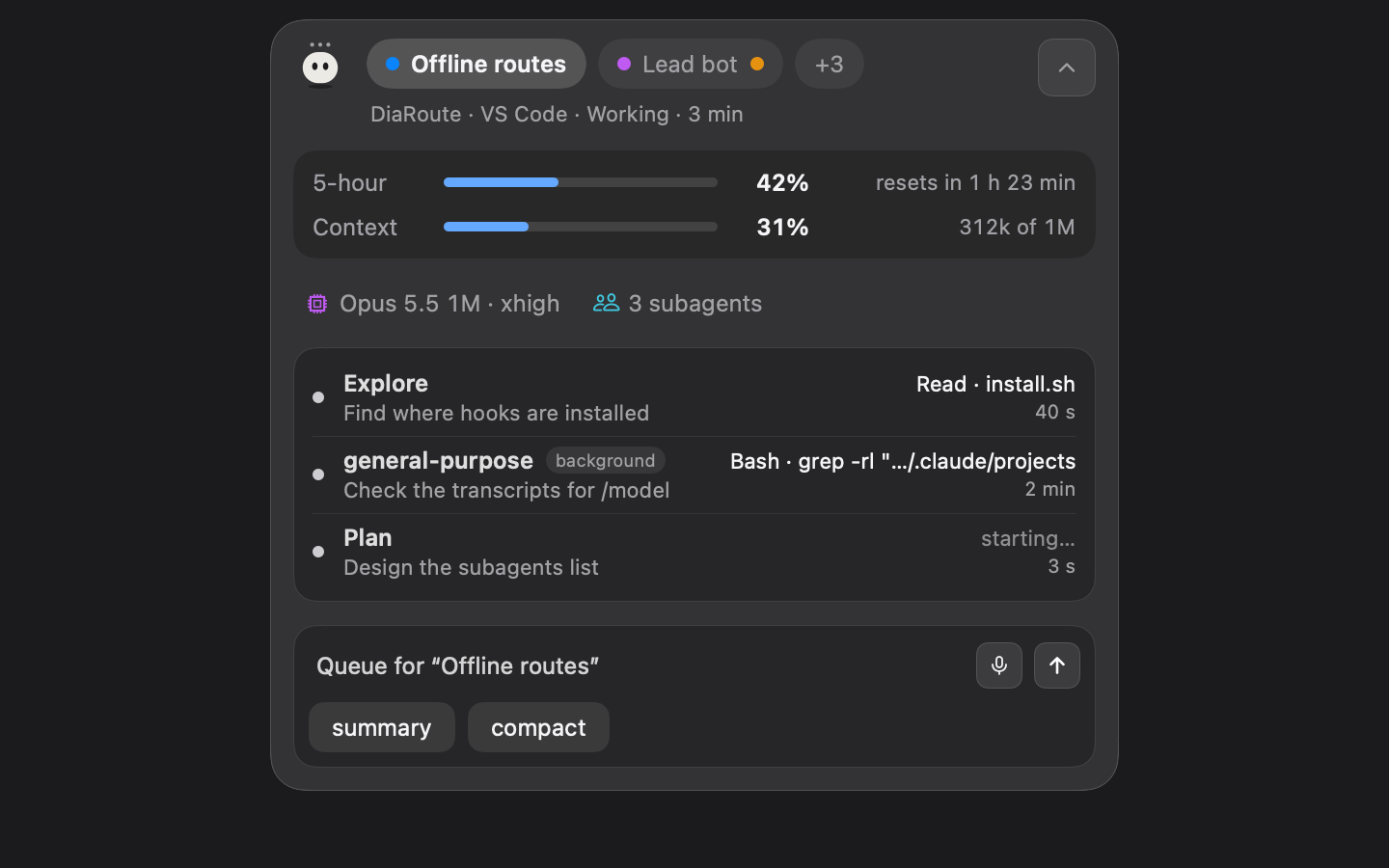
- The pill floats over your windows: which chat, the 5-hour limit, the context, when the limit resets, the model, how long the chat has been at it, lines changed, the git branch, subagents. Pull its outline to resize it — wider shows more, taller stands it up as a column, pulled thinnest it keeps just the bars — drag items onto each other to swap them, and an item's right edge to make it wider or narrower.
- The notch. Drag the pill to the top of the screen and it docks in the notch, the numbers on either side of the camera. Macs without a notch get a drawn one. When Claude asks something, the notch grows so you can answer right there; drag it out to put it anywhere again.
- The panel opens from the pill (hover for 2 seconds, or click): your chats as tabs; the 5-hour limit and the context as two lines (the context as "312k of 1M"); the model, the time, lines, branch and subagents; and a message box that says which chat it writes to, Commands, the screenshot, the mic and Send on its line and your buttons under it. Its blocks move up or down by the bar that shows over each; the buttons swap places like the pill's items.
- The Touch Bar turns into Claude's bar while your terminal or VS Code is in front — or in every app, if you like (there the short bar, beside Apple's brightness and volume: a bar of its own, by default the chat's first letter, the limits, the chat line with your commands, the screenshot and the mic, and a button that opens the whole bar): which chat (tap it for the others; a name that doesn't fit ends in "…", and narrowed right down it's the first letter in the chat's colour), meters, the model, subagents, lines, branch, cost, Write (a message to the chat, typed or dictated, your buttons inside it), Commands with all your buttons, the mic — each one optional.
- Arrange them your way. Settings shows the widget and the Touch Bar themselves, live: drag a block to move it, its right edge to make it wider or narrower — on the Touch Bar it stops where something else would have to leave the bar. The short bar has its own list and fixed sizes — something in, something out; Settings says when there's no room.
- Limits are blue, orange from 70%, red from 90% — everywhere.
Answer Claude
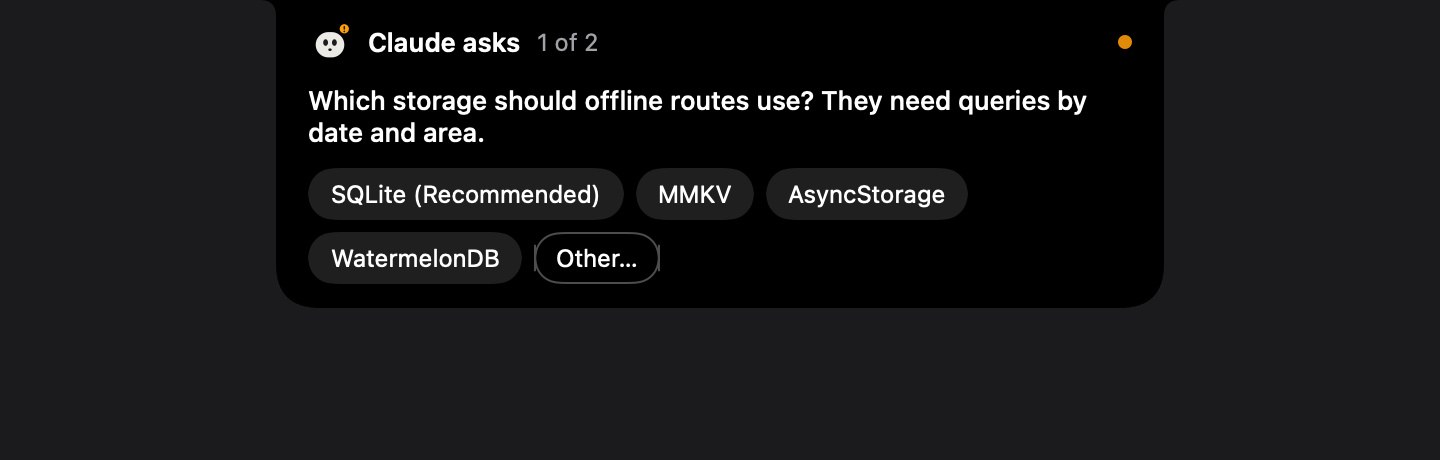
- Permission requests: Allow, Always allow, Deny — from the Touch Bar, the notch or the panel, each saying which chat it comes from. Answers go back through Claude Code's own hooks, not keystrokes.
- Questions (
AskUserQuestion): tap an option, pick several, or type your own answer — on the Touch Bar you can even dictate it. - If Clouding Bar isn't there to answer, Claude asks in its own UI as always. It never keeps Claude waiting.
Answer Cowork too
- A question that Cowork (or any chat in Claude Desktop) asks in its window shows up on the Touch Bar and in the widget, and your pick is pressed there for you — read from the window, so the chat has to be open in Claude Desktop on the screen you're on.
Talk to Claude
- Screenshot an area of the screen straight into the chat: no ⌘⇧4, no file on the Desktop to find and drag in. Taken from another app, it's attached to the chat shown and goes with your next message — in VS Code as a picture.
- Drop files on the widget: they go to that project's chat with your next message.
- Chat line in the pill and the panel. In VS Code (with Settings → General → VS Code → Set Up) the message goes straight into the chat's Claude — wherever you are, no window switched — screenshots as pictures, and the chat shows it as yours. Elsewhere it waits in the queue until Claude has finished its reply and its chat is in front (or tap Send now).
- Buttons for your own phrases, slash commands, key presses and links,
with global shortcuts and a set per project — in the row, and all of
them behind Commands (one can be kept only there). A text button puts its words in the message for you to
finish;
{project},{branch},{clipboard}and{date}are filled in. - Dictation: hold the right ⌥ key, or tap the mic. On macOS 26 and later it's the system's own dictation model, on this Mac: English gets its commas and full stops by itself; in Russian (whose model doesn't add them) say them — «запятая», «точка», «вопросительный знак». Pauses are fine: the widget shows the words as you speak, growing with them, then lets you check and edit them before you Send (or type them straight in, if you prefer — Settings → General → Voice).
Steer it
- Switch the model and effort from the panel or the Touch Bar.
- See which subagents are working and what each is doing right now.
- A warning when the context fills up, with one tap to
/compact(or let it compact by itself).
Codex too (beta)
- Clouding Bar follows OpenAI's Codex as well, with nothing to set up:
it reads Codex's own session files (
~/.codex/sessions), so its chats show up with their 5-hour and weekly limits (while a Codex chat is in front), their context as Codex counts it, the model, and whether Codex is working or done — even when you stop it with Esc. - Connect (Settings → General → Codex) adds Codex's hooks: permission
requests answered from the bar, subagents, and Esc seen at once. Codex runs
hooks only after you trust them — start Codex and choose Trust all (or
/hooks). A hook added in a later version asks again, for itself only. Codex can't remember an "always allow", so there is none for it. - Live limits and sending (Settings → General → Codex, on by default):
Codex 0.164 runs one server of its own that every
codexin a terminal uses, and while it runs Clouding Bar talks to it throughcodex app-server proxy. Codex's limits come as they are now (it asks its backend every few minutes), and the widget's words go straight into a chat the server has open, by the chat's id — no tab to find, nothing typed. While Codex works they wait in the queue and go when its turn ends; Send now adds them to the turn running. Nothing is started when no server runs, no chat is opened or copied, and Codex's approvals still come in its own window (and on the bar with Connect) — Clouding Bar approves nothing and holds no credentials. - Not for Codex yet: its questions, the model picker, Stats, and words from the widget to a chat Codex's server doesn't have (VS Code's, the app's, an older Codex's): a chat known only from its files can't be told apart from a shell in the same folder, so nothing is typed. It's little tested — tell us what doesn't work.
And
- A tour on first launch (and behind the ? in Settings): what to connect where — Claude Code, VS Code, claude.ai for Cowork, Codex — then the widget, the Touch Bar and your buttons. It dims the settings window but for one thing at a time, a card says what it does, and Cloud hops onto it.
- Everything is optional: each number, detail and control has its own switch in Settings. What most people need is up front; the rest waits behind More.
- Stats, the way Claude Code's /stats puts them: both limits; for the week, the month or everything, your sessions, active time, tokens and days in a row, your favourite model and peak hour; every day of the last half year as a square (point at one to see it); the projects the time went to. From local transcripts, kept after Claude Code clears old ones. Cowork history from older versions stays; new Cowork use isn't counted.
- Cowork tasks and claude.ai / Claude Desktop chats show up too, through your claude.ai account: Settings → General → Claude → claude.ai → Sign In…. The chats list shows each one's name and whether it's working, done or waiting for you (a permission or a question); for Cowork tasks also the context and the model. Click one to open it in Claude Desktop. The account-wide 5-hour and weekly limit come with it (Desktop, Cowork and claude.ai chats count too). No plugin, no connected folder, nothing asked of Claude, no extra tokens.
- Keeps itself up to date: once a day it looks on GitHub for a newer release and offers it — one click, checked before it's installed.



Install
There's one Clouding Bar app for your Mac; you install it once, whichever way you get it. What else each place needs:
| Where you work with Claude | What it needs |
|---|---|
| Claude Code — terminal, VS Code, Claude Desktop's Code tab | the app, then Connect in it. The plugin is optional |
| Cowork in Claude Desktop | the app, then Sign In… to claude.ai in its Settings. The plugin isn't needed |
| Codex | the app, then Connect for Codex in it |
- A plugin installed in Claude Desktop comes to Claude Code by itself, with your claude.ai account, a few minutes later.
From Claude Code: the plugin
In Claude Code — the terminal, VS Code or Claude Desktop's Code tab:
/plugin marketplace add nikolanaidenko-eng/clouding-bar
/plugin install clouding-bar@clouding-bar
/reload-plugins
/clouding-bar:install
Type them inside Claude Code (after claude in a terminal), not in the
shell. /reload-plugins makes the chat you're in report to Clouding Bar
too. The plugin links Claude Code to the app (its hooks). /clouding-bar:install
gets the newest release from GitHub, checks it — signed with Clouding Bar's
Developer ID, notarized by Apple — and puts it in Applications. When the app
opens, say Connect: it adds its status line to ~/.claude/settings.json
(the 5-hour limit and the context come that way, and a plugin can't bring a
status line), and in VS Code a small wrapper for the same limit. Then allow
Accessibility. Chats that were already open show up after /reload-plugins
in them, or start a new one. From then on a new Claude session opens
Clouding Bar if it's closed (Settings → General → Open with Claude).
In Cowork (Claude Desktop)
- Get the Mac app, if you haven't: the .dmg below,
/clouding-bar:installin Claude Code, or the plugin in Cowork (below). Open it, say Connect, allow Accessibility. - Open Settings → General → Claude → claude.ai → Sign In… and sign in to claude.ai in the window that opens. It closes by itself.
Cowork tasks then show up in the chats list. No plugin and no connected
folder are needed. If you'd like Cowork to fetch the app for you, add the
plugin in Claude Desktop (Customize → Plugins → Add → Add
marketplace → nikolanaidenko-eng/clouding-bar) and ask a task "walk me
through Clouding Bar": it gives you the link to the newest .dmg and tells you
what to click. Had the plugin before 1.2.8? Update it there (or remove it): older ones
still ask Cowork to save its status to a folder, which nothing reads now.
For Codex
- Get the Mac app: the .dmg below. Open it and allow Accessibility (the first question, about Claude Code, you can skip).
- Settings → General → Codex → Connect: it adds its hooks to
~/.codex/hooks.json, for permission requests on the bar. - Start Codex and choose Trust all (or
/hooks): Codex runs hooks only after you trust them.
Codex chats show up even before step 2, read from Codex's own files.
Download
Download the latest .dmg
(or Clouding-Bar-<version>.dmg from Releases), open it
and drag Clouding Bar into Applications. Releases are signed and
notarized by Apple.
Test builds (marked beta) aren't notarized yet, so on first launch macOS says it can't check the app for malware. Click Done, then open System Settings → Privacy & Security, scroll down to "Clouding Bar" was blocked and click Open Anyway (on macOS 14 and earlier, right-click the app → Open works too). Or, in Terminal:
xattr -dr com.apple.quarantine "/Applications/Clouding Bar.app"
On first launch it asks to connect to Claude Code: it adds a small hook
and a status line to ~/.claude/settings.json (only the status line, with
the plugin in). Your settings are merged, never replaced, and backed up to
~/.cloudingbar/backups first. Then the tour opens.
Updates
Once a day Clouding Bar asks GitHub whether a newer release is out and
offers it: the menu bar icon → Install Update, or Settings → General →
Updates. It's downloaded, checked like the first one (Clouding Bar's
Developer ID, notarized by Apple), put in place of the old copy and opened;
your settings and permissions stay. Turn the daily check off there. A build
of your own (make install) isn't touched.
The plugin updates through Claude Code: /plugin marketplace update clouding-bar, or /plugin → Marketplaces → clouding-bar → Enable
auto-update.
Build from source
You need the Xcode Command Line Tools (xcode-select --install).
git clone https://github.com/nikolanaidenko-eng/clouding-bar
cd clouding-bar
make install
This builds the app into ~/Applications, puts the hook programs in
~/.cloudingbar and registers them with Claude Code (merged, backed up).
Permissions macOS asks for
One is needed; the rest are asked the first time you use what needs them, and only once — updates keep them.
| Permission | Why | |
|---|---|---|
| Accessibility | to type your buttons and chat lines into Claude's chat, and to read window titles | needed |
| Automation (Terminal, iTerm) | to tell which tab is in front, and bring a chat's tab forward | only for chats in a terminal |
| Microphone, Speech Recognition | dictation | only if you dictate |
| Screen Recording | the screenshot button | only if you use it |
Clouding Bar doesn't ask for your Documents or Desktop: the git branch of a project there is read by the hook, inside Claude Code.
VS Code
Claude's panel in VS Code doesn't run the status line, so the 5-hour limit
reaches Clouding Bar through a small wrapper instead. Connect sets it up
along with the rest, or later Settings → General → VS Code: limit and
sending → Set Up (it sets claudeCode.claudeProcessWrapper, keeping your
settings file as it is).
New chats report the limit from then on — and take the widget's messages
straight into Claude's input, beside the extension's own, so nothing is
typed and no window comes forward.
How it works
Claude Code ──hooks──▶ cloudingbar-hook ──unix socket──▶ Clouding Bar ──▶ pill · notch · panel · Touch Bar
     ▲                        │                               │
     └──── the answer ◀───────┘◀────── Allow / an option ─────┘
- Claude Code's hooks — the
plugin's, or ours in
~/.claude/settings.json(never both at once) — tell the app when a session starts and stops, when Claude works, which tools and subagents run, and when it needs a permission or an answer. For those, the hook waits for your choice and hands it back to Claude — or steps aside within two seconds if the app isn't running. - The status line brings the 5-hour limit and the context; in VS Code, the wrapper does. The session's transcript adds the model, token counts and lines changed.
- The chat shown is the one in front: by its title in the window (VS Code's chat tab, the terminal's title), by its terminal tab (Terminal, iTerm), else the one you picked or followed last.
- Buttons and chat lines are typed into the chat in front, the way you would.
The protocol is written down in docs/protocol.md.
Private by design
Clouding Bar talks to Claude Code on your Mac. It has no account of its own, no analytics and no server, and it never reads Claude Code's credentials. Its only talk with claude.ai is the optional sign-in below, off until you use it.
Short chat names. To keep a chat's name short enough for a button, the
app asks Claude Code's own small model (Haiku), once per chat, for a name of
one to three words. For that it runs your own claude -p (no tools, no hooks,
nothing saved), and the chat's title and the first 400 letters of its first
message go to Anthropic through it — the same place the chat itself already
goes. The name is kept in `~/.cl