Manga2Ink converts and optimizes manga and comics for e-ink readers such as Kindle, Kobo and reMarkable. Create EPUB, CBZ or PDF books with page dimensions and image settings suited to your screen, in grayscale or color. Adjust contrast, crop page margins and choose how to handle double-page spreads.
You can also organize chapters into volumes or combine a series into one book, then save your books locally or share them directly with KOReader over your local network. Processing runs on your computer, with packages for Windows, macOS on Apple Silicon and Linux.
Until version 0.1.0-alpha.17 it was called Mangabound.
Download · User guide · Guia em português · 日本語ガイド · Contribute
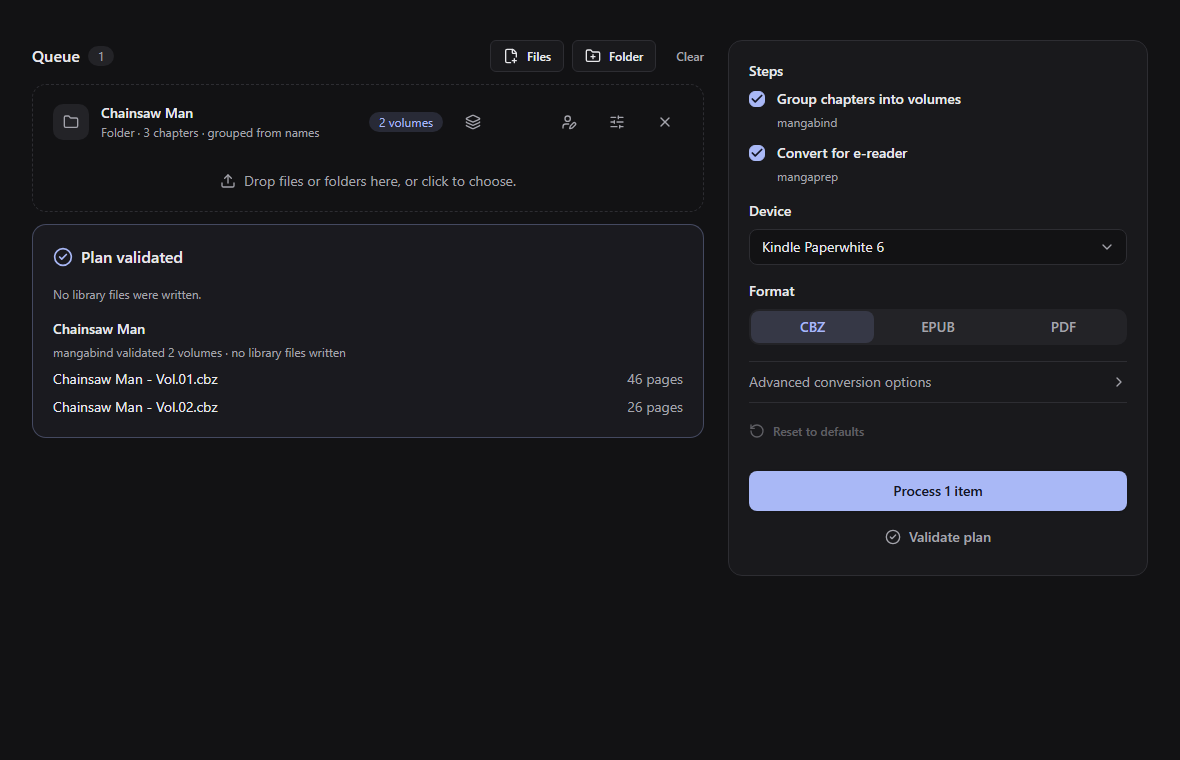
Interface example with Storybook sample data. The guide and screenshots follow main, which may be ahead of the latest release.
- Adjust page dimensions, crop margins and tune contrast for your reader, in grayscale or color.
- Split double-page spreads or keep them whole, and choose the reading direction.
- Export EPUB, CBZ or PDF books using a device profile or custom page dimensions.
- Review chapter-to-volume assignments, produce separate volumes or combine a series into one book.
- Set book details and covers, save your books or share them with KOReader over your local network.
- Use the app in English, Brazilian Portuguese or Japanese (the Japanese was written with the help of AI and is open to correction), in a dark or a light theme, which follows your system until you choose one.
Download
Choose your package from GitHub Releases. Alpha releases are listed as Pre-release.
| Platform | Package |
|---|---|
| Windows x64 | .Setup.exe installer or portable .zip |
| macOS, Apple Silicon | .zip |
| Linux, Debian/Ubuntu family, x64 | .deb |
| Linux, Fedora/RHEL family, x64 | .rpm |
| Linux, Arch, x64 | .pkg.tar.zst |
Manga2Ink is in alpha, and the installers are not yet code-signed. See the installation guide for setup and download verification, and the known limitations for current platform and feature restrictions.
Get started
- Add your manga. Drop chapter folders, a library of manga folders, or CBZ files into the queue.
- Choose how to make the books. Open Edit books and volumes and choose one book per volume or one for the whole series. A chapter folder needs no volumes for a whole-series book; a library still needs volumes for each title. Select your device and format, and adjust image settings if needed. Book details let you set each title's name, author, and language.
- Process, then save or share. Follow the progress, save one book or all of them, or share with KOReader over your local network.
Your conversion settings are remembered between sessions. Unsaved books remain under Ready books, where you can reopen or delete a pending conversion.
See the user guide for volume editing, single-book mode, custom dimensions, and sharing.
Local processing
Manga2Ink accepts chapter folders and CBZ files. Finished books open in your system's default application.
Organization, conversion, and saving run on your computer. Online searches for volumes or an author are optional and use the title and selected work's metadata, not your manga pages. Network sharing runs only when enabled and stops when the app closes.
Contributing
For bugs and suggestions, use the issue templates. Read CONTRIBUTING.md and the Code of Conduct before contributing. Report suspected vulnerabilities privately as described in SECURITY.md.
The current priorities describe the remaining release and maintenance work, with a completion criterion for each item. Documentation, translations, reproducible bug reports, and platform testing are useful contributions too.
Run from source
Development requirements:
- Node.js 24 LTS
- npm 11+
tar(andunzipon Linux and macOS) for verified release extraction. On Windows run the npm scripts from PowerShell: thetarthat ships with Git Bash breaks the toolchain step.
main is the latest state and can be ahead of what a release shipped. To build what a given release contains, check out its tag first (git checkout <tag>, with the tag of that release from the releases page).
Install and run the development shell:
npm ci
npm start
Run npm run check for the local quality gates, or npm run storybook to browse interface states without running a conversion. The contributor guide explains the tests, browser setup, packaged-app checks, and exact-commit CI requirement.
Development setup acquires and verifies the pinned converters under the ignored vendor/toolchain/ directory. Installed packages already include them; the app does not download or update converters at runtime.
Documentation
| Read this | To learn |
|---|---|
| Documentation Website | Official user guides in English, Portuguese and Japanese, KOReader setup, and CLI reference (website/) |
| Architecture overview | How the code is layered, how a conversion runs end to end, where to change what |
| Architecture decisions | Why it is built this way, one short record per decision |
| Contributing | The gates, the kinds of tests, Storybook, and how to open a pull request |
| Adding an online source | The rules and the steps for offering another source of volume data |
| Current priorities and milestones | Concrete pending work and the implementation history |
| Release checklist | The basic release smoke test and checks for changed desktop integrations |
| Releasing | How to cut and publish a release, step by step |
Bundled converters are pinned in toolchain.lock.json. Updating a pin is a separate, reviewed change; see Updating the bundled tools.
Credits
- mangabind handles chapter grouping and volume creation.
- mangaprep processes pages and creates the finished books.
- MangaDex provides optional volume and author metadata. Manga2Ink is free and ad-free; see the provider guide for attribution and API requirements.
- The comics the guide converts to show what each option does: Pepper&Carrot by David Revoy (CC BY 4.0), Go Go! Encyclopedia Girls by Kasuga, English version by Masatami (CC BY-SA 4.0), and a page by Polylerus (CC BY 2.5). Each picture is credited where it appears, and all are listed in LICENSES.md.
- JPmarquesbraga supplied the artwork the logo is drawn from (the asset guide). The lettering is set in Grenze, under the SIL Open Font License.
- Kindle Comic Converter informs mangaprep's conversion algorithms and Manga2Ink's default image settings (ADR 0011, ADR 0015).
AI disclosure
Parts of Manga2Ink, including code, tests, and documentation, were written with the help of AI coding assistants. The maintainers direct, review, and test this work, but AI-assisted contributions can contain mistakes like any other. If you find a bug or an error in the documentation, please open an issue.
License
Manga2Ink is released under the MIT license. The bundled tools and third-party dependencies retain their own licenses, and so do the pictures of comics in website/src/assets/options/, which are adaptations of CC-licensed pages (LICENSES.md), not MIT. Each package includes the converters' licenses and notices under toolchain/<target>/licenses/ in the app's resources directory, alongside the filename dependency notices.