

MCP Docs is universal document editor, built with "native" AI integration. It started as sort of my own rewrite of Google Docs - but now its some kind of combination of Office suite, Google Docs, Sublime Text and Mac Preview.
It runs locally on your computer, but also runs in the cloud - you can access the cloud version from either the local app or just a browser.
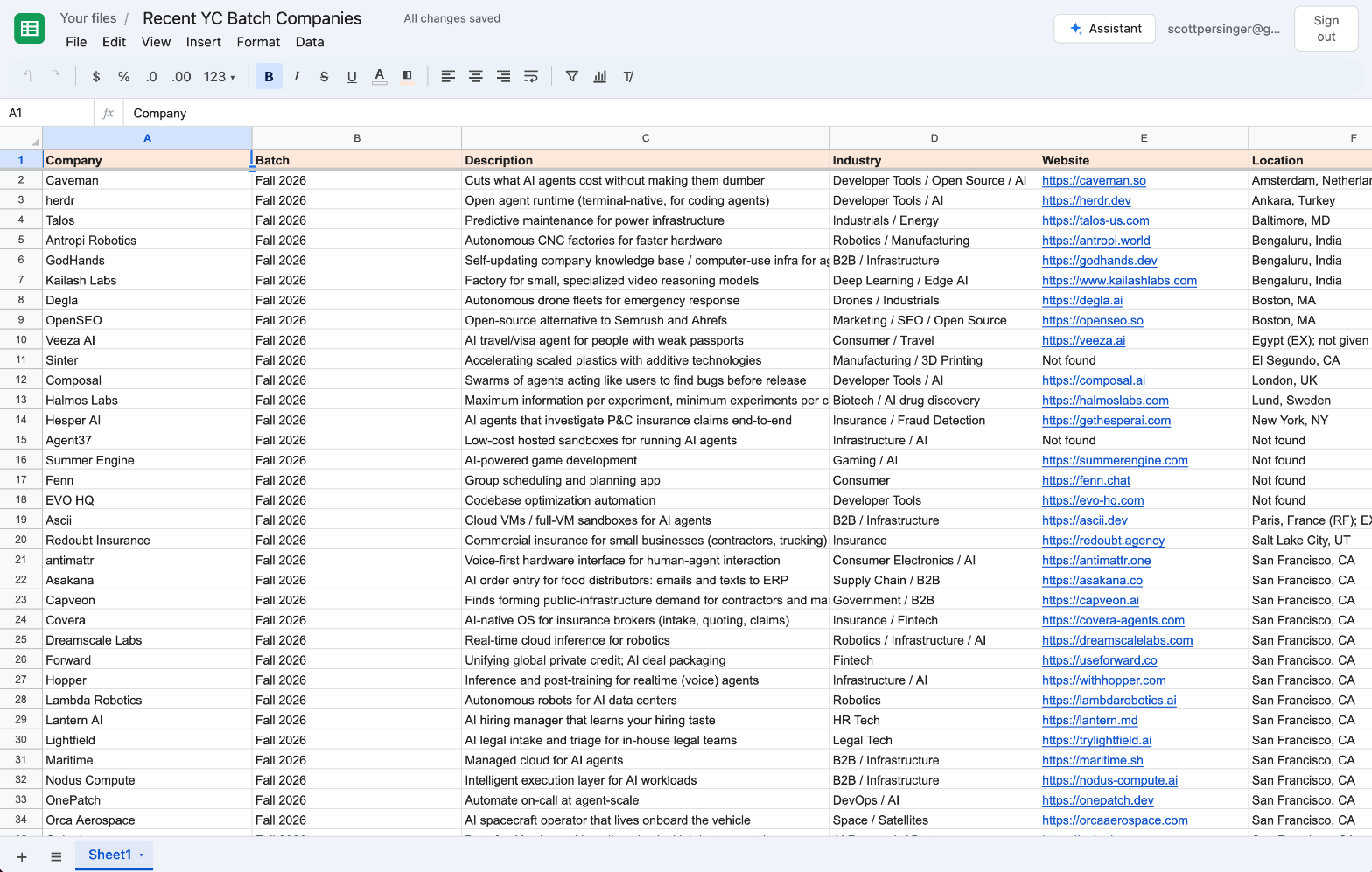
It supports editing all the standard Office documents:
- Spreadsheets (Excel)
- Slides (Powerpoint)
- Documents (Word)
But also offers quite capable editing for:
- Images (including background removal)
- HTML files
- PDF Files
- Markdown and text files
The app is a bit of a "bridge" between traditional productivity suites and the AI agents world.
https://github.com/user-attachments/assets/6b2ee485-f280-4a36-839e-88e427dc4a7f
Using MCP
MCP Docs offers two agent experiences:
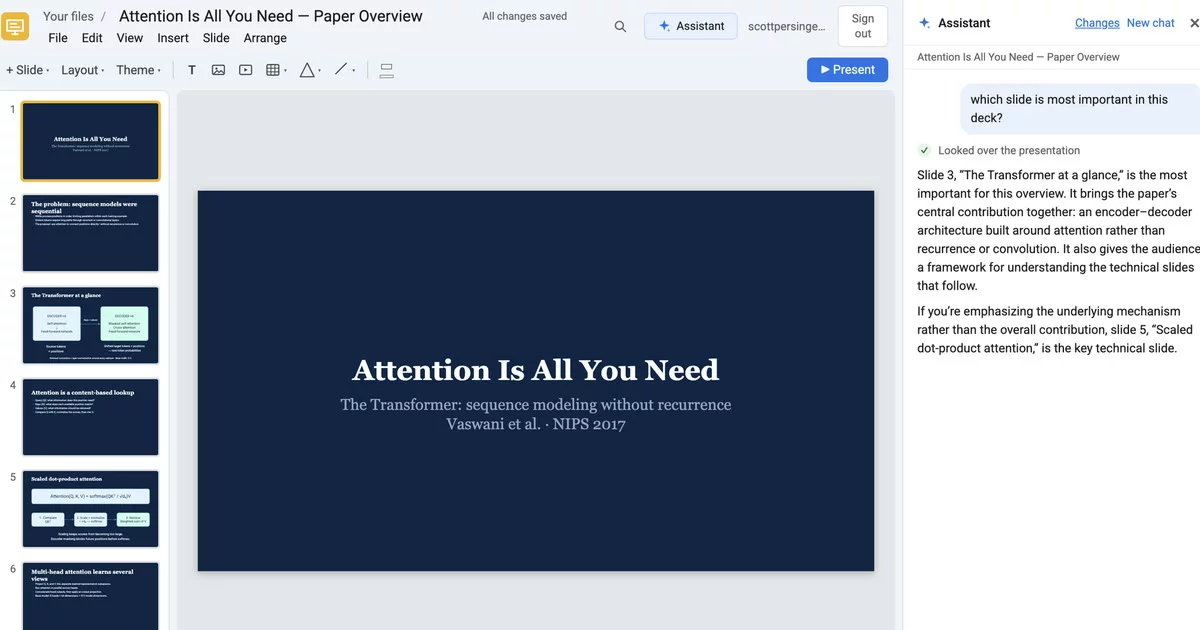
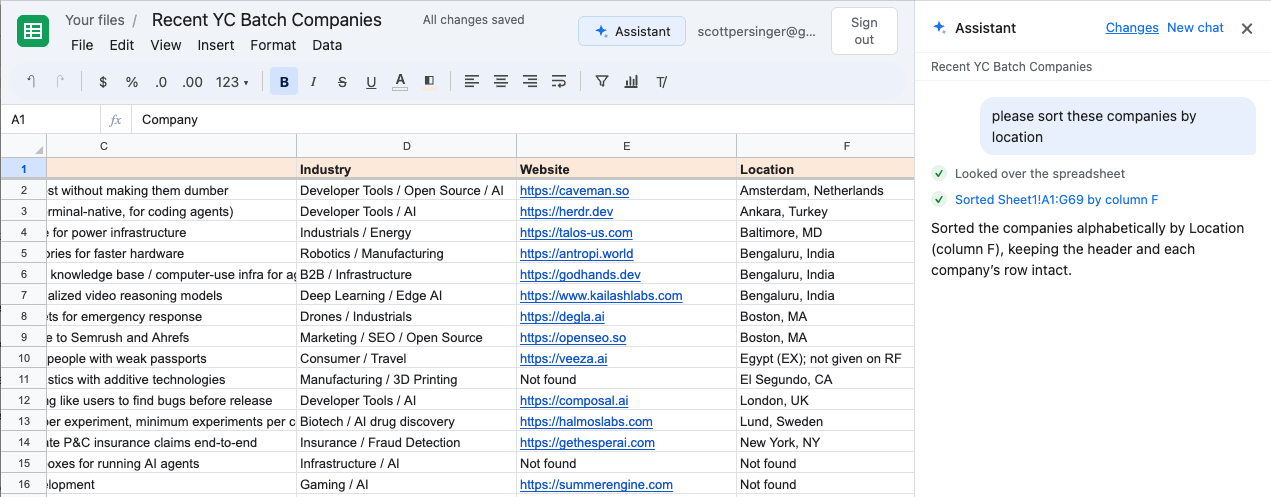
- A built-in assistant available "in situ" that sits next to the current doc for editing:
- Any external agent can connect to the MCP server and drive the application:
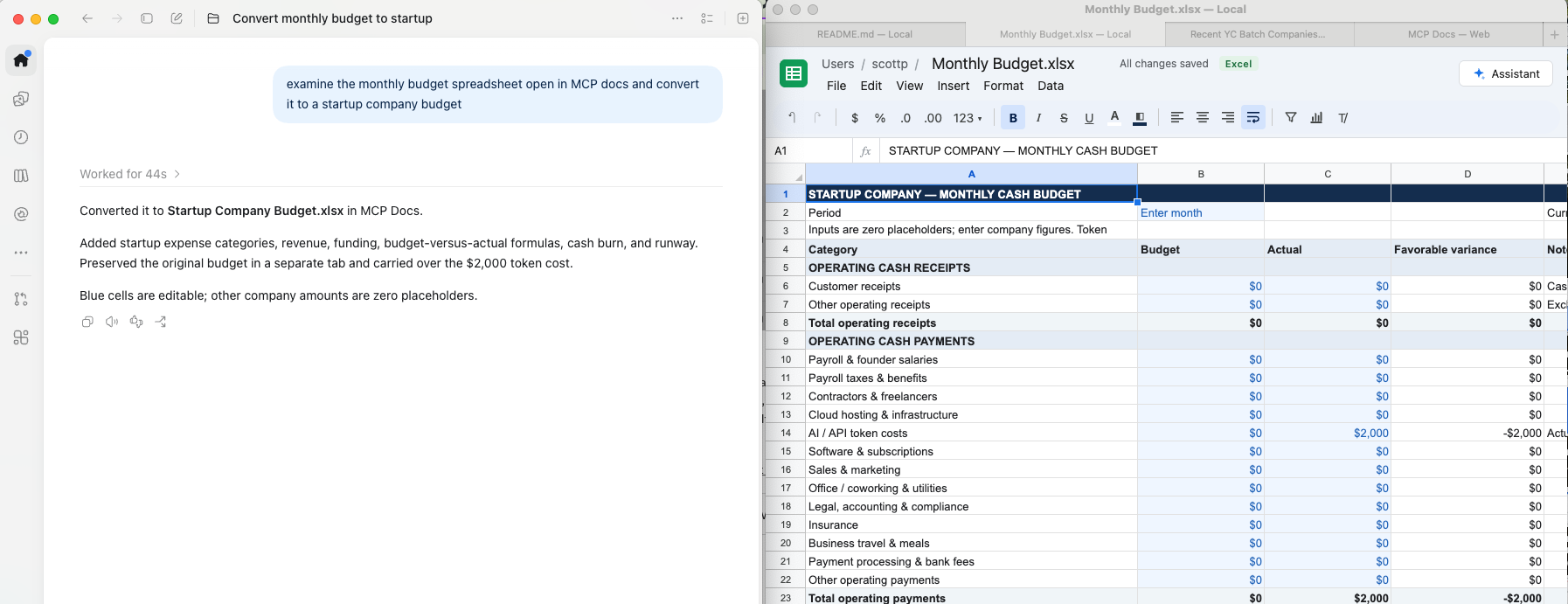 Codex driving the MCP Docs app
For the internal assistant, you can provide either an LLM API key, OR you can connect your local coding agent (Codex or Claude). This second mode is convenient to take advantage of your existing coding agent setup and subscription, although the latency is a little higher than the built-in assistant.
Features
Besides editing standard Office files (don't need to pay for Office!), and using the AI integration to supercharge your editing, some other interesting features include:
- Excellent PDF OCR parsing (Convert to markdown) using liteparse from LlamaIndex
- PDF signing and editing support, similar to Preview
- Live Markdown preview
- JSON tree viewer
But probably the biggest feature is open source - add your own new features as you need them.
Single-player
Current version of MCP Docs is "single player" - document sharing is coming later.
Install
npx @freeflow-im/mcp-docs
This downloads the latest MCP Docs into /Applications (on Windows it runs its setup program, which installs it for
you), offers to install the mcp-docs plugin (the app's MCP
server and a skill on using it) into Claude Code and Codex, whichever you have, starts the app, and prints the app's
MCP address for any other client. Run it again to update everything. --claude or --codex picks the agents without
asking, --yes takes every one found. You can also download the app
from the latest release (MCP-Docs-<version>-mac-arm64.zip
for a Mac, MCP-Docs-<version>-win-x64-setup.exe for Windows); its notes say how to install it by hand. It
needs a Mac with Apple silicon or Windows (x64).
Uninstall
npx @freeflow-im/mcp-docs --uninstall
removes the app, its data and settings, and agent config.
Connect your coding agent
While the app runs it is an MCP server at http://127.0.0.1:39217/mcp (Streamable HTTP).
- Claude Code: the installer adds the plugin. Restart Claude Code, run
/mcp, chooseplugin:mcp-docs:mcp-docsand sign in; MCP Docs asks you to allow it. In Claude Code the plugin alone is/plugin install mcp-docs --marketplace freeflow-im/mcp-docs, or add the server without it:claude mcp add --scope user --transport http mcp-docs http://127.0.0.1:39217/mcp. - Codex: the installer adds the same plugin from the repository's Codex marketplace (
.agents/plugins/marketplace.json). Sign in once withcodex mcp login mcp-docsand start a new session; MCP Docs asks you to allow it. By hand:codex plugin marketplace add freeflow-im/mcp-docsandcodex plugin add mcp-docs@mcp-docs. - Any other MCP client: point it at the same address. It signs in with OAuth 2.1 (dynamic client registration and PKCE, as MCP clients do), and MCP Docs shows a dialog asking you to allow each client; nothing is typed into a browser.
- File › Connect an Agent (MCP)… (or the Connect your agent tile on the home page) shows the address and the command, lists the agents connected and disconnects them.
An agent gets about 60 tools: list, search, open, create, rename, move and delete files and folders; read and edit
documents (as Markdown), presentations (slides, their elements and themes; render_slide shows it a slide as drawn)
and spreadsheets (cells, formulas, formatting, sorting, filters, rows, columns and tabs); read PDFs as Markdown or
convert them; look at and edit pictures, background removal included; import files from the web, or upload them from
disk.
- You see what it does. A file it opens is shown in the window, and its edits to the file open there are made in the editor: they appear as they happen, one ⌘Z undoes its whole run, your own unsaved edits are kept, and deleting rows, slides or blocks asks you first.
- The open file is the default. With no id, the tools act on the file shown in the app, and see your selection.
- The folder is the library. The files are the real files on disk, saved back in their own format.
The assistant in the app
Assistant in the header (or ⌘K) opens a chat panel beside the file. Settings (File › Settings…, ⌘,) chooses what powers it:
- Use an API key: Anthropic, OpenAI or OpenRouter, with your key, billed for each use to your account there. On
the first run a key already set in your login shell (
ANTHROPIC_API_KEY,OPENAI_API_KEY,OPENROUTER_API_KEY) is used. - Use a local coding agent: the Claude Code installed and signed in on your Mac runs the assistant, in the open folder with all of its own tools and settings, on your Claude plan. Routine steps go ahead on their own; it asks in the panel only when it is unsure.
Each file has its own chat, and the home page has one. See Assistant for how it works.
Using the app
The folder's files are the file list and its directories are the library's folders (see Folders below; hidden entries and node_modules are skipped). A file's name in the list is its whole file name, extension included: the app never hides one. File → Open Folder… switches to another folder. Your folders need no account and nothing to sign in to; your web files do (see Your web files below).
- Markdown (
.md) and CSV (.csv) files open in their editors and are saved back as the plain text they are. - Spreadsheets, presentations and documents are Excel, PowerPoint and Word files (
.xlsx,.pptx,.docx), edited in place; new ones are made as those too, and a CSV file that outgrows CSV becomes an.xlsxfile. A file made elsewhere that holds something the app can't keep opens read-only until you allow editing, and the first save over it keeps a copy in the app's trash. Only a file its Office format cannot hold (a picture in a cell, a gradient, a video in a document) is kept in the app's own format (.ffsheet,.ffslides,.ffdoc), after asking. - PDFs and images open in a preview, and videos (
.mp4,.m4v,.mov,.webm,.ogv) in a player. - Renaming a file in the app renames it on disk, and Move to… moves it into another directory. Deleting moves the file out of the folder into the app's data directory (
trash/), not the system trash. - A file changed by another program while it is open in the app is not overwritten: the save is refused.
The app's own data for a folder (the assistant's chats, pasted images, branch snapshots, deleted files) is kept under its data folder (~/Library/Application Support/MCP Docs/folders/ on macOS), not in the folder, so images pasted into a file are not part of the file. Its settings are kept there too, for every folder. The app talks to a server it starts on a loopback port (desktop/server.ts), which only answers the app's own windows and, through the MCP port, the agents you allowed.
Developing
npm install
npm run desktop                 # build the client, then open the current directory in the desktop app
npm run desktop -- ~/Documents  # or a folder you name
npm link                        # once, to get the `mcp-docs-dev` command:
cd ~/Documents && mcp-docs-dev  # open the directory you are in (after `npm run build`)
npm test                        # vitest
npm run typecheck
Requires Node 22.18+. The server runs TypeScript directly through Node's built-in type stripping and uses the
built-in node:sqlite. CLAUDE.md explains the codebase.
On macOS the mcp-docs-dev command starts the app through LaunchServices, so the app itself (listed as Electron until
it is packaged) is what macOS asks about and grants access to Downloads, Documents and Desktop, not the terminal; a
folder it may not read shows a message saying so.
Packaging and releases
npm run desktop:win builds the Windows app with electron-builder into release/: its setup program (MCP-Docs-<version>-win-x64-setup.exe), for x64. It can be run on macOS; there the .exe keeps Electron's icon (the release, built on Windows, has the app's). It is not code-signed, so Windows shows its "unknown publisher" warning on first run. npm run desktop:pack builds the unpacked app for the machine it runs on, to try the packaged layout.
The packaged app holds the server's TypeScript as plain files (asar is off), which Electron's Node runs as it does in development. Started from its icon it reopens the folder it showed last, or opens your home folder the first time; a folder can also be given on its command line. It reads no .env.
npm run desktop:mac builds the macOS app and its zip in release/. A release is made by GitHub Actions
(.github/workflows/desktop-release.yml):
- Write what is new in
release-notes/<version>.md(a Markdown list;release-notes/template.mdadds the install steps). npm run release -- <version>sets the version of the app, the Claude Code and Codex plugin (claude-plugin/), its Claude marketplace entry (.claude-plugin/marketplace.json) and the installer (installer/, the@freeflow-im/mcp-docsnpm package), commits that and tags itdesktop-v<version>.git push origin main desktop-v<version>. The workflow checks and builds the app on Apple silicon and on Windows, makes the GitHub release with the Mac zip and the Windows setup program, and publishes the installer to npm (trusted publishing: no npm token or one-time code).
Running the workflow by hand (Actions › Desktop release › Run workflow) builds both without publishing anything; the builds are kept as the run's artifacts for three days.
Videos
A video file (.mp4, .m4v, .mov, .webm, .ogv) opens in a page with the browser's player. On the web, import one from the home page (the Import tile or a drop, 200 MB maximum); it is stored as the file it is, like a PDF. The server answers Range requests for stored files, so the player can seek without downloading the whole file. Whether a file plays depends on its codec: H.264 and VP8/VP9 play everywhere, while HEVC (the default of recent iPhones) does not play in every browser.
Folders
The file list shows one folder at a time. New folder creates one inside the folder being shown, clicking a folder opens it, and the breadcrumbs over the list lead back up; the folder is part of the address (/?folder=Reports/2026). New and imported files go into the folder being shown, Move to… in a file's menu moves it, and a folder can be deleted once it is empty. Typing anywhere on the page filters the folder being shown; Find files, under the filtered list, looks for the same text in the names of files and folders in every folder (GET /api/library/search?q=) and shows where each match is. In the desktop app that walks the mounted folder level by level for up to a minute, and says so when a very large tree could not be covered; with a home directory mounted, its Library is left out. The search is part of the address too (&q=plan, and &find=1 for Find files), and an open file's logo and breadcrumb links lead back to the list as it was, so the same results are there after looking at a file. Folders cannot be renamed or moved yet, and the assistant lists and creates files without regard to folders (what it creates lands at the top).
The switch over the files shows them as a list or as thumbnails (remembered per browser). A thumbnail is the image itself, a frame of a video, the first page of a PDF (drawn by pdf.js, loaded only then), or a small rendering of how a document, spreadsheet or presentation starts (shared/preview.ts, GET /api/library/preview/:id); each is fetched when its card scrolls into view. Excel, PowerPoint and Word files show an icon.
Clicking a file opens it in place, inside its folder: the page header shows the folders down to the file as breadcrumbs, each a link back to the file list there. The Open ↗ button on a row opens the file in a new browser tab instead; in the desktop app that is a new tab of the window (macOS) or a new window.
On the server a folder is a row (folders table, server/folders.ts) and each file records the path of its folder; in the desktop app folders are the directories of the mounted folder. GET /api/library?folder= returns a folder's folders, documents and stored files.
Layout
| Path | Contents |
|---|---|
shared/ |
Workbook types, A1 helpers, value parsing and formatting, and the formula engine (tokenizer, parser, dependency-tracking evaluator, ~120 functions). Used by both client and server. |
server/ |
Fastify API: auth (scrypt password hashes, hashed session tokens in httpOnly cookies) and sheet CRUD. |
client/src/state/ |
WorkbookStore (patch-based undo/redo, incremental recalculation), AutoSaver, spreadsheet operations (ops.ts) and SheetController (selection, editing, clipboard and commands). |
client/src/grid/ |
Canvas grid: virtualized rendering, frozen panes, hit testing, and the mouse and keyboard interaction. |
client/src/deck/, client/src/doc/ |
The presentation and document editors (stores with undo/redo, controllers, views and toolbars). |
Assistant
Assistant in the header (or ⌘K / Ctrl+K) opens a chat panel on the right. Ask it in plain language to
read, write, edit, format, sort or restructure the open file, or to find, read, create and open others. It knows which
file, tab and selection you're looking at. In the desktop app it runs on your API key or your local coding agent (see
The assistant in the app); in the web version it uses Claude Sonnet 5.5 through the
server's key by default (AGENT_MODEL switches it), and Settings lets a user use their own key instead, which is
then not counted against the daily limit.
- Edits appear immediately and save like your own. Everything the assistant changes for one message undoes as a single step with ⌘Z. Deleting tabs, rows, columns, slides or blocks, and clearing more than 100 cells, asks you first.
- A chat for each file, and one for the home page, kept across page loads. A reply stays in the chat it was asked in, even when the assistant opens another file. New chat starts that chat over (old conversations stay in the database).
- Click an action in the chat (such as "Wrote 8 cells at A1") to select that range.
Screenshots: paste, drop or attach images (PNG, JPEG, GIF, WebP; up to four per message) in the chat and the assistant sees them, for example to transcribe a table from a screenshot into the sheet. Images are downscaled in the browser and stored with the conversation.
How it works:
- The server (
server/agent/) runs the agent loop and holds the API key, system prompt and tools. Conversations are stored in SQLite exactly as sent to the API and are only ever appended to. That keeps prompt caching effective and lets the model's thinking blocks be passed back unchanged. - Account tools (
list_sheets,read_other_sheet,create_sheet) run on the server. - File tools (
read_range,write_range,insert_content,update_slideand the others) run in the browser, on the open file (client/src/agent/clientTools.ts), so edits render, autosave and undo like any other edit. When the model calls one, the server streams the call to the browser and pauses; the browser runs it and posts the result back, and the loop continues. - Every request carries the current context: the page, the file, its tabs or slides, and the selection. It's added in front of the user's message, so the system prompt stays cacheable.
- Tool inputs are checked against Zod schemas (
server/agent/tools.ts) before anything runs. The same schemas generate the JSON Schema sent to the model. - With a local coding agent (desktop app), each message is a Claude Agent SDK query on the user's own Claude Code
(
server/agent/claudeAgent.ts), which works through the app's MCP server, so its edits go through the window like any MCP agent's.
Presentations
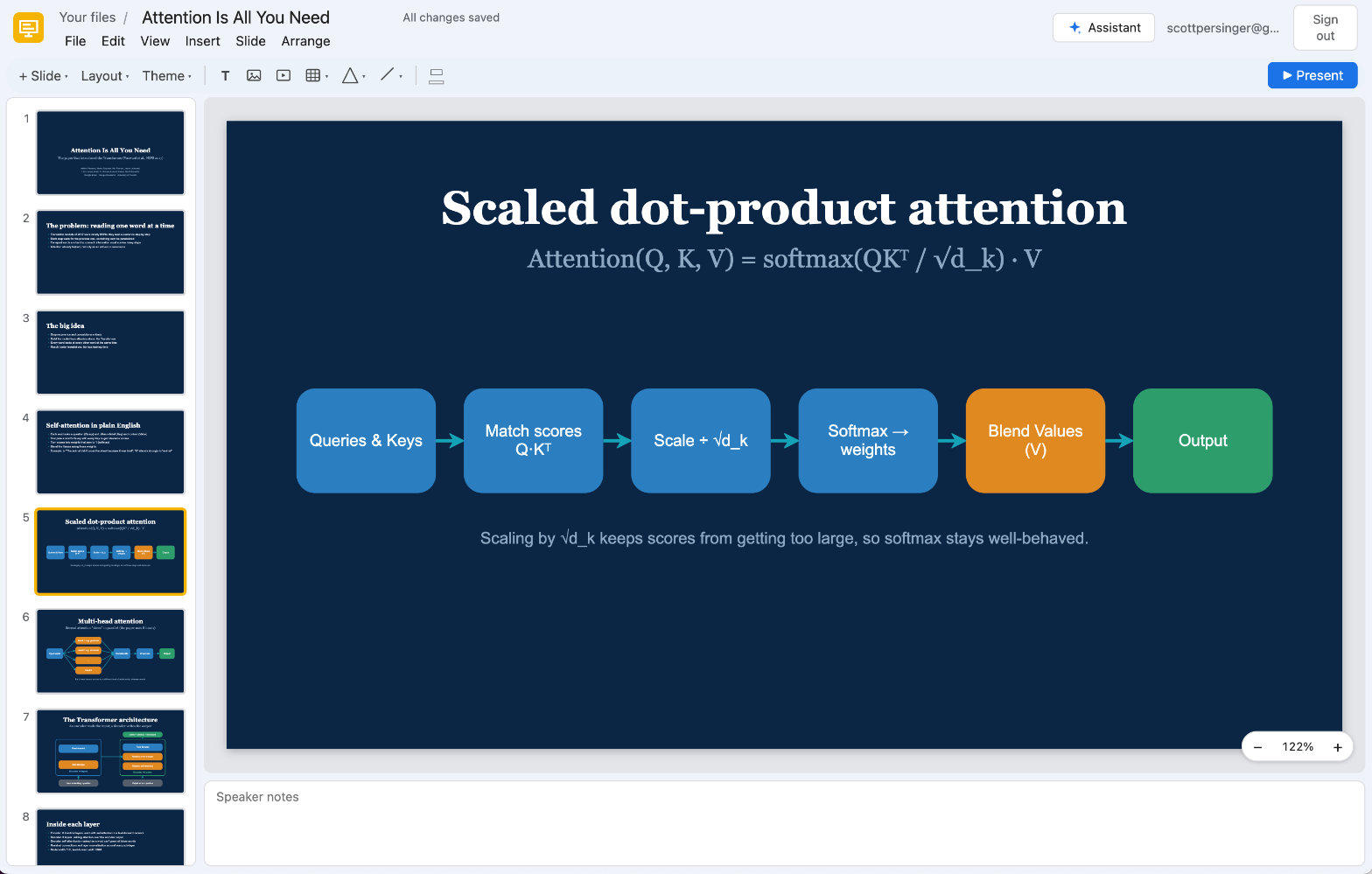
Blank presentation on the home page creates a slide deck (/d/<id>). A slide is a fixed 960×540 canvas (PowerPoint's 16:9 size) holding text boxes, images and shapes (rectangles, ellipses, triangles, diamonds, polygons, stars, arrows, chevrons, speech bubbles, hearts and lines; the table in shared/shapes.ts also maps each one to its PowerPoint preset). Slides are made from layouts (title, section header, title and body, two columns, title and image, blank), and a deck has a theme (light, dark, ocean, forest, sunset, paper) that sets its colors and fonts.
- Click a slide in the strip on the left to edit it; drag to reorder; right-click for slide commands. Double-click a text box or shape to edit its text; Tab indents a bullet. Drag elements to move them and use the handles to resize (corner handles keep an image's aspect ratio). Arrow keys nudge, Delete removes, ⌘D duplicates, ⌘C/⌘V copy and paste elements, and ⌘Z undoes.
- Insert → Image…, dropping an image file on the slide, or pasting one adds an image element (stored like cell images).
- Present (F5) shows the deck full screen; arrow keys and clicks move between slides, N shows the speaker notes and the next slide, and Esc leaves.
- File → Download as PowerPoint (.pptx) exports the deck (text with bullets, images, shapes, backgrounds and notes) with pptxgenjs in the browser; File → Print / Save as PDF… lays out one slide per page.
- PowerPoint import: drop a
.pptxon the home page (or use the Import tile) to create a presentation from it, or File → Import PowerPoint slides… inside a deck to add its slides after the current one. The conversion runs on the server (server/pptxImport.ts) and keeps text boxes with bullets, per-paragraph sizes, weights and colors, fonts, line and paragraph spacing, alignment and insets, theme colors, translucent fills and outlines, pictures (PNG, J