English · 日本語 · 简体中文 · 繁體中文 · 한국어
Run multiple coding-agent sessions in parallel — and see which one needs you.
A browser terminal for parallel AI coding agents: several sessions side by side, each in its own cell, with the one that needs you marked in colour. Claude Code is the default and six more CLIs are first-class — Codex, Antigravity, Grok, Muse, GitHub Copilot CLI and Cursor CLI. Vibe coding with a single agent needs nothing but a shell — this is for when you run several and lose track of which is waiting. Sessions survive a reload (tmux), work isolates in git worktrees, and a phone push reaches you when a turn finishes.
Every cell is a real pty. htop, lazygit, a dev server and Claude Code are the same kind
of object here — which is why the one-session-per-worktree limit applies to agents only, and
a shell or a yarn dev launcher can sit in the same worktree an agent is working in.
Demo
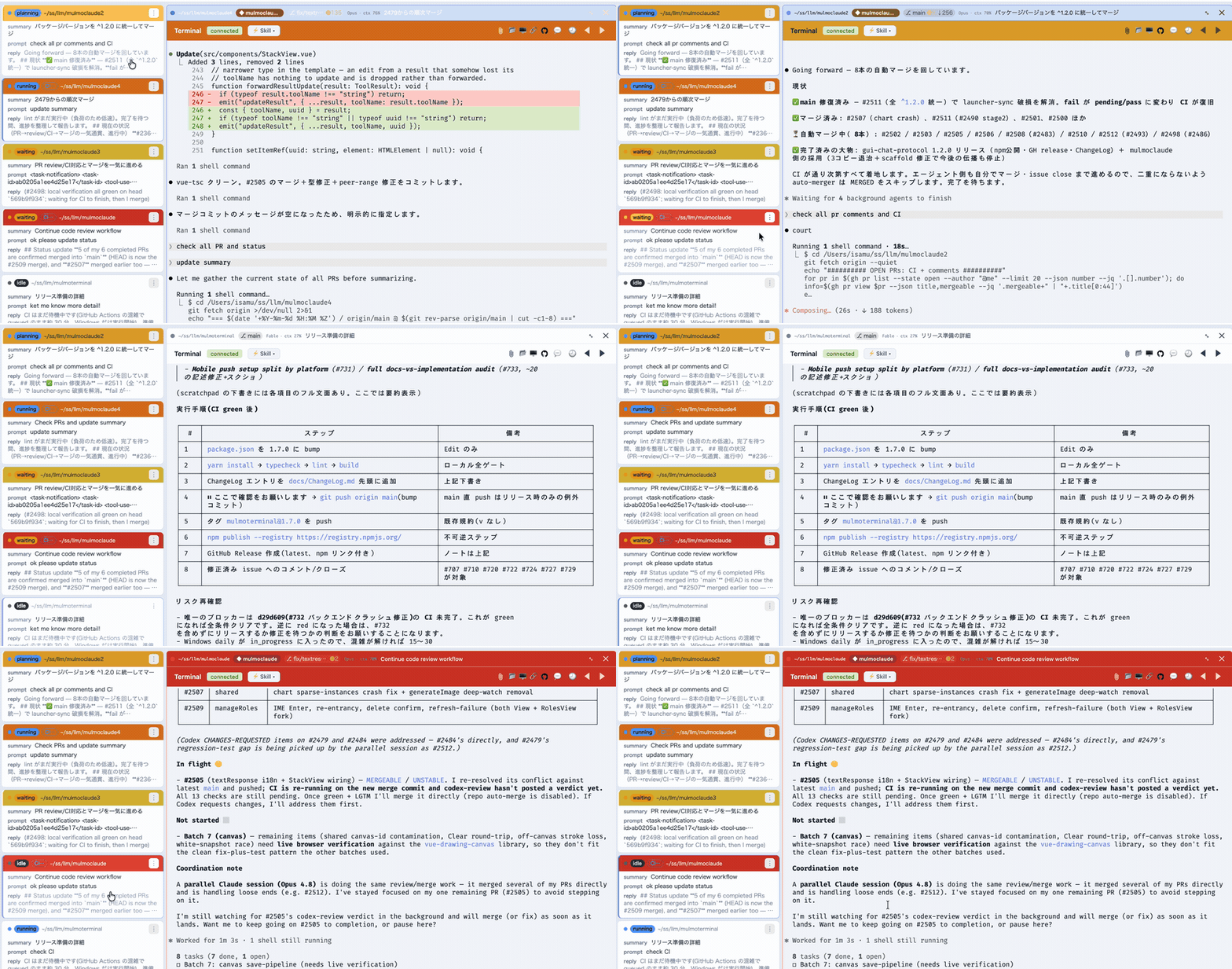
The grid, live — each cell coloured working, done or needs you.
https://github.com/user-attachments/assets/0b8dd582-6c0d-4be3-b0b4-3740ad0bdba6
90 seconds, with sound: one agent, then a grid of them. Zoom into one and the roster still holds what every other session asked, answered and did, so you go to whichever is lit and lose nothing catching up.
Transcript of the narration
When you ran one coding agent, the slowest thing in the room was the agent.
Now that you run five, the slowest thing in the room is probably you.
One of them is always stopped. A permission prompt. A question. Until you notice, it does nothing at all.
MulmoTerminal puts every session on one screen. Blue is working. Green is done. Amber is waiting on you.
You stop hunting. You go where the light is.
The other kind of slow is: what did I even ask this one? The roster keeps one line per session — what you asked, and what came back. Nothing left to remember.
When one is done, you don't go looking for its window. Click its row — the next order goes in right there.
Then you pick the next one from whatever is lit. Click, answer, move on. You never go looking — the roster tells you.
We built MulmoTerminal for exactly that: not to watch agents, but to triage them.
That is the whole install.
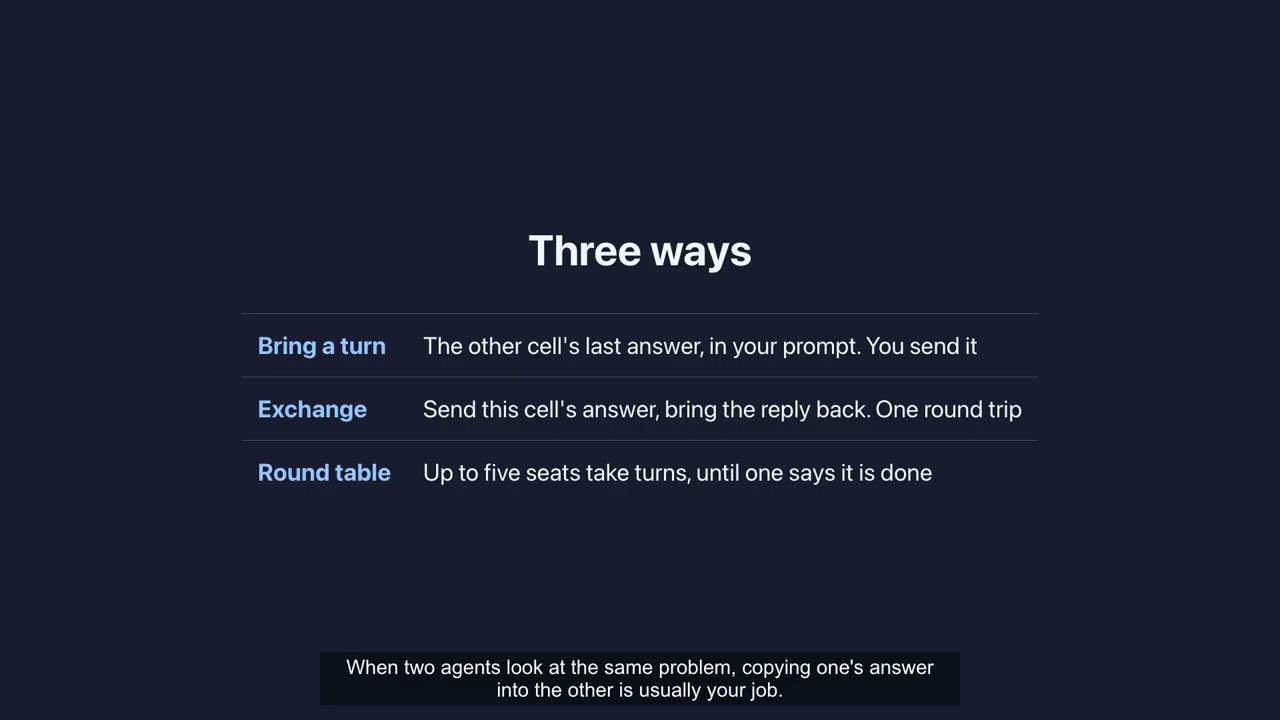
The complete guide, Parts 1-5 — getting started, making it your workspace, agents that hand you a screen, power features (seven agents at once, several subscriptions, shortcuts), and going further into cells that talk to each other, git worktrees and the command palette. Chaptered, so you can jump to the part you need.
MulmoTerminal turns Claude Code — and six other agent CLIs —
into a parallel, observable workspace: many agent sessions at once in a grid, each one
color-coded so you see at a glance which are working, which need you, and which are
done — plus rich GUI output, git worktrees with one-click PRs, cost readouts, and a
ping to your phone when a task finishes. One npx command, no Electron, no config.
npx mulmoterminal@latest # starts on http://localhost:34567 and opens your browser
Requires Node ≥ 22.12, and by default the claude CLI —
on your PATH or named by CLAUDE_BIN, already logged in. Declare a different default agent
(--agent codex, or "defaultAgent" in ~/.mulmoterminal/config.json) and start-up checks that
one instead. npx mulmoterminal@latest init reports what it can't find. On an older Node it stops
before starting the server, with a banner and the upgrade commands for however that Node was
installed.
Why not tmux + iTerm panes?
Running agents in parallel was never the hard part — tmux does that fine. What gets lost is which of them is waiting for you. A pane is opaque: working, finished and blocked-on-a-permission all look the same until you read it. Here every cell reports its state back to one grid — working (blue), done (green), needs you (amber) — with a chime when one goes amber off-screen, and a cockpit roster of one line per session so you can answer one without losing your place in the other four. It runs on tmux when you have it, for persistence across restarts.
Built by receptron — Satoshi Nakajima, software architect for Windows 95 at Microsoft, and Isamu Arimoto; the same two behind GraphAI. More ↓
Why you'll want it
- See every agent at once. A grid of live sessions, each cell color-coded by state — working (blue), blocked / needs a permission (amber), done, unreviewed (blue), idle — with an attention chime and a toolbar tally, so an off-screen agent that's stuck never slips past you. Stop babysitting one terminal; supervise ten. Zoom into one and the cockpit roster keeps everyone else in view — one text row per session with its AI summary, last prompt, latest reply, and the branch's PR phase (draft / CI fail / ready / merged).
- A GUI for your agents, not just a terminal. Beside the terminal, a Canvas panel renders what an agent produces over MCP — documents, forms, charts, generated images, HTML, collection cards — each drawn by its own plugin. The agent doesn't just print text; it hands you an interface.
- Get pulled back from anywhere. A finished — or input-waiting — task sends a Web Push to your phone, and the RemoteHost companion lets you watch sessions and answer with a tap (yes / no / continue) from the phone itself — walk away, get pinged, jump back in.
- Nothing is lost on a restart. With
tmux, every session survives a server crash, restart, ornode --watchreload — a mid-turn agent, a long build, a dev server all keep running and reattach when you come back. A crashed server is restarted for you, so the tab you left open finds it again. - Ship without leaving the grid. Each repo cell shows a git branch chip, isolates work in a one-click git worktree, opens a diff panel, and does commit / push / open PR — so several agents can work the same repo without colliding.
- Know what it's costing. Per-session context %, token, and estimated $ readouts, an activity timeline of tool calls, and AI-summarized cell titles and command-output explanations — so a wall of parallel agents stays legible.
- Make it yours. Per-directory themes, colors, and name badges (
prodin red,stagingin amber), a configurable header (buttons + info chips), custom attention sounds, and Run / Skill / Mulmo menus to launch a project's scripts,.claude/skillsand decks right inside a cell.
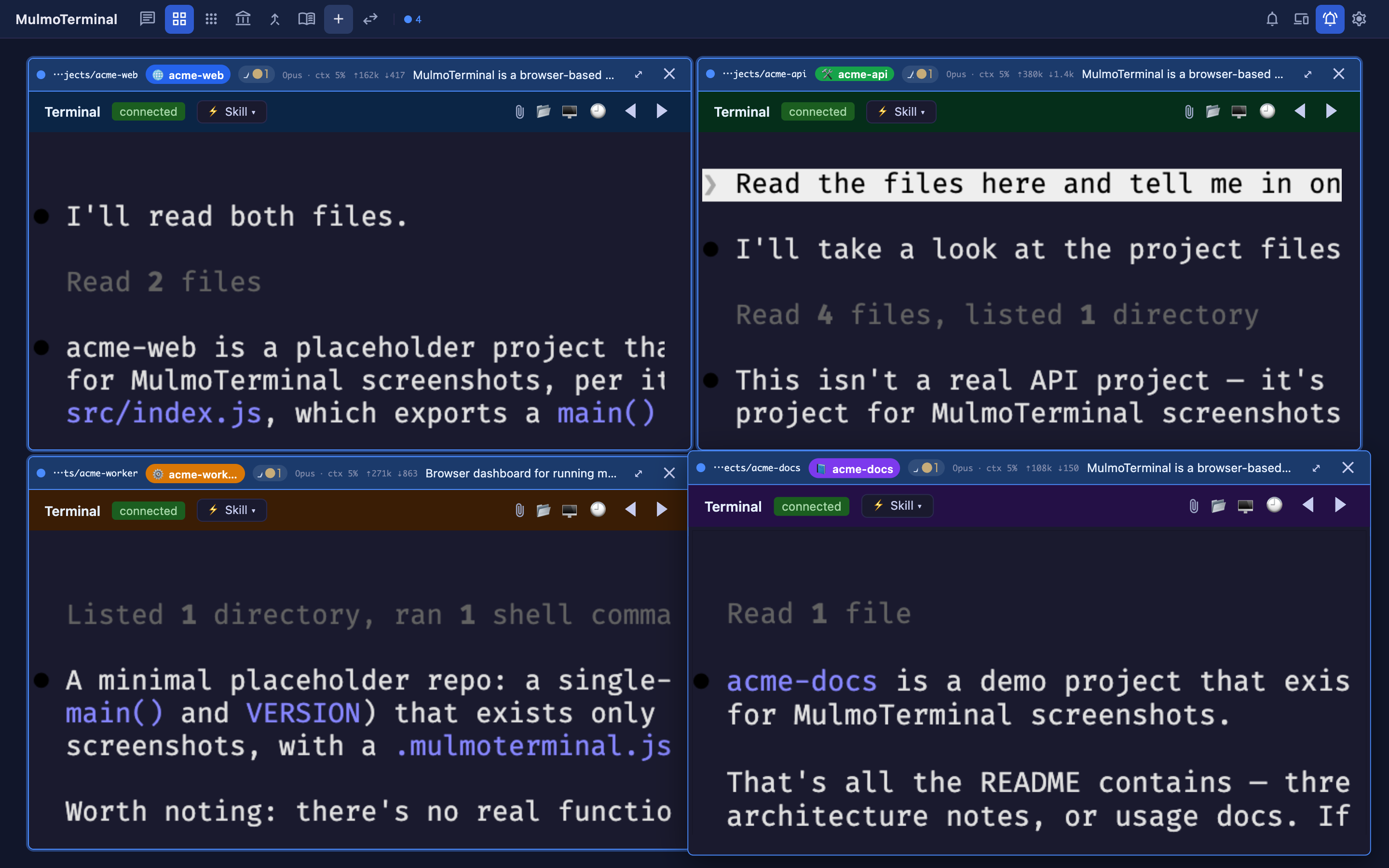
The grid is a cockpit for parallel agents — here, four live Claude sessions, each in its own color-coded project. Every cell's header carries what you need to triage at a glance: model · context %, token counts (⇡in ⇣out), the git branch / changes chip, and an AI summary of what the agent is doing. A cell's border color signals state — working (blue), done (green), needs-you (amber — e.g. waiting on a permission), idle — with an attention chime so a stuck cell off-screen still pulls you back. Supervise many; only step in where you're called.
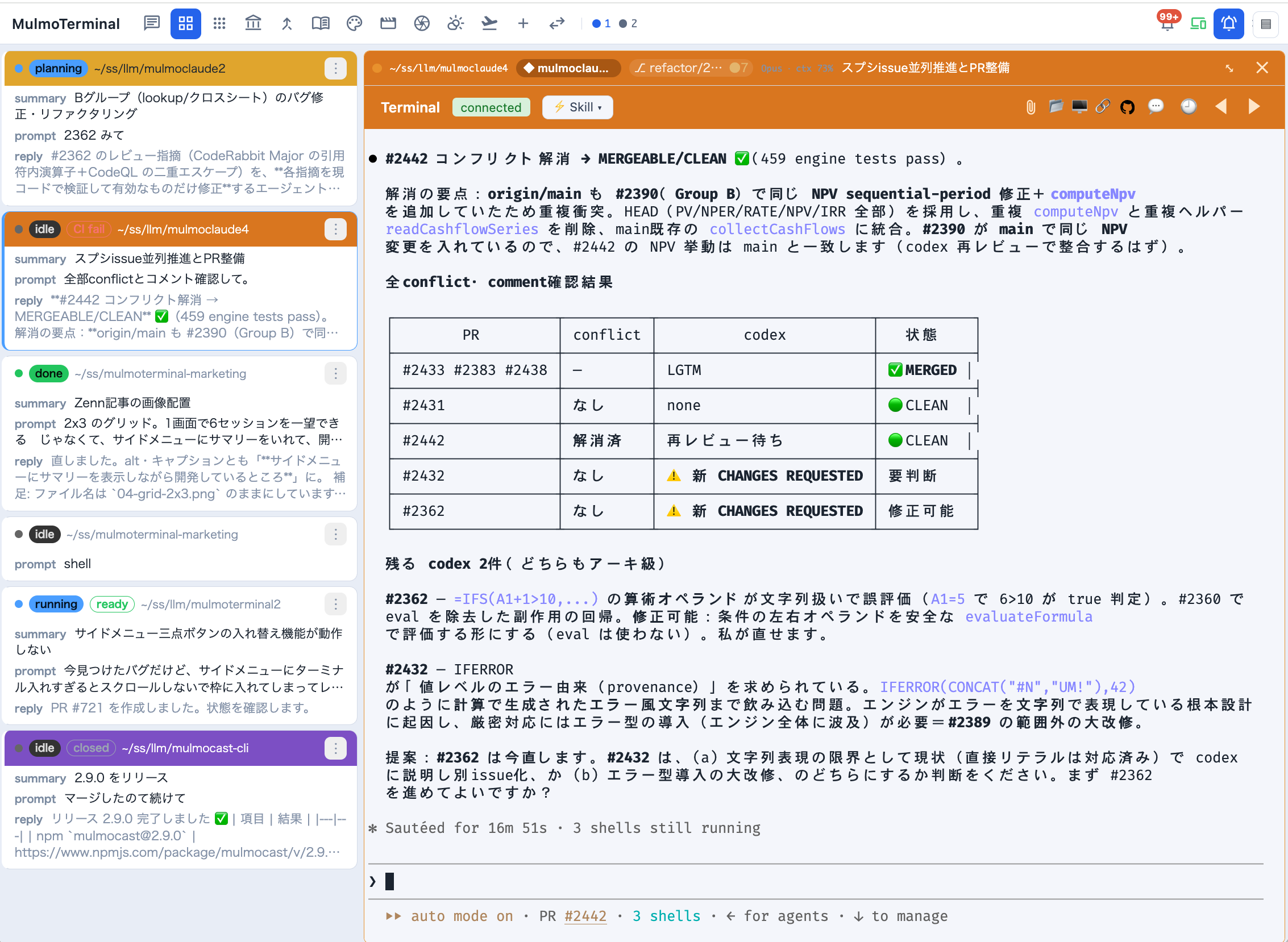
Zoomed in, the cockpit roster replaces thumbnails with information: every session as a text row — directory, AI summary, your last prompt, the agent's latest reply, a status word, and the branch's PR phase badge. A row whose agent is waiting on you rings amber and blinks; one that has merely finished rings green and stays still (Settings → Waiting rows turns the movement off). Click a row to swap the enlarged terminal.
What it is, under the hood
Each session runs as a real PTY on the server (the agent CLI in a pseudo-terminal) and is streamed to an xterm.js terminal in the browser over a WebSocket. The cockpit roster lists every session and reflects, in real time, which are working (the agent is thinking, a spinner), which are waiting on you (a permission prompt or a question — an amber dot; nothing proceeds until you answer) and which are finished with output you haven't seen (a green dot) — driven by the activity each agent reports; claude's hooks are injected per spawn. The horizontal tab bar carries the same two dots.
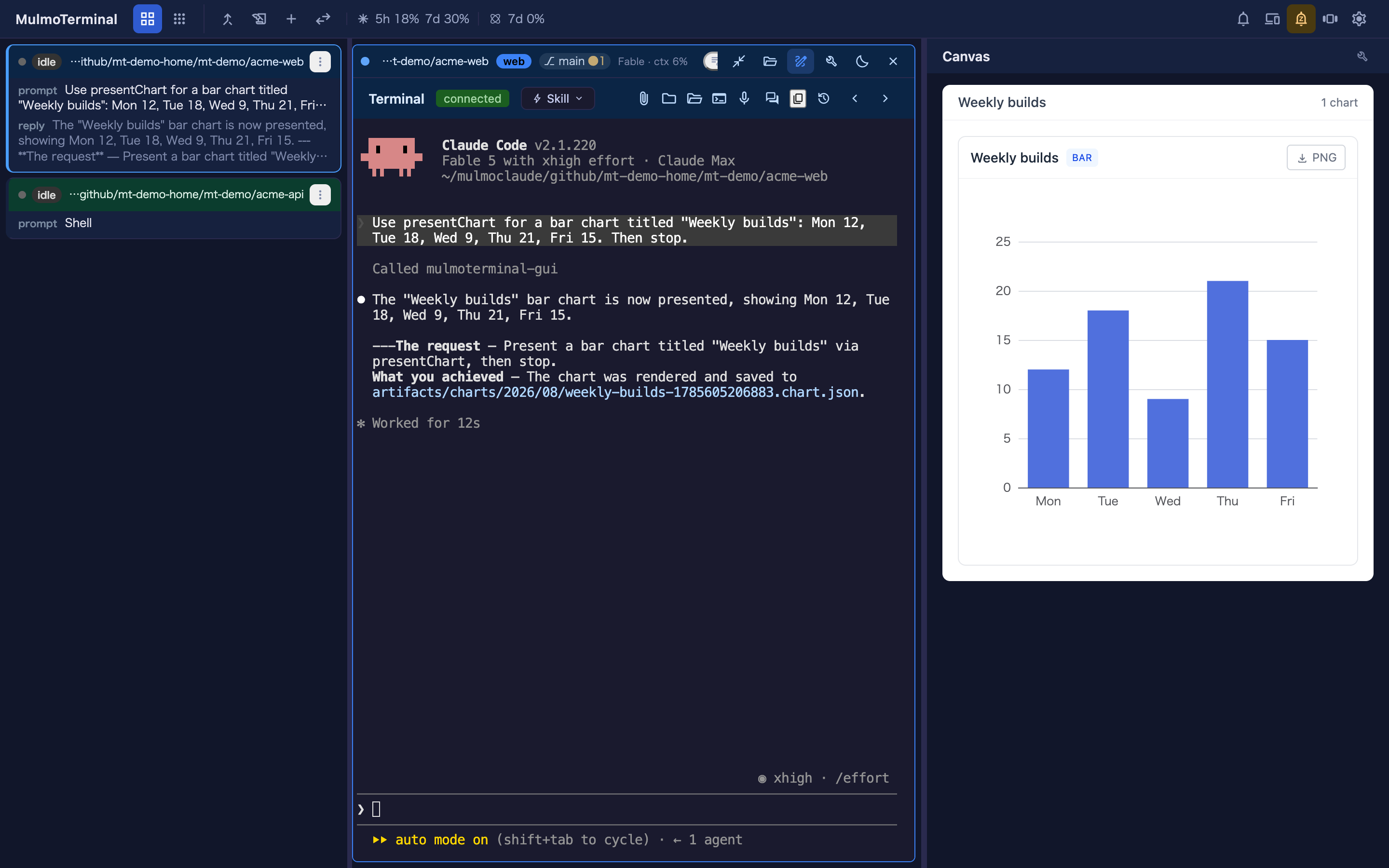
To focus on one agent, zoom its cell: it takes the window, and the GUI panel ("Canvas") opens beside it, where that agent's tool calls render as documents, forms, charts, images, and HTML rather than printed text. The app opens on the grid (/, settling on /terminals), which is the only view; 3.x had a separate single view at /chat and 4.0.0 removed it, so that URL now lands on the grid like any other.
Inserting a file path — like a native terminal, you can put a file's absolute path into the prompt: drag a file onto the terminal, or click the file button in the terminal header, which asks the local server to open the OS file dialog and inserts the chosen path. The path is inserted at the cursor — it is not submitted, so you can review it first.
A drag inserts the file's own path where the browser exposes one via file://
(Firefox/Safari), so editing it afterwards edits the file you dropped. Where the browser
withholds it — Chrome, and every browser when MulmoTerminal is open from another
machine, where a local path would name nothing on the host — the file's bytes are sent
instead, saved to a private per-session directory under the OS temp dir, and that path is
inserted. The session is granted that directory at launch (Claude Code's --add-dir), so the agent reads it without a permission prompt; the copies are removed
when the session ends, and any left by a crash are swept at the next start. Up to 110 MiB per
file — the same ceiling as a phone attachment. A session already running when you upgrade
was launched without that grant, so drops into it still prompt; new sessions don't.
Pasting a screenshot — take a screenshot and paste it straight into the terminal
(Cmd/Ctrl+V). The image is saved to the session's own drop directory — the same place a
dropped file goes, with the same grant, the same 110 MiB ceiling and the same cleanup when the
session ends — and its absolute path is inserted at the cursor, so the agent can read it.
Unlike a drop, this does not need the browser to expose a path — the bytes are on the
clipboard — so it also covers Chrome, where dropping a file cannot insert a path. It works
wherever the browser puts the image on the clipboard as image/png, image/jpeg,
image/gif, or image/webp. Anything else is left to the terminal's own paste handling,
exactly as before — including a paste that carries plain text next to the image, which
copying from a web page usually does, so that pasting text keeps working.
Clicking a file path — the other direction. A path an agent prints becomes a link, and what it opens is chosen by its extension, so each kind arrives as the thing it is rather than as bytes:
| A clicked … | opens as |
|---|---|
.md .markdown |
rendered markdown in a new tab — the same sandboxed …/md HTML the Files preview renders, minus the scripts the preview needs (the one that reports where you are reading, and the one that draws mermaid diagrams — so a mermaid fence stays a code block here). It follows your system light/dark setting, since under the sandbox CSP it can't ask the app which theme is on |
.json |
indented in a new tab (Chrome and Safari otherwise show one long line) |
.csv .tsv |
a table in a new tab, with a sticky header that scrolls inside its own box |
source, config, logs, and .txt — 46 extensions |
the app's own Files view (/files?path=), where CodeMirror highlights it, the tree is right there, and it can be edited |
.html .htm |
the rendered page in a new tab, under the same sandboxed policy as the Files pane's Preview: its scripts run at an opaque origin with no fetch or XHR (so they cannot reach the app or its API), and an image beside it loads by its relative path (a relative stylesheet or script does not). The raw route answers .html as plain text, so opening one there showed its source |
| images, PDF, SVG, video, audio | raw bytes in a new tab, which the browser renders better than an editor would |
everything else — .xlsx, .docx, .zip, a Makefile |
the app's own Files view. A tab cannot display these, so opening one there is not a view — it is a download starting with no warning. The pane names the file and offers Open in OS, which hands it to the application that owns it (Excel for an .xlsx) |
A path outside the session's working directory opens too — absolute, ~/…, or ../ climbing out.
Markdown, JSON, tables and source open against the file's own directory. An HTML page, an image, a PDF,
an SVG, a video or an audio file opens in a new tab through a one-file link: the app asks the server
for it with a same-origin POST, and only that file is served under it — not its directory, and not the
image an HTML page links beside itself. The link lasts until the server restarts (or until many newer links push it out); seeking a video works.
A file that is not there says so in the tab.
A line after the path is followed. src/a.ts:42, src/a.ts:42:7 (gcc, clang, eslint -f unix,
stack traces) and src/a.ts(12,5) (tsc) are one link. In the pane, and in the Files view, the file
opens as text with the caret on that line and column — an HTML page, an SVG or a table included, and a
tab reading in Preview switches to Edit. An image, a PDF, a video or an audio file has no line to go
to and simply opens as itself. A route that renders the file in a new tab (.md, .json,
.csv, .html with no pane to take it) ignores the line. When the pane takes the click, the
keyboard stays in the terminal; the full-screen Files view, with no terminal beside it,
puts it in the editor. (ESLint's default output puts the path on a line of its own, with no line number to follow.)
While a grid cell is enlarged, or a pane is open beside the tiled grid, the Files pane takes the click first — every row above, since the pane is the same editor with a Preview for Markdown, HTML and SVG, shows an image as a picture and a PDF in a frame, and plays a video or an audio file with the browser's own controls (seeking included, whatever the file's size). The file opens beside the terminal that printed it, and the pane opens itself if it was closed. It declines, leaving the routing above untouched, when nothing is enlarged and no pane is beside the tiles, or when the path is not under the directory of the cell the pane belongs to (the pane cannot walk above its root). A file too large to edit as text still offers Open in OS.
Highlighting in the Files view covers the JS/TS family, JSON and Markdown (the modes
cmEditor.ts bundles); other languages open as plain text.
This set is deliberately asymmetric with the set the server serves as viewable text —
.md goes to the rendered viewer rather than the Files view, .txt does the opposite, and
dotfiles are server-only. The 45 extensions both sides agree on live in
common/sourceExtensions.ts, each side adds its own extras, and
test/common/sourceExtensions.spec.ts pins the asymmetry so it isn't "fixed" into symmetry.
Changing this? The routing table is
ROUTE_BY_EXTENSION/IN_APP_EXTENSIONSinsrc/composables/terminalFilePathLinkProvider.ts. Update this section, thedocs/guide/{en,ja}/features.mdrow, and the link table indocs/terminal-notes.mdtogether — all three went stale once already (#834).
What people say after switching
These are experiences reported by users who moved over from an IDE or a split terminal — not benchmarks, and not claims we measured. Your setup may differ.
"It stopped eating my memory"
Keeping several agents apart by opening several IDE windows is expensive: each one brings its own editor, language server, extensions and file watchers. One user reported a 64 GB machine stuttering under that load, and running smoothly after moving over — here the agents are PTYs on a server and the UI is browser tabs.
"I stopped answering the wrong agent"
Six panes of scrolling text look identical. Users have described typing a reply into another agent's terminal, and losing track of what they had asked in the first place. As one put it, the windows all look the same, so switching between them costs time just to work out what you are looking at.
The problem isn't attention — it's that N identical panes means holding N contexts in your head. Colour-coded state, a name badge and a per-directory colour move that onto the screen instead.
"Watching many and reading one stopped being a trade-off"
Splitting a terminal six ways leaves every pane too small to read a long answer without constant scrolling and resizing — one user described exactly that with a 4,000-character reply. So you quietly accept worse reading every time you add an agent.
Grid ↔ enlarge removes that. Watch all of them, then blow one up and read it properly — the cockpit roster keeps the rest in view as text while you do.
"My existing sessions came with me"
Sessions resume as-is — same claude --resume, same transcripts. Point it at a directory you
already work in and your history is there. Nothing to migrate, nothing to redo. One user said this
alone made the switch worth it, having previously lost context to killed sessions.
You don't need ten agents for this to pay off. Users have reported the switch being worth it at one to three parallel sessions. The wins above are about not losing track, not about running more.
📖 Documentation — receptron.github.io/mulmoterminal
- User guide: English — the grid view, everyday workflows, the full feature list, configuration, and mobile push notifications.
- ユーザーガイド: 日本語 — グリッドの使い方・日々のワークフロー・機能一覧・設定・スマホ通知の設定はこちら。
- Updates / アップデート情報: new releases and features are announced on X — in English on @mulmocast, in Japanese on [Singularity Society (@SingularitySoci)](https://x.com/Sin