
Every loop engineering tool assumes you can read code. MyBuildy is that loop, for people who can't.
Demo
Demo video coming soon. Until then, the screenshots below show the real app.
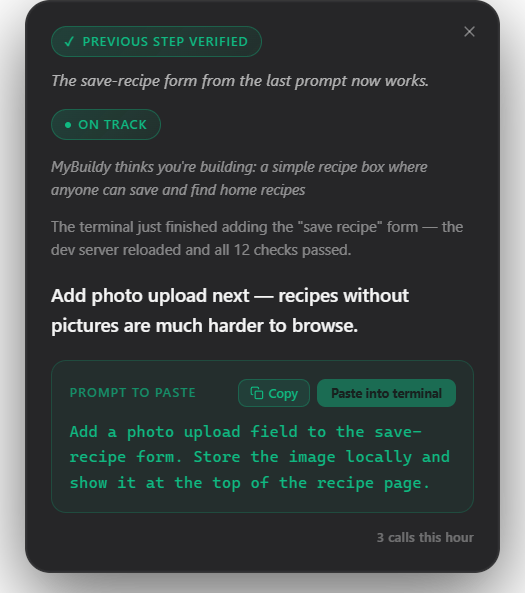
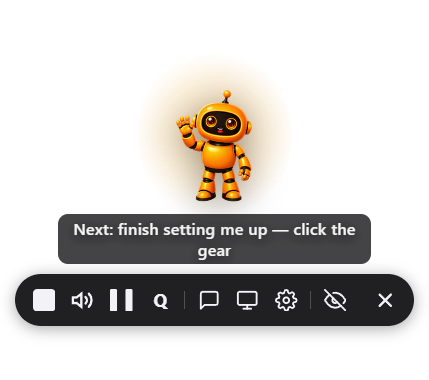 The mascot watches with you |
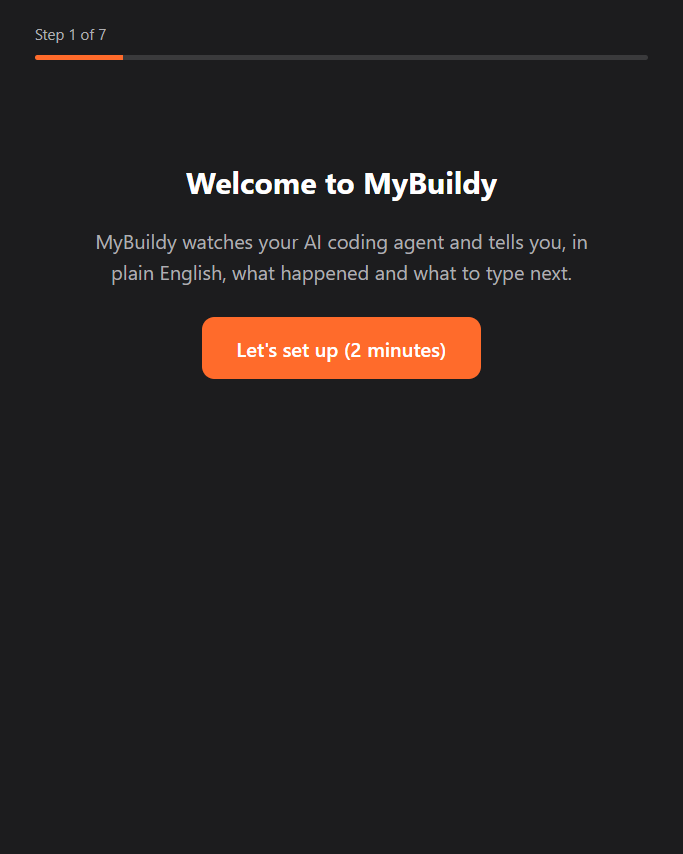 Guided first-run setup |
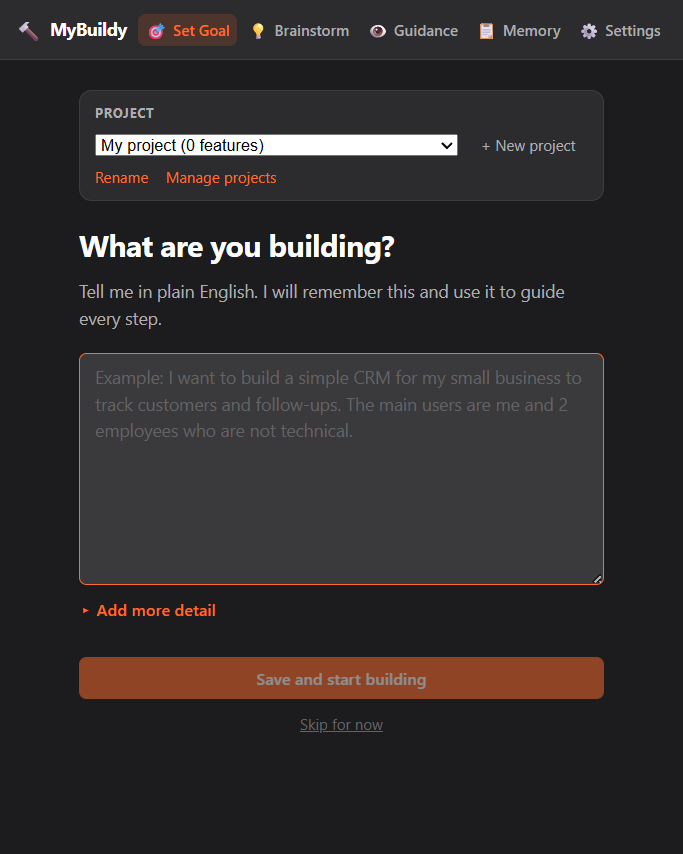 Set the goal once |
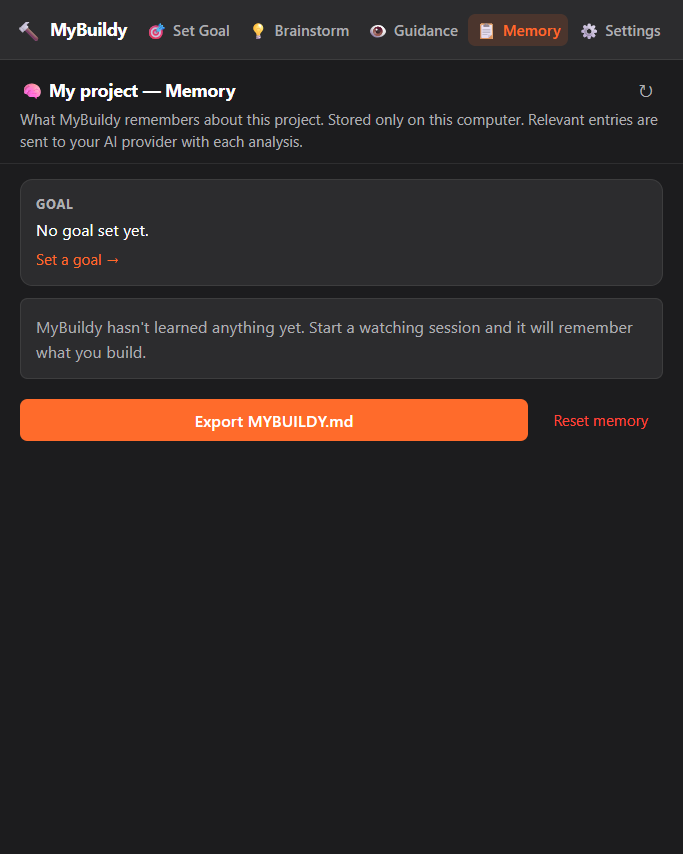 Per-project memory |
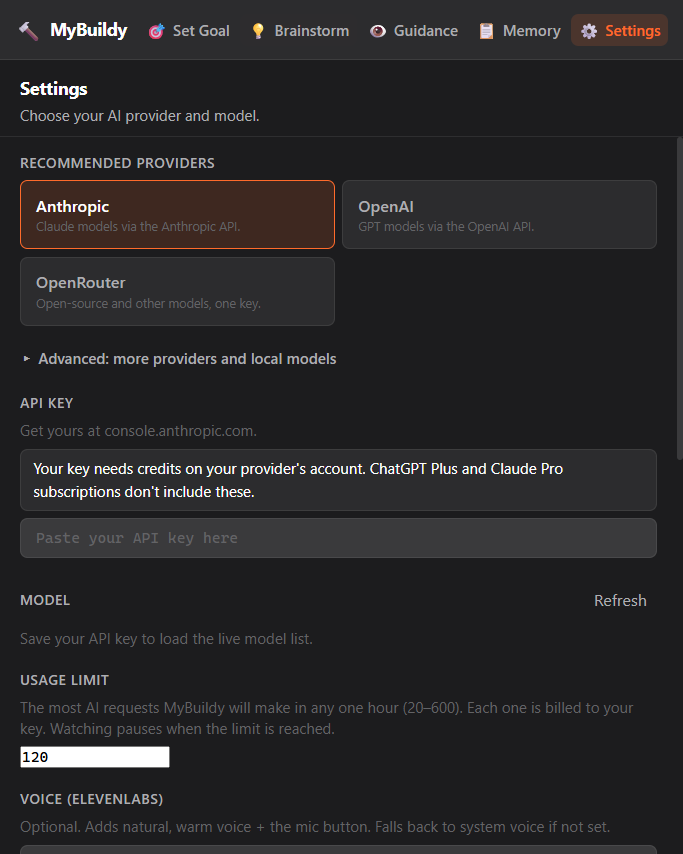 Bring your own provider |
What MyBuildy does
AI coding agents in the terminal are astonishing — and they were built by developers, for developers. If you can't read code, 400 lines of terminal output fly past and you have no idea whether something brilliant just happened or your project is on fire.
MyBuildy is built and tested with Claude Code. Other AI coding agents that run in a terminal window are experimental: watching and explaining work, Paste into terminal is untested — see Works with your agent.
MyBuildy is a desktop companion that sits next to your AI coding agent's terminal and translates:
- Watches only the window you choose — one explicit choice, never your whole screen
- Explains what just happened in plain English, no jargon
- Judges every step against your goal — on track, drifting, or blocked
- Writes the exact next prompt to paste — no guessing, no googling
- Pastes it into your terminal when you click — you read it, then press Enter to run it
- Verifies whether the last prompt actually worked before moving on
- Stops and asks you when a decision genuinely needs a human
- Speaks guidance out loud in Buildy's own on-device voice (or ElevenLabs with your key) so you can stay heads-up
- Remembers your project across sessions — decisions, blockers, what's been built
MyBuildy runs the loop. You approve each step.
How the loop works
- Goal — you say what you're building once. Every step is judged against it.
- Watch — you pick the terminal window your agent is running in. MyBuildy captures only that window.
- Explain — a vision model reads the screenshot and tells you, in plain English, what the agent just did. MyBuildy detects when the agent's turn ends and analyzes within about 10 seconds of it stopping.
- Next prompt — MyBuildy writes the exact prompt that moves your goal forward.
- Paste when you approve — one click pastes the prompt into the watched terminal (Windows and macOS). MyBuildy never presses Enter: you read the prompt and run it yourself.
- Verify — a separate check confirms whether the last prompt achieved its intended outcome before the loop moves on.
- Hand-off — when a decision needs a human (choosing a database, a payment provider, deleting data), MyBuildy stops and asks instead of guessing.
Loop engineering
Loop engineering is the pattern of building a system that prompts the AI, checks the result, corrects course, and repeats — instead of typing every prompt yourself. MyBuildy has four of the six loop engineering blocks built:
| Block | Status | What it does in MyBuildy |
|---|---|---|
| Goal | ✅ Built | You state the goal once; every analysis reports on track / drifting / blocked against it. |
| Memory | ✅ Built | Per-project memory (powered by Nemp Memory) persists decisions, blockers, and completed features across sessions — local JSON, namespaced per project. What the agent is doing at a given moment (reading, idle, waiting) is never stored. |
| Verifier | ✅ Built | A separate AI check confirms whether the prompt you sent actually achieved its intended outcome. |
| Hand-off | ✅ Built | Genuine decisions are detected and handed back to you with options, instead of being guessed. |
| Heartbeat | 🗺️ Roadmap | Scheduled loop runs without a manual trigger. |
| MCP connectors | 🗺️ Roadmap | GitHub, Slack, Linear and friends as loop inputs/outputs. |
Providers
MyBuildy brings no model of its own — you connect a cloud AI provider with your own key, or a model running on your own computer. There is no default model: you choose one in Settings, from a live model list fetched from your provider.
With an API key (cloud):
- Anthropic
- OpenAI
- OpenRouter — one key for many models, including open-source ones
- Google Gemini — under Advanced, labelled Not yet tested
The guided setup on first launch walks you through getting and pasting a key.
On your own computer (local model, no key): Ollama, LM Studio, or any custom OpenAI-compatible endpoint — see Use a local model.
Whatever you pick, the model must pass the vision check (MyBuildy sends it a tiny test image and asks what color it is) before watching is enabled — analysis is screenshot-based, so a text-only model cannot do the job.
Use a local model (Ollama or LM Studio)
A local model runs on your computer, so screenshots and project memory never leave it. There is no API key and no per-call cost; your computer needs to be powerful enough to run a model that can read images.
- Install Ollama (ollama.com) or LM Studio (lmstudio.ai) and download a model that can read images (a vision model). In LM Studio, start the local server.
- In the guided setup, on Your AI key, click Use a local model instead (Ollama or LM Studio). MyBuildy looks for each app at its default address (
http://localhost:11434for Ollama,http://localhost:1234/v1for LM Studio) and shows whether it is running. If it isn't, the setup says what to do; click Check again once it is open. - On Your model, pick a model. The ones that can read images are listed first and marked Can read images; MyBuildy checks the first one automatically. If none can read images, the setup tells you to download one.
- Watching starts only once the model passes the vision check. The first check can take a minute while the model loads.
Already set up with a key? Open Settings → Advanced: more providers and local models, choose Ollama or LM Studio, leave the Base URL empty for the default address (or enter the one your server uses), and pick your model.
Install
Windows (installer)
- Download
MyBuildy-Setup-0.1.0.exe(~272 MB, most of it Buildy's own voice) from the latest release. - Windows SmartScreen will warn you because the installer is unsigned (signing certificates are expensive; a signed installer is on the roadmap). Click More info, then Run anyway.
- The release page includes a
SHA256SUMS.txtif you want to verify the download.
macOS (DMG)
- Download the DMG for your Mac from the latest release:
MyBuildy-0.1.0-arm64.dmgfor Apple Silicon (M1 and later) orMyBuildy-0.1.0-x64.dmgfor Intel. Not sure? Apple menu > About This Mac: "Chip: Apple M…" means arm64. - Open the DMG and drag MyBuildy into Applications.
- Open MyBuildy from Applications. The app is signed with an Apple Developer ID and notarized by Apple, so it opens normally — macOS only asks once whether you want to open an app downloaded from the internet; click Open.
- macOS asks for three privacy permissions. MyBuildy checks each one, tells you exactly what to turn on, and has a button that opens the right System Settings pane:
- Screen Recording (called Screen & System Audio Recording on newer macOS) — required to watch a window. macOS only applies it after you quit and reopen MyBuildy.
- Accessibility and Automation → System Events — needed only for Paste into terminal (pressing Cmd+V in your terminal). Without them, the prompt stays on your clipboard to paste yourself.
SHA256SUMS.txt covers the DMGs too. Testing a Mac build? Follow docs/MAC-TESTING.md.
From source (any OS)
Requires Node.js 22.12 or newer.
git clone https://github.com/SukinShetty/mybuildy.git
cd mybuildy

# --legacy-peer-deps is required: npm 10+ crashes with an arborist "edgesOut"
# error on a clean install without it, even though every peer resolves.
npm install --legacy-peer-deps

npm run dev
Linux runs from source but is untested — see Known limitations.
First run
MyBuildy opens a guided setup on first launch — one step per screen, about two minutes:
- Your AI key — pick a provider and paste your key (each has a Where do I get a key? link). It is encrypted on save — see Security model. No key? Click Use a local model instead to use Ollama or LM Studio on this computer — see Use a local model.
- Your model — the Suggested one is highlighted and checked automatically; watching stays off until a model passes the vision check.
- macOS only: see your screen — one click opens the right System Settings pane; the status turns green by itself, and Restart MyBuildy reopens the app on the same step when macOS needs a restart.
- macOS only: paste for you (optional) — both macOS prompts appear here, explained, instead of by surprise later. Skip — I'll paste myself keeps pasting copy-only.
- What do you want to build? — tap one of four ready-made goals (each with a "Done when…" check) or write your own.
- Open your coding agent — the exact commands to type, with Copy buttons.
- Show MyBuildy your coding agent — choose the terminal window; this step explains exactly what gets captured and where it goes.
Afterwards the line under the robot always says the next thing to do. The robot's bar can Hide it while it keeps watching (bring it back by clicking MyBuildy in your taskbar, or the Dock on Mac; Ctrl+Alt+B / Cmd+Option+B also works) or Quit MyBuildy; Settings → Robot size makes it bigger or smaller (or hold Ctrl/Cmd and scroll over the robot). Settings has Run setup again.
Voice. Buildy speaks with his own voice, which is bundled with MyBuildy and runs on your computer: free, nothing to set up, nothing sent anywhere. Choose Female voice (the default) or Male voice in Settings → Voice, with Play sample for each; the change applies from the next sentence. Optional: add an ElevenLabs key in Settings → Voice to use an ElevenLabs voice instead and to get the mic button for spoken questions (the microphone is only requested the first time you click it).
Cost
MyBuildy uses your API key, and each analysis is a paid API call to your provider. What that means in practice:
- MyBuildy is aggressive about not wasting calls: while the agent is working, it takes cheap low-resolution local snapshots (never sent anywhere) and only runs a real analysis when the agent's turn ends.
- There is an hourly cap — at most 120 provider calls per rolling hour by default, editable from 20 to 600 in Settings. Watching pauses at the cap.
- To keep costs low: pick a cheaper vision-capable model, lower the cap, pause watching when you step away, or run a local model via Ollama/LM Studio for zero API cost.
Privacy and data
No accounts, no MyBuildy servers, no telemetry. Your settings, keys and project memory are saved on this computer.
In short: screenshots of the window you picked, and the relevant parts of this project's memory, go to the AI provider you chose, with your own key. Nothing goes anywhere else — except your spoken questions and the spoken guidance text, and only if you add your own ElevenLabs key. With a local model (Ollama or LM Studio on this computer), all of it stays on this computer.
This is everything MyBuildy sends, and where:
| Flow | What is sent | Sent to |
|---|---|---|
| Screen analysis (watching, and Analyze on the Guidance screen) | An image of the window you chose, its title, your goal and this project's memory | Your AI provider |
| Brainstorm | Your messages and the conversation so far | Your AI provider |
| Spoken questions (mic button) | Your recording | ElevenLabs speech-to-text |
| The transcript, plus a fresh screenshot of the watched window and the project context | Your AI provider | |
| Spoken guidance | The text being read aloud | ElevenLabs, only if you saved an ElevenLabs key (otherwise Buildy's own voice, or your computer's voice, speaks on this computer and nothing is sent) |
| Grading and verification (checking a suggested prompt; checking that a pasted prompt worked) | The prompt, its expected outcome and context | Your AI provider — on Anthropic this is a separate call to a smaller, cheaper model |
| Connection and model setup (model list, vision check) | Requests carrying your API key; the vision check also sends a tiny test image | Your AI provider |
With Ollama, LM Studio or a custom endpoint on this computer, "your AI provider" is on this computer too. A custom endpoint elsewhere receives what the table says your AI provider receives. Each API key is only ever sent to its own provider's address, and a custom endpoint's key only to the endpoint it was entered for.
Nothing else is sent: MyBuildy makes no other network requests (no analytics, no update checks).
| Stored on this computer | Where |
|---|---|
| API keys | Encrypted with your operating system's keystore (Electron safeStorage); plain-text storage is refused |
| Project memory (goals, decisions, blockers) | userData/mybuildy-memory/<projectId> as plain JSON |
| Settings | Plain JSON in the user-data folder, with keys stripped out |
| Screenshots | Never written to disk — processed in memory only |
| Diagnostic log (when watching starts, pauses or stops, and why; paste outcomes) | userData/logs/watch.log, no window titles or screen text. Settings → Open log folder |
Delete everything: Settings has a Delete all MyBuildy data button that removes keys, settings, every project's memory and the diagnostic log. Uninstalling and deleting the MyBuildy user-data folder does the same.
Screenshots may contain whatever is visible in the watched window — code, secrets, personal data. Watch only the window you intend to share; your provider's data-retention policies apply to what you send.
Security model
- Encrypted keys — API keys are stored with Electron
safeStorage(DPAPI on Windows, the Keychain on macOS). If OS encryption is unavailable, MyBuildy refuses to save keys in plaintext. A key you type passes from the Settings screen to the main process once and is then stored encrypted; saved keys are never sent back to the interface, which only ever sees whether a key is set. - Sandboxed renderers —
contextIsolation: true,nodeIntegration: false; the UI cannot touch Node, the filesystem, or the network directly. - Validated IPC — every IPC channel validates its payload shape in the main process before acting.
- Strict CSP and navigation guards — renderer windows cannot load or navigate to remote content.
- Paste safety guard — prompts about to be pasted are scanned for destructive patterns (deletes, disk formatting, force-pushes, secrets exfiltration). Flagged prompts need a second, explicit click. MyBuildy never presses Enter, so nothing runs until you do.
One honest caveat: MyBuildy reads your screen, and text on the screen can influence the prompts it suggests (a form of prompt injection). That is exactly why MyBuildy never pastes on its own and never presses Enter — every paste needs your click, the guard adds a second click on anything that looks destructive, and you run the prompt yourself.
See SECURITY.md for the reporting policy.
Works with your agent
MyBuildy watches pixels, not an API — so watching, explaining, the verifier and hand-off work with any coding agent that runs in a terminal window. It detects which agent it is looking at and adapts its guidance; the button always reads Paste into terminal.
Only Paste into terminal depends on how the agent's terminal accepts a pasted prompt, and that is where testing so far is uneven:
| Agent | Status |
|---|---|
| Claude Code | Tested. Built and tested with this. |
| Codex CLI | Experimental. Recognised; watching works. Paste is untested. Copy and paste always works. |
| Any other terminal agent (Gemini CLI, Cursor CLI, Aider, and so on) | Experimental. Watching and explaining work. Paste is untested. Copy and paste always works. |
Tried MyBuildy with another agent? Please open an issue with what worked and what didn't — this table will be updated as results come in.
Known limitations
- Paste into terminal works on Windows and macOS. On Linux you copy the prompt and paste it yourself. It never presses Enter.
- macOS is new in this release. It is built, type-checked and unit-tested on macOS in CI, and the in-app permission checks explain every macOS prompt — but first hands-on testing on a real Mac is still under way (docs/MAC-TESTING.md). Reports welcome.
- Paste goes only to the exact window you picked. MyBuildy identifies the window by its system window number (on Windows also the program that owned it when you picked it), never by its title, and checks it again right before pasting. If that window has closed, belongs to something else now, or can't be brought to the front, nothing is pasted and the prompt stays on your clipboard. On macOS, a minimized picked window isn't restored for you: bring it back, then paste.
- Claude Code is the tested agent. Other terminal agents are experimental — see Works with your agent.
- Linux is untested. It can run from source, but no testing has been done there yet.
- Window identity edge case: if the watched window closes and, within ~15 seconds, a brand-new window appears that reuses the same OS window handle, MyBuildy can follow the new window. Closing and reopening normally is handled; this narrow reuse window is not.
- The paste guard is heuristic. It is a speed bump against destruct