
MyCam
Turn your phone into a webcam for Windows.
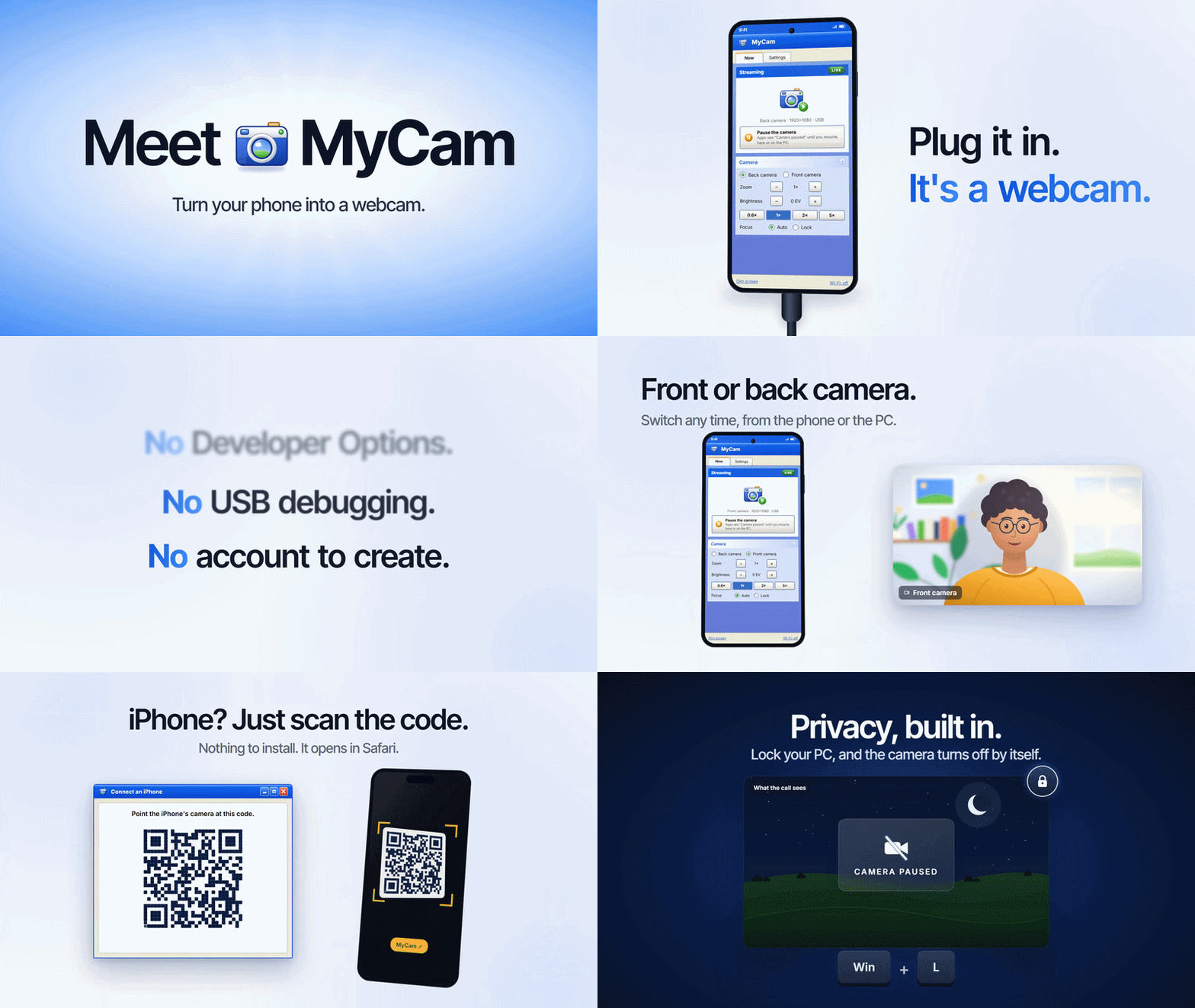
MyCam shows up as a camera called MyCam on your Windows PC (10 or 11) — in Zoom, Teams, OBS, browsers, and the Windows Camera app — fed live by your phone. Plug in an Android phone and it just works; scan a QR code on an iPhone and nothing even needs installing.
Why MyCam
- Plug and play. No Developer Options, no USB debugging, no ADB. Plug in an Android phone over USB, or pair it over Wi-Fi once — either way, Windows just sees a webcam.
- iPhone and iPad, with nothing to install. The PC itself serves a page; scan a QR code in Safari and you're live.
- Front and back cameras, real resolutions and frame rates (up to 4K, up to 120 fps where the phone supports it) — MyCam only ever offers what your phone can actually do.
- Privacy first, by design, not by promise.
- Pause from the phone, its notification, or the PC tray — instantly, from either side.
- The camera turns off by itself the moment Windows locks.
- A PC has to be explicitly allowed by the phone before it gets real video, even once paired — a QR code is consent to pair, not consent to be watched.
- While paused or not yet allowed, other apps see a "Camera paused" picture, never a frozen or black frame.
- A free, open-source alternative to proprietary phone-webcam apps, with no ads, no account, no cloud — video only ever goes from your phone to your own PC.
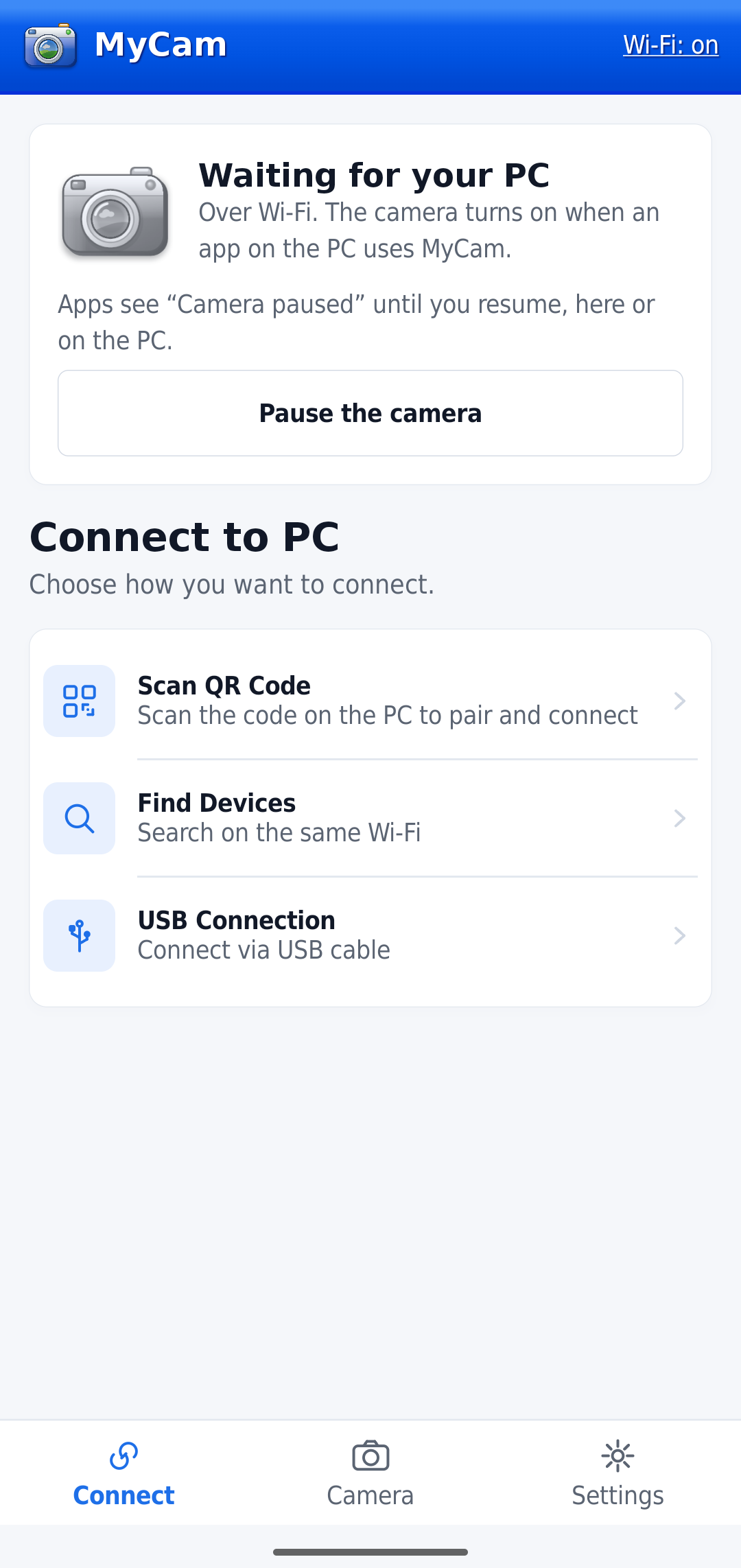
Screenshots
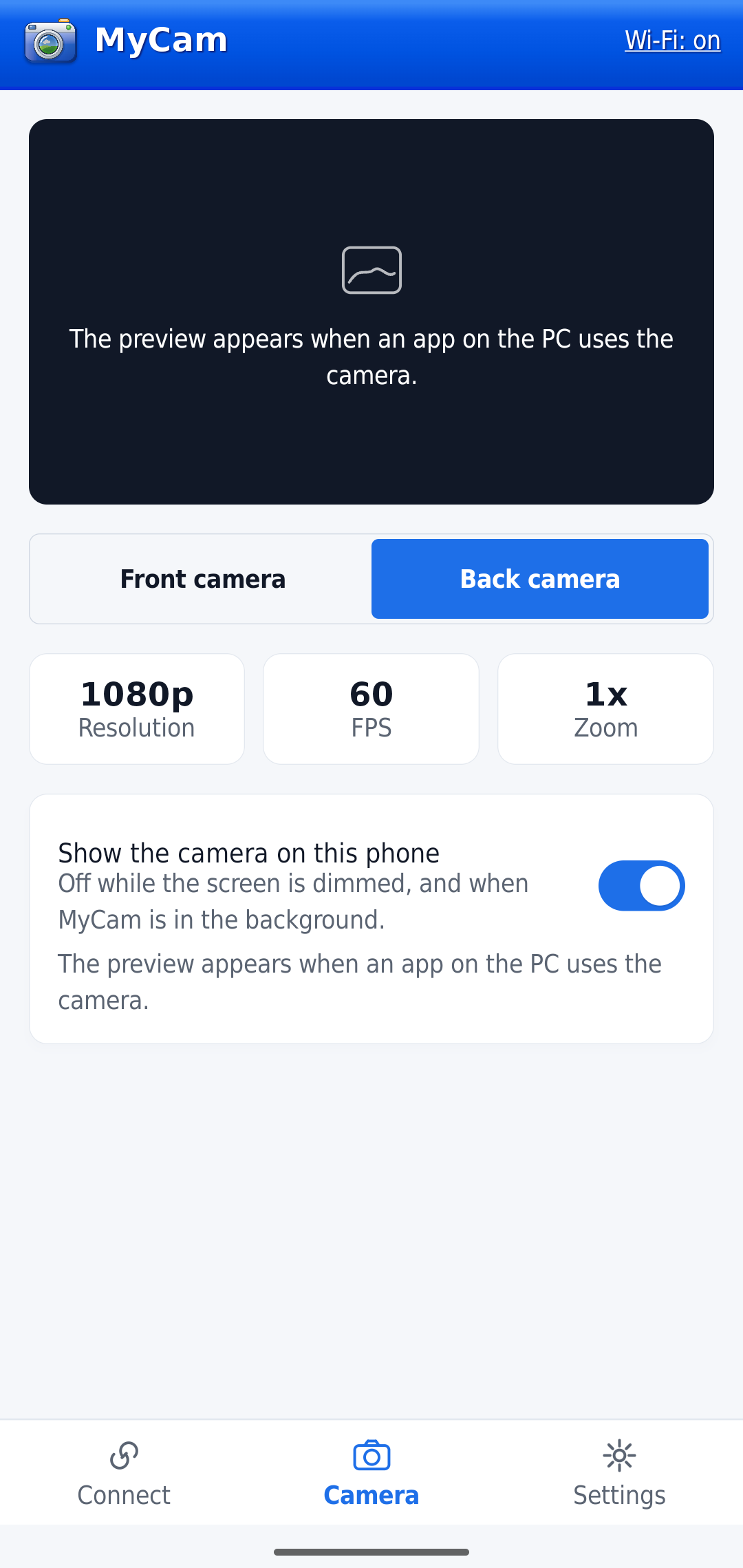
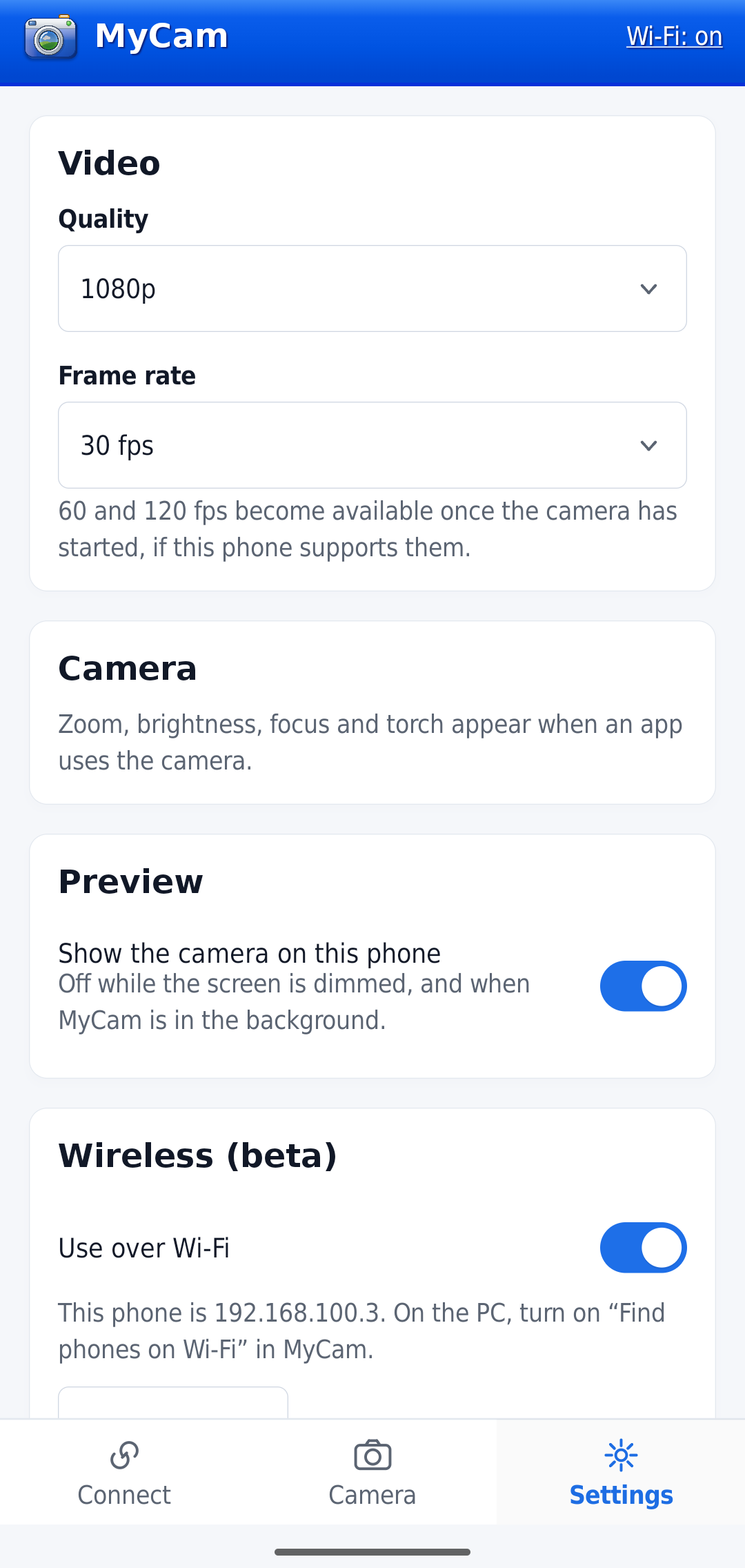
Get MyCam
| Windows (PC) | Download MyCam-Setup-X.Y.Z.exe from the latest release and run it. |
| Android | Download MyCam-X.Y.Z.apk from the same release and install it (or build from source — see Architecture → Build and test). |
| iPhone / iPad | Nothing to install — see iPhone below. |
| Linux (preview) | Download mycam_X.Y.Z_amd64.deb (Ubuntu and friends) from the 1.6.0 release — see Linux below. |
Setting it up
- Install MyCam on the PC. The installer registers the virtual camera, installs the UsbDk driver if needed (signed, hash-checked), and adds the firewall rule the iPhone page needs.
- Android, over USB: plug in the phone. The first time, it asks to open MyCam — tick Always — and Windows asks for admin once, to give the accessory mode its driver.
- Android, over Wi-Fi: turn on "Find phones on Wi-Fi" on the PC and scan the code from the phone, or pair once with a 6-digit code.
- iPhone: see iPhone below.
- Choose MyCam as the camera in any app.
Left-click the tray icon for the settings window (camera, mirror, devices, start with Windows); right-click it for the quick menu.
iPhone
An iPhone has no app to install. The companion serves a small HTTPS page itself:
- On the PC, open MyCam and choose Connect an iPhone. A QR code appears.
- On the iPhone, open the Camera app, point it at the code, and tap the link. The first time, Safari warns the connection isn't private (it's a self-signed certificate) — tap through it once.
- Tap Start, and allow the camera and motion sensors.
The iPhone is remembered after that — open the page again from history, or Share → Add to Home Screen, and there's no code to scan again. Both devices need to be on the same network, and Windows needs to call it Private.
Resolution, frame rate, zoom and torch are chosen on the PC, from what the iPhone reports it can do. Wired iPhone support isn't ready yet; see docs/iphone-wired.md for the plan. The full protocol and architecture are in docs/ARCHITECTURE.md.
Linux (preview)
MyCam also runs on Linux, as a background service that shows up as a camera called MyCam
(v4l2loopback), with a tray icon carrying the same menu as on Windows. Install the .deb with
sudo apt install ./mycam_<version>_amd64.deb; the service and tray then start at every login.
It's a preview: the iPhone over Wi-Fi is tested on Ubuntu 24.04; Android phones (USB and Wi-Fi) are built in but not yet tested on Linux, and there's no settings window yet. Install, pairing and troubleshooting are in the Linux guide.
Troubleshooting
The companion writes %LOCALAPPDATA%\MyCam\mycam.log, including the phone's own messages ("phone says:
…"). It records each step: phone found, switched to accessory mode, connected, camera started, frames
decoded. Exit MyCam from the tray rather than killing it — a killed companion can leave the phone stuck
until it's replugged.
iPhone:
- The link doesn't open: both devices must be on the same network, and Windows must call it Private. Some guest and office Wi-Fi networks block devices from reaching each other.
- The page says the PC is busy: another phone is already using MyCam (a phone on the cable always wins).
- The page asks to scan the code again: the iPhone was forgotten on the PC, or Safari's site data was cleared.
- The picture freezes when the iPhone locks: expected — Safari stops the camera in the background, and the session waits 5 minutes for you to return.
Still stuck? Email support@mycam.dev, or
open an issue with mycam.log attached (it names your phones
and shows local network addresses, so look it over first).
Known limits
- Windows 10 (1809+) or 11. On Windows 11, MyCam uses the
MFCreateVirtualCameraFrame Server API; on Windows 10, which has no equivalent, a DirectShow source filter instead (the same approach OBS Virtual Camera uses) — the installer registers whichever one your PC needs. - Android: needs Android Open Accessory support (nearly all phones from the last 10+ years have it). While the companion is running, a plugged-in Android phone switches to webcam mode, so MTP file transfer isn't available — exit MyCam from the tray to transfer files.
- iPhone: needs a browser with WebCodecs H.264 (current Safari); works over the network only (wired is a plan, not yet shipped); the page must stay open in front, since iOS stops the camera when Safari is backgrounded.
- Linux: a preview — needs
v4l2loopback; only the iPhone is tested so far, and there's no settings window yet. See the Linux guide.
Contributing
Bug reports and small fixes are welcome — see CONTRIBUTING.md for how to build, test, and what the pull request checklist expects. docs/ARCHITECTURE.md has the full technical picture: how the pieces fit together, the repo layout, and the wire protocol.
License
MIT. See LICENSE. Third-party parts keep their own licenses:
- libusb (LGPL-2.1, vendored in
pc/third_party/libusb, trimmed to the Windows backend MyCam builds). - qrcodegen by Project Nayuki (MIT, vendored in
pc/third_party/qrcodegen). - UsbDk (Apache-2.0, downloaded by the installer build).
- DejaVu fonts (Bitstream Vera licence, with the DejaVu changes in the public domain).
The Windows XP look is an homage drawn from scratch: no Microsoft artwork or fonts are included.