
 pinch
Select. Mark up. Paste.
A small, fast screenshot tool for Linux.
Grab an area, point at what matters and paste it anywhere.
Install |
Features |
Keys
X11 and Wayland | Multiple monitors | English and Russian | MIT


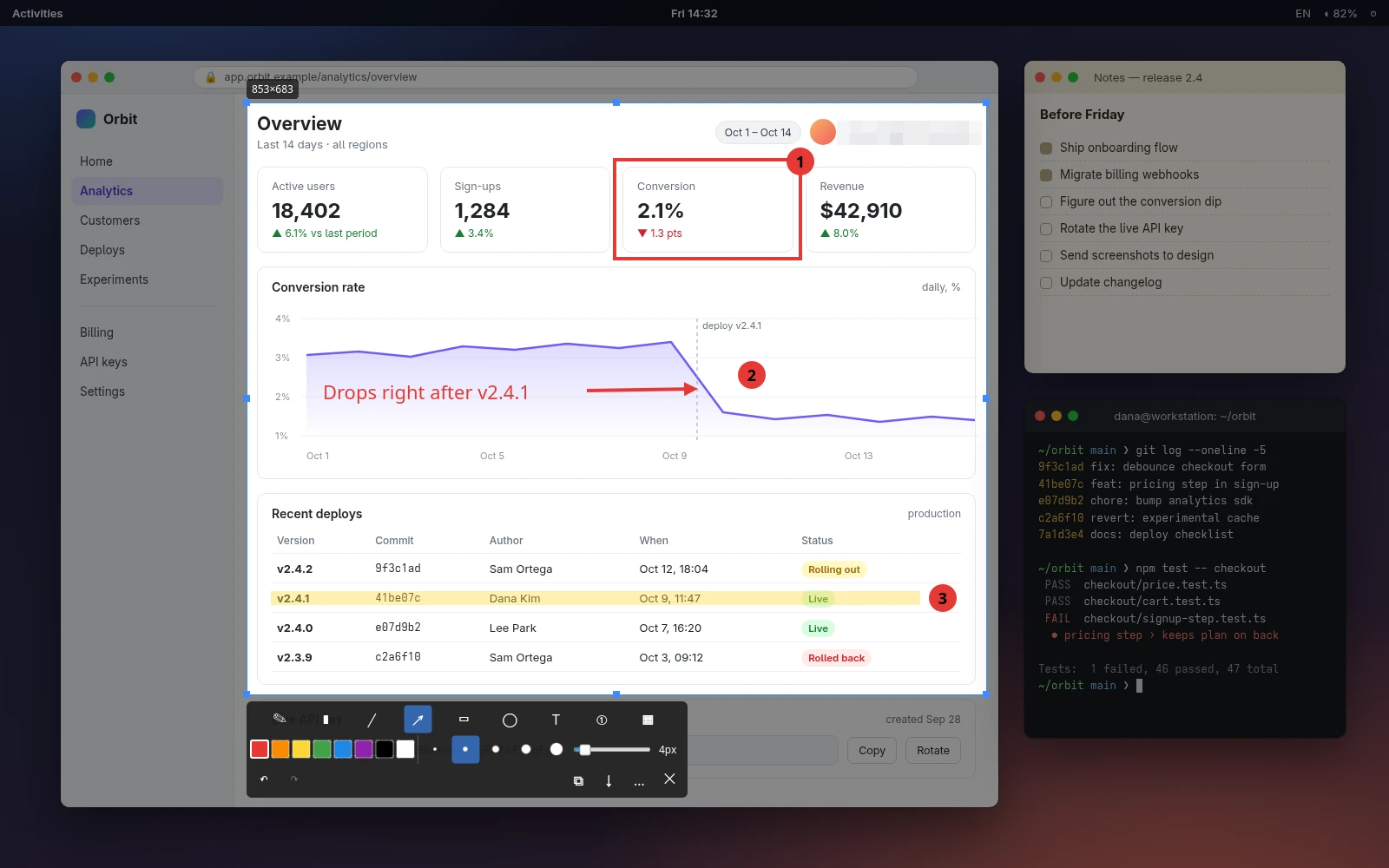
pinch takes a screenshot the moment you press its hotkey. Drag over the part you need and the pen is already in your hand: add arrows, boxes, numbered steps or a note, pixelate anything private, then press Ctrl+C. Inspired by Flameshot, written from scratch as a small C++/Qt 6 codebase.
On Wayland pinch captures through the compositor itself: KWin on KDE Plasma, wlr-screencopy on Hyprland and Sway. GNOME goes through the desktop portal, which is also the fallback everywhere else.
Features
Select in one motionPress the hotkey and drag. A click takes the whole monitor, Ctrl+A takes all of them. The size is shown as you go; drag the handles or press V to move and resize. |

|
Mark it up without hunting for toolsPen, marker, line, arrow, box, ellipse, text and numbered steps are one key away. Hold Shift for straight lines and perfect shapes, press 1–5 or scroll for thickness, Ctrl+Z to undo. |

|
Hide what shouldn't leave your screenPixelate tokens, e-mails and names with B before you share. pinch has no network code, and saved files are readable only by you. |

|
Ctrl+C or Enter copies the selection with your drawings. Ctrl+S saves a
PNG to ~/Pictures/Screenshots, Ctrl+Shift+S asks where. After copying, pinch
stays in the background only until something else takes the clipboard.
Install
Packages for Arch Linux and Ubuntu 24.04 / 26.04 are on the releases page. Download the one for your system, then:
sudo pacman -U pinch-*-x86_64.pkg.tar.zst            # Arch
sudo apt install ./pinch_*_ubuntu24.04_amd64.deb     # Ubuntu 24.04 (26.04: the ubuntu26.04 file)
They install /usr/bin/pinch, the icon and a menu entry. On Arch you can also build the package
yourself with makepkg -si in packaging/arch.
Build from source
Ubuntu / Debian:
sudo apt install qt6-base-dev qt6-wayland qt6-tools-dev qt6-l10n-tools libwayland-dev libwayland-bin pkg-config cmake g++
Arch:
sudo pacman -S qt6-base qt6-wayland qt6-tools wayland cmake gcc noto-fonts
Build and install:
cmake -S . -B build -DCMAKE_BUILD_TYPE=RelWithDebInfo
cmake --build build -j
cmake --install build --prefix ~/.local
This installs ~/.local/bin/pinch, the icon and a menu entry. If a newer compiler stops the build on warnings,
add -DPINCH_WERROR=OFF to the first command.
Hotkey
pinch takes a screenshot when it starts, so bind it to a key. The examples use /usr/bin/pinch from a package;
after a source install it is ~/.local/bin/pinch.
- GNOME: Settings → Keyboard → Custom Shortcuts. If you already have a custom shortcut,
scripts/set-gnome-shortcut.sh /usr/bin/pinchpoints the first one at pinch. - KDE Plasma: System Settings → Keyboard → Shortcuts → Add New → Application → pinch.
- Hyprland:
bind = SUPER SHIFT, S, exec, /usr/bin/pinch - Sway:
bindsym $mod+Shift+s exec /usr/bin/pinch
Keys
| Key | Action |
|---|---|
| Mouse | Select an area; click = whole monitor |
| Ctrl+A | Select all monitors |
| P M L A R E T N B | Pen, marker, line, arrow, rectangle, ellipse, text, number, pixelate |
| V | Move / resize the selection (drag outside it to start a new one) |
| Shift while drawing | 45° lines, squares and circles |
| 1 – 5 | Line width presets; mouse wheel changes it by 1 |
| Ctrl+Z / Ctrl+Shift+Z | Undo / redo |
| Ctrl+C or Enter | Copy to clipboard |
| Ctrl+S | Save to ~/Pictures/Screenshots |
| Ctrl+Shift+S | Save as… |
| Esc | Finish text / close |
Hotkeys work in any keyboard layout. The interface follows the system language (English or Russian).
Notes
- KDE: run the installed
pinch(from a package orcmake --install); otherwise screenshots go through the slower portal. - GNOME: the first screenshot may need permission: Settings → Apps → pinch → Screenshots.
- If capturing fails, pinch shows the reason. You can force a method:
PINCH_CAPTURE=x11|screencopy|kwin|portal pinch. - Pixelation averages blocks of 12 px or more, but text in a known font can sometimes be recovered from it. Don't rely on it for passwords.
Screenshots show the real pinch overlay over a synthetic desktop.