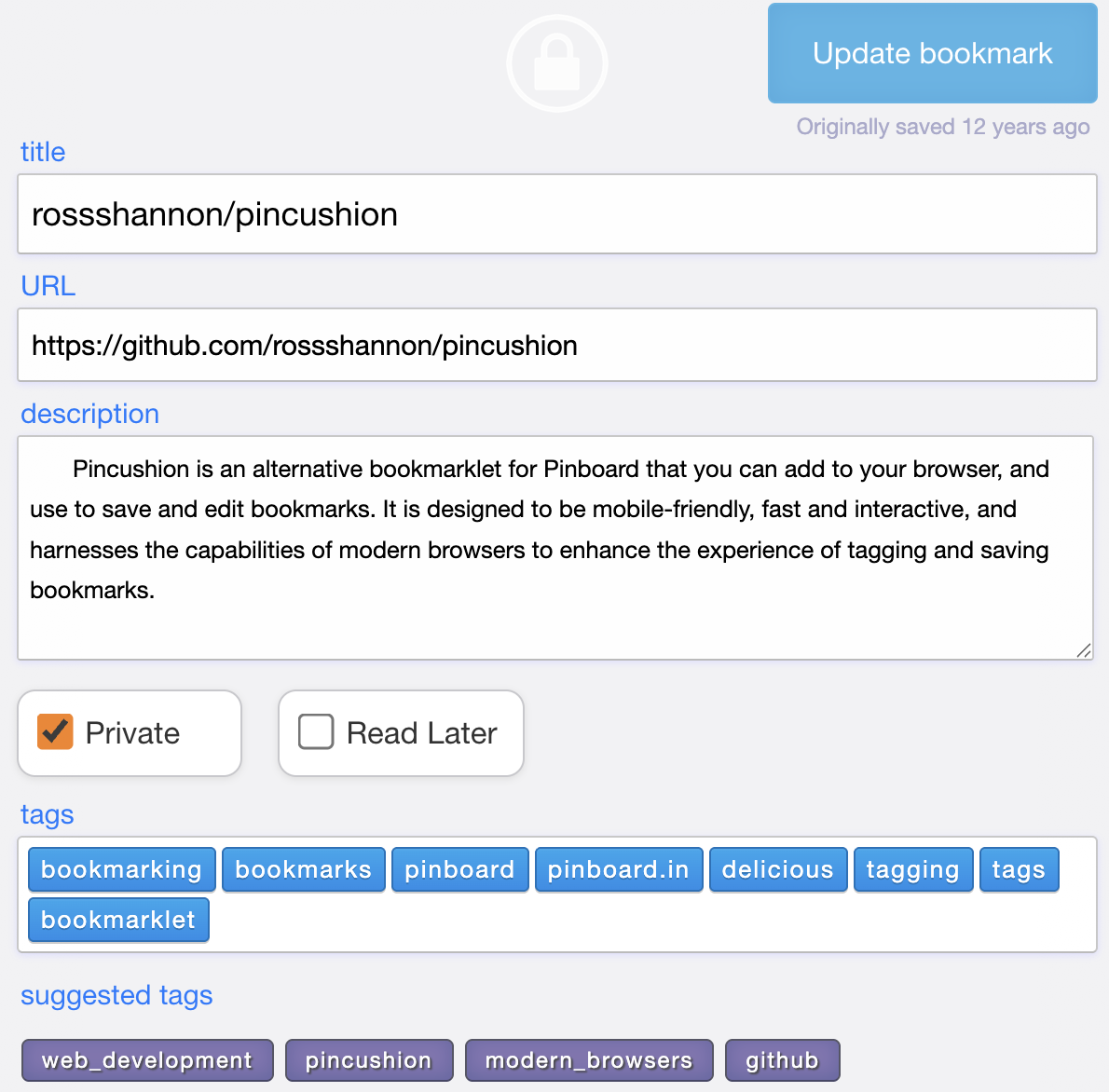
Pincushion is an alternative bookmarklet for Pinboard that you can add to your browser, and use to save and edit bookmarks. It is designed to be mobile-friendly, fast and interactive, and harnesses the capabilities of modern browsers to enhance the experience of tagging and saving bookmarks.
Features
- Smartphone & tablet-optimised Pincushion adapts to the size of your mobile device’s screen, to make reading and editing the form easier, without requiring you to zoom in before you begin. Form elements respond to you as quickly as they would in native mobile apps.
- Interactive The form is enhanced with animation to guide interaction, and more clearly explain what is happening while you edit and save your bookmarks.
- Easily add tags Pincushion uses as intelligent autocomplete widget that shows the tags you’ve previously used, along with the number of times you’ve used them. The autocomplete even lets you search within your tags without having to type the exact letters that a tag begins with.
- Search across all of your tags The first time you use Pincushion, it downloads a local copy of all of your tags into your browser’s “LocalStorage”, which allows you to store about 2.5MB of data and preferences for each site you use regularly. This means that from then on, the autocomplete widget can search across your entire collection. The autocomplete can use each tag’s score to be smarter about which tags to suggest to you as you are typing. (Tag autocomplete has been tested on a data set of over 12,500 tags, which totalled 184KB when downloaded.)
- AI-based tag suggestions When bookmarking a new page, the form will suggest tags based on your previous usage, other Pinboard members tags for that same page, as well as optionally using AI to propose relevant tags.
Installing the Bookmarklet
To use the bookmarklet, you will need to have an account on http://pinboard.in and an API token. Your API token is a way to grant applications or websites the ability to send bookmarks to your Pinboard account, without having to give them your password.
When logged in, visit your password settings page to locate your API token — it will be in the form
username:462E2B102D4CCDE36662
The part after the colon is the API token (462E2B102D4CCDE36662 in this example).
To add the bookmarklet to your browser, simply add a new bookmark, give it any name you want, and use the following text as the URL:
javascript:(function(){var d=document,B=6000,q=function(v){v=String(v);try{return encodeURIComponent(v.toWellFormed?v.toWellFormed():v)}catch(e){return ''}},c=function(v,n){var a=Array.from(v);return a.length>n?a.slice(0,n-1).join('')+'…':v},m=function(s,a){var e=d.querySelector(s),v=e&&e.getAttribute(a||'content')?(a?e[a]:e.getAttribute('content')):'';return String(v).trim()},h=function(v){try{v=v?new URL(v,d.baseURI).href:''}catch(e){v=''}return /^https?:/i.test(v)&&v.length<1024?v:''},u='https://rossshannon.github.io/pincushion/?url='+q(location.href),a=function(k,v,L){v=String(v||'');var n=Array.from(v).length,e=q(v),t=/title|description|site_name/.test(k);while(t&&e&&u.length+k.length+e.length+2>L&&n>1){n=Math.floor(n*.8);v=c(v,n);e=q(v)}if(e&&u.length+k.length+e.length+2<=L)u+='&'+k+'='+e},x={meta_title:c(m('meta[name="twitter:title"]')||m('meta[property="og:title"]'),300),meta_description:c(m('meta[name="twitter:description"]')||m('meta[property="og:description"]')||m('meta[name="description"]'),300),meta_image:h(m('meta[name="twitter:image"]'))||h(m('meta[property="og:image"]')),meta_site_name:m('meta[property="og:site_name"]'),meta_site_handle:m('meta[name="twitter:site"]'),meta_card:m('meta[name="twitter:card"]'),meta_theme_color:m('meta[name="theme-color"]'),meta_favicon:h(m('link[rel="apple-touch-icon"]','href'))||h(m('link[rel~="icon"]','href'))},k;if(u.length>B){alert('This page’s address is too long for Pincushion.');return}a('title',c(d.title,255),B);a('meta_image',x.meta_image,B);a('meta_favicon',x.meta_favicon,B);a('description',window.getSelection?window.getSelection():d.getSelection?d.getSelection():d.selection.createRange().text,(B+u.length)/2);for(k in x)if(!/image|favicon/.test(k))a(k,x[k],B);open(u,'Pinboard','toolbar=yes,width=600,height=700,left=50,top=50')})();
As well as the page's address, title and any text you've selected, the bookmarklet passes along the page's own preview details (its Open Graph or Twitter Card title, description, image, site name and icon), so the preview card appears the moment the popup opens. The bridge still fetches the page to fill in anything that's missing. Older versions of the bookmarklet keep working; their preview just waits for the bridge. To keep the popup's address short enough for GitHub Pages, the bookmarklet keeps the whole URL under 6,000 characters, sending the preview image and icon links first, then trimming the selected text (to at most half the room left) and then the preview details' text if a page has a lot to say. Links that don't fit are left out rather than cut, and the bridge fills in anything missing. A page whose own address is longer than that gets an alert instead, since Pinboard couldn't save it either.
Because these details travel in the link, anyone who sends you a Pincushion link can choose what its preview card shows, including an image that your browser then loads from their server, which tells that server your IP address. That was already possible before, by linking to a page they control, since the bridge's preview of that page shows its image. Pincushion sends no referrer with preview images.
Often the easiest way to do this is to bookmark the page you’re currently reading, and then edit this bookmark and replace the URL with the above code. Click the bookmarklet in your browser’s bookmarks bar and it will open the Pincushion interface. The first time you run, you’ll be prompted to enter your Pinboard credentials and optionally an OpenAI API token for AI-powered tag suggestions.

You can also pre-check the “private” and “to read” checkboxes by passing these properties with the value true:
javascript:(function(){var d=document,B=6000,q=function(v){v=String(v);try{return encodeURIComponent(v.toWellFormed?v.toWellFormed():v)}catch(e){return ''}},c=function(v,n){var a=Array.from(v);return a.length>n?a.slice(0,n-1).join('')+'…':v},m=function(s,a){var e=d.querySelector(s),v=e&&e.getAttribute(a||'content')?(a?e[a]:e.getAttribute('content')):'';return String(v).trim()},h=function(v){try{v=v?new URL(v,d.baseURI).href:''}catch(e){v=''}return /^https?:/i.test(v)&&v.length<1024?v:''},u='https://rossshannon.github.io/pincushion/?url='+q(location.href)+'&private=true&toread=true',a=function(k,v,L){v=String(v||'');var n=Array.from(v).length,e=q(v),t=/title|description|site_name/.test(k);while(t&&e&&u.length+k.length+e.length+2>L&&n>1){n=Math.floor(n*.8);v=c(v,n);e=q(v)}if(e&&u.length+k.length+e.length+2<=L)u+='&'+k+'='+e},x={meta_title:c(m('meta[name="twitter:title"]')||m('meta[property="og:title"]'),300),meta_description:c(m('meta[name="twitter:description"]')||m('meta[property="og:description"]')||m('meta[name="description"]'),300),meta_image:h(m('meta[name="twitter:image"]'))||h(m('meta[property="og:image"]')),meta_site_name:m('meta[property="og:site_name"]'),meta_site_handle:m('meta[name="twitter:site"]'),meta_card:m('meta[name="twitter:card"]'),meta_theme_color:m('meta[name="theme-color"]'),meta_favicon:h(m('link[rel="apple-touch-icon"]','href'))||h(m('link[rel~="icon"]','href'))},k;if(u.length>B){alert('This page’s address is too long for Pincushion.');return}a('title',c(d.title,255),B);a('meta_image',x.meta_image,B);a('meta_favicon',x.meta_favicon,B);a('description',window.getSelection?window.getSelection():d.getSelection?d.getSelection():d.selection.createRange().text,(B+u.length)/2);for(k in x)if(!/image|favicon/.test(k))a(k,x[k],B);open(u,'Pinboard','toolbar=yes,width=600,height=700,left=50,top=50')})();
Configuring Credentials
When the popup opens you’ll now see a gear button in the footer. Click it to open the Settings page, where you can enter your Pinboard username, Pinboard API token, and (optionally) an OpenAI API token for GPT-powered tag suggestions. These values are stored locally via localStorage in your browser’s secure storage, keeping your credentials out of browser history and referrers. You can update or remove the tokens at any time from the same Settings view.
Browser Support
Pincushion is designed for modern browsers like Chrome, Safari, Comet, Atlas, Edge, Firefox, and mobile varieties of Safari and Chrome.
Running Locally
- Clone the repository to your computer.
git clone https://github.com/rossshannon/pincushion.git - Switch into the new directory and run
yarn installornpm install - Run
npm startto start the development server. A web server will be booted to run Pincushion on localhost port 5173 (http://localhost:5173). - To use a local pinboard-bridge instead of the hosted one, create a
.env.localfile containingVITE_PINBOARD_BRIDGE_URL=http://localhost:1337.
Changelog
2.4 (2026-10-12)
- The page preview no longer waits for Pinboard's tag suggestions. They used to come back together in one bridge call, and Pinboard's
posts/suggesttakes about 15 seconds for a URL it hasn't seen, so the preview often spun for just as long. The preview now comes from the bridge's/previewroute and suggestions from/v1/posts/suggest, each with its own spinner. - Suggestions go out once the bookmark lookup has settled, so the lookup that gates the Save button is always first in the queue under Pinboard's one-call-per-three-seconds rule.
- The bookmarklet now sends the page's own preview metadata, so the card can render instantly; reinstall it from the instructions above to get this. The bridge's result fills in whatever the page didn't say.
- The bookmarklet reads the page's tags in the same order as the bridge (Twitter tags before Open Graph), so the two agree on what the card says.
- The bookmarklet keeps its popup URL under 6,000 characters, so a long selection or a page with long non-Latin metadata can't push it past GitHub Pages' limit.
- The bookmarklet's preview card shows even before credentials are saved.
- Pinboard's suggestions are read whether they arrive as Pinboard's documented array of objects or as a plain object.
- Pairs with pinboard-bridge 2.3.0, which adds
/previewand spaces Pinboard calls per user.
2.3.1 (2026-10-08)
- Load the Google Fonts stylesheet without
crossorigin, so it actually reuses the preconnected connection. - Drop the
http-equiv="cache-control"meta tag, which browsers ignore. - Keep previous builds' hashed assets on the Pages branch, so a browser holding a ten-minute-old
index.htmlafter a deploy still gets a working popup.
2.3 (2026-10-07)
- Make the popup faster to open and more honest while it waits:
- Look up the bookmarklet's URL the instant the popup opens instead of after the half-second typing debounce.
- Stop re-downloading the full tag list on every open (and again ten seconds later). The cached copy is trusted for an hour, refreshed in the background only after the bookmark lookup and suggestions have settled, and patched locally with the tags of each bookmark you save.
- Start the AI tag suggestions as soon as the existing-bookmark lookup finishes, rather than also waiting for Pinboard's suggestions and the page-preview scrape.
- Add request timeouts with plain-language messages, so a stalled bridge no longer leaves the Save button disabled for half a minute.
- Preconnect to the API bridge and ping it from the HTML head, before the JavaScript bundle has even loaded, to warm the connection and wake a sleeping dyno.
- Load the web font asynchronously (and only the one weight that is used) so it never blocks first paint.
- Fix: saving Settings no longer resets the form to the bookmarklet's original values.
- The bridge URL is configurable via
VITE_PINBOARD_BRIDGE_URL(see.env), handy for pointing a dev build at a localpinboard-bridge. - Pairs with pinboard-bridge 2.1.0, which gzips responses, caches CORS preflights, and stops counting them against the rate limit.
2.2 (2025-11-14)
- Add dark mode.
2.1 (2025-11-14)
- Add a settings page to configure the credentials securely in the browser rather than in the bookmarklet URL.
2.0 (2025-11-12)
- Fully refactor the codebase to use React, Redux, and TypeScript.
- Many usability and performance improvements.
1.6 (2023-10-18)
- Add optional AI-based tag suggestions using OpenAI APIs.
1.5 (2023-10-14)
- Detect URL fragments (hashes) in URLs and give support to remove them if desired, so that canonical URLs are being bookmarked instead of sections of documents.
1.4 (2023-10-08)
- Revamp build process and dependencies. Improve how tag suggestions are handled.
1.3 (2021-06-14)
- Added options to set the “private” and “to read” options to true by default via the bookmarklet URL.
1.2 (2017-09-10)
- Switched to a self-hosted version of the Pinboard API bridge to avoid occasional downtime or slow requests.
- Updated development dependencies and added instructions for running locally.
1.1 (2016-01-3)
- Improve tag sorting so that tags that are used more frequently will be sorted higher in the autocomplete list.
- Allow autocomplete to match tags while ignoring punctuation (for example, typing “theo” will now match “the_onion”).
1.0 (2014-10-04)
- Local tag storage, autocomplete-based tag suggestions, Pinboard API integration, mobile compatibility, usability improvements and error-handling.
Project started (2014-04-04)
License
Copyright © 2014–2025 Ross Shannon.
Pincushion is open source software, licensed under the MIT License. Suggestions and pull requests are welcome.
Acknowledgements
Pincushion uses a number of excellent open source libraries.
- react-select for the tag autocomplete experience.
- Ladda for the submit buttons with integrated progress indicators.
- Pinboard-Bridge, a Node.js-based wrapper which allows use of the Pinboard API with Ajax methods, as the API does not natively support cross-origin resource sharing (CORS). An instance of pinboard-bridge is deployed for use on Heroku (https://pinboard-api.herokuapp.com/).