
A lightweight app for Google TV, Android TV and Fire TV, plus a Home Assistant integration, that turns a TV into an always-on Home Assistant display you can cast to. Made by Hustlesman.
Website: pleatview.hustlesman.com · Status: beta, see the roadmap for validation and store releases.
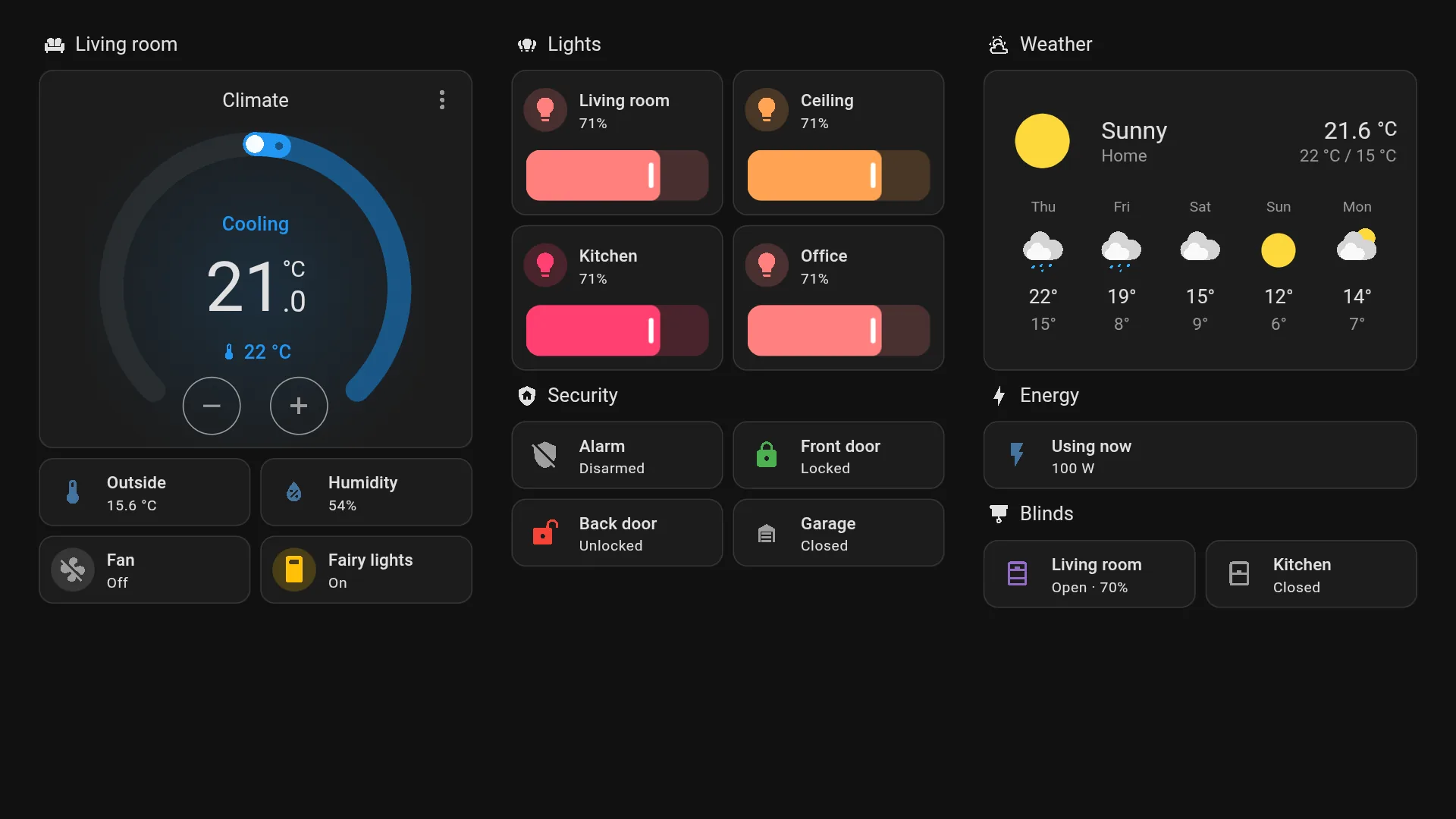
- Dashboards, continuously. Any Home Assistant dashboard full screen, signed in automatically, without the sidebar and header, kept running for days. It recovers from network loss, Home Assistant restarts and WebView crashes on its own.
- Casting from Home Assistant. The TV is a
media_player: play media from the media browser, camera streams, TTS announcements, internet radio, images and web pages. Video can play full screen or as picture-in-picture over the dashboard. - Notifications.
notify.send_messageshows a card on the TV, optionally with a camera snapshot or an animated picture, even over other apps when allowed. - Any web dashboard. Webpage dashboards (Grafana, UniFi, OpenSearch…) open directly, zoomed to fit. When one asks for a password, the TV shows a QR code: sign in on your phone, and the TV keeps the sign-in, encrypted, on the TV only.
- Small. The release APK is about 1.2 MB, with no Google Play services and no cloud. Everything stays on your LAN.
                 control: HTTP + Server-Sent Events (port 8765, paired with a PIN)
 Home Assistant ───────────────────────────────────────────────▶  PleatView on the TV
 + pleatview      ◀───────────────────────────────────────────────  ├─ dashboard WebView
   integration      dashboards & media: the TV loads them from HA   ├─ ExoPlayer (video/audio/cameras)
                                                                    └─ notifications, standby, menu
Install
Three steps, and no computer needed for the TV.
1. TV app
On the TV, install the free Downloader app (from Google Play on Google TV, or the
Amazon Appstore on Fire TV). Open it, enter pleatview.hustlesman.com/apk and
choose Install. Android asks once to allow installs from Downloader.
The link always serves the newest signed release from GitHub Releases. Google Play and Amazon Appstore listings are on the roadmap. Android 7.0 or newer; see Tested on for the devices.
Install with adb instead, and allow overlays
On Google TV, enable Settings → System → About → Android TV OS build (press 7 times), then Developer options → USB/Wireless debugging:
adb connect <tv-ip>:5555     # Google TV 12+: use "adb pair" from Wireless debugging first
adb install -r pleatview.apk
Recommended: allow PleatView to display over other apps. If your TV has the setting, use Allow display over other apps in PleatView's menu (press Back on the home dashboard). Most Google TV devices don't have it, so grant it with adb instead:
adb shell appops set com.hustlesman.pleatview SYSTEM_ALERT_WINDOW allow
This lets Home Assistant bring PleatView to the front (Android blocks background starts otherwise), show notifications over other apps, and open PleatView at boot.
2. Home Assistant integration

The button opens PleatView on your own Home Assistant: in the built-in Marketplace on
Home Assistant 2026.11 and later, in HACS on older versions. Install it, then restart
Home Assistant. Until PleatView is in the Marketplace catalogue, the Marketplace asks you
to connect a GitHub account once before it adds PleatView from GitHub. Without either,
copy custom_components/pleatview into your config/custom_components/ folder.
Requires Home Assistant 2025.1 or newer.
3. Pair
Open PleatView on the TV; it shows a 6-digit PIN. Home Assistant discovers the TV under Settings → Devices & services: select Add and enter the PIN. A few seconds later the TV shows your default dashboard.
If the TV isn't discovered (for example, mDNS is blocked between VLANs), use this button and enter the address shown on the TV:

Pairing creates a dedicated, local-only Home Assistant user for the TV, so nobody types a password with the remote. Removing the integration deletes that user again. If the TV's app data is cleared, Home Assistant asks for the new PIN and restores everything.
Other sign-in options
Open the PleatView integration in Home Assistant and choose Reconfigure from its ⋮ menu. You can switch to a read-only user, a long-lived access token you created, or signing in on the TV with the remote.
Without the integration, open http://<tv-ip>:8765 on a phone, enter the PIN, and fill
in the Home Assistant URL and a long-lived access token. Dashboards work this way;
casting and notifications need the integration.
Tested on
Every release runs tools/e2e/run.py on a TV against a real Home Assistant: pairing,
dashboards, kiosk mode, notifications, video, cameras, Webpage dashboards, sign-ins,
standby, a Home Assistant restart and an update in place. Results from 29 October 2026:
| TV | Result |
|---|---|
| Google TV, Android TV 16 (emulator) | All 13 checks pass |
| Fire TV Stick 3rd gen, Fire OS 7.7 (Android 9) | All checks pass (the restart check is skipped on a shared Home Assistant). Animated pictures show their first frame before Android 10. Soak test running |
| Chromecast with Google TV (HD) | Testing from 30 October |
| Home Assistant | Result |
|---|---|
| 2026.11 beta, 2026.11 nightly | 13 of 13 |
| 2026.10 (current release) | 13 of 13 |
| 2025.1 (oldest supported) | 13 of 13 |
Using it from Home Assistant
You get media_player.<tv> and notify.<tv>. The media player is off while PleatView
is in the background or in standby, idle while showing a dashboard, and
playing/paused while showing media. Its sources are your dashboards.
Webpage dashboards (Grafana, OpenSearch, Kibana, UniFi…) work too: add one in Home Assistant (Settings → Dashboards → Add dashboard → Webpage) and it becomes a source. The TV opens the site itself rather than inside Home Assistant's frame, so sites that refuse frames or need their own sign-in cookie still load, and the zoom applies to them as well.
Sites that ask for a sign-in. When a dashboard shows a login form or a password
prompt, the TV says "Sign in to dashboard name" with a QR code. Scan it, sign in on your
phone (your password manager works there), and the TV takes it from there. It saves the
sign-in once the site accepts it, encrypted with the TV's keystore and only ever offered to
that site, so it signs in again by itself after a restart or an expired session. Sign-ins
stay on the TV; Home Assistant only sees sign_in_needed on the media player, for
automations. Forget them in the TV's menu, on the phone page, or with
pleatview.forget_sign_ins. Where a site offers read-only links that need no sign-in, such
as Grafana's public dashboards, those are the sturdiest choice for a wall display.
| To… | Use |
|---|---|
| Switch dashboards | media_player.select_source, pleatview.show_dashboard (optional duration to return home), or the Dashboards folder in the media browser |
| Cast media | Media panel → choose the TV, or media_player.play_media. Animated GIFs play as images; extra: {loop: true} repeats a video |
| Show a camera | pleatview.show_camera: live HLS stream, MJPEG fallback, picture-in-picture by default |
| Speak | tts.speak with the TV as media_player_entity_id: plays over whatever is on, ducking it |
| Notify | notify.send_message, or pleatview.notify for image, camera snapshot, position and duration (animated GIFs move on Android 10 and later) |
| Open a web page | pleatview.show_url (full screen or picture-in-picture) |
| Blank the screen | media_player.turn_off / turn_on (lets the TV's own sleep timer take over) |
| Reset | pleatview.home (stop media, close overlays, go home), pleatview.reload |
| Forget saved sign-ins | pleatview.forget_sign_ins (optional site) |
media_player.play_media accepts extra keys: mode (fullscreen, pip,
background), position, size (picture-in-picture width in %), duration, title,
artist, image_url, loop, volume, start_position. Use content type dashboard
with a path, or web with a URL, to switch dashboards or open pages.
Examples
Doorbell pop-up over whatever the dashboard shows:
automation:
  - alias: Doorbell on the TV
    triggers:
      - trigger: state
        entity_id: binary_sensor.doorbell
        to: "on"
    actions:
      - action: pleatview.show_camera
        target:
          entity_id: media_player.living_room_tv
        data:
          camera: camera.front_door
          position: bottom-right
          size: 35
          duration: 60
      - action: pleatview.notify
        target:
          entity_id: media_player.living_room_tv
        data:
          title: Front door
          message: Someone is at the door
          camera: camera.front_door
Show the energy dashboard for five minutes, then return home:
action: pleatview.show_dashboard
target:
  entity_id: media_player.living_room_tv
data:
  path: /energy
  duration: 300
Loop a video in a corner:
action: media_player.play_media
target:
  entity_id: media_player.living_room_tv
data:
  media_content_type: video
  media_content_id: media-source://media_source/local/aquarium.mp4
  extra:
    mode: pip
    position: top-right
    size: 30
    loop: true
PleatView also opens pleatview://home, pleatview://reload and
pleatview://dashboard/<path> links, so anything that can launch Android app links can
start it on a specific dashboard. That should include Home Assistant's Android TV
Remote integration (untested).
Settings
Set these in the integration's Configure dialog. Home Assistant pushes them to the TV.
| Option | Default | |
|---|---|---|
| Home Assistant URL | internal URL | What the TV uses to load dashboards |
| Home dashboard | first dashboard / HA default | Path such as /lovelace/0 |
| Dashboards | all dashboards | Title = /path per line. Sources, rotation, the TV menu and channel up/down |
| Kiosk mode | hide sidebar and header | Or hide only the sidebar, or off |
| Zoom | 100 % | Lower values fit more on a TV (75 % gives a 1280 px wide layout on 1080p). Applies to Webpage dashboards too |
| Rotate dashboards | off | Cycle the list while nobody uses the remote |
| Return home after idle | off | After someone browses with the remote |
| Reload every | off | Full page reload, a safety net for very long uptimes |
| Keep the screen on | on | Prevents the screensaver / ambient mode while a dashboard shows |
| Open when the TV starts | on | Needs the overlay permission |
Remote control
- Back closes, in order: the menu, media, overlays, Home Assistant dialogs and in-page navigation. It then returns to the home dashboard, and on the home dashboard it opens the menu (address, PIN, dashboards, reload, exit).
- Channel up/down (or page up/down) switches between configured dashboards.
- Play/pause, stop, fast-forward, rewind control media while it plays.
- Any key wakes the screen from standby.
Staying up 24/7
PleatView keeps the screen awake while a dashboard is visible, and handles failures itself:
- Home Assistant unreachable: shows a status banner and retries with back-off (also as soon as the network returns).
- WebView renderer crash: recreates the WebView and reloads; the app keeps running.
- Frozen page (no heartbeat for 2 minutes) or frontend disconnected for 5 minutes: reloads.
- Home Assistant restarts: the frontend reconnects, and so does the integration.
- Media ends: returns to the dashboard; live streams that fall behind rejoin the edge.
The TV's own power settings (sleep timer, HDMI-CEC) still apply. Set them to never sleep for a permanent display.
Security
- The control API listens on port 8765 on your LAN. Only clients that know the PIN shown on the TV can pair. After 5 wrong PINs, pairing locks for a minute and the PIN changes. The TV stores only hashes of the issued tokens.
- Traffic between Home Assistant and the TV is plain HTTP on your LAN, like most local integrations. The token handed to the TV belongs to a dedicated local-only user (unusable from outside your network). Make that user read-only if the TV shouldn't control devices.
- The API never returns the token. It is excluded from Android backups and device
transfers, and is only exposed to pages from your Home Assistant address. Web pages
opened with
show_urlnever see it.
Development
android/                    Kotlin app (no Compose, no AppCompat; WebView + Media3 ExoPlayer)
custom_components/pleatview Home Assistant integration (no extra requirements)
docs/protocol.md            The HTTP/SSE API between the two
tests/                      Integration tests with a fake TV that speaks the real protocol
tools/                      Docker-based build, test and end-to-end scripts
tools/build-apk.sh                    # app unit tests + debug APK
tools/build-apk.sh lintDebug          # any Gradle tasks
tools/test-integration.sh             # integration tests on the pinned Home Assistant
tools/e2e/run.py                      # end to end: Android TV emulator + real Home Assistant
tools/e2e/run.py --ha-version 2025.1.4   # ...against another Home Assistant version
tools/e2e/run.py --ha-url http://192.168.1.20:8123 --ha-token-file token.txt
                                      # ...against your own (admin token; the entry is removed afterwards)
tools/e2e/run.py --device 192.168.1.30 --ha-url http://192.168.1.20:8123 --ha-token-file token.txt
                                      # ...on a real TV instead of the emulator
The end-to-end test needs KVM and pairs the app with a throwaway Home Assistant that
listens only on 127.0.0.1. It saves screenshots, logs and a summary with the versions
tested to tools/e2e/out/. With --device it runs the same checks on a real TV over the
network: turn on ADB debugging (Fire TV) or USB debugging (Google TV) in the TV's
developer options, and allow this computer when the TV asks. The manual
checks for real devices are in docs/test-plan.md, and
docs/stores/google-play.md has the values for the Play Console.
The scripts only need Docker. In Android Studio, open android/ (AGP 9.4, compileSdk 37,
JDK 17+). The debug build enables WebView debugging, so chrome://inspect works.
Releases
tools/bump-version.sh 1.1.0   # app versionName/versionCode and integration version
# merge, then tag the merge commit:
git tag v1.1.0 && git push origin v1.1.0
The tag runs .github/workflows/release.yml. It signs the APK and app bundle with the
release key from the repository secrets and publishes pleatview.apk, the integration
zip and checksums. Keep the key safe: Android only updates an installed app signed with
the same key. For a signed local build, set PLEATVIEW_KEYSTORE (a path anywhere on
disk), PLEATVIEW_KEYSTORE_PASSWORD, PLEATVIEW_KEY_ALIAS and PLEATVIEW_KEY_PASSWORD
before running tools/build-apk.sh assembleRelease. Without them, release builds fall
back to the local debug key.
Limitations
- Android-based TVs only (Google TV, Android TV, Fire TV). LG webOS and Samsung Tizen would need a separate web client.
- Without the overlay permission, Home Assistant can't bring PleatView to the front, and notifications only show while PleatView is open.
turn_oncan't reliably wake a TV that is fully asleep. Wake the panel with HDMI-CEC or the Android TV Remote integration first.- Picture-in-picture video shows only inside PleatView, not over other apps.
- Kiosk mode styles Home Assistant's frontend from the outside, so frontend releases can break it. It covers the 2026 layout and the older Material drawer.
- Self-signed HTTPS certificates are rejected. Use the internal
http://URL or a trusted certificate.
Support
Help, common questions and contact details are on the support page. Report security problems privately as described in SECURITY.md.
PleatView is free and open source, and every feature stays free for everyone. If it's useful to you, you can chip in towards test devices and app-store fees (payments go through Stripe and appear as Hustlesman). Bug reports and ideas help just as much.
License
MIT. PleatView is not affiliated with Home Assistant, Nabu Casa, Google, Amazon, LG or Samsung; their names are used only to describe compatibility.