

QGN
Instant screenshot capture and screen recording for Windows.
One hotkey. Clipboard-first. No cloud, no account, no subscription.
Website · Download · Website Source


What is QGN?
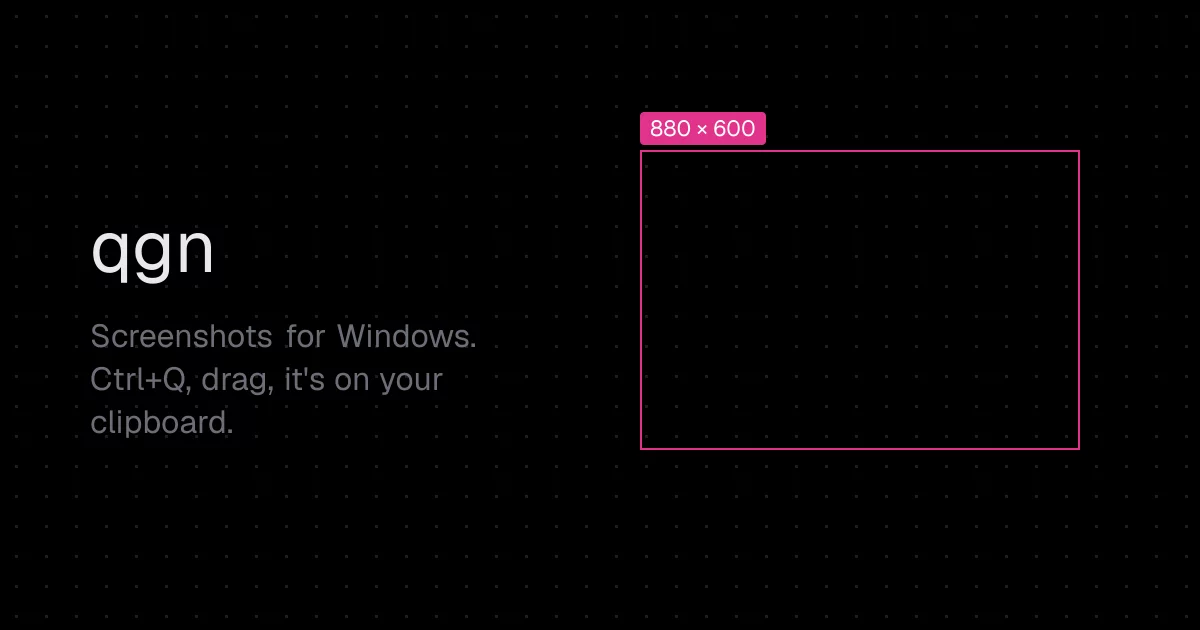
QGN (Quick Gen) is a lightweight, open-source desktop screenshot tool for Windows. Press Ctrl+Q, select a region, and your screenshot is instantly on your clipboard. No sign-ups, no cloud uploads, no monthly fees: just fast screen capture that stays out of your way.
Website: qgn.app
Features
Capture
- Instant hotkey capture:
Ctrl+Qactivates a fullscreen overlay with crosshair cursor - Instant by default: Release the mouse and the capture is done. Hold
Altas you release to settle the selection for adjustment instead: drag the edges, corners or the middle, nudge with the arrow keys, then confirm withEnter, a double-click, or the button. A setting makes adjusting the default (whereAltthen means capture instantly). - Capture a whole window: Hover a window and it's outlined and named; click to capture exactly it. Edges also snap to nearby windows as you drag (hold
Ctrlto ignore them) - Pixel loupe: A magnifier follows the cursor with a live coordinate and colour readout
- Full-screen capture: Press
Spaceon the overlay (or use the tray menu) to grab the whole display, in both capture and record modes - Real-time dimension display: See pixel width and height as you drag, and
Shiftto constrain to a square - Multi-monitor support: Works across all connected displays seamlessly
- Clipboard-first: Every capture is on your clipboard before the overlay closes
- Multiple formats: Copy as PNG (default), JPG, WebP, or base64 Data URI (with adjustable JPG/WebP quality)
Screen Recording
- Region recording:
Ctrl+Shift+Qto record any screen region - Microphone input: Toggle mic and pick your audio device
- Pause & resume: Pause mid-recording and pick up where you left off
- Optional countdown: A 3-2-1 pre-roll before recording starts (configurable)
- Format options: Export as MP4 or WebM
- Visual indicator: Pulsing red border shows what's being recorded
Floating Previews
- Recent captures: The last twelve captures stay in the tray menu, so a card that timed out is not gone. Switchable off (which also forgets what's stored).
- Always-on-top cards: Captures appear as draggable, resizable preview windows
- Drag out to any app: Drag the thumbnail straight into Slack, email, or an editor
- Copy again: Re-copy a capture to the clipboard with one click
- Pin and stack: Pin previews to keep them between sessions
- Persistent pins: Pinned cards survive app restarts and reboots
- Auto-dismiss: Unpinned previews fade after a configurable timer (5s/10s/20s/Never)
Studio
One editor for screenshots and recordings, in two modes. Markup works on the pixels themselves and saves back over the original. Compose frames the capture on a background and saves a new file. Every annotation tool is available in both, and on clips as well as stills.
Annotation tools
- Drawing: freehand drawing, arrows, and shapes (rectangle, ellipse, diamond, line)
- Text: add text labels anywhere, in three sizes; double-click one to re-edit it
- Numbered callouts: auto-incrementing numbered markers
- Redaction: solid block (default, unrecoverable) or pixelate, for hiding sensitive information
- Editable after placing: pick the pointer (V), click a mark to select it, then move it, resize it by its handles, recolour it, or delete it with
Del - Crop: adjust a rect until it's right, then apply it (and undo it later)
- Cursor stamp: drop a mouse pointer anywhere (captures are cursor-free, so you place it deliberately)
- Six colors, and every tool on a single-key shortcut (V, D, A, S, T, X, C, P, R)
- Zoom and pan:
Ctrl+wheel to zoom about the cursor, wheel or middle-drag to pan,Ctrl+0to fit - Undo and redo:
Ctrl+Z/Ctrl+Yacross annotations and crops alike
Composition
- Backgrounds: gradients, wallpapers, solid colors, or your own image
- Saved palettes: keep custom gradients and colors for reuse
- Frames: none, a plain window, or browser chrome with an address bar
- Layout: padding, corner rounding, shadow depth, and a fixed aspect ratio
Recordings
- Trim: set in and out points on the timeline
- Zoom keyframes: auto-generated from your clicks, or placed by hand with easing and a focus point
- Synthetic cursor: an optional styled pointer with click ripples
- Export: MP4, WebM, GIF, or animated WebP, with an output size estimate. MP4 and WebM encode faster than real time (WebCodecs), with a real-time fallback if the system can't.
System Integration
- System tray: Runs invisibly in the tray, no window to manage
- Annotate clipboard image: Open the editor on whatever image is on your clipboard
- Auto-save: Optionally save every capture to a folder with timestamps
- Single instance: Launching again triggers a capture instead of a second copy
- Customizable hotkeys: Rebind capture and recording shortcuts (with conflict detection and reset)
- Start with Windows: Optional startup with your system
- Auto-updates: Background update checks with one-click install
Tech Stack
| Component | Technology |
|---|---|
| Desktop shell | Electron |
| Image processing | Sharp |
| Video encoding | WebCodecs, muxed by mp4-muxer / webm-muxer |
| UI | Vanilla HTML/CSS/JS |
| Build system | electron-builder |
| Auto-updates | electron-updater |
| Distribution | GitHub Releases (NSIS installer) |
No framework overhead. Vanilla JavaScript throughout. The entire app is a single main.js file plus HTML views. The only third-party code in the renderer is the two vendored container writers in studio/vendor/.
Download
Grab the latest installer from the Releases page, or download directly:
Download QGN-Setup.exe (85 MB, Windows 10+)
macOS (beta)
Download QGN-mac-arm64.dmg (Apple Silicon)
The Mac build is new and not yet signed by Apple, so a few things differ from Windows:
- First open: macOS will block it. Open it once, then go to System Settings > Privacy & Security and click Open Anyway.
- Permissions: QGN asks for Screen Recording on the first capture (quit and reopen QGN after allowing it). Cursor effects in Studio also need Accessibility.
- Hotkeys:
Control+Qto capture andControl+Shift+Qto record, sinceCmd+Qquits apps on a Mac. - Updates: no auto-update. QGN tells you when a new version is out and links to the download. Because each build is signed ad hoc, macOS may ask for the permissions again after updating.
- Not on Mac yet: snap-to-window during selection, and recording system audio (the microphone works).
Development
Prerequisites
- Node.js v18+
- Windows (for building the installer)
Setup
git clone https://github.com/Mopra/qgn.app.git
cd qgn.app
npm install
npm start
Build
npm run build
Produces a Windows NSIS installer in the dist/ directory. On a Mac, npm run build:mac produces dist/QGN-mac-arm64.dmg.
Project Structure
qgn.app/
├── main.js                  # Main Electron process (windows, IPC, capture)
├── overlay.html             # Fullscreen capture overlay
├── preview.html             # Floating preview card
├── studio.html              # Studio: the editor shell (markup + compose, stills + clips)
├── studio/                  # Studio modules (scene, annotation, motion, video, sidebar)
│   └── vendor/              # The two vendored MP4/WebM muxers, and why they're here
├── settings.html            # Settings panel
├── record-control.html      # Recording control bar
├── welcome.html             # First-run welcome screen
├── *-preload.js             # IPC bridge scripts for each window
├── lib/                     # Pure main-process logic, unit tested on its own
│   └── window-rects.ps1     # Window-bounds helper for snap-to-window
├── assets/                  # Logos and images
├── icons/                   # App icons (tray, installer)
├── scripts/                 # Checks, tests, and icon generation
├── CHANGELOG.md             # Release notes, published to GitHub by CI
└── .github/workflows/       # CI/CD (release + version bump)
Tests
npm run check          # syntax, HTML inline scripts, lib unit tests, main-process boot
npm run smoke          # boots a hidden Studio window and drives it end to end
npm run smoke:overlay  # boots the capture overlay and drives a real selection
npm test               # all three
check needs no dependencies and no display, and runs on every push. The smoke
suites launch a real Electron window (hidden): smoke renders an actual clip,
animation and encoded export, and smoke:overlay drives the selection with
synthetic mouse and key events. Both need a desktop session, so run them locally
for anything touching Studio or the overlay.
Related Repositories
| Repository | Description |
|---|---|
| qgn.app | The desktop application (this repo) |
| qgn.app.website | Marketing website at qgn.app |
Contributing
Contributions are welcome! See CONTRIBUTING.md for guidelines.
License
MIT, free to use, modify, and distribute.