sshkeeper is a console manager for SSH profiles, secrets, and quick OpenSSH
launches. Linux and macOS are the primary release targets; Windows builds are
experimental. It does not replace OpenSSH; it keeps connection metadata in a local
SQLite database, keeps passwords/passphrases in an encrypted vault, and starts
the system ssh client with the right options.
sshkeeper is not Ansible
sshkeeper does not configure servers, push files, or manage infrastructure.
It is an SSH connection manager: it remembers how to reach your servers
(bastions, jump chains, port forwards) and launches the system ssh client.
Think of it as a smart ~/.ssh/config with a TUI, encrypted secrets, and
port forwarding management.
Features
- Bubble Tea TUI for daily interactive use: live fuzzy filter, sort by recent use or group, per-server test/tunnel/session indicators, and single-key shortcuts.
- CLI commands for scripting and quick edits.
- Encrypted vault for SSH passwords and key passphrases.
- Password and key-passphrase auth through a PTY prompt handler, without putting secrets in command-line arguments.
- Key, SSH-agent, password, and key+passphrase auth modes.
- Routes / ProxyJump — ordered bastion chains with stable references to sshkeeper profiles; profile renames do not break routes.
- Port forwarding — named local/remote/SOCKS forwards with type selector, validation, and OpenSSH preview.
- Tunnel management — start/stop/list background tunnels, PID tracking, runtime state.
- Session workspace — embedded SSH tabs stay alive while you switch between servers, tunnels, and the dashboard; PTY on Unix and ConPTY on Windows.
- Persistent tmux sessions — optional Unix-only sessions can outlive the sshkeeper process itself.
- Tunnel vs Forward — clear separation: forward = saved rule, tunnel = running SSH process.
- First-class groups, multi-select tags, command templates, search by metadata/routes/forward ports, and OpenSSH config generation.
- Import from
~/.ssh/configand simple tab-separated export. - Sync between devices — profiles, forwards, templates, vault secrets, and the private keys your profiles use, end-to-end encrypted through a shared folder or a git repository. A new device joins with a six-digit code.
Install
Build from source
git clone git@github.com:mirivlad/sshkeeper.git
cd sshkeeper
go build -o ~/.local/bin/sshkeeper .
Or use the build scripts:
./build.sh          # Build binary to bin/
./release.sh        # Build release archives to dist/
Requirements: Go 1.25+ and system OpenSSH. The embedded Session Workspace needs no external multiplexer. tmux is optional on Linux/macOS for sessions that should survive sshkeeper itself.
Platform status:
| Platform | Status | Notes |
|---|---|---|
| Linux | Primary release target | amd64/arm64 tarballs plus native .deb and .rpm packages. Embedded workspace sessions use a PTY; native packages recommend (but do not require) tmux for extra persistent sessions. |
| macOS | Primary release target | darwin/amd64 and darwin/arm64 release tarballs are available. Requires system ssh; embedded workspace sessions use a PTY. Optional tmux adds sessions that survive sshkeeper. |
| Windows | Experimental | Requires Windows 10 1809+ and OpenSSH Client as ssh.exe in PATH. Runs from Explorer or any console. The embedded Session Workspace uses ConPTY, including password/key-passphrase prompts. Optional persistent tmux sessions remain Unix-only. |
On Windows, install OpenSSH Client via Windows Optional Features or PowerShell:
Add-WindowsCapability -Online -Name OpenSSH.Client~~~~0.0.1.0
Source repositories:
- Primary public repository: github.com/mirivlad/sshkeeper
- Self-hosted mirror:
git@git.mirv.top:mirivlad/sshkeeper
Install from release
The packages below are v0.8.0. This release adds the embedded Session Workspace while retaining encrypted synchronization and the v0.6+ dashboard.
Debian/Ubuntu (amd64):
sudo apt install ./sshkeeper_0.8.0-1_amd64.deb
Fedora/RHEL-family (x86_64):
sudo dnf install ./sshkeeper-0.8.0-1.x86_64.rpm
arm64/aarch64 packages are published alongside the x86_64 builds. Native
packages own command resolution: when installing or upgrading they detect old
/usr/local/bin/sshkeeper and local-account ~/.local/bin/sshkeeper copies, preserve
each as *.legacy-backup, and redirect the old path to /usr/bin/sshkeeper.
Removing the package restores preserved legacy binaries.
Check the exact running binary and embedded version with:
command -v sshkeeper
sshkeeper --version
# or: sshkeeper version
The traditional tar.gz archive remains available too:
tar -xzf sshkeeper_v0.7.0_linux_amd64.tar.gz
sudo install -m 0755 sshkeeper_v0.7.0_linux_amd64/sshkeeper /usr/local/bin/sshkeeper
sshkeeper
First Run
Run the TUI or any command. On the first run, sshkeeper creates its config,
database, and vault, then asks for a master password.
sshkeeper
You can also initialize explicitly:
sshkeeper init
TUI
Running sshkeeper without arguments opens the TUI.
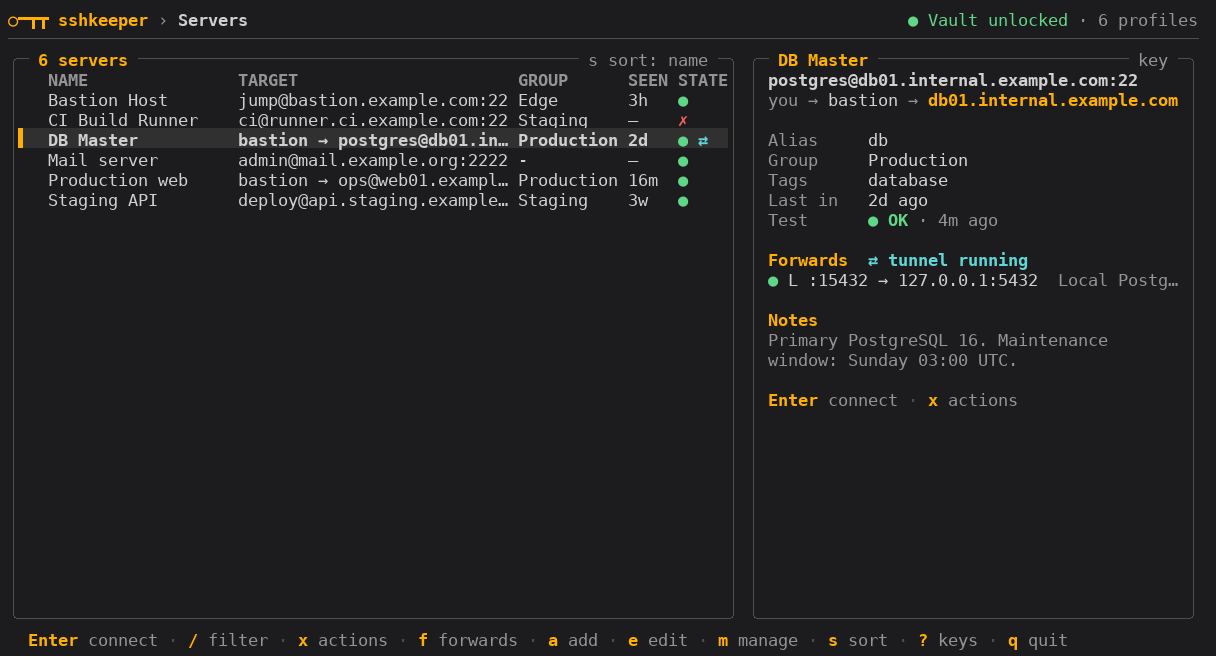
Main Window
○━┳┳ sshkeeper › Servers                                              ● Vault unlocked · 6 profiles
───────────────────────────────────────────────────────────────────────────────────────────────────
╭─ 6 servers ──────────────────────────────── s sort: name ─╮ ╭─ DB Master ───────────────── key ─╮
│   NAME          TARGET               GROUP      SEEN STATE│ │ postgres@db01.internal.example.c… │
│   Bastion Host  jump@bastion.exampl… Edge       3h   ●    │ │ you → bastion → db01.internal.ex… │
│   CI Build Run… ci@runner.ci.exampl… Staging    —    ✗    │ │                                   │
│▌  DB Master     bastion → postgres@… Production 2d   ● ⇄  │ │ Alias     db                      │
│   Mail server   admin@mail.example.… -          —    ●    │ │ Group     Production              │
│   Production w… bastion → ops@web01… Production 12m  ●    │ │ Tags      database                │
│   Staging API   deploy@api.staging.… Staging    3w   ●    │ │ Last in   2d ago                  │
│                                                           │ │ Test      ● OK · just now         │
│                                                           │ │                                   │
│                                                           │ │ Forwards  ⇄ tunnel running        │
│                                                           │ │ ● L :15432 → 127.0.0.1:5432  Loc… │
│                                                           │ │                                   │
╰───────────────────────────────────────────────────────────╯ ╰───────────────────────────────────╯
  Enter connect · / filter · x actions · f forwards · a add · e edit · m manage · s sort · ? keys
  q quit
The list shows each profile's name, target or bastion chain, group, time
since the last connection (SEEN), and a STATE column. The details panel adds
the route as a chain (you → bastion → host), tags, the last test and its
reason, saved forwards with their state, open tmux sessions, and notes.
| State | Meaning |
|---|---|
● / ✗ |
Last connection test passed / failed |
· / ◌ |
Not tested yet / test in progress |
⇄ |
A background tunnel for this server is running |
▣ |
An embedded or persistent SSH session is open |
Tunnels and sessions are re-read every 10 seconds, so tunnels started by another sshkeeper process show up too.
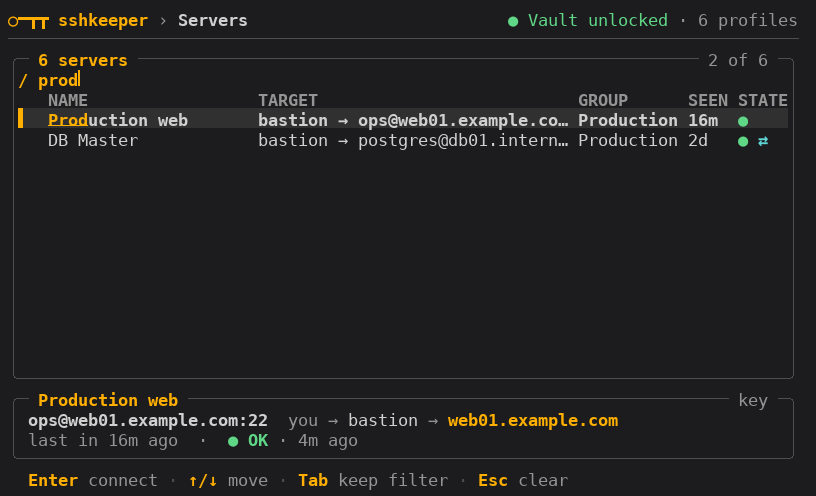
Live filter. Press / and type: the list narrows on every keystroke and
matched letters are highlighted. Name matches rank first, then alias, then
fuzzy name matches (bst finds Bastion), then any metadata — host, user,
group, tags, notes, route hops, and forward names or ports. Enter connects to
the highlighted server, Tab keeps the filter, Esc clears it.
Sort and groups. s cycles the order between name, most recent
connection, and group, and remembers it as ui.sort. In group order each
group gets a heading you can fold with Enter, Space, ←, or →.
Back after a session. When ssh exits cleanly, sshkeeper returns straight to
the dashboard with the cursor on the same server and a
← Back from <server> · 42m notice. A failed connection keeps ssh's output on
screen until you press Enter.
First run. With no profiles yet, a welcome screen offers i to import
hosts from ~/.ssh/config, a to add one by hand, and ? for every key.
Appearance. Colors adapt to light and dark terminals around a single amber
accent and switch off under NO_COLOR. For terminals or fonts without box
drawing, set glyphs = "ascii" under [ui] in ~/.config/sshkeeper/config.toml,
or export SSHKEEPER_ASCII=1.
Quick Help (?)
Press ? outside text editors for a compact hotkey reference. Inside forms and
search, ? remains normal text input.
Full Help (Ctrl+H)
Press Ctrl+H on any screen for full documentation including routes, port
forwarding, tunnels, and vault.
Ctrl+H is the BS control character (0x08). xterm and most modern emulators
send DEL (0x7F) for Backspace, so help and text editing never collide. A
terminal configured to send BS for Backspace cannot distinguish the two; switch
it to DEL (in xterm, backarrowKey: false).
Screenshots
| Wide dashboard | Live filter, 80x24 | Server form, 60x16 |
|---|---|---|
 |
 |
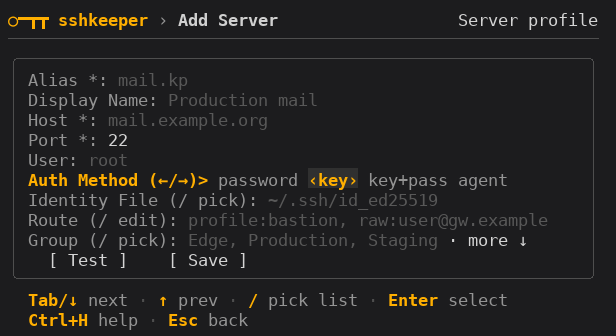 |
| Group order | Port forward form | Confirmation dialog |
|---|---|---|
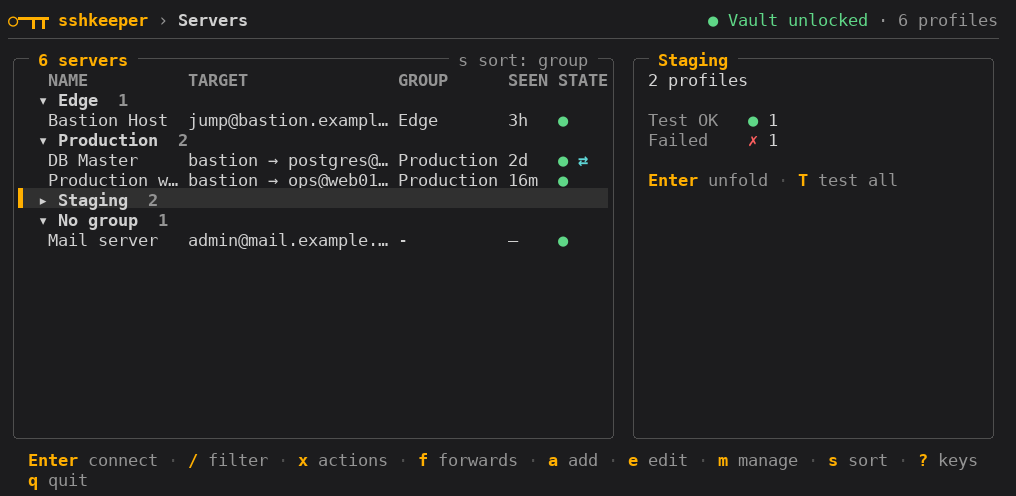 |
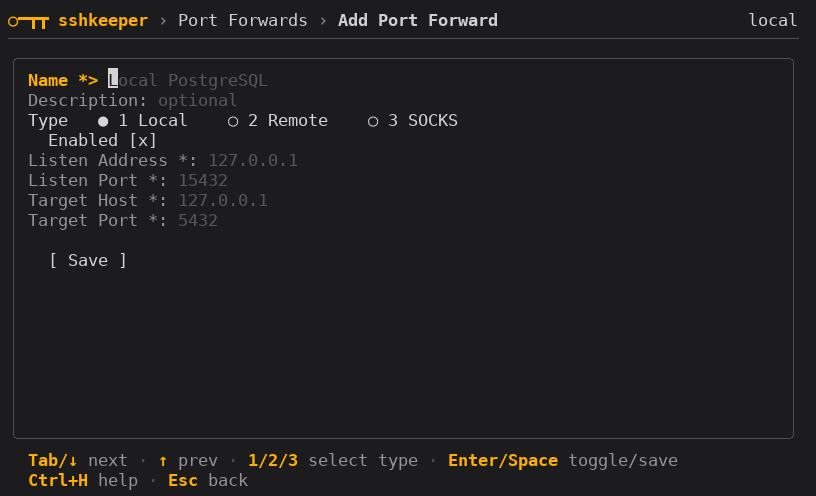 |
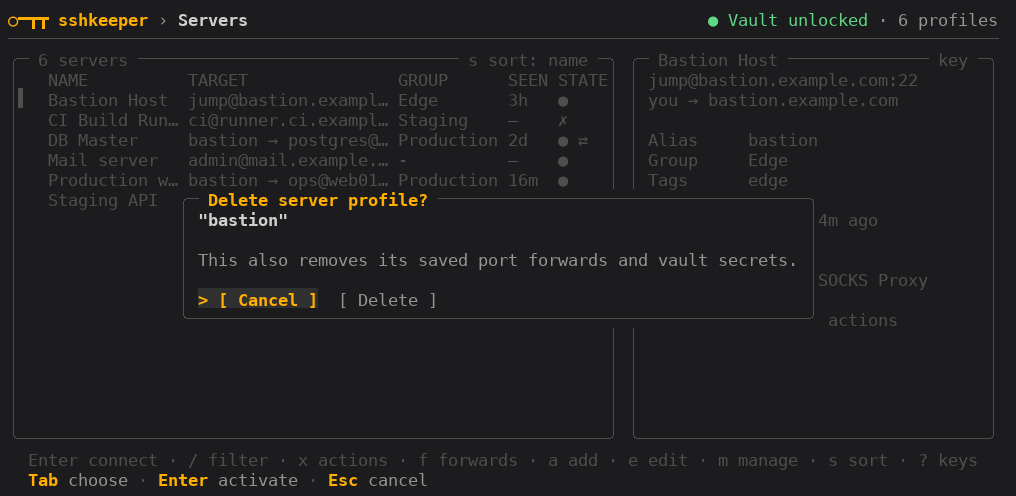 |
Key Reference
The server list has no text input, so the main actions are single letters.
The earlier Ctrl shortcuts keep working.
| Key | Action |
|---|---|
| Enter | Connect to selected server |
/ or Ctrl+F |
Live filter |
↑/↓, j/k, g/G |
Move, jump to first / last |
a / Ctrl+A |
Add server |
e / Ctrl+E |
Edit server |
d / Ctrl+D |
Delete server (with confirmation) |
t / Ctrl+T |
Test connection |
T |
Test every visible (or marked) server, six at a time |
x / Ctrl+X |
Server actions (connect, tunnels, forwards, route, test, edit, delete) |
f / Ctrl+W |
Manage port forwards for selected server |
r / Ctrl+R |
Run a command template |
s |
Sort by name / recent / group |
| ←/→ | Fold / unfold a group (group order) |
| Space / Ins | Mark / unmark a server |
i |
Import ~/.ssh/config (welcome screen only) |
m |
Manage groups, tags, command templates, running tunnels, settings (language, sync), import/export, and vault |
? |
Quick help (hotkeys) |
| Ctrl+H | Full documentation |
q / Ctrl+Q / Ctrl+C |
Quit |
Templates are global entities and can run on any server. Foreground template runs leave the TUI, show the SSH session in the terminal, and then return to the TUI. Background runs execute the command and show per-server output in a result screen.
In add/edit forms:
| Key | Action |
|---|---|
| Tab / Down | Next field |
| Shift+Tab / Up | Previous field |
| Left / Right on Auth | Cycle password / key / key+pass / agent |
/ on Auth, Identity File, Route, Group, Startup Command, or Tags |
Open the relevant picker/editor |
| Enter | Move to action / activate |
| Esc | Back |
Session Workspace
Normal Connect now opens SSH inside an sshkeeper workspace tab instead of
handing the whole console to one ssh.exe process. Sessions keep running while
you return to the server dashboard or switch to another SSH tab.
- SSHKeeper owns only the explicit tab shortcuts:
Alt+0opens Servers,Alt+1…Alt+9selects SSH tabs,Alt+Left/Alt+Rightcycles tabs, andAlt+Wcloses the active SSH tab and its session. - Mouse reporting is turned off while an SSH tab is active. Drag selection,
double-click word selection, and
Ctrl+Shift+Care handled by the enclosing terminal (e.g. XFCE Terminal), exactly as for a normal terminal window. Selection alone does not overwrite CLIPBOARD; copy happens only when you press the terminal's copy shortcut. X11/Wayland PRIMARY and middle-click follow the terminal's own behavior. No Shift-drag or SSHKeeper Copy button is required. Ctrl+Shift+V/Shift+Insert(when bound by your terminal) paste into the SSH tab using bracketed paste. Ctrl+C, Ctrl+PgUp/Ctrl+PgDn and unrelated Alt shortcuts are passed to the remote PTY.- The embedded emulator keeps remote output history.
PgUp/PgDnscroll that history on the normal shell screen when it exists; full-screen alternate-screen editors receive those keys themselves. Because SSHKeeper uses an alternate screen, the enclosing terminal's normal wheel-to-history behavior can vary between terminal emulators. For now use PgUp/PgDn to read older remote output. Switching off mouse reporting also means SSHKeeper cannot receive mouse clicks on its tab bar while an SSH tab is active: use the Alt tab shortcuts instead. - Remote applications that request mouse tracking (such as mouse-enabled vim) do not yet receive forwarded mouse reports through the embedded emulator. They remain fully usable with the keyboard; their mouse forwarding requires a separate terminal-mode bridge.
- A clean remote
exit(exit status 0) automatically closes its SSH tab. Unsuccessful connections keep their output and error visible until explicitly closed. - The embedded terminal renders the remote cursor position, so editors such as
nanoandvimhave a visible cursor. - On a wide dashboard,
Tabmoves focus to the selected profile's Actions panel. From there you can connect, Tunnel + Connect, start/stop the background tunnel, or open the full port-forward editor. - Mouse input is enabled for sshkeeper itself: wheel navigation, clickable server rows, right-panel actions, and workspace tabs work in terminals that expose mouse events, including native Windows consoles supported by Bubble Tea.
- Quitting sshkeeper with live workspace tabs asks for confirmation.
Workspace terminal emulation is provided by charmbracelet/x/vt. Unix uses a
PTY and Windows uses ConPTY, so programs such as shells, vim, htop, and
other full-screen terminal applications can remain alive while another
sshkeeper tab is selected.
Background tunnels are independent runtime objects. Tunnel + Connect starts the enabled forwards as a detached tunnel and then opens an SSH workspace tab. Returning to Servers lets you stop the tunnel without closing the SSH session. Stale tunnel records from dead processes are removed automatically.
Persistent sessions (optional tmux)
The older tmux-backed workflow remains available on Linux/macOS for a different use case: SSH sessions that should survive the sshkeeper process itself.
- Server Actions → Open persistent tmux session creates a tmux window.
- Manage → Persistent tmux sessions lists, attaches to, and closes those windows.
- If sshkeeper already runs inside tmux, it reuses that tmux session; otherwise
it uses the dedicated
sshkeepertmux workspace. - Password/key-passphrase sessions unlock the vault inside their tmux window; secrets are never placed in command-line arguments or environment variables.
tmux is optional. Native Windows uses the embedded ConPTY workspace; the
persistent tmux backend is available through the Linux build in WSL if desired.
Routes, Tunnels, and Port Forwards
Routes are stored as ordered hops. If a hop matches an existing sshkeeper profile,
sshkeeper stores a stable reference to that profile ID, not the mutable alias. The
connection planner resolves the profile's real host/user/port/key and writes a
temporary OpenSSH config for the session, so a sshkeeper bastion does not need
a matching Host entry in ~/.ssh/config.
Use profile:<alias> to require a profile reference and raw:<target> to require
a literal OpenSSH jump target. An unprefixed exact known alias is treated as a
profile; any other value remains a raw target.
In the TUI, / on Route opens the ordered route editor: Enter adds a profile,
x/Delete removes a hop, and [/] moves it.
Jump host (single bastion)
sshkeeper route set web --jumps bastion
sshkeeper route show web
# Route: bastion → web@10.0.0.10:22
# Mode: via
# ProxyJump: bastion
Jump chain (multiple hops)
sshkeeper route set prod --jumps bastion,dmz-gw
sshkeeper route show prod
# Route: bastion → dmz-gw → prod@10.0.0.20:22
# Mode: chain
# ProxyJump: bastion,dmz-gw
Port forwards
A port forward is a saved rule that describes how to tunnel traffic through SSH. It does not start any process — it is just configuration.
In the TUI, select a server, press Ctrl+X, then choose Port-forward rules
to create a saved rule. Ctrl+W is a shortcut to the same screen. After saving
and enabling a rule, press Ctrl+B there to start a background tunnel, or
Ctrl+X to choose a foreground or background mode. The result stays visible in
the TUI; use m → Running tunnels to check or stop the process.
# Local forward: access a remote service from your machine
sshkeeper forward add web --name "Local PostgreSQL" --type local --local-port 15432 --remote-addr 127.0.0.1 --remote-port 5432

# SOCKS proxy: route browser traffic through SSH server
sshkeeper forward add bastion --name "SOCKS Proxy" --type dynamic --local-port 1080

# Disable a saved forward
sshkeeper forward edit 1 --enabled=false

# List forwards for a server
sshkeeper forward list web
# [1] Local PostgreSQL  Local   127.0.0.1:15432  127.0.0.1:5432  yes
# [2] SOCKS Proxy       SOCKS  127.0.0.1:1080   SOCKS           yes
Forward types:
| Type | Description |
|---|---|
| Local | Port on your machine → service reachable from SSH server |
| Remote | Port on SSH server → service on your machine |
| SOCKS | Local dynamic SOCKS proxy through SSH |
Default listen address is 127.0.0.1 (localhost only). Use 0.0.0.0 with caution — the port will be accessible from the network.
Tunnels
A tunnel is a running SSH process that activates one or more port forwards.
# Connect with all enabled forwards active (interactive session)
sshkeeper tunnel web

# Start tunnels only (foreground, no shell)
sshkeeper tunnel web --forward-only

# Start tunnels in background (detached process)
sshkeeper tunnel web --background

# List running tunnels
sshkeeper tunnel list

# Stop a tunnel
sshkeeper tunnel stop <id>

# Stop every tracked tunnel
sshkeeper tunnel stop-all
All TUI tunnel actions and CLI --forward-only/--background require at least
one enabled forward. Background tunnels run detached with ssh -N and currently
support key or SSH-agent authentication only. Use foreground
sshkeeper tunnel <alias> or --forward-only for password and
key-passphrase authentication so the PTY prompt handler can provide the secret.
Stop the foreground no-shell mode with Ctrl+C to return to sshkeeper.
Connect vs Tunnel
| Action | Command | TUI | Description |
|---|---|---|---|
| Connect | `sshkeeper conne |