
tclint for Visual Studio Code
This VS Code extension provides advanced language support for Tcl and Tcl variants, particularly ones related to EDA (Electronic Design Automation) workflows.
Features
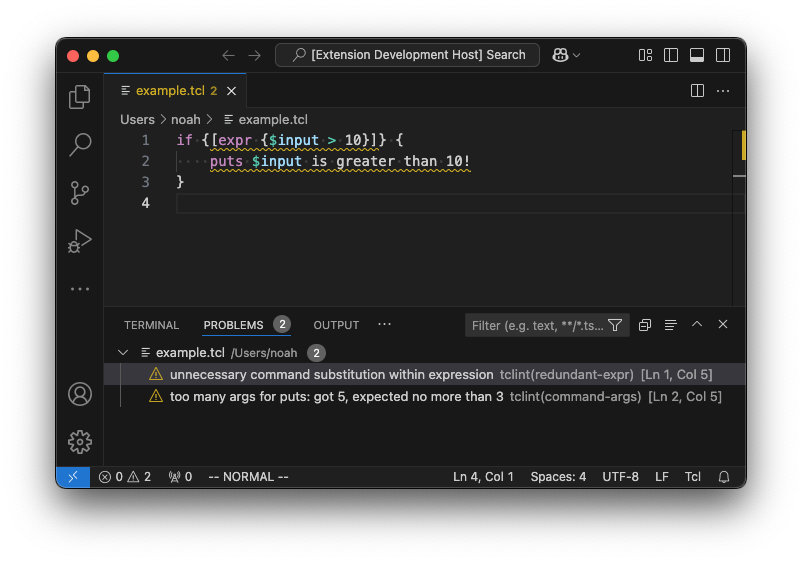
- Linting integrated as inline editor diagnostics
- Formatting
- Support for Tcl-based EDA formats such as SDC, XDC, and UPF
This extension's core functionality is provided by tclint. See the tclint
docs for more information about supported lints and the formatting
style. The current extension version (v0.1.5) bundles tclint v0.9.0.
Getting Started
To get started, install this extension on the VS Code Extension Marketplace. Note that
this extension depends on Microsoft's Python extension. This provides
configuration for the environment used to run tclint's Python-based language server.
Once the extension is installed, open a file with the extension .tcl, .sdc, .xdc,
or .upf. This will activate tclint editor support for the file. Any lint violations
will show up as editor diagnostics.
To format the file, run "Format Document" in VS Code's command palette. This may prompt
you to configure a default formatter for the language. Select nmoroze.tclint, and
tclint will be used as the default formatter from then on.
Configuration
tclint's linter and formatter automatically pull configuration from files named tclint.toml or .tclint within the workspace.
See the tclint configuration docs for supported options.
To explicitly supply a path to a configuration file instead, use the tclint.configPath
VS Code setting. A relative path supplied in workspace settings will be resolved from
the workspace root.
This extension also adds the following settings that are oriented towards development and advanced users. The default settings should work out-of-the-box for most users.
tclint.interpreter: Path to Python executable used to launch thetclintserver. By default, the extension will use the default interpreter configured by the Python extension.tclint.importStrategy: Defines whether the extension uses a bundled copy oftclint(default, recommended) or one that's installed separately in the user's Python environment.
Recommended Pairings
Note that this extension is meant to enhance basic extensions with advanced language support, so it does not provide basics like syntax highlighting. For Tcl syntax highlighting, we recommend Tcl by bitwisecook.
Support
To report a bug or request a new feature, please open an issue on Github.
For advanced support requests, you can reach the maintainer via email at me@noahmoroze.com.