
Give an AI agent hands. It drives a browser, a desktop app, an API or a terminal, and you can watch it work.
Yam is an automation runtime from Svatah Labs. It ships an MCP server, so any agent that speaks the Model Context Protocol can drive a real application through one set of tools. You and the agent share the same session, so you can watch what it does and take the controls back.
Everything the agent does can be saved and replayed later with no model running at all.
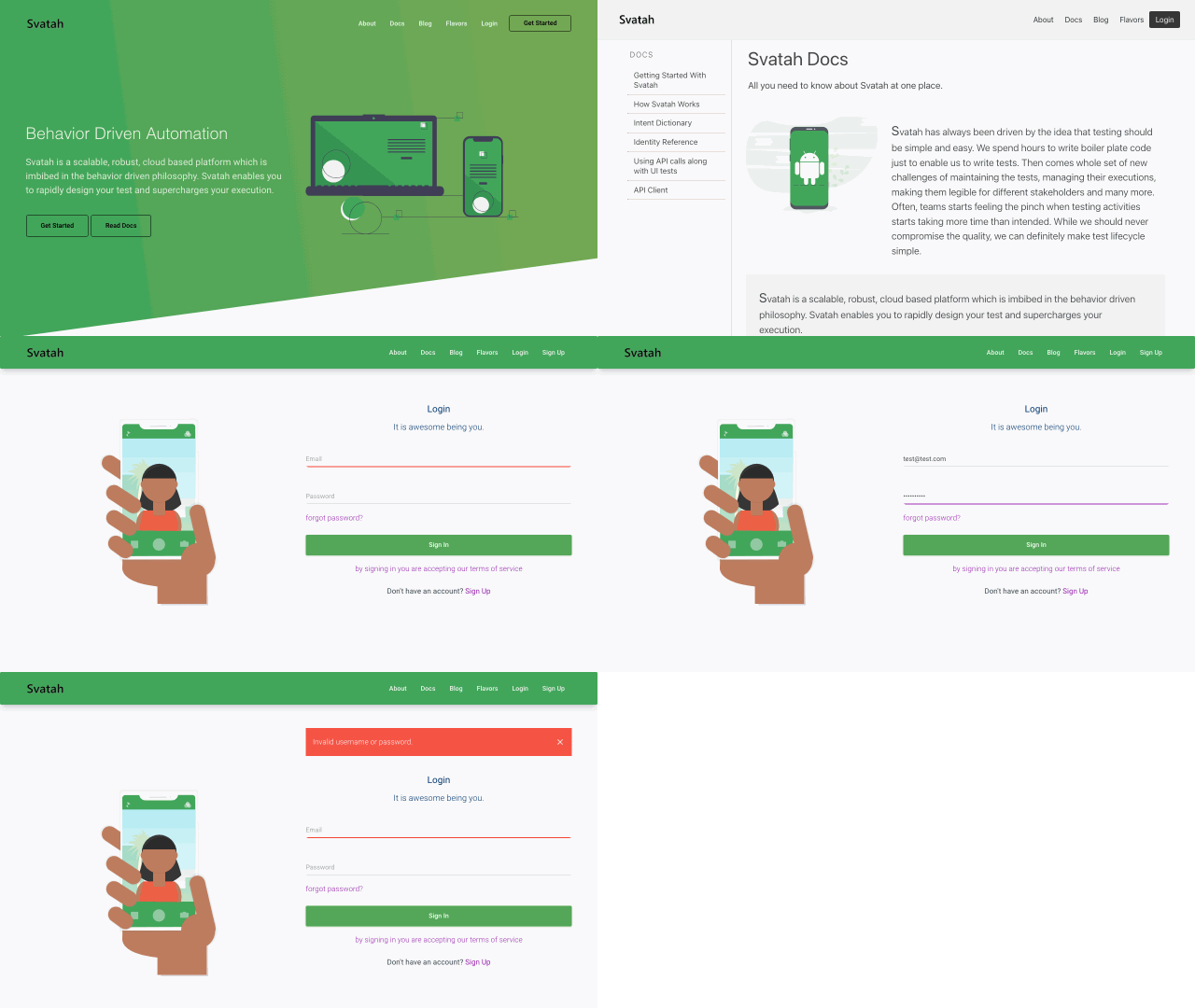
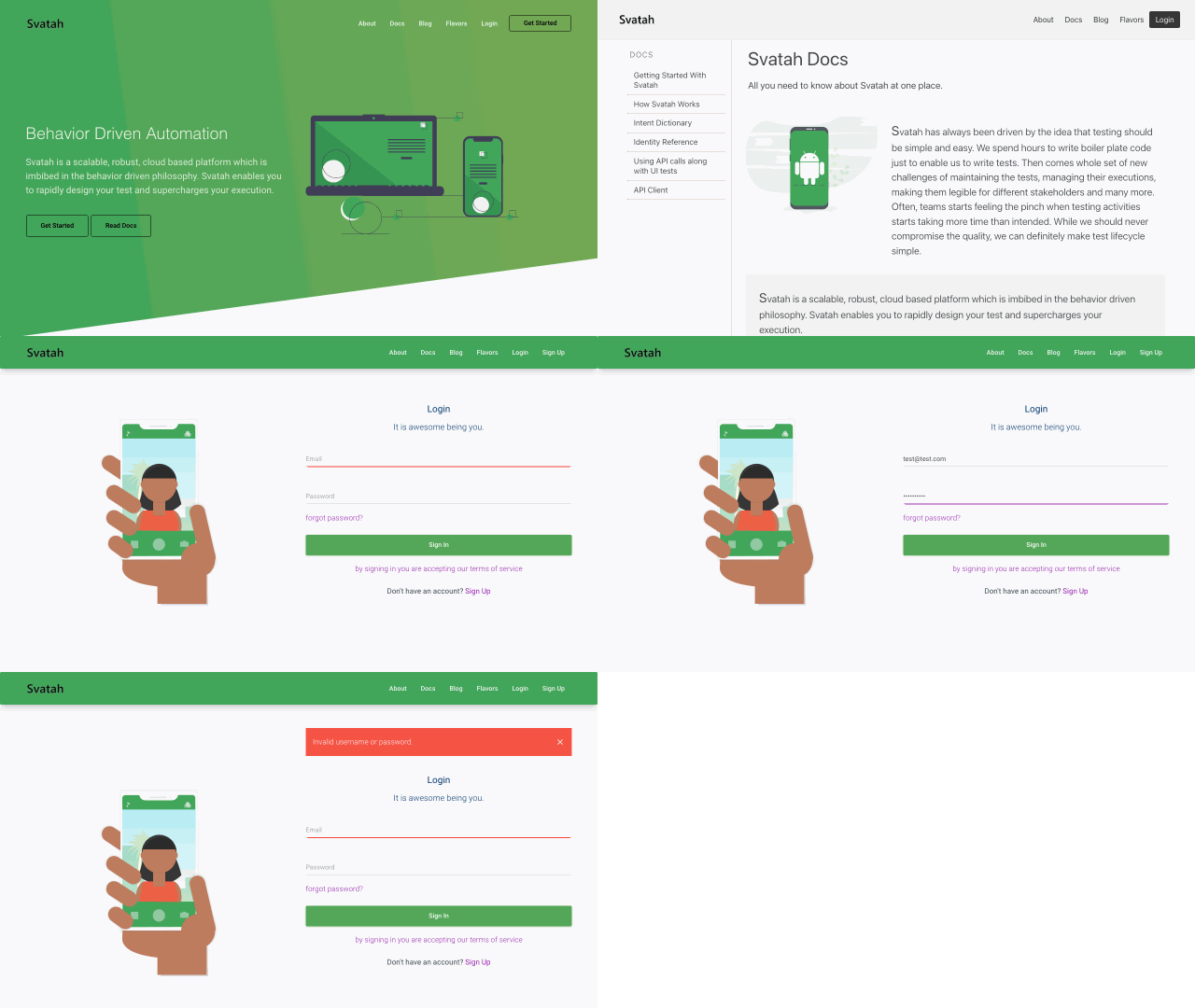
Yam opening a site, going to the docs, filling a login form, and reading the error. Every step went through Yam's own tools.
Give an agent hands
What your agent gets
Point your agent at Yam's MCP server and it gets 14 tools that work without a Yam project. Point it at a project and it gets 8 more.
| What it can do | Tool |
|---|---|
| See what there is to drive on this machine | surface_targets |
| Open a browser, an app, an API or a terminal | surface_connect |
| Read the screen as a list of elements | surface_snapshot |
| Click, type, press a key, navigate | surface_act |
| Read a title, a URL, an element's text | surface_read |
| Test whether something is true, and see what it saw | surface_check |
| Take a picture | surface_screenshot |
| Ask about one element | surface_describe |
| Ask what this kind of target can do | surface_capabilities |
| Send an HTTP request | surface_request |
| See every open session, including yours | surface_sessions |
| See what has happened in this session | surface_events |
| Take the controls, or hand them back | surface_control |
| Close a session | surface_close |
Four things make this different from handing an agent a browser library.
One set of tools for four kinds of target. The same snapshot and act
work on a web page, a macOS window, an HTTP API and a terminal program. Your
agent does not learn a new interface for each one.
Elements have references, not selectors and not screen positions.
snapshot hands back r12, and act takes r12. The agent never guesses a
CSS selector and never clicks a coordinate, so nothing breaks when the window
moves or the page is styled differently.
You and the agent share one session. Yam keeps sessions in a single broker
on your machine. If the agent opens a browser, you can see that same browser in
the desktop app. surface_control decides who is driving, and you can take a
target back at any time.
What the agent did can become a test. Yam can record the whole session and compile it into a flow you replay later. That replay uses no model, so it is fast, free, and the same every time.
Set it up
You need Node 22 or newer. Add this to your agent's MCP server list:
{ "mcpServers": { "yam": { "command": "npx", "args": ["-y", "@svatah/yam-mcp"] } } }
For Claude Code, one line does it:
claude mcp add yam -- npx -y @svatah/yam-mcp
To drive a web browser, install Chromium once:
npx playwright install chromium
You do not need a browser to drive a desktop app, a terminal, or an HTTP API.
An agent starts no program and drives no desktop application you have not named. To let it drive a terminal, list the program; to let it drive an application that is running, list the application:
{ "mcpServers": { "yam": { "command": "npx", "args": ["-y", "@svatah/yam-mcp", "--allow-program", "bash", "--allow-app", "Notes"] } } }
A program you allow runs as you, and an application you allow is driven as you, so allow what you would let the agent type into yourself. Web pages need no list.
If your agent cannot start a program, run the server over HTTP instead:
npx -y @svatah/yam-mcp --http
Use it
A session is five steps. Connect, look, act, read, close.
surface_connect    open https://example.com        -> session id
surface_snapshot   the elements, each with a ref
surface_act        click ref r12
surface_read       the title, or an element's text
surface_close      done
Every tool takes an optional intent, which is a short sentence saying why the
agent is doing something. "Sign in as the test user" is an intent. "Click r14"
is not. Intents are what let a session become a test later, so it is worth
passing them.
Anything typed into a password field is kept out of that record. So is any value
the agent names in secrets, and the test asks for it as a secret input
instead.
Give the server a project directory and it gets the project tools too:
{ "mcpServers": { "yam": { "command": "npx", "args": ["-y", "@svatah/yam-mcp", "/path/to/project"] } } }
| Tool | What it does |
|---|---|
yam_compile |
Turn the flows into a plan. |
yam_lint |
Read the flows and report problems. |
yam_run |
Run the plan and report every step. |
yam_record |
Bind a flow to the real elements. |
yam_heal |
Propose repairs after a failed run. |
yam_bindings |
Read the bindings store. |
yam_results |
Read a run's results. |
surface_trajectory |
Where this session is being recorded, and how much of it there is. |
These run the same code the yam command runs. An agent and a person working on
the same project get the same answers.
Watch it, and take over
Open the desktop app while the agent works. Its session shows up in the same list as yours.
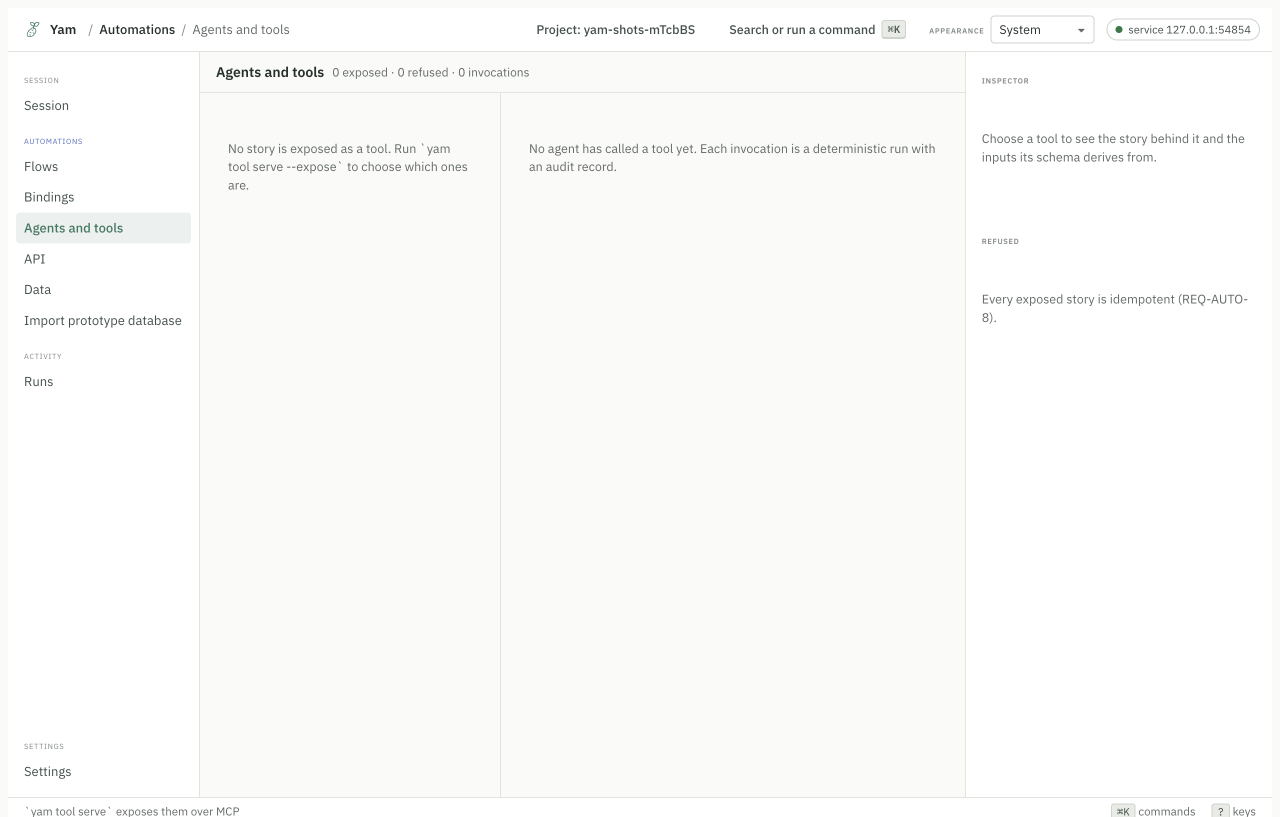
The app says who holds each target. If the agent gets stuck, you take the target back and finish by hand. When you are done, you can hand it back.
Turn the session into a test
This is the part that pays for itself. An agent figuring out a task is slow and costs money every time. Doing it once and replaying it costs nothing.
yam explore --name "Sign in"
Yam serves the tools, records what the agent does, and writes a proposal under
proposals/. You read it, and nothing touches your flows until you accept it.
After that, yam run replays the same steps with no model involved.
You can also go the other way and expose a test you already have as a tool the agent calls by name:
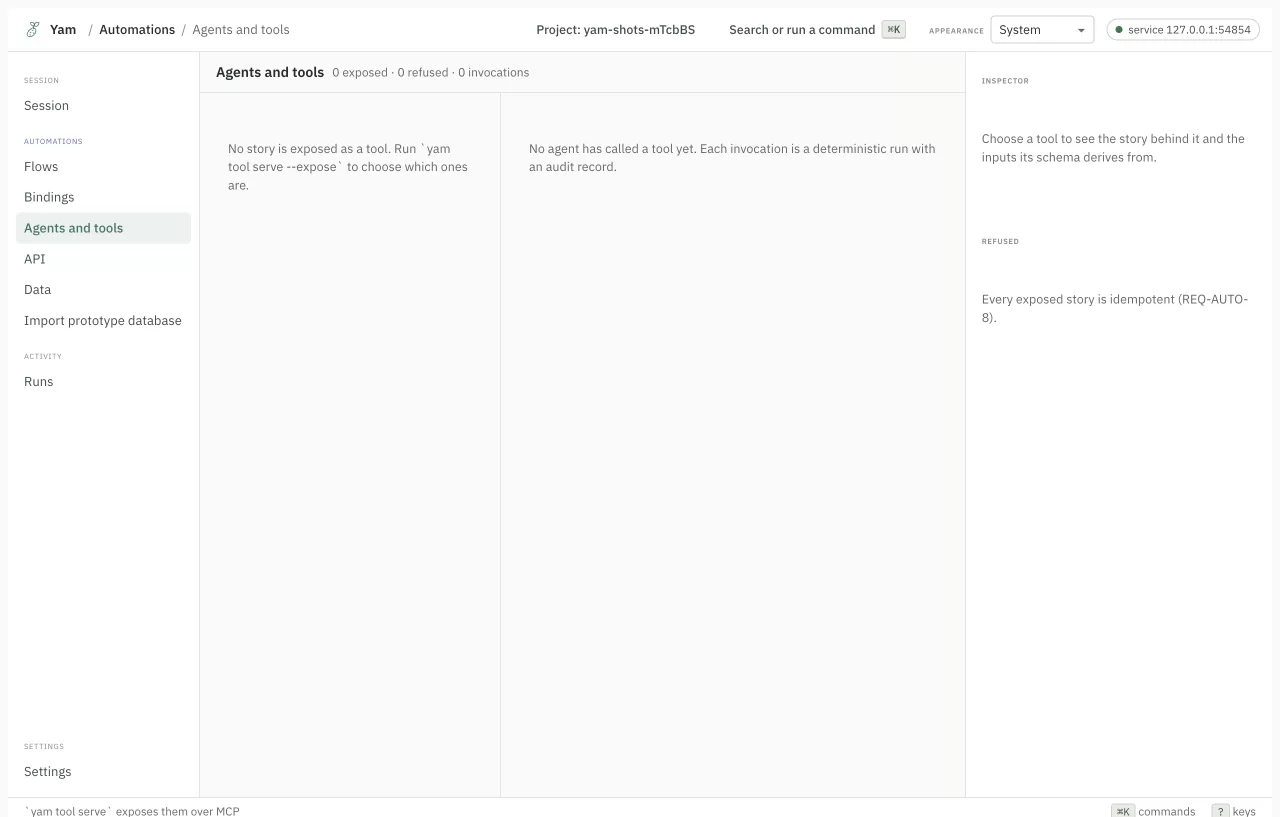
yam tool serve --expose "Sign in"
The agent passes the inputs and gets the outputs back. The run is recorded as invoked by an agent, so your audit log says who asked.
Full details: Yam and MCP.
Write a test in plain English
The same engine works without an agent. You describe what you want in sentences, Yam drives the real app once to learn which element each sentence means, and every run after that is a replay.
1. Make a project.
npm install -g @svatah/yam
yam init my-tests
cd my-tests
2. Write a story. Open flows/first.flow and write sentences:
story (tags=smoke): Sign in
inputs: username: string, password: secret
  Go to "/login"
  Type {input.username} into the username field
  Type {input.password} into the password field
  Click the sign in button
  The dashboard heading should be visible

test: Sign in
3. Record it. Yam opens the app and watches you click:
yam record --flow flows/first.flow
Yam writes what it learned into bindings/. Those are plain YAML files. You can
read them, review them, and commit them.
4. Replay it. No model runs this time:
yam run
The exit code is the answer. 0 means everything passed. Every code is listed
by yam help exit-codes.
5. Repair it when the page changes:
yam heal
Check your install with yam --version and yam surface doctor. Doctor prints
one line per adapter and says what is ready, what this computer cannot do, and
what is missing. It never guesses.
Longer walkthrough: Your first flow.
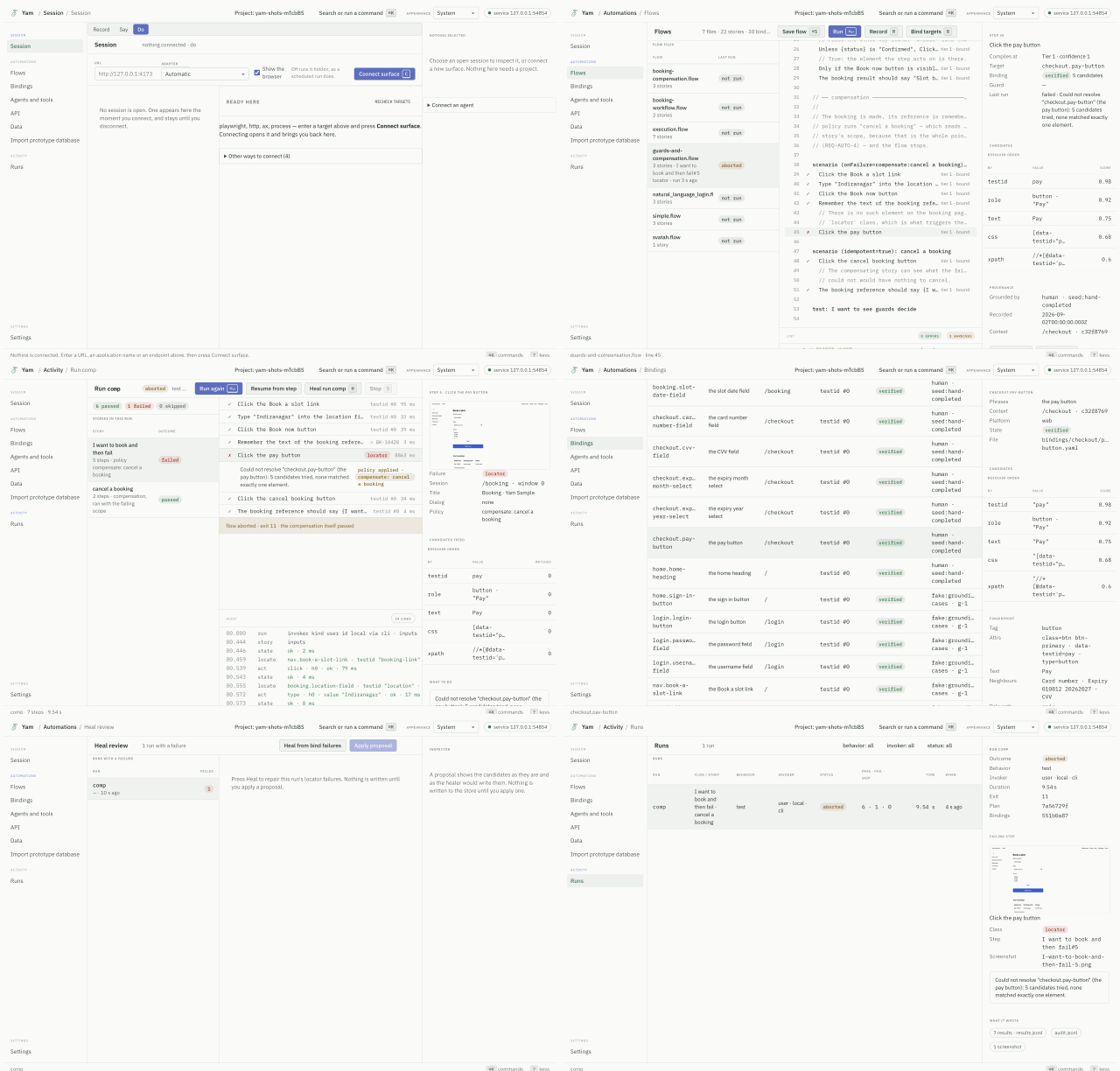
The desktop app
yam ui gives you a version in the terminal. The desktop app gives you the same
screens with a mouse.
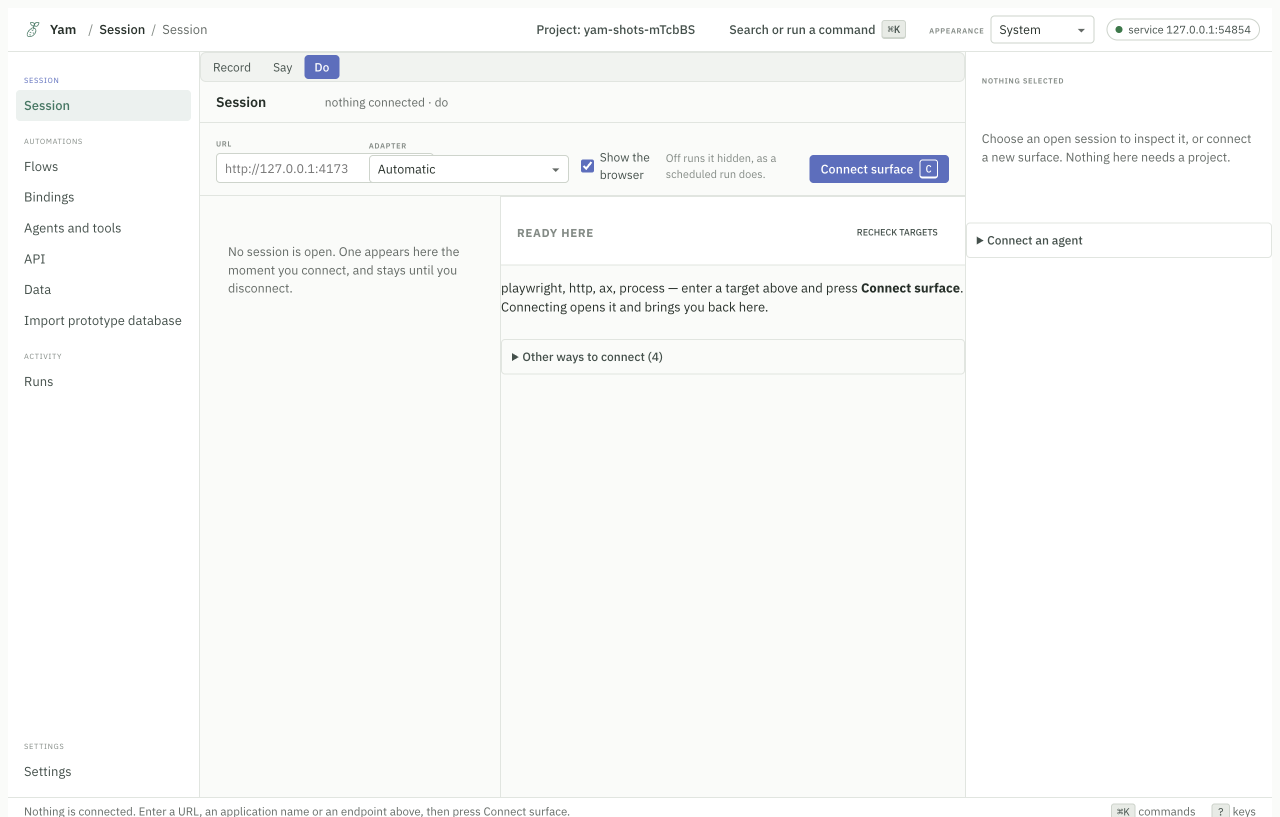
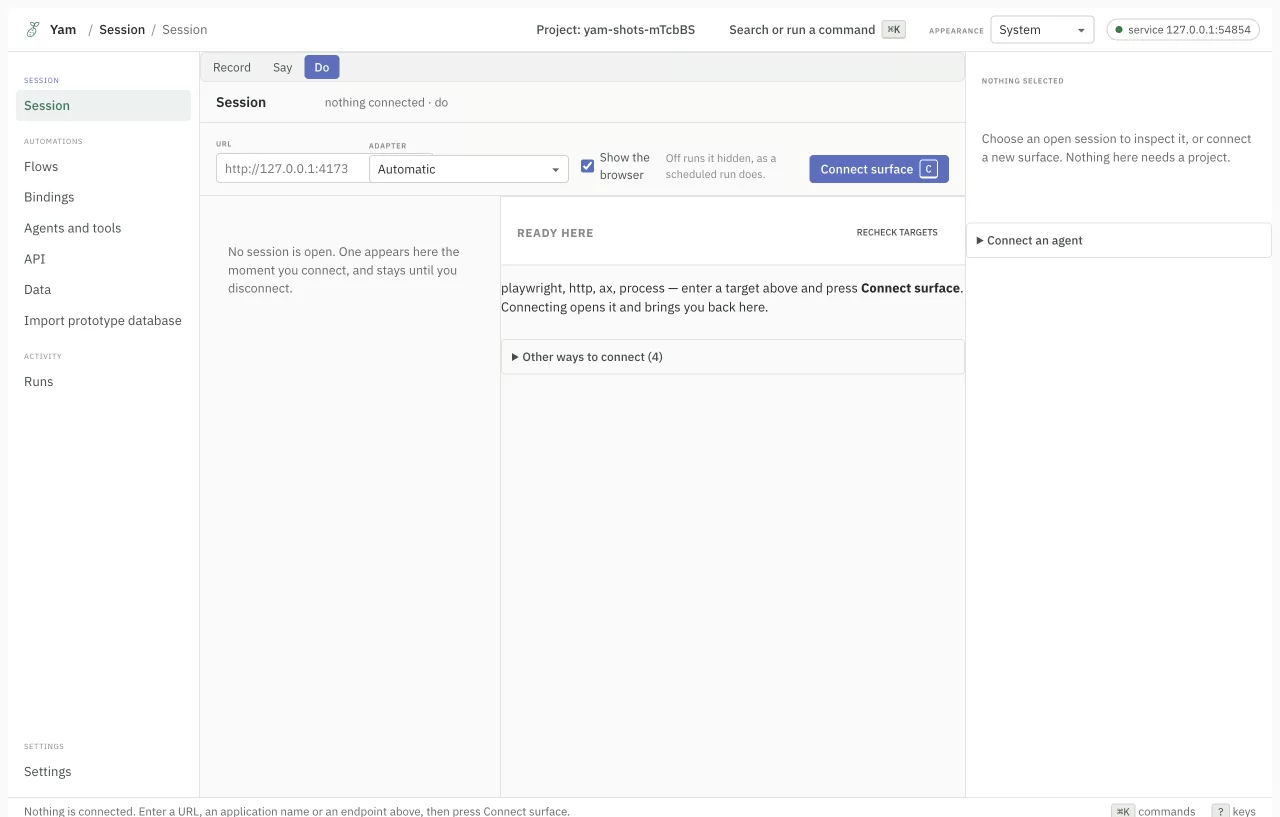
Connect to a browser, an app, an API, or a terminal from one screen. Nothing on this screen needs a project.
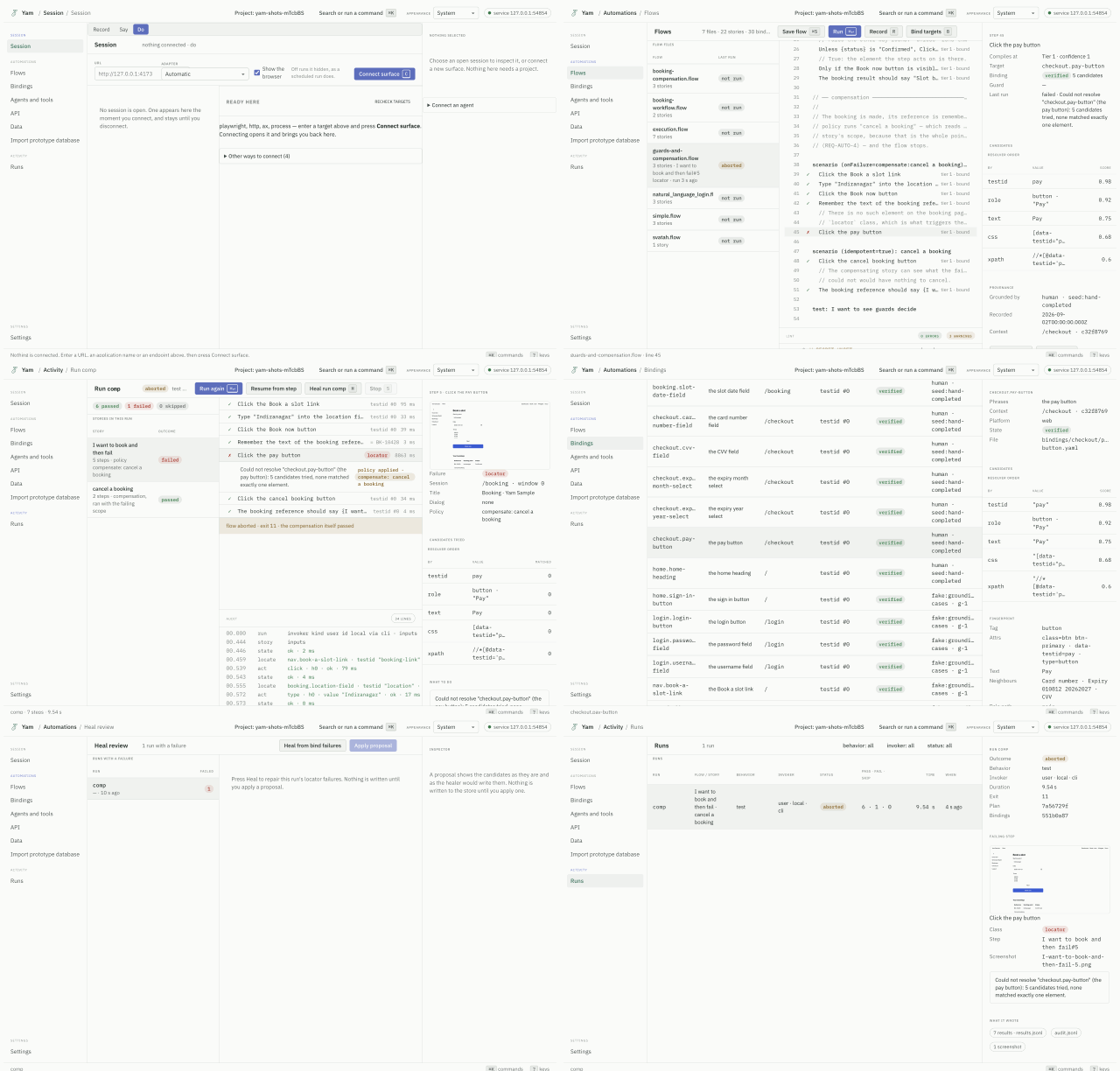
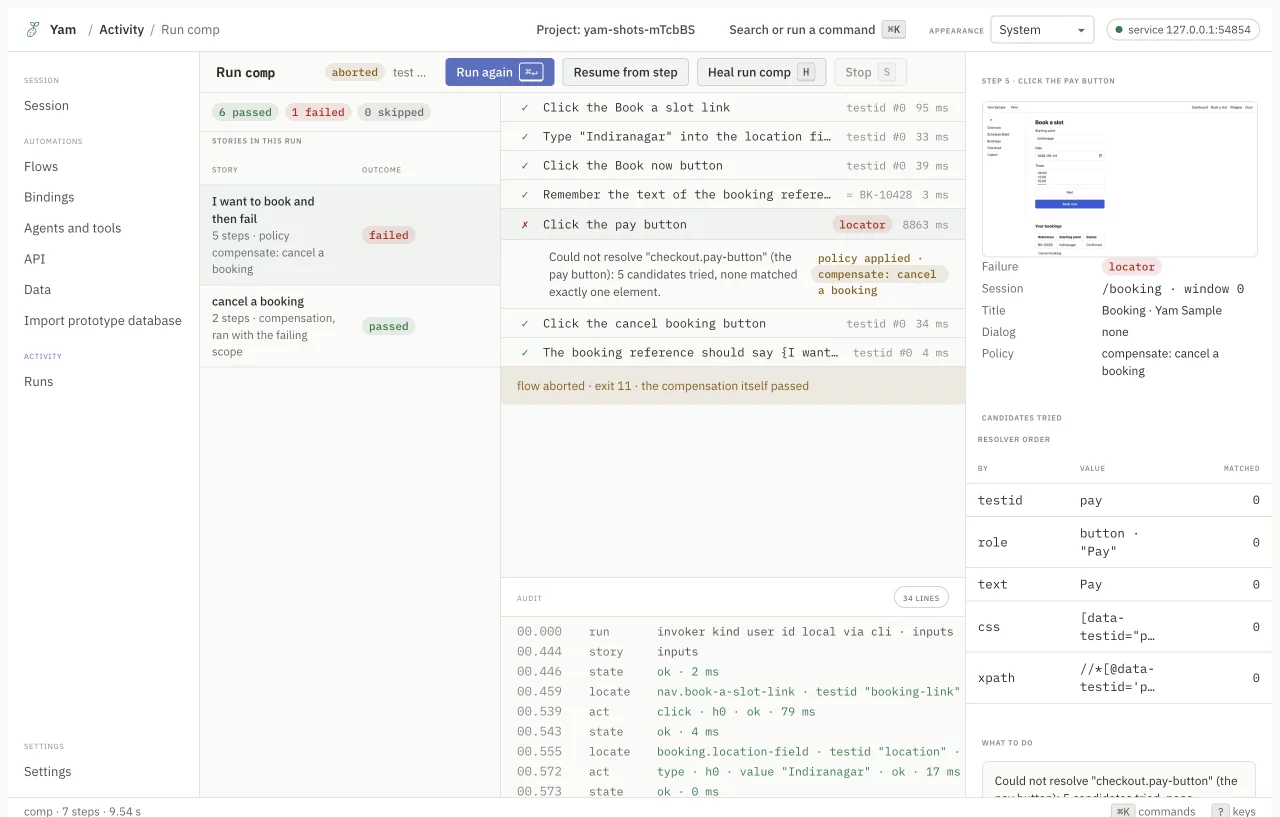
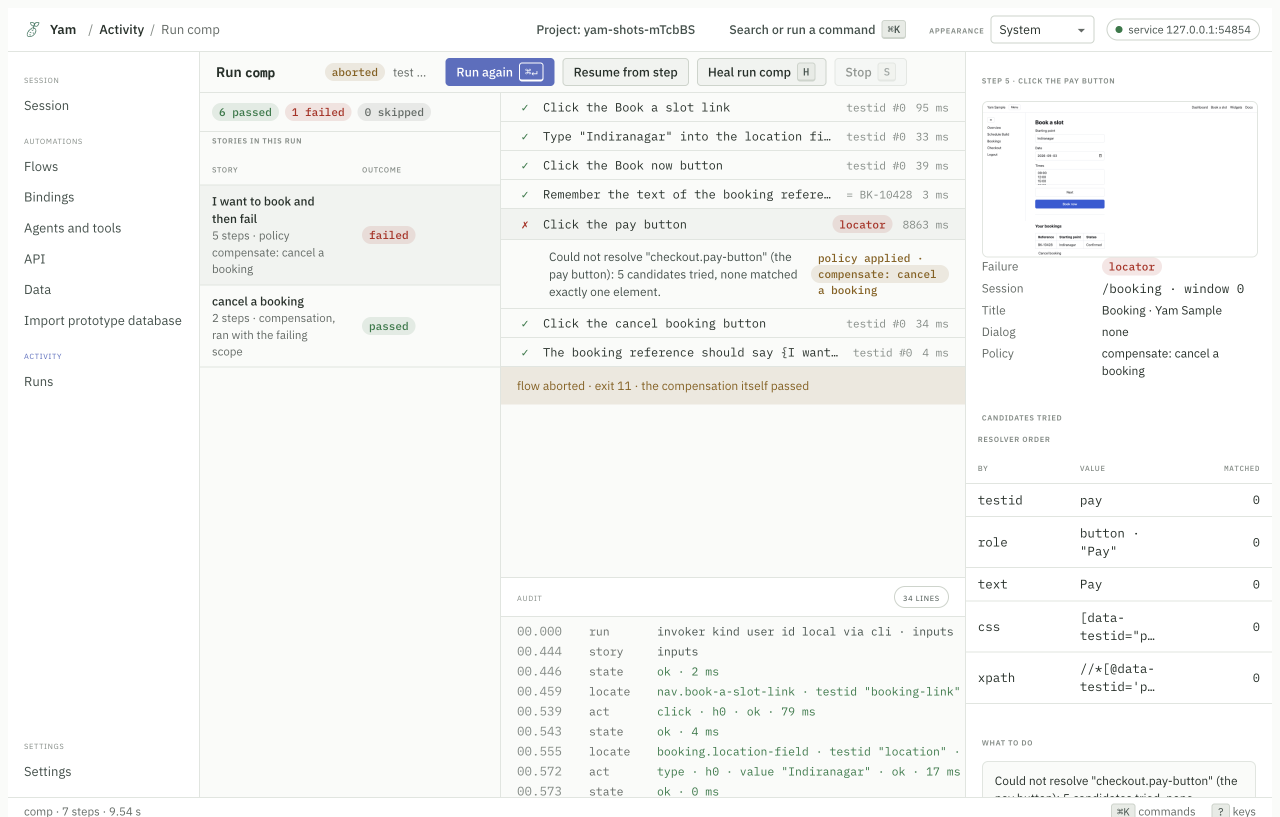
When a run fails, Yam shows you why. It lists every way it tried to find the element and how many things matched.
What Yam can drive
Yam talks to each kind of target through an adapter. How far each adapter has actually been driven is measured, not claimed. The numbers come from real runs and live in the support matrix.
| Target | Adapter | Needs |
|---|---|---|
| Web browser | playwright |
Chromium, installed once |
| A browser you already have open | bidi |
Chrome or Firefox with a BiDi endpoint |
| macOS apps | ax |
macOS, and the Accessibility permission |
| Windows apps | uia |
Windows |
| Linux apps | atspi |
Linux with an accessibility bus |
| Phones and tablets | appium |
An Appium server and a device |
| HTTP APIs | http |
Nothing |
| Terminal programs | process |
Nothing |
Six of these need no extra download. Read the support matrix before you pick one. An adapter being listed is not proof that it works on your machine, and the matrix says which ones were driven in the last measured run.
Healing, with numbers
Tests stop breaking when the page changes. Yam saves five ways to find each
element, plus a fingerprint of what the element looked like. When a button moves
or gets renamed, Yam finds it again from that fingerprint. It marks the run
healed, never passed, so you always know a repair happened.
A healing claim without a number is a slogan. These numbers come from twenty deliberate interface changes in the sample app.
| Without test ids | With test ids | |
|---|---|---|
| Elements found again | 92.3% (48 of 52) | 78.9% (15 of 19) |
| Repairs onto the wrong element | 0 | 0 |
| Bindings that stopped working | 0 | 0 |
| Model calls | none | none |
The first row is the measure the eval calls Relocalize-only recovery. It counts a repair only when the element found is the one the binding was recorded on, not merely an element that could be found.
The headline is the harder case. An app with a data-testid on every control
barely needs healing, so a number taken there measures the app and not the
healer. Both are published so you can see the gap.
Method and per-change tables: reports/eval-healing.md.
Regenerate them with pnpm eval:healing.
One plan, three ways
The same compiled plan runs as any of these. You do not rewrite it.
| Way | What it is | Command |
|---|---|---|
| Test | Passes or fails. Good for CI. | yam run |
| Workflow | A function with inputs, outputs and retries. | yam workflow run |
| Tool | A tool an AI agent can call over MCP. | yam tool serve |
Read One plan, three ways.
Already have Playwright tests?
You can take one piece on its own. Add bindings and healing to a Playwright suite you already have. No flow language, no compiler, no model.
npm install --save-dev @svatah/yam-playwright-test
import { test, expect } from "@svatah/yam-playwright-test";

test("sign in", async ({ page, bind }) => {
  await page.goto("/login");
  await (await bind("login.username-field", "the username field")).fill("me@example.com");
  await (await bind("login.sign-in-button")).click();
  await expect(page).toHaveURL(/dashboard/);
});
bind() returns a normal Playwright locator, so everything you already do still
works. Read the Playwright quick start,
or the runnable version in
examples/plain-playwright/README.md.
Documentation
| If you want to | Read |
|---|---|
| set up an agent | Yam and MCP |
| install it and run something | Setup |
| see everything Yam does | Features |
| learn from working examples | Examples |
| look up a command, a tool or an endpoint | API reference |
| understand how it works | Concepts |
| work on Yam itself | Developer guide |
| send a change | Contributing |
Everything else is in docs/.
What you install
Three packages. Which one depends on what you are doing.
| Package | What it is |
|---|---|
@svatah/yam-mcp |
The MCP server, for an agent. Run it with npx. |
@svatah/yam |
The yam command, for a person. |
@svatah/yam-contract |
The shared operation list. You never install it directly. |
There is also @svatah/yam-playwright-test if you
only want bindings in an existing Playwright suite.
Status
Version 0.1.0 is on npm: every command above installs it. The desktop app's
installers are attached to the
GitHub release and are
not signed yet, so macOS and Windows will warn before opening them. The Python
and Java clients are not published to PyPI or Maven Central; build them from
clients/.
Known gaps are written down rather than hidden. See
CHANGELOG.md. The specification is the source of truth and
lives in docs/spec/. It is written before the code, not after.
Licence
Apache-2.0. See LICENSE.