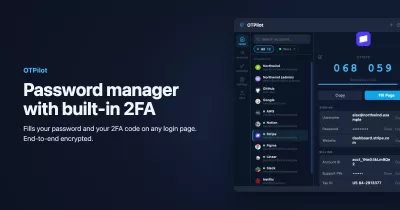


TOTP codes in Chrome. Your secrets never leave your device. No host permissions.
Install · Website · How it works · Security · Privacy · FAQ · Feature requests
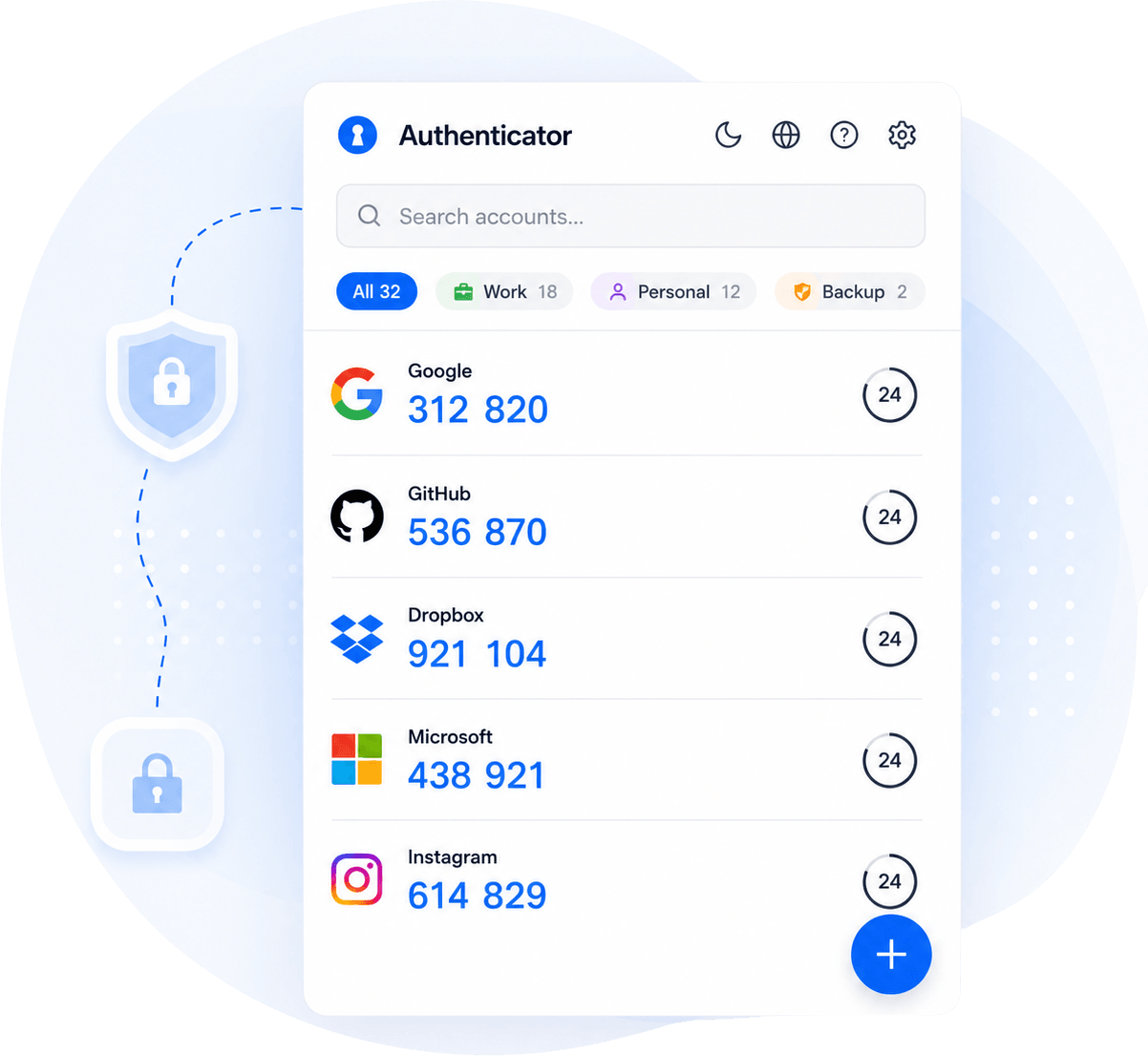
A privacy-focused TOTP authenticator for Chrome. Your secrets, account names and codes never leave your device: accounts are stored by the browser, and optionally synced through your own Google account — see Where your data lives. The extension does check in with our server once a day with an anonymous install id and a handful of numbers, for the free plan and Pro — see What is sent to our server.
Features
- TOTP code generation (SHA-1, SHA-256, SHA-512; 6 to 10 digits, 7 included — it is issued in the wild). Counter-based HOTP is deliberately refused rather than stored as TOTP, which would look healthy and never once be valid.
- QR code import from image upload, the visible tab, or a camera
- Right-click a code field on any site to insert the code for it, without opening the popup (see Inserting a code into a page)
- Optional password protection — AES-256-GCM encryption of every account record and backup, with a recovery code so a forgotten password is not a dead end (see Password protection)
- Passkey unlock — open a password-protected vault with Touch ID, Windows Hello or your phone through the WebAuthn PRF extension, with no new permission (see Unlocking with a passkey)
- Share an account's codes by link, for five minutes to an hour — the link carries pre-computed codes, never the secret, and there is no server behind it (see Sharing codes by link)
- Open where you need it — the toolbar icon can open the popup, a floating window, or Chrome's side panel; the last two stay put while you switch tabs, which a popup cannot do because it closes as soon as it loses focus
- Groups and pins — sort accounts into groups and filter the list by them; create, rename, reorder and delete groups, move many accounts at once, and pin the ones you use most to the top. Group names, their order and pins live inside the account records, so password protection encrypts them too
- Right-click an account to copy, pin, move, share, edit or delete it; from the keyboard, Enter in the search box copies the first match and the arrow keys walk the list
- Password-protected backup files on export
- Automatic local backups in IndexedDB with rotation (7 latest)
- Export and import for cross-device migration, including Credential Exchange Format — the FIDO Alliance interchange format other password managers and authenticators can read
- 20 UI languages, chosen from the browser's own language on first open and overridable in Settings
- Works fully offline — codes never need a connection, and the popup renders before any network request
- Free to use; new installations may have an account limit, which Pro removes (see Free and Pro)
Permissions
The extension requests the minimum permissions required for its functionality:
| Permission | Reason |
|---|---|
storage |
Store accounts and settings in chrome.storage (local, session and optional sync) |
activeTab |
Read the current tab's hostname to highlight the matching account, capture the tab for QR scanning, and — only when you pick the right-click item — insert a code into that tab |
contextMenus |
Add the single "Insert 2FA code" item to the right-click menu on text fields |
scripting |
Run the insert routine in the tab, for that one invocation, under the activeTab grant the click provides |
sidePanel |
Open the app in Chrome's side panel, when you pick that in Settings → Open as. It grants the extension nothing about the browser or its tabs: it is what lets an extension page be docked beside them |
Camera scanning needs no manifest permission: it uses the browser's standard camera prompt on an extension page, granted per extension origin and revocable in site settings. It is never requested until the scanner is opened.
The extension does not request:
host_permissionsof any kind- Content scripts — nothing of this extension is declared to run on any page, and nothing of it is running on a page you have not invoked it from
tabs,cookies,webRequest, or any other broad permissions
This means the extension cannot read or modify any page on its own. Two
things happen on your instruction and nowhere else: under activeTab it reads
the active tab's hostname while the popup is open, to highlight the account
matching that site — switchable off in Settings, which also erases the history
it collected — and it inserts a code into a page when you pick it out of the
right-click menu.
Inserting a code into a page
Right-clicking a text field offers one item, "Insert 2FA code" — removable in
Settings. The same action has a keyboard shortcut, Ctrl+Shift+Y
(⌘⇧Y on macOS), which can be changed or cleared at
chrome://extensions/shortcuts. Choosing either is what grants activeTab: for
that one invocation, in that one tab, the extension may put the code for the
site into the field you clicked. The grant ends with the invocation, nothing is
left behind in the page, and no code of ours runs there again until you ask
again.
Which account is chosen is deliberately conservative. An account you have already used on that site wins — inserted into a field there, or picked when this asked you which account the site wanted. Failing that, the site's name has to match exactly one account. Anything less certain — several plausible accounts, none at all, or a locked vault — opens the popup and lets you pick, because these forms often submit themselves on the last digit and a wrong code spends one of the few attempts the service allows.
A code copied out of the popup is deliberately not treated as evidence about the site behind it. Codes get copied for things that are not the page at all — a VPN client, an SSH prompt, a phone — so a copy never displaces the account a site names, and never authorises inserting anything on its own.
If the field will not take the code — some sites build their inputs in ways no insertion survives — it is copied to your clipboard instead and a note in the page says so. The fallback is the point: the worst case is the paste you would have done anyway.
Password protection
Password protection is optional and off by default. With it off, account
records are stored unencrypted in chrome.storage.local, protected by the OS
user account and the Chrome profile — the same model as most authenticator
extensions. With it on:
| Property | Value |
|---|---|
| Cipher | AES-256-GCM (random 96-bit IV per record) |
| Key derivation | PBKDF2-HMAC-SHA256, 600,000 iterations, 128-bit random salt |
| Master key | 256-bit random, generated once; the password only wraps it |
| Fingerprints | HMAC-SHA256 under an HKDF subkey of the master key |
| Unlocked key store | chrome.storage.session (memory only, cleared on browser exit) |
| Auto-lock | Every open / 5 / 15 / 60 min idle / until browser closes |
Design notes:
- Two-level keys. Data is never encrypted with a password-derived key directly. A random master key encrypts the records; PBKDF2 output only wraps that master key. Changing the password rewrites 32 bytes rather than re-encrypting every record — the bulk rewrite is where data gets lost.
- Recovery code. A 160-bit code independently wraps the same master key, so a forgotten password is recoverable. It is shown once, must be typed back to confirm, and is rotated after each use. A reset writes nothing until the replacement code has been typed back, so until then the old password and the old code both still work.
- What is encrypted. The entire account record except its
idand fingerprint — including the service name, so a stolen profile leaks no metadata about which services the user has accounts with. - Backups too. IndexedDB snapshots store the already-encrypted records. Enabling the vault wipes every pre-existing cleartext copy (local, sync and all snapshots) after a decrypt-and-compare round trip verifies the encrypted data reads back identically. Verification happens before anything is deleted.
- Export files carry their own salt and a password chosen at export time, independent of the vault, so a backup stays openable on a machine that has no vault configured.
Threat model. This protects data at rest: a stolen profile directory, an infostealer that exfiltrates browser data, or account records reaching Google's servers through Chrome sync. It does not protect against malware running as the user while the vault is unlocked, or a keylogger capturing the password.
Crypto lives in src/utils/crypto.ts and
src/utils/vault.ts; no cryptographic primitive is
hand-rolled — all of it is WebCrypto.
Unlocking with a passkey
Available once password protection is on, and off until you add one. A passkey becomes a third wrapper around the same master key, alongside the password and the recovery code.
| Property | Value |
|---|---|
| Mechanism | WebAuthn prf extension, eval.first over a 256-bit stored salt |
| Key derivation | HKDF-SHA256 over the 32-byte PRF output, info = authenticator-vault-passkey-v1 |
| Relying party | the extension's own origin; no host permissions |
| User verification | required — presence alone must not release the wrapper |
| Stored in metadata | credential id, PRF salt, wrapped master key. Never the master key or the PRF output |
Design notes:
- Additive, never exclusive.
attachPasskeyonly ever adds a wrapper; nothing in the codebase removeswrappedByPasswordorwrappedByRecovery. A lost passkey costs convenience, not accounts — a passkey-only vault would be a new way to destroy every seed. - Verified before it is written. The wrapper is built, unwrapped again and compared byte for byte with the key it came from, all in memory. Only a match reaches storage, so an authenticator that cannot reproduce its own PRF output never leaves behind a wrapper that opens nothing.
- A password change does not break it. Only the password wrapper is rebuilt; the master key is unchanged, so the passkey keeps working. Covered by a test, because the failure would have been silent until the day it mattered.
- It runs in its own window.
src/passkey/is a full extension page, opened withchrome.windows.create({type: 'popup'})— no permission required. Chrome destroys the action popup on focus loss and the authenticator prompt takes focus, so the ceremony cannot complete inside the popup at all; a window keeps it a dialog rather than an opened tab, and falls back to a tab if the window is refused. - Uneven platform support is expected. PRF is solid on Android, Windows 11 25H2+, macOS 15+ and iOS 18.4+, and absent on Firefox for Android. The setting hides itself where the API is missing and reports the case where an authenticator declines PRF rather than failing obscurely.
- The popup listens instead of polling. The ceremony happens in another
context, so the popup subscribes to
chrome.storage.onChanged: a session change re-reads the lock state, and avault_metachange re-reads whether a passkey is registered. Without this the popup sat on its lock screen with the vault already unlocked behind it until it was closed and reopened, and the settings panel kept offering to add a passkey that already existed. After a successful unlock the ceremony window also trieschrome.action.openPopup()— best effort, since it needs a user gesture that the biometric prompt may have outlived and does not exist before Chrome 127 — and then closes itself. - A one-shot hand-off crosses the context boundary. The ceremony page is a
separate JS context, and with auto-lock on every open the unlocked key is
deliberately never written to
chrome.storage.session— so without a hand-off, registering a passkey is impossible on that setting and unlocking with one silently does nothing. Both were reproduced before the fix.stageKeyHandoffandconsumeKeyHandoffpass the key once, under a separate session key, with a two-minute expiry; it is deleted on first read, refused when stale, and cleared bylock(). That keeps what auto-lock every open actually promises — the key does not outlive the popup that used it — while letting a biometric prompt in another window count as the authentication event for exactly one popup.
Implementation: src/utils/passkey.ts (ceremonies only,
holds no key material) and the passkey functions in
src/utils/vault.ts.
Credential Exchange Format
CXF is the FIDO Alliance's JSON interchange format for credentials. It covers TOTP secrets as well as passkeys, which makes it the first format this extension can both write and read that other vendors also speak.
- Export: a third option next to the plain and password-protected files.
- Import: recognised automatically, so there is no format to choose.
- The secret is written as plain RFC 4648 Base32, byte for byte as stored. A test asserts the exact string, because a re-encoding bug here produces confidently wrong codes rather than a visible failure.
- Every credential of every item is examined on import. Password managers put a TOTP credential in the same login item as the password; walking only the first would drop the 2FA half of the file.
- One bad row never costs the file. Unreadable entries are counted and reported; the rest import.
CXP, the protocol half of the standard, is deliberately not implemented: it
negotiates provider-to-provider transfer through the operating system, which an
extension cannot do. Implementation: src/utils/cxf.ts.
Sharing codes by link
A link that shows another person a live code for one account, for a limited
time, in any browser and with nothing to install. Implementation:
src/utils/share.ts; the page that opens it lives in the
site repository at authenticator.sh/s.
- The secret never leaves the device. TOTP is deterministic, so the codes for the next hour can be computed now and handed over on their own. The link holds that run — one code per period — and nothing that could produce a code after it. The time limit is not a rule the page enforces; it is the absence of any further codes.
- An hour is the maximum, and the page refuses longer runs. An hour of six-digit codes is about 550 characters: readable as a QR code from a screen, which is the one way to pass a link that leaves no copy in a messenger's cloud, and short enough for email clients that wrap at 998 characters.
- There is no server. The whole payload travels in the URL fragment, which browsers never send to a host. Nothing is uploaded when a link is made and nothing is stored when it is opened, so there is no database of shared codes to breach and no revocation that would be theatre.
- Optional password. Without one, the sixteen random bytes in the link are the key (HKDF-SHA256). With one, the key is PBKDF2 of the password salted with those bytes — the same stretching as the vault — so the link alone and the password alone are each useless. The two-byte header that says "ask for a password" is authenticated with the body, so it cannot be flipped in transit.
- The two sides share a fixture, not code. The extension seals links and
the site opens them;
test/fixtures/share-vectors.jsonpins the exact bytes for six cases and both repositories assert against it.
Building from Source
Prerequisites
- Node.js 20.x LTS
- npm 10.x
Build
npm ci
npm run build
The resulting dist/ directory is the unpacked extension.
Load in Chrome (development)
- Open
chrome://extensions/ - Enable Developer mode
- Click Load unpacked and select the
dist/directory
Development
npm run dev
Tests
npm test
npm run verify      # typecheck + npm test + check:deps
npm run verify needs internet access: its last step, check:deps, talks to
the real time sources the extension depends on (that is its whole point — see
scripts/check-deps.ts), so offline it fails even when the code is fine. Run
npm run typecheck && npm test for the offline part.
npm run build && npm run check:bundle   # check the built package in dist/
npm run test:e2e                        # the built extension in real Chromium
check:bundle reads the build rather than the source: it walks the service
worker's static imports and fails if any file it reaches contains import()
(Chrome refuses it in a service worker), and it checks that the manifest, the
default locale, the icons and every HTML page the extension opens are in the
package.
test:e2e builds into .e2e-build/ — never dist/ — and loads that unpacked
into Chromium with Playwright: adding an account and reading it back from
chrome.storage.local, the code on screen against one computed independently,
a delete seen from a second window, Undo, and a service worker that starts
without errors. The first run needs the browser: npx playwright install chromium. External network is blocked inside the tests.
End-to-end scenarios for the storage and vault paths — enabling, locking,
password change, recovery-code reset, encrypted export, disabling — run against
real WebCrypto with chrome.storage and IndexedDB mocked. These cover the code
where a bug means permanent loss of a user's 2FA seeds, so they run the real
modules rather than stubs.
The passkey suite covers the wrapper rather than the WebAuthn ceremony, which cannot run under Node: a stand-in PRF output proves that adding a passkey never removes the password or recovery wrapper, that a password change and a recovery-code reset both leave it working, and that neither the master key nor the PRF output is ever written to metadata.
Verifying the Chrome Web Store Build
To