
Browser MCP by Agent360
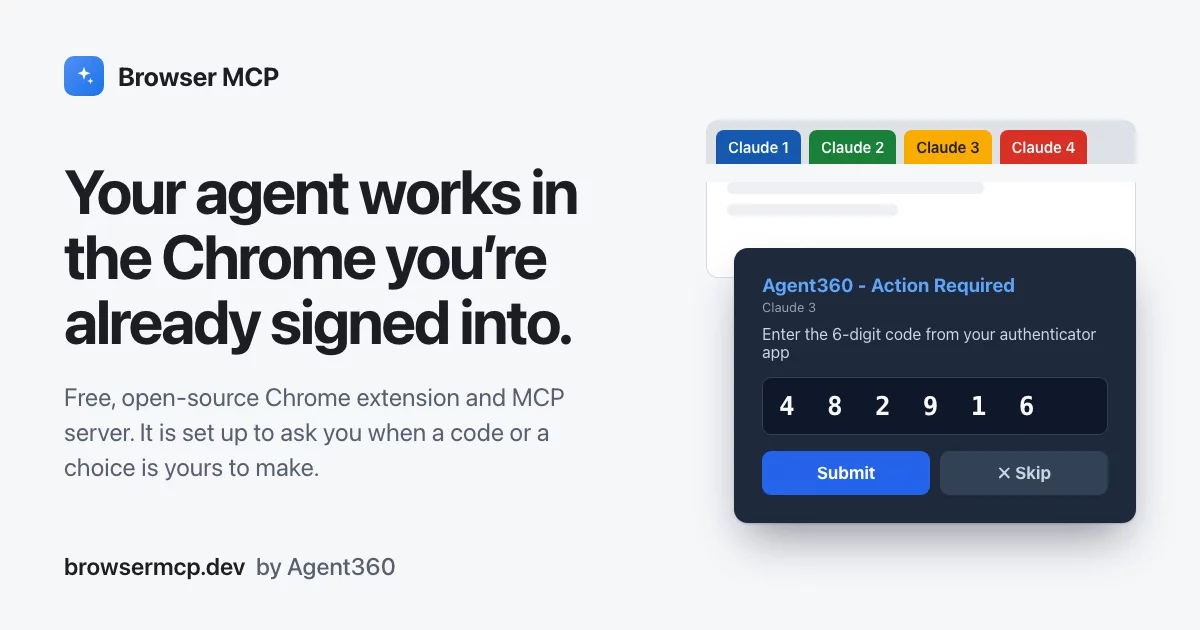
The browser tool that can stop and ask you. A 2FA code, a CAPTCHA, a choice only you can make: it asks on your own screen, then carries on in the same signed-in Chrome.
It drives the Chrome you are already signed into: no login step to fail, no API key to wire up, no fresh profile that is a stranger to every account you have. Up to 20 agents at once, each in its own colour-coded tab group. 40 tools, MIT, runs on your machine.
→ What it can and cannot get past - every wall, marked measured, by design, not yet, or won't. Including the ones we have not fixed.






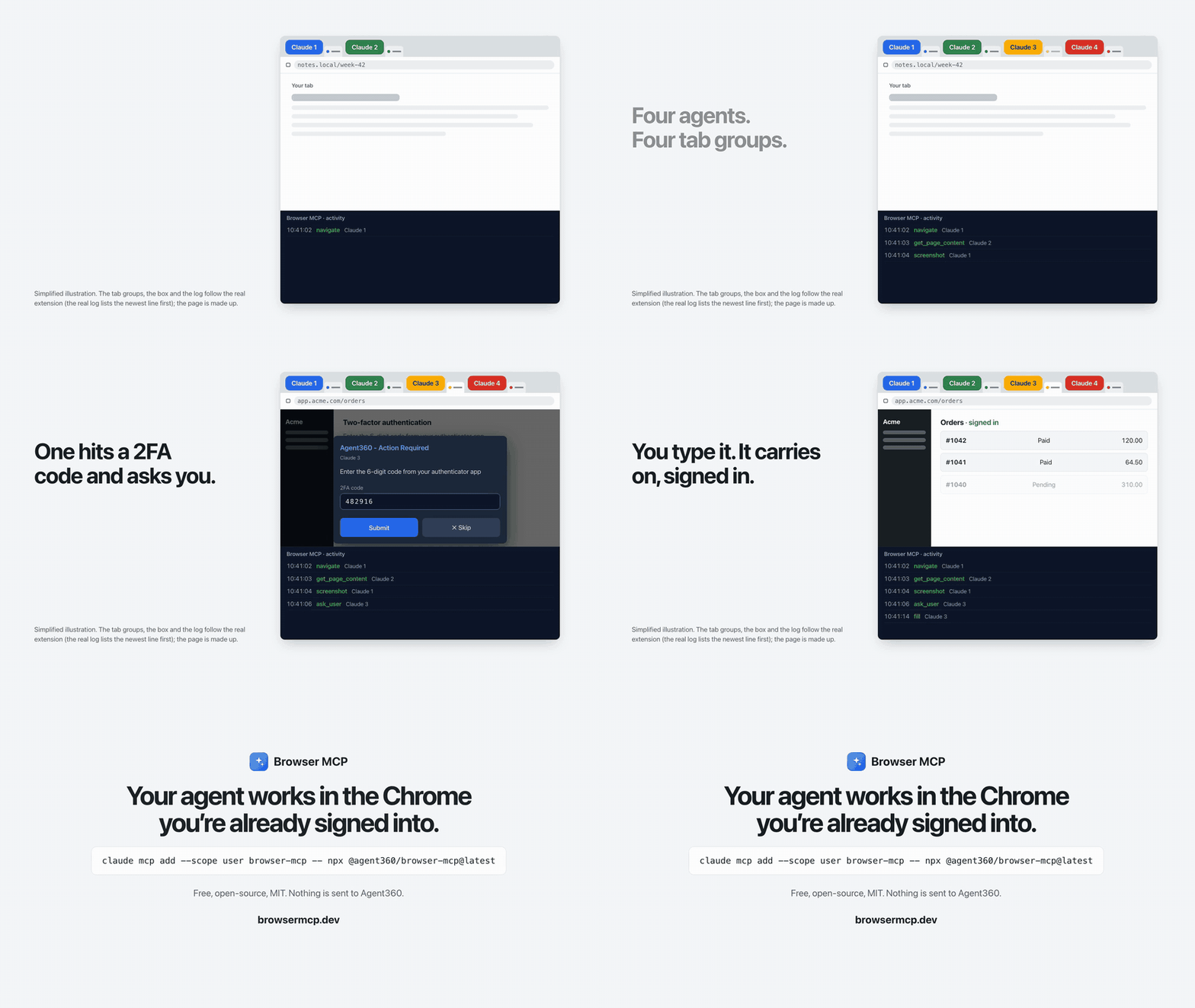
Browser MCP gives Claude Code (and MCP clients that run local servers, such as Cursor and VS Code agent mode) control of your actual Chrome: your cookies, your sessions, your 2FA. So it works on CAPTCHA, 2FA and anti-bot sites where Playwright and Puppeteer get blocked - because it's you browsing.
The killer move: it hits a login wall, opens your Gmail, reads the verification code, and continues the sign-in. There is no email API to set up. Operate platforms with no API, QA your own web app end-to-end, or work dashboards, LinkedIn and Reddit at human pace - with you approving the sensitive steps.
40 tools. Auto-clicks the reCAPTCHA v2 checkbox, with a human fallback for the rest. Multi-session color-coded tab groups. MIT, free, and it runs on your machine - no account, no telemetry, nothing sent to us.
The whole thing, in four steps
Rather not do it by hand? Paste this to your AI assistant - Claude Code, Cursor, Codex, VS Code, Windsurf, Cline - and it sets itself up:
Set up Browser MCP for me. Read https://browsermcp.dev/llms-install.md and follow it for whichever AI client you are running in. One step only I can do - tell me which one, and wait for me. When I confirm, call
browser_list_tabsto prove both halves are talking.If you cannot open URLs:
npx @agent360/browser-mcp install
It reads the same guide the four steps below spell out by hand. One step stays yours either way: Chrome will not let an extension install itself, so you load it once.
1 - Install the Chrome extension. One click from the Chrome Web Store; Chrome keeps it updated. No store? See the unpacked install below.
2 - Add the MCP server. Paste this in a terminal. Required - the extension does nothing on its own:
claude mcp add --scope user browser-mcp -- npx @agent360/browser-mcp@latest
3 - Restart Claude Code. That is what starts the server. The extension shows no badge until step 4 - the server only takes a port the first time your agent actually uses the browser. A green badge with the number of connected agents appears then; nothing on the icon before that is normal. (The icon itself never changes colour - it is the badge that turns green.)
4 - Say this, to check it worked. Paste it to Claude Code:
Open example.com and take a screenshot.
You get an image back instead of "I don't have browser access". That's it - you're running. → What else to say
Using Cursor, VS Code, Codex or Windsurf? Same server, that client's own config - the prompt at the top handles it, or see browsermcp.dev/docs. Everything below is the long version.
The long version - install, step by step
Browser MCP is two halves and you need both: a Chrome extension (drives the browser) and a local MCP server (what your agent actually talks to). Installing only the extension - e.g. straight from the Chrome Web Store - leaves it stuck on "Not connected", because there is no server for it to reach. Chrome cannot install the server, and npm cannot install the extension. Hence two steps.
Step 1: Register the MCP server with Claude Code
claude mcp add --scope user browser-mcp -- npx @agent360/browser-mcp@latest
That is Claude Code's own MCP command, so the entry lands in the config Claude Code actually reads. --scope user makes it available in every project.
Want the extension files on disk for the unpacked install in Step 2? Also run:
npx @agent360/browser-mcp install
It copies the extension to ~/.browser-mcp/extension/ and prints that path in the terminal - copy it. (It also registers the server with Claude Code, Codex, VS Code and Cursor if it finds them.)
Step 2: Load the extension in Chrome
Chrome won't let extensions install themselves from npm - you load it manually one time. To update later, re-run the install command and reload it (see Keeping it updated). Prefer the Chrome Web Store install if you'd rather have the extension auto-update.
- Open Chrome and type
chrome://extensionsin the address bar - Toggle "Developer mode" ON (top right corner)
- Click "Load unpacked" (top left, next to "Pack extension")
- Navigate to
~/.browser-mcp/extension/and click "Select"- On Mac: Press
Cmd+Shift+Gin the file picker, paste~/.browser-mcp/extension/, press Enter - On Windows: Paste
%USERPROFILE%\.browser-mcp\extension\in the address bar (Windows is not yet verified: our automated tests do not pass there) - On Linux: Type
~/.browser-mcp/extension/in the path field
- On Mac: Press
- Restart Claude Code so it picks up the new MCP server
That's it. The Browser MCP icon will appear in your toolbar, and 40 browser tools are now available in Claude Code.
Alternative: Manual zip download (no npm)
If you don't want to use npm, download the extension directly:
- Download the extension zip (
agent360-browser-mcp-<version>.zip) from the latest GitHub release - Unzip the file (anywhere - e.g.
~/Downloads/browser-mcp-extension/) - Follow Step 2 above, but select the unzipped folder instead of
~/.browser-mcp/extension/ - Register the server - run
claude mcp add --scope user browser-mcp -- npx @agent360/browser-mcp@latest, or add this to~/.claude.jsonby hand:{ "mcpServers": { "browser-mcp": { "command": "npx", "args": ["@agent360/browser-mcp@latest"] } } }
Chrome Web Store (no Developer mode, auto-updating extension)
This replaces Step 2 only - you still need Step 1.
- Install the extension from the Chrome Web Store → - no Developer mode toggle, and Chrome keeps it updated for you.
- Register the MCP server:
(For Cursor / VS Code / Codex, use that client's own MCP config instead - see browsermcp.dev/docs.)claude mcp add --scope user browser-mcp -- npx @agent360/browser-mcp@latest - Restart Claude Code.
Skip step 2 and the extension icon will sit on "Not connected" forever - that is the symptom of a missing MCP server, not a broken extension.
You're in. Now what?
Nothing happens until you ask, and the hardest part of a new tool is knowing what to ask for. Paste one of these to your agent (where it says example.com, put your own site):
| Say this | What it shows |
|---|---|
| "Open example.com and take a screenshot." | Start here. An image back instead of "I don't have browser access" means both halves are talking. That is the whole install test. |
| "Open Gmail and tell me who sent my last 3 emails." | The one that shows the difference - it works because it is your browser, already signed in. A fresh headless browser would hit a login wall here. |
| "Go to my analytics dashboard, pull this month's numbers, and put them in a table." | A dashboard you are signed into in this Chrome. No API key, no export, no integration to build first. |
| "Fill in the signup form at example.com/signup with my details. Stop and ask me before anything sensitive." | You stay in the loop - the agent can pause and ask you before passwords, payment details, or anything it should not decide alone. |
| "Log me in at app.example.com. If it emails a code, open Gmail, read the code and continue." | The move that needs no email-API setup: it opens your Gmail, reads the one-time code and finishes the sign-in. |
| "Walk through my app's signup flow as a real user and tell me where it breaks." | End-to-end QA of your own product, in the same browser your users have. |
The pattern: many of the browser tasks you would do yourself, on sites you are already signed into. It is strongest where there is no API - internal dashboards, admin panels, portals, LinkedIn. Built something good? Add it to the gallery.
Why This Over Playwright MCP / BrowserMCP?
| Browser MCP | Playwright MCP | BrowserMCP.io | |
|---|---|---|---|
| Browser | Your real Chrome, via extension | Persistent profile by default, or your Chrome via their extension | Your real Chrome |
| Maintained | Actively - latest release v1.31.0 (2026-10-28) | Actively (Microsoft) | Last commit Apr 2025 |
| Logins/cookies | Your existing session | Persistent profile keeps logins between runs | Already authenticated |
| Several agents, one logged-in profile | 20 concurrent, each with its own color-coded tab group | Also supported: their extension gives each connected client its own coloured tab group | Single session |
| Human-in-the-loop | browser_ask_user - 2FA, CAPTCHA, credential input |
None: 72 documented tools, none that can ask the person (checked 2026-09-19) | None |
| Token-finding guides | 9 built-in (Stripe, HubSpot, Slack...) | None | None |
| CORS bypass | browser_fetch from extension background |
N/A | Limited |
| Network monitoring | browser_wait_for_network via CDP |
Built-in | None |
| CSP-strict sites | Chrome Debugger API throughout | Works | Limited |
| Custom dropdowns | Angular Material, React Select support | Works | Limited |
| Install | claude mcp add + extension from the Chrome Web Store |
npx @playwright/mcp |
npx @browsermcp/mcp + Chrome Web Store |
The pages that defeat everything else
The reason this works where headless dies is not that it slips past anything. It is that there is nothing to slip past: it is your Chrome, your session, your consent. What is left is the hard part - pages that fight any automation because of how they are built.
Every release is gated on a flow test against a real Chrome that has to survive exactly those: all 40 tools are exercised, and the gate also checks that the extension Chrome is running is the one being released - not another copy with the same version number. The failures that do show up are honest ones: mouse events are not delivered to a tab that is not in front, and the tools say so instead of reporting success. What the test covers
- strict CSP - navigate, read, execute, wait and click all still work (scripts run through the Chrome Debugger API, and the rest falls back to it when script injection is blocked)
- cross-origin iframes - seen into and reached inside
- shadow DOM - selectors reach through it
- controlled inputs -
fillsticks in a React-style controlled field - honesty checks -
clickrefuses a 0×0 element instead of hitting (0,0), and says so when the page never took the event
Known limitation: working in a tab you are not looking at
In a tab you are not looking at, the agent can navigate, read, screenshot, run scripts, click,
and fill a field it finds by CSS selector. Chrome does not deliver mouse and keyboard events to a
tab that is not the visible one in its window, so key presses, hover, double-click, right-click,
coordinate clicks, combobox typing, and filling a field found by its text all fail with an error
that says so. The agent can then call browser_switch_tab, which makes that tab the active one in
its window, but since 1.30.2 it does not bring Chrome in front of you. Input that needs Chrome in
front can then still fail, and the
agent asks you first: only with bring_to_front: true does Chrome come forward. A screenshot of a
window covered by other windows likewise answers window-covered instead of raising Chrome.
Those tools measure whether the page actually received the event rather than trusting Chrome's acknowledgement, so a background tab produces an honest failure instead of a silent one. (Introduced in 1.29.2 - see CHANGELOG.md for which release you are on.)
Fully hands-off background input is not part of 1.30, and it is not something we can fix: Chrome
delivers no mouse or keyboard input to a tab that is not the visible one in its window (measured).
Whether it does to the active tab of a window without the operating system's focus is unmeasured in
desktop Chrome, so the tools' landed answer decides. Some of it cannot be solved at all: CSS
:hover is a state the renderer owns and no script can fake it, a script-dispatched event is
never isTrusted, elementFromPoint stops at a cross-origin iframe, and the text selection a
real double-click makes is browser behaviour rather than an event.
That last group matters most. A tool that quietly reports success is worse than one that fails, because you build on the answer. Where we still fall short of it, it is written down: see #19.
Corrected 2026-09-07, and again 2026-09-19. This table used to say Playwright MCP was headless and made you log in every time. That was wrong. The row we then called "the one that survives" - concurrent clients conflicting on one profile - was wrong too: that limitation belongs to their persistent-profile mode, and their Chrome extension explicitly gives each connected client its own coloured tab group, which is the same mechanism we describe on our own row. We had corrected one page and not the pattern. The row that actually survives is human-in-the-loop, and it is the one we measured: the Playwright MCP README lists 72 documented tools (counted 2026-09-19) and none of them can stop and ask the person for a code.
On the name: the similarly-named
browsermcp.io(@browsermcp/mcp) is a different, unaffiliated project with no commits since April 2025. This is Browser MCP by Agent360 (@agent360/browser-mcp) - actively maintained. Full side-by-side →
Environment variables
All four are optional. None is needed for normal use.
| Variable | Effect |
|---|---|
BROWSER_MCP_CHECK_NPM=1 |
Makes browser_provide_feedback also compare this server against the latest version published on npm. Off by default, so the call stays fast and works offline. |
BROWSER_MCP_EXTENSION_ID=<32-char id> |
Pins the server to one specific Chrome extension. Use it when more than one copy of Browser MCP is loaded and you want a given session to always talk to the same one. It cannot tell Chrome profiles apart: the Chrome Web Store extension has the same id in every profile. BROWSER_MCP_PROFILE does that. |
BROWSER_MCP_PROFILE=<name> |
From 1.31: drive the Chrome profile whose extension popup carries this name ("This Chrome profile"). Letters, digits, dot, dash and underscore, up to 32. Works together with BROWSER_MCP_EXTENSION_ID (both must match). An invalid value is not ignored: every browser call answers profile-invalid. See Several Chrome profiles. |
BROWSER_MCP_TOKEN |
Withdrawn in 1.30.1 and ignored - the server says so when it starts. Pairing shipped in 1.30.0 but kept nobody out, so it was taken back rather than left as false protection. It will return redesigned. |
40 Tools
Navigation & Content
| Tool | Description |
|---|---|
browser_navigate |
Navigate to URL (reuses tab, or new_tab=true). On "Leave site?" it answers Stay and says so (beforeunload-blocked); leave_page=true leaves; an armed browser_handle_dialog answers instead of either |
browser_get_page_content |
Get page text or HTML |
browser_screenshot |
Screenshot via Chrome Debugger (works even when tab isn't focused; a covered window answers window-covered) |
browser_execute_script |
Run JavaScript in the page's own context, through the Chrome debugger (CSP-strict sites too) |
browser_extract_list |
Read the rows of a long/virtualised list by scrolling its container until no new rows appear; scrolls with real wheel events in the active tab, so feeds that load on wheel (Threads, X) load; in a hidden page (a background tab) a list that loads while scrolling stops early, and reached_end is false |
Interaction
| Tool | Description |
|---|---|
browser_click |
Click via CSS or text selector (text=Submit, button:text(Next)); a text selector looks in an open modal dialog first, and it answers covered instead of clicking when the mouse would not reach the target |
browser_fill |
Fill input fields (works on CSP-strict sites); with a text selector, nothing is typed (covered) when the mouse would not reach the field |
browser_press_key |
Keyboard events (Enter, Tab, Escape, modifiers). With ctrl or meta: a, c, x, v, z, y are sent as Chrome's select all, copy, cut, paste, undo, redo commands |
browser_scroll |
Scroll to element or by pixels |
browser_wait |
Wait for element to appear |
browser_hover |
Hover for tooltips/dropdowns; answers covered when the mouse would not reach it |
browser_select_option |
Native <select> + custom dropdowns (Angular Material, React Select); a custom trigger or option the mouse would not reach is not clicked (covered) |
browser_set_combobox |
Autocomplete/combobox: type query → wait for filtered listbox → click option (multi-value chip support). Use when browser_select_option fails on lazy-rendered options |
browser_set_date |
Robust date inputs: tries native value-set → masked typing → calendar-picker navigation (MUI/AntD/react-datepicker/Lexical). Use when browser_fill fails on date fields |
browser_dismiss_overlays |
Bulk-dismiss popups/modals/tooltips/banners via aria-label/text/×-char heuristics. non_critical mode preserves dialogs with form data |
browser_handle_dialog |
Accept/dismiss native alert/confirm/prompt/"Leave site?" dialogs: answers one the extension saw open, or arms for the next (one that opened before anything l |