
CodeZero AI IDE
Your repository history, and an assistant that knows every other repository your team has.
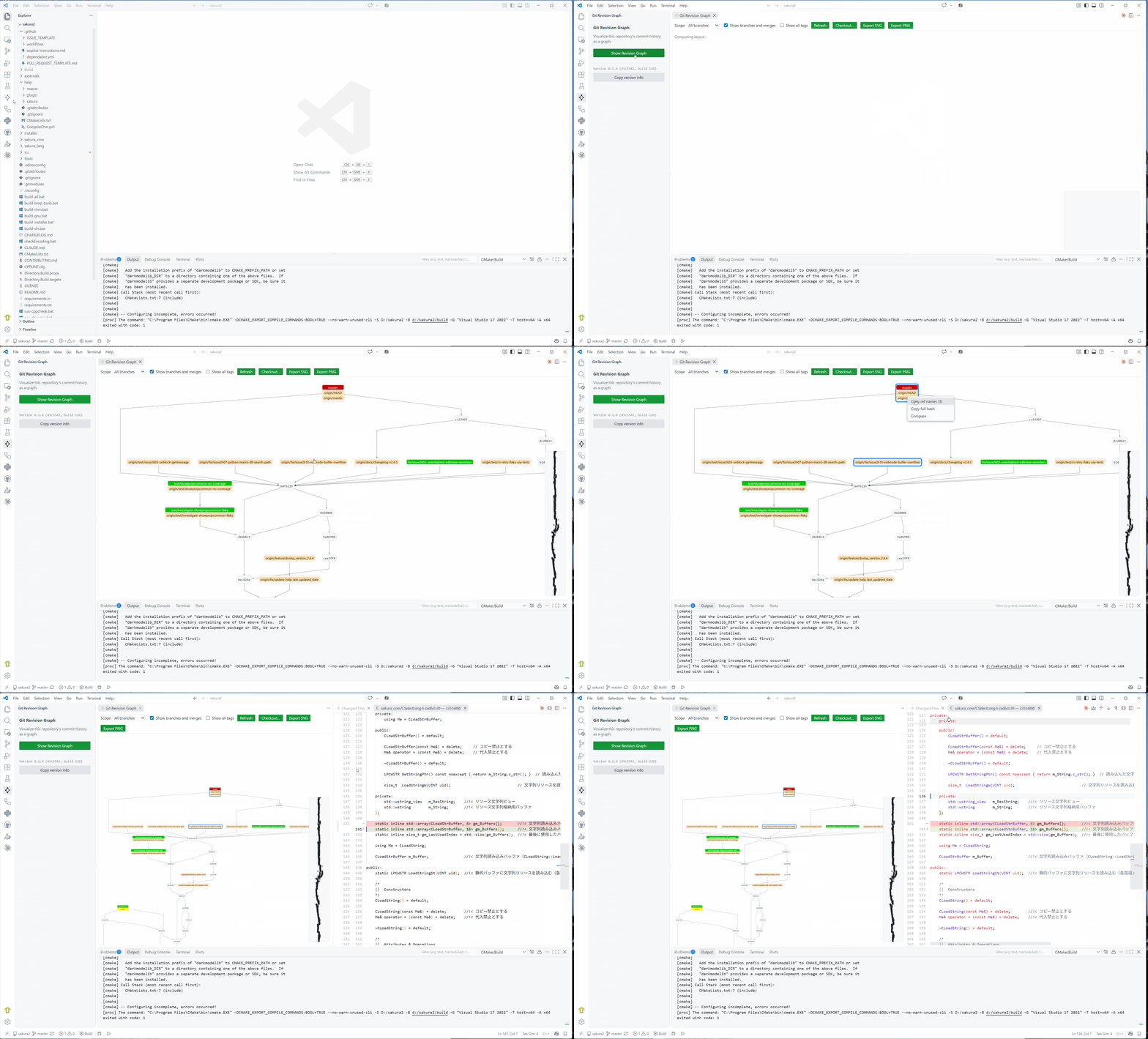
CodeZero AI IDE puts a commit graph, diffs, blame and a coding agent in one VS Code panel — and connects them to your organisation's indexed code, so the agent can answer questions about repositories that are not checked out on this machine.
This repository is for issues, documentation and listing material. The extension's source is not public.
Install
Search CodeZero AI IDE in the Extensions view, or:
ext install frigga.code0
Organisations that install by hand can get the .vsix from
frigga.cloud instead.
Then open the CodeZero icon in the activity bar and sign in with your Frigga account. A fresh install is always signed out, and the panel is where sign-in happens.
What it does
Five tools, from the strip at the top of the sidebar:
| Git Tree | This repository's commit history — branches, tags, stashes and the working tree in one view. Stage, commit, fetch, pull, push, branch, merge, rebase, stash and compare. File history, line history, and inline blame in the editor. |
| Chat | Ask about your code. The agent works against your open repository and your organisation's index. |
| Functions | Trace a feature across the code — its entry point, the modules a request passes through, the services it calls and the collections it touches, each node carrying the file:line that proves it. Including the parts that live in another repository. |
| Tasks | Work items and their plans — the plan, its phases, and what is left, beside the code. |
| Graph | The dependency graph across every repository your organisation has indexed, not just the one you have open. |
And two panes beneath them:
Files — every repository the index knows about. The one you have open expands to your real working tree, uncommitted changes and all; the rest expand to their indexed file list, and those files open too. That is the difference between a listing and something you can actually read.
Session Usage — what you have run, day by day, over the last 7, 30 or 90 days.
The agent
CodeZero AI IDE drives the Claude Code you already have, with its own tools attached and a gate in front of your files.
Three modes, cycled with one click in the chat header:
- Auto (the default) — small named changes are made directly and each edit asks you; anything bigger gets a plan you approve once.
- Planned — every change goes through a plan you approve once. Nothing is written before that.
- Normal — never a plan; you confirm each change.
The plan gate. Before you approve, the agent can write in exactly one place:
~/.code0/plans, outside every repository, because a plan is the thing a human
reads in order to approve. When you approve, the extension opens write access to
the repositories that plan named and the exact commands it declared. A write
into another checkout of an organisation repository asks first, naming the
repository; anywhere else is refused outright.
The scope is opened by the extension when it sees your approval, never by a tool. "The agent cannot change code until you approve" is a property of what exists, not a rule the model is asked to follow.
An approved npm test permits npm test — not npm test && rm -rf /. And
actions you cannot take back, like git push or opening a pull request, are
never offered an "allow always" button.
Tasks are your team's, not just yours. Work items belong to the organisation, so a colleague can find the plan you are waiting on. The panel keeps yours, your other tabs' and your team's work apart, and the agent cannot approve its own plan.
Coffee mode. Once a plan is approved and its questions answered, you can step away and let the agent finish the work it was approved to do. Every ask becomes a yes and the verification you declared runs at the end — but nothing is committed, pushed or published while you are gone.
Beyond the repository you have open
Two words carry most of the meaning in the Files pane:
- indexed — the index knows this repository. It can be searched, traced and read from anywhere.
- cloned — there is a checkout of it on this machine.
Files follow the same distinction. A file marked local is your working copy, including changes you have not committed. A file marked cloud is the indexed copy: the last commit indexed, not anyone's working tree.
Click a repository that cannot be found on disk and you are offered Locate first, and only then Clone — a second copy of a repository you already have is nobody's idea of a good outcome. You always choose where a clone lands.
Requirements
-
VS Code 1.90.0 or newer. VS Code itself — the forks are not supported.
-
A Frigga account with CodeZero AI IDE access. Without it, sign-in succeeds and then nothing else can, so it is worth knowing before you install rather than after.
-
A
claudebinary on your PATH, for agent turns only. CodeZero AI IDE runs the Claude Code you already installed and signed into rather than shipping its own, and bills to whichever credential you have configured. Git Tree, blame and the repository index all work without it.npm install -g @anthropic-ai/claude-code claude # run once, to sign in
Settings
| Setting | What it is |
|---|---|
code0.autoUpdate |
on, notify or off. Governs optional updates; a version the backend requires is installed regardless, because an unsupported client is refused by the server and would otherwise have no way back. |
code0.repoScanRoots |
Extra directories to search for your git checkouts, on top of your home directory and the folders you have open. Absolute paths only; ~ is expanded. |
code0.repoScanDepth |
How many levels below each search root to look. The default of 4 reaches ~/Documents/Team Name/project. |
code0.repoScanExclude |
Directories to leave out. An entry containing a slash is an absolute path; anything else is a directory name skipped wherever it appears. |
code0.backendUrl |
The backend, which serves plans, tasks and the repository index. Leave empty for the hosted default. |
code0.identityUrl |
The Frigga identity API, used for the token exchange and the entitlement check. Leave empty for the hosted default. |
code0.accountsUrl |
The sign-in page. Leave empty for the hosted default. |
The three URLs exist so you can work against a self-hosted deployment without rebuilding the extension. Most people never touch them.
Commands
From the command palette:
code0: Sign In / code0: Sign Out |
|
code0: Toggle Inline Blame |
|
code0: Open Repository Graph |
|
code0: Refresh Files |
Also on the Files pane's title bar |
code0: Check for Updates |
Updating
Installed from the Marketplace, VS Code updates the extension on its own schedule.
A .vsix install keeps itself current instead: it checks on activation, when
the window regains focus, and every few hours; when a newer build exists it
downloads it, verifies its checksum, installs it and offers to reload.
code0: Check for Updates runs the same check on demand.
If a build falls below the minimum the backend supports, the panel says so and offers a manual install path — the server refuses older clients outright, so there is no version in which it silently half-works.
Support
Please open an issue, or email hello@frigga.cloud — for a problem, for access, or for a promo code.
Either way, include:
- the
build:line from the code0 channel in the Output panel (Ctrl/Cmd+Shift+P→ Output, then pick code0 from the dropdown). It reports the version, the build number and the commit it was cut from. - your VS Code version
- your operating system
If the panel is ever blank or stuck, that Output channel is the first place to look; it carries the detail the notification does not.
Licence
Proprietary — see LICENSE. This repository holds documentation and listing material only, not the extension's source.
Copyright © Frigga Cloud Labs.