
HomeClaw
Control your Apple HomeKit smart home from AI assistants, the terminal, and automation tools.
HomeClaw exposes your HomeKit accessories through a command-line tool, a stdio MCP server, and plugins for Claude Code and OpenClaw. It runs as a lightweight macOS menu bar app.
Screenshots
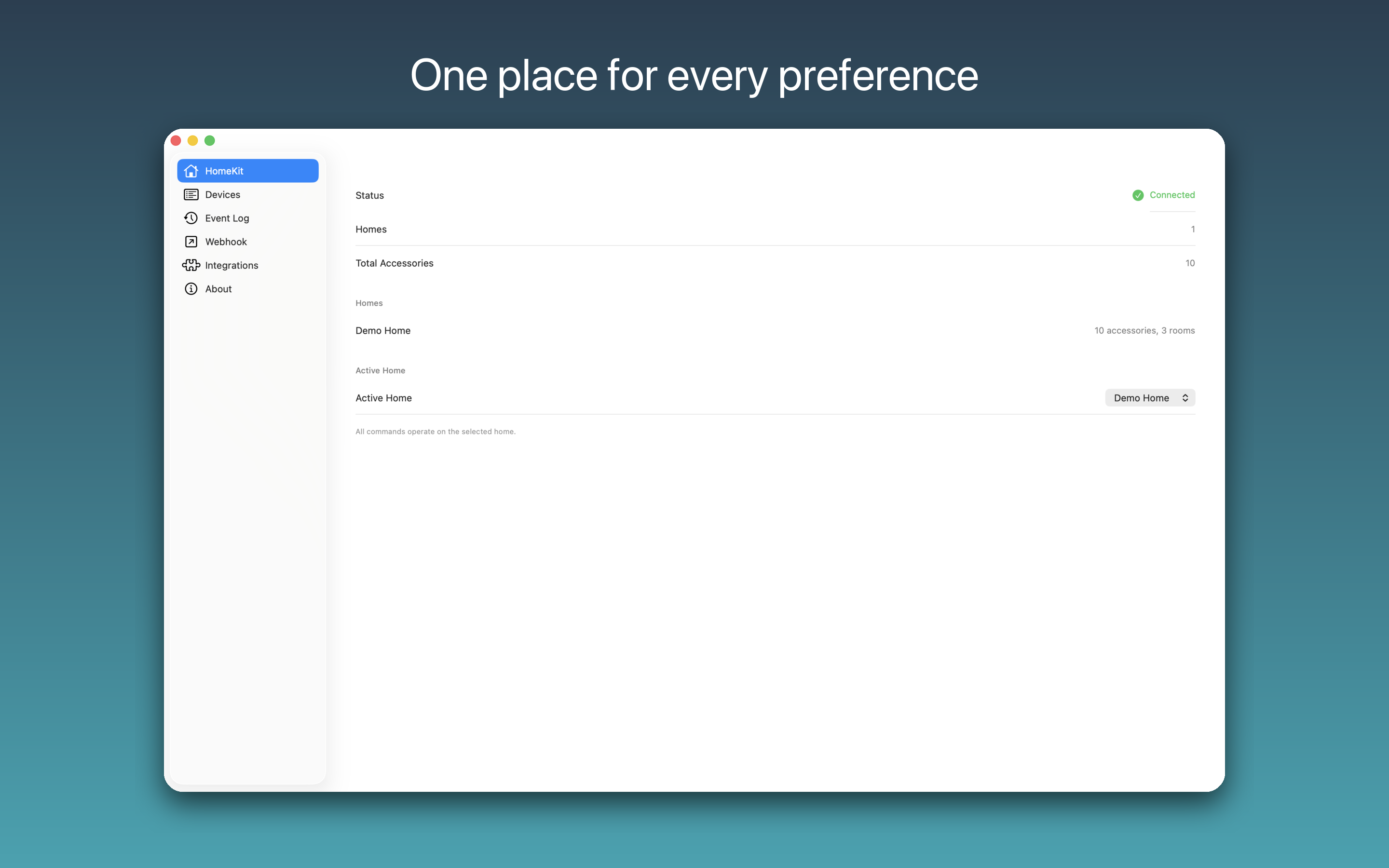
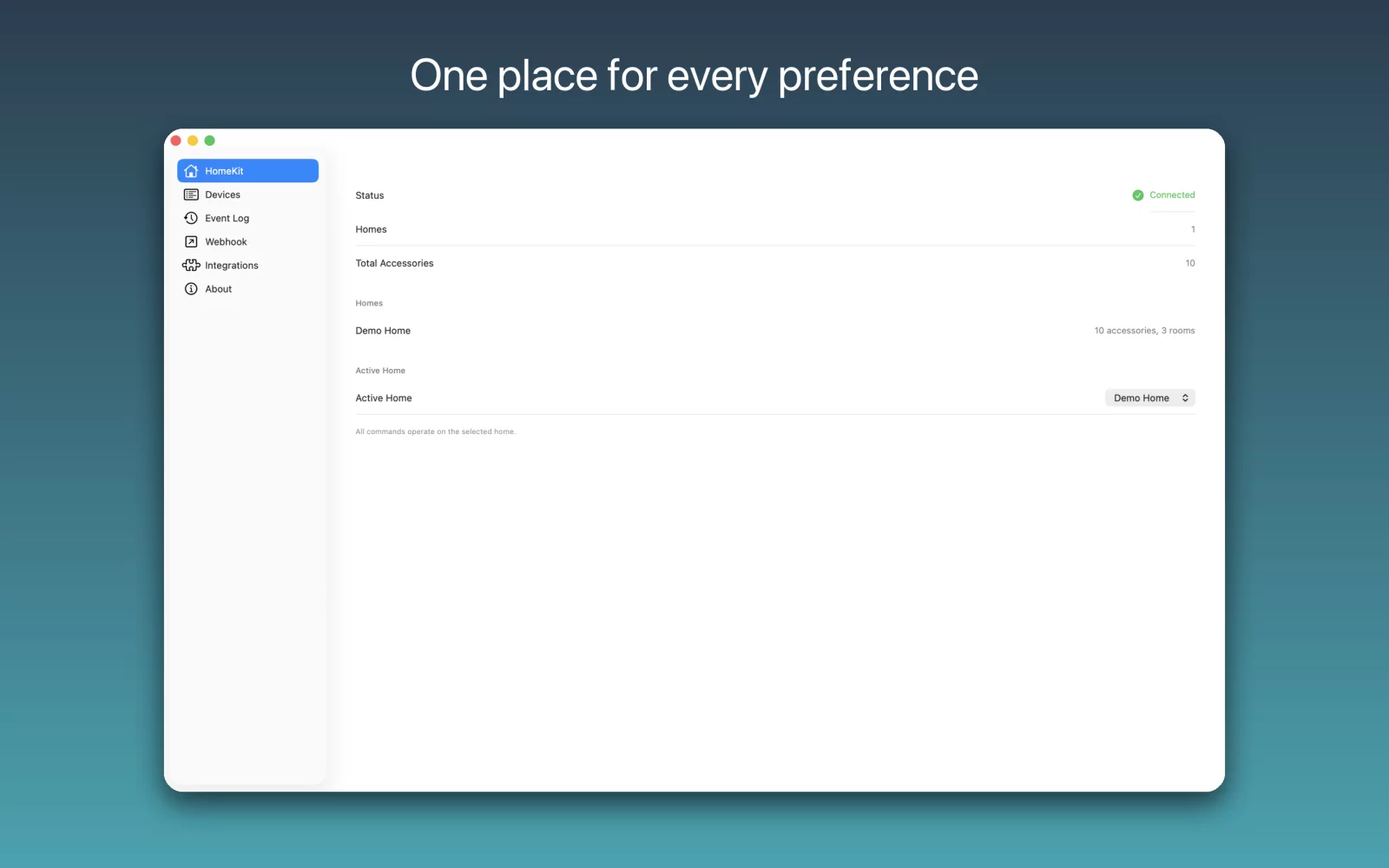
Settings — every preference in one place
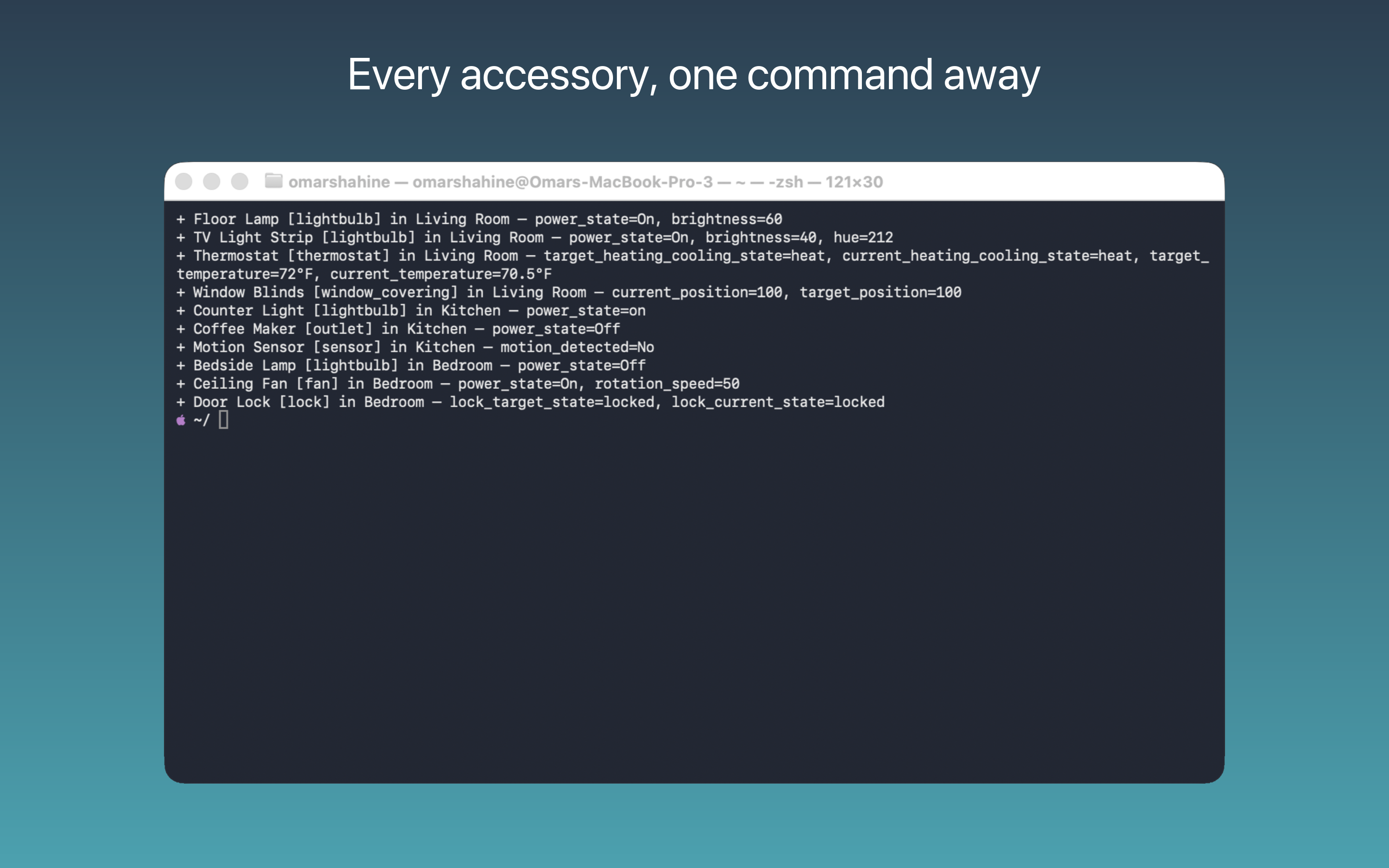
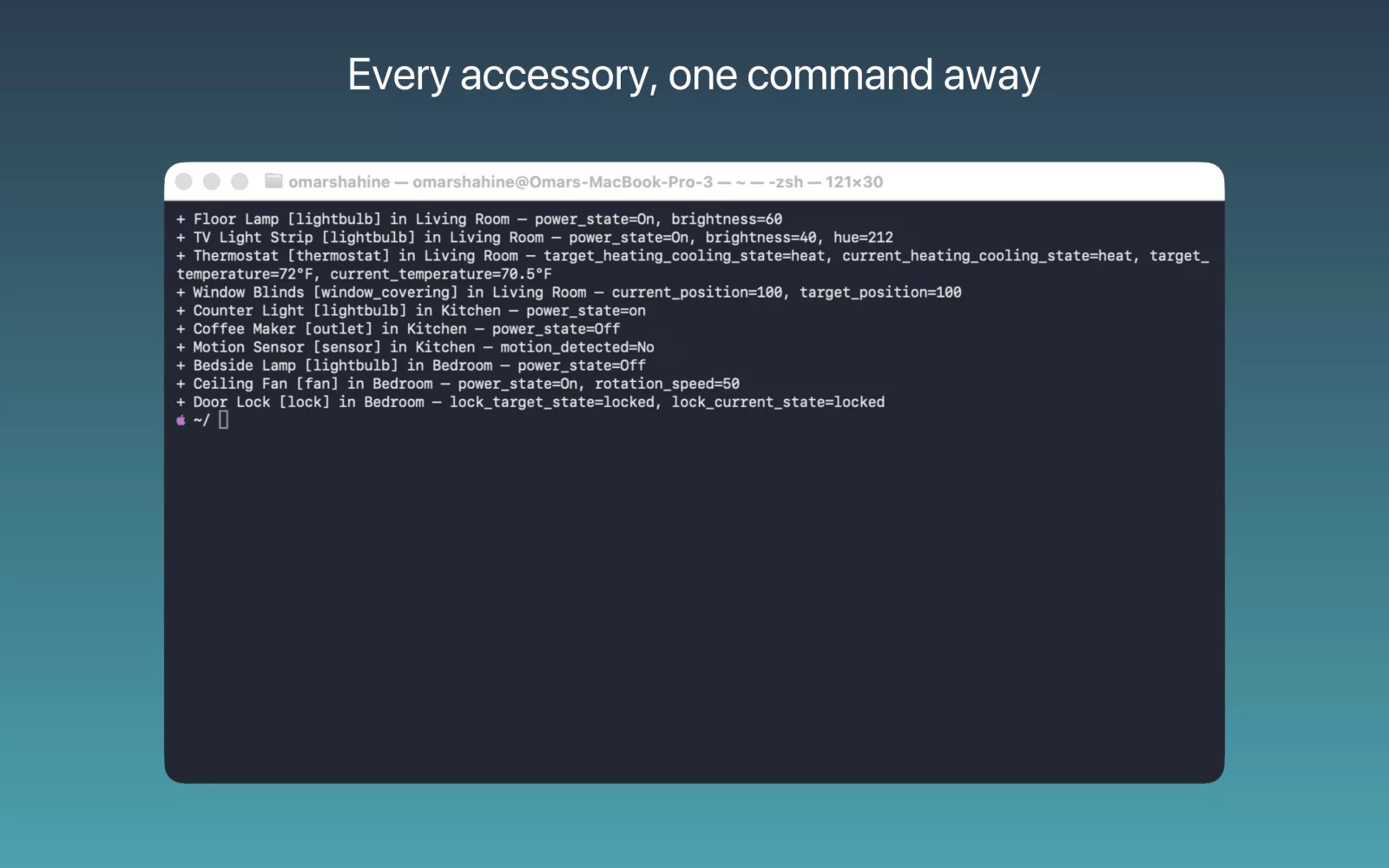
CLI — every accessory, one command away
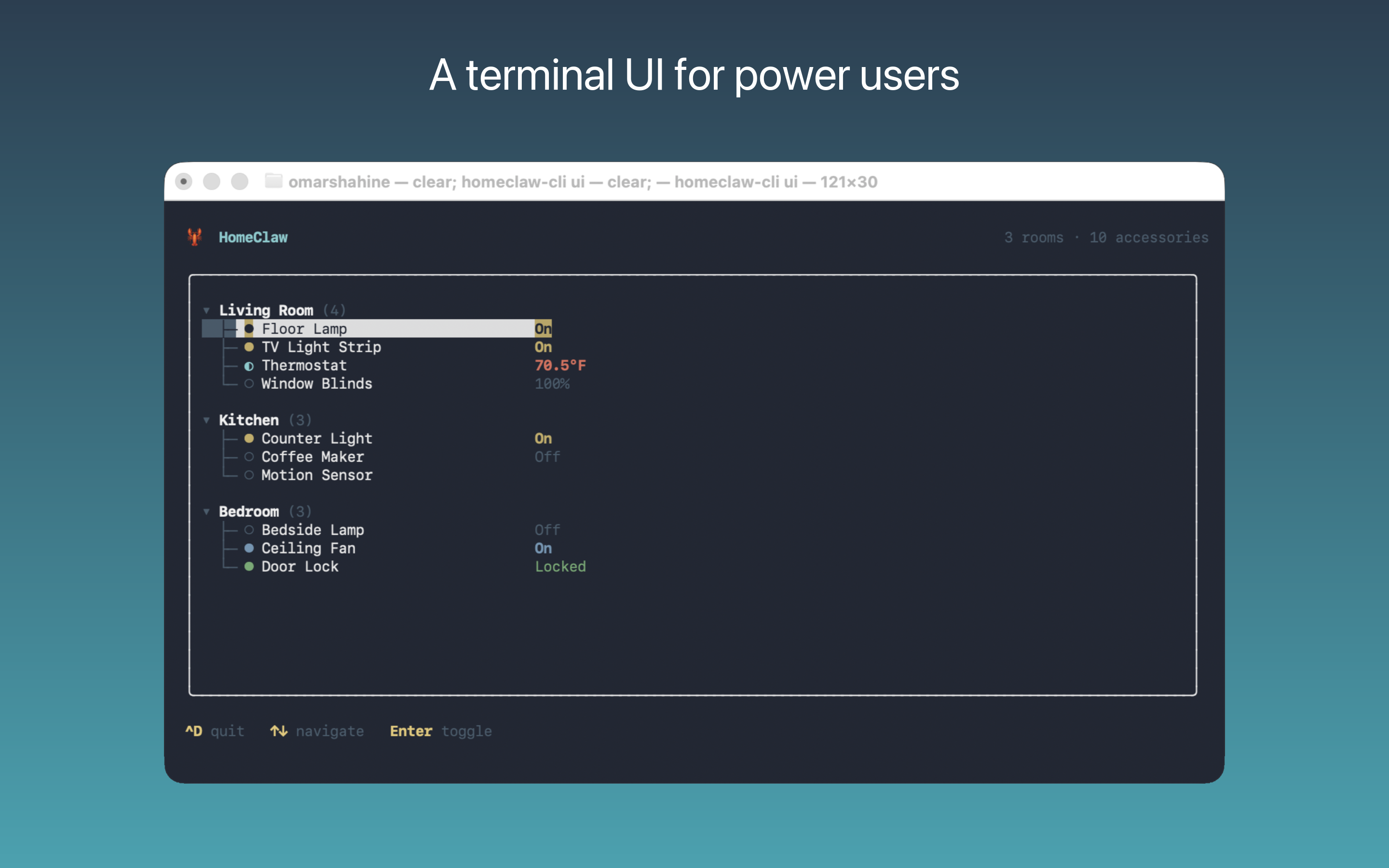
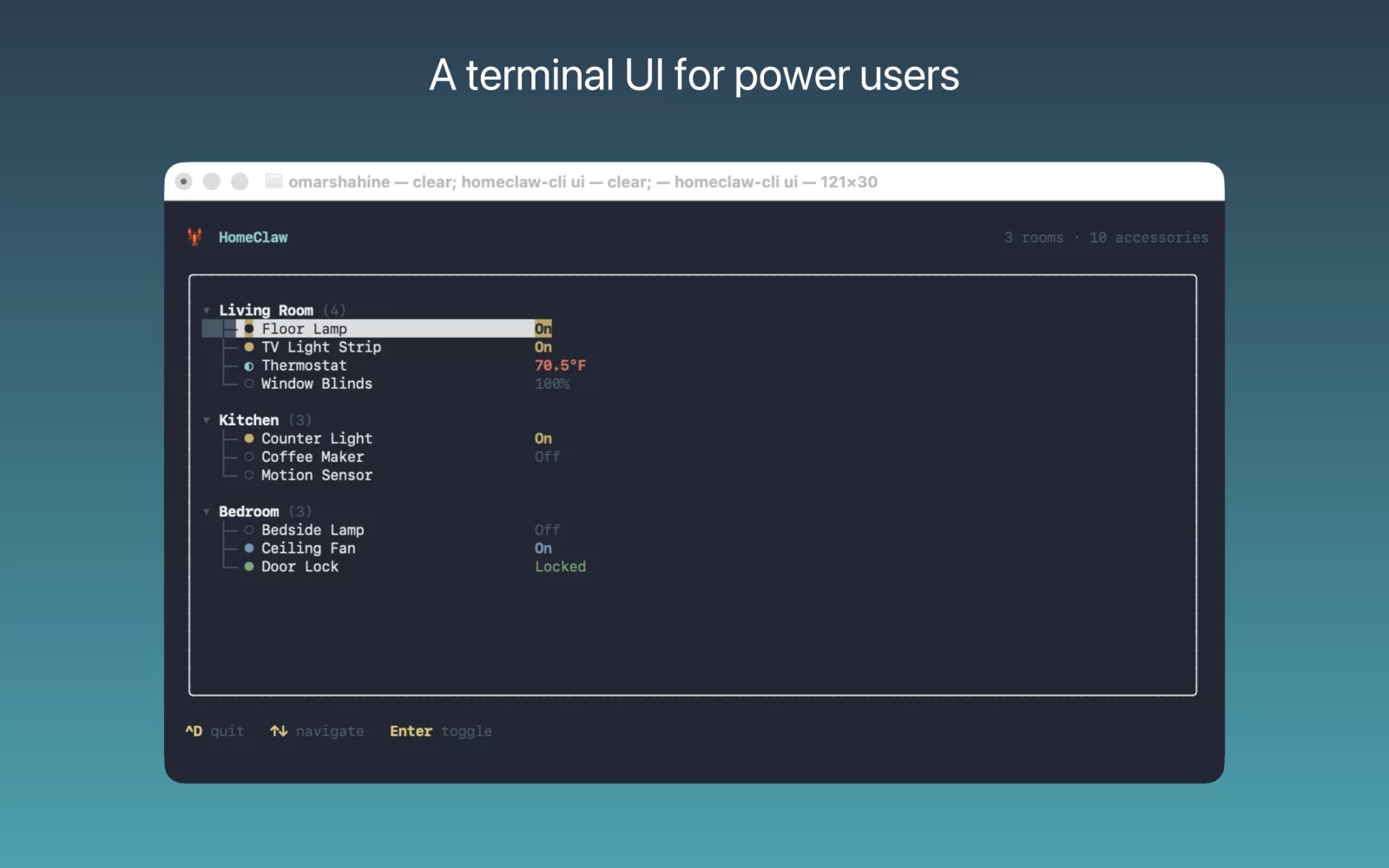
Terminal UI — for power users
Why HomeClaw?
Apple HomeKit has no public API, no CLI, and no way to integrate with AI assistants or automation pipelines. HomeClaw bridges that gap with a Mac Catalyst app that talks to HomeKit on your behalf and exposes a clean API surface.
- Ask Claude or OpenClaw to "turn off all the lights" or "set the thermostat to 72"
- Script your smart home from the terminal
- Build automations that go beyond what the Home app offers
- Search and control devices by name, room, category, or semantic type
Architecture
Claude Code --> Plugin (.claude-plugin/) --> stdio MCP server (Node.js) --+
Claude Desktop --> stdio MCP server (Node.js) ----------------------------+
OpenClaw --> Plugin (openclaw/) --> homeclaw-cli --------------------------+
                                                                          v
                                               Unix socket (JSON newline-delimited)
                                                                          |
                                               HomeClaw (Mac Catalyst app)
                                                 +-- HomeKitManager (direct, in-process)
                                                 +-- SocketServer (for CLI/MCP clients)
                                                 +-- macOSBridge.bundle (NSStatusItem menu bar)
Single-process design. Apple's HMHomeManager requires a UIKit/Catalyst app with the HomeKit entitlement. By making the entire app Catalyst, HomeKit access is direct (no IPC), signing is unified (single archive), and App Store submission is clean. The macOSBridge plugin bundle provides the native macOS menu bar via NSStatusItem.
Native MCP for Hermes
HomeClaw must be running before connecting. In Settings → Integrations, enable Streamable HTTP MCP. This persistent setting is off by default; turning it off stops the HTTP listener without disabling existing stdio or Unix-socket clients. When enabled, the Catalyst app owns a loopback-only Streamable HTTP endpoint:
http://127.0.0.1:9090/mcp
Loopback binding prevents remote network access; no bearer token or shell launch is required. Readiness is available at http://127.0.0.1:9090/healthz. In Hermes, add:
mcp_servers:
  homeclaw:
    url: http://127.0.0.1:9090/mcp
    timeout: 120
    connect_timeout: 30
The stdio MCP server remains supported for Claude Desktop, Claude Code, and OpenClaw. Use the existing npm run build:mcp and stdio setup when a client cannot use native HTTP.
Native transport development checks
swift test covers the CLI package only. To build and execute the full native
Catalyst HomeClawTests suite on macOS 26 or later:
npm install
node scripts/check-mcp-schema-parity.mjs
xcodegen generate
bash scripts/test-catalyst.sh
The test script saves the xcodebuild log and .xcresult under
.build/catalyst-test-evidence/ and fails on empty or skipped test results. For a
repeat run, set CATALYST_EVIDENCE_DIR to a fresh directory. Unit-test hosting
suppresses live HomeKit, socket, and menu-bar startup; these tests are not proof
of HomeKit provisioning or real accessory access.
lib/schemas.js is the canonical tool schema. The Swift descriptors are readable
JSON and CI compares every descriptor against the Node export and the XCTest
fixture. After an intentional schema edit, regenerate both reviewed copies with
node scripts/check-mcp-schema-parity.mjs --write, then inspect their diff. The
HTTP read-only allowlist remains separate and deny-by-default; adding a tool to
the canonical schema does not expose it over HTTP.
Install
Marketing site with screenshots and full pitch: homeclaw.omarknows.app.
Mac App Store (Recommended)
HomeClaw is live on the Mac App Store:

- Open in the Mac App Store and install
- Launch HomeClaw -- grant HomeKit access when prompted
- The menu bar icon appears. Click it to see your connected homes.
App Store builds are fully signed and notarized, so HomeKit works without any developer account setup.
TestFlight Beta
Want early access to in-flight builds before they ship to the App Store?
- Join the TestFlight Beta
- Install HomeClaw from TestFlight
- Launch the app -- grant HomeKit access when prompted
TestFlight builds are signed the same way as App Store builds, so HomeKit works out of the box. You'll get new features (like the automations work in v1.0.1) before they hit the App Store.
After installing
Set up your AI integrations:
- Claude Desktop -- one-click install from Settings > Integrations, or add the MCP server config manually
- Claude Code -- install the plugin from GitHub
- OpenClaw -- one-click install from Settings > Integrations, or set up manually
Build from Source
Prerequisites and setup for building from source
Prerequisites
- macOS 26 (Tahoe) or later
- Xcode 26+ with Swift 6.2
- XcodeGen:
brew install xcodegen - Node.js 20+ (for the MCP server wrapper)
- Apple Developer account with HomeKit capability enabled
Why is a developer account required? Apple does not provide a public HomeKit API for macOS. The only way to access HomeKit is through
HMHomeManager, which requires thecom.apple.developer.homekitentitlement and a provisioning profile that covers your Mac's hardware UDID. Apple restricts this entitlement to development signing and App Store distribution -- it cannot be included in Developer ID (notarized) builds. This means every Mac that runs HomeClaw must be registered as a development device in your Apple Developer portal, and the app must be built with your team's signing identity. There is no way around this; it's an Apple platform restriction, not a HomeClaw limitation.
Setup
git clone https://github.com/omarshahine/HomeClaw.git
cd HomeClaw

# Configure your Apple Developer Team ID (one-time setup)
echo "HOMEKIT_TEAM_ID=YOUR_TEAM_ID" > .env.local

# Install Node.js dependencies
npm install

# Build everything and install
scripts/build.sh --release --install
Find your Team ID at developer.apple.com/account under Membership Details.
Launch from /Applications or: open "/Applications/HomeClaw.app"
On first launch, grant HomeKit access when prompted. The menu bar icon appears -- click it to see your connected homes.
Note: Apple restricts the HomeKit entitlement to development signing and App Store distribution. Developer ID builds cannot access HomeKit. See Why Development Signing? for details.
MCP Tools
The stdio MCP server wraps homeclaw-cli and exposes these tools:
| Tool | Description |
|---|---|
homekit_status |
Check bridge connectivity and accessory count |
homekit_accessories |
List, get details, search, or control accessories |
homekit_rooms |
List rooms and their accessories |
homekit_scenes |
List, get details, trigger, import, or delete scenes |
homekit_device_map |
LLM-optimized device map with semantic types and aliases |
homekit_manage |
Manage home structure: rename accessories, individual services, and rooms; set a switch/outlet's Display As; list and manage accessory groups; create/remove rooms and zones, manage zone membership |
homekit_automations |
Manage automations: list, create (button, sensor or time-of-day triggers with conditions, weekdays and auto-revert), edit in place, add conditions, link to scenes, enable/disable, plan accessory replacement |
homekit_events |
Query recent HomeKit events (characteristic changes, reachability changes, scene triggers, control actions) |
homekit_webhook |
Manage webhook configuration: setup (configure + auto-test), test, reset circuit breaker, status |
homekit_config |
View or update configuration (set active home, filtering) |
Connecting an MCP Client
Any MCP-compatible client can connect via the stdio server, which wraps homeclaw-cli and requires no authentication (the HomeClaw app must be running for the socket). Add this to your MCP client config (e.g. claude_desktop_config.json):
{
  "mcpServers": {
    "homeclaw": {
      "command": "node",
      "args": ["/Applications/HomeClaw.app/Contents/Resources/mcp-server.js"]
    }
  }
}
The mcp-server.js is bundled inside the app. You can also use the Integrations tab in Settings to install this automatically.
CLI
The homeclaw-cli command-line tool communicates directly over the Unix domain socket. All read commands support --json for machine-readable output. Day-to-day commands also accept --home <name-or-uuid> to target a specific HomeKit home without changing the configured default (config --default-home).
# List accessories
homeclaw-cli list
homeclaw-cli list --room "Kitchen"
homeclaw-cli list --category thermostat
homeclaw-cli list --home "Cabin" --room "Kitchen"   # Scope to a home (name or UUID)

# Control devices
homeclaw-cli set "Living Room Light" brightness 75
homeclaw-cli set "Front Door Lock" lock_target_state locked
homeclaw-cli set "Thermostat" target_temperature 72
homeclaw-cli set "Kitchen Light" power true --home "Cabin"

# Disambiguate when a characteristic exists on multiple services (e.g. bridged TVs)
homeclaw-cli set "TV" active 0 --service-type 000000D8-0000-1000-8000-0026BB765291

# Get detailed device info
homeclaw-cli get "Kitchen Light" --json
homeclaw-cli get "Kitchen Light" --home "Cabin"

# Search (optionally scoped to one home)
homeclaw-cli search "bedroom" --category lightbulb
homeclaw-cli search "lamp" --home "Cabin"

# Scenes
homeclaw-cli scenes
homeclaw-cli scenes --home "Cabin"
homeclaw-cli get-scene "Good Night" --json        # Full detail: all actions
homeclaw-cli trigger "Good Night"
homeclaw-cli trigger "Good Night" --home "Cabin"

# Scene management
homeclaw-cli delete-scene "Old Scene"
homeclaw-cli import-scene scene.json --dry-run   # Preview before creating
homeclaw-cli import-scene scene.json              # Create scene from JSON
homeclaw-cli assign-rooms rooms.json --dry-run    # Preview room assignments
homeclaw-cli assign-rooms rooms.json              # Bulk-assign accessories to rooms

# Home management
homeclaw-cli rename "Front Door" "Front Door Lock"          # Rename accessory
homeclaw-cli rename "Dual Relay" "Downlight 2" --service-name "Switch 2"  # Rename one gang's tile
homeclaw-cli set-display-as "Dual Relay" light --service-index 1         # Display As: light / fan / switch / outlet / default
homeclaw-cli groups                                          # Home app accessory groups and members
homeclaw-cli groups create "Ceiling Lights" "Downlight 1" <service-uuid>  # One tile for several lights (same kind)
homeclaw-cli groups add "Ceiling Lights" "Stairs LED"       # Also: remove / rename / delete, --dry-run
homeclaw-cli rename-room "Bedroom" "Primary Bedroom"        # Rename room
homeclaw-cli create-room "Nursery"                          # Create room
homeclaw-cli remove-room "Old Room"                         # Remove room
homeclaw-cli remove-accessory "Broken Sensor"               # Remove accessory
homeclaw-cli create-zone "Upstairs"                         # Create zone
homeclaw-cli remove-zone "Old Zone"                         # Remove zone
homeclaw-cli add-room-to-zone "Bedroom" "Upstairs"          # Add room to zone
homeclaw-cli remove-room-from-zone "Bedroom" "Upstairs"     # Remove room from zone
homeclaw-cli rename "Front Door" "New Name" --dry-run       # Preview any mutation

# Automations (button programming)
homeclaw-cli automations                                     # List all automations
homeclaw-cli automations get "<name-or-uuid>"                # Detail view

# Scene-based: trigger an existing scene
homeclaw-cli automations create --name "Gym Lights" \
  --accessory "Gym Button" --scene "Gym On" --press single

# Inline actions: use UUIDs for target accessories to avoid name collisions
homeclaw-cli automations create --name "Sarah's Room Open" \
  --accessory "Office Button" \
  --action "BE21C139-413A-50F9-B97F-B9BDA06302A8:power:true" \
  --action "52195C6F-6FAA-5E52-AA56-840A6605EEAA:target_position:100" \
  --press single --service-index 1

# Multi-button preview
homeclaw-cli automations create --name "Open Blinds" \
  --accessory "Blinds Button" --scene "Open" \
  --service-index 1 --dry-run

# One gang of a multi-gang accessory: JSON row form (see "Targeting one gang" below)
homeclaw-cli automations create --name "Table Light Off" \
  --accessory "Dining Button" --press single \
  --action-json '{"accessory":"<uuid>","property":"power","value":"false","service_index":2}'

homeclaw-cli automations delete "<name-or-uuid>"             # Delete automation
homeclaw-cli automations enable "<name-or-uuid>"             # Enable
homeclaw-cli automations disable "<name-or-uuid>"            # Disable

# Edit in place (keeps the UUID; only the options passed change)
homeclaw-cli automations edit "Coffee Maker" --time 06:45 --days mon,tue,wed,thu,fri,sat
homeclaw-cli automations edit "Hall Motion" --time-after sunset --time-before sunrise --duration 300
homeclaw-cli automations edit "Porch Lights" --condition "Front Door:contact_state:0" --dry-run
homeclaw-cli automations edit "Porch Lights" --name "Porch at Dusk" --clear-duration

# Replacing an accessory: plan which automation actions move (writes nothing)
homeclaw-cli automations migrate-actions --replace-accessory "<old-uuid>=<new-uuid>[,<new-uuid>]"
homeclaw-cli automations migrate-actions --replace-accessory "<old>=<new>" --automation "<name-or-uuid>" --json
homeclaw-cli automations migrate-actions --replace-accessory "<old>=<new>" --apply  # Writes visible scenes only

# LLM-optimized device map
homeclaw-cli device-map
homeclaw-cli device-map --home "Cabin"

# Status and configuration
homeclaw-cli status
homeclaw-cli config --default-home "Main House"
homeclaw-cli config --filter-mode allowlist
homeclaw-cli config --list-devices

# Event log
homeclaw-cli events                         # Recent events (last 50)
homeclaw-cli events --since 1h              # Events from the last hour
homeclaw-cli events --since 2d --json       # Last 2 days, JSON output
homeclaw-cli events --type scene_triggered  # Filter by event type
homeclaw-cli events --type reachability_change --since 1d  # When accessories dropped off or came back

# Webhook configuration
homeclaw-cli config --webhook-url "http://127.0.0.1:18789"
homeclaw-cli config --webhook-token "your-secret-token"
homeclaw-cli config --webhook-enabled true
homeclaw-cli config --webhook-test           # Send test event, show HTTP response
homeclaw-cli config --webhook-reset          # Reset circuit breaker without toggling

# Webhook triggers
homeclaw-cli triggers                        # List all triggers
homeclaw-cli triggers add --label "Front Door" --accessory-id "<uuid>"
homeclaw-cli triggers add --label "Mailbox Open" --accessory-id "<uuid>" --characteristic contact_state
homeclaw-cli triggers add --label "Accessory offline" --characteristic reachable --value false
homeclaw-cli triggers update "<trigger-id>" --wake-mode now
homeclaw-cli triggers remove "<trigger-id>"

# Dry-run mutations (validate without actuating)
homeclaw-cli set "Front Door" lock_target_state locked --dry-run
homeclaw-cli delete-scene "Movie Night" --dry-run

# Auto-JSON: all commands output JSON when piped or when env var is set
homeclaw-cli status | jq .                   # Auto-detects non-TTY
OUTPUT_FORMAT=json homeclaw-cli list          # Force JSON via env var
Button Programming Notes
Inline vs scene: Use --action for simple button-to-device mappings. This creates a scene named after the automation. Use --scene to trigger an existing scene instead. Note: Apple's Home app uses a private API for hidden automation-only action sets; inline actions created via HomeClaw will appear as visible scenes in the Home app.
Doorbells exposing input_event on a HomeKit Doorbell service also support button automations (for example, --accessory "Front Doorbell" --press single). A lone doorbell needs no --service-index. When selecting among multiple button services, the index must match an actual ServiceLabelIndex; it is never an array position or an assumed doorbell index. Ambiguous matches are rejected.
Button modes: Some buttons (like Aqara AR009) support fast mode (2 buttons, single press each, instant response) or multi-event mode (1 button, single/double/long press, ~300ms delay). Use --service-index to target a specific button in fast mode.
Note that --service-index on automations create picks the trigger button. The service an inline action or condition writes to is picked per row, as below.
Targeting one gang of a multi-gang accessory
A dual relay or a 3-gang switch is one accessory with several services that all carry power. Any action or condition row can pick one of them with service_name, service_id, or service_index (the same selectors set takes). The positional accessory:property:value form has no room for a fourth field (it splits on the first two colons so values like 22:30 survive), so use the JSON row flags instead:
# Turn off both gangs of one dual relay
homeclaw-cli automations create --name "Dining Unoccupied" \
  --accessory "Dining FP2" --characteristic occupancy_detected --trigger-value false \
  --action-json '{"accessory":"ADA239D3-...","property":"power","value":"false","service_index":1}' \
  --action-json '{"accessory":"ADA239D3-...","property":"power","value":"false","service_name":"Table Light"}' \
  --dry-run

# Conditions take the same keys (--condition-json on create / create-time, flags on add-condition)
homeclaw-cli automations add-condition "Porch Lights" \
  --accessory "ADA239D3-..." --property power --value true --service-index 2
--action-json / --condition-json are repeatable, accept accessory, property (or characteristic), value, room, and the three selectors, and reject unknown keys. Rules for every surface (CLI, MCP, scene JSON):
- **With a s